MDT Technologies Object Server VisuControl Easy II Manuale utente

08/2023 - Version 1.0
Technical Manual
MDT technologies GmbH · Papiermühle 1 · 51766 Engelskirchen · Germany
Telephone +49 (0) 2263 880 · knx@mdt.de · www.mdt.de
Object Server VisuControl Easy II
VC-EASY.03
Further documents:
Data sheets:
https://www.mdt.de/en/for-professionals/downloads/datasheets.html
Assembly and operating instructions:
https://www.mdt.de/en/for-professionals/downloads/assembly-and-operation-instructions.html
Tips for MDT products:
https://www.mdt.de/en/for-professionals/tips-tricks.html

MDT technologies GmbH · Papiermühle 1 · 51766 Engelskirchen · Germany
Technical Manual
Object Server VisuControl Easy II [VC-EASY.03]
08/2023 - Version 1.0
Content
2 Overview...........................................................................................................................................4
2.1 Device overview.......................................................................................................................................4
2.2 Functions .................................................................................................................................................5
2.3 Wiring diagram ........................................................................................................................................7
2.4 Structure & operation..............................................................................................................................7
2.5 Commissioning........................................................................................................................................8
2.6 Use as a KNX IP interface .......................................................................................................................8
2.6.1 Adjusting the IP settings ..................................................................................................................9
2.6.2 Tunnelling channels........................................................................................................................10
2.7 Security..................................................................................................................................................11
2.7.1 KNX Secure .....................................................................................................................................11
2.7.2 Project password ............................................................................................................................11
2.7.3 Commissioning with KNX Secure active ........................................................................................12
2.8 Resetting to factory settings .................................................................................................................12
3 Smartphone / Tablet application (app)............................................................................................13
3.1 Download...............................................................................................................................................13
3.2 Appearance and operation....................................................................................................................13
3.3 Settings..................................................................................................................................................14
3.3.1 Server administration .....................................................................................................................15
3.3.1.1 VPN (iOS) ..................................................................................................................................16
3.3.2 Grouping of functions .....................................................................................................................17
4 Communication objects ..................................................................................................................18
4.1 Default settings of the communication objects....................................................................................18
5 ETS parameters ..............................................................................................................................25
5.1 General settings ....................................................................................................................................25
5.1.1 General............................................................................................................................................25
5.1.2 Formatting of areas.........................................................................................................................27
5.1.3 Formatting the function types ........................................................................................................27
5.1.4 Weather data...................................................................................................................................28
5.1.5 Web interface..................................................................................................................................29
5.1.6 Time/Date .......................................................................................................................................31
5.2 Functions 1 - x.......................................................................................................................................32
5.2.1 Functions – General parameters....................................................................................................33
5.2.2 Function type 1: Switch (General)..................................................................................................35
5.2.3 Function type 2: Light .....................................................................................................................37
5.2.3.1 Light on/off ...............................................................................................................................37
5.2.3.2 Dimming ...................................................................................................................................39


MDT technologies GmbH · Papiermühle 1 · 51766 Engelskirchen · Germany
Technical Manual
Object Server VisuControl Easy II [VC-EASY.03]
08/2023 - Version 1.0
5.2.4 Function type 3: Colour control (RGB/HSV)...................................................................................40
5.2.4.1 Control via RGB ........................................................................................................................40
5.2.4.2 Control via HSV.........................................................................................................................41
5.2.5 Function type 4: Blinds/Shutter .....................................................................................................43
5.2.5.1 Function selection: Blinds/Shutter ..........................................................................................43
5.2.5.2 Function selection: Blinds/Shutter with height position.........................................................44
5.2.5.3 Function selection: Blinds/Shutter with height and slat position...........................................44
5.2.6 Function type 5: Room temperature ..............................................................................................46
5.2.6.1 Function selection: Room temperature controller..................................................................47
5.2.6.2 Function selection: Room temperature controller with HVAC Mode......................................48
5.2.7 Function type 6: Scenes .................................................................................................................50
5.2.8 Function type 7: Multimedia...........................................................................................................51
5.2.9 Function type 8: Status...................................................................................................................52
5.2.10 Function type 9: Other..................................................................................................................55
5.2.11 Function type 10: Time switch.....................................................................................................61
5.3 Status logic ............................................................................................................................................62
5.4 Diagrams................................................................................................................................................64
5.5 Email functions......................................................................................................................................69
5.5.1 Status elements..............................................................................................................................69
5.5.2 Bit alarms........................................................................................................................................71
5.5.3 Text alarms (14 Byte) .....................................................................................................................73
5.5.4 Status reports .................................................................................................................................74
5.5.5 Special behaviour and error handling ............................................................................................76
6 Web interface .................................................................................................................................78
6.1 Calling up the web interface .................................................................................................................78
6.2 Web interface overview.........................................................................................................................78
6.3 Setting the email functionality..............................................................................................................79
6.4 Firmware update ...................................................................................................................................80
7 Index ..............................................................................................................................................81
7.1 List of gures .........................................................................................................................................81
7.2 List of tables ..........................................................................................................................................82
8 Appendix ........................................................................................................................................84
8.1 Legal provisions.....................................................................................................................................84
8.2 Disposal .................................................................................................................................................84
8.3 Assembly ...............................................................................................................................................84
8.4 History ...................................................................................................................................................84

MDT technologies GmbH · Papiermühle 1 · 51766 Engelskirchen · Germany
Technical Manual
Object Server VisuControl Easy II [VC-EASY.03]
08/2023 - Version 1.0
2 Overview
2.1 Device overview
This manual applies to the following devices (order number printed in bold).
■ VC-EASY.03 Object Server VisuControl Easy II, 2SU MDRC, with Android or IOS App

MDT technologies GmbH · Papiermühle 1 · 51766 Engelskirchen · Germany
Technical Manual
Object Server VisuControl Easy II [VC-EASY.03]
08/2023 - Version 1.0
2.2 Functions
Up to 200 functions can be selected from 10 function types:
■ Type 1: Switch (General)
■ Type 2: Light
■ Type 3: Colour control (RGB/HSV)
■ Type 4: Blinds / Shutter
■ Type 5: Room temperature
■ Type 6: Scenes
■ Type 7: Multimedia
■ Type 8: Status
■ Type 9: Other
■ Type 10: Time switch
The functions can be assigned to rooms, zones or function groups. In this way, different function types
(e.g. light, blinds/shutter and multimedia) can appear together in a room “living room” or in the zone
“ground floor”, or the entire lighting in the “Light” function group. The decisive factor here is the individual
operating concept.
Diagrams
A total of 8 data series can be recorded in the object server and displayed graphically in the app. The
datapoint type, recording interval, unit and scaling of each diagram are adjustable. The data series can be
displayed as lines or bar charts, for example to display a temperature curve or the amount of energy
supplied from a PV system.
Connection of the MDT time switch
In connection with a current MDT Time Switch from version .02 or (glass) Central Operation Unit Smart 68,
existing switching times can be conveniently adjusted and new switching times can be created directly in
the app.
Webcams
Images from up to 4 webcams can be displayed in the app. The refresh rate of the images is adjustable.
Weather data
The visualisation can display data provided via the KNX bus, such as outdoor temperature, wind speed and
brightness (for example from the “MDT Weather Station Home”) as well as rain and wind alarms.
IP interface with KNX Secure and time server
The MDT Object Server VisuControl Easy II can be used as a secure programming interface, with up to 4 parallel
KNX tunnelling connections. At the same time, the time and date can be made available by an NTP server
to the devices connected via the KNX bus.

MDT technologies GmbH · Papiermühle 1 · 51766 Engelskirchen · Germany
Technical Manual
Object Server VisuControl Easy II [VC-EASY.03]
08/2023 - Version 1.0
Email functions
Status changes, bit alarms, 14-byte text alarms and status reports can be sent automatically by the object
server to up to 3 email recipients. For example, the collected status of up to 30 individual elements can be
sent weekly, or on a specic day of the month, as a status report in a single email. Bit alarms can send
faults from the heating or wallbox, for example.
Status logic
A status logic links up to ten 1-bit input objects logically and displays the result in the app. The logic
function can be AND, OR, NAND, NOR. This allows, for example, the status of all window contacts per floor
to be grouped and visualised.
Updateable via web interface
If necessary, the MDT Object Server VisuControl Easy II can be updated via the web interface.
Long frame support
The MDT Object Server VisuControl Easy II supports “Long Frames” (longer telegrams). These contain
more usable data per telegram, which signicantly reduces the programming time with the ETS.

MDT technologies GmbH · Papiermühle 1 · 51766 Engelskirchen · Germany
Technical Manual
Object Server VisuControl Easy II [VC-EASY.03]
08/2023 - Version 1.0
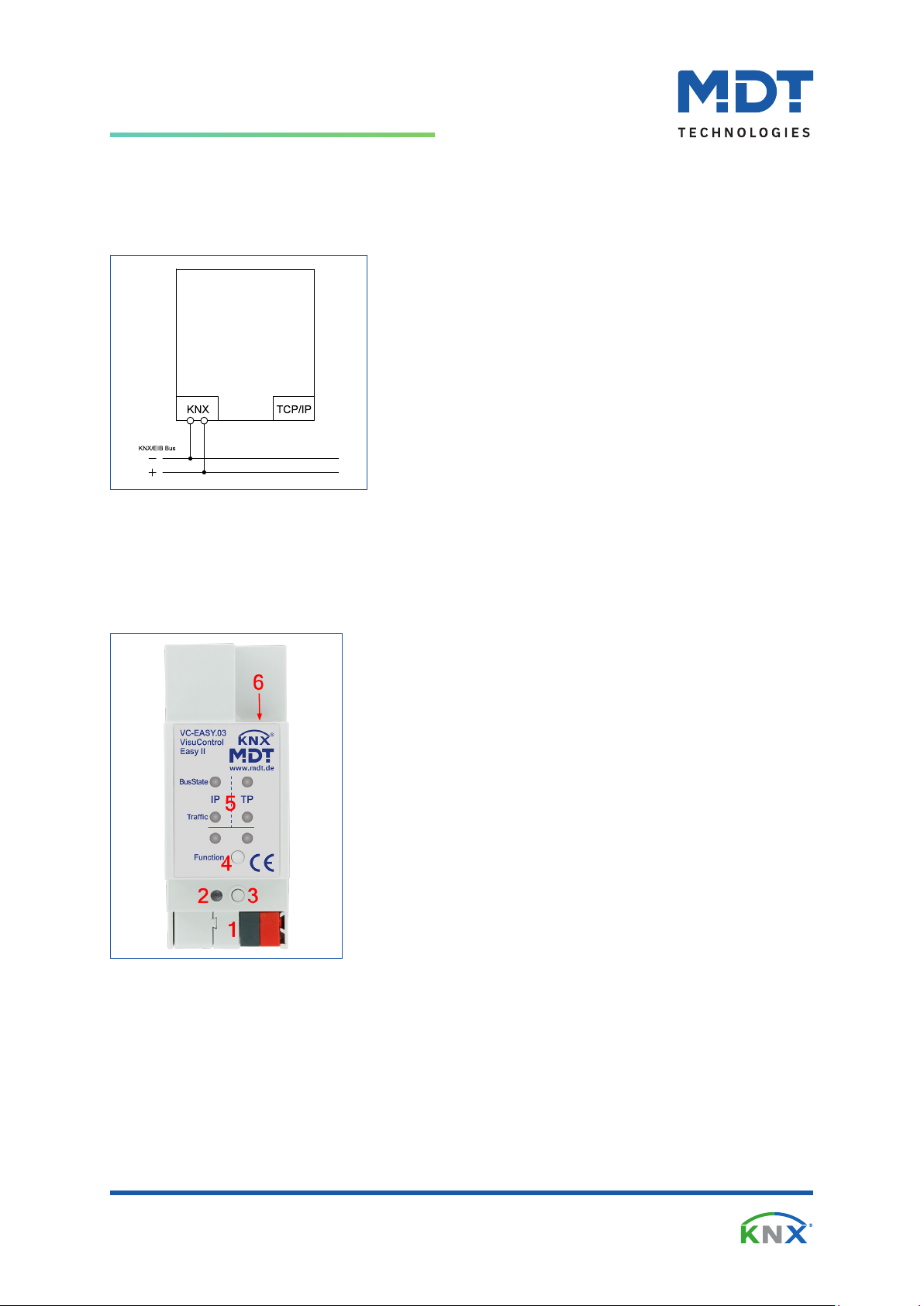
2.3 Wiring diagram
Figure 1: Wiring diagram
2.4 Structure & operation
The following picture shows the structure of the device:
Figure 2: Structure & operation
1 = Bus connecting terminal
2 = Programming LED
3 = Programming button
4 = Function button
5 = Status LEDs
6 = RJ45 connector

MDT technologies GmbH · Papiermühle 1 · 51766 Engelskirchen · Germany
Technical Manual
Object Server VisuControl Easy II [VC-EASY.03]
08/2023 - Version 1.0
2.5 Commissioning
1. Wiring of the device according to the wiring diagram.
2. Establish an Ethernet connection to the existing network.
3. Switch on the bus voltage.
4. Briefly press the programming button on the device (programming LED lights up)
5. Set and program the physical address in the ETS.
(Programming LED switches off)
6. Set and program the settings in the application program.
Note: After downloading the application program or after the bus voltage returns, the linked group
addresses are queried via the KNX bus for synchronisation.
2.6 Use as a KNX IP interface
The object server can be used as a KNX IP interface. Connections to the KNX bus can be established by
means of 4 tunnelling addresses.
In its initial condition, the object server expects an IP address from a DHCP server. As soon as the device
has received an IP address (for example from an Internet router), it appears as a programming interface
within the ETS and can be used to program the KNX components.
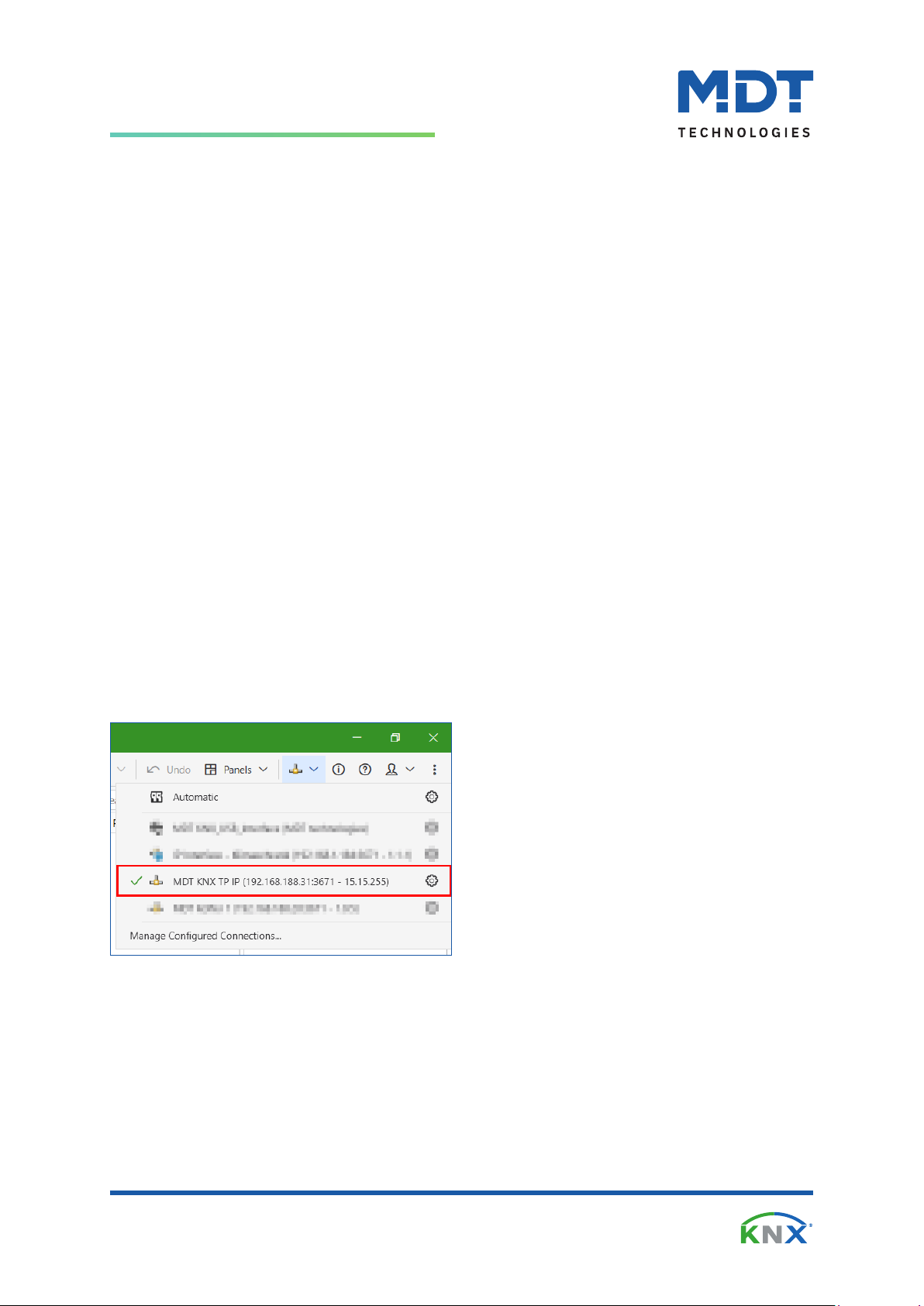
The interface is selected in the ETS6 (in the open project) in the top right-hand corner.
Figure 3: Interface selection in ETS6

MDT technologies GmbH · Papiermühle 1 · 51766 Engelskirchen · Germany
Technical Manual
Object Server VisuControl Easy II [VC-EASY.03]
08/2023 - Version 1.0
2.6.1 Adjusting the IP settings
In its initial condition, the object server expects an IP address from a DHCP server.
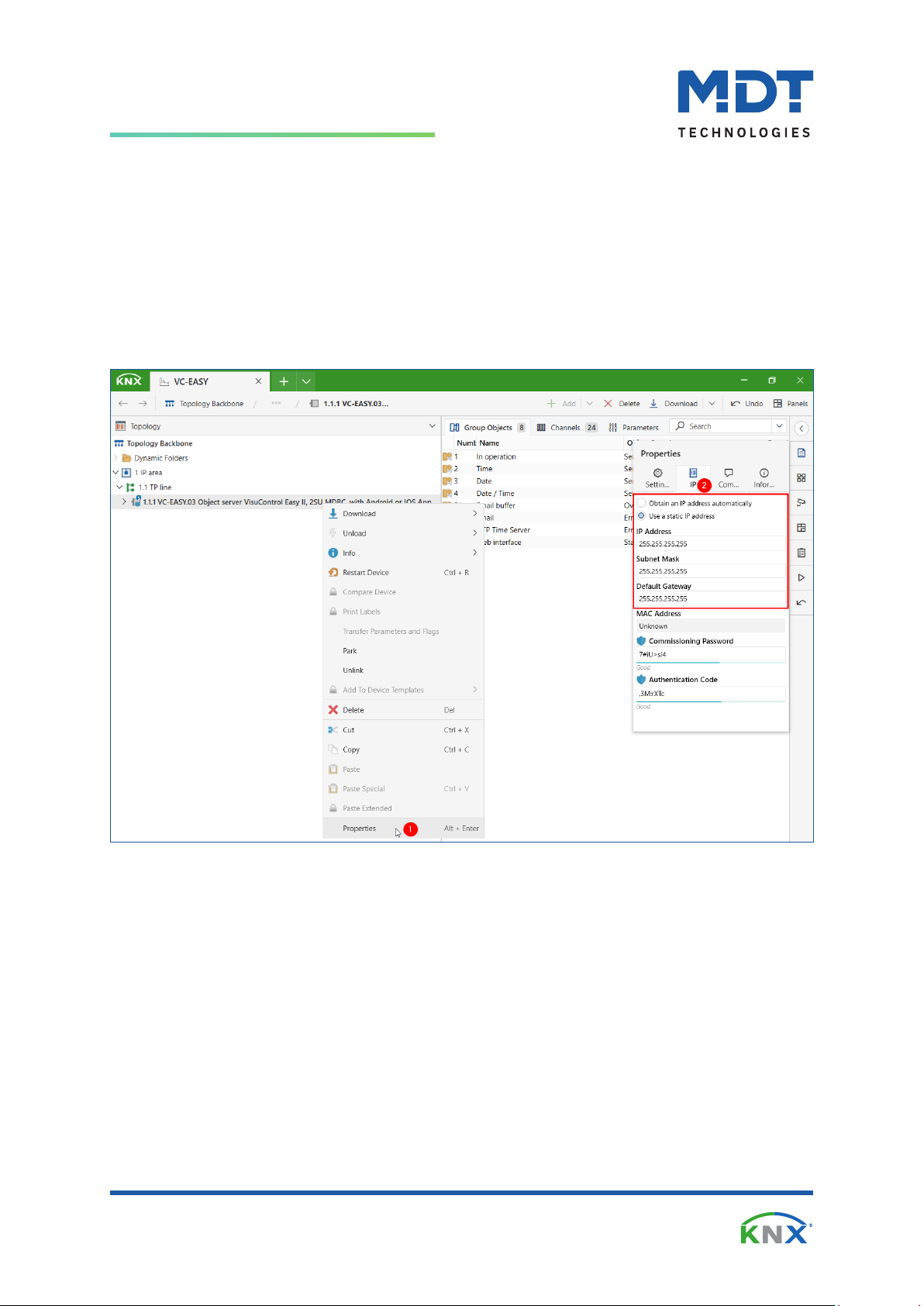
If, on the other hand, a xed IP address is to be used, this must be set in the properties of the application
program.
The “Properties” window is called up by right-clicking (1) on the application program and opens at the
right edge of the screen. All general settings for a xed IP address can now be made via the “IP” tab (2).
Figure 4: Adjusting the IP settings

MDT technologies GmbH · Papiermühle 1 · 51766 Engelskirchen · Germany
Technical Manual
Object Server VisuControl Easy II [VC-EASY.03]
08/2023 - Version 1.0
2.6.2 Tunnelling channels
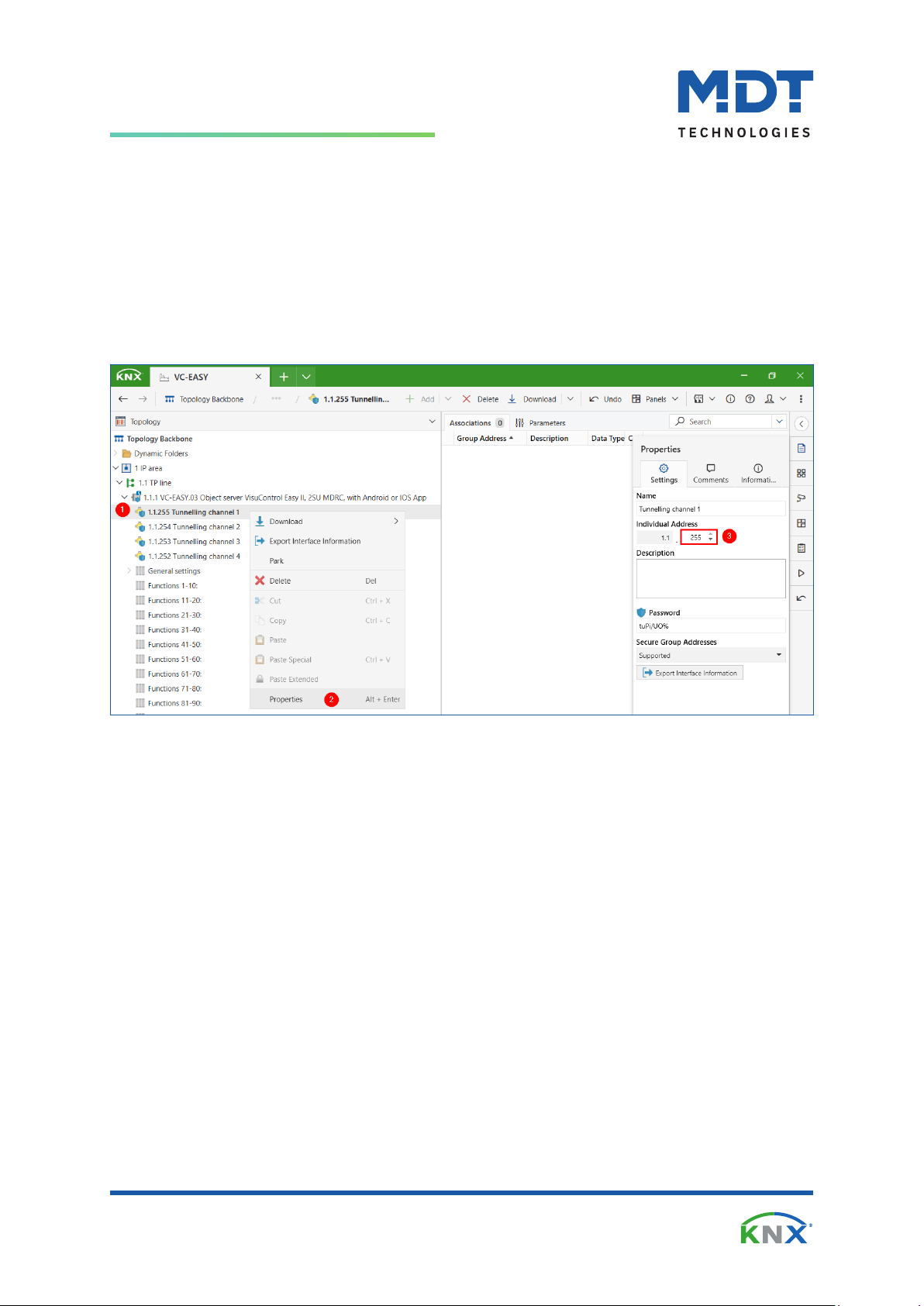
A connection to the KNX bus can be established simultaneously via a total of 4 tunnelling channels. Each
tunnelling channel occupies a Individual Address in the KNX bus. The permissible address range is
between x.x.1 and x.x.255. The addresses of the tunnelling channels are accessed via the “Properties”
window. Enlarge application program (1), right-click on tunnelling channel -> “Properties” (2),
set Individual Address for tunnelling channel (3). After programming the application program, the new
tunnelling addresses are available.
Figure 5: Tunnelling channels
Questo manuale è adatto per i seguenti modelli
1
Indice