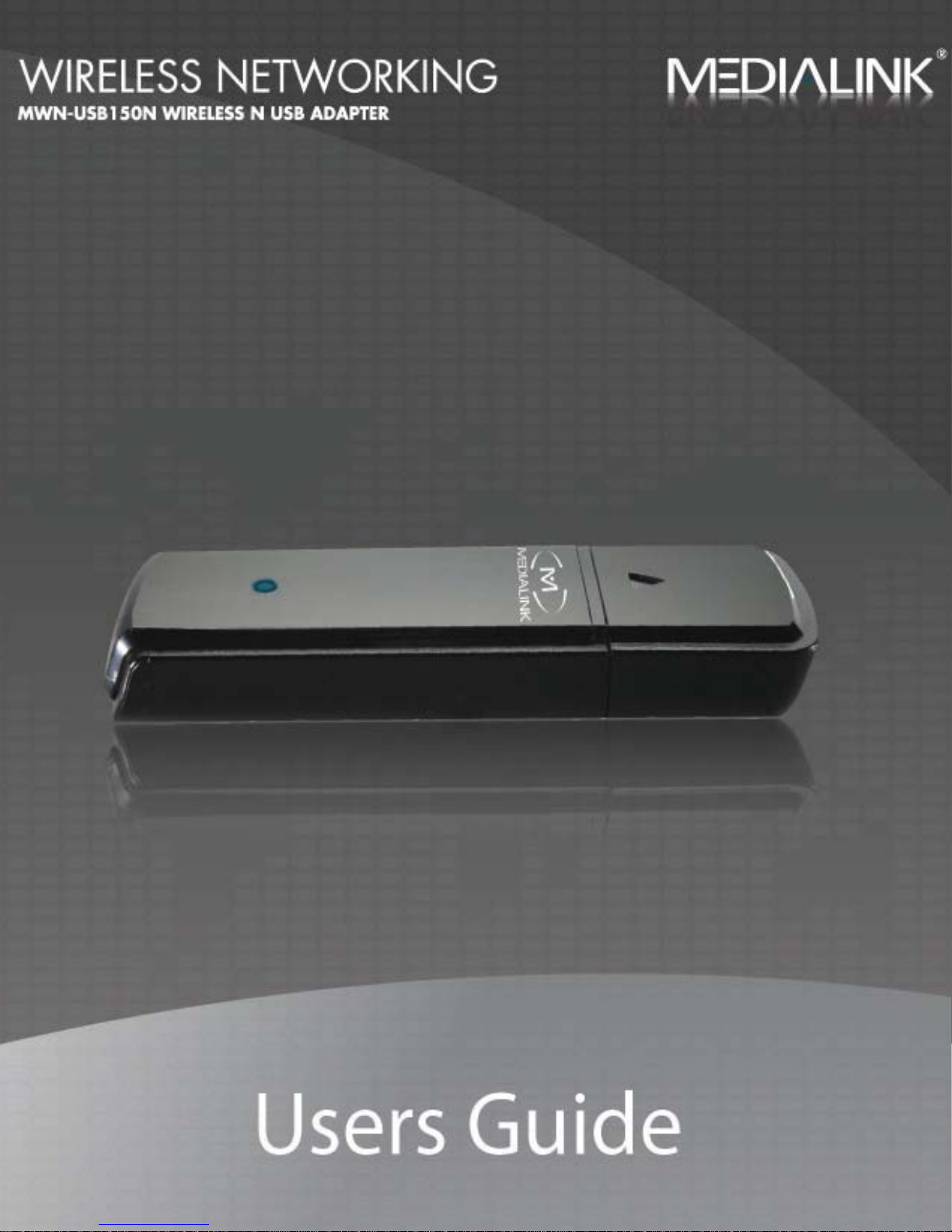
Medialink MWN-USB150N Manuale utente


Wireless N USB Adapter - User Guide
-1 -| Page
Copyright Statement
is a registered trademark of Medialink Products, LLC. All products and
product marks mentioned herein are the trademarks or registered trademarks of
their respective holders. Copyright of the entire product, including its accessories
and software, belongs to Medialink Products, LLC. No individual or party is permitted
to copy, plagiarize or imitate this product without the expressed written consent of
Medialink Products, LLC.
All the photos and product specifications mentioned in this guide are for references
only. As there may be future upgrades to software and hardware, Medialink Products
cannot be not be responsible for informing users about changes to this product or its
software. For more information, visit our website at www.medialinkproducts.com .

Wireless N USB Adapter - User Guide
-2 -| Page
FCC STATEMENT
This equipment has been tested and found to comply with the limits for a Class B digital
device, pursuant to part 15 of the FCC Rules. These limits are designed to provide
reasonable protection against harmful interference in a residential installation. This
equipment generates, uses and can radiate radio frequency energy and, if not installed and
used in accordance with the instructions, may cause harmful interference to radio
communications. However, there is no guarantee that interference will not occur in a
particular installation. If this equipment does cause harmful interference to radio or
television reception, which can be determined by turning the equipment off and on, the user
is encouraged to try to correct the interference by one or more of the following measures:
•Reorient or relocate the receiving antenna.
•Increase the separation between the equipment and receiver.
•Connect the equipment into an outlet on a circuit different from that to which
the receiver is connected.
•Consult the dealer or an experienced radio/ TV technician for help.
This device complies with part 15 of the FCC Rules. Operation is subject to the following two
conditions:
1) This device may not cause harmful interference.
2) This device must accept any interference received, including interference that
may cause undesired operation.
Any changes or modifications not expressly approved by the party responsible for
compliance could void the user’s authority to operate the equipment.
FCC RF Radiation Exposure Statement
This device has been tested for compliance with FCC RF Exposure (SAR) limits in the typical
laptop computer configuration and this device can be used in desktop or laptop computers
with side mounted PCMCIA slots. This device cannot be used with handheld PDAs (personal
digital assistants). This device and its antenna must not be co-located or operated in
conjunction with any other antenna or transmitter.
CE Mark Warning
This is a class B product. In a domestic environment, this product may cause radio
interference, in which case the user may be required to take adequate measures.

Wireless N USB Adapter - User Guide
-3 -| Page
Table of Contents
COPYRIGHT /FCC STATEMENT .................. 1-2
TABLE OF CONTENTS ............................. - 3-
INTRODUCTION.........................................4
PRODUCT FEATURES...................................5
PACKAGE CONTENTS ..................................5
INSTALLATION GUIDE .................................6
INSTALL SOFTWARE ...................................7
CLIENT UTILITY INTERFACE ........................11
STATION MODE.......................................11
Station Mode Topology..........................11
STATION MODE -“STATUS”TAB...................12
STATION MODE -“SITE SURVEY”TAB............13
STATION MODE -“PROFILE MANAGEMENT”TAB 14
STATION MODE -“STATISTICS”TAB..............15
STATION MODE -“WPS SETTING”TAB ..........16
AP MODE –GENERAL INFO ........................17
AP MODE -BASIC SETTING........................18
AP MODE -SECURITY SETTING ...................19
AP MODE -ACCESS CONTROL.....................20
AP MODE -ABOUT TAB ............................21
Appendix One: Acronyms and Terms ........22
Appendix Two: Product Specification ........23
Appendix Three: How to connect with PSP…24

Wireless N USB Adapter - User Guide
4 | Page
Introduction
Your Medialink MWN-USB150N utilizes the latest standard in wireless networking
technology, 802.11n (Draft 2.0). This state of the art standard increases
transmission range, increases throughput and reduces “dead spots”.
This adapter was carefully designed to make installation as simple as possible. In
most cases, even the most novice user will complete installation within just a few
minutes.
WPS (Wi-Fi Protected Setup) simplifies password entry and frees you from having to
remember long passwords.
Support for PSP, NDS and WII connections with Xlink Kai allows for a rich on-line
gaming experience.
The Medialink MWN-USB150N is a high performance Wireless N USB Adapter with
improved range, faster throughput and state of the art security.

Wireless N USB Adapter - User Guide
5 | Page
Product Features
•EZ Install – Simplified Installation via Graphical User Interface.
•Microsoft WHQL Certification ensures compatibility with Windows OS.
•Supports Windows 2000, XP, Vista 32-Bit, Vista 64-bit, Linux & MAC.
•Complies with 802.11n (Draft 2.0), 802.11g and 802.11b standards.
•High Speed USB 2.0 port, backward compatible with USB1.0.
•150Mbps maximum send/receive throughput.
•Supports 20MHz/40MHz frequency bandwidth.
•Auto-detects network transmission rate.
•Provides Both Infrastructure and Ad-Hoc mode.
•Supports Soft AP to Quickly Establish Wireless LAN Networking.
•Supports PSP, WII, NDS with Xlink Kai for on-line gaming.
•Supports 64/128-bit WEP, WPA, WPA2 encryption methods and 802.1x
security authentication standard.
•Supports WPS (Wi-Fi Protected Setup) encryption method to eliminate the
need to remember long passwords.
•Supports WMM to make voice and video as smooth as possible.
Package Contents
Unpack the contents of your USB Adapter, and locate the following items:
Wireless USB Adapter
USB Seat
Installation CD
Quick Installation Guide

Wireless N USB Adapter - User Guide
6 | Page
Installation Guide
*IMPORTANT NOTE* - DO NOT INSERT YOUR MEDIALINK WIRELESS USB ADAPTER
INTO YOUR COMPUTER USB PORT UNTIL AFTER THE SOFTWARE IS INSTALLED.
Please follow the simple steps in this Guide to get your computer quickly connected
to your wireless network.
Before you begin, please be sure you have the following:
PC with an available USB slot
Minimum 300MHz processor and 32MB memory
Windows 2000, XP, Vista 32-bit, Vista 64-bit (For Linux or MAC instructions,
please refer to “USER MANUAL” on the installation CD).
An 802.11n, 802.11g or 802.11b Access Point or Router

Wireless N USB Adapter - User Guide
7 | Page
Install Software
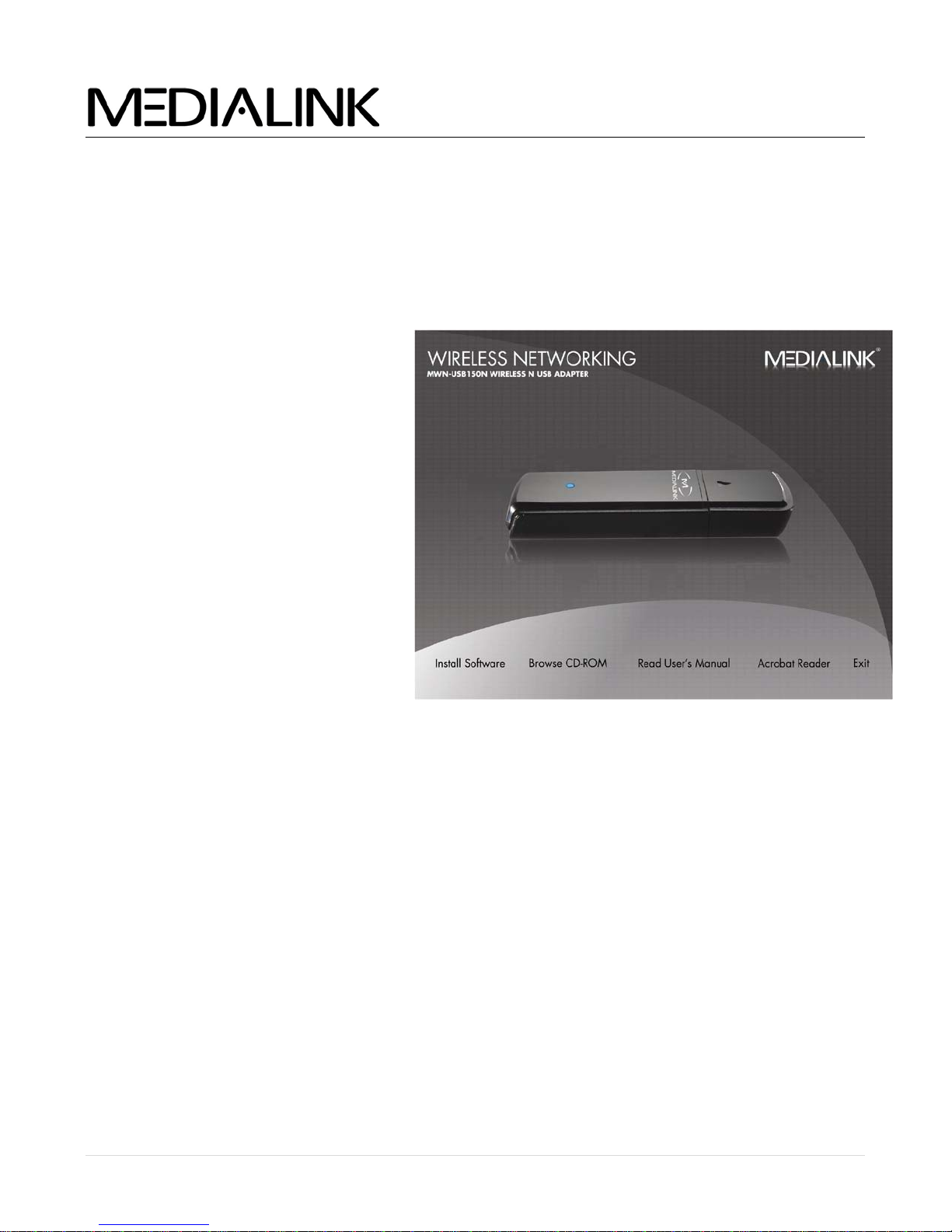
STEP 1. Insert CD into an
available CD-ROM drive.
NOTE: The following Screen shots illustrating the installation procedure are from a Windows XP installation. Other
operating systems may show slightly different dialogue boxes but the installation procedures will be the
same.
STEP 2. Click Install Software

Wireless N USB Adapter - User Guide
8 | Page
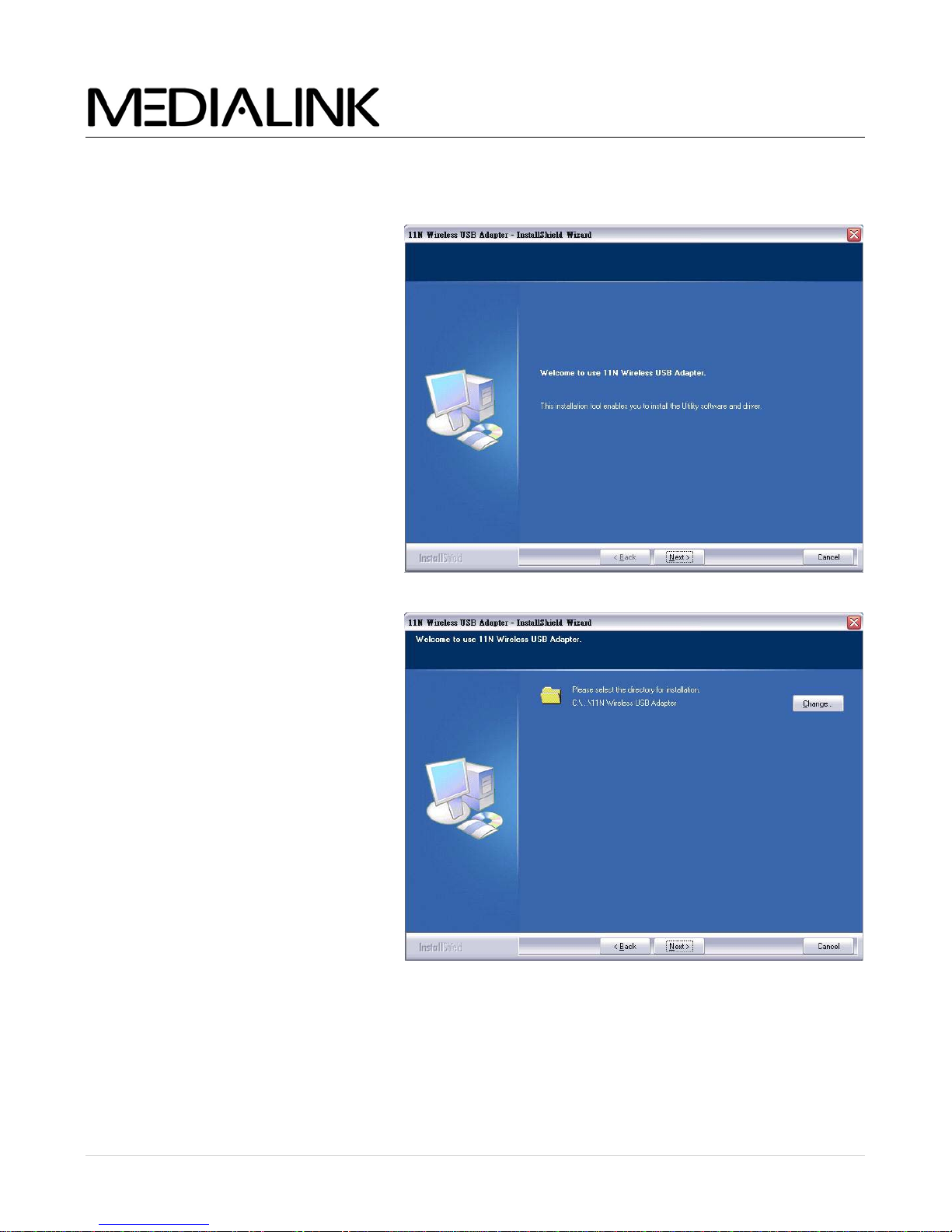
STEP 3. Click Next to start
installation.
STEP 4. Click Next to continue.
(Installation may take a few
minutes. Please wait.)

Wireless N USB Adapter - User Guide
9 | Page
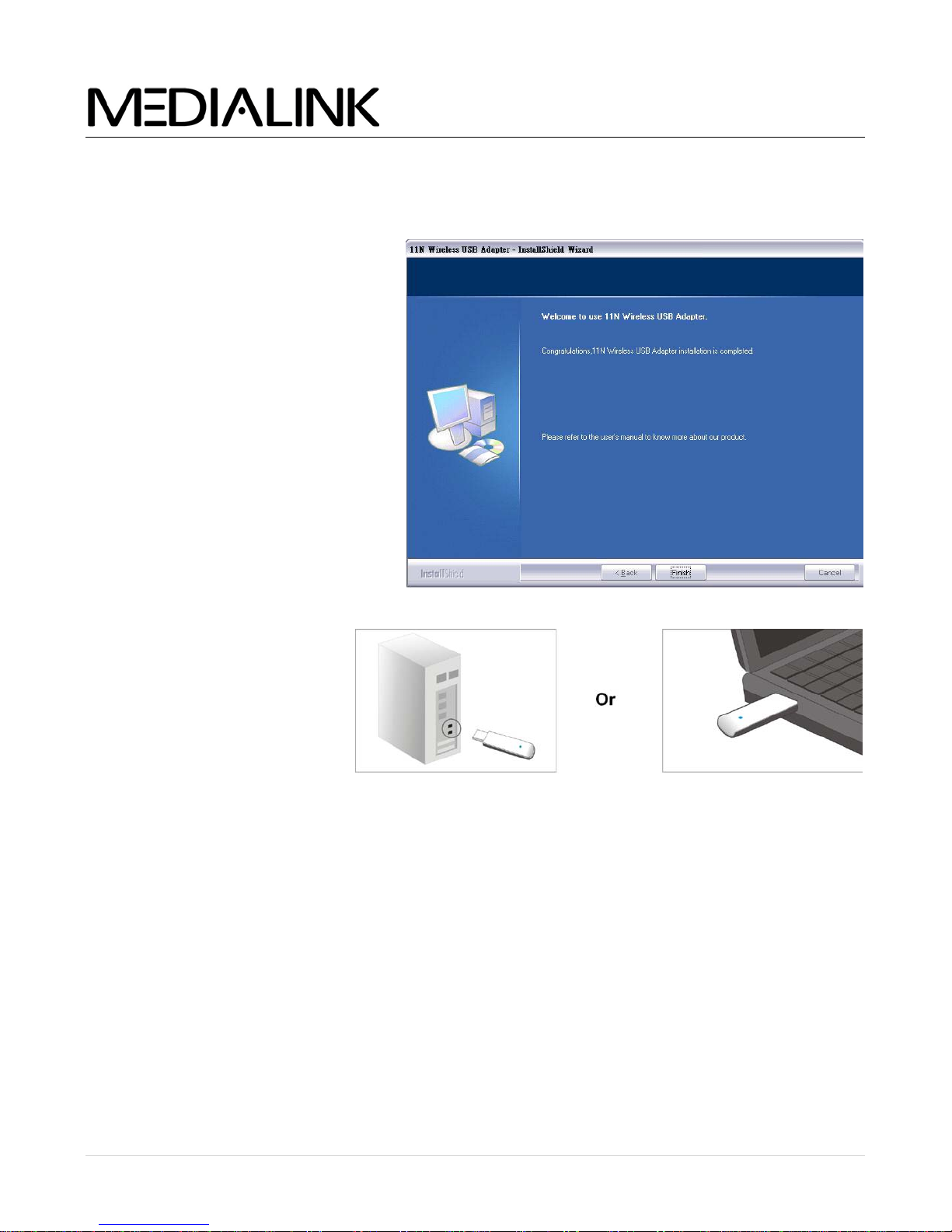
STEP 5. Click Finish to
complete the software
installation.
STEP 6. Insert the USB
Adapter into an available
USB slot.
Please wait while hardware drivers are installed.
(For Windows 2000 & Windows Vista you will be prompted to restart your computer)
Altri manuali per MWN-USB150N
1
Indice
Altri manuali Medialink Adattatore