
MediaSonic GD-300 Manuale utente

Mediasonic GD-300
USB-C Triple 4K Dock

i
Table of Contents
S
AFETY
I
NSTRUCTIONS
......................................... 1
C
OPYRIGHT
........................................................ 1
T
RADEMARKS
..................................................... 1
REGULATORY COMPLIANCE ............................. 2
FCC
C
ONDITIONS
................................................ 2
CE .................................................................... 2
WEEE
I
NFORMATION
.......................................... 2
INTRODUCTION ............................................... 3
F
EATURES
.......................................................... 4
P
ACKAGE
C
ONTENTS
............................................ 4
S
YSTEM
R
EQUIREMENTS
....................................... 4
PRODUCT OVERVIEW ...................................... 5
F
RONT
............................................................... 5
R
EAR
................................................................ 6
CONNECTION .................................................. 7
INSTALLATION ................................................. 8
VERIFYING THE INSTALLATION ....................... 14
DISPLAY CONFIGURATION ...............................17
U
TILITY SETTINGS
.............................................. 17

ii
D
ESCRIPTION OF THE SETTINGS
............................ 18
M
ULTI
MONITOR CONFIGURATION
....................... 20
E
XTENDED MODE
.............................................. 21
T
ROUBLE
S
HOOTING
.......................................... 22
M
IRROR MODE
................................................. 22
S
ET THE
P
RIMARY
M
ONITOR
............................... 23
AUDIO CONFIGURATION ................................ 25
UNINSTALL THE DRIVER ..................................26
SPECIFICATION .............................................. 28
TECHNICAL SUPPORT ..................................... 30

1
Before attempting to connect, operate or adjust this product,
please save and read the User's Manual completely. The style
of the product shown in this User's Manual may be different
from the actual unit due to various models.
Safety Instructions
Always read the safety instructions carefully:
■Keep this User’s Manual for future reference
■Keep this equipment away from humidity
■If any of the following situation arises, get the equipment
checked by a service technician:
• The equipment has been exposed to moisture.
• The equipment has been dropped and damaged.
• The equipment has obvious sign of breakage.
• The equipment has not been working well or cannot get it
to work according to the User’s Manual.
Copyright
This document contains proprietary information protected by
copyright. All right are reserved. No part of this manual may be
reproduced by any mechanical, electronic or other means, in
any form, without prior written permission of the manufacturer.
Trademarks
All trademarks and registered trademarks are the property of
their respective owners or companies.

2
Regulatory Compliance
FCC Conditions
This equipment has been tested and found to comply with Part
15 Class B of the FCC Rules. Operation is subject to the
following two conditions: (1) This device may not cause harmful
interference. (2) This device must accept any interference
received and include interference that may cause undesired
operation.
FCC Caution: Any changes or modifications not expressly
approved by the party responsible for compliance could void the
user’s authority to operate this equipment
CE
This equipment is in compliance with the requirements
of the following regulations: N 55032/ N 55024: CLASS B
WEEE Information
For EU (European Union) member users: According to the
WEEE (Waste electrical and electronic equipment) Directive, do
not dispose of this product as household waste or commercial
waste. Waste electrical and electronic equipment should be
appropriately collected and recycled as required by practices
established for your country. For information on recycling of this
product, please contact your local authorities, your household
waste disposal service or the shop where you purchased the
product.

3
Introduction
The USB-C Triple 4K Dock is designed for extra
connectivity demands. With the USB-C Docking station,
you can extend the connection of a computer to more
USB peripherals, Ethernet network, the speaker and the
microphone via USB-C interface. Feel free to plug in
upside down for USB-C plug is reversible.
Adopting PD Charging technology, upstream charging
function through USB-C interface, you can charge the
docking station. With the built-in USB3.0 ports, the
docking station enables you to enjoy the super speed
data transmission between USB peripherals.
In addition, the docking station is equipped with three
display video outputs. With triple Ultra HD display
simultaneously, the docking station allows you to split
up the content to triple display devices when the system
supports the function. Enhanced expansion capability,
this docking station with video is the most versatile
accessory that also complements your home or office
space.
․Incorporates HDMI
○
R
technology

4
Features
■Enabling Triple 4K display extension at a time
■Upstream port
- USB3.0 Type-C port x1
■Downstream port
- USB3.0 Type-A ports (5V/0.9A) x4
- USB3.0 Type-A port (Fast Charging) x1
- USB3.0 Type-C port x1
■Support audio 2.1 channel
■Support Gigabit Ethernet
■Support DisplayPort (4096 x 2160@60Hz)
■Support 5K (connect to 2 DP displays simultaneously)
■Support HDMI (3840x2160@30Hz)
■Support PD Charging (for NB)
- 20/15/12/9/5V@3A, up to 60W
Package Contents
■USB-C Triple 4K Docking Station x1
■USB-C Cable (length: 100 cm) x1
■Power Adapter (20V/6.75A) x1
■CD (Driver and User’s Manual) x1
■Quick Installation Guide x1
System Requirements
Supported Operating System:
■Windows
®
10 ■Mac OS
®

5
1
2
Product Overview
Front
1 2 3 4 5 6 7
1
3
Item
Description
1 . Power button
Switch to power on /off
2. Power indicator
L D shows blue when power on
3. USB connection
indicator
L D shows green when USB is
connected
4. USB-C port
Con
nect to USB
-
C
device only
5. USB 3.0 port
(Type-A)
Connect to
the
USB 3.0 device
and this
port supports fast charging
6. Headphone jack
Connect to a speaker or headphone
7. Microphone jack
C
onnect to a microphone

6
Rear
6
7
8 9 10 11 12 13
9
10
Item
Description
8. Power jack
Connect to power adapter
9. USB-C port
Connect to the USB-C port of a
computer
10. RJ45 port Connect to an thernet
11. HDMI connector Connect to a HDMI monitor
12. DP connector x2 Connect to DP monitors
13. USB 3.0 port x4
(Type-A) Connect to USB3.0 devices
7
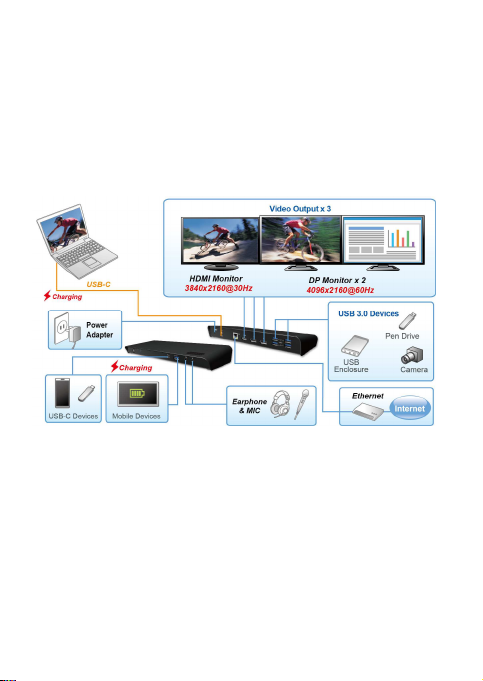
Connection
To connect the USB peripherals, Ethernet, speaker and
microphone, follow the illustrations below to connect the
corresponding connectors.
Altri manuali per GD-300
1
Indice
Altri manuali MediaSonic Stazione di attracco


