
MediaTech MT4151 Manuale utente
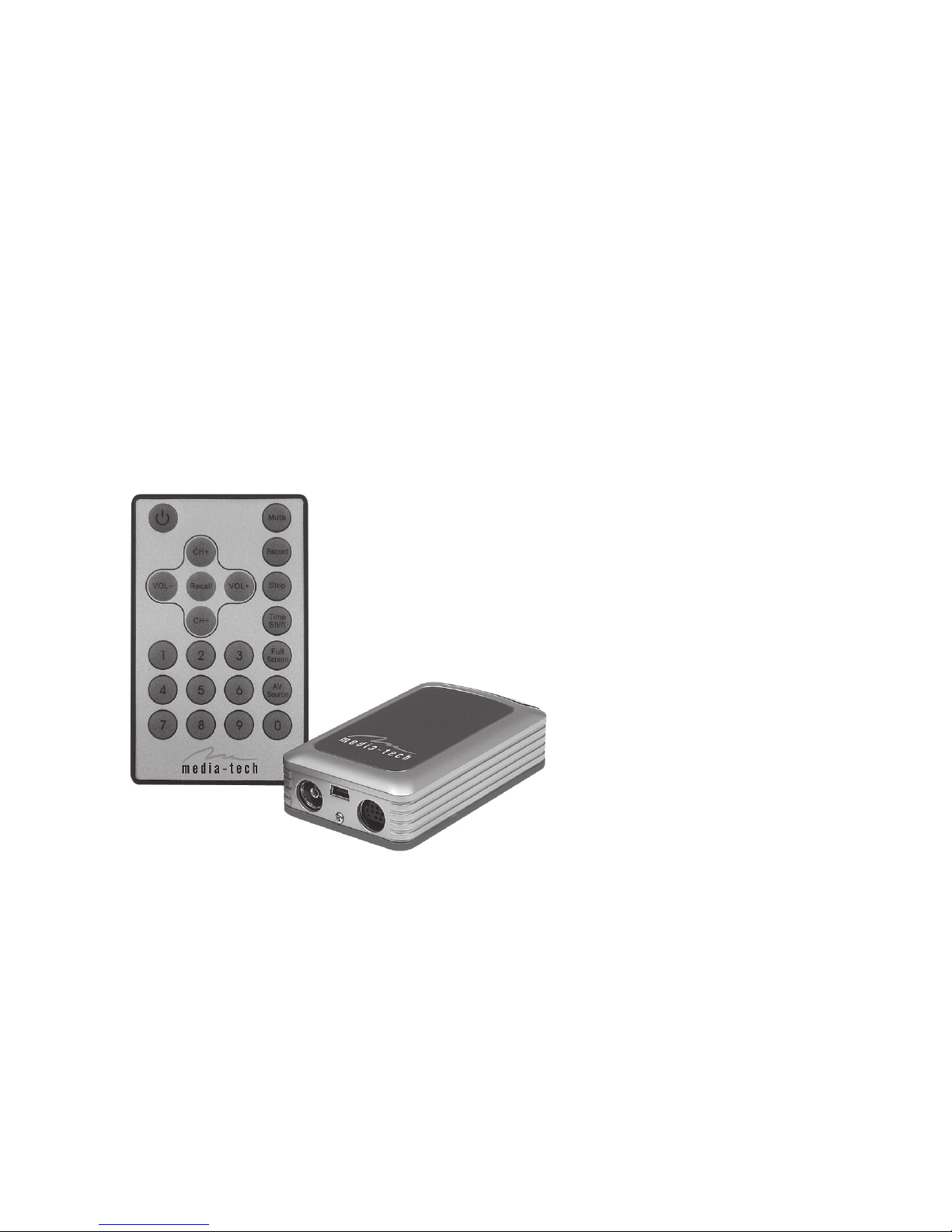
User’s Manual
MT4151
USB TV BOX
Watch & record TV programs on Your PC!

Contents
Features..........................................................................................2
System Requirements...............................................................2
Package Contents.......................................................................3
Installation Drivers And Application ...................................3
How to use TVR ...........................................................................5
TV settings ....................................................................................6
Video settings..............................................................................6
Record settings ...........................................................................7
Etc Dialog ......................................................................................8
Video Playback Control ............................................................8
Volume Control...........................................................................9
Remote Controller......................................................................9
2
Features
■External USB TV BOX
■
Resolution up to 720X576 for PAL, 720X480 for NTSC
■Supported TV systems: PAL-DK/BG or NTSC
■Personal video recorder
■Scheduled recording and time shift function
■AV and S-Video input for connecting VCR, DVD, cam-
corder, etc.
■IR remote controller
■
Full TV control and settings by intuitive user interface
■Support encoding MPEG-1/2 and WMV
■Saving still image snapshots to bitmap file
■USB 2.0 interface
■Windows ME/2000/XP compatible
■Size: 95x55x27mm
■Weight: 170g
System Requirements
■OS: WindowsXP-SP2
■Pentium 4 1700MHz or higher CPU
■256Mb or higher memory
■500Mb free hard disk space
■Free USB2.0 port
■Compliant with DirectX 8.1 or higher display card
3
Package Contents
■USB2.0 TV BOX
■Remote Controller
■User’s Manual
■USB Cable
■Audio & Video Cable
■S- Video Cable
■Driver & Application CD
Installation Drivers And Application
Caution!!! Please don’t connect the USB TV BOX to
the PC before installing software.
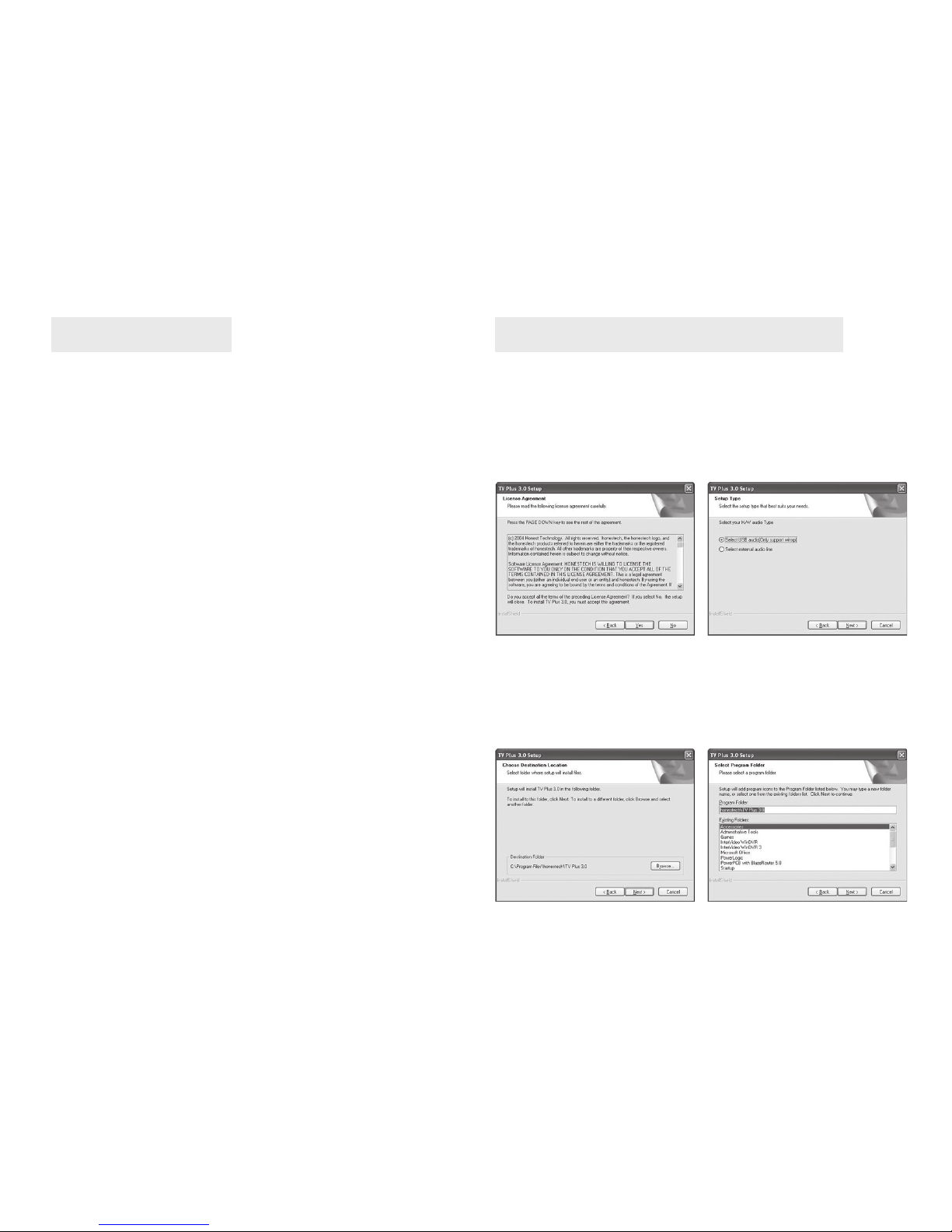
Execute X:\SETUP.EXE under CD root list (X is the CD-
ROM), choose “next” according to cue and then click
“yes”.
The system shows “SELECT YOUR H/W AUDIO TYPE”
cue, choose“SELECT USB AUDIO”and click“next”.
Choose the installation path of program and click
“next”.

4
When the system display information about “Windows
Media Format9”, click “yes”.
The system shows that the driver installed soon had not
passed Microsoft’s authentication, click “still continue”,
the system will automatically go on with installing
drive software, then gives a cue of “new hardware may
be used”.
Double click the icon of “TV PLUS3.0” on the desktop
and can turn on TV play out software.
When you operate the first time, you need input the
software sequence number. According to the sequence
number on the CD bag, please click“ok”.
Click“yes”again,acceptthe
authorizing agreement.
Click “ok”.
Click “finish” and finish installing.
system will clue to find new hardware and automatically
install driver for new hardware, click“next”.
Then windows automatically execute driver software
installation, click “next”, “finish” according to cue and
then choose “yes, I will restart windows”.
After the system is restarted, use the USB cable and
connect USB TV BOX to the USB2.0 port of the PC, the
5
How to use TVR
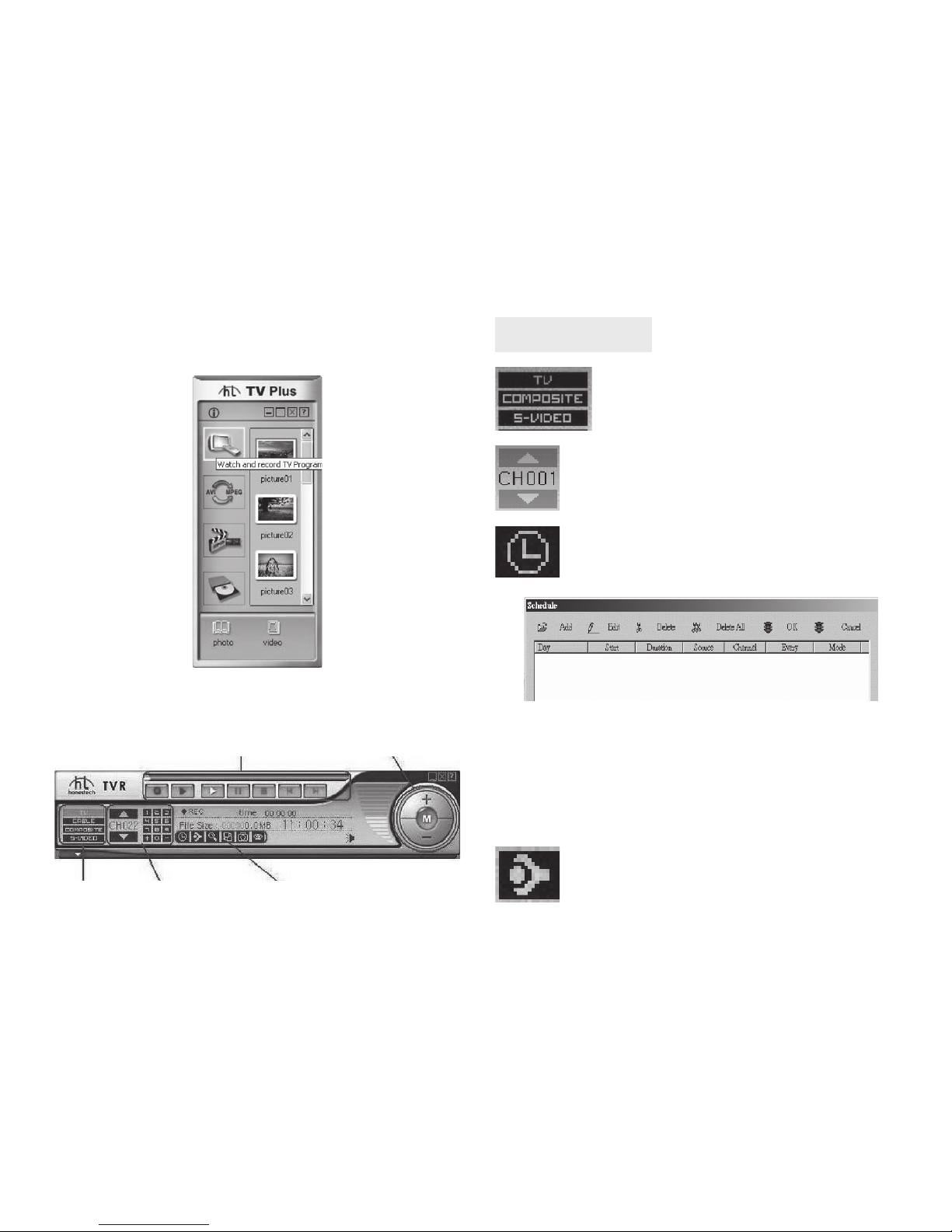
Click here to switch TV =Antenna;
Cable = Cable TV
Choose input source for TV/Composite/
S-VHS/
Click the arrow up or down to select channel.
Channel No. will show between the arrows.
Click this icon, will show a dialog box for
setting schedule recording:
Add – Set a new schedule for recording
Edit – Rename a recorded video file.
Delete – Delete the selected video file.
Delete All – Delete all video files from the list
OK – Confirm all setting and exit.
Cancel – Cancel all setting and exit
Properties Settings
The interface of playing and recording TV module is
operated as follows:
After TV PLUS3.0 software is started, the main interface
as the following drawing:
Input Source
Record, Time Shift, Player Volume adjust
Channel Adjust Basic Tools
6
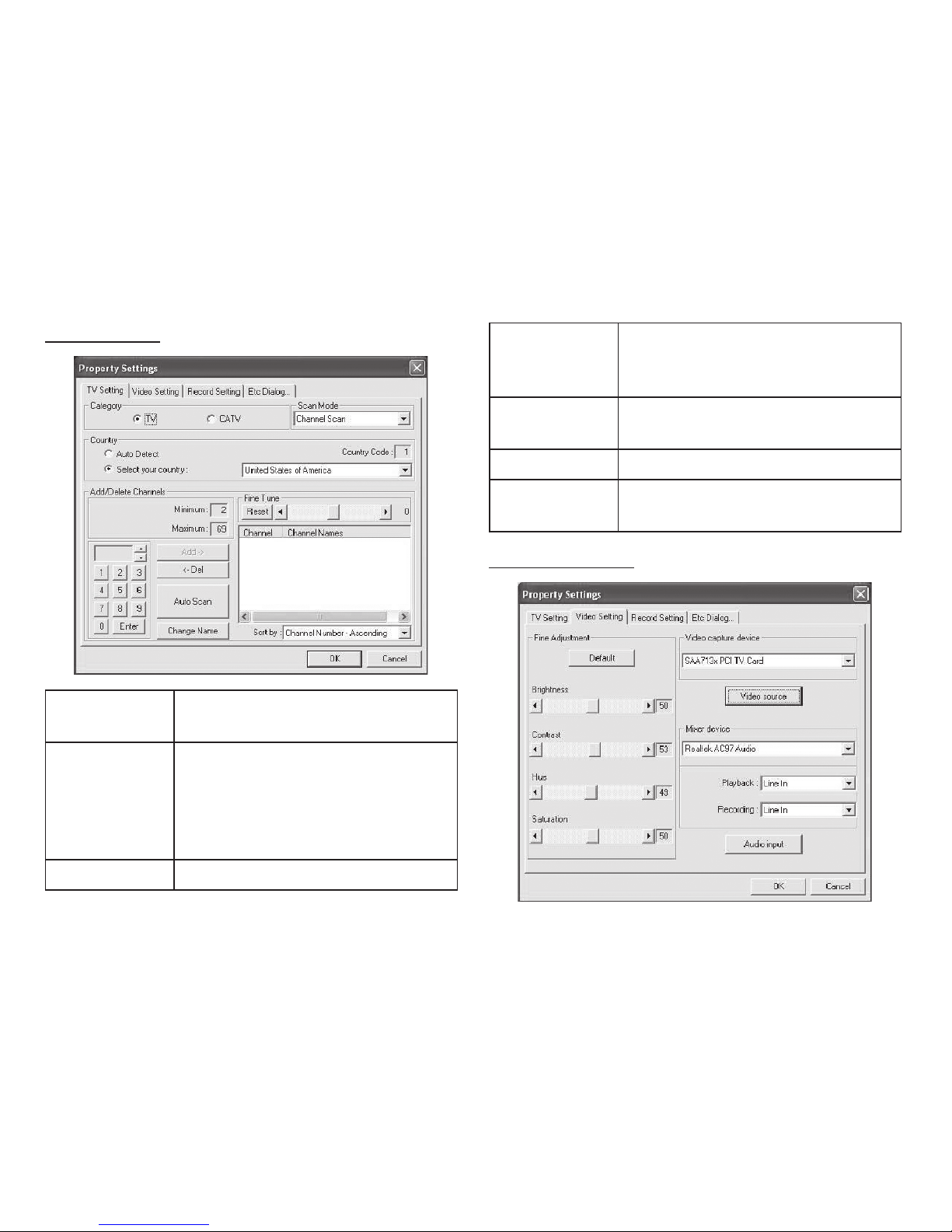
TV settings Add/Delete
Channels
Add > – add a channel
< Del – delete a channel
Auto Scan – channel scan
Change Name Choose any channel and click to
rename
Fine Tune Adjust single Channel
Sort by Sort by Channel No. or by Channel
Name.
Video Settings
Category Setting TV signal from Antenna or
Cable (TV=antenna; CATV=Cable)
Scan Mode Use Scroll to select:
Chanel Scan > Scan by channel
Table
Frequency scan > Scan by each
Frequency
Country Set your country
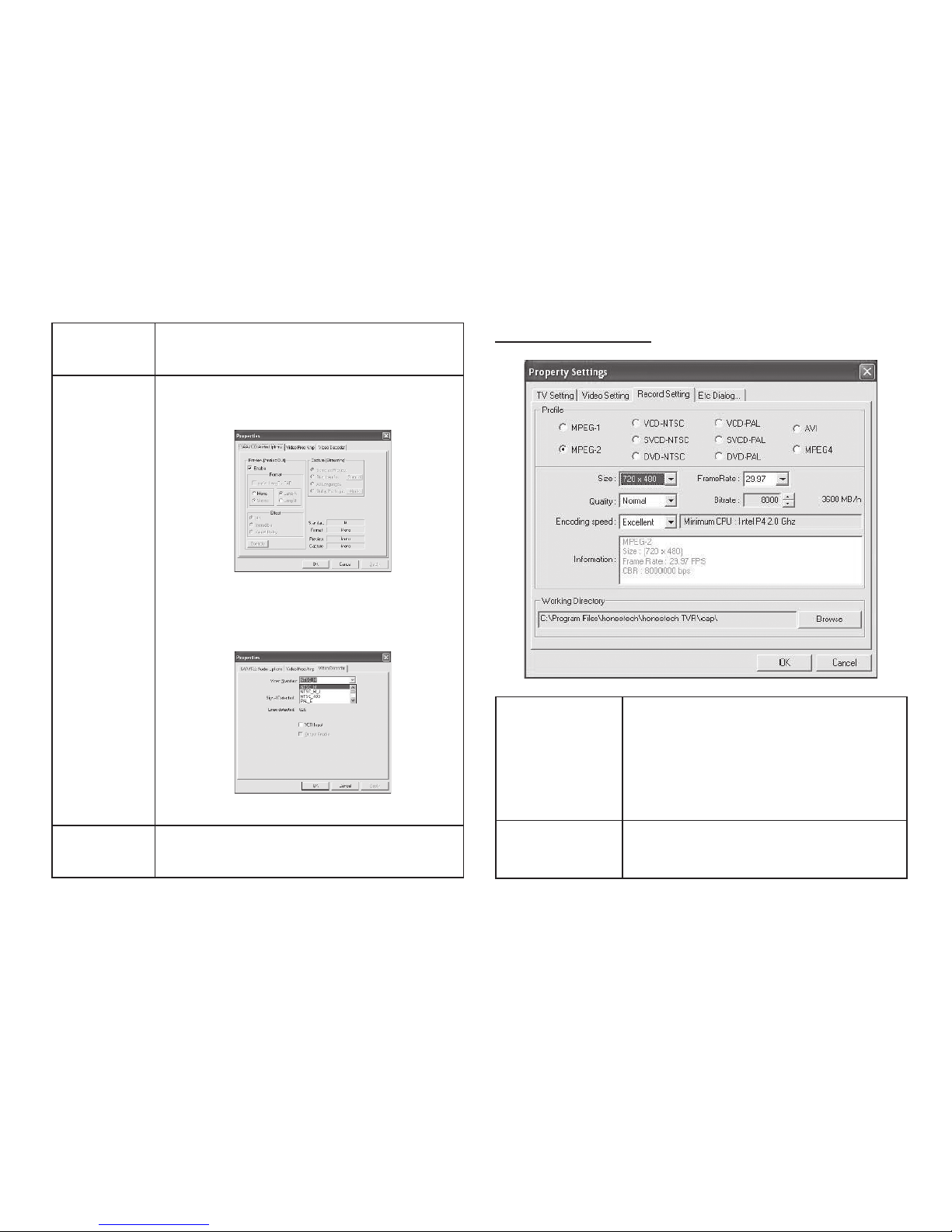
7
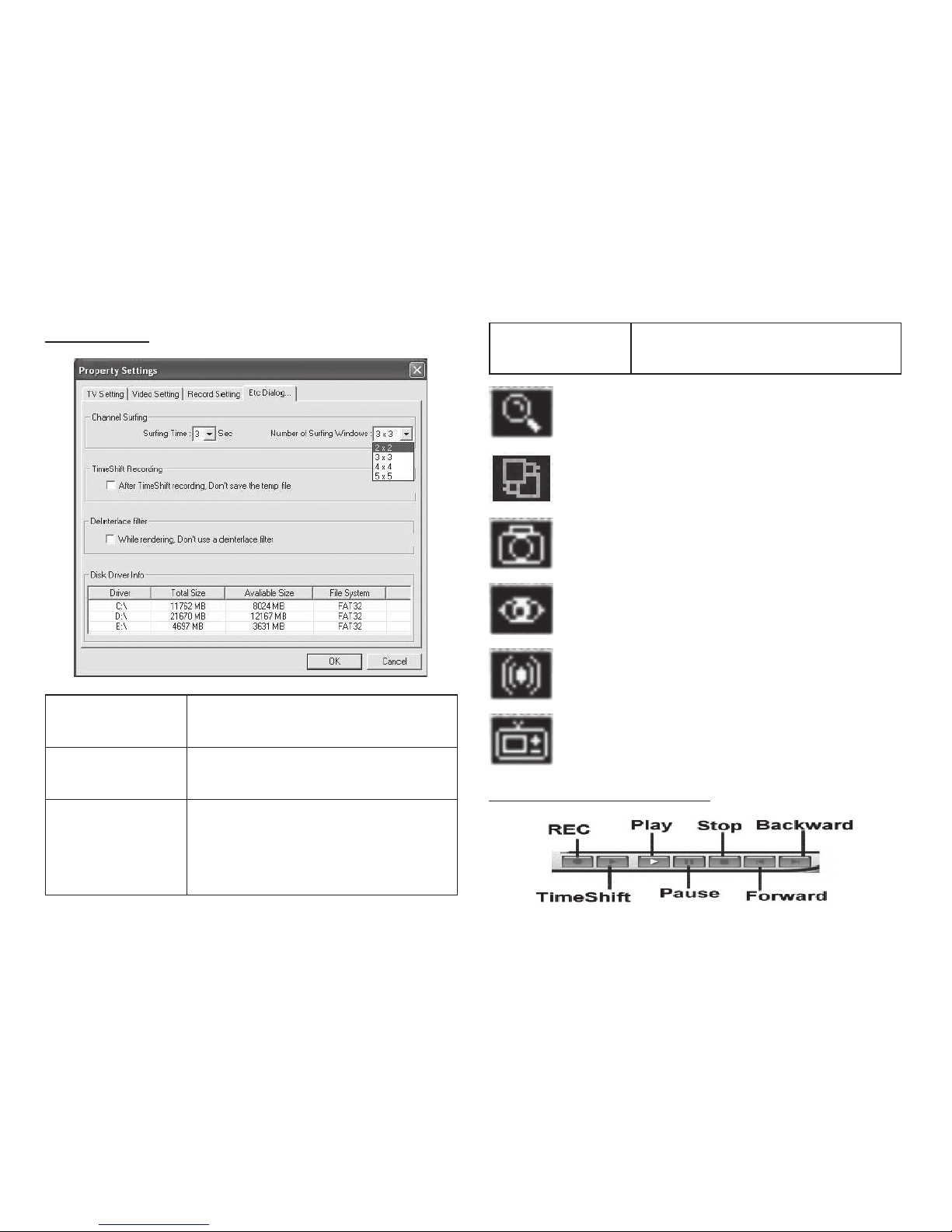
Record Settings
Fine
Adjustment
Setting Brightness, Contrast, Hue and
Saturation;
Video
Capture
Device
Select different Video Capturing Device
Click Video source:
Source Setting
Preview: Disable for overlay mode.
Video Proc Amp: Video Settings
Video Decoder:
Set TV Format
Mixer
Device
Select your Sound Card
Profile Select different Recording Format
– Select MPEG1 and MPEG2 you
can set bit-rate for different Video
Quality
– Select other format for fix bit-rate
Working
Directory
Set saving path for recorded Video
8
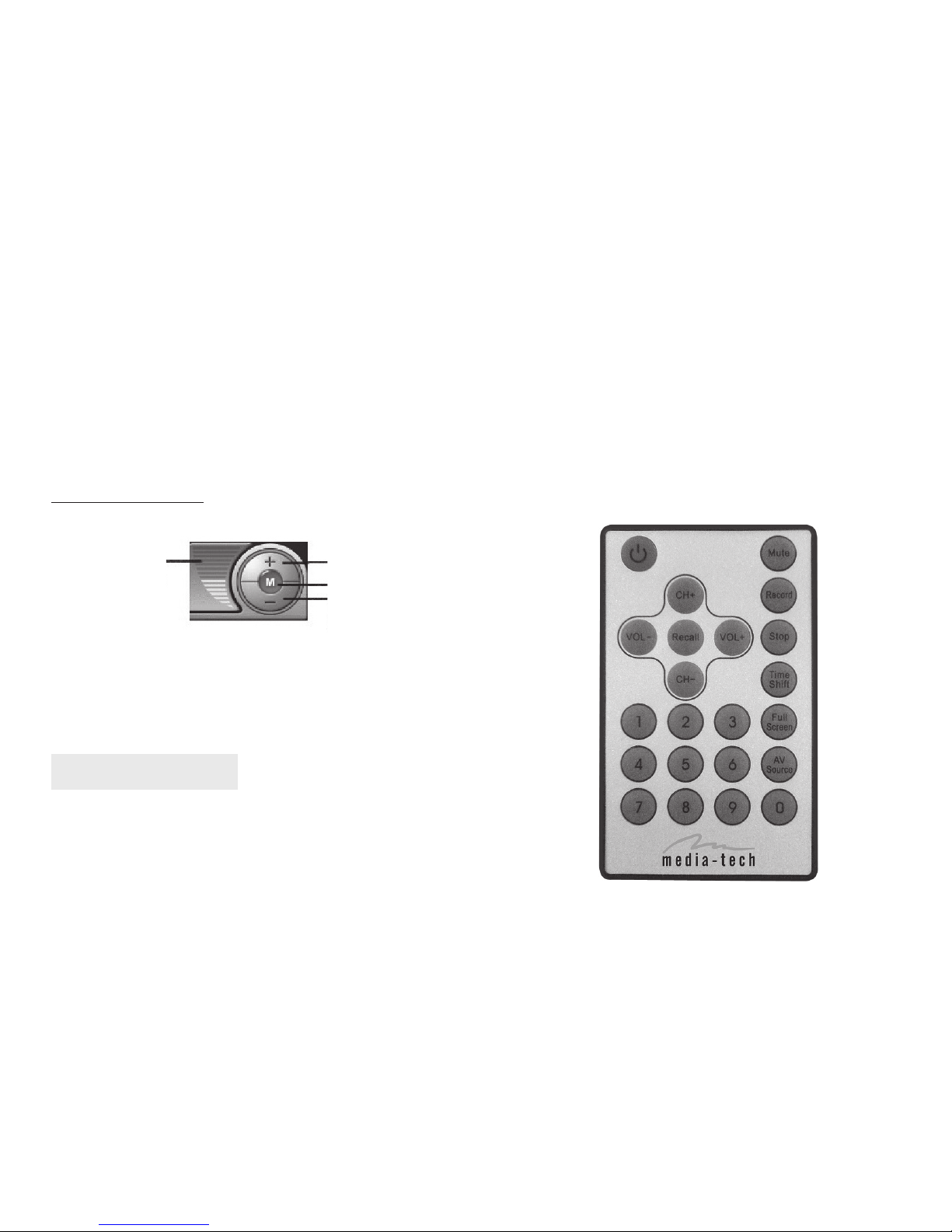
Etc Dialog
Channel
Surfing
Set Surfing Time
Number of surfing Windows
Time Shifting
Recording
Select to save Video in HDD while
activating Time-Shifting.
De-interlace
Filter
Select to disable De-interlace
Mode (Disable De-interlace will
reduce Video Quality but will also
reduce CPU Loading)
Disk Device Info Show your HDD total Size and
available Size.
Click to start scanning channel.
Change different color of your control panel.
Make screen capture while playing back
video.
Multi-Channel Preview (Please see for
Setting Surfing time and channels)
Audio Setting
iEPG
Internet Electronic Program Guide
Video playback control
9
REC Click to record, click again to stop recording
Time Shift Activate Time-Shifting
Play Playback recorded video
Pause Pause while playing back
Stop Stop playing back
Forward Fast forward
Rewind Rewind
Volume control
Decrease
the volume
Increase
the volume
Display
Volume Mute
Remote Controller
Power: open/close Tv Plus3.0
AV Source: select Av Source
0~9: select Channel Number
Recall: return Last Time Channel
Mute: mute
Stop: stop
Record: rec Multimedia Files
CH+ : Channel Up
CH- : Channel Down
VOL+ : Volume Up
VOL- : Channel Down
Full Screen: Enlarge Picture
Time Shift: Timeshift
* About the detailed operation instruction of TV
PLUS3.0 play out software, please refer to the help
file of this software.

10
Indice
Lingue:
Altri manuali MediaTech Ricevitore TV


