Mega 100WR Scheda informativa del prodotto

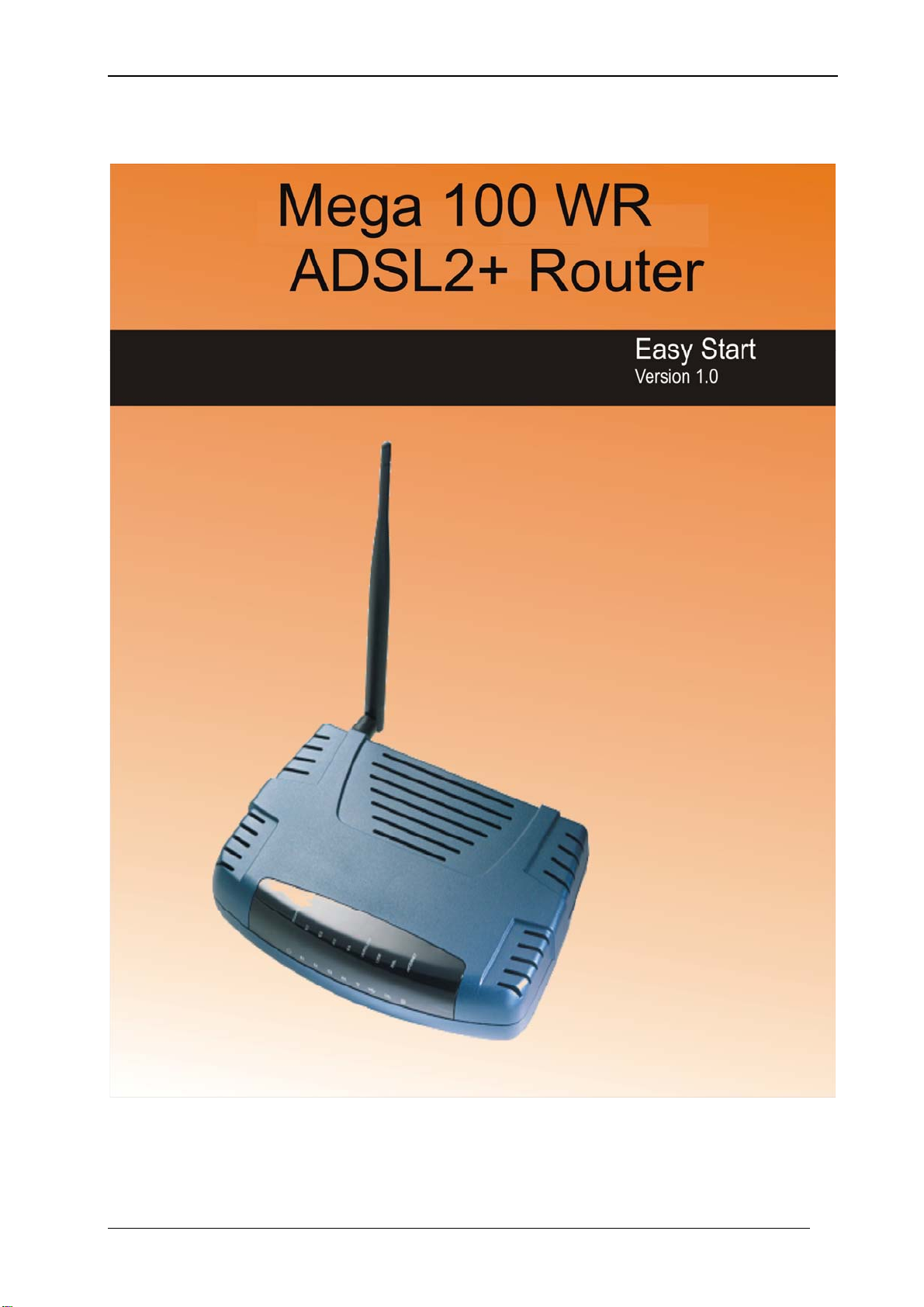
Mega 100WR ADSL 2+ Router - Easy Start

Mega 100WR ADSL 2+ Router - Easy Start
Chapter 1 – Introduction
Thank you for purchasing a Mega 100WR Router. This Easy start guide is a complete guide to
configuring your Mega 100WR. It includes setup configurations for most operating systems. If
you are setting your Mega 100WR up with a PC running Microsoft Windows operating system,
it is suggested that you follow the much quicker “Quick Start Guide“ that was supplied in printed
form with your Router. (It is also available in soft copy on your Router CD.)
The Mega 100WR Router can be connected to any computer/notebook with a 10/100 Base-T
Ethernet card, USB port or IEEE 802.11b/g Wireless adapter. The Ethernet ports have the Auto
MDI/MDIX feature which allows both cross and straight UTP cable to be utilized. The Mega
100WR has an in-built IEEE802.11g Wireless LAN Access Point for wireless connectivity.
1.1 Minimum Requirements
•Pentium®MMX 233MHz
•A CD-ROM Drive
•At least one of the following, depending on how you wish to connect to the
Router
•For Ethernet connectivity - Ethernet card with TCP/IP Protocol
installed
•For Wireless connectivity - IEEE 802.11b/g Wireless adapter
•For USB connectivity - USB port
- One of the following operating systems
+Windows® 98 Second Edition
+Windows® Me
+Windows® 2000
+Windows® XP
+Windows® XP x64 Edition
+Macintosh OS 10.2 & above
•Web Browser - Microsoft Internet Explorer 4.0 (or later versions)
Or
- Netscape® Navigator 3.02 (or later versions)

Mega 100WR ADSL2+ Router - Easy Start Guide
2
1.2 ADSL Router Package
Your Mega 100WR package should contain the items shown in Figure 1-1. For any missing
items, please contact the sales outlet from which you purchased this router immediately.
Wireless Router Quick Start guide Utility CD
Cat 5 Ethernet Straight Cable USB Cable 2 Telephone Cables
9V Power Adapter 2 micro filters
Figure 1-1 : ADSL Router Package

Mega 100WR ADSL2+ Router - Easy Start Guide
3
1.3 Mega 100WR Overview
1.3.1 Front Indicators
Fig 1-2 shows the front indicators of the Mega 100WR router.
Figure 1-2 : Front Indicators
LED Name Status & Meaning
1. Power Lights up when power is supplied to the ADSL Router.
2. Ethernet(E1 - E4) Lights up when the Ethernet cable is properly connected
from your ADSL Router to the Ethernet Card. Flickers
when the ADSL is transmitting/receiving data.
3. Wireless Flickers when the Wireless LAN is operational.
4. USB Lights up when the USB cable is properly connected
from your Router to the USB port. Light is Off when the
USB cable is not correctly connected
5. DSL Light is off when no Telephone jack (RJ-11) is
connected. Flickers when the ADSL Router is trying to
establish a connection with the ADSL Service Provider
(Training). Steady Green LED. Lights up when the
ADSL connection is established.
6. Internet Green LED lights up when the PPP connection is
established. Light is off when there is no PPP
connection.
1 23 5
4 6

Mega 100WR ADSL2+ Router - Easy Start Guide
4
1.3.2 Back Panel
Fig 1-3 shows the back panel indicators of the Mega 100WR router.
Figure 1-3 : Back Panel Indicators
Label Description
1. DSL Connect the telephone jack (RJ-11) to your Telephone
Wall Socket (DSL line).
2. USB Connect the USB jack to your PC’s USB port, if
required.
3. RESET To reset the ADSL Router, simply press the reset button
for at least 10 seconds (all customised settings that you
have saved will be lost!).
4. ETHERNET(E1-E4) 10/100 Base-T Auto-MDI/MDIX Ethernet jack (RJ-45)
to connect to your PC’s Ethernet (Network) card or
Ethernet Hub / Switch.
5. DC 9V To connect to the Power Adapter that comes with your
package.
6. POWER SWITCH Push downwards to switch ON and press upwards to
switch OFF.
7. RF Antenna 2.4Ghz Wireless Antenna.
E1
1 2 3 56
47

Mega 100WR ADSL2+ Router - Easy Start Guide
5
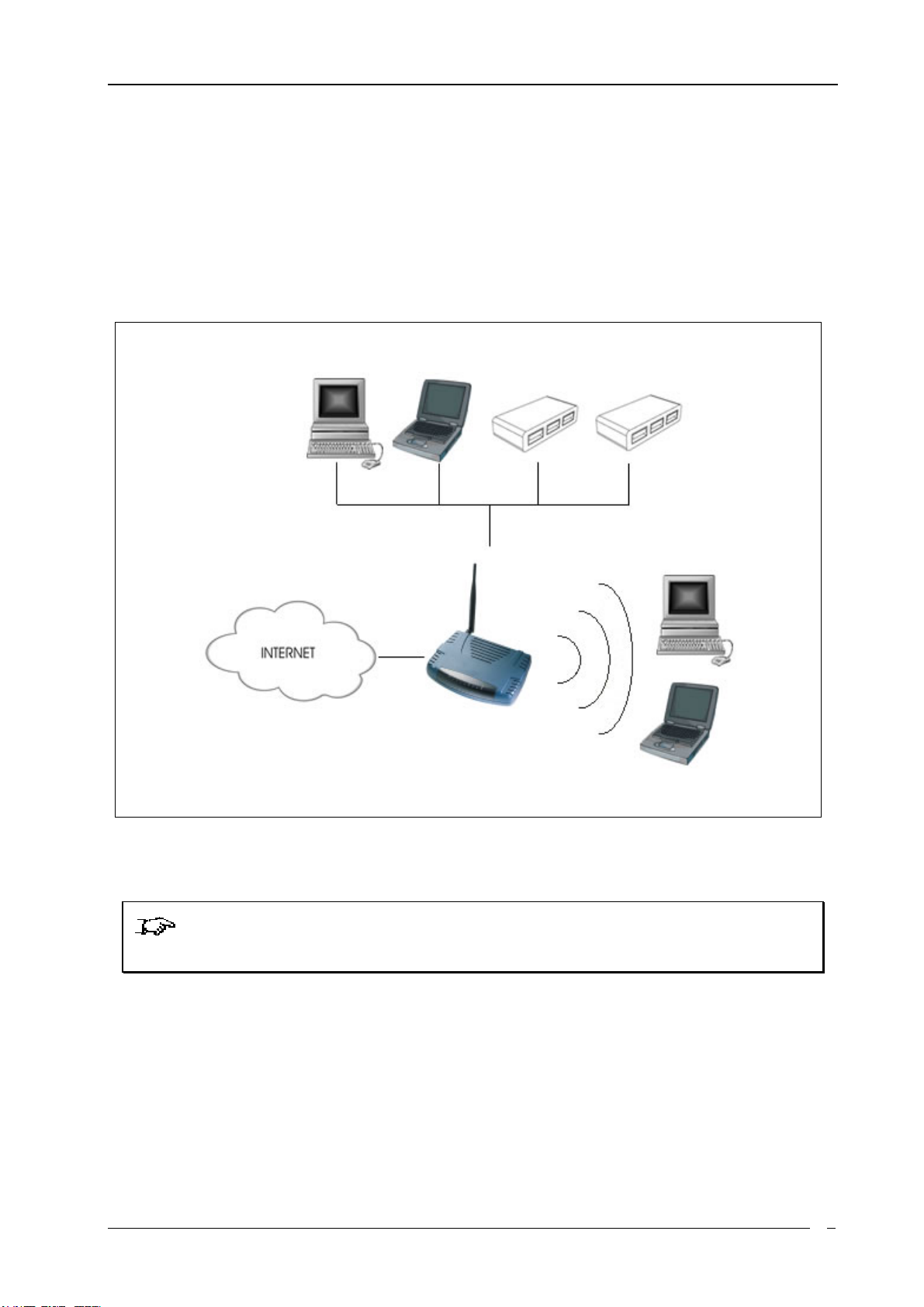
1.4 Typical MEGA 100WR Router Connection
You may connect many computers to the Mega 100WR over Wi-Fi. Only 4 computers may be
directly connected to the router’s Ethernet ports. You may, however, connect any of the Ethernet
ports to an Ethernet hub or switch. Many more computers (and other Ethernet devices) may then
be connected to the router.
Figure 1-4 : Typical device conectivity
NOTE: With the Auto MDI/MDIX feature, both cross and straight UTP cables can
be used.
Computers or Notebooks with Ethernet Network
Cards, Ethernet Switches or Hubs
Computers or Notebooks with Wireless
PC cards or USB Clients.

Mega 100WR ADSL2+ Router - Easy Start Guide
6
Chapter 2 - Setup overview
The following chapters describe how to connect your Mega 100WR. As there are many different
combinations of operating systems and connection types, what follows may seem rather
complicated, so here is a summery of the steps to be taken:
•Telephone line is connected to the Mega 100WR
•Power supply is connected to the Mega 100WR
•Mega 100WR is connected to your computer using USB or Ethernet (Wi-Fi is not
recommended for initial setup )
•Mega 100WR is switched on
•USB drivers are installed ( if necessary)
•Ethernet port is configured ( if necessary)
•Web browser is configured for connection (if necessary)
•Mega 100WR is configured for internet connection
•Your Telkom internet account is verified
The easiest way to configure your Mega 100WR is by using the installation utility on of the
Windows operating systems.
To configure your Mega 100WR using a particular Operating system,
perform the steps in the listed chapters in the correct order.
Operating system Chapters
Microsoft Windows (using installation utility )
Chapter 3
Chapter 5
(During chapter 5, you will
be prompted to follow
chapter 4 )
Mac OS Chapter 3
Chapter 6
Chapter 8
Windows XP x64 (if connecting via USB) Chapter 3
Chapter 4
Chapter 7
Chapter 5
Other operating systems and Window without using
installation utility
Chapter 3
Chapter 4
Chapter 9

Mega 100WR ADSL2+ Router - Easy Start Guide
7
Chapter 3 - Telephone and power connections
3.1 Connecting the Telephone Line
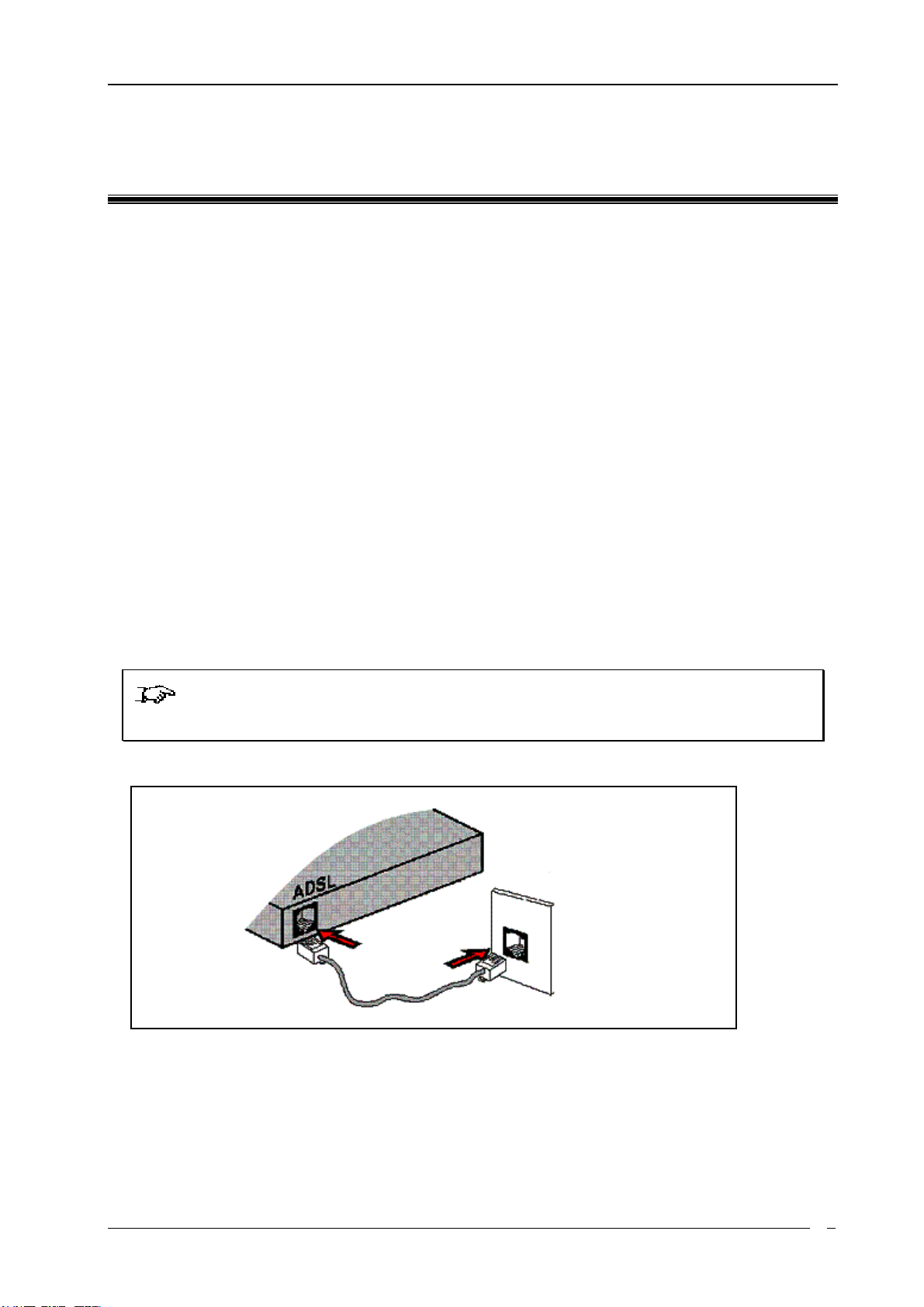
There are various ways to connect your Mega 100WR to your ADSL enabled telephone line.
•Directly (Without a telephone connected to the same outlet)
-To make a direct connection, please connect as per Figure 3-1
-If a telephone is to be connected to another outlet that shares the same telephone
line, please connect it as shown in Figure 3-2
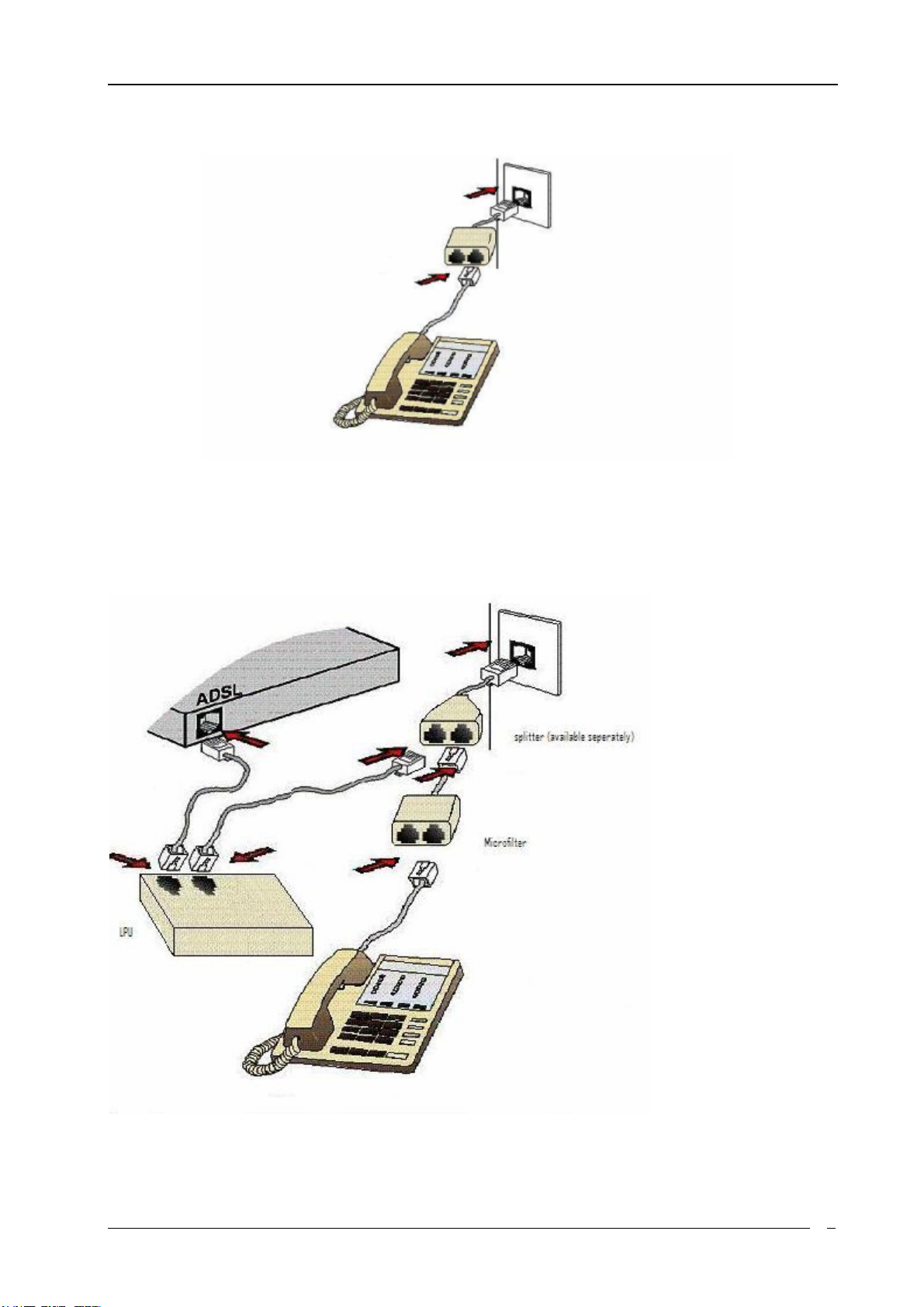
•Together with a telephone
-Please connect as per Figure 3-3 if you have a single telephone outlet or Figure 3-
4 if you have a twin telephone outlet.
-Should you wish to connect another telephone to an additional outlet that shares
the same telephone line, please connect this as shown in Figure 3-2
NOTE: When connecting a telephone to an ADSL enabled telephone line, you
MUST ALWAYS make use of a Microfilter
Figure3- 1 : Connecting directly to telephone outlet
Back View of
ADSL Router
Tele
p
hone Cable
Telephone
Wall Socket

Mega 100WR ADSL2+ Router - Easy Start Guide
8
Figure 3- 2 : Connecting a telephone to the same telephone line
Figure3- 3 : Connecting the router together with a telephone to a single telephone outlet
(using line splitter – available seperatly)

Mega 100WR ADSL2+ Router - Easy Start Guide
9
Figure 3- 4 : Connecting together with a telephone to a dual telephone outlet
3.2 Connecting to the Power Outlet
The Mega 100WR is powered through a power adaptor. This is connected to the Router as
shown in Figure 3-5. The 3 pin mains plug on the other end of the power adapter is to be plugged
into the mains outlet.
Figure 3-5 : Connecting the power adapter to the Mega 100WR
CAUTION
Use only the supplied power adaptor ! Use of any other adaptor may damage
the router !
Back View of the
ADSL Router
Connect the other end of
the Power Adapter to the
Power Outlet.
Altri manuali per 100WR
2
Indice
Altri manuali Mega Router di rete
Manuali Router di rete popolari di altre marche

NETGEAR
NETGEAR FS526T - Switch Manuale utente

Korenix
Korenix JetNet 5710G Series Manuale utente

Automated Logic
Automated Logic ZN551 Manuale del proprietario

Cisco
Cisco ASR 1000 Series Manuale dell'operatore

EnGenius
EnGenius ESR-9710 Manuale utente

Cisco
Cisco 805 Series Istruzioni operative e di sicurezza