micronPC CM900 Manuale utente

CM900 Monitor
User’s Guide

2
TABLE OF CONTENTS
Monitor User’s Guide......................................................... 3
Packing List ........................................................................ 3
Safety Information.............................................................. 3
Setup Instructions.............................................................. 5
Swivel Base...........................................................................................5
Power Cord............................................................................................6
Video Cable...........................................................................................7
Operating Instructions....................................................... 8
General Instructions ..............................................................................8
Cleaning the Monitor..............................................................................8
Front Panel Controls..............................................................................8
Accessing the Adjustment Controls.....................................................10
Adjusting the Picture............................................................................11
Monitor Drivers................................................................. 13
Warranty Information ....................................................... 13
Features ............................................................................ 13
Energy Star Standards ........................................................................13
Plug & Play DDC1/2B Feature.............................................................14
Appendix A —Troubleshooting...................................... 14
Appendix B —Factory Preset Timing ............................ 16
Appendix C —Connector Pin Assignment .................... 17
Appendix D —Monitor Specifications............................ 17
Appendix E —FCC Notice............................................... 19

3
MONITOR USER’S GUIDE
This user’s guide provides important information about operating your
monitor. Before using the monitor, please read the guide thoroughly, and
then save it for future reference.
PACKING LIST
Before setting up and using your monitor, examine the items in the monitor
package. If anything is missing or damaged, please contact MicronPC
immediately. Look for the following items:
• 19-in Cathode-Ray Tube (CRT) Monitor
• CM900 Monitor User’s Guide
• 100/120 VAC rated Power Cord
• Swivel Base
Note: Save the original shipping carton and packing materials in case you
ever need to transport or ship your monitor. If you transport the monitor
over long distances, completely repackage the monitor in its original
packing material.
SAFETY INFORMATION
• Do not use the monitor near standing bodies of water or in humid
envirionments.
• Set the monitor on a flat, stable surface. Do not place it on an unstable
cart, stand, or table. If the monitor falls, it might injure a person and/or
cause serious damage to the monitor.
• When placing the monitor on a cart or stand, use only a cart or stand
recommended by the manufacturer or sold with the monitor. If you
mount the monitor on a wall or shelf, use a mounting kit approved by the
manufacturer and follow the kit instructions.
• Slots and openings in the back and bottom of the monitor are provided
for ventilation. To ensure reliable operation of the monitor, and to protect
it from overheating, these openings must not be blocked or covered. Do
not place the monitor on a bed, sofa, rug, or similar surface. This
monitor must never be placed near or over a radiator or heat register.
This monitor must not be placed in a built-in enclosure of any kind
unless proper ventilation is provided.

4
• The monitor must only be connected to the AC power source as
indicated on the label. If you are unsure of the type of AC power
available, ask your local power company. Only connect this monitor to a
power outlet that matches the power requirements of this monitor.
• The monitor is equipped with a three-prong, grounded plug (a plug with a
third pin for grounding). For safety purposes, this plug will only fit into a
grounded power outlet. If your outlet does not accommodate the three-
wire plug, have an electrician install the correct type of outlet, or use an
adapter to ground the appliance safely.
• During a lightning storm, unplug the monitor. Also unplug the monitor
when it will not be used for a long time. This will protect the monitor from
damage due to power surges.
• Do not overload power strips and extension cords. Overloading power
strips and extension cords can result in a fire or electric shock.
• Never push objects of any kind into the monitor through openings. The
objects could touch dangerous voltage points or short out parts, possibly
resulting in an electric shock or a fire hazard.
• Never spill liquid of any kind on the monitor. If this occurs, disconnect
the monitor from the power source immediately.
• Do not attempt to service the monitor yourself. Opening or removing the
monitor’s cover can expose you to dangerous voltages and other
hazards. Please refer all servicing to qualified service personnel.
• To ensure satisfactory operation, only use the monitor with UL listed
computers that have the appropriate configured receptacles marked
between 100–240 VAC, Min. 1.5A.
• Do not allow anything to rest on the power cord. Do not place the
monitor where people might walk on the cord.
• Do not place the monitor in direct sunlight or where it is near excessive
dust or mechanical vibration or shock.
Warning: To prevent a fire or shock hazard, do not expose the
monitor to rain or moisture. Dangerously high voltages are present
inside the monitor. Do not open the monitor cabinet. Refer servicing
to qualified personnel only.
Warning: Keep all packing materials away from children.

5
SETUP INSTRUCTIONS
This section provides information for attaching the swivel base to your
monitor and for using the power cord and video cable.
Swivel Base
To attach the swivel base to the monitor, complete the following steps:
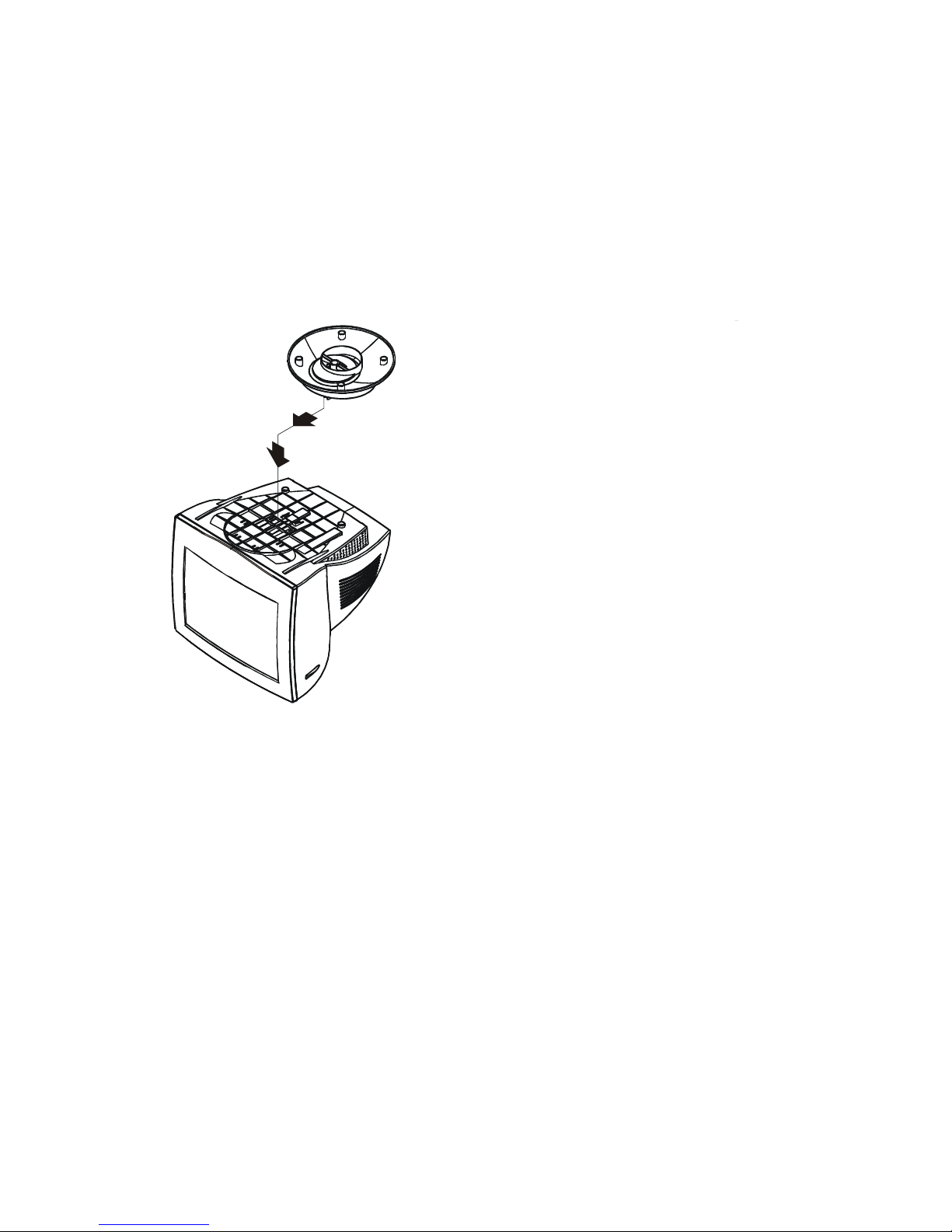
1Carefully turn the monitor upside down. (See Figure 1.)
1
2
Figure 1: Installing and Removing the Swivel Base
2Facing the monitor screen, locate the openings on bottom of the
monitor.
3Insert the swivel base’s pegs into the openings. Pull the swivel base
forward toward the front of the monitor until the swivel base locks in
place.
To remove the swivel base, complete the following steps:
1Carefully turn the monitor upside down. (See Figure 1.)
2Facing the monitor screen, grasp the bottom of the swivel base, press
down on the locking mechanism and push it backward until the base is
released.

6
Adjusting the Monitor’s Viewing Angle
• For optimal viewing it is recommended to look at the full face of the
monitor, then adjust the monitor’s angle to your own preference.
• Hold the base so you do not topple the monitor when you change the
monitor’s angle.
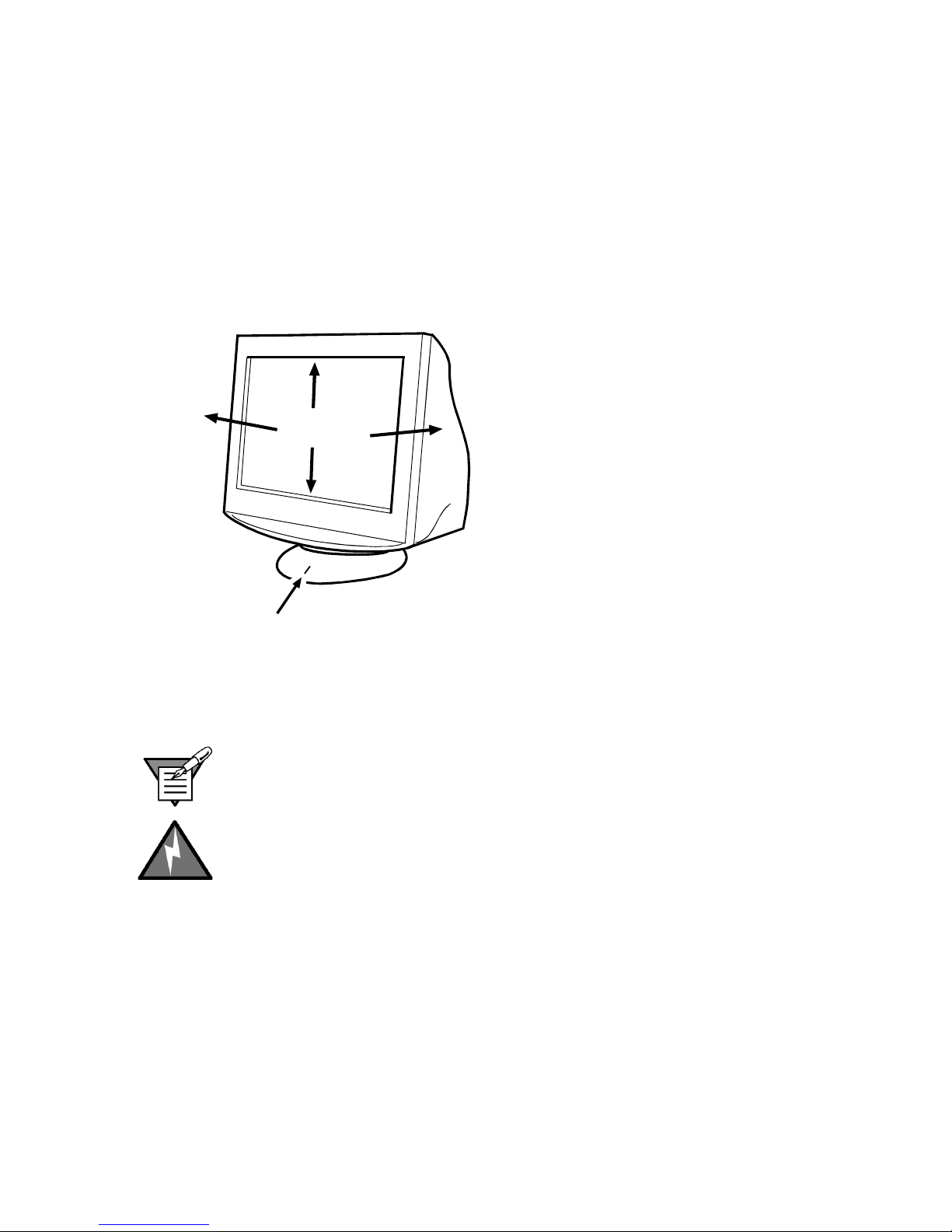
• You are able to adjust the monitor’s vertical angle from 5°to 15°.
• You are able to adjust the monitor’s horizontal angle from 90 to 90°.
15
5
90 90
Centering Mark
O
O
O
O
Figure 2: Adjusting the Monitor’s Viewing Angle
To find the center of the monitor’s swivel radius, align the center of the
creen with the centering mark on the base.
Note: To find the center of the monitor’s swivel radius, align the center of
the monitor’s screen with the centering mark on the base.
Warning: Be careful not to pinch your fingers when adjusting the
monitor’s angle.
Power Cord
Before connecting your monitor’s power cord, read the guidelines below:
• Make sure the power cord meets the specifications and requirements for
your area. The power cord included with your monitor is rated for
100/120 VAC.
• This monitor has a universal power supply, so it can operate in either a
100/120 VAC or 220/240 VAC voltage area (no user adjustment is
required).

7
To connect the power cord to your monitor and a power source, use the
following instructions:
Caution: If the AC outlet is not grounded (with three holes), install the
proper grounding adapter (not supplied).
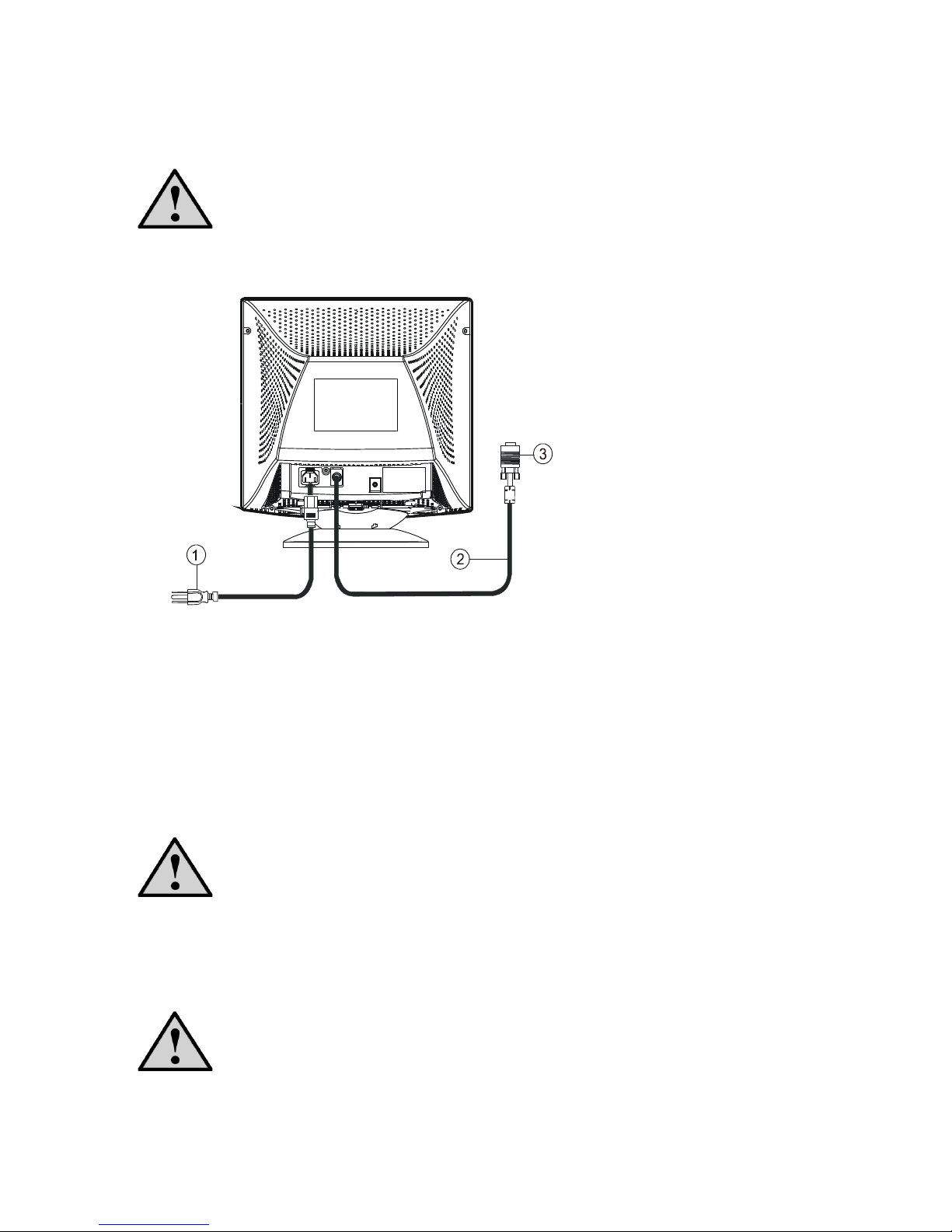
1Plug the power cord into your monitor’s power input socket. See Figure 3
for the socket’s location.
Figure 3: Connecting Cables
2Plug the other end of the power cord into a three-pin AC power outlet or
a UL-approved power strip.
Video Cable
The monitor comes with the video cable built into the monitor. To connect
the video cable’s connector to your computer’s video port, complete the
following steps:
Caution: Do not bend the signal cable excessively, or you might
break the wires inside the cable.
1Plug the video cable's 15-pin connector (see Figure 3) into the
computer's video port. Be careful not to bend any pins on the connector.
2Tighten the two screws on the video connector with your fingers to
secure the connection.
Caution: Over-tightening this connection can damage the monitor
cable or your computer’s video card.

8
OPERATING INSTRUCTIONS
The following sections provide information about operating and adjusting
your monitor.
General Instructions
To turn on the monitor, complete the following steps:
1Check that the power cord is connected to the monitor and a power
socket.
2Check that the video cable is connected to your computer’s video port.
3Locate the power button (see Figure 4on page 9).
4Press the power button. The power indicator will light up. The monitor
features a unique quick-switch system, so a picture should appear within
seconds after the monitor is turned on.
Cleaning the Monitor
To keep the monitor looking new, periodically clean it with a soft cloth. As a
safety precaution, always unplug the monitor before cleaning it. Stubborn
stains on the monitor’s case can be removed using a damp, dust-free cloth
and a mild detergent solution.
Caution: Never use strong solvents, such as thinner, benzene, or
abrasive cleaners, because these will damage the monitor.
To clean the monitor screen, use window cleaner (alcohol/ammonia free)
and a damp, dust-free cloth; however, make sure the monitor has been
turned off first. Never apply the window cleaner directly to the monitor
screen. Always spray the cloth first; then wipe down the screen.
Front Panel Controls
The power button is located on the front panel of the monitor. The buttons to
the left of the power button are for adjusting the monitor’s picture. See
Figure 4and Table 1on page 9for the layout and names of the control
buttons.

9
5
4
6
Figure 4: Control Buttons
Table 1: Control Buttons Descriptions
Feature Description
1Exit Press this button to close the On Screen
Display (OSD) menu. This will also back out
of a menu selection.
2Brightness / Press this button to adjust your monitor’s
brightness. If the OSD is open, this button
will move through the selections in a
counter-clockwise direction.
3Contrast / Press this button to adjust your monitor’s
contrast. If the OSD is open, this button will
move through the selections in a clockwise
direction.
4Menu/Enter Press this button to open the On Screen
Display (OSD) menu or to select an
adjustment icon within the OSD.
5Power Indicator Power Indicator:
Green = power on mode (normal operation)
Orange = low power mode (low power
consumption; no picture)
6Power Button Press this button to turn the monitor on and
off.

10
Accessing the Adjustment Controls
The following list explains how to access and use the adjustment controls
appearing in the On Screen Display (OSD) Main Menu:
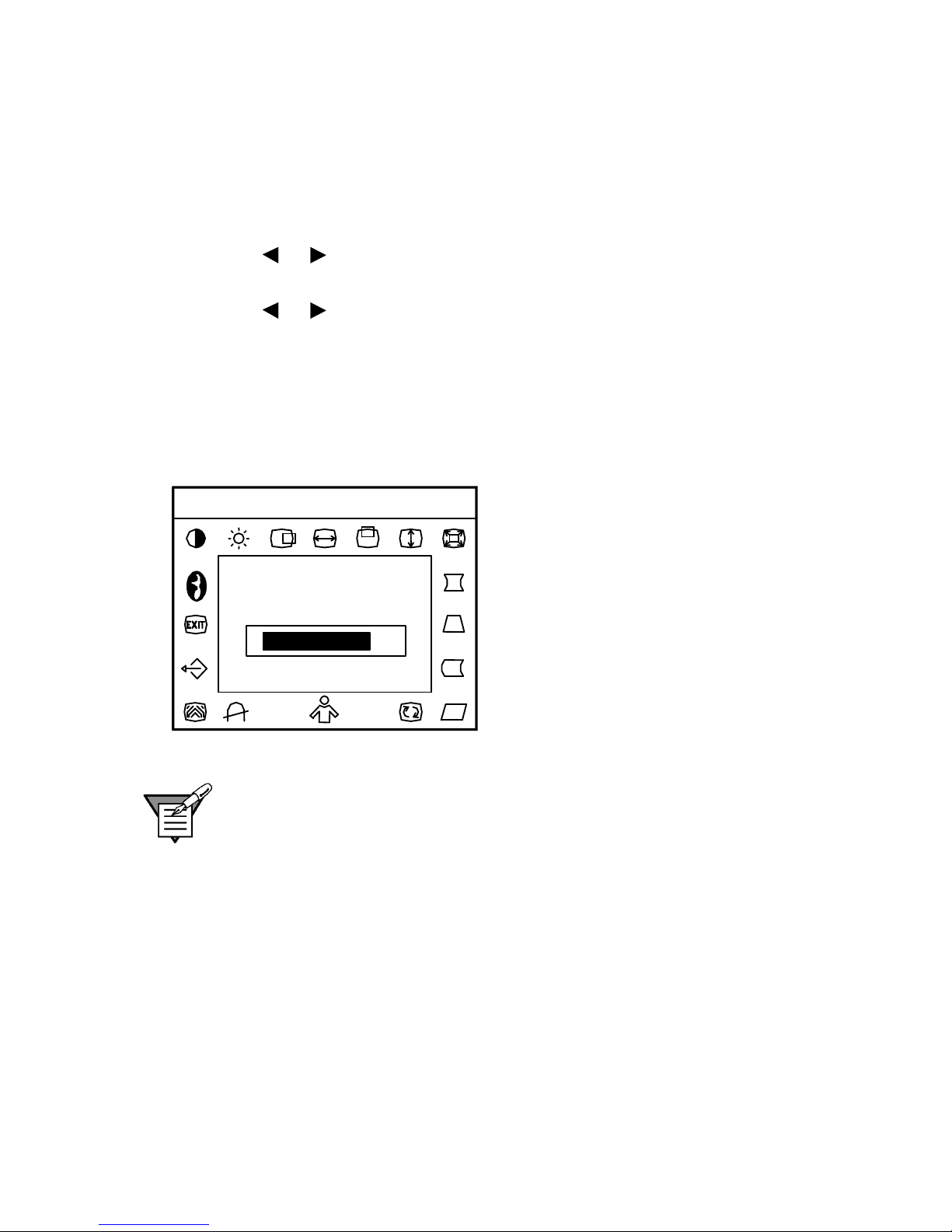
1Press the Menu button to make the OSD window appear. The menu will
look like Figure 5.
2Press the or buttons to select the desired function.
3Press the Menu button to select the function that you want to adjust.
4Press the or buttons to change the settings of the current function.
• When the OSD window is active, it shows the input signal timing.
The Hstands for the horizontal frequency and Vfor the vertical
frequency.
• To exit and save, select the exit functions, or leave the monitor
alone for 10 seconds. If you want to adjust any other function, repeat
steps 2-4.
70
V: 85Hz
9300
6500
H: 68.8KHz
Contrast
Figure 5: On Screen Display (OSD) Menu
Note: If you do not make any OSD menu adjustments or selections for
more than 10 seconds, the current setup will be saved, and the OSD will
disappear automatically.
Indice
Altri manuali micronPC Monitor