
Mikona MHTMID-B718DC8K Manuale utente

MHTMID-B718DC8K
USER GUIDE
7 inch tablet


3
Contents
Safety Information 4
Safety Instructions 5
Features & Specications 6
Supplied in the box 6
User Controls & Connections 7
Getting Started 8
Battery charging 8
Switching on for the rst time 9
The Home Screen 10
Connecting to Wi-Fi 12
Sign In 13
Install the Store 13
Settings 14
WIRELESS & NETWORKS 14
DEVICE 15
PERSONAL 17
ACCOUNTS 18
SYSTEM 19
Installing Applications 20
Connecting to a PC 21
Basic Functions 22
Browse the internet 22
Check your emails 22
Watch a lm or view photos 22
Listen to music 22
Troubleshooting 23
Care & Support 25

4
Safety Information
This product depends on third-party technology and therefore no guarantee can be made regarding the
compatibility of specic applications, software or accessories. Mikona take no responsibility for incompatibility
of this product with any third-party products or software.
Android™, Google™, Gmail™, Google Play™ and Play Store™ are trademarks of
Google Inc.
Correct disposal of this Product
Waste Electrical & Electronic Equipment (WEEE)
The crossed out wheelie bin is intended to show that this appliance must not be placed
with ordinary household waste at the end of its useful life. To prevent possible harm to the
environment or human health from uncontrolled waste disposal, please keep separate from
other household waste and recycle it responsibly to promote the sustainable reuse of material
resources.
Household users should contact either the retailer where you purchased the product, or their
local government ofce for details of where and how you can take this item for environmentally
safe recycling.
Business users should contact their supplier and check the terms and conditions of the
purchase contract. This product must not be mixed with other commercial wastes for disposal.
This appliance complies with European Safety & Electrical Directives
Mains power adaptor supplied is a Class II appliance.
Only use the power adaptor supplied. Do not use power adaptor with other equipment.
The exclamation point within an equilateral triangle is intend to alert
the user to the presence of important operating and maintenance
(servicing) instructions in the literature accompanying the appliance.
Do not open, or attempt to open, the casing: there are no user-serviceable parts
inside. Failure to adhere to the instructions provided will invalidate the warranty.
This product features an internal Lithium Polymer battery, please treat with care.
WARNING
THIS PRODUCT FEATURES AN LCD SCREEN.
DO NOT BEND, TWIST OR SUBJECT THE PRODUCT
TO ANY SHOCKS. THIS WILL CAUSE DAMAGE TO
THE SCREEN.

5
Safety Instructions
PLEASE READ THE BELOW SAFETY INFORMATION,
FAILURE TO DO SO MAY RESULT IN DAMAGE TO YOUR PRODUCT.
NEVER leave your tablet in direct sunlight or in a hot
vehicle or expose to heat.
NEVER use the tablet in a damp, humid or dusty
environment. Do not expose to moisture or liquids.
NEVER allow the tablet to be subjected to heavy vibrations
or shocks, especially the screen.
NEVER cross the road or drive whilst wearing headphones.
AVOID listening to excessively loud music or audio on
headphones, this can permanently damage your hearing.
ALWAYS use the supplied charger or USB cable for
charging the battery.
ALWAYS ensure the tablet is adequately ventilated to
avoid overheating.
WARNING: This product features a Lithium Polymer
battery. Improper charging or use may result in re,
personal injury and damage to property. The battery is not
removable.
CAUTION: The tablet may become hot during use,
especially during heavy use such as games, this is normal,
however always ensure the tablet is adequately ventilated
to avoid overheating.

6
Features & Specications
• 7” Multipoint Touchscreen Display
• Screen Resolution: 800 x 480 pixels
• CPU: Allwinner A23 Dual Core Cortex A7
• GPU: Mali400 3D Accelerator
• RAM: 512MB DDR3
• 8GB* Internal Flash Memory
• Micro SD Card support (up to 32GB)
• Wi-Fi 802.11 b/g/n
• Accelerometer: 3-axis
• Front Camera: 0.3 Megapixel
• Headphone Socket (3.5mm)
• Micro USB Socket
• Battery: Lithium-Polymer 3.7V 2100mAh
• Multilingual On-Screen Display
• Video: AVI, MKV, MP4, MPG, FLV, 3GP, Xvid, Divx, WMV
• Audio: MP3, WMA, M4A, AAC, FLAC, APE, WAV
• Text: TXT, RTF, DOC, XLS, PPT, PDF
• Dimensions (mm): 192 x 117 x 11
*Available memory after formatting will be less
Supplied in the box
• 7” touchscreen tablet
• Mains power adaptor
• USB cable (for connection to PC)
• User Guide
• Quick Start Guide
PLEASE NOTE
Your tablet screen is tted with a protective lm which may be removed by gently peeling from
one of the corners. Do not use any sharp implements to remove the lm as this may damage
the screen.

7
User Controls & Connections
Buttons & Connections
q POWER
Press momentarily to switch in/out of standby.
Press and hold to switch On or Off.
HOME
Press to return to home screen.
DC IN
Dual purpose (micro USB). Connect to
supplied mains adaptor to charge battery.
Connect to computer using supplied cable to
transfer les and charge battery.
HEADPHONES (3.5mm)
Insert headphone jack to listen, main speaker
will cut out when connected.
MIC
Integrated microphone.
MICRO SD
Insert Micro SD memory card to expand
storage (up to 32GB, not supplied).
CAMERA (on front)
0.3 Megapixel. For use with certain
applications.

8
Getting Started
Battery charging
To charge your tablet connect the mains power
adaptor to DC IN
Or connect to an available USB socket on your
computer using the supplied cable.
Tip
Charging using the mains power adaptor may be much faster than
charging via a PC USB socket.
Look after your battery: do not leave plugged in for long periods, regularly
allow to discharge completely.
Your tablet may be partially charged when rst
switched on, please fully charge as soon as
possible to ensure you get the best from your
battery.
!
DC IN

9
Getting Started
Switching on for the rst time
To begin, press and hold the
q power button
After a few seconds the screen will
display the loading screen
Loading will take around a minute
Once loaded, follow the on-screen
guide, please allow a few minutes for
all installed applications to become
accessible
C
P
!
q
A quick press on the qPOWER button switches the screen On
and Off.
A long press on the qPOWER button switches the tablet On and
Off.
The screen will lock when switched off.
To unlock, swipe on the padlock
10
Getting Started
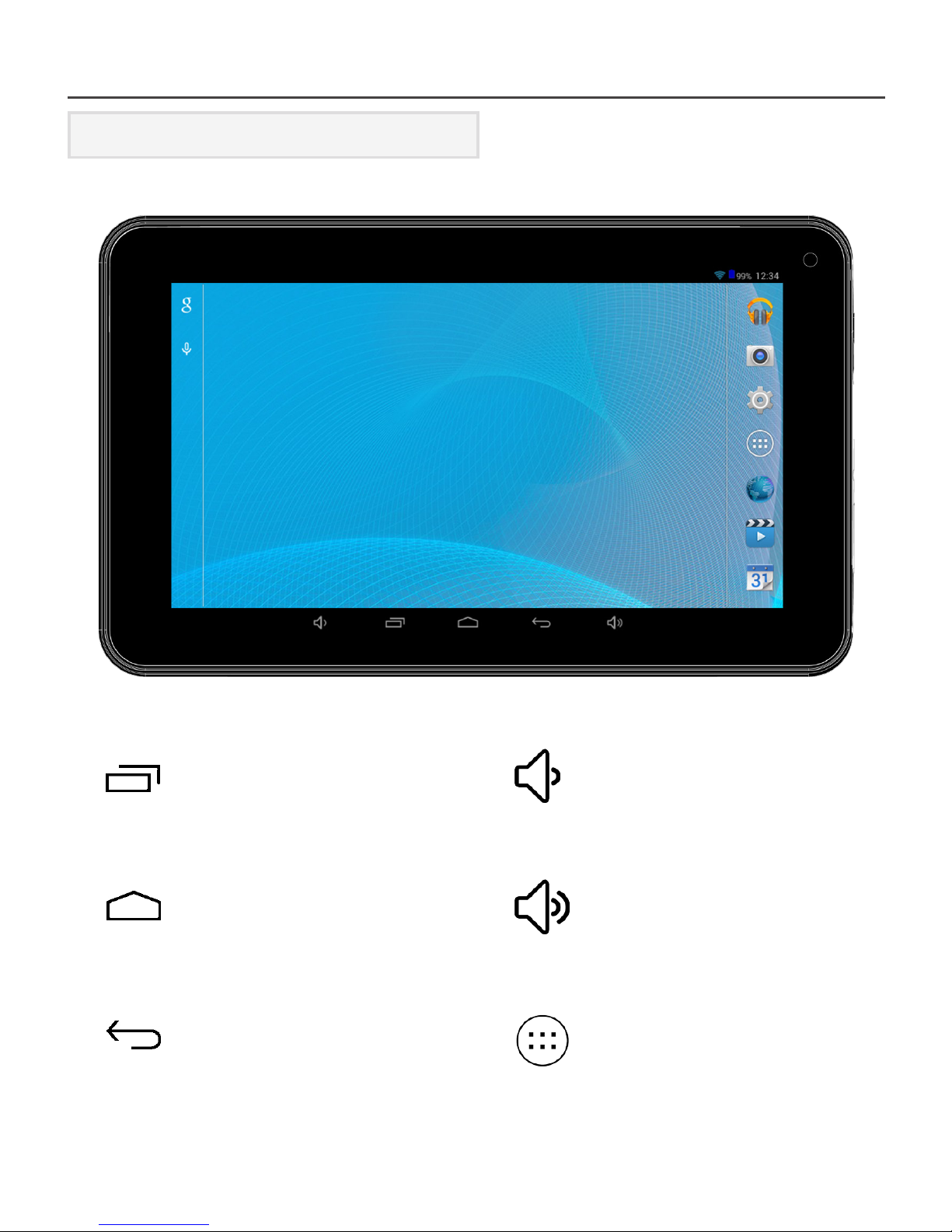
The Home Screen
BACK
Press to return to previous
screen or exit app
HOME
Press to return to Home
screen
RECENT
Display recently used apps
ALL APPS
Display all installed
applications
VOLUME UP
VOLUME DOWN
Indice
Altri manuali Mikona Tavoletta


