
MIMO UM-710S Manuale utente
PAGE 1 OF 21
www.mimomonitors.com
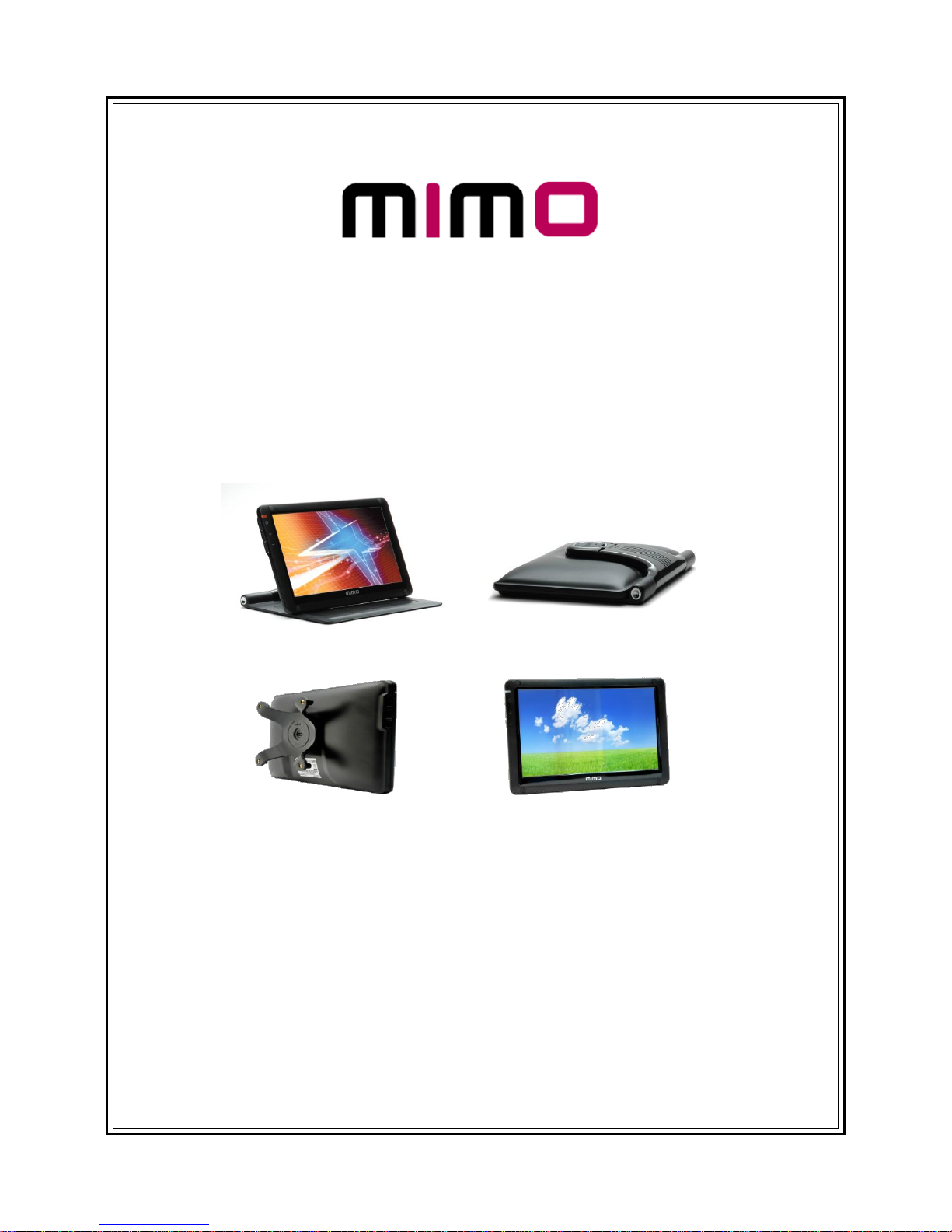
UM-710S/ UM-720S
UM-710F/ UM-720F
Super Slim Foldable Design
User Manual

PAGE 2 OF 21
Table of Contents
Safety Instructions ……………………………………… 3~4
Product Features ………………………………………… 5
Package Contents ……………………………………….. 6
Connections and Installation …………………………. 7
Installing Monitor Driver ………………………………. 8~9
MIMO Display Setting ……..……………………………. 10
Installing Touch Screen Controller ………………….. 11~14
System Requirements and Restrictions ……………. 15
Troubleshooting ………………………………………….. 16~18
Specifications ……………………………………………... 19
PAGE 3 OF 21
▣Safety Instructions
These safety instructions must be followed to ensure your safety and prevent property damage.
Warning/Cautions:
Otherwise, it may result in personal injury or property damage.
Make sure to read the instructions carefully and use the product in the correct manner..
▪Power Source:
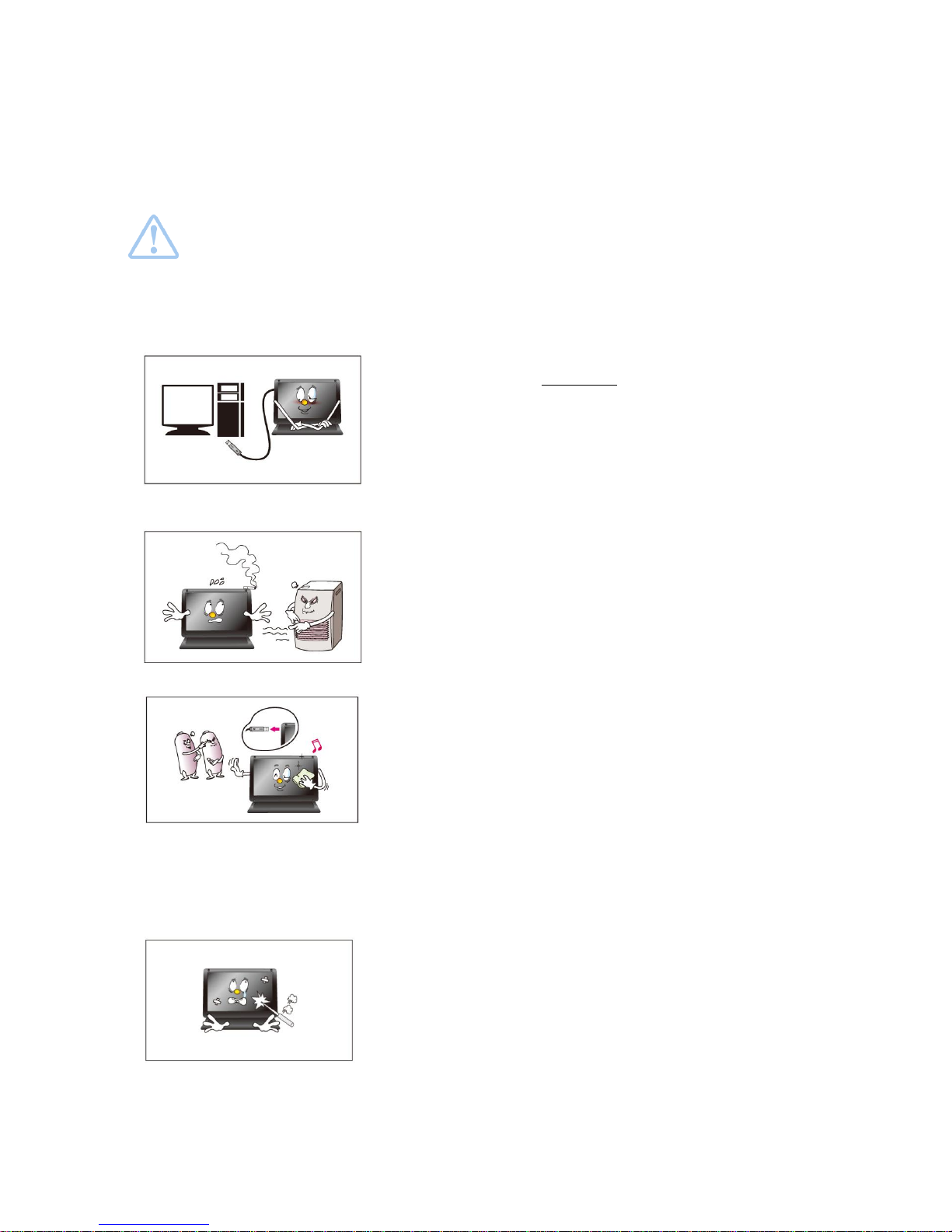
- Make sure to use USB Cable (DC 5V) only.
* MIMO doesn‟t require any additional power source
▪Do not place MIMO in a location exposed to
moisture, dust, smoke, water, or in a car.
* Otherwise, this may result in electric shock or fire.
▪Clean the product using a soft cloth with a
monitor cleaner only.
- Make sure to disconnect USB Cable while cleaning
- Ensure that water does not enter the product and that it is not
wet.
* Otherwise, this may result in electric shock, fire or a
malfunction.
▪Do not force on LCD(Touch Panel) Screen
- Do not tap or scratch LCD(Touch Panel) Screen with a sharp
object.
* Otherwise, LCD(Touch Panel) may get damage.
PAGE 4 OF 21
▪Product Input/Output Connectors
- Do not insert any metal, such as chopsticks, coins, pins and
steel,
- If foreign material enters the product, disconnect the USB cable
and contact a Service Center.
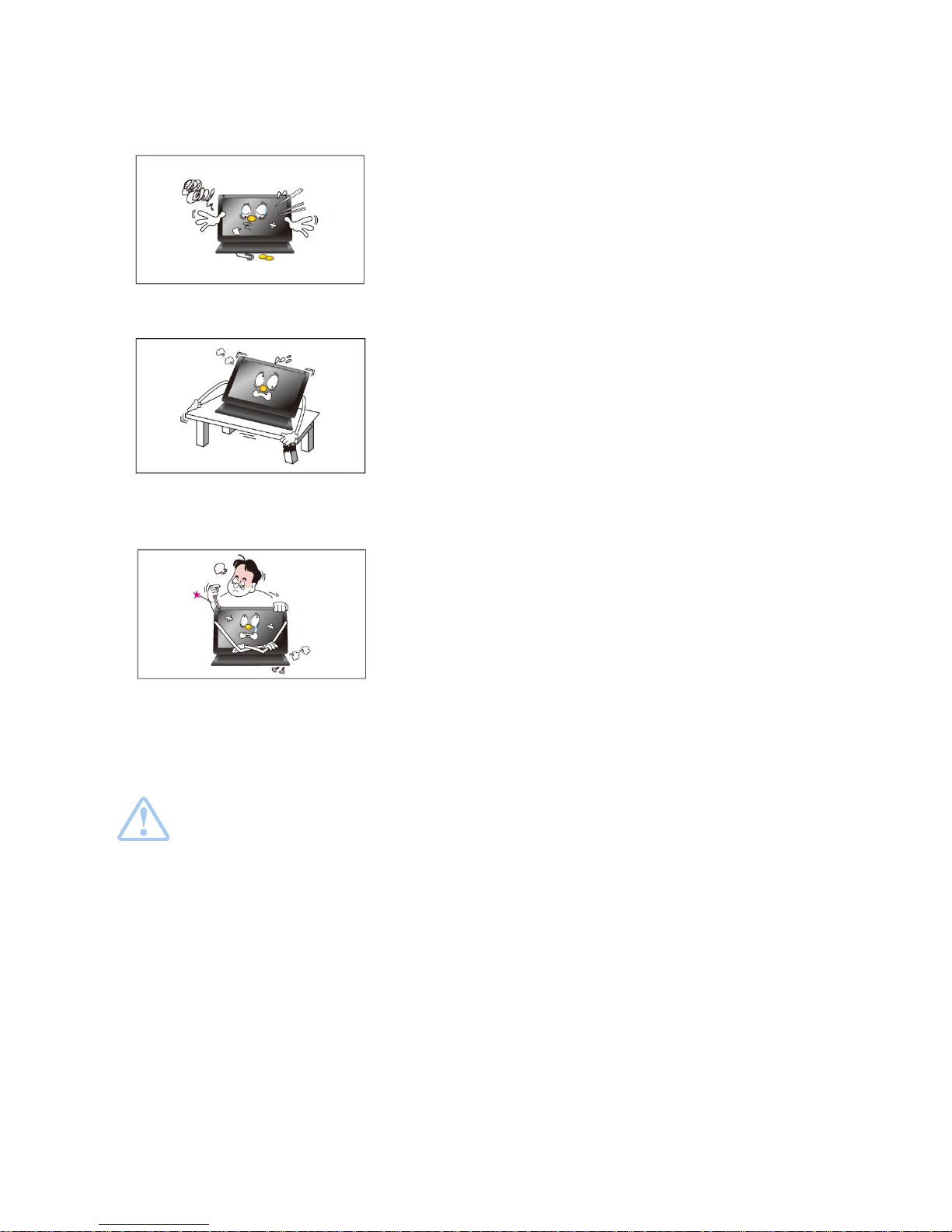
▪Do not install MIMO in an unstable location
- Otherwise, it may fall and cause personal injury and/or damage
the product.
▪Ensure that users do not disassemble, repair or
modify the product themselves
- If the product needs to be repaired, contact a Service Center.
If water enters the product, disconnect the USB and contact a Service Center.
This may result in a product malfunction, electric shock, or fire.
PAGE 5 OF 21
▣Product Features
▶USB powered monitor with Touch Screen Panel (UM-720S, UM-720F)
▶Super Slim Foldable and Portable Design
▶With only USB cable connection, a user may utilize MIMO as Multiple Input/Output device for Video
Conference, Instant Messaging, News and Stock casting.
• Each model has different functions and features as listed Product Matrix below
▶Product Matrix
▣Model Name
UM-710S
UM-720S
UM-710F
UM-720F
▣Extension Monitor
▣Pivot
▣Touch Screen
▣VESA 75 Compatible
▣Color
Black Color
White Color
Black Color
White Color
Black Color
White Color
Black Color
White Color
* Product Colors and Designs may vary upon each product and above listed specifications are
subject to change without prior notice
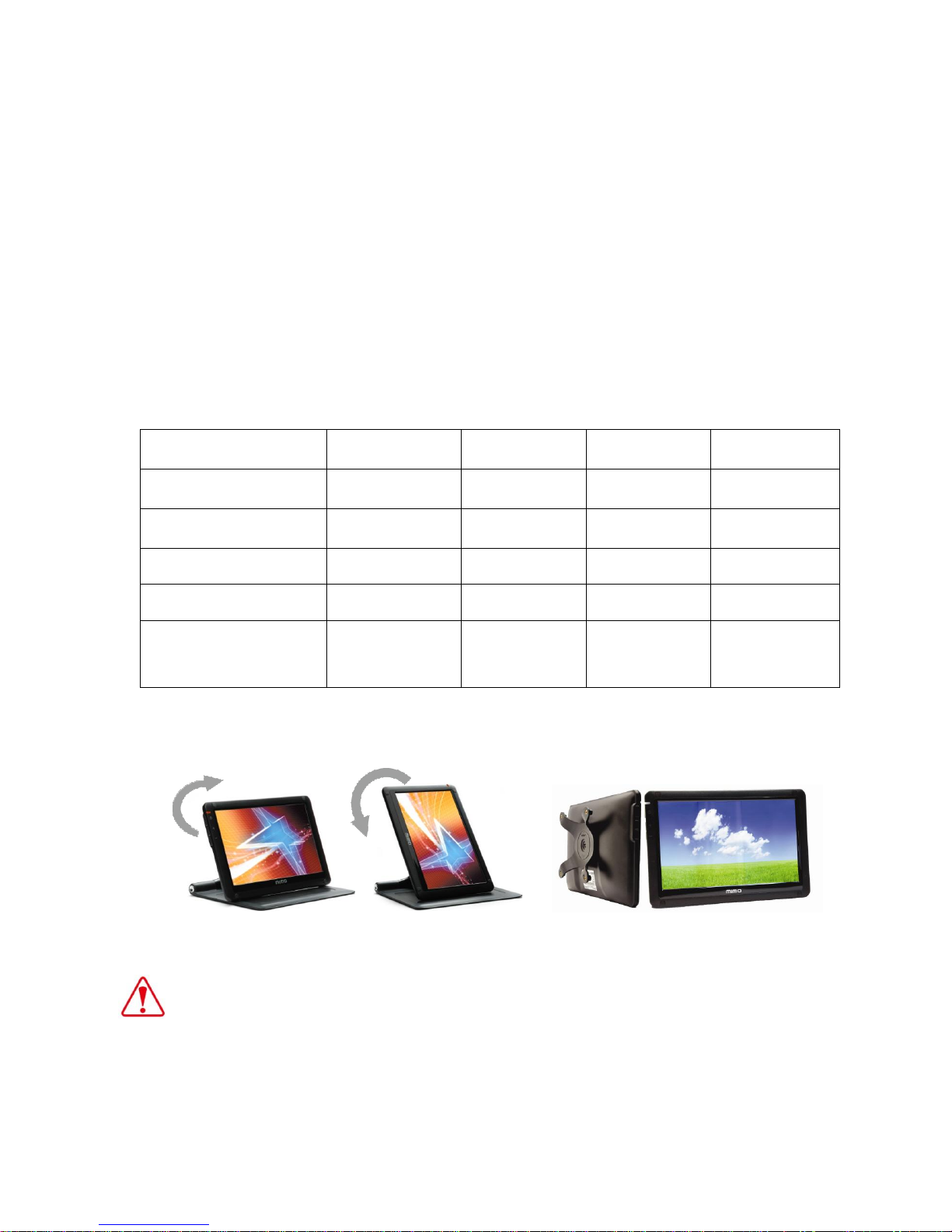
* Pivot Caution: MIMO screen rotates one way only
. Horizontal to Vertical: Clockwise
. Vertical to Horizontal: Counter-clockwise
Do not force to rotate the screen opposite way
PAGE 6 OF 21
▣Package Contents
Please make sure the following items are included with your monitor.
Contact a local dealer to buy optional items.
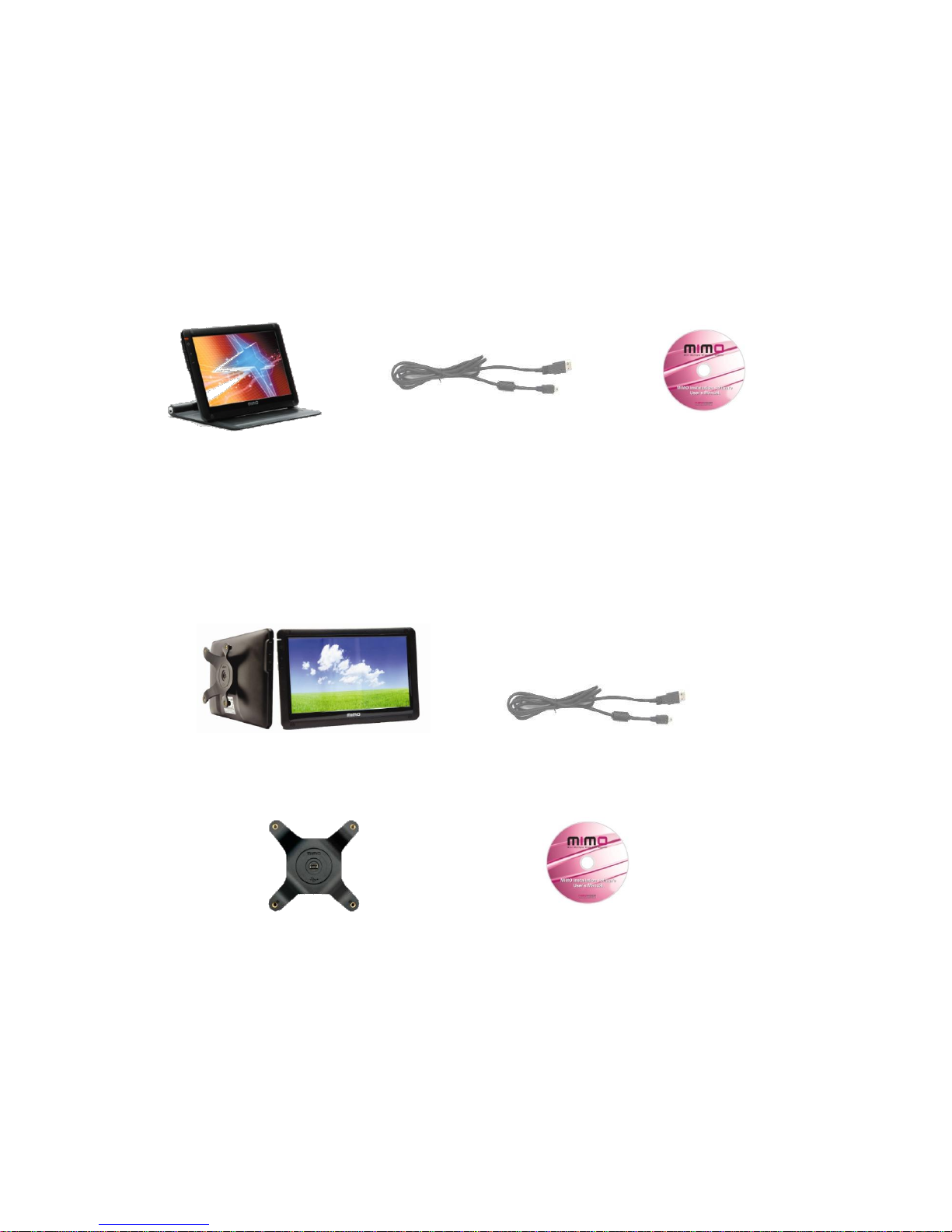
▶UM-710S/ UM-720S
UM-710S/ UM-720S USB CABLE Install Disc + User Manual
▶UM-720F
UM-710F/ UM-720F USB CABLE
Bracket for VESA 75 Install Disc + User Manual
※Package Contents are subject to vary upon each model, please contact your local
dealer if any items are missing.
PAGE 7 OF 21
▣Connections and Installation
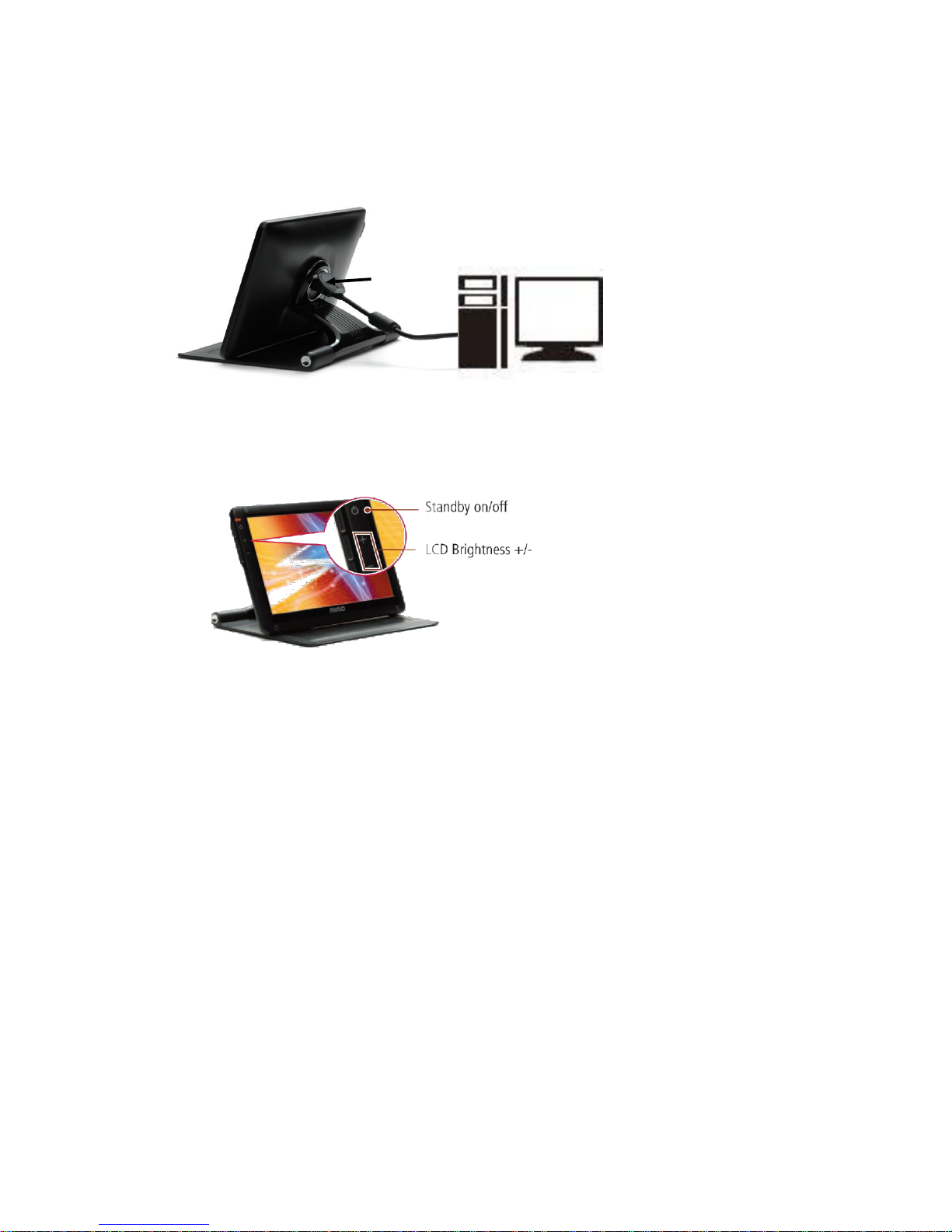
MIMO requires USB connection only.
①USB Cap: USB mini B type connector inside
▶Buttons
▶System Requirements
• CPU : Intel Pentium/Celeron/AMD/K6/Athlon/Duron 1.2GHz or above
• RAM : 512MB RAM or above
• USB : at least one or more USB2.0 port
• HDD : 30MB HDD space above
• O/S : Windows 2000 SP4/XP SP2 32bit/Vista 32bit
▶Using the Software
With only USB cable connection, a user may operate MIMO as an Extension monitor with Touch Screen
Panel(UM-720S, UM-720F). For more detail functions and feature please refer to page 5 “Product Features”)
①
①

PAGE 8 OF 21
▣Installing Monitor Driver (AutoRun)
1. Insert the CD into the CD-ROM drive
If the CD is not running automatically please double-click the “AutoRun.exe”
Select the USB Monitor Driver Driver you wish to install and click “Next”
2. Starting to install the USB Monitor Driver
If you see following message window, select "I agree” to accept the terms of use
3. DisplayLink Core Software window opens
The program will show the progress of installing the DisplayLin Core software and DisplayLink Graphics.

PAGE 9 OF 21
4. Installing device driver message
Connect MIMO device via the USB cable to your PC
In case of windows XP, this window installs the driver and the installation will be completed automatically and
the below message (or similar) windows opens
In case of Windows 7 and Vista, the Windows User Account window opens.
Click „OK‟, then DisplayLink automatically installs the device and the DisplayLink software and user license
agreement window opens, click „I Accept‟, the DisplayLink graphics adapter software installs, without
notification, the installation will be completed.
PAGE 10 OF 21
▣MIMO Display Setting
[ In case of Windows 7 –Controlling the MIMO Display ]
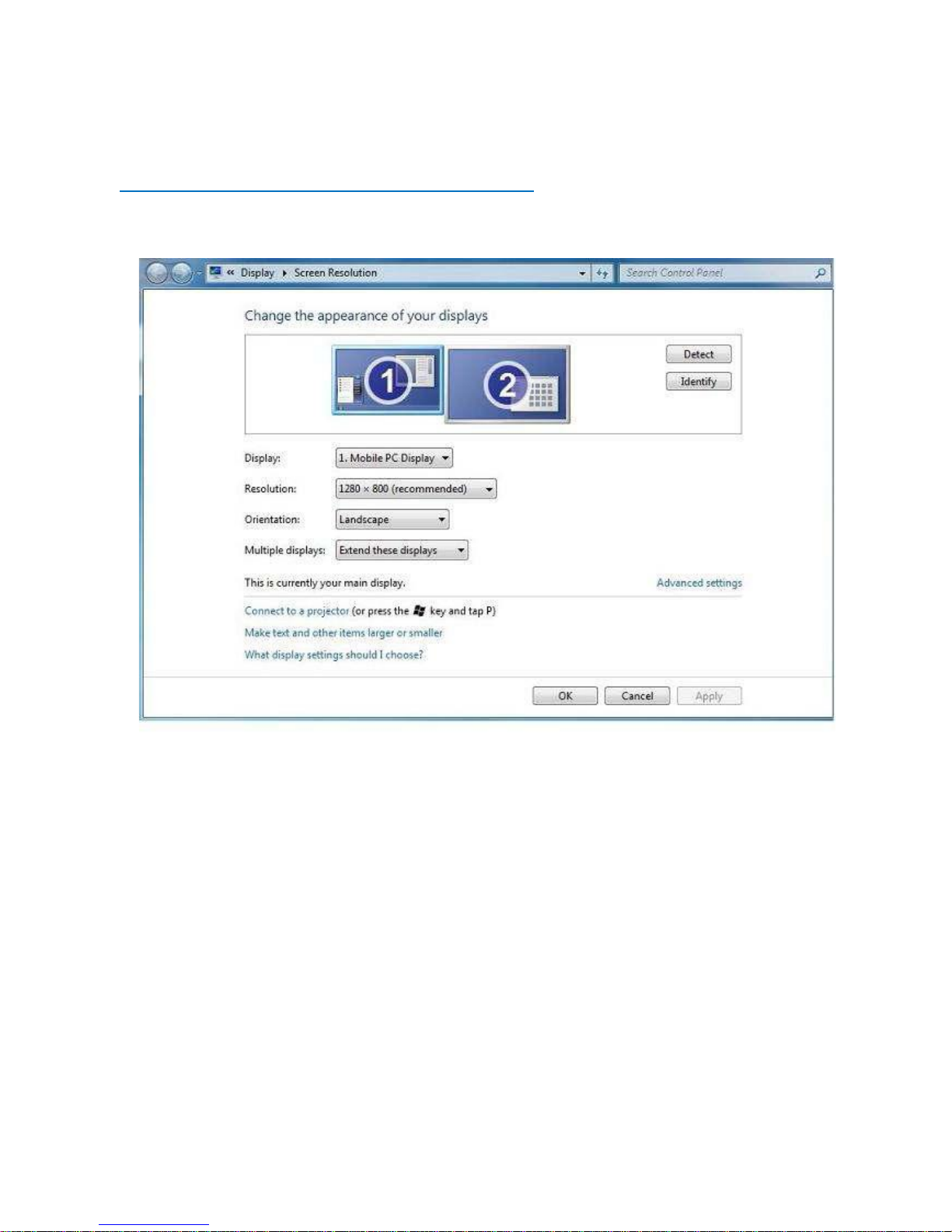
1. MIMO Display Properties Setting
You can configure MIMO device through the use of Windows Display Properties (WDP), which provides
a simple method to attach, rotate, duplicate or extend screens as well as modify screen resolution.
1. Open Windows Display Properties (WDP)
2. Set the display options, Refer to the table below for details on each option
*. How to open Windows Display Propertied (WDP)
1. Right-click on the desktop
2. Select Screen Resolution from menu
OR
1. Right Click on the MIMO icon on the taskbar
2. Click „Advanced‟
Altri manuali per UM-710S
1
Questo manuale è adatto per i seguenti modelli
3
Indice
Altri manuali MIMO Monitor


