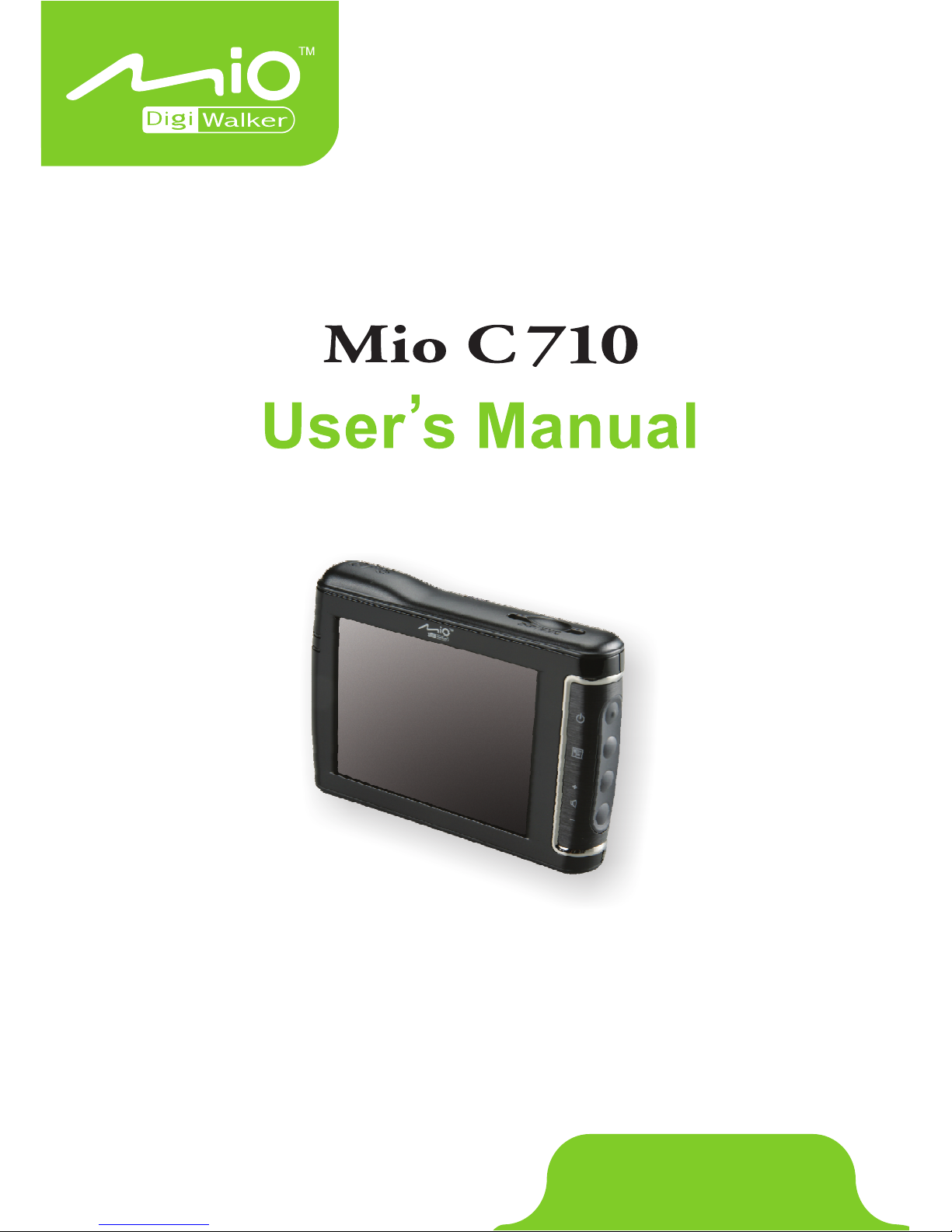
Mio Digiwalker C710 Manuale utente

www.miogps.com

Revision: R00 (US version)
March 2006
Trademarks
The Total Traffic Network logo is a trademark of Clear Channel Broadcasting,
Inc. All other brand and product names are trademarks or registered trademarks of
their respective companies.
Note
Information in this manual is subject to change without notice.

Table of Contents
Warnings and Notices...........................................................................vii
1Getting Started..................................................................................1
1.1 Understanding Hardware Features...................................................... 1
Front and Side Features ...................................................................... 1
Back Features ...................................................................................... 2
Top Features........................................................................................ 3
Bottom Features................................................................................... 3
1.2 Performing the Initial Start Up.............................................................. 4
1.3 Connecting to AC Power and Charging the Battery............................. 5
1.4 Using Your Device in a Vehicle............................................................ 6
Using the Device Holder ...................................................................... 6
Connecting the Car Charger ................................................................ 7
Connecting the TMC Antenna.............................................................. 8
1.5 Operating Basics.................................................................................. 9
Turning On and Off .............................................................................. 9
Operating the Device ........................................................................... 9
Home Screen ..................................................................................... 10
Inserting a SD/MMC Card.................................................................. 11
2Contact ............................................................................................13
2.1 Starting and Exiting Contact............................................................... 13
2.2 Using the Contact list ......................................................................... 14
2.3 Using the Summary Screen ............................................................... 14
2.4 Making a Phone Call to a Contact ..................................................... 15
2.5 Managing Contact .............................................................................. 16
Adding a Contact................................................................................ 16
Editing a Contact................................................................................ 18
Deleting a Contact.............................................................................. 18
iii

3Calculator ........................................................................................19
3.1 Starting and Exiting Calculator........................................................... 19
3.2 Using the Calculator Mode................................................................. 20
Calculator Memory ............................................................................. 20
3.3 Using the Currency Mode .................................................................. 21
Editing Exchange Rate....................................................................... 23
3.4 Using the Conversion Mode............................................................... 24
4Movie................................................................................................27
4.1 Starting and Exiting Movie ................................................................. 27
4.2 Preparing the Video Files for Your Device......................................... 27
4.3 Playing Video Clips ............................................................................ 28
4.4 Video Playback Controls .................................................................... 29
5MP3 ..................................................................................................31
5.1 Starting and Exiting MP3 Player ........................................................ 31
5.2 Preparing the MP3 Files for You Device............................................ 32
5.3 Playing MP3 Files .............................................................................. 32
5.4 MP3 Playback Controls...................................................................... 33
5.5 Using the Play Lists............................................................................ 34
Creating a Play List ............................................................................ 34
Opening a Play List ............................................................................ 35
5.6 Equalizer ............................................................................................ 36
6Photo................................................................................................39
6.1 Starting and Exiting Photo.................................................................. 39
6.2 Preparing the Pictures for Your Device.............................................. 39
6.3 Viewing Pictures in Thumbnail View .................................................. 40
6.4 Viewing a Picture in Full Screen ........................................................ 40
6.5 On-Screen Control Buttons ................................................................ 41
6.6 Viewing the Slideshow ....................................................................... 43
6.7 Transferring Pictures.......................................................................... 44
7Setting..............................................................................................47
7.1 Using Setting...................................................................................... 47
7.2 Backlight............................................................................................. 48
7.3 Volume ............................................................................................... 49
7.4 Screen ................................................................................................ 50
7.5 Power ................................................................................................. 51
7.6 Date&Time ......................................................................................... 52
7.7 Bluetooth ............................................................................................ 54
iv

8Dialer................................................................................................55
8.1 About Dialer........................................................................................ 55
8.2 Connecting a Bluetooth Mobile Phone............................................... 55
8.3 Placing a Call ..................................................................................... 57
Keypad ............................................................................................... 57
Contact ............................................................................................... 58
Call History......................................................................................... 59
Redial ................................................................................................. 59
8.4 Operations During a Call.................................................................... 60
8.5 Receiving a Call ................................................................................. 61
8.6 Miscellaneous Buttons ....................................................................... 61
Connect .............................................................................................. 61
Pair Mode ........................................................................................... 62
Others................................................................................................. 62
Exit ..................................................................................................... 63
9Bluetooth Manager .........................................................................65
9.1 About Bluetooth.................................................................................. 65
9.2 Starting and Exiting Bluetooth Manager ............................................ 65
9.3 Turning On/Off Bluetooth ................................................................... 66
9.4 Exploring Bluetooth Devices .............................................................. 67
9.5 Transferring Files via Bluetooth ......................................................... 69
9.6 Using My Shortcuts ............................................................................ 71
9.7 Viewing Active Connections............................................................... 72
9.8 Configuring Bluetooth Settings........................................................... 72
10 Using the Application CD...............................................................75
10.1 About the Application CD ................................................................... 75
10.2 ActiveSync.......................................................................................... 75
Compatibility....................................................................................... 75
Installing ActiveSync .......................................................................... 76
Using ActiveSync ............................................................................... 78
10.3 Mio Sync............................................................................................. 79
Installing Mio Sync ............................................................................. 79
Using Mio Sync .................................................................................. 79
10.4 Video Toolbox .................................................................................... 80
Installing Video Toolbox ..................................................................... 80
Using Video Toolbox to Convert Video Files ..................................... 81
11 Troubleshooting and Maintenance ...............................................85
11.1 Resetting Your System ...................................................................... 85
11.2 Troubleshooting ................................................................................. 86
Power Problems................................................................................. 86
v

Screen Problems................................................................................ 86
Connection Problems......................................................................... 87
GPS Problems.................................................................................... 87
11.3 Maintaining Your Device .................................................................... 88
12 Regulatory Information ..................................................................89
12.1 Regulations Statements ..................................................................... 89
Class B Regulations........................................................................... 89
European Notice ................................................................................ 90
12.2 Safety Precautions ............................................................................. 91
About Charging .................................................................................. 91
About the AC Adapter ........................................................................ 91
About the Battery ............................................................................... 92
Index.......................................................................................................93
vi

Warnings and Notices
zFor your safety, do not operate the controls of the product while driving.
zUse this product with caution. The product is a navigation aid. It does not
provide exact measurements of direction, distance, location or topography.
zThe calculated route is for reference only. Always follow the posted traffic
signs, speed limits and road restrictions.
zWhen you leave your car, do not leave your device on the dashboard in direct
sunlight. This can cause the battery to overheat and malfunction.
zThe Global Positioning System (GPS) is operated by the United States
government, which is solely responsible for its performance. Any change to
the GPS system can affect the accuracy of all GPS equipment world-wide.
zGPS satellite signals cannot typically pass through solid materials (except
glass). GPS location information is not typically available inside buildings,
tunnels, or underground parking lots.
zA minimum of 4 GPS satellite signals is needed to calculate your GPS
position. Signal reception can be affected by weather events or overhead
obstacles (e.g. dense foliage and tall buildings).
zOther wireless devices in the vehicle may interfere with the reception of
satellite signals and cause the reception to be unstable.
vii

zA device holder is needed when using the device in a car. Be sure to place the
device in an appropriate place, so as not to obstruct the driver’s view, or
deployment of airbags.
Do not mount where the driver’s
field of vision is blocked. Do not place on the
dashboard unsecured.
Do not mount in front of
airbag panels.
Do not mount in front of an
airbag field of deployment.
viii

1 Getting Started
1.1 Understanding Hardware Features
NOTE: Depending upon the specific model purchased, the color of your device may not
exactly match the device shown in this manual.
Front and Side Features
Ref Component Description
Glows in bright amber to indicate that the battery is
nCharge Indicator
charged.
charging, and turns green when the battery is fully
oFlashes in blue to indicate that Bluetooth is on.
Bluetooth
Indicator
pTouch Screen Displays the output of your device. Tap the screen with
your fingertip to select menu commands or enter
information.
1

qPower Button Turns on and off the device.
rMenu Button Displays the Home screen.
When in the map screen:
Zooms in or out the map.
sVolume Control
Adjusts the volume level of your device.
When not in the map screen:
Back Features
Ref Component Description
nnna
Connector
better GPS
ception.
External Ante This connector (under rubber dust cover) allows use of an
optional external GPS antenna with magnetic mount,
he car for
which may be positioned on top of t
signal reception in areas with poor re
oSpeaker Sends out music, sounds and voice.
pHand String Hole Hand string attaches to this hole.
2
Altri manuali per Digiwalker C710
3
Indice
Altri manuali Mio GPS

Mio
Mio Mio 268 Manuale utente

Mio
Mio Cyclo 505 series Manuale utente

Mio
Mio DigiWalker C210 Manuale utente

Mio
Mio DigiWalker C720T Manuale utente

Mio
Mio MOOV 500 Series Manuale utente

Mio
Mio Destinator Manuale utente

Mio
Mio DigiWalker A701 Manuale utente

Mio
Mio Fuse Manuale utente

Mio
Mio Digi Walker C510 Manuale utente

Mio
Mio S300 series Manuale utente

Mio
Mio MOOV M300 Manuale utente

Mio
Mio MIOMAP C220 Manuale utente

Mio
Mio MioMap Manuale utente

Mio
Mio DigiWalker C320 Manuale utente

Mio
Mio DigiWalker C520 Manuale utente

Mio
Mio Moov 200 Series Manuale utente

Mio
Mio DigiWalker C230 Manuale utente

Mio
Mio Cyclo 100 Series Manuale utente

Mio
Mio Mio 269 Manuale utente

Mio
Mio MOOV V Series Manuale utente