
Mirano NFC Manuale utente

Green
Receipt
Dispenser
NFC
User Guide
VERSION 0.1
www.mirano.ca
MIRANO
System Requirements/H w It W rks
Green Receipt Dispenser NFC User Guide
2
System Requirements
•ACR1222L VisualVantage NFC Reader with LCD.
•ACR1222L Smartcard drivers fr m Advanced Card Systems Ltd.
Customer Requirements
•NFC Enabled Smartph ne, r
•Pre-pr grammed MIFARE Classic r MIFARE Ultralight Card/Tag
How It Works
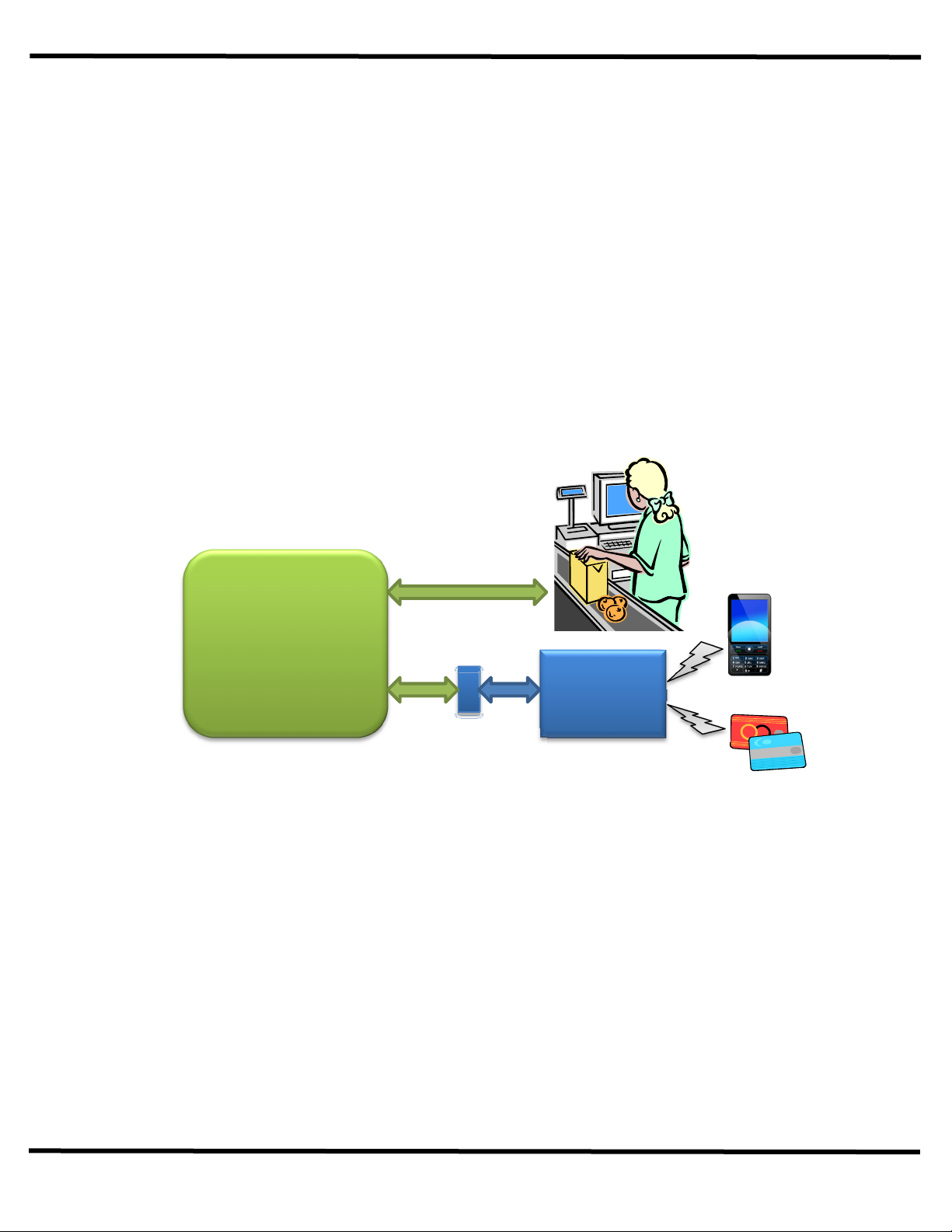
Near Field C mmunicati n (NFC) is used t accept cust mer address fr m either NFC enabled smartph nes r
NFC cards/tags.
NFC Benefits
•Cust mer experience is greatly increased.
•Cashier d es n t need t deal with requesting sensitive inf rmati n fr m the cust mer.
•N typing err rs r fake entries.
•N additi nal delays in the check ut pr cess.
•Ease f use.
•N additi nal requirement f r cust mers with NFC enabled smartph nes.
Green
Receipt
NFC
Reader
Manual Entry
Automatic
C nfigurati n/Driver Installati n
Green Receipt Dispenser NFC User Guide
3
NFC Reader Installation
1. The ACR1222L NFC reader requires the c rrect Smartcard drivers t be installed n the POS c mputer
f r it t perate c rrectly with the Green Receipt pr duct.
2. Bef re y u begin with the installati n pr cess, familiarize y urself with the driver installati n steps utlined
in this d cument.
3. Obtain the ACR1222L Smartcard driver package fr m Advanced Card Systems Ltd and place the driver
package n the POS c mputer. The d wnl ad link f r the Smartcard driver package is pr vided bel w.
http://www.acs.c m.hk/drivers/eng/ACR1222_Driver_Win_1003_P%20(Beta).zip
4. Extract the c ntents f the ab ve c mpressed package nt the hard drive f the POS c mputer.
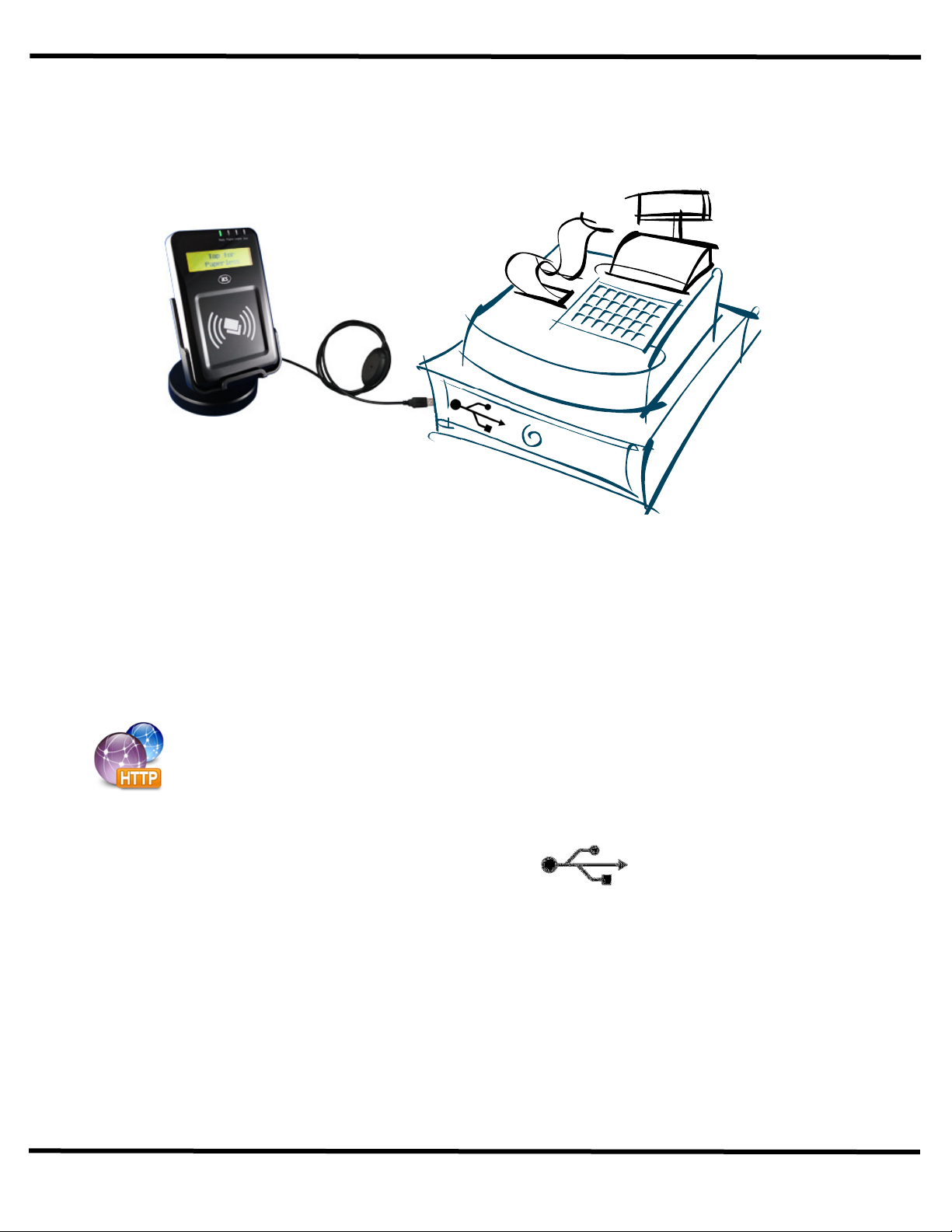
5. Plug in the USB based NFC reader int a spare USB p rt
n the POS c mputer. The NFC
reader btains it p wer fr m the USB p rt and d es n t require a separate p wer adapt r.
6. F r Wind ws Vista and Wind ws 7 based POS c mputer, f ll w the steps utlined in the Wind ws Vista
and Wind ws 7 secti n f this d cument
7. F r Wind ws XP based POS c mputer, f ll w the steps utlined in the Wind ws XP secti n f this
d cument.
USB
C nfigurati n/Driver Installati n
Green Receipt Dispenser NFC User Guide
4
Windows Vista and Windows 7
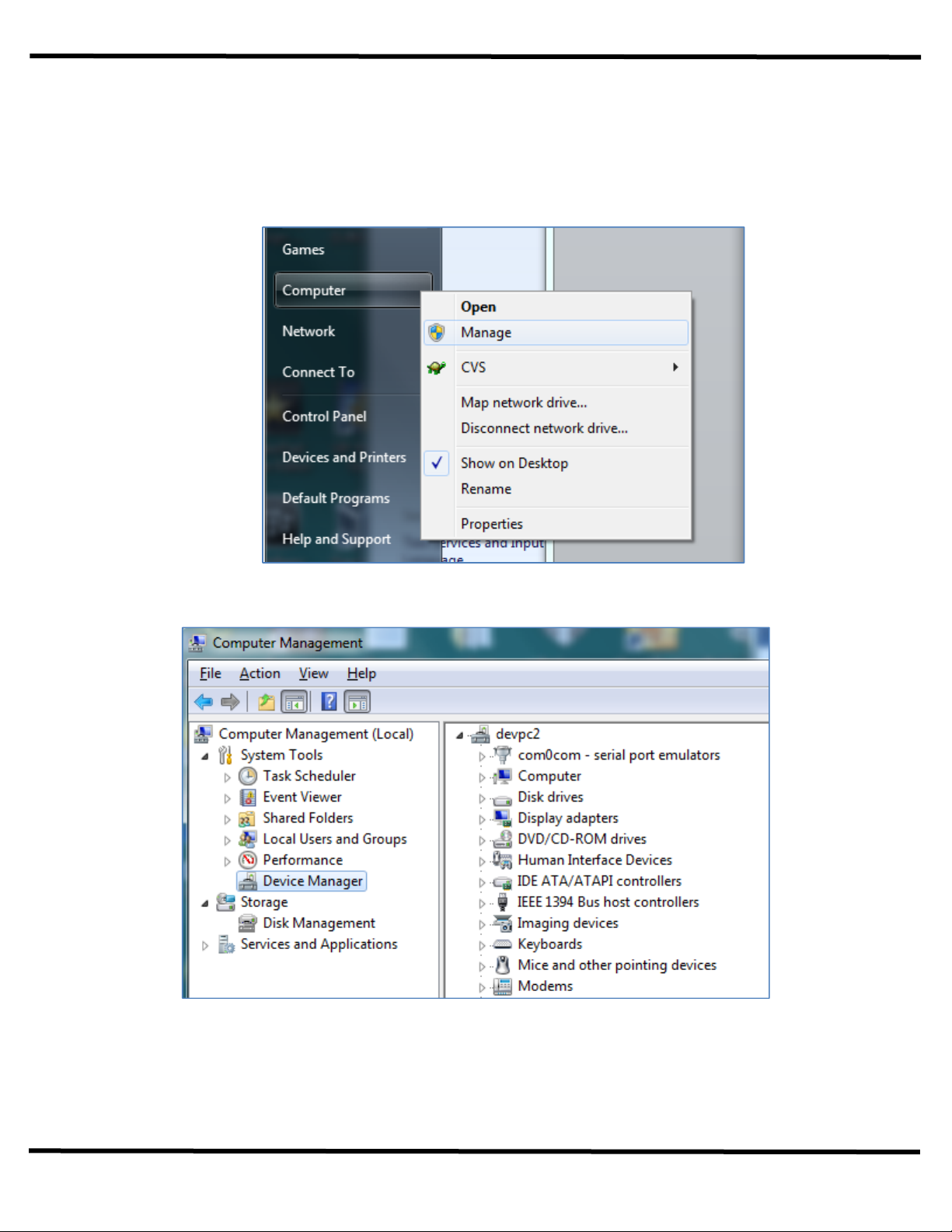
1. By default, the Micr s ft supplied drivers f r smartcard reader are aut matically installed f r the
ACR1222L. These default drivers are n t rec mmended f r use with the Green Receipt pr duct. Select
“Manage” by right-clicking n the “C mputer” menu.
2. Wait f r the “C mputer Management” applicati n t pen up. Click n the “Device Manager” item.
C nfigurati n/Driver Installati n
Green Receipt Dispenser NFC User Guide
5
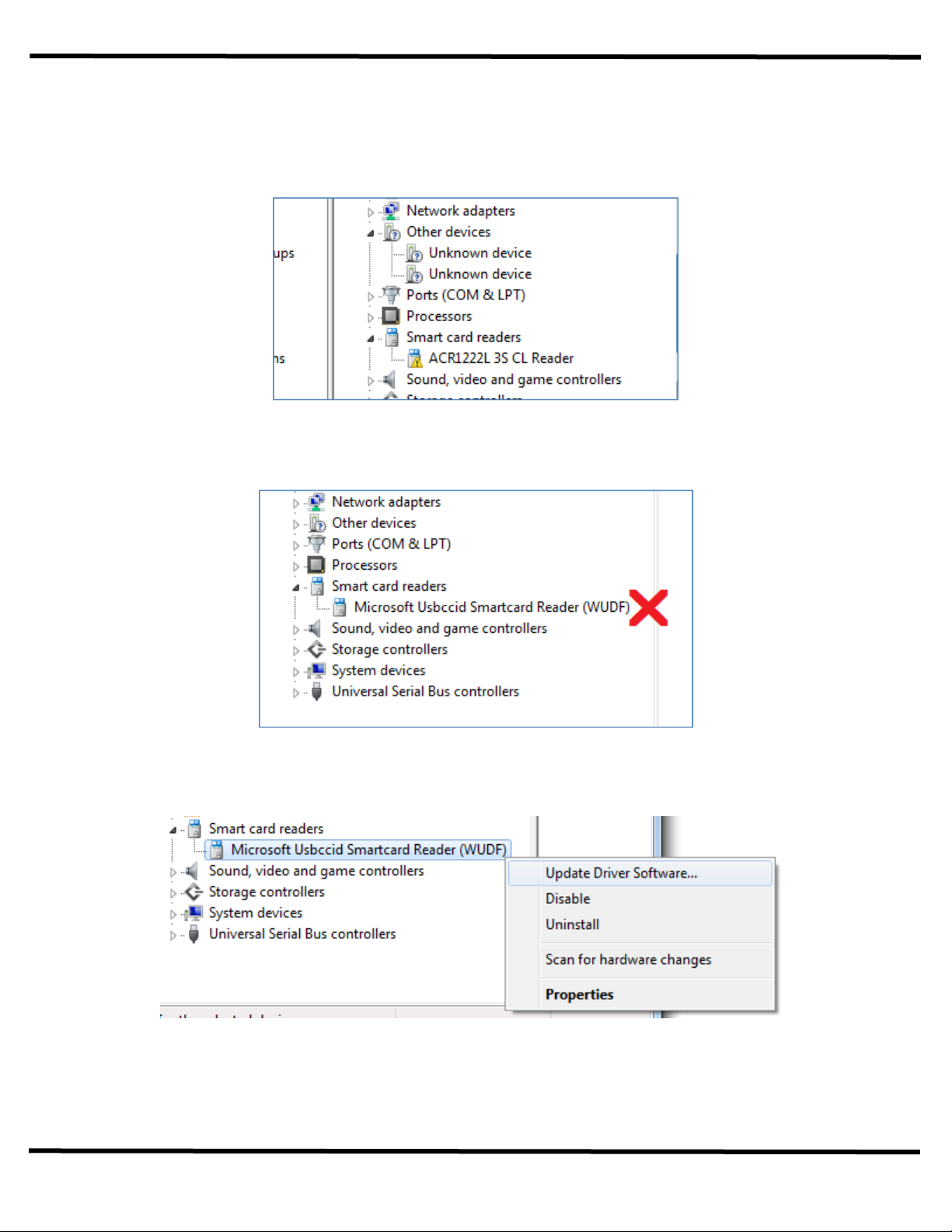
3. On the right panel, expand the “Smart card readers” gr up. Y u will see ne f the f ll wing depending n
h w up t date the versi n f Wind ws Vista/7 is n the POS c mputer:
a. N default driver has been installed. C ntinue t Step 4.
b. The default “Micr s ft Usbccid Smartcard Reader (WUDF)” has been selected and installed f r the
reader. C ntinue t Step 4.
4. Right click n the “Micr s ft Usbccid Smartcard Reader (WUDF)” item t select the “Update Driver
S ftware…” pti n.

C nfigurati n/Driver Installati n
Green Receipt Dispenser NFC User Guide
6
5. Select the sec nd pti n “Br wse my c mputer f r driver s ftware”.
6. Use the “Br wse…” butt n t navigate t where y u had previ usly extracted the driver files t .
C nfigurati n/Driver Installati n
Green Receipt Dispenser NFC User Guide
7
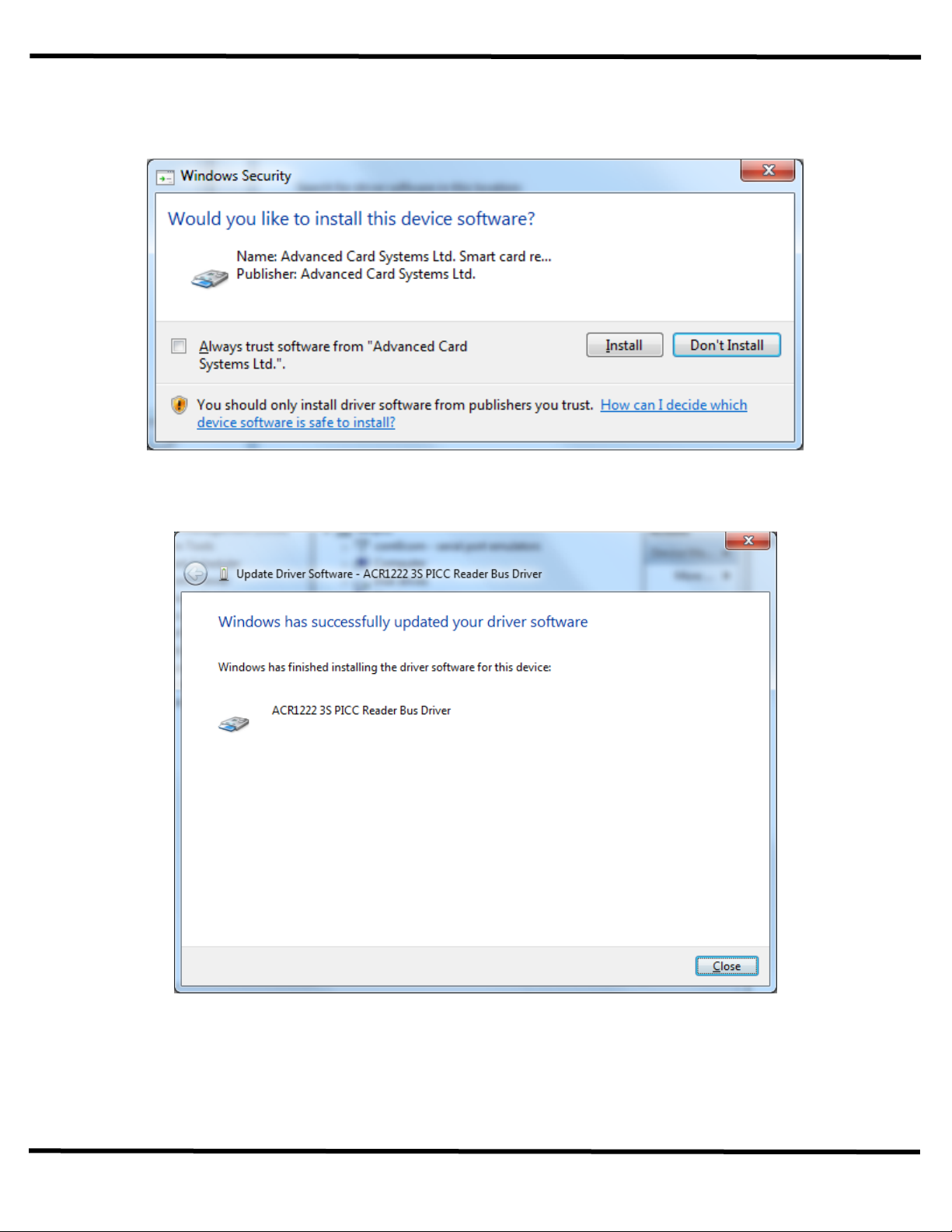
7. In s me cases y u will be pr mpted t verify the s urce f the driver. Select “Install” if y u are certain that
y u btained the installati n pr gram fr m the manufacturer.
8. F ll w the instructi ns n the screen t c mplete the installati n.
9. Wait f r the drivers t be installed.

C nfigurati n/Driver Installati n
Green Receipt Dispenser NFC User Guide
8
10. On Wind ws Vista and later, y u will see the “Driver S ftware Installati n” screens appear during
installati n.
11. Y u sh uld see the f ll wing five (5) devices listed in the Smart car readers gr up if the driver installati n
was successful:
a. “ACR1222 3S PICC Reader Bus Driver”
b. “ACR1222 3S PICC Reader PICC”
c. “ACR1222 3S PICC Reader SAM”
d. “ACR1222 3S PICC Reader SAM”
e. “ACR1222 3S PICC Reader SAM”

C nfigurati n/Driver Installati n
Green Receipt Dispenser NFC User Guide
9
Windows XP
1. On Wind ws XP, y u will see a different set f screens fr m the ab ve. The “F und New Hardware”
message will p p up in the b tt m right c rner f the screen.
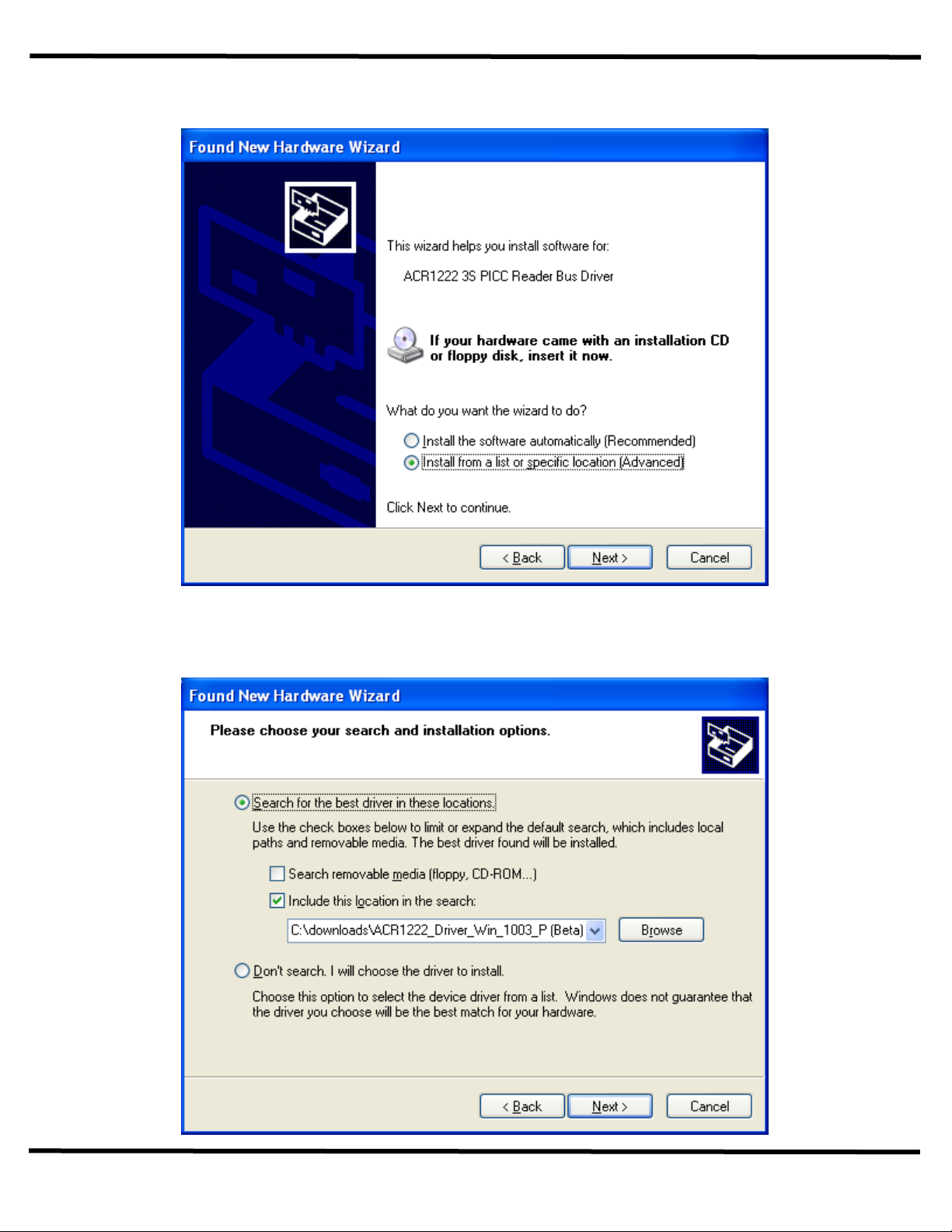
2. On Wind ws XP, the “F und New Hardware Wizard” will be displayed.
3. Select “N , n t this time” pti n.
C nfigurati n/Driver Installati n
Green Receipt Dispenser NFC User Guide
10
4. Select “Install fr m a list r specific l cati n (Advanced)” pti n n the next displayed screen.
5. Uncheck “Search rem vable media (fl ppy, CD-ROM…)”
6. Use the “Br wse…” butt n t navigate t where y u had previ usly extracted the driver files t
Questo manuale è adatto per i seguenti modelli
1
Indice


