
Mitsubishi Apricot MS540 Guida utente
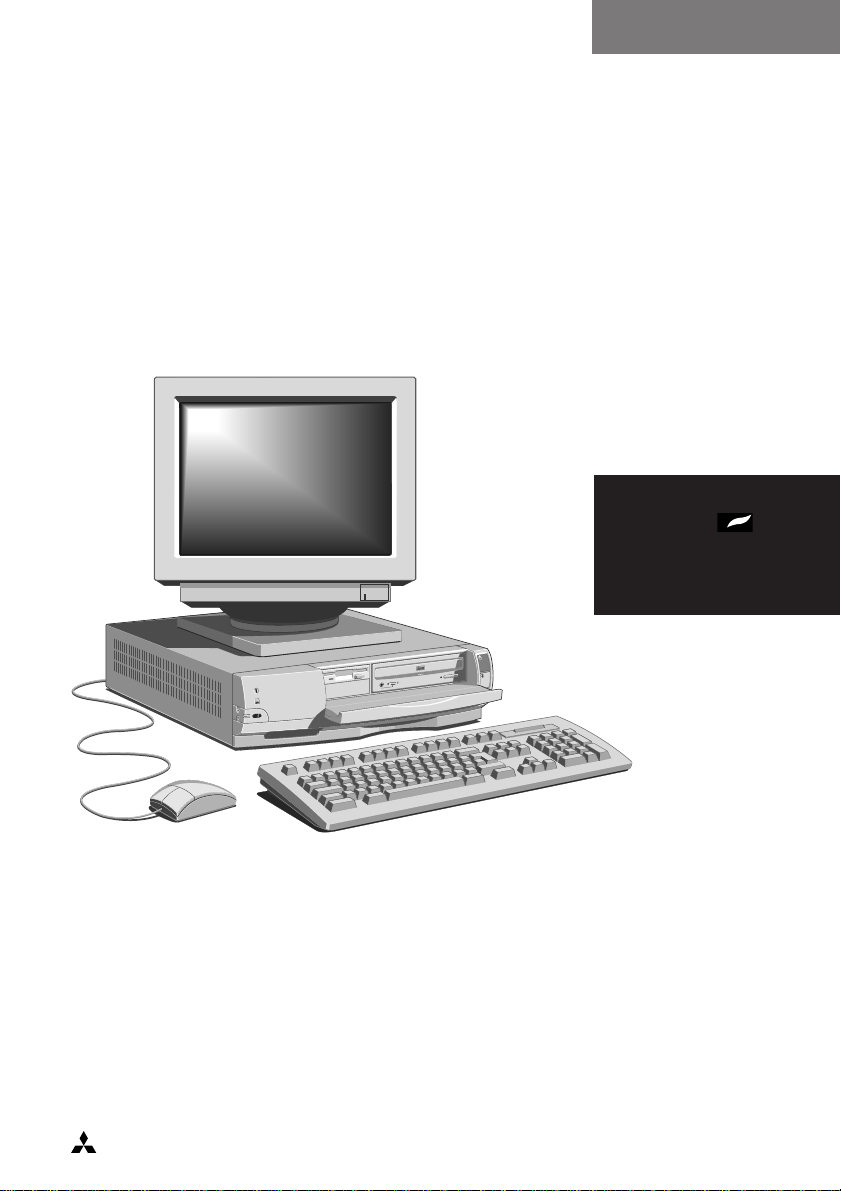
OWNER’S HANDBOOK
MS540
apricot
MITSUBISHI ELECTRIC
COMPACT

Apricot MS540 Owner’s Handbook
MITSUBISHI ELECTRIC
Intel and Pentium are registered trademarks of Intel Corporation.
Microsoft ®and Windows ®95 are registered trademarks of Microsoft in the
U.S. and other countries.
Soundblaster is a registered trademark of Creative Labs Inc.
Any other trademarks referred to within this document but not listed above
are hereby recognised and acknowledged.
Apricot Computers Ltd. have a policy of continuous research and development
and therefore reserve the right to amend or modify this handbook, or parts
thereof that are subject to specification change, without notice.
Any software described in this manual that has been furnished with the
computer is supplied subject to a license agreement. The software may be used
or copied only in accordance with the terms of this agreement. It may be an
offence punishable by law to copy any disk or part of a disk supplied for any
purpose other than the purchaser’s personal use unless specifically authorised
within the licence agreement.
All rights reserved. No use or disclosure or reproduction in any form of this
manual in part or whole is permitted without prior written consent from the
publishers.
Copyright © Apricot Computers Limited 1995
Published by
Apricot Computers Limited
3500 Parkside
Birmingham Business Park
Birmingham B37 7YS
MITSUBISHI ELECTRIC
Printed in the United Kingdom

CONTENTS
CONTENTS/1
OWNER’S MANUAL CONTENTS
1 THE BEGINNING
Connections 1/1
Turning on and booting up 1/2
Energy saving features 1/3
Installing other software 1/4
Turning the power off 1/5
Cleaning and transporting 1/6
2 THE SYSTEM DRIVES
Using the floppy drive 2/1
Using a CD-ROM drive 2/3
The Hard disk drive 2/5
Software backup 2/7
3 EXPANSION
Configuring a card 3/2
Installing a card 3/6
4 MEMORY UPGRADES
Adding system memory 4/1
Adding cache memory 4/5
Adding video memory 4/7
5 MULTIMEDIA FEATURES
The device drivers 5/1
The CD-ROM drive 5/1
The sound connections 5/2
The Remote control 5/4
Television card (if fitted) 5/6
Radio card (if fitted) 5/7

CONTENTS
CONTENTS/2
6 TROUBLESHOOTING
Problems when starting 6/1
Restoring the Software 6/3
Checklist 6/3
System disk drives 6/5
Television card 6/6
Software security 6/6
A THE SYSTEM UNIT
Anti-static precautions A/1
Opening the system unit A/2
The components inside A/3
Drive specification A/4
Physical characteristics A/5
B SYSTEM MOTHERBOARD
General specification B/1
Board layout B/2
External ports/connections B/4
Jumper configurations B/6
Replacing CMOS battery B/8
C SYSTEM BIOS AND SET-UP
Entering set-up C/1
Control keys C/1
Set-up runs on its own C/2
Opening screen C/3
Sub-menu pages C/4
Error messages C/11

THE BEGINNING
1/1
1 THE BEGINNING. . .
You should read this chapter even if you do not read any other. It
provides important basic information to help you in using your
computer. It is the minimum you need to know in order to start
work straight away. Computers are very easy to use providing you
establish a routine with a few basic disciplines.
Note particularly the information given in the section
‘Energy Saving Features’.
Connections
Individual details of the rear port connections are shown in the
appendix B ‘System Motherboard’, but an overall view is given here.
1 Mains in socket 2 Power out to monitor 3 System security loop
4 Rear audio panel *a 5 Keyboard port 6 PS/2 mouse port
7 Serial port (COM1) 8 Serial port (COM2) *c 9 Parallel/printer port
10 Monitor connection *b
*a See chapter ‘Multimedia’ for details on connections.
*b Looped to TV card when that is fitted.
*c Not available when system supplied with remote control.
The Security loop (3) above can be used for an alarmed loop cable or a padlocking
mechanism, to help deter either unauthorised removal of the system, or its cover.
1
10101
2
2
10
156789
34

THE BEGINNING
1/2
Turning on and booting the computer
Turning the power on
If you have a TV card fitted, check the chapter ‘Multimedia’ for
important information. To turn on the computer, press the lower
POWER button. The green POWER ON light should come on to
show that the system unit is powered. Remember that the monitor
has its own power control (see the monitor’s User’s Guide for details)
and that it may take a few moments to warm up.
If nothing happens when the POWER button is pressed, check that
the system unit and monitor power cords are securely connected and
that the AC power supply is switched on. See also the chapter on
‘Troubleshooting’.
Power-on self-test
Whenever the computer is turned on, the ‘power-on self test’ (POST)
routine checks the actual set-up of the computer against that
recorded in its internal configuration memory. During this time,
various messages are displayed. Further information on the
computer’s Basic In/Out System (BIOS) and its setting up can be
found in Appendix C, ‘System BIOS and set-up’.
The boot sequence
Provided that POST succeeds without any serious errors, the
computer attempts to find its operating system to start it going, that
is, it attempts to boot. By default, the computer will first look for a
system diskette, then for a bootable hard disk partition or area.
System diskette
A system diskette is a diskette bearing at least the rudiments of an
operating system. If the computer finds such a diskette in the
diskette drive, it boots from it. If it finds a non-system diskette, the
computer will ask you to replace it.
Bootable Hard disk
Most computers with a hard disk containing pre-installed software
normally arrive set up with a single ‘partition’. The operating system
already in place or pre-installed on this, the C: drive, and it is usually
made ‘active’, i.e. the bootable hard disk.

THE BEGINNING
1/3
Caution
Changing or splitting the partition on a hard disk totally erases all the
programs and data recorded on that disk. Always make a backup copy of the
contents of the hard disk before you start to make any serious alterations to the
hard disk set-up. It cannot be undone afterwards !.
Inexperienced or new users should take a few moments to run one or more
of the many tutorials in the HELP menu. This is accessible in Windows 95
by clicking on the START button in the bottom left of the screen.
Comprehensive help and tutorials are available in Windows 95 and in most
of the currently available Windows applications.
Energy Saving features
All models in this range are designed to exceed the requirements of
the latest US Environmental Protection Agency’s ‘Energy Star’
programme for energy-efficient computers.
If the system is left unattended for more than a predetermined length
of time, it will go into ‘Low power mode’. The screen will go blank,
some components will slow down, software is running very slowly,
etc. This is meant to happen.
To restart the system, just move the mouse or press a keyboard key.
Everything will return to the exact state in which it was left.
Do not press the violet ‘standby’ button at this point. It does
not restore from ‘low power’. Its function is to put the system into,
or out of, the ‘standby’ state only.
Warning
The energy saving features built into this computer are designed to be used with
the monitor supplied with the system. If you wish to use another, or older
monitor it may not be compatible and permanent damage may be caused.
Check with your Apricot dealer.
Leaving the system unattended for longer periods will cause a
further stage of ‘standby’ to come into operation. The processor will
pause its operation (software will go ‘on hold’), the cooling fans will

THE BEGINNING
1/4
stop and then the hard drive will spin down, etc. In this mode the
computer system consumes very little power at all, typically below
20W.
To restart the system, press the violet ‘Standby’ button on the facia.
As the monitor is in a controlled ‘off’ state, it may take a moment or
two to fully return to normal.
‘Standby’ can also be initiated or restored by means of the standby
button on the Remote control. (Details of the remote control are
given in a comprehensive help file in Windows). From the main unit
the standby state can also be entered manually by pressing the violet
standby button on the front bezel at any time.
If you have a modem or network card fitted, there is no cause for
concern, as an incoming call or an E-Mail message will trigger the
correct parts of the system to full operation by their arrival, even if
the system is unattended, the monitor may even stay blank. The
system could then return to ‘Standby’.
There is a ‘message’ light on the front of the system that will be
flashing if a message has arrived while you were away.
All the Energy Saving features and activities can be enabled or
disabled as needed. Greater detail is to be found in the ‘Apricot
Power Management’, application and its HELP, in Windows 95.
(This also gives more details of the requirements of the Energy Star
Program).
Caution
Energy Saving uses features in the Apricot software built into Windows 95,
supplied with the system. It will not be fully compliant if another operating
system (e.g. UNIX) is subsequently installed, although there are some default
EPA compliant settings available in the BIOS.
Installing other software
With a CD-ROM drive in your system it may be a good idea to
purchase all software in that format if possible. It can often be
cheaper and of course CDs are easier to store, being far less bulky.

THE BEGINNING
1/5
Some manufacturers still only supply their software on 3.5 inch
floppy disks and these would of course have to use the floppy disk
drive.
Guidance on using either the CD drive, or the floppy drive, is given
in chapter 2 ‘The system drives’. The only thing you need to know is
the name of the program on the disk that does the work. The
software’s accompanying literature should tell you, but it is usually
either ‘SETUP’ or ‘INSTALL’.
From the ‘start’ button in Windows select ‘run’ and then enter details
in the box, first the drive letter, either D: or A: followed by the
programme name.
EXAMPLES Software from CD and the name is ‘setup’ = d:setup
or, from floppy, and the name is ‘install’ = A:install
Note
A ‘drive letter’ is always followed with a colon to tell the computer that it is a
reference to a disk drive. Capitals do not always need be used.
Typical software you might install could be anything from Word
Processing, Accounting, Publishing, Education plus of course,
games.
Turning the power off
Before turning off the computer, run through the following simple
checklist ;
• Quit or exit from all the applications you are running, making
sure to save any files you have altered or created. Unless you save
it, information held in the computer’s memory will be lost
when you turn off the computer.
• Select ‘Shut Down’ from the Start menu in Windows. Windows
will then tell you when it is safe to switch off. This procedure
Indice
Altri manuali Mitsubishi Scrivania


