
Mobile Create IMP-R01W Manuale utente

Remark
Cover
IMP-R01W User Manual
Remark
Page 1
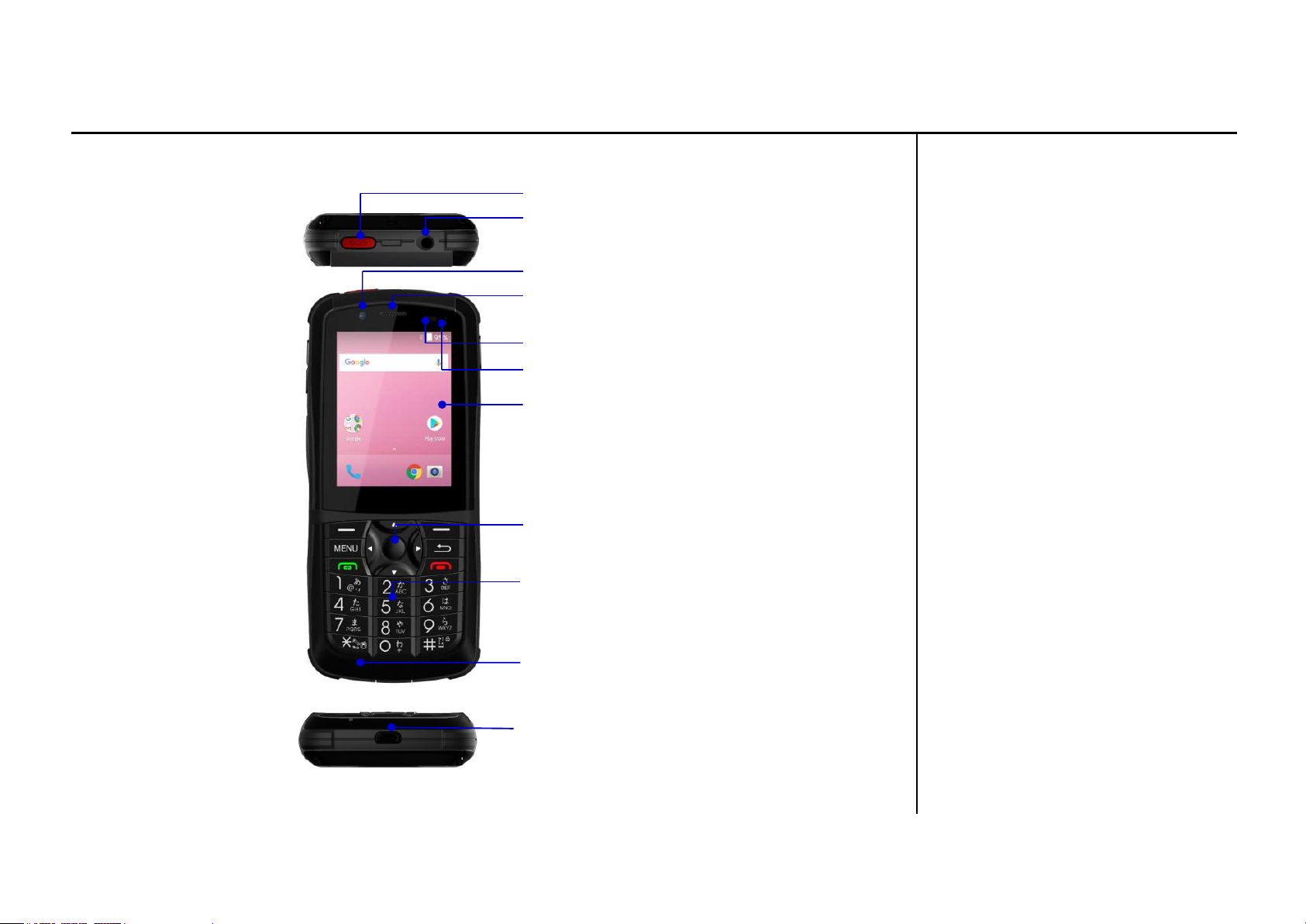
Name and Function of parts
[Top]
[Front]
[Bottom] USB port
SOS key
Headset port
Front camera
Receiver
Proxy sensor / Light sensor
LED indicator
Touch Screen
Navy key
Number key
Main Mic

Remark
Page 2
[Side] [Side]
[Back]
Volume key
PTT Key
Power key
SIM/micro SD
slot cover
Rear camera
Flash
Sub Mic
Speaker
External
terminals

Remark
Page 3
Setting
Insert SIM card
Insert the Nano-SIM card and use phone.
1.Open the SIM / microSD slot cover on the right side of your phone.
2.Using the SIM remover, slide it into the hole on the side of the phone and the SIM /
microSD Tray will come out.
3.Place the SIM and microSD card on the removed tray, and then push the tray until it clicks
into the phone slot.
4. Close the SIM / Micro slot cover.
WARNING: Ensure that the SIM / microSD slot cover is properly
sealed to maintain waterproof performance of the phone.

Remark
Page 4
Battery charging
1.Connect the 5-pin connector of the micro-USB cable to the USB
charger port on the bottom of the phone.
2. Plug the other end of the USB cable into the AC adapter and plug the
adaptor into the concert.
WARNING: Only use chargers approved by the device. Using an
incompatible charger or modifying the charger port may damage
the unit and void your warranty.
WARNING: Make sure that the 5-pin connector on the micro-USB
cable is connected correctly or charging is working properly.

Remark
Page 5
Using phone
►Press and hold the Power key until the screen turns on.
Power on / off
Power on
1.Press and hold the Power key until you see the phone option.
2.Select power off to power off phone.
Power off
Display on / off
Display on
►Press the front key and the power key to display the screen.
Display off
►To turn off the screen, press the Power key.
Calling
Calling with keypad
1.Press the number key on the home screen to run the dial pad.
2.Press the number key of the number you want to call.
3.To edit the entered number, press the cancel key.
4.To make a call, press the call key.

Remark
Page 6
Calling with the dial pad
1.Touch the dial icon on the Home screen.
2.On the dial pad, tap the number you want to call.
3.Press the call icon on the dial screen to make a call.
Receive calls
Receive calls on the keypad
1.On the answer calls screen, press the call key.
2.To end the call, press the end call key.
3.If you do not want ring tones, press the volume key.
Answer a call with the dial pad
1.On the call screen, tap the call icon.
2.Press the reject icon to stop receiving calls.

Remark
Page 7
Display setting
Add a widget to your home screen
1.Press and hold the home screen background.
2.Touch Widgets to find the widget you want to add.
3.Drag and drop the widget you want to add to the home screen you want to add.
Move icons on the Home screen
1.On the Home screen, touch and hold the icon you want to move.
2.Drag the icon you want to move to the desired area to set it.
Delete icon on home screen
1.Drag the icon you want to delete to the top of the screen and move it to "X" delete.
2.Release the hand when the color of the icon changes
Change wallpaper
1.Press and hold the home screen background.
2.Select Backdrop and select My Photos to search for the image you want to use.
3.Select the image you want to use, and then tap Set wallpaper.

Remark
Page 8
Product Warranty
This product is officially imported and sold by our company.
The guarantee quality is as follows.
■Customer Service Guide
Before using the product, please refer to this manual.
■Notification before using
If the internal battery is discharged during the initial operation, the unit may not be turned on.
This is not a product defect, please charge the AC adapter for more than 30 minutes and
turn on the power.
The LCD of your product may cause red, white, or other pixels to appear,
but this is inevitable and unfavorable in the LCD manufacturing process.
The operating time of the battery depends on the usage environment of the system,
and the battery is a consumable item and its usage time decreases over time.
If the usage time decreases rapidly, please use the service center after replacement.
The memory provided to the mobile phone is used for the OS capacity and the software
required to run the product, so the actual memory is smaller than the total memory.
Memory will vary depending on your environment and may vary depending on other usage
environments such as software updates.
■Warranty period guide
Warranty period refers to the period during which the manufacturer or the seller of the
product provides free repair service to the defective quality performance function that
occurs naturally under normal conditions.
■Product Warranty Period
The warranty period of the product is two years from the date of purchase.
The warranty period is based on the date of purchase. If the date of purchase can not be
confirmed, the warranty period shall be from the date of manufacture or one month
from the date of shipment.

Remark
Page 9
■Even under the warranty period, the following cases are not eligible for free service.
●User carelessness, negligence or carelessness
(Careless handling, dropping, shock, breakage, flooding, unreasonable operation, etc.)
●The structure, performance, and function of the product may be changed by us or
by a person other than the technician modified, modulated or arbitrarily disassembled
●Replacement of consumable parts that have degraded performance due to normal use
●Failure of the product due to natural disasters (fire, salt, earthquake, flood, lightning, etc.)
●Fault due to power supply failure or faulty connecting device
●Faults that do not fulfill the precautions in the manual
●Inadequate use / storage environment (such as high temperature and humidity,
storage in an enclosed vehicle in summer, etc.) failure during use
●If the user breaks down due to arbitrary manipulation (such as routing) of
software and hardware
●If a malfunction occurs with consumables or accessories not specified by us
●If a malfunction occurs by installing or using an application that is not guaranteed by us
■Precautions for repair request
In the event of a product malfunction, the software and data installed by the user must be backed
up after the backup. We are not responsible for any changes or deletions to the software and data
that occur during the repair process, and the product may be in an initial condition when the repair
is complete. You must remove hardware, software, features, parts, options, options, and other
attachments that were not attached to or installed with the product at the time of purchase.
If you do not do so, we will not be responsible for any loss or damage.
Damage due to accessories not included in the product, surface damage, damage caused by
external shocks, damage caused by software or data, or use of removable storage media is not
guaranteed.
Indice


