
Mobvoi TicWatchPro5 Manuale utente

User Guide for TicWatch Pro 5
Revised on May 23, 2023
by Mobvoi Team
Get started
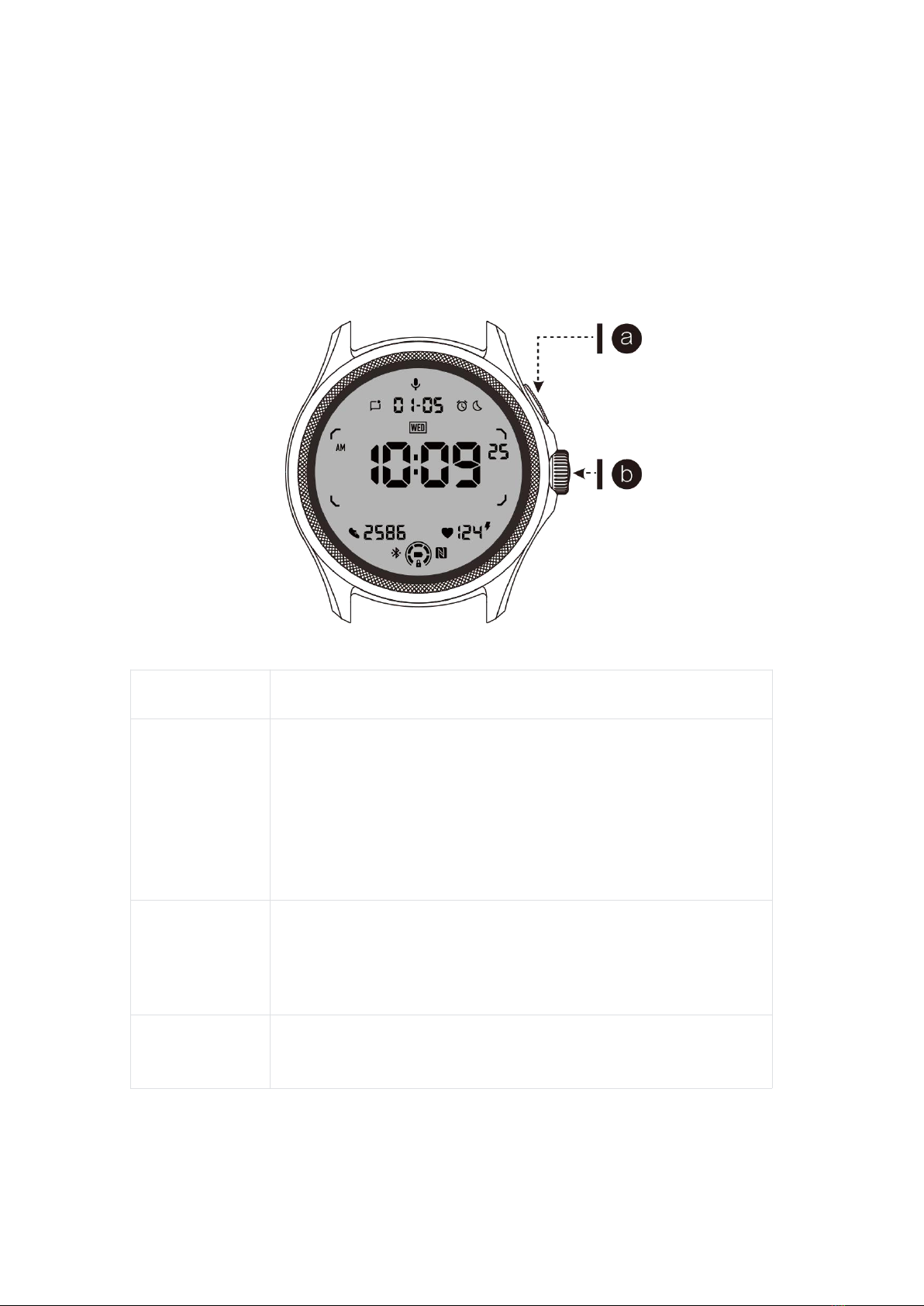
Button & functions
Button
Function
a. Side Button
* Press and hold for 3 seconds to turn on your watch
* Short press to open recent app list
* Double press to open Google Wallet
* Press and hold for 3 seconds to access boot menu
* Press and hold for 15 seconds to force restarting the watch
b. Rotating
Crown
* Short press to open app list or return to watch face
* Rotate to view more and adjust values
* Double press to open last used app
Rotating Crown
+ Side Button
* Press them at the same time to take a screenshot of the watch
Rotating crown
Rotate the crown clockwise or anticlockwise to easily control various Watch functions.

1. Rotate to view tiles:
a. On the home screen, rotate to view tiles.
b. The function can be enabled on Settings -> General -> Rotating for tiles
2. Rotate to view watch faces
a. Long press the home screen and rotate to view watch faces
3. Rotate to scroll pages
4. Rotate to adjust values, including volume, numbers, brightness, etc
Wear the watch
a. Accurate data on heart rate during exercise can be obtained through correct use of
the watch. Inaccurate data on heart rate will be obtained if it is worn too tightly or
loosely.
b. The watch should be worn 1-2 horizontal fingers above the wrist bone. The watch
worn should fit the arm. Shake the hand a few times to ensure comfortable wear.
c. Keep the wrist clean. Long-term use of the watch on the same area may constrict
blood vessels. It is recommended to adjust the position.
Turn the watch on and off
Turn on the watch
Press and hold the side button for a few seconds to turn on the watch.
Turn off the watch
•Press and hold the side button for a few seconds
•Tap 【Power off】
Force restart

If your watch is frozen and unresponsive, press and hold the side button for 15
seconds to restart it.
Pair your watch with phone
Install the Mobvoi Health app on your phone
To connect your watch to a smartphone, please install the Mobvoi Health app on
your phone first.
•Search & download "Mobvoi Health" in the Google Play store
•Mobvoi Health app is only compatible with TicWatch that runs on the Wear OS
3 platform. If you have other types of TicWatch, you may need to install the Mobvoi
app and follow the instructions.
•If you already have the Wear OS by Google app or Mobvoi app installed, please
uninstall them before pairing.
Connect your Watch to a smartphone
•Turn on the Watch
•Tap and select a language
•On-screen instructions for launching the Mobvoi Health app will appear.
•Launch the Mobvoi Health app on your smartphone
•Tap [Device] tab and tap [Add a new device]
•Select your Watch on the screen
•Follow the on-screen instructions to complete the pairing process
Pair with multiple watches
For Android devices, it is able to pair with multiple TicWatches at the same time.
•Launch the Mobvoi Health app on your smartphone
•Tap [Device] tab

•Tap the [+] icon on the top right corner to start the pairing process.
Remove the paired watch
•Open the Mobvoi Health app and tap Settings
•Tap the unpair and reset button at the bottom to unpair the watch from the app
How to maintain connection stability?
After the watch is paired, please make sure to maintain the stable connection
between the watch and mobile phone in order to ensure normal functions such as
message notification.
For Android:
•It can be connected via Bluetooth or WiFi. Please make sure your Bluetooth is
turned on.
•Or keep the watch and phone connected to the same WiFi address
Screen navigations
Enter
Exit
QSS tray
Swipe down from top to open the
QSS tray
Swipe up from bottom or press
the rotating crown to go back
to watch face
Notification
tray
Swipe up from bottom open
notification tray
Swipe down from top or press
the rotating crown to go back
to watch face
Tiles
To the right or left of watch face
Press the rotating crown to go
back to watch face
Watch face
Introduce new types of watch faces
Sleep coach watch face
The Sleep Coach watch face displays different states and provides suggestions
based on your sleep cycle and sleep records. You can check your sleep information
at a glance on the watch face every morning.

How to use
•Long press the watch face to enter the watch face edit list
•Select the Sleep Coach watch face and apply it
•Set your sleep cycle. Please go to TicSleep -> Settings -> Sleep cycle to modify
your bedtime and wake-up time
Bedtime Reminder
Starting one hour before your bedtime, the Sleep Coach watch face will remind you
to go to bed on time.
Sleep Tips
Every day at different time periods, sleep tips that are beneficial to improving sleep
quality will be displayed. Click on the dialog box to view complete content.
Sleep Data Overview
After waking up each day, you can quickly check last night's sleep data and provide
subjective feedback on your sleep experience. Click on "View more" to enter
TicSleep to view details

Happy rotation watch face
A very fun watch face that can interact with the rotating button
How to use
•Long press the watch face to enter the watch face edit list
•Select the Happy Rotation watch face and apply it
•Tap "Play" to enter the game mode, rotate the rotating button to switch to
different images.
•Swipe from left to right to exit the game mode and apply the current image
TimeShow - Browse more watch faces
•Long-press on the watch face to enter the watch face edit list
•Tap the TimeShow watch face to apply.
•You can choose different watch faces from the TimeShow app both on your
watch and phone. Make sure you set the TimeShow as your current watch face.

Browse watch faces on your watch
•Press the rotating crown to enter the application list menu
•Tap the TimeShow app
•You can browse watch faces from the daily recommendation or featured list
•Tap the watch face to preview it
•You can download the free watch face and apply it direcly
•Or you can purchase the paid watch faces.
Purchase watch faces on your watch
1. Log in to your TimeShow account on your watch by tapping Settings -> Account
-> Log in. Ensure that your watch is connected to your phone.
2. Tap the watch face you want to purchase to preview it.
3. Tap the price button to generate the order.
4. Complete the payment on the Play Store on your phone.
If this is your first purchase, you may need to log in to your account on the TimeShow
app on your phone to ensure that it is successfully connected to your watch.

View TimeShow on your phone
You can find more watch faces through the following methods:
•Download and install the TimeShow app on your phone
•You can use your Mobvoi registered email address and password to log into
TimeShow directly or log in with Google account
•If you want to purchase or sync free watch faces, please tap on the sync button
and follow the instructions.
Design your own watch face
Please visit the official TimeShow website to design and publish your work:
https://timeshowcool.com/
Change watch faces
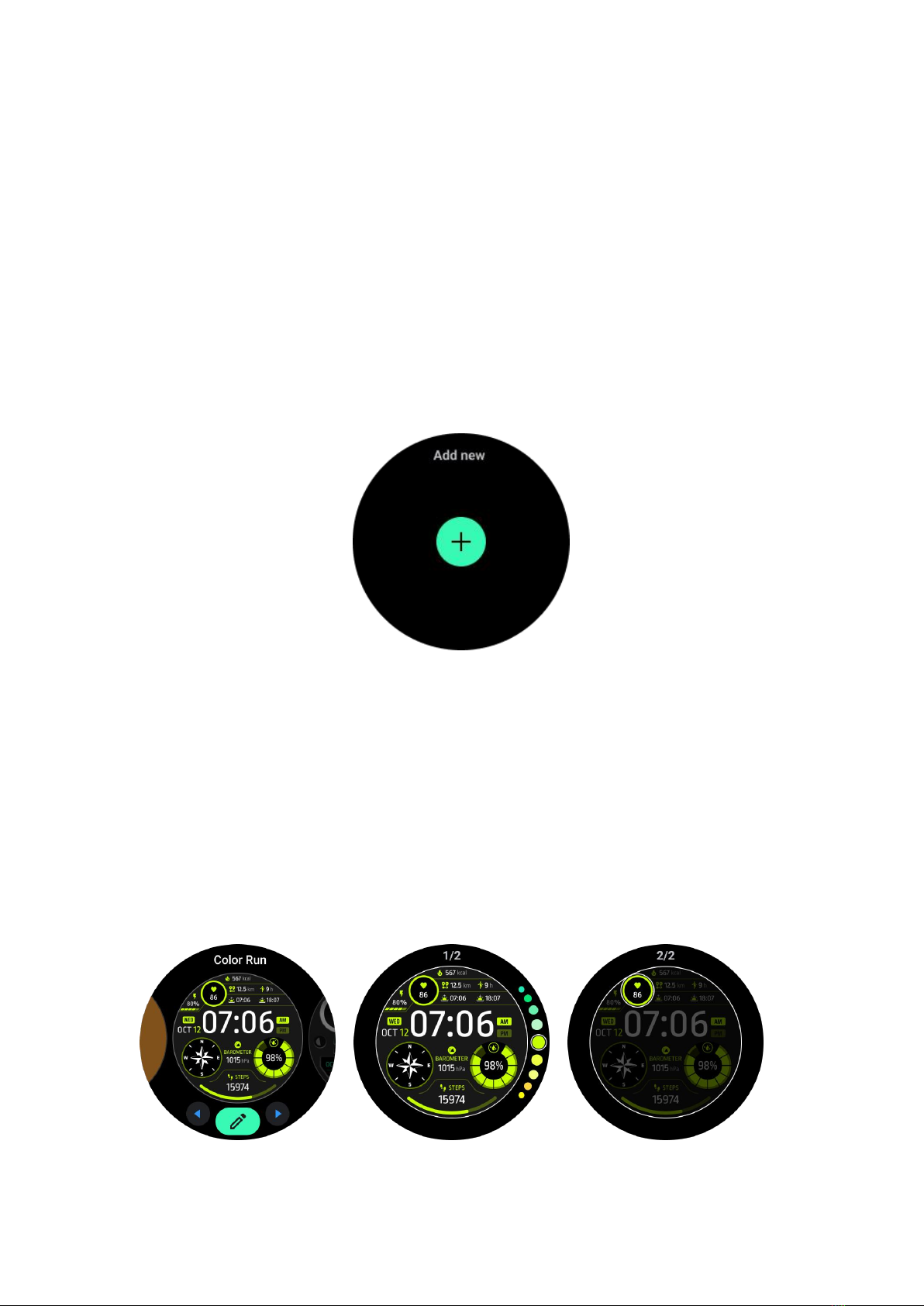
•Long-press on the watch face to enter the watch face edit list
•Tap the watch face to apply
If you want to add watch face to your favorite:
•Tap "See more watch faces" to view all your watch faces
•Tap the watch face to add it to your favorite
Edit watch faces
Some customizable watch faces have an "Edit" button. You can edit them according
to your preferences.
•Tap the settings icon
•Swipe left or right on the screen to select the desired customization option
•Use the rotating crown or swipe up or down to change the color or other settings.
•To change the complications, tap the highlighted area you want and then set
them.
Indice
Altri manuali Mobvoi Orologio

Mobvoi
Mobvoi TicWatch Pro WF12096 Manuale utente

Mobvoi
Mobvoi Ticwatch S Manuale utente

Mobvoi
Mobvoi TicWatch Pro WF12106 Manuale utente

Mobvoi
Mobvoi TicWatch C2 Manuale utente

Mobvoi
Mobvoi TicWatch Pro Manuale utente

Mobvoi
Mobvoi TicWatch C2 Plus Platinum Silver Manuale utente

Mobvoi
Mobvoi TicWatch C2 Manuale utente

Mobvoi
Mobvoi TicWatch S2 Manuale utente

Mobvoi
Mobvoi TicWatch GTH Manuale utente

Mobvoi
Mobvoi TicWatch C2 Manuale utente


