
MotoSAT H3 Manuale operativo
H3
Mobile Satellite Antenna Controller
User and Installation Manual
Firmware Version 1.0.9
16 February 2011
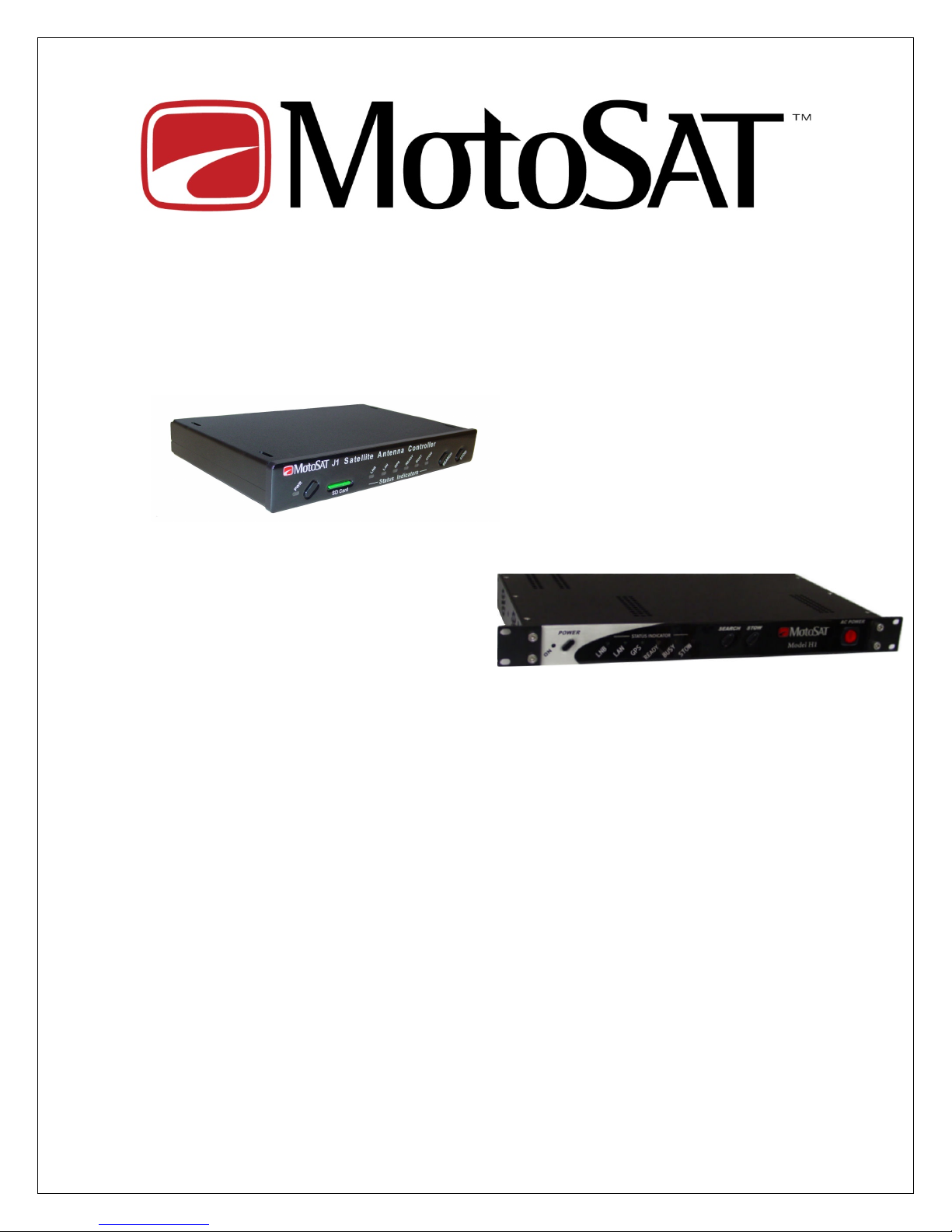
H3 is available in a “Stand alone”
or a 1RU Rack Mount
2
The DataStorm H3 Satellite Antenna Controller
Features
Stand Alone Satellite Antenna Controller
Front Panel Search, Stow, and Power Commands
No Software Required on PC
DVB-S2 Satellite dentification (N D)
HTML Graphical User nterface
SD Card Firmware Upgrades
SD Card Configuration mports
Web Direct Sat Table mports
LED Status ndicators
Simplified Multiple Sat Select Screen
Telnet Commands for Diagnostics
mport and Export Configuration Files
mport and Export Satellite Tables
Simple Electrical Connections
HTML and Telnet Security
The DataStorm H3 Satellite Antenna Controller
The DataStorm H3 Satellite Antenna Controller is one of the most advanced Satellite Antenna
Controllers available. Simple User operation combined with many advanced configurable
features will allow the flexibility needed for almost any application anywhere.
Operate from the Front Panel or through a PC using an nternet Browser such as
nternet Explorer, Firefox, Sapphire, Chrome or many other Browsers.
No external software is required.
A true stand alone Satellite Antenna Controller now with SD Card nterface.
NOTE: The DataStorm H3 Satellite Antenna Controller can be used with
either the
• Automatic pole mount ( ESA) which stows in a “bird bath” position
or the
• obile automatic mount ( ESSENGER) which stows in a “face
down” horizontal position.
The H3 Antenna Controller is available in either a “Stand alone” or “Rack
ount” configuration.
This manual is written to use the “face down horizontal” mount as an
example and was written to reference the Stand Alone style.
H3

3
Table of Contents
Getting Started
Connection and Configuration
Using the SD Card for Setup
Quick Setup
H3 Normal Operation 8
Front Panel Operation 8
HTML Operation 10
Find a Satellite 11
Stow Dish 14
Standard Functions 1
System Status (Main Page) 1
Modem Status 17
About 18
Configuration Functions 19
Network Settings 19
Search Settings 22
RF Settings 3
Mount Settings 47
Advanced Functions 60
Manual Motor Control 60
Calibrate Dish 61
Import/Export Files 63
Upgrade Firmware 6
SD Card Functions 68
SD Autoload 68
SD H3 Files 68
SD LoadOnce 68
Manuals 68

4
H3 (System) Wiring 69
H3 Rear Panel 69
H3 Bottom View 70
Wiring Diagram 71
Serial Cable (Optional) 72
Power Supply 72
Specifications 73
Mechanical 73
Electrical 74
Diagnostics 7
Controller Start Up Test 7
Telnet Diagnostics 76
Telnet Screens 77
Message Codes 82
DataStorm H3 Messages Codes 82

5
Getting Started!
f this is a new system install or just upgrading to the new H3 Controller it is
important to follow the guidelines below to insure the system functions properly.
Connection and Configuration!
Nearly all technical support calls on new installations are due to bad or improper
wiring, or incorrect configurations. Please be sure to review these two items
before contacting technical support for assistance.
The H3 must be configured properly before it can be used in normal operation.
Before proceeding insure that all wiring to the H3 Controller is correct. This
would include any connections to the DataStorm Mount. See H3 System
Wiring.
Using the SD Card for Setup
The H3 Satellite Antenna Controller includes a Front Panel SD Card Slot. This
feature will allow the user to upgrade firmware, import configuration files, and
import Sat Tables without being connected to a PC or Network. See SD Card
Functions for setup and use.
Note: A PC with a USB Adaptor or SD slot will be needed to modify the SD Card
Config files.
Quick Setup
Once the System is installed and wired the next step is to prepare the H3 ontroller for
the users specific requirements.
Below is a quick list to follow to insure proper operation. Please follow the steps below
in the order as shown.
• Step 1 Set up a Network Connection between the H3 and the PC
Using the SD ard, LoadOnce Folder, place a modified configuration file in the
LoadOnce folder.
Name the file “IP onfig.txt” and place the IP information needed to work in the
existing Network (Router)

6
LocalAddr = 192.168.1.250 /new controller IP address
SubnetMask = 255.255.255.0 /if different
ModemIp = 192.168.0.1 /modem IP address
GateAddr = 192.168.1.1 /router IP address
Place the SD ard into H3 SD ard Slot, turn ON power. When controller
restarts IP Info is changed.
See Network Settings page 19.
• Step 2 Upgrade Firmware (If necessary)
Using the SD ard, LoadOnce Folder, place a new H3firmware.hex file in the
LoadOnce folder.
Place into H3 SD ard Slot, turn ON power. Wait for status indicators to scroll
from left to right. When controller restarts the new firmware is updated.
See Upgrade Firmware page 63.
• Step 3 Calibrate Dish
See Calibrate ish page 59.
• Step 4 Modify Configuration Functions
Open the HTML Browser and choose the onfiguration Functions pages;
Search Settings (all) - Satellite System, Satellite Longitude, and RX Polarity
Search Settings (HNS) - TX Polarity, Modem IF Frequency, Symbol Rate
LNB Settings – As necessary
See Configuration Functions page 19.
Note: See Import/Export Files to save configuration page 61.
• Step Ready for Normal Operation (Find Satellite)
Open the HTML Browser and click on the Search command.
See Find a Satellite page 11.
• Step 6 Import a current Sat Table
Once the Dish Mount is locked to the correct satellite and the Modem has come
into the network you should update the Sat Table.

7
Import Web Sat Table allows the user to directly import the latest Satellite Table
File from the MotoSAT Web Site. In Network Settings (Web Sat Table URL) is a
default web address of http://www.motosat.com/sattables/world.csv. This address
can be changed if future sites are available. For this import to work the user must
be connected to an active modem (Network) and locked onto the Satellite.
See Import/Export Files page 61.
• Step 7 Save Configurations and Sat Tables
Once the H3 ontroller and Dish Mount have been set up properly the Current
Sat Table and Config Files should be exported.
See Import/Export Files page 61.
After exporting these files to the P , remove the SD ard from the H3 ard Slot
and connect the SD ard to your P . Save the onfig file and Sat Table to the
H3 Files Folder on the SD ard for backup. Place SD ard back into H3
ontroller.
The H3 Files Folder is used to store different Firmware versions, and different
Dish Mount configuration files samples. This is just a working folder on the SD
ard. The H3 ontroller can not read or write any files to this folder.
8
H3 Normal Operation
I PORTANT! Before the H3 is ready for normal use the system must be wired
and configured correctly. Go to Setup and Configuration for setup.
The H3 Controller can be operated through either Front Panel Controls or via
the HTML nterface built into the Controller.
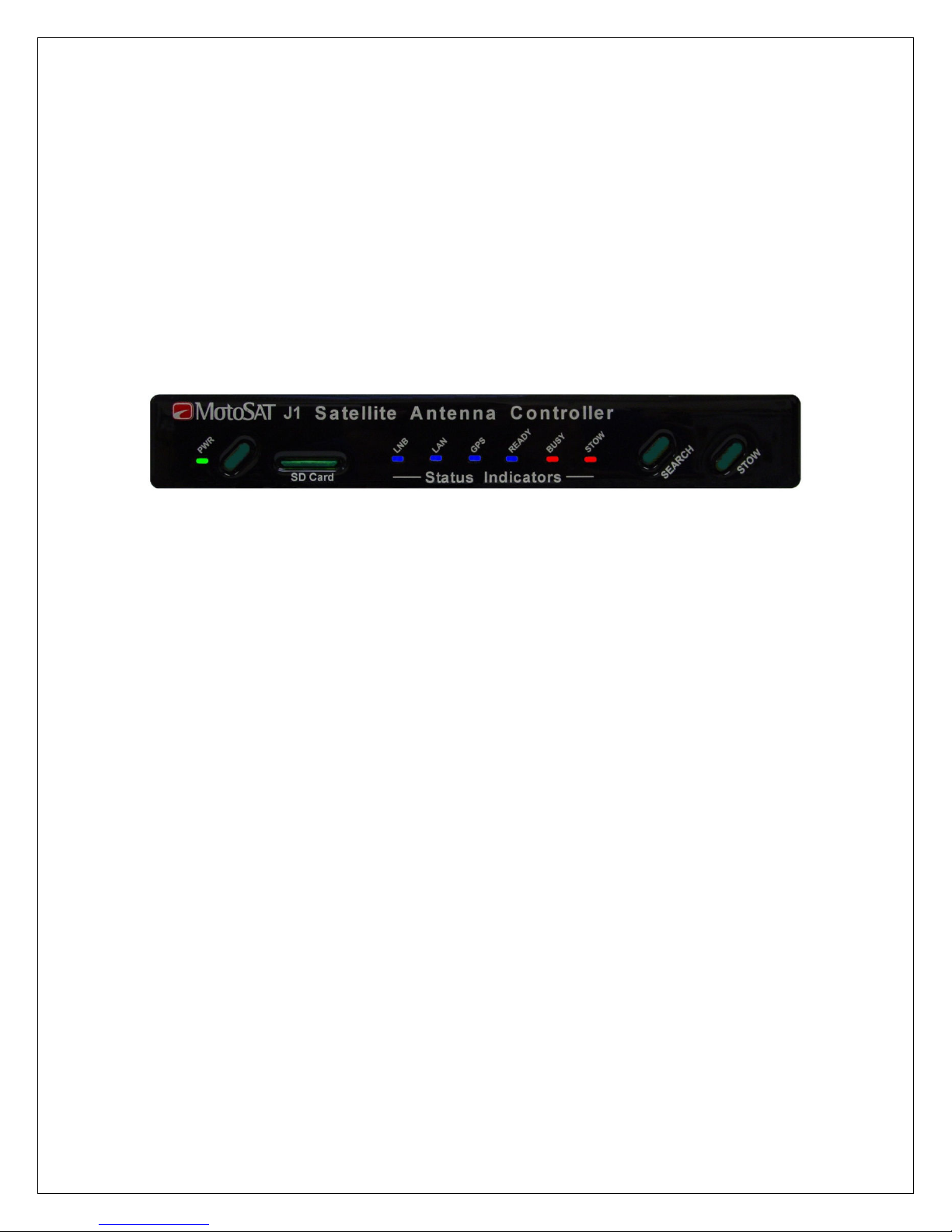
Front Panel Operation
Model H3
The Front Panel
has three Buttons.
The Power Button is used to turn the H3 Controller ON and OFF. When
powered ON, the Green LED to the Left of the Power Button will illuminate.
On power up the controller will take about 15 seconds to initialize. The Power,
LNB, and LAN LED’s should be illuminated when controller is ready for use.
Under normal conditions the Stow LED should also be illuminated when first
powered on. (After a Calibrate Dish or normal Dish Stow)
The Search Button will cause the Antenna to rise from the stowed position and
search for the Default Satellite. (The Satellite Longitude entered on the Search
Configuration Page.)
When the Search Button is pressed the BUSY and READY lights will start to
flash.
The GPS light should be illuminated (GPS Locked) before the Antenna will start a
Search (move).
f the GPS Light is blinking the Antenna will not move until the GPS Light goes
solid. A blinking GPS means that a valid GPS location has not been
determined. Typically GPS should acquire lock in less than 120 seconds.
NOTE: f GPS is set to Manual then the Dish will begin Search
immediately.

9
The Stow Button when pressed will move the Antenna to the its respective stow
postition. When the Antenna is moving to the Stowed position the Busy and
Stow Light will flash. When the Antenna is stowed the Stow Light will be on
Solid.
The Front Panel
has seven (7) lights.
Power Light (Green) is illuminated when the H3 is powered ON.
LNB Light (Blue) will illuminate when a Modem is connected to the H3 and
power is applied to the Modem. f the H3 is configured to Generic Mode then the
H3 will supply LNB power.
LAN Light (Blue) is illuminated when a network connection is detected.
GPS Light (Blue) will illuminate when GPS has received a valid Latitude and
Longitude location. When GPS is not locked LED will Blink.
f there is no GPS (Sensor Board) installed on the Antenna Mount then the GPS
light will be off.
READY Light (Blue) will illuminate when the Target Satellite is locked and
peaked.
The Ready Light will flash when the Antenna is searching for a Satellite.
BUSY Light (Red) illuminates under many conditions.
On Power Up the Busy light will flash for approximately 15 seconds while the H3
Controller is initializing the system configuration.
During Search and Stow the Busy light will flash.
STOW Light (Red) is on Solid when the Antenna is Stowed in its respective
stowed position. When the Antenna is moving to the stow position the Stow Light
will flash.
10
HT L (Web Browser) Operation
I PORTANT! The LAN Light must be ON before the web browser can open.
To use the HTML nterface you must access the H3 by using a standard Web
Browser such as nternet Explorer, Netscape, or Mozilla. Open the Browser as
you normally would then type into the address bar the P Address of the H3
Controller. The default P address of the H3 is set to 192.168.1.250. This
address can be changed in the Network Settings Screen.
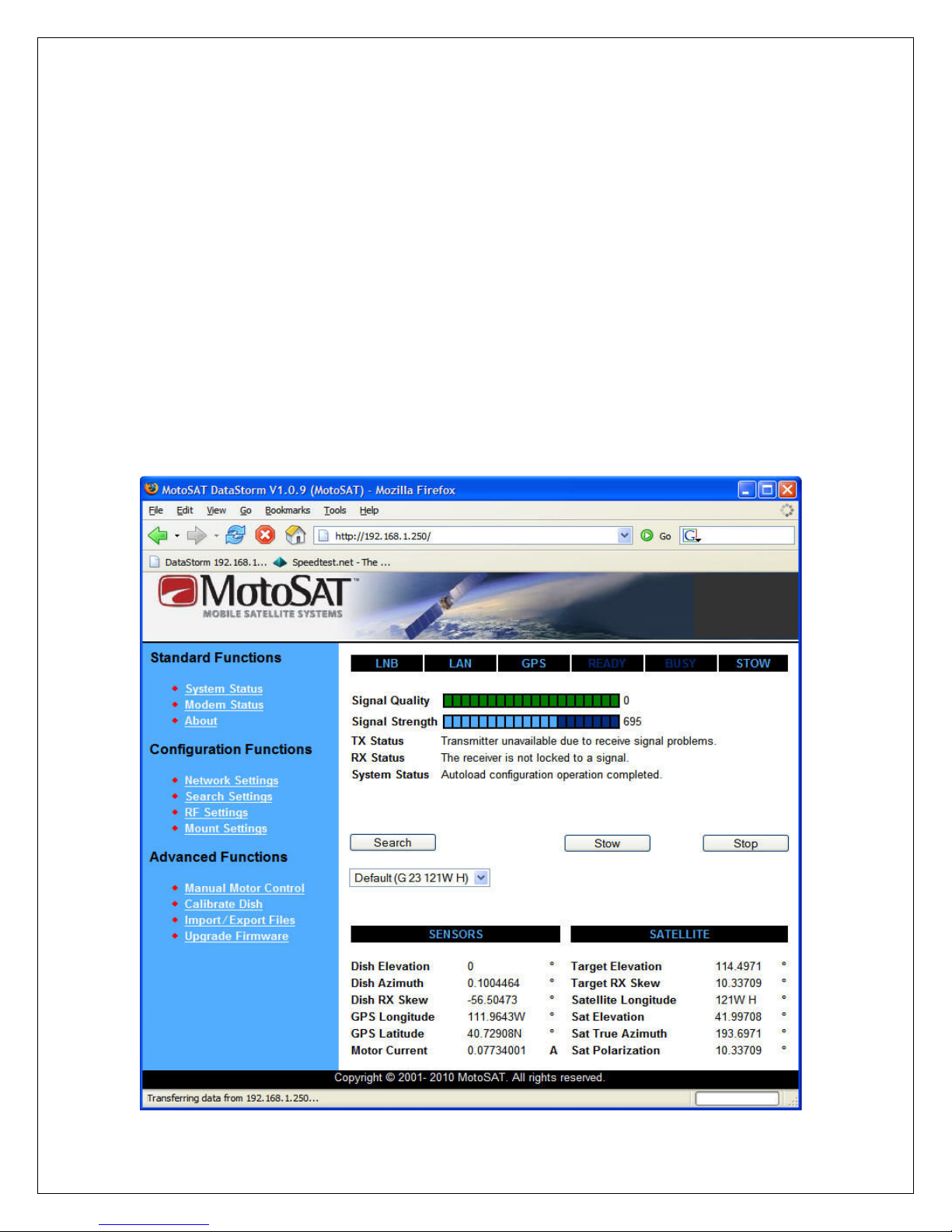
The System Status screen should open if the browser and H3 P address are
configured correctly. See Setup and Configuration if the page below does not
open.
System Status Screen Antenna Stowed
H3
Indice
Altri manuali MotoSAT Controllori


