Mpio FY 700 Manuale utente

User’s Manual
FY700-cover-Eng.indd 2-3 2005-11-16 ソタネト 6:40:28

2
Getting Started
3
Thank you for purchasing MPIO FY700. FY700 is a
digital audio player that enables users to play back music
conveniently and utilize it for various purposes. To use this
product properly, make sure to read through this manually
before using it.
http://www.mpio.com
For more information on the MPIO products, visit our
web site on the Internet. You can find many answers to
the customer’s various enquiries, or upgrade the product
performance through firmware upgrade (system software)
that operates this product.
► Copyright
- MPIO holds patent, trademark, and other intellectual
property right about this User’s Manual. Imitating all
or part of software of this product, and duplication,
reproduction, or interpretation without a prior consent
with MPIO is prohibited. Making the electronic media
version and the mechanical abridgement of the
contents are also prohibited.
► Trademark
- Microsoft, Windows, Windows Explorer, and Windows
logo are the trademark or registered trademark of
Microsoft Corporation.
- Intel and Pentium are the registered trademark of Intel
Corporation.
- Macintosh and Macintosh are the registered
trademark of Apple Computer, Inc.
- Products and products described in this manual
are the trademark or registered trademark of the
corresponding company or organization, and ™ or ®
mark not always displayed explicitly.
► Disclaimer
- Manufacturer and sales office do not bear any
responsibility over the accidental damage that
accompanies the injury to the user, which is caused
by improper usage of this product. The contents of
this manual are based on the product status at the
time of sales and can be changed without a prior
notice for continuous performance improvement and
additional function supplementation in the future.
▄ Introduction of
FY700_Eng.indd 2-3 2005-11-16 ソタネト 6:39:23

4
Getting Started
5
The following information is for protecting the user’s safety and
any property damages. Please read the following information and
use the product accordingly.
User Safety
① Traffic safety
- Do not listen to music using headphones or earphones when
riding a bicycle, motorcycle, or driving a vehicle. It is dangerous
and it may be against the law in some regions.
- Reduce the headset or earphone volume when listening
to music or FM while you’re walking. There is a risk of an
accident.
② Hearing Protection
- Do not use headphones or earphones for a long period of
time. Professionals suggest that long use of all portable audio
devices may have a possibility of causing hearing loss.
Data Storage
① MPIO Co., Ltd. will not be responsible for data loss or damages
occurred while transferring data between the product and a PC.
② When storing important data, please make a back-up copy.
The data may be damaged due to malfunction or other
elements such as outer impact or lack of battery. Please
note that in case of data loss, MPIO Co., Ltd. will not be
responsible for the lost data.
③ When inserting/removing the USB cable into a computer, please
do so by holding the plug.
④ When the product is connected to a computer, please do not
cause impact or shake the connector.
⑤ You should back up the data saved in the product before
requesting the after service. MPIO will consider that the
customers have backed up their data before sending it to MPIO
for after service. MPIO will not back up your data upon receiving
the after service request. Additionally, MPIO will bear no
responsibility over data loss during the service.
▄ Safety Precautions
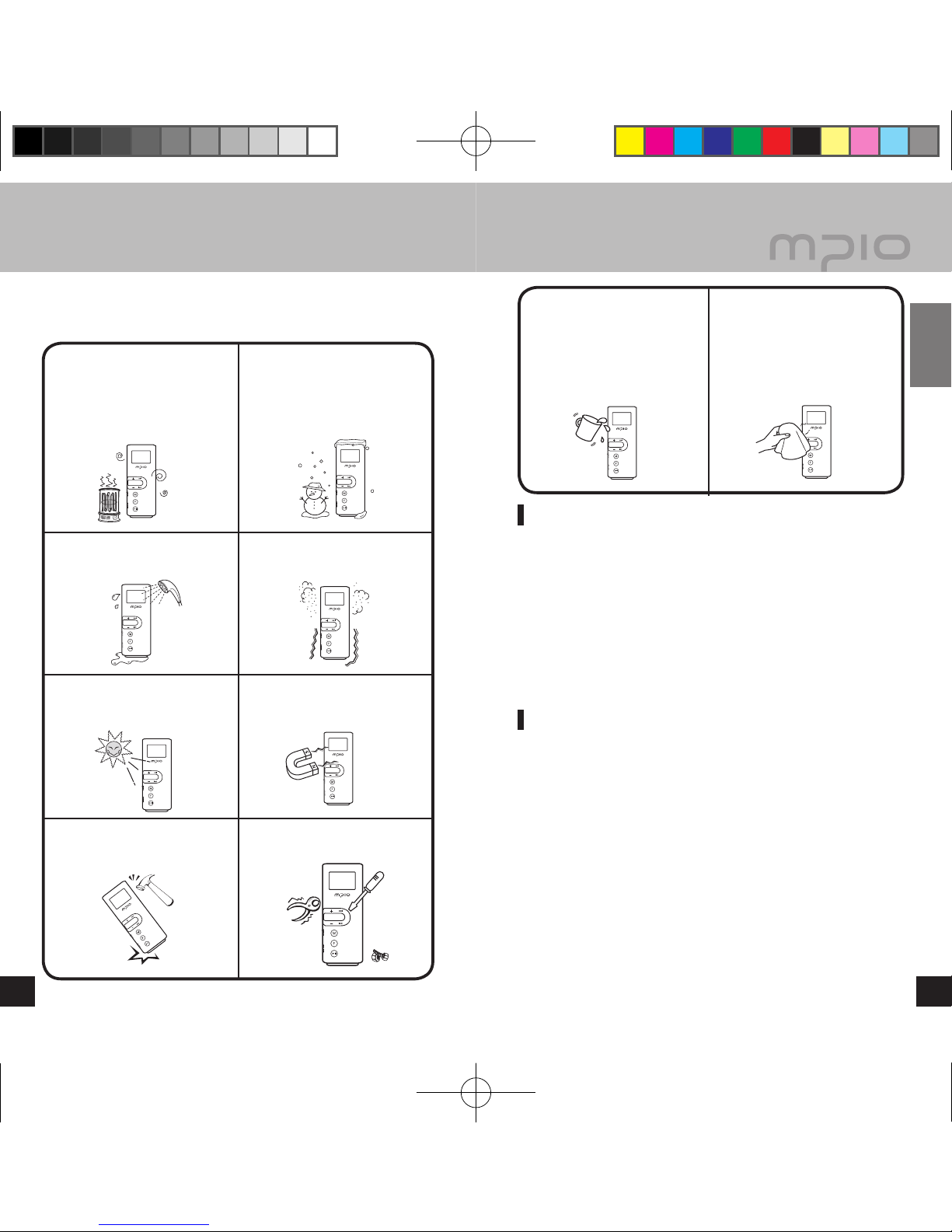
Do not use in high temperature
(near heating device or heat
generators).
Do not use in minus zero
temperatures or outdoors
during winter (operating
temperature 0˚C~40˚C).
Do not leave in humid areas or
frequently flooding areas. Avoid dusty or shaky areas.
Do not leave inside vehicles or
under direct sunlight. Avoid magnetic objects.
Avoid strong impact to prevent
disassemble or data loss. Never disassemble, repair or
reorganize.
Be careful of foreign substances
entering the product interior.
E.g.) Paper clips, paper, water,
drinks, etc.
When removing foreign
substances from the product
surface, always use a soft
cloth or a towel. Do not use
chemical solvents.
FY700_Eng.indd 4-5 2005-11-16 ソタネト 6:39:26

6
Getting Started
7
▄ Table of Contents
Getting Started
▄ Safety Precautions .......................................................................................4
User Safety ...................................................................................................5
Data Storage ................................................................................................5
▄ Product Features ..........................................................................................8
▄ Components .................................................................................................9
Basic Components .......................................................................................9
Additional Components ................................................................................9
▄ Name of the Parts ......................................................................................10
Connecting and Disconnecting Additional Components .............................11
LCD Screen ................................................................................................11
Connection
▄ Connecting to a PC ....................................................................................12
System Requirement ..................................................................................12
Connect with a USB Cable .........................................................................13
▄ Installing USB Driver Manually ...................................................................14
▄ Using a Removable Disk ............................................................................16
Downloading/Uploading Files .....................................................................16
Formatting ..................................................................................................17
Disconnecting the USB Cable ....................................................................18
Basic Usage
▄ Basic Operation ..........................................................................................19
To Play Music (Turning Power ON) ............................................................19
To Stop (Turning Power OFF) ....................................................................19
Searching for the desired section during playback .....................................20
Searching for the desired file during playback ...........................................20
Searching for the desired file during pausing .............................................20
▄ Basic Operation [Volume/Lock Function] ...................................................21
If you want to adjust the volume .................................................................21
Lockdown ...................................................................................................21
▄ Changing Modes ........................................................................................22
▄ Voice Recording .........................................................................................23
▄ Using the Navigation ..................................................................................24
▄ Deleting Files ..............................................................................................25
▄ Setting A↔B Repeat ..................................................................................26
Section Repeat Starting Point ....................................................................26
Section Repeat Ending Point .....................................................................26
▄ Listening to FM ...........................................................................................27
Manually Searching the Frequency (Scan mode) ......................................27
Automatically Searching the Frequency (Scan mode) ...............................27
Saving Channels ........................................................................................27
Changing a Saved Frequency ....................................................................28
Listening to a Saved Frequency (Channel mode) ......................................28
▄ Recording FM Radio ..................................................................................29
Additional Usage
▄ Menu Structure ...........................................................................................30
▄ Menu Operation ..........................................................................................31
Moving in the menu ....................................................................................31
Entering the sub-menu ...............................................................................31
Saving the settings .....................................................................................32
Leaving the submenu .................................................................................32
▄ Setting the Menu [Audio Settings] ..............................................................33
Setting EQ ..................................................................................................33
Setting User EQ .........................................................................................34
Setting Sound Effects .................................................................................34
Setting Repeat ............................................................................................35
▄ Setting the Menu [Radio Settings] ..............................................................36
Saving Channels in Menu ..........................................................................36
Setting Bandwidth ......................................................................................36
Setting FM Sound .......................................................................................37
Saving Auto Preset .....................................................................................37
▄ Setting the Menu [Recording Settings] .......................................................38
Setting Seek Step .......................................................................................38
Setting Voice Recording Quality .................................................................38
Setting FM Recording Quality ....................................................................39
Setting Voice Signal Amplification ..............................................................39
Setting the VOR (Voice Operation Recording) ...........................................40
▄ Setting the Menu [Screen Settings] ............................................................41
Setting Visual Effect ...................................................................................41
Setting the Language .................................................................................41
Setting File Information ..............................................................................42
Setting Playback Time ................................................................................42
Setting Text Flow Speed .............................................................................43
Setting the Back Light ................................................................................43
▄ Setting the Menu [System Settings] ...........................................................44
Setting AutoPlay .........................................................................................44
Setting Resume ..........................................................................................44
Setting Fade In ...........................................................................................45
Setting Device Info .....................................................................................45
Setting Sleep ..............................................................................................46
Setting Auto Power Off ...............................................................................46
Initializing Settings ......................................................................................47
Adjusting Playback Speed ..........................................................................47
Customer Support
▄ Upgrading Firmware ..................................................................................48
▄ Troubleshooting ..........................................................................................51
▄ Product Specifications ................................................................................53
FY700_Eng.indd 6-7 2005-11-16 ソタネト 6:39:32

차 차 차
차 차 차
차 차 차
차 차 차
차 차 차
차 차 차
차 차 차
차 차 차
8
Getting Started
9
Basic Components
Additional Components
Additional components can differ depending on the sales area.
Note
● Actual player may vary slightly from images shown, and
subject to change without notice.
● Broken components may be purchased separately at MPIO
Service Center.
8
Digital audio player with a simple design that everybody can use
with ease.
■ Synchronization Support with Windows Media Player 10
FY700 can be synchronized with Windows Media Player 10 on
Windows XP.
■ Supports USB 2.0 high-speed data transmission.
Data can be transferred and used faster and more conveniently
using USB 2.0 interface.
■ Supports USB mass storage
MP3 player can be used as a removable disc. You can save and
use the data conveniently at any time and place.
■
Supports playback of multiple formats and Janus DRM-applied file
Files in MP3, WMA and ASF format are supported. WMA files
with Janus DRM protection bought from on-line Shops can also
be played.
■ FM radio function
Besides simple listening to the FM radio, channel saving and
automatic preset functions are also provided.
■ Supports voice recording and FM recording
Voice and FM can be recorded.
■ 8 Types of EQ and 3D Sound Effect Support
In addition to Normal, Pop, Rock, Jazz, Classic, Vocal, and Bass
Booster modes, a user EQ menu is also provided for users to
setup what they want. Live 3D Effect is also available.
▄ Product Features ▄ Components
Player User’s Manual Product Warranty
Installation Driver CD
USB Cable Earphones
1 Battery (AAA) Cover
Carabiner Band strap Necklace
FY700_Eng.indd 8-9 2005-11-16 ソタネト 6:39:36

MY SONG
MUSIC001.mp3
00:00:30
10
Getting Started
11
Inserting the Battery
1. Push the battery cover
towards the direction of the
arrow to open.
2. Make sure the +/- polarity
is correctly positioned while
inserting the battery and then
push the battery cover in the
arrow direction to close.
(One AAA battery)
1. Earphone Jack
2. Microphone
3. USB Jack
4. LCD Screen
5. Moving up and down
through Menus and
Navigation/
Volume Control Button
6. HOLD Switch
7. Record button
8. Move to Menu and
Navigation pages/
Changing Track/
Rewind & Fast Forward
9. Menu/Navigation Settings
10. Function button/
Adjusting EQ/
Adjusting Playback Order/
Switching to Audio,
FM Mode
11. Power/Play/Pause Button
12. Battery Cover
13. Additional Components
Detachment Switch
▄ Name of the Parts
Connecting and Disconnecting Additional Components
Carabiner Band strap Necklace
■ Connecting : Push the additional components to fit in the
groove at the bottom.
■ Disconnecting : Push the RELEASE switch on the back
of the product (FY700) towards the direction of the arrow to
disconnect the additional components.
LCD Screen
Battery Indicator
Display of music
information
Playback Time
Sleep HOLD
All Tracks
EQ Indicator
3D Sound Repeat
Folder Name
Current Track
Visual Effects
(File Info/
Progress Status/
Stereo Image)
FY700_Eng.indd 10-11 2005-11-16 ソタネト 6:39:39

12
13
Connection
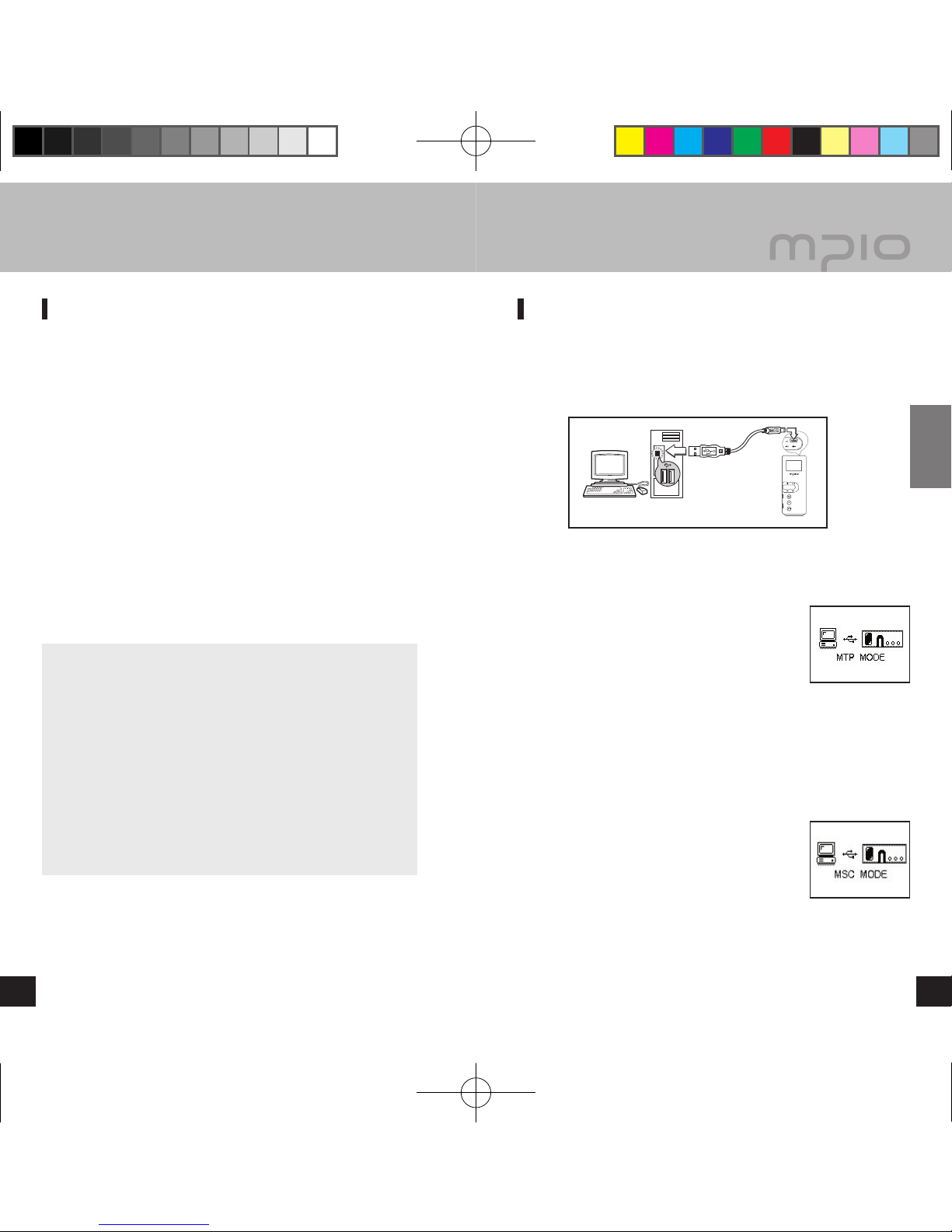
Connect with a USB Cable
As in the figure, connect the product (FY700) to the USB
connection port on the computer with the USB cable.
■ Removing USB cable while initializing when you install
the USB driver or executing a command may cause
malfunctioning of the computer.
The USB Driver will be installed with a message
indicting “Looking for a New Device”. The installation
screen may not appear.
Note
● MTP (Media Transfer Protocol) is a mode to
connect to a computer using the Windows
Media Player 10 in a Windows XP environment.
If Windows Media Player 10 is installed in a
Windows XP environment, you will automatically
be connected to MTP mode.
● Once in MTP mode, music files stored in the library can be
synchronized to the product (FY700), and music files will
Microsoft’s Janus DRM (Digital Rights Management) can be
downloaded.
● Songs listed in a playlist in the Windows Media Player can
be downloaded easily to the product (FY700) when Windows
Media Player 10 is synchronized.
● MSC (Mass Storage Class) is a mode for
USB Mass Storage that enables the product
to be used as a portable disk, regardless of
the operating system, such as Windows98/
ME/2000/XP & Mac or others. This feature is
the same as our other products. But if you are
using Windows 98/98SE operating systems, please refer to “USB
Driver Manual Installation” before installing the USB driver.
● While the computer and the product (FY700) are connected,
press the F [Function] button shortly to switch between MTP
and MSC modes.
▄ Connecting to a PC
System Requirement
■ IBM PC
System: USB Interface 2.0, Standard device and a CD-ROM
Drive equipped
CPU: Pentium 133MHz or faster
Memory: 64MB or more
Hard disk space: 20MB or more
Supported Operating Systems:
Windows 98/98SE/ME/2000/XP
■ Macintosh
System: USB Interface 2.0, Standard device and a CD-ROM
Drive equipped
Ex.) Power Mac G3 (Blue & White)/G4/G4 Cube, iMac/iBook,
PowerBook, PowerBook G4
Memory: 64MB or more
Hard disk space: 20MB or more
Supported Operating Systems: Mac OS version 9.2 or later
Caution
● Connection using USB Hubs or extension cables is not
guaranteed.
Note
● In Windows 98/98SE, the program must be installed to use
FY700 as a removable disk. Please install the USB drivers
before use.
● In Windows ME, 2000, XP, FY700 may be used as a
Removable Disk without any separate programs. FY700 is
accessible though the Windows Explorer.
Connecting with the USB Cable
FY700_Eng.indd 12-13 2005-11-16 ソタネト 6:39:40

14
15
Connection
Please refer to the below only if the device is not plugged with
Windows 98/98SE.
Connect the product (FY700) with a computer with the USB
cable. When Add New Hardware Wizard window appears
on the screen, click the [Next] button.
Check “Search for the driver for your device”, click the
[Next] button.
Click
Click
Insert the CD included in the package into the CD-ROM,
check CD-ROM DRIVE and click the [Next] button.
When the driver installation is completed, an “Installation
complete” window will appear on the screen. Then, click
the [Finish] button.
Go to the following destination to confirm that the
installation was completed successfully.
■ Windows 98:
[ Control Panel ] → [ Systems ] → [ Device Manager ] →
[ Hard Drive ]→ MPIO FY700 USB Device
Note
● In Windows 98/98SE, the program must be installed to use
FY700 as a removable disk. Please install the USB drivers
before use.
Click
▄ Installing USB Driver Manually
FY700_Eng.indd 14-15 2005-11-16 ソタネト 6:39:41

16
17
Connection
Downloading/Uploading Files
You can connect to the PC with the USB
cable while the product (FY700) is on or
off.
■ If connected, a connection icon will
appear in the LCD screen.
■ If connected in MTP mode, press the F [Function] button
shortly to switch to MSC mode.
Run Windows Explorer on the PC
■ A Removable Disk Drive (FY700) Icon will be created in
Windows Explorer.
The user can store, delete data and create a folder in
the same way as a hard drive. Copy & Paste, Drag &
Drop commands can be used in the same way to store
data.
Copy & Paste: Select the data to store, click on right
mouse button. Select [Copy] and then [Paste] in the
Removable Disk drive.
Drag & Drop: Select the data
store, click and hold down the
left mouse button to drag the
files into the Removable Disk
drive, and then release the left
mouse button.
Caution
● If the USB cable is disconnected while a .le is being
uploaded or downloaded, the device may malfunction.
● The music file display order in Windows Explorer when you
select a removable disc can be different from the actual
playback order.
● If you rename music files like 001***, 002***… in Windows
Explorer, you can play them back by the order of number in
the file name.
▄ Using a Removable Disk
Formatting
Select the Removable Disc icon. Click your right mouse
button and select [Format]. Click the [Start] button.
Note
● When formatting the device using the Windows format
command, it must be formatted in FAT or FAT16. To use the
device after it has been formatted, the default settings must
be restored using MPIO Utility.
Caution
● The files in FY700 WILL BE LOST after formatting.
Click
Click
Click
FY700_Eng.indd 16-17 2005-11-16 ソタネト 6:39:42

POWER ON
ROOT
RECORD
MUSIC
Sample song
MUSIC
MUSIC001.mp3
PAUSE
POWER OFF
18 19
Usage
Disconnecting the USB Cable
It is recommended that you follow these directions for
separating the device from the PC safely. If these instructions
are not followed, it may result in data damage or product
malfunction.
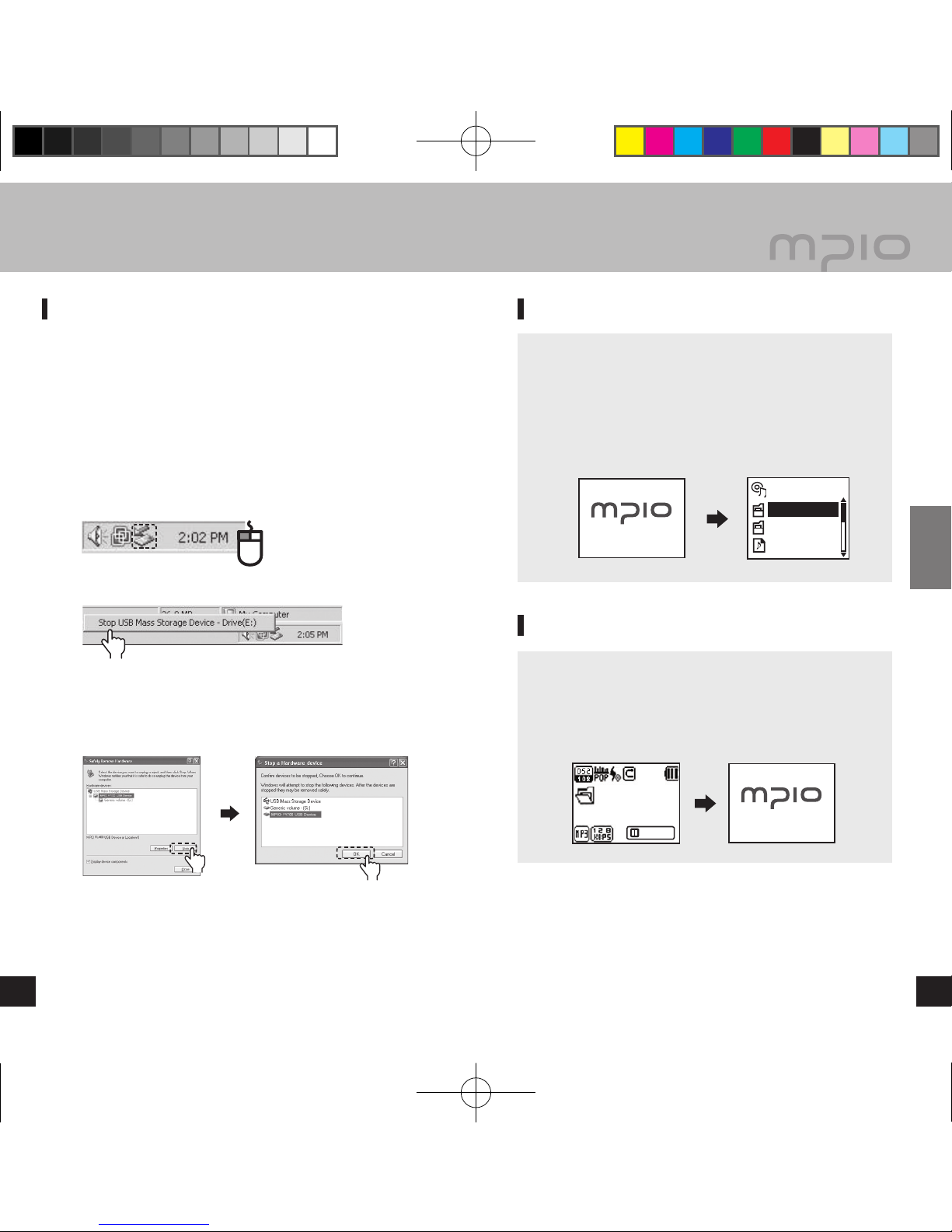
Windows 98/98SE Users
There is no Safely Remove Hardware command in Windows
98/98SE. The user must wait until the file/data transfer is
complete, and then disconnect the USB cable.
Place mouse cursor on “Stop a Hardware Device” icon
in the system tray, and click right mouse button.
Select “Stop USB Mass Storage Device”.
Select USB Mass Storage Device from the list of
hardware, and click the [Stop] button. When the “Stop
a Hardware Device” window appears, select MPIO
FY700 USB Device. Then, click the [OK] button and
disconnect the USB cable.
Note
● In Windows 2000, disconnect the USB cable by clicking the
[OK] button after the “Safely Remove Hardware” message
appears. If you are suing Windows XP, disconnect the
USB Cable when the Safe To Remove Hardware message
appears.
Click Click
▄ Using a Removable Disk ▄ Basic Operation
Click
To Play Music (Turning Power ON)
Navigation screen will appear by pressing longer ►
▐▐
button
after turning the player on with a logo screen. Select file you
wish to playback.
Press the ►
▐▐
button to play music.
For more details of how to move folders or files, see [Using
the Navigation] in page 24.
To Stop (Turning Power OFF)
Press the ►
▐▐
button shortly to pauses during playback
and it is automatically turned-off if there is no any further
operation for 3 minutes. (In case default setting)
It is automatically turned off if the ►
▐▐
button is pressed
longer during playback as well.
Note
● In the menu, you can change the time settings for Auto
Power Off. (See page 46)
● After turning on the power, if you don’t want the navigation
screen to come up, change the setting to Auto Play in the
menu. (See page 44).
FY700_Eng.indd 18-19 2005-11-16 ソタネト 6:39:42
Indice
Altri manuali Mpio Lettore MP3

Mpio
Mpio FL 400 Manuale utente

Mpio
Mpio FL 350 Manuale utente

Mpio
Mpio HD 400 Manuale utente

Mpio
Mpio DMG Manuale utente

Mpio
Mpio FY 200 Manuale utente

Mpio
Mpio FY 800 Manuale utente

Mpio
Mpio FY 300 Manuale utente

Mpio
Mpio DMB Plus Manuale utente

Mpio
Mpio DMG PLUS Manuale utente

Mpio
Mpio FL 400 Manuale utente