NEC ND-3500A Manuale utente


1
Table of Contents
Welcome . . . . . . . . . . . . . . . . . . . . . . . . . . . . . . . . . . . . . . . . 2
Hardware System Requirements . . . . . . . . . . . . . . . . . . . . . . 3
Software System Requirements . . . . . . . . . . . . . . . . . . . . . . . 3
Drive Installation . . . . . . . . . . . . . . . . . . . . . . . . . . . . . . . . . . 4
Using Your Drive. . . . . . . . . . . . . . . . . . . . . . . . . . . . . . . . . . 6
About DVD Media Types . . . . . . . . . . . . . . . . . . . . . . . . . . . . 6
Product Specifications . . . . . . . . . . . . . . . . . . . . . . . . . . . . . 7
Software . . . . . . . . . . . . . . . . . . . . . . . . . . . . . . . . . . . . . . . . 8
Disc Care . . . . . . . . . . . . . . . . . . . . . . . . . . . . . . . . . . . . . . . 9
Troubleshooting & Technical Support . . . . . . . . . . . . . . . . . 10
Warranty Information. . . . . . . . . . . . . . . . . . . . . . . . . . . . . . 11

2
Welcome
Thank you for purchasing the NEC ND-3500A DVD±R/RW DL
drive. Please remove your service tag sticker found on the outer
carton’s label. This label contains your drive’s service tag
number and model number and can be placed in the space
below or can be affixed to the outer cover of your PC. You will
need this information for product registration and to obtain
technical support service. To register this product online, please
visit www.necsam.com/registration/ Save the box that your
drive was shipped in, as NEC can not be held accountable for
damages caused by shipping in the case of a returned product.
FCC NOTICE
This equipment has been tested and found to comply with the limits for a
Class B digital device, pursuant to Part 15 of the FCC Rules. These limits are
designed to provide reasonable protection against harmful interference in a
residential installation. This equipment generates, uses, and can radiate
radio frequency energy, and, if not installed and used in accordance with the
instructions, may cause harmful interference to radio communications.
However, there is no guarantee interference will not occur in a particular
installation. If this equipment causes harmful interference to radio or
television reception, which can be determined by turning the equipment off
and on, the user is encouraged to try to correct the interference by one or
more of the following measures:
■Reorient or relocate the receiving antenna.
■Increase the separation between the equipment and receiver.
■Connect the equipment into an outlet on a circuit different from that to
which the receiver is connected.
■Consult the dealer or an experienced radio/TV technician for help.
Changes or modifications of this device must be approved by the party
responsible for FCC compliance, or the user loses authority to operate
this product.
LASER WARNING
Visible and invisible laser radiation. Do not open optical housing. Avoid
direct exposure to the beam.
Service Tag Number: _______________________
Purchase Date: ____________________________

Hardware System
Requirements
Minimum
■Intel®Pentium®III 800 MHz
■256 MB memory
■Used for such things as data back up only.
Recommended
■Intel®Pentium®4 1.0 GHz
■512 MB memory
■Highly recommended for all DVD recording.
Software System
Requirements
Minimum System Requirements
■Intel®Pentium®III 800 MHz, AMD Athlon™800 MHz, or
faster for video/menu authoring.
■256 MB memory (512 MB or above is recommended)
■Microsoft®Windows®98SE, ME, 2000, XP
■400 MB hard disk space for program installation
■DirectX®9.0 driver or above
■Windows®-compatible sound card
■Windows®-compatible display with 800x600 resolution
(1024 x 768 is recommended)
■Windows®-compatible mouse or pointing device
Optional Requirements
■Intel®Pentium®4, 1.8 GHz, AMD Athlon™1.7 GHz or
higher is required when direct capture and burn from DV
to DVD discs.
■USB 1.0 and USB 2.0 capture devices and PC cameras.
■IEEE-1394/FireWire cards for use with DV/D8 camcorders.
■Analog capture card/board (WDM support)
■Windows®-compatible DVD-R/RW, DVD+R/RW, DVD-
RAM, CD-R/RW drives.
■5 GB of available hard drive space for video capturing.
■5 GB of available hard drive space for DVD disc burning.
■10 GB of available hard drive space for double-layer discs
capturing and burning.
3

4
Drive Installation
!Shut down your computer and disconnect all cables
plugged into the computer. [Fig. 1]
@Remove the computer’s case (refer to your computer’s
documentation).
#Once the cover is removed, touch a non-painted metal
surface (i.e. the power supply) to ground yourself. This is
an important step! You can damage the components
inside the computer if you do not ground yourself.
$If you are replacing an existing drive:
Unplug the cables from the rear of the drive. [Fig. 2]
Remove the mounting hardware holding the drive in place
(refer to your computer’s documentation).
Slide the drive out through the front of the computer. [Fig. 3]
%If you are NOT replacing an existing drive (i.e. adding an
additional drive):
Remove the front cover plate from the empty drive bay
where you are installing the drive (refer to your computer’s
documentation).
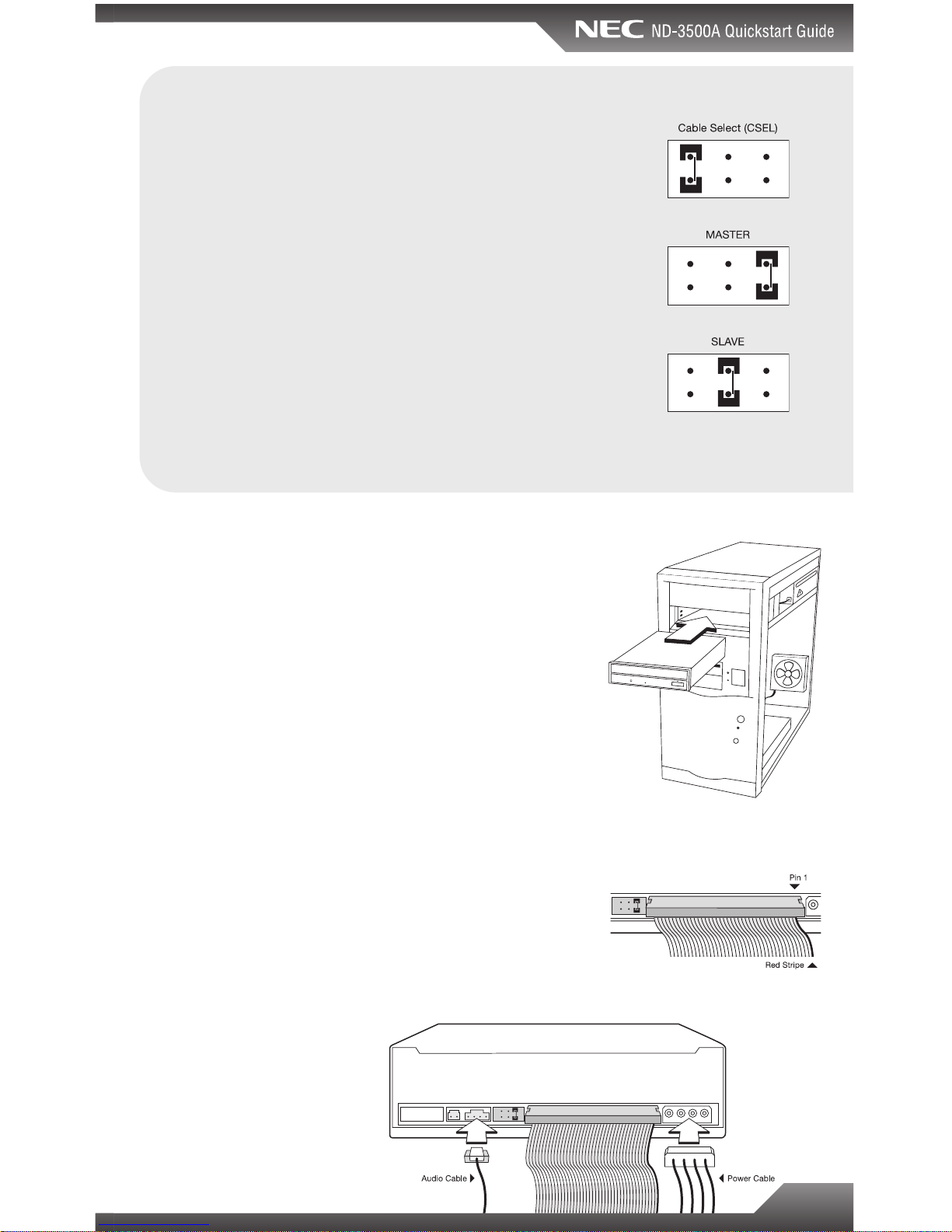
^Check the jumper settings on the ND-3500A:
If you are replacing an existing drive, set the jumper to the
same setting as the drive you are replacing. The jumper is
the black plastic piece on the back of your drive bridging
two of the six pins as seen below [Fig 4]. You may need
small needle nose pliers to gently slide the jumper off.
If you are installing the ND-3500A as an additional drive,
you will need to set the jumper settings according to your
system requirements (see next page).
Fig. 2
Fig. 1
Fig. 4 jumper
Fig. 3

Jumper Setting Tutorial:
There are three possible jumper settings: MASTER, SLAVE,
and CABLE SELECT (CSEL). When two drives are connected
to the same interface cable, one must be set to MASTER, and
one set to SLAVE. Alternatively, both drives may be set to
CABLE SELECT, in which case the system defines which
drive is MASTER and which drive is SLAVE. If only one drive
is present, set the jumper to MASTER. The ND-3500A ships
with a default setting of MASTER.
If you are installing the ND-3500A as a second drive, look at
the jumper settings on the second drive (already in your
system). If the settings on that drive are set to MASTER or
SLAVE, set the jumper on the ND-3500A to the opposite
setting. If the existing drive is set to CABLE SELECT (CSEL),
set the jumper on the ND-3500A to CSEL also.
&Slide the ND-3500A into the empty drive bay, from the
front of the computer. [Fig 5]
*Mount the drive to your computer’s chassis using the
existing mounting hardware, or the provided screws (refer
to your computer’s documentation).
(Connect the interface cable, making sure the red stripe
matches Pin 1 on the drive. If your drive is set to
MASTER, connect it to the endmost connector on the
cable. [Fig. 6]
)Connect the included analog audio cable from the drive’s
audio connector to your sound card (not applicable for
Windows®XP users or those using digital audio
playback). [Fig. 7]
1Connect the power cable. [Fig. 7]
2Replace the computer’s cover and re-connect all cables
that were previously unplugged.
3Power-up the computer.
5
Fig. 5
Fig. 6
Fig. 7

6
Using Your Drive
Busy Indicator LED: Lights up when reading or writing data.
Eject Button: Press to load or unload a disc.
Disc Tray: Open or close by pressing the eject button. Load
discs into the tray with the label side facing up.
Forced Eject Hole: If the eject button will not open the tray,
insert a stiff rod such as a large paper clip into the hole
and push in to eject the tray after the drive has been turned
off and the disc has stopped spinning.
About DVD Media Types
Media compatibility
Disc Types ND-3500A Supports
DVD-ROM . . . . . . . . . . . . . . . . . . . . . . . . . . . . . . . . . . . .Read
DVD-Video . . . . . . . . . . . . . . . . . . . . . . . . . . . . . . . . . . .Read
DVD+R (SL, DL) . . . . . . . . . . . . . . . . . . . . . . . . . . .Read/Write
DVD+RW . . . . . . . . . . . . . . . . . . . . . . . . . . . . . . . .Read/Write
DVD-R . . . . . . . . . . . . . . . . . . . . . . . . . . . . . . . . . .Read/Write
DVD-RW . . . . . . . . . . . . . . . . . . . . . . . . . . . . . . . .Read/Write
DVD-RAM . . . . . . . . . . . . . . . . . . . . . . . . . . . .Not Supported
SL- Single Layer
DL- Double Layer
Sample DVD+R SL media is included in kit
Busy
Indicator LED
Forced Eject
Hole
Eject ButtonDisc Tray

Product Specifications
Read Speed: 16x max. DVD-ROM and 48x max. CD-ROM
Write Speed: DVD+R: 16x max., DVD+RW: 4x max.,
DVD+R DL: 4x max., DVD-R: 16x max., DVD-RW: 4x max.,
CD-R: 48x max., CD-RW: 24x max.
Access Time: 120 ms (CD), 140 ms (DVD)
Mechanism: Motorized tray load mechanism for horizontal
and vertical use
Audio: Digital-out and line-out at the back (MPC compatible)
Interface: IDE/ATAPI
Burst Transfer Rate: PIO mode 4/Ultra DMA 33
Cache: 2 MB
Compatibility: MPC level 3, Multi Read, PC2001
Media/Modes Supported: DVD-ROM, DVD-R, DVD-RW,
DVD+R, DVD+R DL, DVD+RW, DVD-Video, CD-ROM,
CD-ROM XA, CD-Audio, CD Extra, CD Text, CD-I Ready,
CD-Bridge, Photo-CD, VideoCD, Hybrid CD
Writing Methods: DAO (disc at once), SAO (session at
once), TAO (track at once) with zero gap, variable or fixed
packet, multisession
Dust Protected Enclosure
Forced Eject Hole
7

8
Software
Your ND-3500A drive ships with Ulead®DVD MovieFactory™
3.5 Suite Deluxe Edition for Windows®. The bundled software
includes these powerful features:
■Create stunning interactive DVDs
■Edit your home videos and burn them to CD or DVD
■Copy your homemade CDs and DVDs and share them
with family and friends
■Back up your valuable data
■Burn your own music CD collections
■And much more...
Installing Ulead®DVD MovieFactory™3.5 Suite Deluxe Edition:
Please refer to the documentation included on the
application disc for installation instructions. Additional
information and technical support for Ulead®DVD
MovieFactory™3.5 Suite Deluxe Edition can be found online
at http://support.ulead.com or by calling (310) 896-6391,
Monday-Friday, 8:30am-5:00pm PST.

Disc Care
■To clean the disc, use a soft cloth and wipe from the
inside to the outside edge rather than in a circular motion.
■Do not use record-cleaning or anti-static agents as the
solutions may damage a disc.
■Always store discs in proper storage cases when not in use.
■Check for dirt, dust, or fingerprints on a disc’s recording
side before inserting into the unit.
■Avoid touching or scratching the recording side of the disc.
■Hold the disc only by the edges or by the center hole and
one edge.
■Do not affix stickers, labels, or tape to the disc.
■Discard warped or cracked discs as they may cause
damage to the drive.
■Avoid unusually shaped discs such as “business card” CDs.
9
Indice
Altri manuali NEC Unità DVD

NEC
NEC Versa LXi Manuale utente

NEC
NEC NE3351-123 Manuale utente

NEC
NEC DV-5700 Manuale utente

NEC
NEC N8160-102 Manuale utente

NEC
NEC ND-3550A Manuale utente

NEC
NEC VERSA LXI VERSABAY III DVD-ROM DRIVE Manuale utente

NEC
NEC ND-1300A Manuale utente

NEC
NEC DV-5500A Manuale utente

NEC
NEC N8151-138 Manuale utente

NEC
NEC ND-3100 Manuale utente