Newbridge NB-SEMS-FRT Manuale utente

SEMS
USER MANUAL
NB-SEMS-FRT
Secure Your Entrance Today
Contactless, Contact Tracing, Check-in/out with the QR Code

NB-SEMS-FRT User Manual Ver.1.0
Copyright © 2020 Newbridge Technologies Int. Ltd. All rights reserved.
1
ABOUT THE MANUAL
This manual introduces the operations of Secure Entrance Management System software.
All figures displayed are for illustration purposes only. Figures in this manual may not be exactly
consistent with the actual products.
DISCLAIMER
This manual contains information on the operation and maintenance of the Newbridge product.
The copyright in all the documents, drawings, etc. in relation to the Newbridge supplied
equipment vests in and is the property of Newbridge. The contents hereof should not be used
or shared by the receiver with any third party without express written permission of Newbridge.

NB-SEMS-FRT User Manual Ver.1.0
Copyright © 2020 Newbridge Technologies Int. Ltd. All rights reserved.
2
TABLE OF CONTENTS
ABOUT THE MANUAL ................................................................................................................................................. 1
DISCLAIMER .................................................................................................................................................................. 1
1. NOTICE FOR USE .................................................................................................................................................... 4
1.1- FINGER POSITIONING ............................................................................................................................................. 4
1.2- STANDING POSITION,FACIAL EXPRESSION AND STANDING POSTURE ................................................................ 4
1.3- PALM REGISTRATION .............................................................................................................................................. 5
1.4- FACE REGISTRATION ............................................................................................................................................... 5
1.5- STANDBY INTERFACE .............................................................................................................................................. 6
1.6- VIRTUAL KEYBOARD ................................................................................................................................................ 6
1.7- VERIFICATION MODE .............................................................................................................................................. 7
2. MAIN MENU ........................................................................................................................................................... 12
3. USER MANAGEMENT .............................................................................................................................................. 13
3.1- ADDING USERS ..................................................................................................................................................... 13
3.2- SEARCH FOR USERS .............................................................................................................................................. 15
3.3- EDIT USERS ........................................................................................................................................................... 16
3.4- DELETE USERS ...................................................................................................................................................... 16
4. USER ROLE .............................................................................................................................................................. 17
5. COMMUNICATION SETTINGS ................................................................................................................................. 19
5.1- NETWORK SETTINGS ............................................................................................................................................ 19
5.2- PC CONNECTION ................................................................................................................................................ 20
5.3- CLOUD SERVER SETTING ...................................................................................................................................... 20
5.4- WIEGAND SETUP .................................................................................................................................................. 21
6. SYSTEM SETTINGS ................................................................................................................................................... 24
6.1- DATE AND TIME .................................................................................................................................................... 24
6.2- ACCESS LOGS SETTING ........................................................................................................................................ 25
6.3- FACE PARAMETERS .............................................................................................................................................. 26
6.4- FINGERPRINT PARAMETERS ................................................................................................................................... 28
6.5- PALM PARAMETERS ............................................................................................................................................... 29
6.6- FACTORY RESET .................................................................................................................................................... 29
7. PERSONALIZE SETTINGS ......................................................................................................................................... 30
7.1- INTERFACE SETTINGS ........................................................................................................................................... 30
7.2- VOICE SETTINGS ................................................................................................................................................... 31
7.3- BELL SCHEDULES .................................................................................................................................................. 31
7.4- PUNCH STATES OPTIONS ...................................................................................................................................... 32
7.5- SHORTCUTS KEYS MAPPINGS ................................................................................................................................ 33
8. DELETE MANAGEMENT .......................................................................................................................................... 34
9. ACCESS CONTROL .................................................................................................................................................. 36
9.1- ACCESS CONTROL OPTIONS ................................................................................................................................ 37
9.2- TIME SCHEDULE .................................................................................................................................................... 38
9.3- HOLIDAY SETTINGS ............................................................................................................................................... 39

NB-SEMS-FRT User Manual Ver.1.0
Copyright © 2020 Newbridge Technologies Int. Ltd. All rights reserved.
3
9.4- COMBINED VERIFICATION SETTINGS ..................................................................................................................... 40
9.5- ANTI-PASSBACK SETUP ......................................................................................................................................... 41
9.6- DURESS OPTIONS SETTINGS ................................................................................................................................. 42
10. ATTENDANCE SEARCH ......................................................................................................................................... 43
11. AUTOTEST ............................................................................................................................................................ 45
12. SYSTEM INFORMATION ....................................................................................................................................... 46
13. CONNECT TO AWDMS SOFTWARE ..................................................................................................................... 47
13.1- SET THE COMMUNICATION ADDRESS ................................................................................................................ 47
13.2- ADD DEVICE ON THE SOFTWARE ....................................................................................................................... 48
13.3- ADD PERSONNEL ON THE SOFTWARE ............................................................................................................... 48
13.4- REAL-TIME MONITORING ON THE SOFTWARE .................................................................................................... 49
14. APPENDIX ............................................................................................................................................................ 50

NB-SEMS-FRT User Manual Ver.1.0
Copyright © 2020 Newbridge Technologies Int. Ltd. All rights reserved.
4
1. NOTICE FOR USE
1.1- FINGER POSITIONING
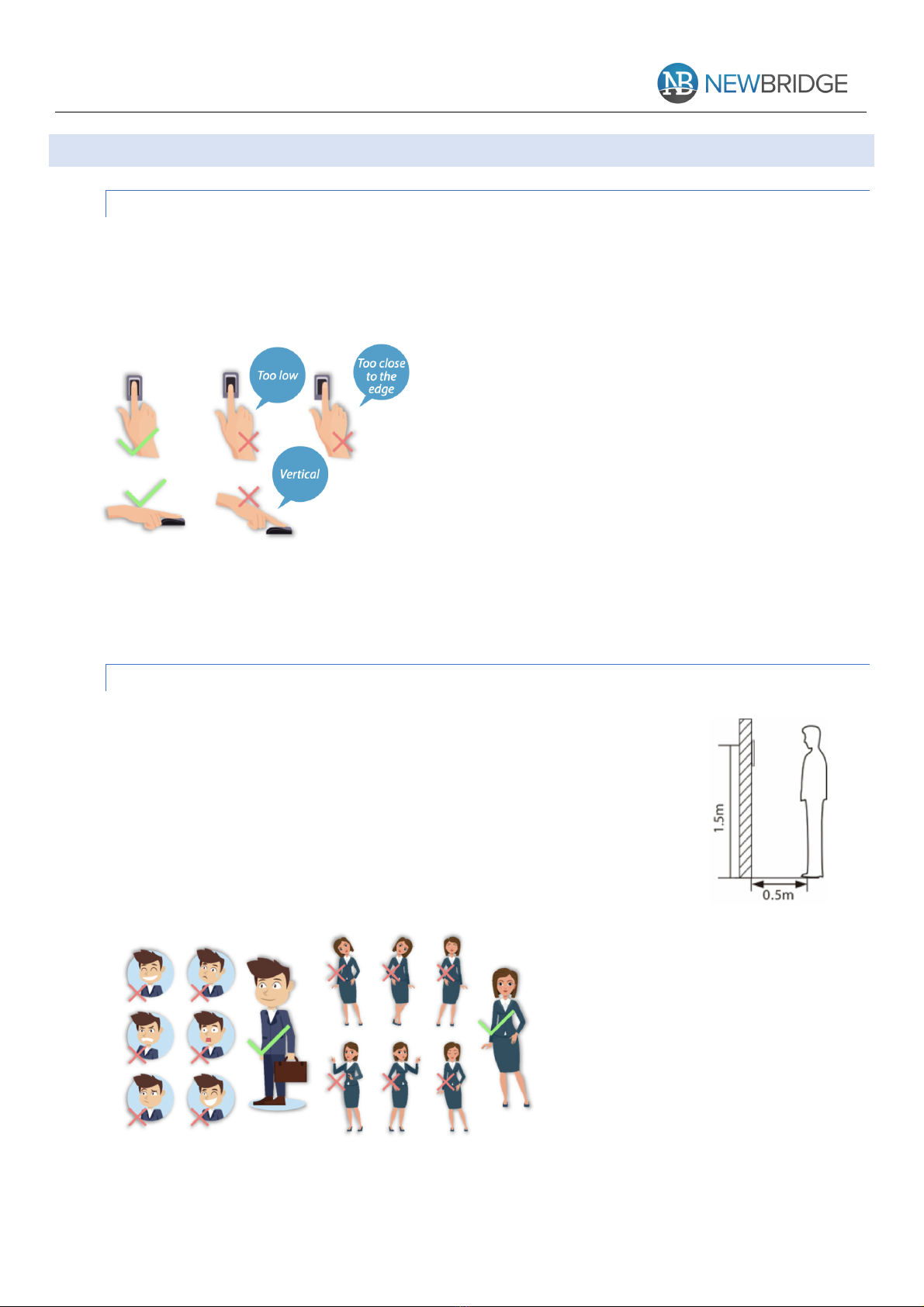
Recommended fingers: index, middle, or ring fingers; avoid using the thumb or pinky,
as they are difficult to accurately pressed onto the fingerprint reader.
Note:
Please use the correct method when pressing your
fingers onto the fingerprint reader for registration
and identification. Our company assumes no
liability for recognition issues that may result from
the incorrect usage of the product. We reserve the
right of the final interpretation and modification
concerning this point.
1.2- STANDING POSITION, FACIAL EXPRESSION AND STANDING POSTURE
The recommended distance between the device and a user
whose height is within 1.55m-1.85m is 1.5m. Users may slightly
move forwards and backwards to improve the quality of facial
images captured.
Facial expression and standing posture
Note:
During enrolment and verification,
please remain natural facial
expression an standing posture.
Too
low
Vert
ical

NB-SEMS-FRT User Manual Ver.1.0
Copyright © 2020 Newbridge Technologies Int. Ltd. All rights reserved.
5
1.3- PALM REGISTRATION
Place your palm in the palm multi-mode collection area, such that the palm is placed
parallel to the device. Make sure to keep space between your fingers.
Note:
Place your palm within 30-50cm of
the device.
1.4- FACE REGISTRATION
Try to keep the face in the center of the screen during registration. Please face the
camera and stay still during face registration. Correct face registration and authentication
method as below:
Cautions for registering a face:
o When registering a face, maintain a distance of 40cm
to 80cm between the device and the face.
o Be careful not to change the facial expression.
(smiling face, drawn face, wink, etc.)
o If you do not follow the instructions on the screen, the
face registration may take longer or may fail.
o Be careful not to cover the eyes or eyebrows.
o Do not wear hats, masks, sunglasses or eyeglasses.
o Be careful not to display two faces on the screen.
Register one person at a time.
o It is recommended for a user wearing glasses to
register both faces with and without glasses.
Cautions for authenticating a face:
o Ensure that the face appears inside the guideline displayed on the screen of the
device.
o If glasses have been changed, authentication may fail. If the face without glasses
has been registered, authenticate the face without glasses. If only the face with
glasses has been regis tered, authenticate the face with the previously worn
glasses again.
o If a part of the face is covered with a hat, a mask, an eye patch, or sunglasses
authentication may fail. Do not cover the face, allow the device to recognize both
the eyebrows and the face.

NB-SEMS-FRT User Manual Ver.1.0
Copyright © 2020 Newbridge Technologies Int. Ltd. All rights reserved.
6
1.5- STANDBY INTERFACE
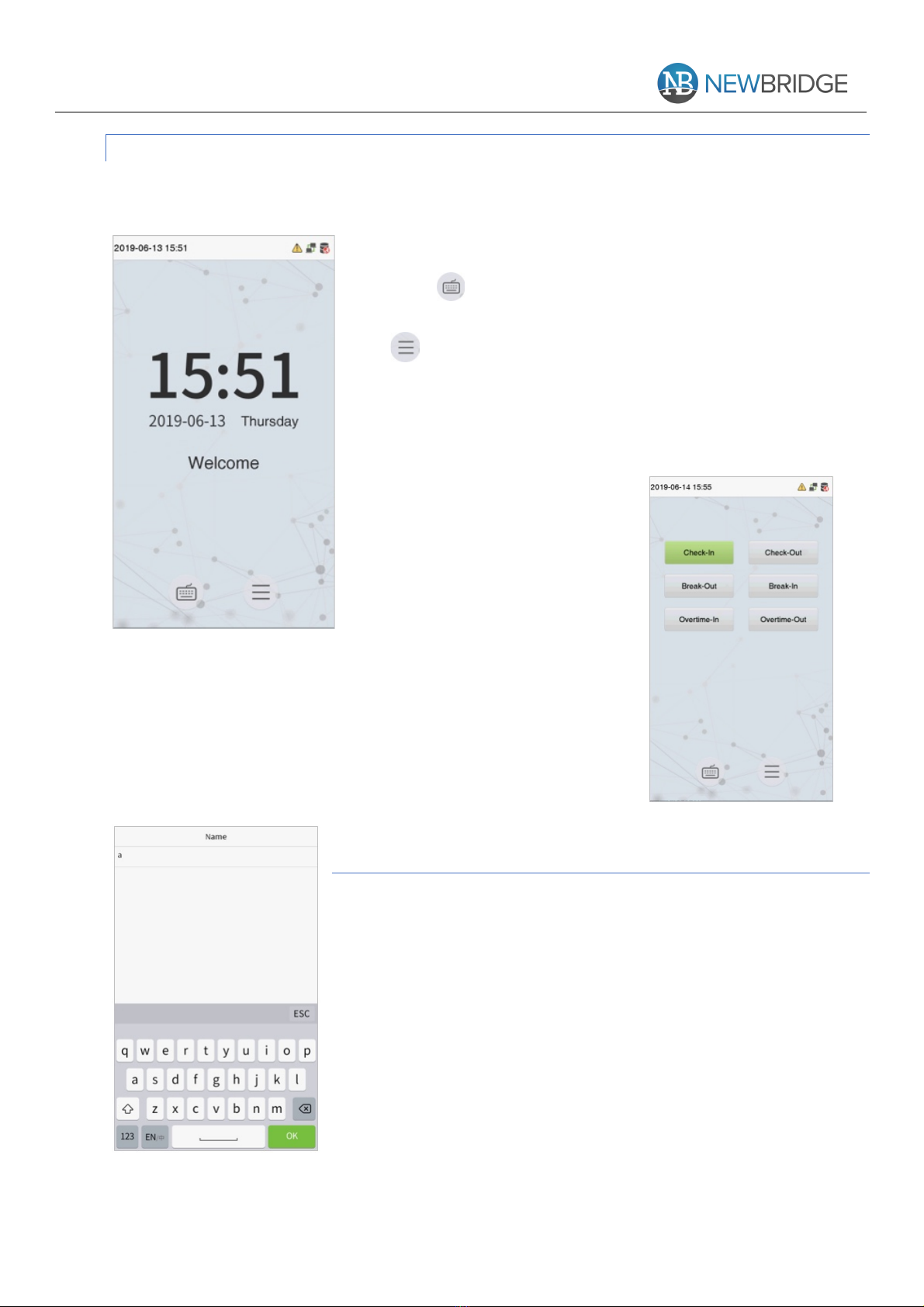
After connecting the power supply, enter the following standby interface:
Note:
o Click to enter the User ID input interface.
o When there is no super administrator set in the device,
click to enter the menu. After setting the super
administrator, it requires the super administrator’s verification
before entering the menu op eration. For the security of the
device, it is recommended to register super administrator the
first time you use the device.
o The switch of punch state
can be done directly by using the
screen shortcut keys. Click
anywhere on the screen without
icons, and six shortcut keys
appear, as shown in the figure
below:
Press the corresponding shortcut key to select the current
punch state, which is shown in green. Please refer to “7.5
Shortcut Key Mappings” below for the specific operation
method.
1.6- VIRTUAL KEYBOARD
Note:
The device supports the input of Chinese, English, numbers
and symbols. Click [En] to switch to English keyboard. Press
[123] to switch to the numeric and symbolic keyboard, and click
[ABC] to return to the alphabetic keyboard. Click the input box,
virtual keyboard appears. Click [ESC] to exit the input.

NB-SEMS-FRT User Manual Ver.1.0
Copyright © 2020 Newbridge Technologies Int. Ltd. All rights reserved.
7
1.7- VERIFICATION MODE
Palm Verification
o 1: N Palm Verification mode
Compare the palm image collected by the palm collector
with all the palm data in the device.
The device will automatically distinguish between the palm
and the face verification mode, and place the palm in the
area that can be collected by the palm collector, and the
device will automatically detect the palm verification mode.
o 1: 1 Palm Verification
mode
Click the button on the
main screen to enter 1:1 palm verification mode.
Input the user ID and press [OK].
If the user has registered the face and password in addition to
his/her palm, and the verification method is set to palm/ face/
password verification, the following screen will appear. Select
the palm icon to enter palm verification mode.

NB-SEMS-FRT User Manual Ver.1.0
Copyright © 2020 Newbridge Technologies Int. Ltd. All rights reserved.
8
Fingerprint Verification
o 1: N fingerprint verification mode
Compares the fingerprint that is being pressed onto the fingerprint reader with all of the
fingerprint data that is stored in the device.
The device will enter the fingerprint authentication mode when a user presses his/her finger
onto the fingerprint scanner.
Please follow the correct way to place your finger onto the sensor. For details, please refer to
section 1.1 Finger Positioning.
o 1: 1 fingerprint verification mode
Compares the fingerprint that is being pressed onto the
fingerprint reader with the fingerprints that are linked to
User ID input via the virtual keyboard.
Users may try verifying their identities with 1:1 verification
mode when they cannot gain access with 1: N authentication
method.
Click the button on the main screen to enter 1:1
fingerprint verification mode.
1. Input the user ID and press [OK].

NB-SEMS-FRT User Manual Ver.1.0
Copyright © 2020 Newbridge Technologies Int. Ltd. All rights reserved.
9
If the user has registered face and password in addition to his/her
fingerprints and the verification method is set to fingerprint/
password/ face verification, the following screen will appear. Select
the fingerprint icon to enter fingerprint verification mode.
2. Press the fingerprint to verify.
3. Verification is successful.
4. Verification is failed.
Facial Verification
o 1:N Facial Verification
Conventional verification: Compare the acquired facial images with all face data
registered in the device. The following is the pop-up prompt box of comparison result.
o 1:1 Facial Verification
Compare the face captured by the camera with the facial template related to the entered
user ID.
Indice
Manuali Sistema di sicurezza popolari di altre marche

EDM
EDM Solution 6+6 Wireless-AE Manuale utente

Highway Safety Group
Highway Safety Group EA401 Manuale utente

Siren
Siren LED GSM Manuale utente

Detection Systems
Detection Systems 7090i Istruzioni per il montaggio

Se-Kure Controls
Se-Kure Controls MicroMini SK-4841 Manuale utente

Siemens
Siemens FDM273 Manuale utente