
Nextar K40 Manuale utente


Safety Declaration
Warning
Users should comply with the information provided with
these labels, in order to ensure personal safety.
Warning
Tips
Caution
Users should comply with the information provided with
these labels, in order to prevent any damage to your PMP.
Tips
Additional information provided for users can be found with
these labels.
Illustration
Caution
About the Multi-Media Digital Player
The PMP is a kind of portable multi-media player that can play, record
and store video, audio and image files.
The PMP is able to process digital coding, and it can store and play
the signal via the AV In jack from external audio devices such as
cassette recorders, CD players, and video devices (e.g., television).
The PMP is embedded with an FM module and is capable of recording
FM radio and saving it in mp3 format.
In order to ensure the safe and accurate operation of this device, please
read the information below before use.

Caution Caution
Do not use this device if your hands are
wet, and do not use this device near water.
Please use standard power supply adapter.
Using a non-standard power supply adapter
may damage this device.
Please ensure that when you plug this
device into an electrical outlet, the outlet is
grounded.
Please ensure that the power supply
adapter is plugged firmly into the socket.
Avoid prolonged exposure to loud music.
Using this device at maximum volume
may damage your hearing.
Avoid bumping, scraping, or hitting the
device with other objects as this may cause
damage to the PMP.
Do not wear earphones while driving.
It may cause traffic accidents.
If this player begins to emit smoke or is very
hot to the touch, stop using it immediately,
and contact the customer service center.
Caution Caution
Dgjdgdgndgn
Dgjdgdgndgn
25
-20
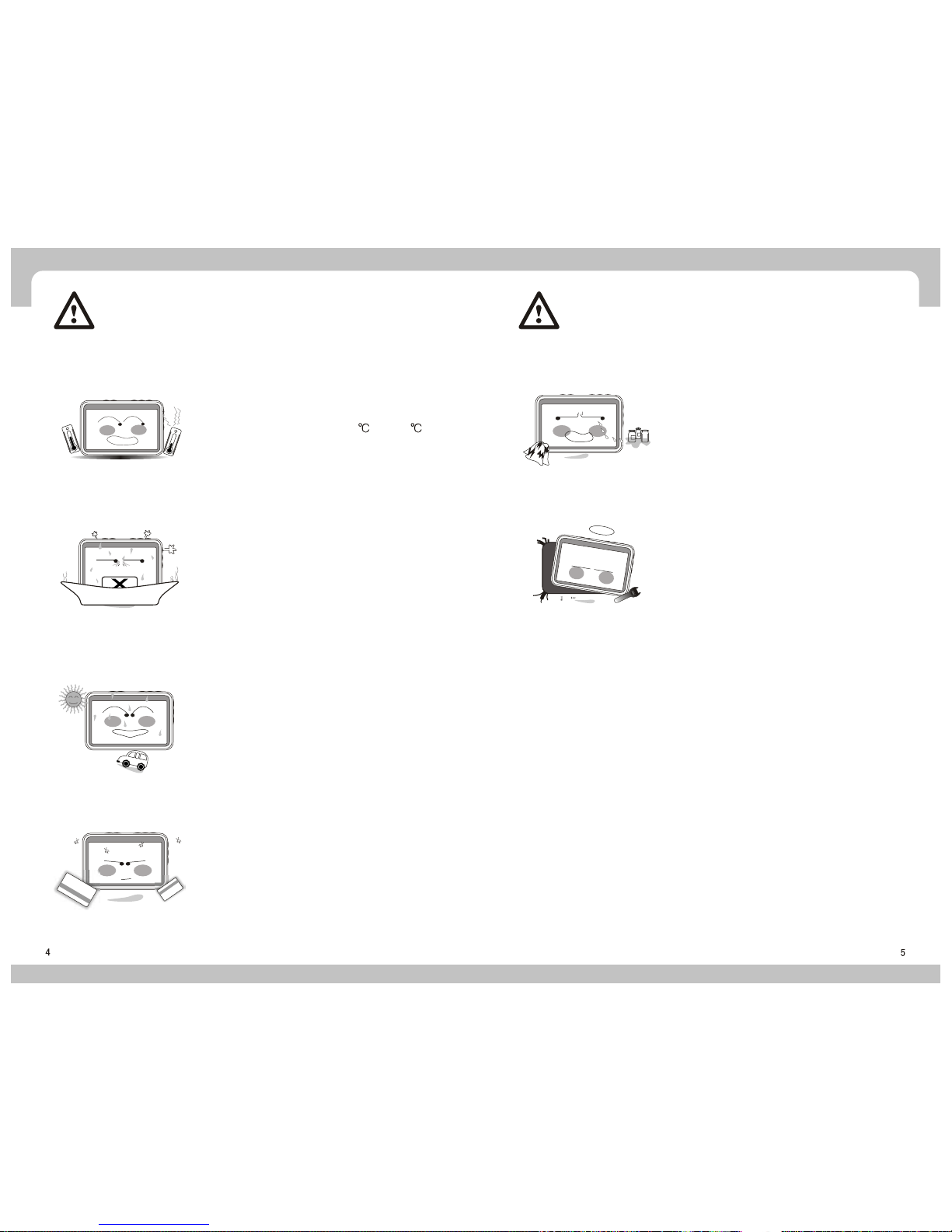
Store this device between 0 and 40 .
Store this device in a clean, dry place. If
the device gets wet or dirty, please contact
the customer service center.
Do not expose the player to the sun, and
when using the FM Radio, keep away from
the automobile.
Do not use a credit card, magcard etc, in
the vicinity of this device, as it may cause
damage to the card's magnetic strip.
Clean the player with a dry, soft cloth. Do
not use detergent.
To reduce the risk of electric shock, and to
avoid damage to the player, do not remove
the cover or attempt to fix the device by
yourself.
Catalogue
View Picture
Read E-Book
Radio
External Program Recording
File Operation
Resume
Setup Menu
Safety Declaration
Illustration
Caution
Catalogue
Product Introduction
Product Functions
Package Content
Function Display
Charge
Connection
Disconnection
Power on / Power off
Main Menu
Play Video
Play Music
Change Lyrics
Set Background
Manual Search
Auto Search
Background Playing
Copy
Move
Paste
Delete
Rename
New Folder
Display
System
Power
Playing Mode
Clock
Speaker
Player's Function Operation Introduction
Supplement
Technical Specification
Video Play on TV
Code Conversion Program
Synchronous Recording
Safety Declaration
Copyright Declaration

Product Introduction Package Content
Support the function of E-book
Support the function of recording and FM radio
Support the function of folder browsing
Easy to be upgraded
Portable Disk
Compatible with audio format
Compatible with video format
Embedded with 4 inches TFT LCD screen
Built-in rechargeable battery
Video Format Conversion Software
Product Functions
Function Display
This device can play files in Mp3 / WMA / AAC formats.
This device is compatible with the following video formats: AVI /ASF / WMV9.
Support the function of picture browsing
This device is compatible with files in JPEG/BMP/GIF formats.
This device is compatible with the E-book format of TXT (in unicode).
This device can be used to listen to FM radio, and record in mp3 format.
This device allows you to browse through all folders.
This device is embedded with a 4-inch TFT real color LCD screen to show high
definition pictures and videos.
This device is easily upgraded via firmware/software downloads providing new
functionality.
This device can function as a portable hard disk when connecting to a PC via a USB cable.
This device has a rechargeable 2000MAh Li-Polymer battery.
This device has video format conversion software, which allows you to convert
video files unable to be played into playable formats.
1. Right-click the Plug and Play icon in the taskbar and select "safely delete the hardware."
2. Select the hardware to stop, and click Stop.
3. Select the driver to stop, and click OK.
4. Click Close to finish the operation.
Disconnection
Caution
Rechargeable 2000MAh Li-Polymer Battery is included with this product, and is used to
supply power when playing music, movies or connecting to a computer as an external
hard disk.
Charge
Recharge Mode
Insert the SD/MMC card and press and hold the POWER button
for 3 seconds. When the POWER indicator light turns red, the
Power is on.
Press and hold the POWER button for 3 seconds. When the POWER
indicator light turns off, the Power is off.
Full Nearly empty Empty
Power Indicator
Power on / Power off
Power on
Power off
Tips
There are 9 icons in the main menu interface: video, music, picture, e-book, recording,
folder, resume, radio and setting. Volume, power and time are indicated at the bottom
right.
Main Menu Interface
Main Menu
Player's Function Operation Introduction
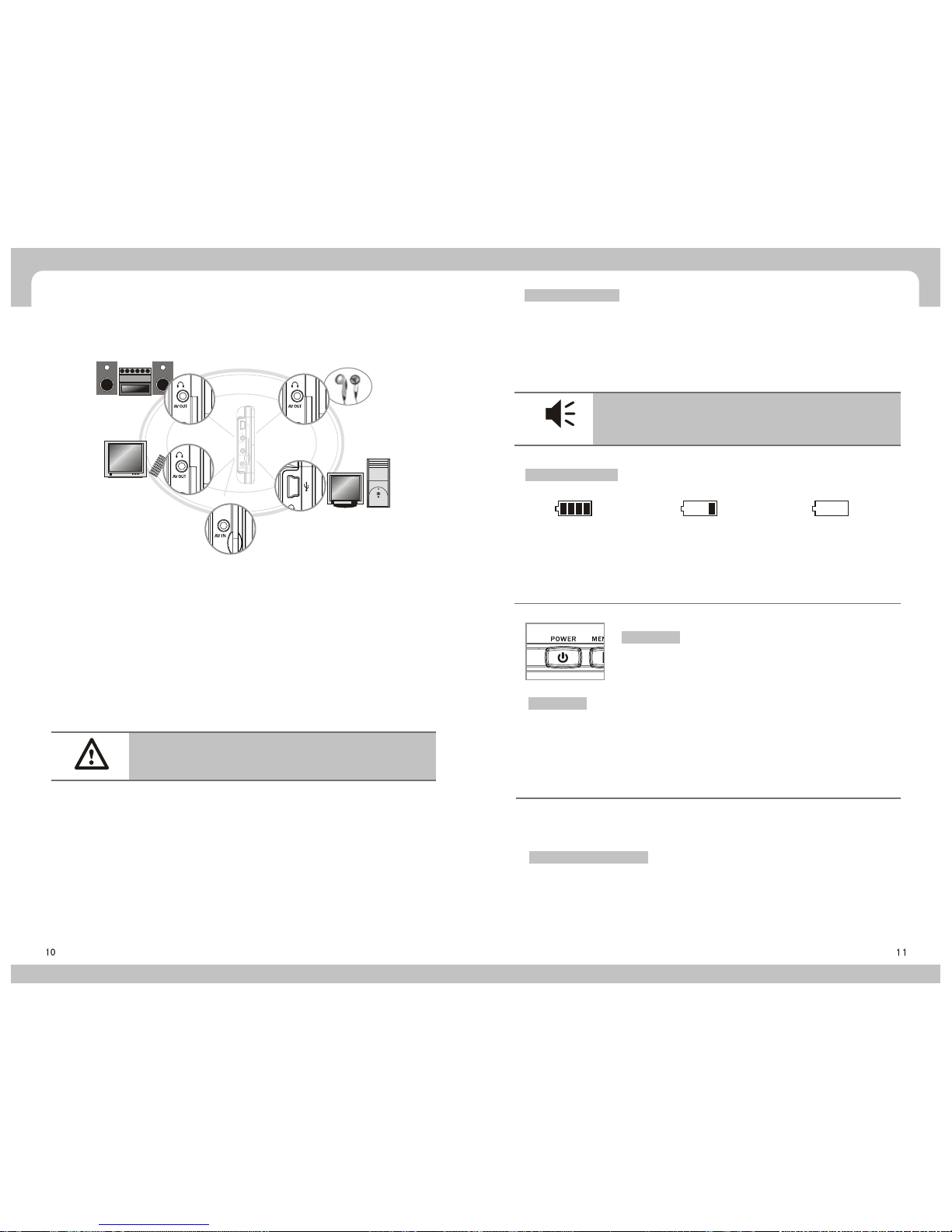
The exterior sound source connection:
Connect the PC to the exterior sound
source via the Line-in cable Equipment. Stereo earphone connection: Insert the
stereo earphone to the earphone jack.
Connect to the TV for playing:
Use an AV cable and theAV Out
jack to connect the device to
the television's AV In jack.
Connect with the TV to record: With
the AV cable, connect the TV input
jack with the mainframe AV In jack.
Caution: Damage may be caused to this product
if it is incorrectly disconnected from the computer.
The power adapter can be connected to the player's power adapter jack to recharge
directly. During recharging, the indicator light is red. When charging while the power is on,
the icon will flash, once the battery is full, the icon will stop flashing and display "charge
finished".
The battery life while playing films is about 240minutes.
The battery life while playing music is about 540minutes.

1312
Usethe UP and DOWN buttonsto navigate throughthe list ofvideos. Select thedesired video
and press PLAY to start.
While a video is playing, you can do the following:
a. Press ESC to stop playing and return to the video file list.
b. Press VOL+ or VOL- to adjust the volume.
c. Press PLAY to pause, and press PLAYagain to resume.
d. Press UP or DOWN once to play the previous or next file.
e. Press and hold UP or DOWN for over 2 seconds to search forward or backward.
Release the button to resume playing.
Tip: Forward or Backward now function as video pause.
f. During video play, press MENU to show the video function menu.
(L-R: Pause, Forward, Backward, Next, Previous, Single Replay, 4:3 Display).
Note: The Single Replay button can be switched to All Replay The display
switches to 4:3 Display , 16:9 Display , Original Display and Full Screen
Display by pressing 4:3 Display .
Note: Press UP or DOWN to select an option in the menu above and press PLAYto confirm.
g. When selecting Forward or Backward in the menu above, you can press UP or
DOWN to change how fast you want to go forward or backward (X2, X4, X8, X16), and
press PLAY again to resume normal playing.
This product is compatible with Windows Me, Windows 2000,
Windows XP.
For Win 95/98/98SE, you are required to download the driver.
Play Video
Select Video in the main interface and press PLAY. You will be redirected to the upper
level folder and the list of video files will be displayed.
Press the MENU button to display the operation menu.
a. To return to the main interface, select Desktop.
b. Create, copy, move, paste, delete and rename (see operation manual for reference)
c. Select File Information to open or close the file information bar.

1514
During audio play, press MENU to show the music function menu.
(L-R: Pause, Forward, Backward, Next, Previous, Single Replay, A-B Repeat, ID3 Info, EQ,
Background Music, Lock.)
Note: The replay button can be switched to single Replay ,Random Play , then All
Replay , by Pressing the Single Replay button.,Press ID3 Info to show Lyric Dis-
play .)
Note: Press UP or DOWN to select an option in the menu above and press PLAY to confirm.
Press ESC or MENU to resume normal playing.
Change Lyrics
The music files should contain the LRC file, which contains the file names and the lyrics in
Unicode format. Download the lyric file, open it and save as Unicode (see image below).
Select Background Music from the menu above, and return to the previous menu, where your
music will still be playing.
Tips:press to repeat.First press as the start,second Press
as the end.The interval between two presses has to exceed 3-
5 seconds.
View Picture
In the main interface, select Image and press PLAY. You will be redirected to the upper level folder
and the list of image files will be displayed.
Press MENU to show the operation menu:
a. To return to the main interface, select Desktop.
Tip: Forward or backward is functioning as if it were in Video
mode, which will help you to find the correct playing spot.
Play Music
In the main interface, select Music and press PLAY.
You will be redirected to the upper level folder and the list of audio files will be displayed.
Press MENU to show the operation menu.
a. To return to the main interface, select Desktop
b. Create, copy, move, paste, delete and rename (see operation manual for reference)
c. Select File Information to open or close the file information bar.
Use the UP and DOWN buttons to navigate through the list of audio files. Select the desired
file and press PLAY to start.
Press ESC to stop playing and return to the file list.
Press PLAY to pause, and press PLAY again to resume.
Press VOL+ or VOL- to adjust the volume.
Press UP or DOWN once to play the previous or next file.
Press and hold UP or DOWN for over 2 seconds to search forward or backward. Release the
button to resume playing.

1716
Press PLAY to read the e-book on the screen, and press UPor DOWN to turn the page forward
orback.
Press Esc to stop reading the e-book and return to the file list. (If the number of pages read
exceeds10 pages, pressEsc toreturn anddisplay adialogue whereyou cancreate abookmark.
Select Yes to create a bookmark or No if you do not wish to create a bookmark.)
While you are reading the e-book, press MENU to show the e-book function menu:
(L-R: Previous File, Next File.)
This device is compatible with e-books in the following formats: *. Txt &. lrc. Note: the e-book file
must be in Unicode(Please refer to Change Lyric the Play Music section.)
Radio
When using the function of FM radio, please plug the earphones into the earphones jack,
otherwise the FM radio function is unavailable. (The earphone also serves as the antenna of the
FM radio.)
In the main interface, select Radio and press PLAY to start.
The default state is preset with 20 stations to choose from. Press UP or DOWN to
select the desired station.
Press VOL+ or VOL- to adjust the radio volume.
During FM radio play, press MENU to show the radio function menu:
(L-R: Previous, Next, Manual Search, Auto Search, Synchronous Recording, and
Background Play.) You can press UP or DOWN to select options in the function
menu.
Manual Search
Select Manual Search and press UP or DOWN to switch the radio frequency.
Press UP or DOWN once to switch the frequency over 100 KHz; press and hold UP or
DOWN for 2-3 seconds to enter the next station; Press PLAY. The FM radio will
prompt you to save your preset station, select the preset station and press PLAY to save it. Press
Esc to return to the preset station.
Auto Search
Select Auto Search and the FM radio will search all frequencies automatically (87.5MHz-
108 MHz) and save each station searched to the preset station (This will replace previous preset
stations). If 20 preset stations are saved, the auto search will stop.
SynchronousRecording
During FM radio play, select Synchronous Recording to save the FM audio program;
Press Pause to stop recording.
b. Create, copy, move, paste, delete and rename (see operation manual for reference)
c. Select File Information to open or close the file information bar.
Press PLAY and the image will be displayed on the screen.
Press ESC to stop image browsing and return to the file list.
Press UP or DOWN once to play the previous or next file.
During image browsing, press MENU to show the image function menu:
(L-R: Next, Previous, Slide Display, Set as Background, Rotate Left 90 Degrees, Rotate
Right 90 Degrees, Zoom In, Zoom Out, 4 Images, 9 Images)
You can turn the slide function on or off in the menu above. The slide display interval can
be set in the setting menu.
SetBackground
Select Set as Background in the menu above, and the current image will be set as the desktop
background. Images stored in the player can be set as the desktop background using this
function.
Under the image zoom mode, press UP and DOWN to move the image and press PLAYto exit
zoommode.
Tip: If you would like to browse images and play music at the
same time, you must start the music first, and select Back-
ground Music from the menu. You can then proceed to browse
your images.
Read E-Book
In the main interface, select E-book and press PLAY. You will be redirected to the upper level
folder and the list of e-book files will be displayed.
Press MENU to show the operation menu:
a. To return to the main interface, select Desktop.
b. Create, copy, move, paste, delete and rename (see operation manual for reference)
c. Select File Information to open or close the file information bar.
Indice
Altri manuali Nextar Lettore multimediale


