
Nlynx interlynx/ts Manuale utente

InterLynx/TS
Virtual Private Network and Firewall
User’s Guide
and
Reference Manual
Rev 1.02 July, 2002

InterLynx/TS Users Guide
Table of Contents
Introduction
Capabilities, features, functions and specs . . . . . . . . . . . . . . . . . . . 3
Chapter 1
Installing the Hardware . . . . . . . . . . . . . . . . . . . . . . . . . . . . . . . . . 5
Chapter 2
Accessing the IL/TS via Browser . . . . . . . . . . . . . . . . . . . . . . . . . . . 8
Chapter 3
Configuring the IL/TS . . . . . . . . . . . . . . . . . . . . . . . . . . . . . . . . . 11
Chapter 4
IL/TS Network Settings . . . . . . . . . . . . . . . . . . . . . . . . . . . . . . . . . 26
Chapter 5
Configuring the Firewall . . . . . . . . . . . . . . . . . . . . . . . . . . . . . . . . . 28
Chapter 6
More on Firewall Services . . . . . . . . . . . . . . . . . . . . . . . . . . . . . . . . . 42
Chapter 7
Setting up Static Routes . . . . . . . . . . . . . . . . . . . . . . . . . . . . . . . . . . 49
Chapter 8
VPN Configuration . . . . . . . . . . . . . . . . . . . . . . . . . . . . . . . . . . . . . . 52
Chapter 9
VPN Using Shared Secrets . . . . . . . . . . . . . . . . . . . . . . . . . . . 66
Chapter 10
Viewing Logs and Setting up SysLog . . . . . . . . . . . . . . . . . . . . . . . . . 72
Chapter 11
Print Server Configuration . . . . . . . . . . . . . . . . . . . . . . . . . . . . . . . . . 74
2
InterLynx/TS
Introduction
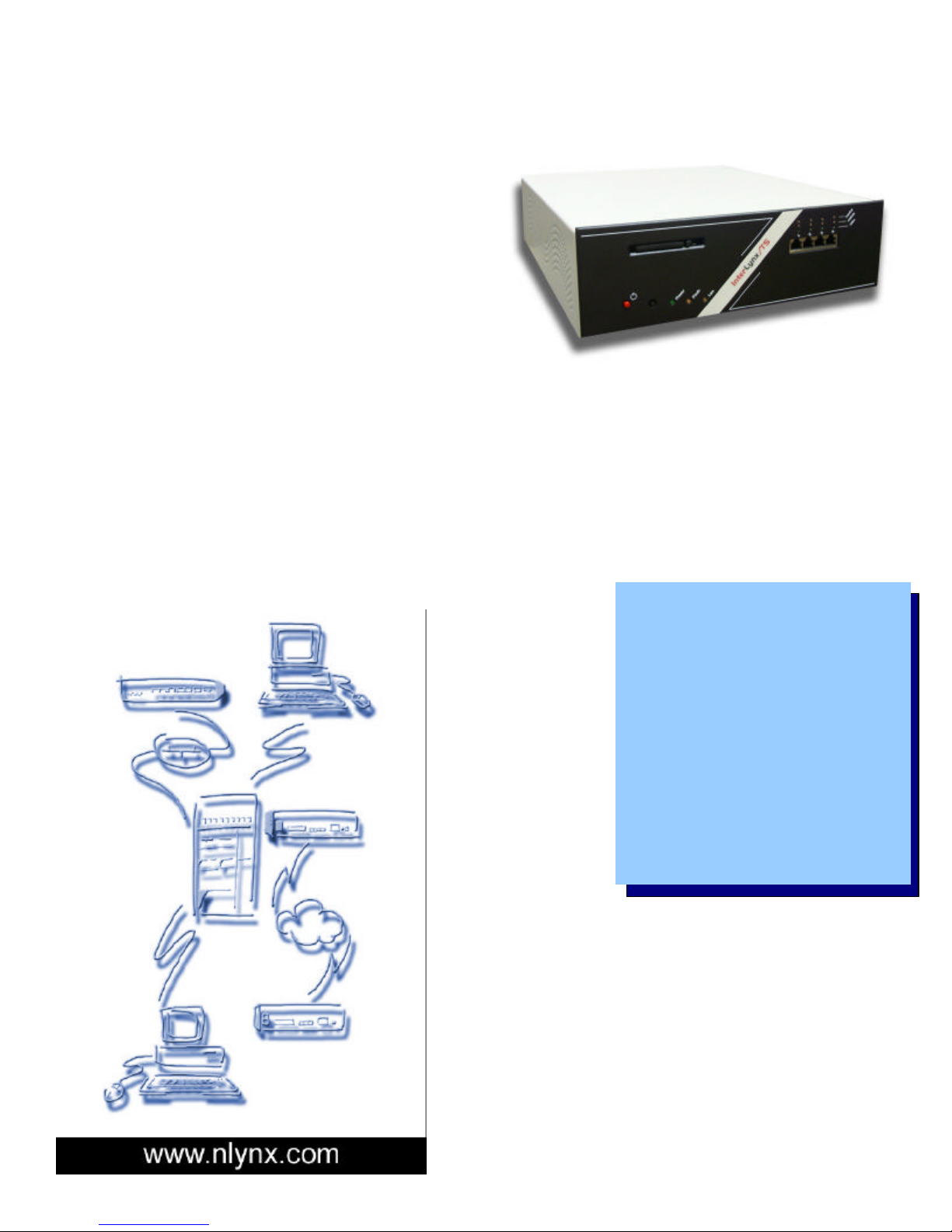
The InterLynx/TS is a Firewall/VPN device
targeted at the remote office environment. It
provides an economical yet powerful firewall for
your Ethernet network. At the same time, its
Virtual Private Network (VPN) capabilities allow
you to use the power of the Internet as the
backbone of your remote office communications,
with the Total Security protection you’d expect
from 3 DES encryption.
If you’ve been struggling with the conflict between secure communications and cost-effective
communications, the solution is here. Low cost communications is now available over the Internet,
while the InterLynx/TS provides the high level of security you need.
It is a Firewall with plenty of firepower. Built on a heavy-duty platform with a high-speed CPU, the
IL/TS has the power to block unwanted traffic, both inbound and outbound. The built-in firewall is
configurable to pass only the traffic you need. IP masquerading (NAT) prevents those on the outside
from seeing the IP addresses on the inside.
It is a VPN.
For data security,
you need more
than just a
firewall. If you
need a cost-
saving alternative
to leased lines,
the Internet offers
a part of the
solution. DSL or
ISDN links to your
ISP can provide
the bandwidth
you need for several offices, at a fraction of the cost of
multiple leased lines. Your remote offices then only
need to be able to access the Internet (even via dial-
up) in order to make a connection. The only issue that
remains is that the Internet is a public information
highway, yet you need your data to remain private.
Drop a pair of InterLynx/TS units in between any two
offices and create a VPN. All of the data between the
two offices is 168 bit encrypted. It would take a year
for a supercomputer to break the encryption key, but
ours is changed automatically every two hours
(configurable, of course).
•IPSec standard VPN with 3DES
Encryption, IKE
•Stateful Packet Inspection
Firewall
•DHCP Server
•Built-in 4 port 10/100Mbps
Ethernet Switch
•NAT, PAT
•PPP Dial backup
•Built-in Print Server
•SSH, PGP, and Windows XP Pro
VPN Client support
•Heavy duty hardware for extra
reliability

Headquarters
NLynx Technologies, Inc.
8313 Hwy 71 West
Austin, TX 78735
Tel: 512 301-8000
Sales: 800-328-2696
NLynx Northern Europe
4th Floor, The Graftons
Stamford New Road
Altrincham
Cheshire WA14 IDQ
United Kingdom
Tel: 44 (0) 161 928 7014
Fax: 44 (0) 161 928 7015 www.nlynx.com
email: [email protected]
NLynx Southern Europe
6 Boulevard Henri Sellier
Tour Ventose
92150 Suresnes
France
Tel: 33 (0) 1 41 44 91 00
Fax: 33 (0) 1 41 44 91 01
Part Numbers:
InterLynx/TS: 301-0901-01
Spare Flash: 263-0076-04
SSH VPN Client: 301-9701-01
Wireless Option: Available Q3 2002
Package includes: InterLynx/TS unit, CD ROM
(User Guide/Reference Manual), Power Cord, two
Ethernet cables, Quick Install Guide.
Physical
Dimensions: 12.5” W x 3.75” H x 14.5” D
Weight: 11.0 Lbs, 5.1 Kg
Power: 110/220 VAC, Switchable
Operating Temperature: 0 to 40 C
Operating Humidity: 10 – 90% non-condensing
Built-in 4 Port 10/100Mbps Ethernet Switch:
Standards: IEEE 802.3u 100BaseTX,
IEEE 802.3 10BaseT
Media: 100 Ohm Cat. 5 UTP
Switching Method: Store and Forward
Mode: Auto-negotiated 10/100Mbps, Full/Half
Duplex
LEDs: 3 per port – FDX, Link, 10/100Mbps
CPU: 633Mhz Intel
Memory: 64Mb
OS: Hardened Linux
Flash Drive: 32Mb
Management: Browser based (IE 4 & up, Netscape
4 & up)
Ports:
♦1 10/100 RJ45 Ethernet port (rear) for connection
to external network.
♦4 10/100 RJ45 Ethernet ports (front) for
the local network.
♦1 Serial port (PPP dial backup).
♦1 Parallel (print server) port
Back View
Applications:
LAN Protocol: IP
VPN protocol: IPSec
Encryption: 3DES – MD5
Authentication methods: RSA, Shared Secrets
Firewall method: Stateful Packet Inspection
Specifications:
Rev 07/02

InterLynx/TS User’s Manual_________________________________________________________________
1-1
Chapter 1
_______________________________________________Installing InterLynx/TS Hardware
1. Unpack the InterLynx/TS unit from its shipping carton.
Verify that the InterLynx/TS shipping carton contains the following parts:
üInterLynx/TS Unit
üPower Cord
üUser’s Manual (CD ROM)
üEthernet Cable
üQuick Install Guide
2. Hardware Setup for the InterLynx/TS
Section A
Back panel of the InterLynx/TS firewall
Make certain that the voltage switch is set appropriately for the power source you intend to use. Damage and/or injury could
result if this unit’s voltage switch is set incorrectly.

InterLynx/TS User’s Manual_________________________________________________________________
1-2
Refer to figure 1-1 above to reference the following steps:
1) Connect the CAT 5 cable to the Ethernet interface on the back on the InterLynx/TS.
2) Connect the other end of the CAT 5 cable to the Internet connection device (i.e. router, cable modem, etc.).
3) Set the voltage switch to the appropriate setting for your area. An improper setting will damage the power supply and
may cause personal injury.
4) Connect the female end of the power cord into the AC power connector on the back of the InterLynx/TS.
5) Plug the male end of the power cord into a wall outlet.
SectionB
Connect other network devices such as terminals or hubs to the Ethernet interfaces (RJ45 Sockets) on the front of the
InterLynx/TS unit using CAT 5 lines.
Front panel controls for the InterLynx/TS firewall
Troubleshooting
Diagnostic LED indicators
LED State Indication
Power On ( green ) Unit is powered on
Flash On/Flashing ( amber ) Activity on Flash card
LAN On ( amber ) Internal Network is functioning properly
FDX/Col On ( amber )
Off
Flashing ( amber )
Port is operating in full-duplex mode
Port is operating in half-duplex mode
Port has detected a collision on this port
Act/Link On ( green )
Off
Flashing ( green )
Port has a valid network connection
Port has not established any network connection
Port is transmitting/receiving data
100m On
Off Port is operating at 100mb
Port is operating at 10mb
Symptom: Link indicator does not light up after making a connection.
Cause: Network interface or network cable is defective.
Solution: Verify that the switch and attached devices are powered on. Be sure the cable is correctly
plugged into both the switch and corresponding device. Verify that the proper cable type is used
and its length does not exceed specified limits. Each twisted-pair cable should not exceed 100m
(328 ft.). Check the adapter on the attached device and cable connections for possible defects.

InterLynx/TS User’s Manual_________________________________________________________________
1-3
Example Topologies

InterLynx/TS User’s Manual_________________________________________________________________
2-1
Chapter 2
Configuring the PC for Accessing the InterLynx/TS
Configuring the TCP/IP properties on the PC
Use the steps below to bring up the TCP/IP properties for the PC:
1. On the PC that will communicate with InterLynx/TS press Start, and then highlight Settings, and then
highlight Control Panel(Win95, Win98, or ME) or Network and Dial-up Connections (Win2000 and
XP).
2. At this point the Control Panel window is now visible on the screen. Double Click on the Network icon.

InterLynx/TS User’s Manual_________________________________________________________________
2-2
3. down until you locate the Ethernet card on the PC and make note of the name and then highlight the
TCP/IP for that Ethernet card and press the Properties button.
4. The TCP/IP properties window should now be displayed. If the InterLynx/TS will be acting as the
DHCP Server (A server that distributes IP address) for the network, then make sure the Obtain IP
Address automatically radio button is selected. If the InterLynx/TS is not going to be the DHCP
Server then go to Step 5.

InterLynx/TS User’s Manual_________________________________________________________________
2-3
5. If you would like to manually assign an IP address to the PC make sure the Specify an IP address radio
button is selected. The default IP address for the InterLynx/TS is 192.168.1.254 with a /24 subnet
(255.255.255.0). The IP address given to the PC must be on the 192.168.1.0 network in order to
communicate with the InterLynx/TS.
6. Reboot PC for IP changes to take effect.
Indice


