
Nokia Lumia 620 Manuale utente

Userguide Nokia Lumia 620
Table of Contents
Keys and parts .................................................................................................................................................... 3
Back, start, and search key ............................................................................................................................. 3
How to nsert a S M card .................................................................................................................................... 4
First start-up ....................................................................................................................................................... 6
Switching Phone ON and OFF ............................................................................................................................. 6
Switch the phone on ...................................................................................................................................... 6
Switch the phone off ...................................................................................................................................... 6
Useful Buttons .................................................................................................................................................... 6
Lock the keys and screen ................................................................................................................................ 6
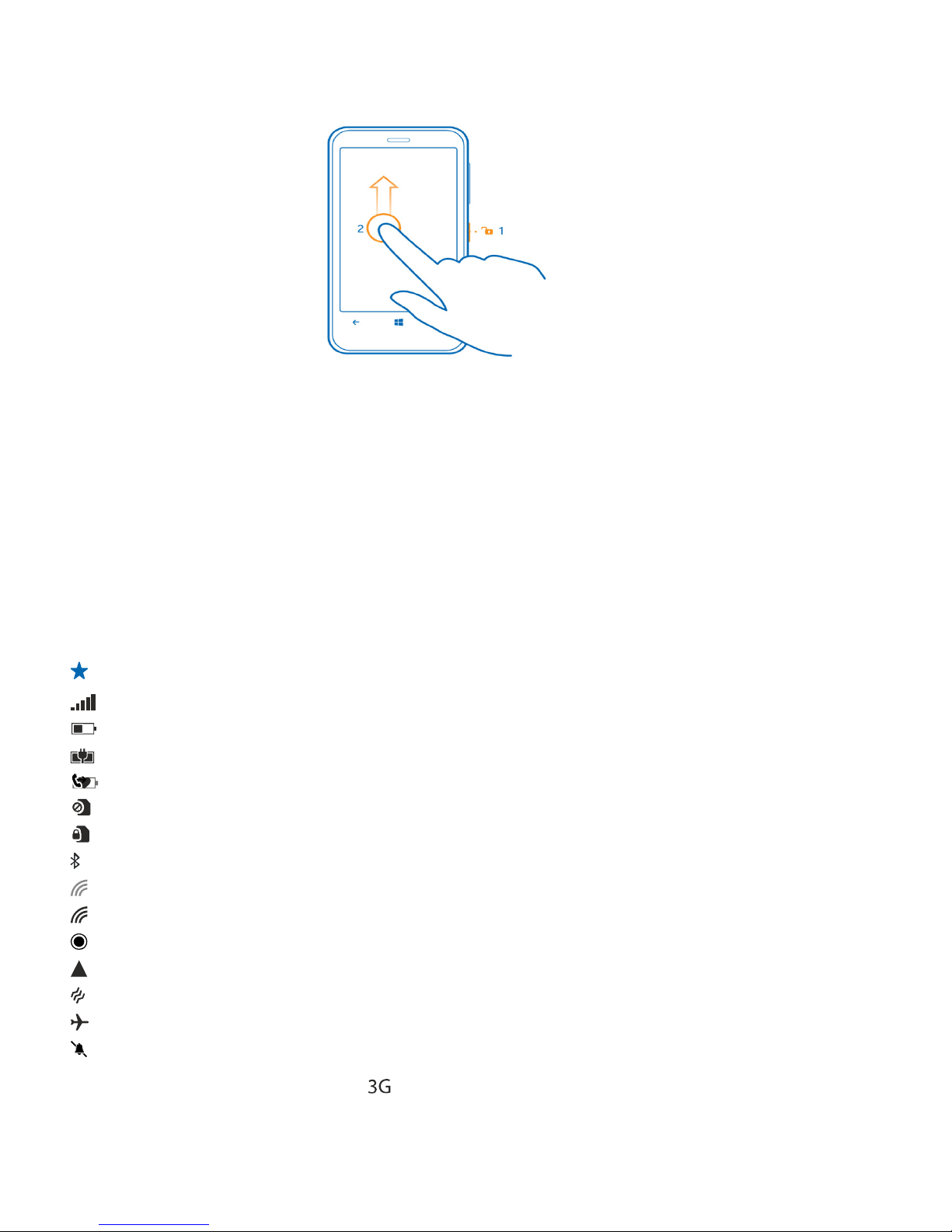
Unlock the keys and screen ............................................................................................................................ 7
Set the keys and screen to lock automatically ................................................................................................ 7
cons shown on your phone ............................................................................................................................... 7
Useful Tips for Using your Phone ....................................................................................................................... 8
Switch between views .................................................................................................................................... 8
Use the touch screen.......................................................................................................................................... 9
Tap and hold to drag an item ......................................................................................................................... 9
Swipe .............................................................................................................................................................. 9
Zoom in or out .............................................................................................................................................. 10
Resize or unpin a tile .................................................................................................................................... 10
To unpin the tile, tap and hold the tile, and tap ........................................................................................... 11
Silence your phone ........................................................................................................................................... 11
Take a screenshot ............................................................................................................................................ 12
Make a conference call .................................................................................................................................... 12
Forward calls to another phone ....................................................................................................................... 13
Call your voice mailbox..................................................................................................................................... 13
Mail .................................................................................................................................................................. 13
Add a mailbox .................................................................................................................................................. 14
Find email+accounts" ................................................................................................................................... 14
Create new email account ................................................................................................................................ 15
Enter password ................................................................................................................................................. 16
Turn SSL encryption on ...................................................................................................................................... 16
Select setting for synchronisation ...................................................................................................................... 16
Open mail from the start screen ...................................................................................................................... 17

Read mail ......................................................................................................................................................... 17
Read mail in a conversation .......................................................................................................................... 17
Save an attachment ...................................................................................................................................... 17
Reply to mail ................................................................................................................................................ 18
Forward a mail ............................................................................................................................................. 18
Delete mail ................................................................................................................................................... 18
Delete one mail ............................................................................................................................................ 18
Wi-Fi ................................................................................................................................................................. 19
Wi-Fi connections ......................................................................................................................................... 19
Connect to a Wi-Fi ........................................................................................................................................ 19
Close the connection .................................................................................................................................... 19
Copy content between your phone and computer ........................................................................................... 19
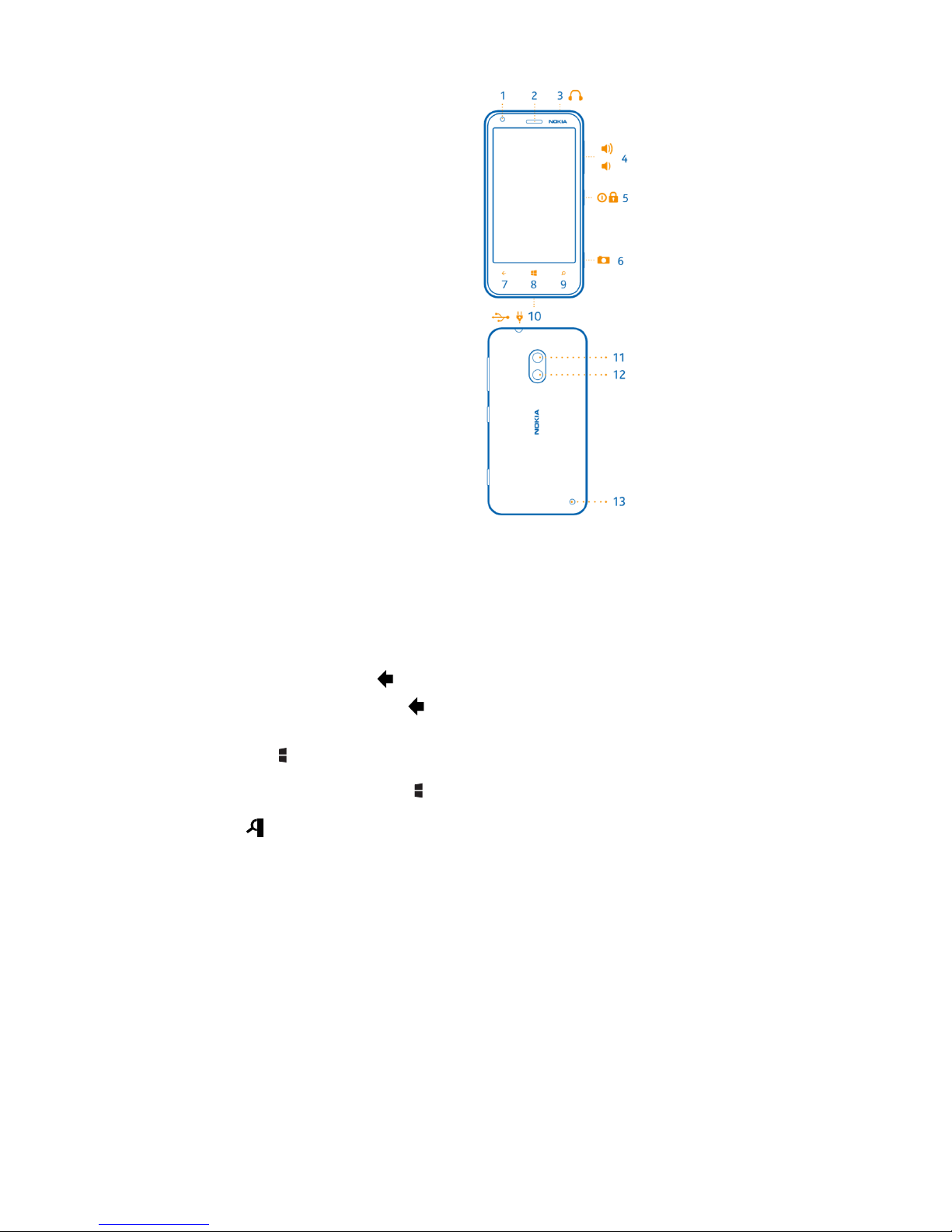
Keys and parts
Explore the keys and parts of your new phone.
1Front camera
2Earpiece
3Connector for headphones and
loudspeakers (3.5 mm) 4 Volume keys
5Power/lock key
6Camera key
7Back key
8Start key
9Search key
10 Micro-USB connector
11 Camera flash
12 Camera lens
13 Loudspeaker
Back, start, and search key
The back, start, and search keys help you navigate your phone.
•To switch between open apps, press and hold, swipe left or right, and tap the app you want.
•To go back to the previous screen you were in, press . Your phone remembers all the apps and websites you've visited since the
last time your screen was locked.
•To go to the start screen, press . The app you were in remains open in the background.
•To control your phone with your voice, press and hold , and say a voice command.
•To search the web, press .
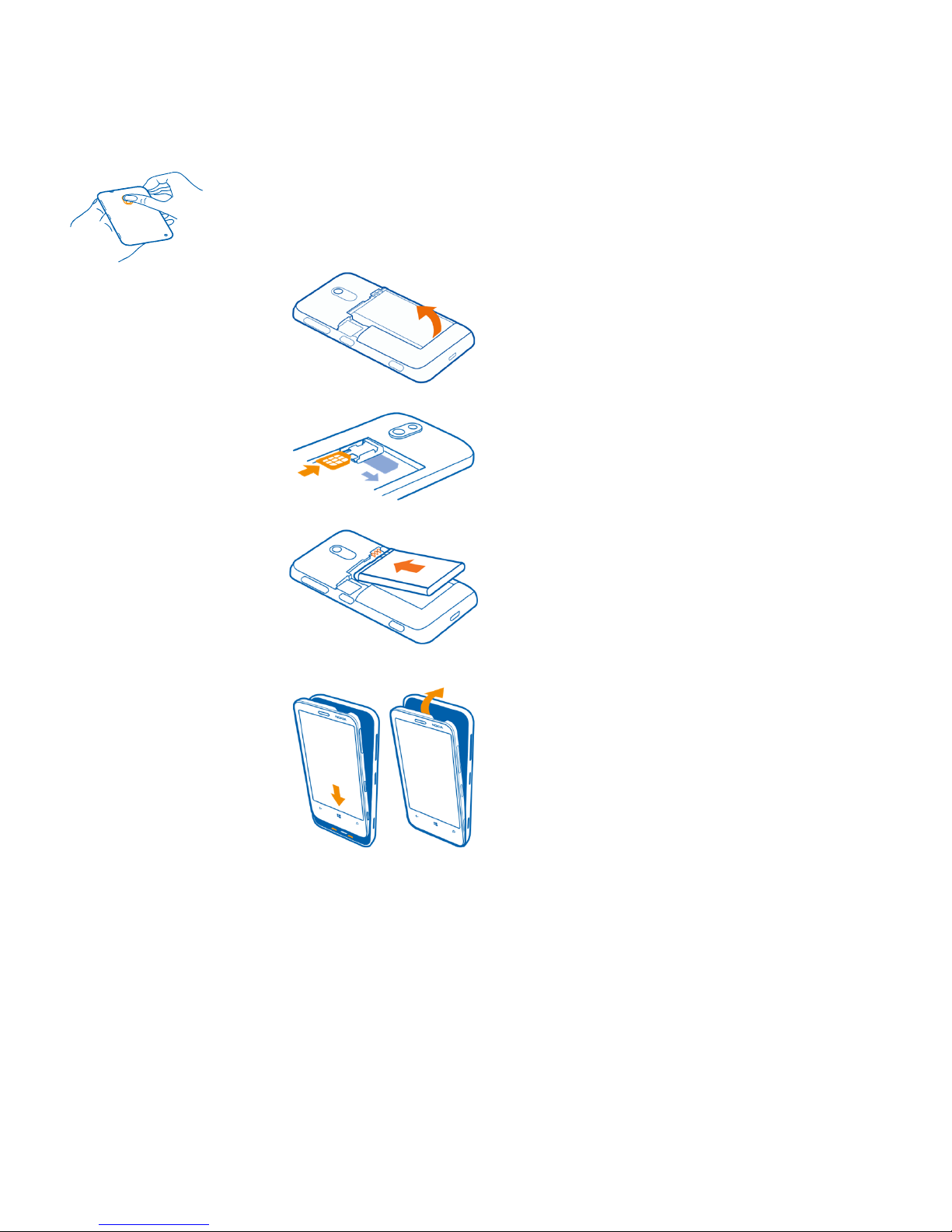
How to Insert a SIM card
Learn how to put a S M card in your phone, Make sure your phone is switched off before inserting the S M card.
1. Press on the camera flash, and pull the edge of the back cover until it comes off.
2. f the battery is in the phone, lift it out.
3. Pull the card holder out, put the card in, contact area face up, and push the holder back in.
4. Line up the battery contacts, and put the battery back in.
5. Press the bottom edge of the back cover against the bottom edge of the phone, and press the
back of the cover until it snaps into place.
5. Press the bottom edge of the back cover against the bottom edge of the phone, and press the back of the cover until it snaps into place.
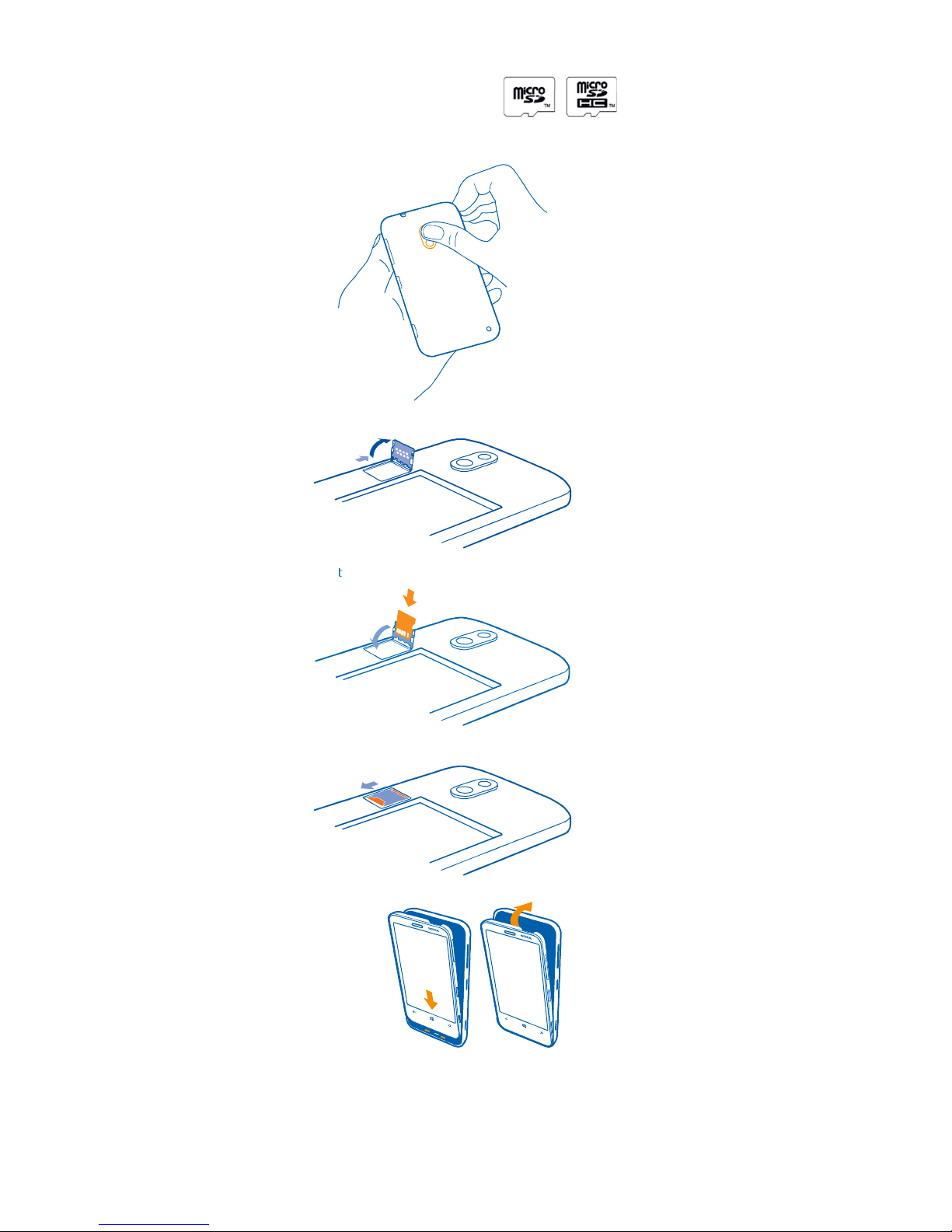
Your phone supports memory cards with a capacity of up to 64 GB.
1
.
Press on the camera flash, and pull the edge of the back cover until it comes off.
2
.
Slide the memory card holder until it unlocks, and lift the holder.
3
.
Put the memory card in the holder, contact
t area face down, and lower the holder.
4
.
Slide the holder until it locks.
First start- p
Your phone comes with features that will be installed when you start your phone for the first time. Allow some minutes for your phone to
be ready and follow the setup guide
Switching Phone ON and OFF
.
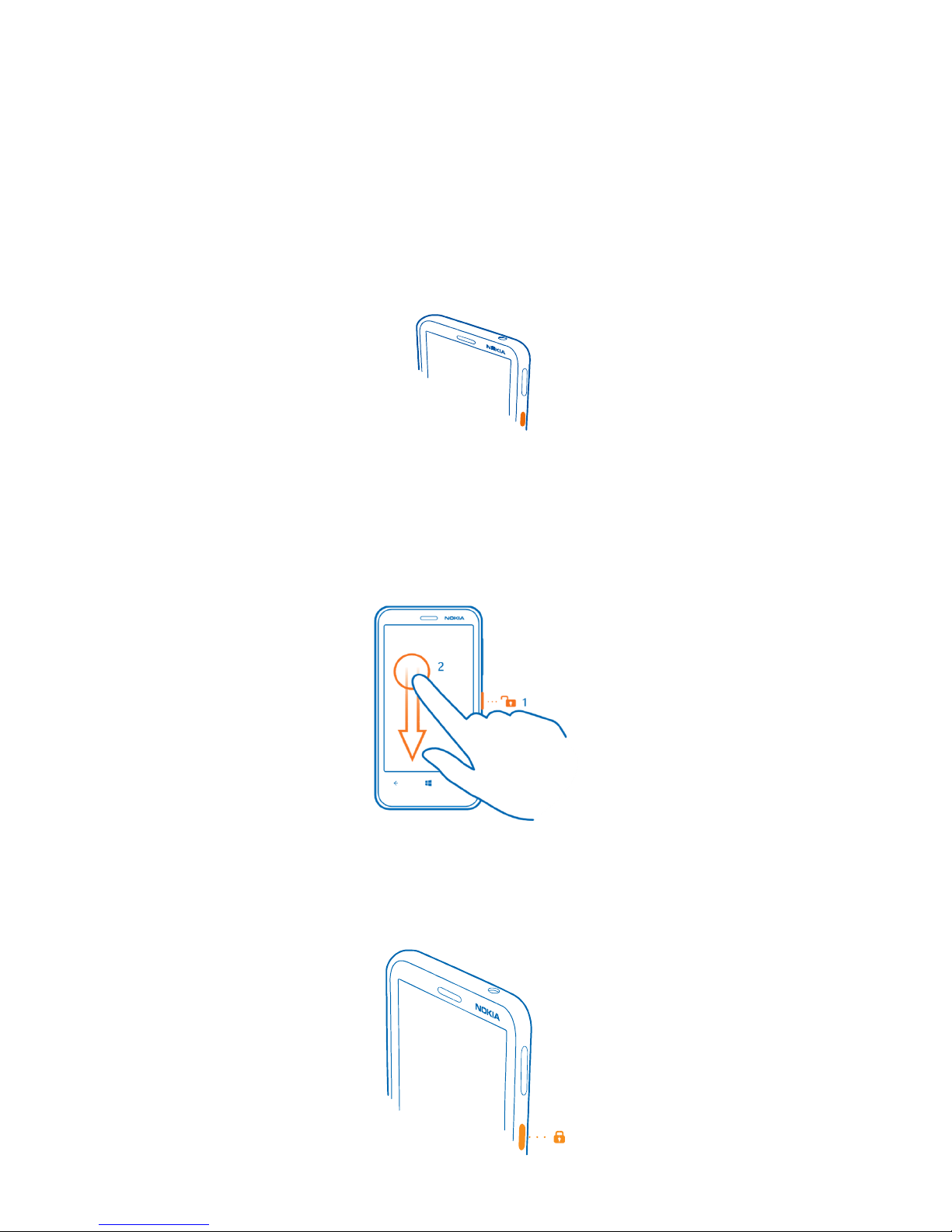
Switch the phone on
Press and hold the power key until the phone vibrates.
Switch the phone off
Press and hold the power key, and drag the lock screen down.
Usef l B ttons
Lock the keys and screen
Press the power key.
Unlock the keys and screen
Press the power key, and drag the lock screen up.
Set the keys and screen to lock a tomatically
On the start screen, swipe left, tap Settings > lock screen > Screen times o t after, and select the length of time after which the keys and
screen are locked automatically.
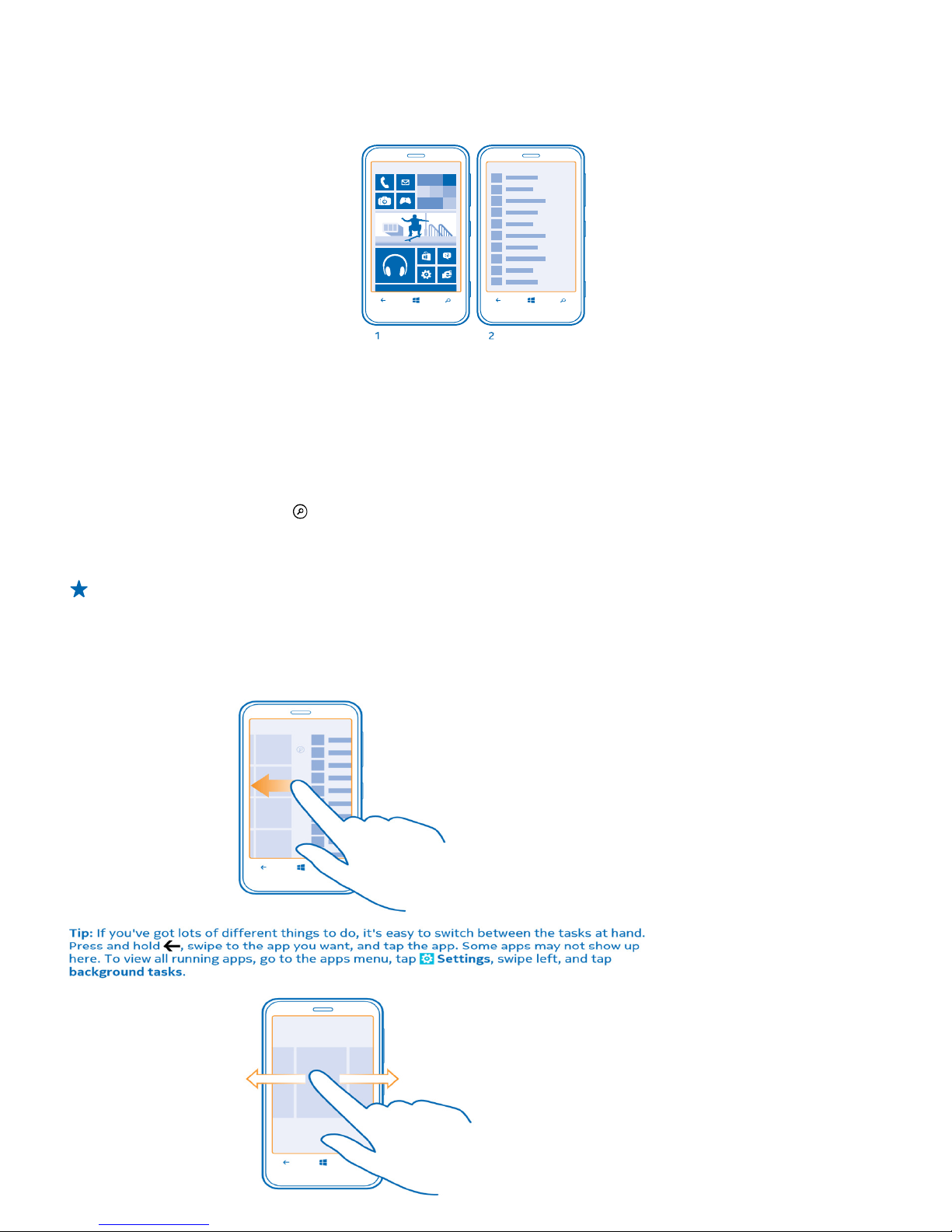
Icons shown on yo r phone
The bar at the top of the screen tells you the current time, battery and signal strength, and much more.
Tip: To see hidden icons, tap the status bar.
Signal strength Battery power level
The battery is charging.
Battery saver mode is switched on.
Your calls are forwarded to another number or your voice mailbox.
There is no S M card in your phone.
Your S M card is locked.
A Bluetooth device is connected to your phone.
A Wi-Fi connection is available.
A Wi-Fi connection is active.
An app or service is using your location info.
Your phone is roaming and not on your home mobile network.
Vibrate mode is switched on.
Flight mode is switched on.
Silent mode is switched on.
The type of mobile network you're currently connected to may be shown with a single letter, a combination of letters, or a
combination of letters and numbers. For example, , depending on your network service provider.
The icons may vary depending on your region or network service provider.
Usef l Tips for Using yo r Phone
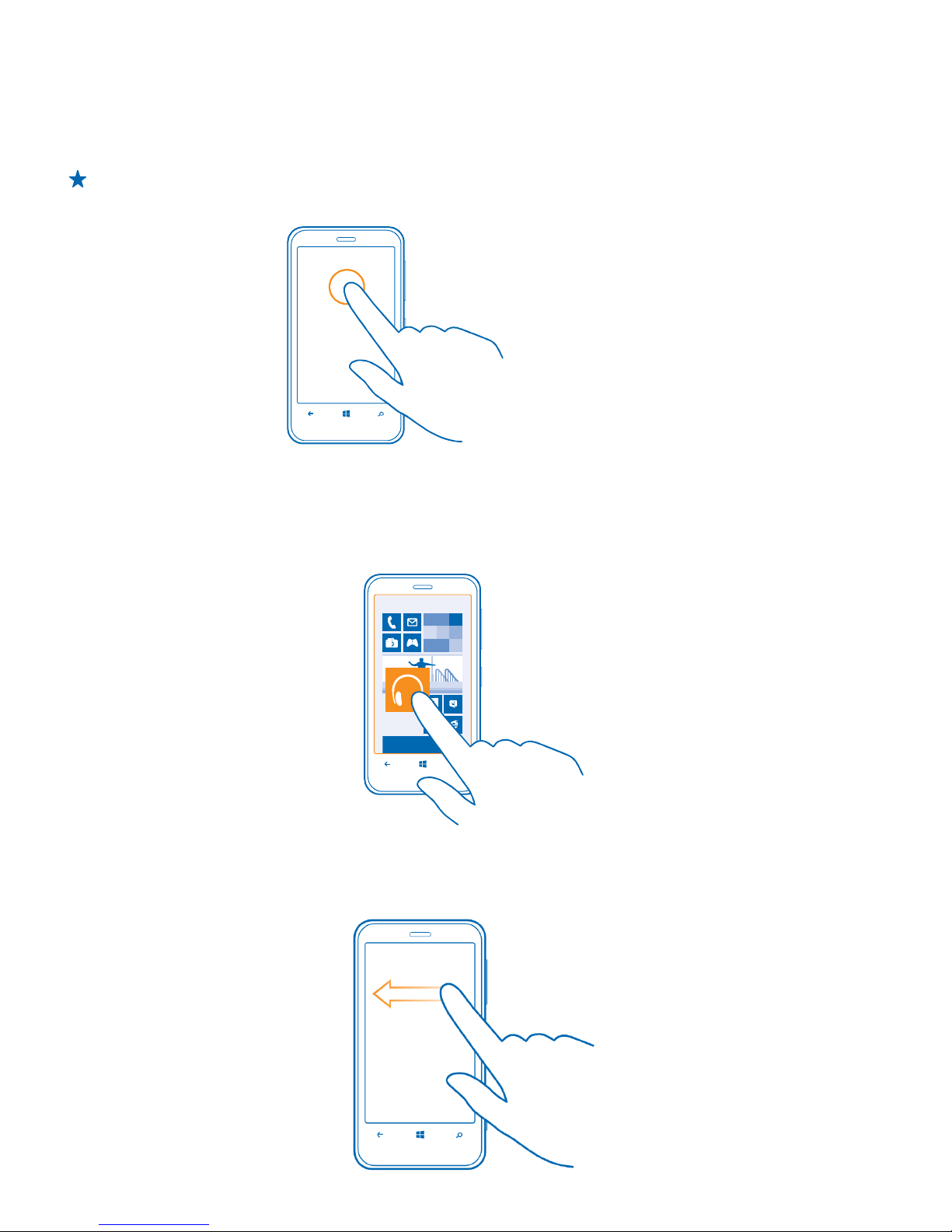
Your phone has two main views, making it easy for you to keep up with what is going on and what's where.
Start screen (1): Animated live tiles show missed calls and received messages, the latest news and weather forecasts, and more.
You can rearrange and resize the tiles, and pin contacts, apps, feeds, mailboxes, websites, and other favourites. Updates of your pinned
contacts are shown on the tile, and you can view your contacts' details directly from the start screen.
Apps menu (2): All your apps are listed here, all neatly ordered.
Got a lot of apps? To look up one, tap . f you've got loads of apps, letters of the alphabet show up in the list to help you search. Tap any
letter in the list, and tap the first letter of the app you want.
Tip: You can also search inside an app, such as Email.
Switch between views
f you don't have all the apps you need on your start screen, you can find them from the apps menu.
Simply swipe left or right between the views.
Use the to ch screen
Explore your phone with a tap, swipe or drag.
1. To use your phone, simply tap or tap and hold the touch screen.
2. To open further options, place your finger on an item until the menu opens.
Example: To open an app or other item, tap the app or item. To edit or delete a calendar appointment, tap and hold the appointment,
and select the appropriate option.
Tap and hold to drag an item
Place your finger on the item for a second or two, and slide your finger across the screen.
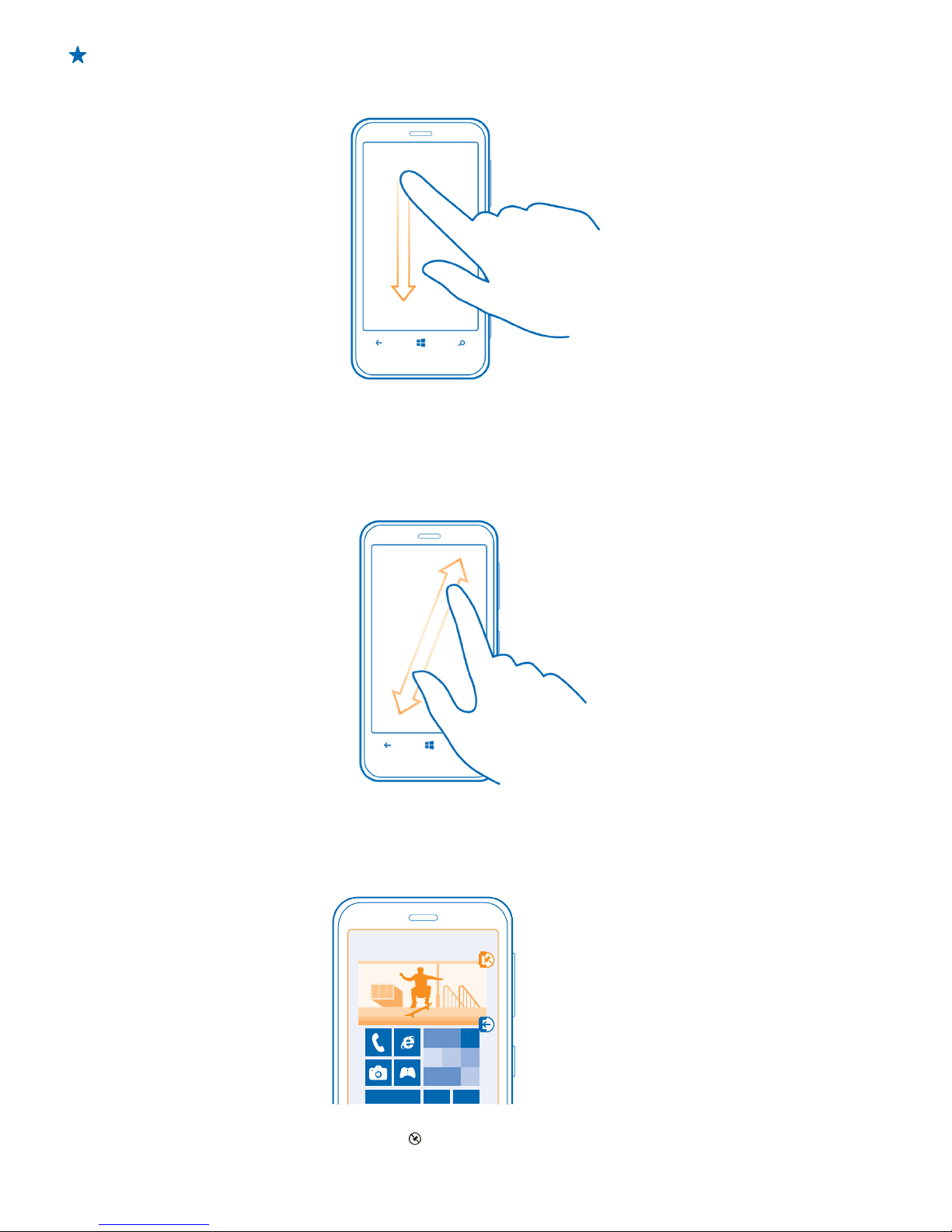
Swipe
Place a finger on the screen, and slide your finger in the desired direction.
.
Example: Swipe left or right between the start screen and the apps menu, or between different views in the hubs. To quickly scroll
through a long list or menu, slide your finger quickly in a flicking motion up or down the screen, and lift your finger. To stop the
scrolling, tap the screen.
Zoom in or o t
Place two fingers on an item, such as a map, photo, or web page, and slide your fingers apart or together.
Resize or npin a tile
To resize, tap and hold the tile, and tap the arrow icon.
Altri manuali per Lumia 620
7
Indice
Altri manuali Nokia Telefono cellulare

Nokia
Nokia 7510 Supernova Manuale utente

Nokia
Nokia 3330 Manuale utente

Nokia
Nokia Lumia 900 Manuale utente

Nokia
Nokia 6800 Manuale utente

Nokia
Nokia 1100 - Cell Phone - GSM Manuale utente

Nokia
Nokia N91 Guida rapida

Nokia
Nokia C1-00 Manuale utente

Nokia
Nokia 6800 Manuale utente

Nokia
Nokia Lumia 920 Manuale utente

Nokia
Nokia E71 Manuale utente

Nokia
Nokia E61 Manuale utente

Nokia
Nokia 1616 Manuale utente

Nokia
Nokia RM-12 Guida

Nokia
Nokia 1661 Manuale utente

Nokia
Nokia 5610 Xpress Music Guida rapida

Nokia
Nokia 6250 Guida rapida

Nokia
Nokia 6300 Manuale utente

Nokia
Nokia RH-47 Series Istruzioni per l'uso e l'installazione

Nokia
Nokia 6031 Manuale utente

Nokia
Nokia E5-00 Manuale utente


