Norcent LM560 Manuale utente

LM560
LCD MONITOR
MANUAL
Thank you very much for choosing the Norcent Product.
We recommend that you take a few minutes to read carefully through this manual
before installing and switching on the product. Please keep this manual in a safe
place for your future reference.

Operation Instructions
Thank you for purchasing this monitor, a high-resolution multi-scan
color monitor.
Please read this guide thoroughly before installation.
FCC RADIO FREQUENCY INTERFERENCE STATEMENT
WARNING: (FOR FCC CERTIFIED MODELS)
This monitor has been tested and found compliant with the limits for a
Class B digital device, pursuant to part 15 of the FCC Rules. These
limits are designed to provide proper protection against harmful
interference to a residential installation. This monitor generates, uses,
and can radiate radio frequency energy. Harmful interference to radio
communication may be led as a result if it‘s not properly installed and
used. However, there is no guarantee that interference will not occur
in a particular installation. If this monitor does cause serious
interference to radio or television reception, resetting the monitor may
determine it. Moreover, users are encouraged to correct interference
by doing one or more of the following:
Reorient or relocate the receiving antenna.
Move the monitor and the receiver further away from each other.
Connect the monitor into an outlet on a circuit different from that
to which the receiver is connected.
Consult your local dealer or an qualified technician.
FCC Warning
To assure a continued FCC compliance, a user must use a grounded
power supply cord and the provided shielded video interface cable
with bonded ferrite cores. Also, any unauthorized changes or
modifications to this monitor would void the user‘s authority to
operate this device.
Note: If necessary, shielded interface cables and AC power cord must
be used to meet the emission level limits.
EMI Certification
The Class B digital apparatus meets all requirements of the Canadian
Interference-Causing Equipment Regulation.
Cet appareil numerique de class B respecte toutes les exigences du
Reglement sur le materiel brouilleur du Canada.

Content
Safety Precautions ......................................................................1
First Setup....................................................................................2
Front Panel Control .....................................................................3
Installation ...................................................................................3
Using OSD Functions..................................................................4
Timing modes............................................................................10
Technical Information ...............................................................11
Care and Maintenance ...............................................................12
Troubleshooting.........................................................................12

Safety Precautions
This monitor is manufactured and tested on a ground principle
that a user’s safety comes first. However, improper use or
installation may result danger to the monitor as well as to the
user. Carefully go over the following WARNINGS before
installation and keep this guide handy.
WARNINGS:
This monitor should be operated only at the correct power
sources indicated on the label on the rear end of the monitor.
If you’re unsure of the power supply in your residence,
consult your local dealer or power company.
Do not try to repair the monitor yourself as it contains no
user-serviceable parts. The monitor should only be repaired
by a qualified technician.
Do not remove the monitor cabinet. There is high-voltage
parts inside that may cause electric shock to human bodies,
even when the power cord is disconnected .
Stop using the monitor if the cabinet is damaged. Have it
checked by a service technician.
Put your monitor only in a clean, dry environment. Unplug
the monitor immediately if it gets wet and consult
your service technician.
Always unplug the monitor before cleaning it. Clean the
cabinet with a clean, dry cloth. Apply non-ammonia based
cleaner onto the cloth, not directly onto the glass screen.
Keep the monitor away from magnetic objects, motors, TV
sets, and transformer.
Do not place heavy objects on the cable or power cord.
1
For PLUG CABLE EQUIPMENT, the Socket-outlet shall
be installed near the equipment and shall be easily
accessible.

First Setup
Congratulation for purchasing this monitor of high performance!
This monitor comes with the following accessories:
Attached video Cable (15 pin D-SUB)
Power Cable
Audio Cable
User Guide Book
Quick Installation
1. Connect video cable
Make sure both the monitor
and computer are powered
OFF. Connect the video cable
to the computer.
2. Connect power cord
Connect the power cord to a
properly grounded AC outlet,
then to the monitor.
4. Windows users : Setting the
Timing Mode (Resolution and
Refresh Rate)
Example: 1024 x 768 @ 60 Hz
Resolution Right-click on the
Windows desktop > Properties >
Settings > “Desktop Area”. Set
the resolution.
Refresh Rate (vertical frequency)
See your graphic card’s user
guide for instructions.
3. Power-ON computer and
monitor
Power-ON the computer, then
Power-ON the monitor.
2

Front Panel Control
OSD ON/OFF ENTER
SCROLL DOWN POWER INDICATOR
SCROLL UP POWER ON/OFF
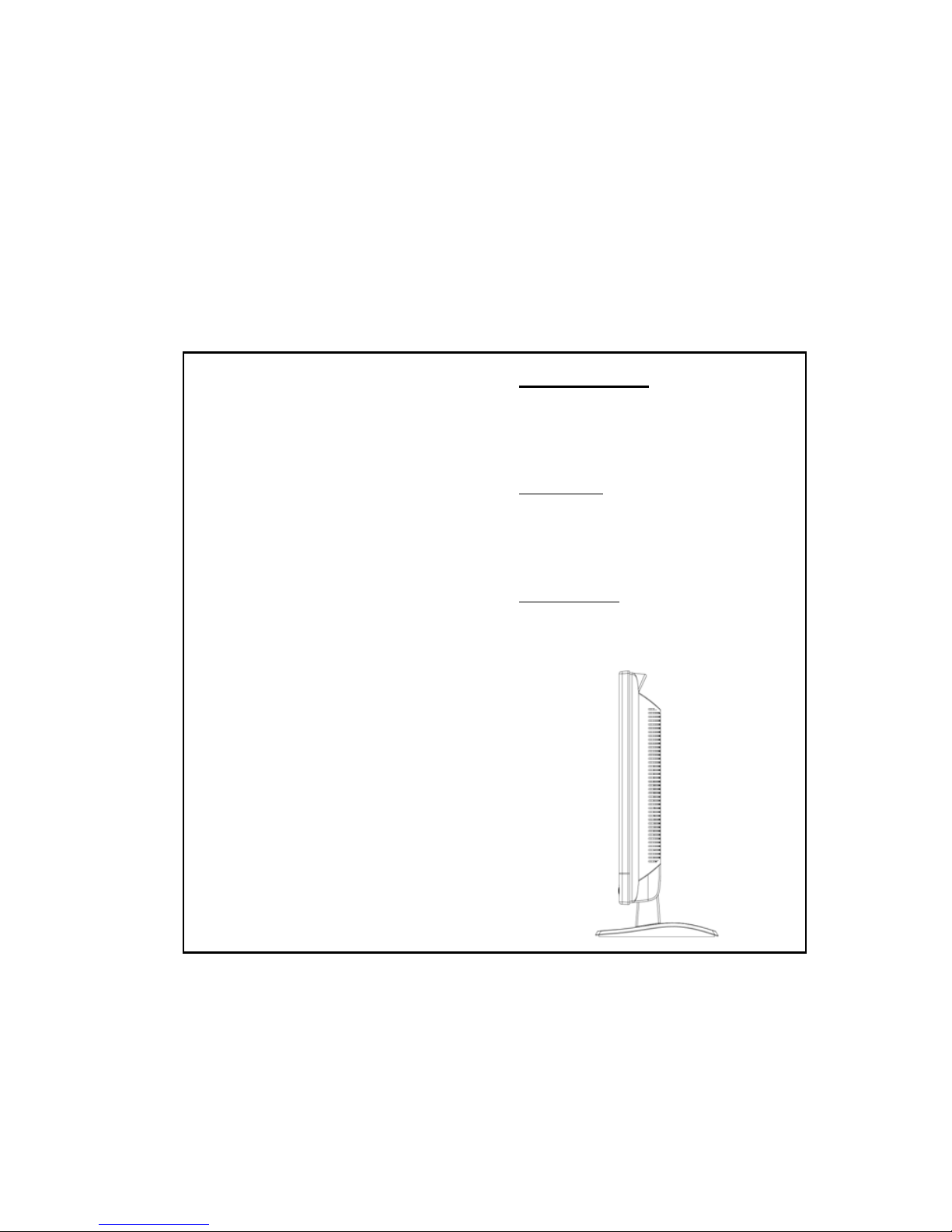
Installation
3
POWER INPUT (AC INPUT) AUDIO IN
VIDEO CABLE

Using OSD Functions
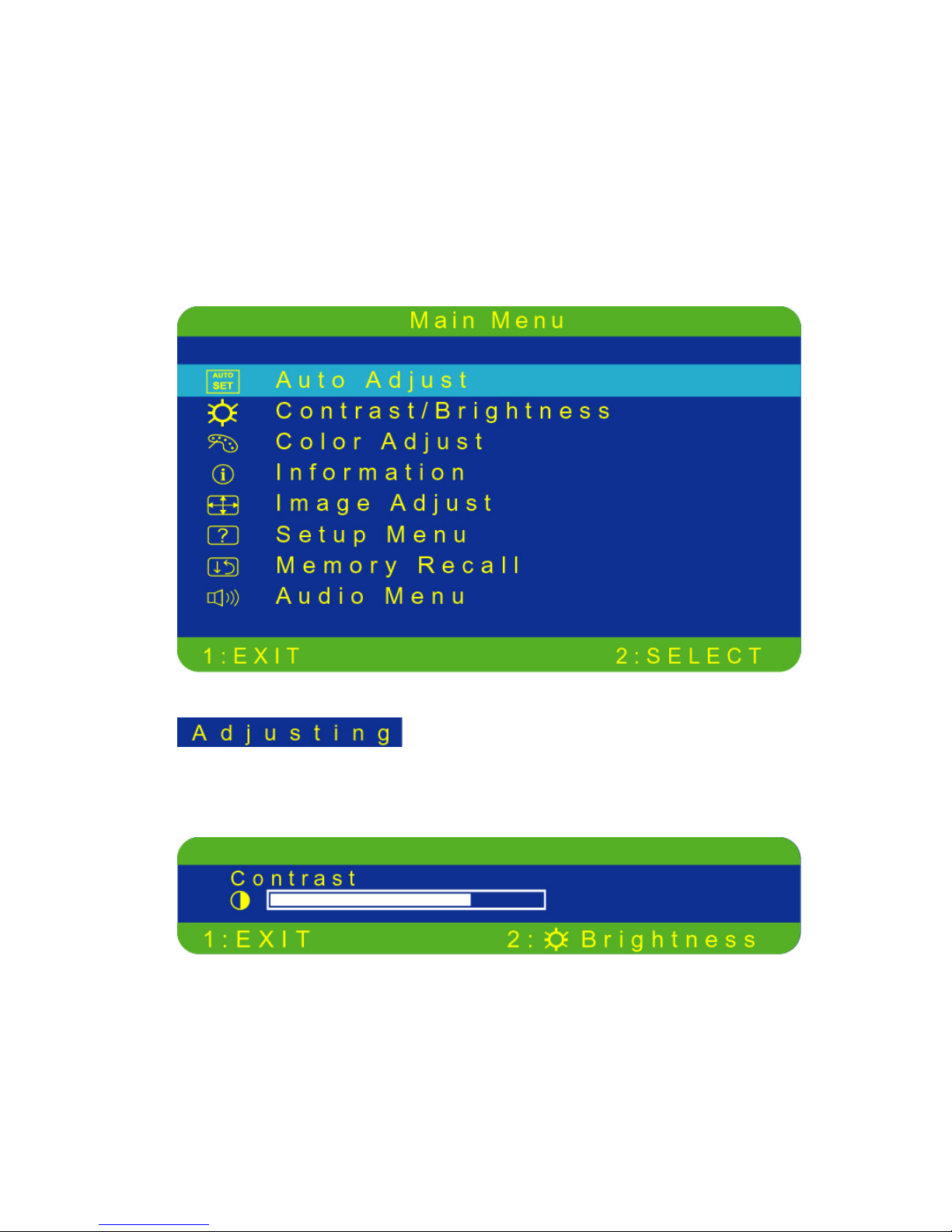
1. Press the button to display the main menu shown below.
2. Press the ▲or ▼button to scroll to the desired menu option.
3. Press the button to select the menu option.
4. Press the ▲or ▼button to select submenu option.
5. After making adjustment, press button to save changes and exit the
screen.
Main Menu
Auto Adjust: Automatically adjusts the horizontal position, vertical
position, phase (Fine Tune) and Clock (H. Size).
Contrast: To adjust the foreground white level of screen image.
1. Press ▲to increase the contrast.
4
2. Press ▼to decrease the contrast.

Brightness: to adjust the background black level of screen image.
1. Press ▲to increase the brightness.
2. Press ▼to decrease the brightness.
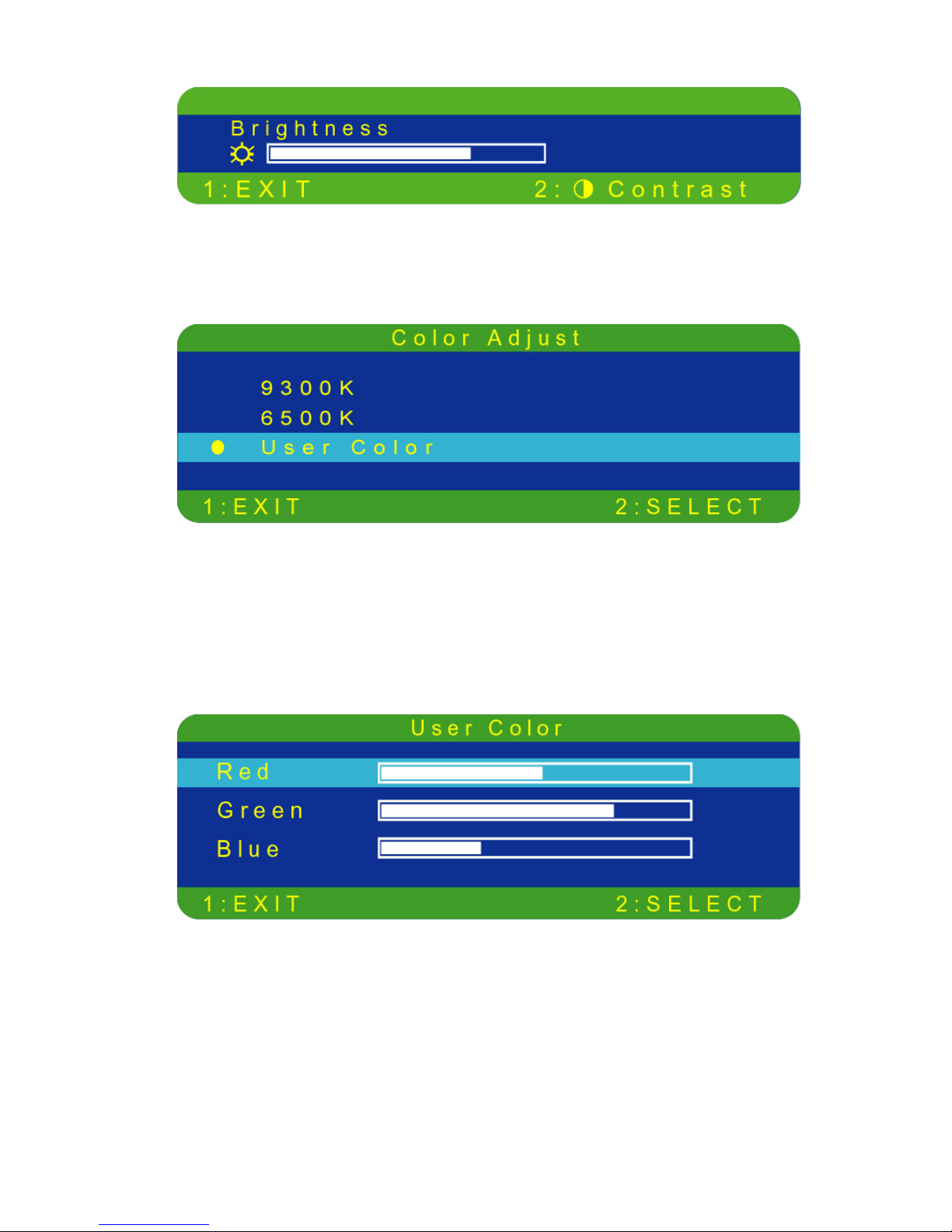
Color Temperature: provides four preset color adjustments:
9300K, 6500K and these changes will improve the brightness and color
saturation.
9300K-- Adds blue to screen image for cooler white.
6500K-- Adds richer red to screen image for warmer white.
1. Press button to select the preset color.
User Color: Individual adjustments for red(R), green (G), blue (B).
1. Press ▲to increase the selected color.
2. Press ▼to decrease the selected color.
5
3. Press to confirm your adjustments.

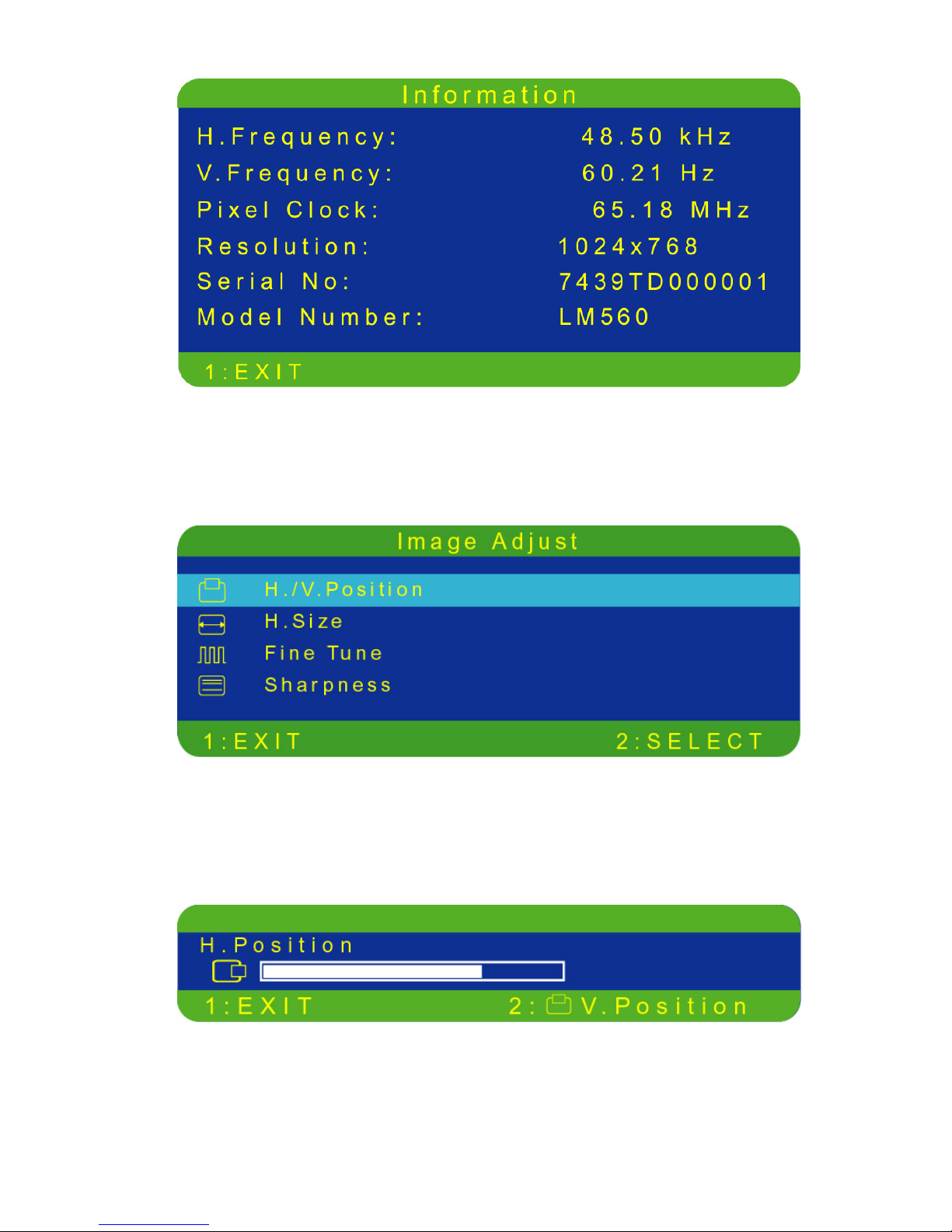
Information: Displays input signal information regarding the current
setting from the graphic card in your computer.
Note: If you wish to change your settings please refer to your graphic
card user guide for more information.
Image Adjust: Allows users to select and adjust the Horizontal /Vertical
position, H. Size, Fine Tune and Sharpness.
1. Press ▲or ▼to move the bar up or down to select the function.
2. Press to confirm your selection.
H./V. Position: To adjust the horizontal and vertical position of the screen.
H. Position: ▲:moves the screen right, ▼:moves the screen left.
6
V. Position: ▲: moves the screen up, ▼:moves the screen down.

H. Size: Adjusts the width of screen image.
1. Press ▲to increase the width of the screen.
2. Press ▼to decrease the width of the screen.
Fine Tune: To adjust the delay time.
1. Press ▲to increase the fine tune.
2. Press ▼to decrease the fine tune.
Sharpness: To adjusts the clarity on a non-XGA (1024x768) signal.
1. Press ▲or to select Enable or Disable.
2. Press
▼
to confirm selection.
Setup Menu: To set language Select, Resolution Notice, OSD position
and OSD TimeOut.
1. Press ▲or ▼to move the bar up or down to select the function.
7
2. Press to confirm your selection.
Indice
Altri manuali Norcent Monitor