NST NVR2 Manuale utente

Quick Installation Guide
16 Channel Network
Video Recorder
Please read this manual thoroughly before use, and keep it handy for future reference.
512-756-1678
NVR2

Quick Installation Guide
1. Description
This installation guide provides detailed information and instructions for the NVR2 network video
recorder. The NVR offers the remote live and playback function as a recording server.
•Front View (1U Rack type)
NO Function Description
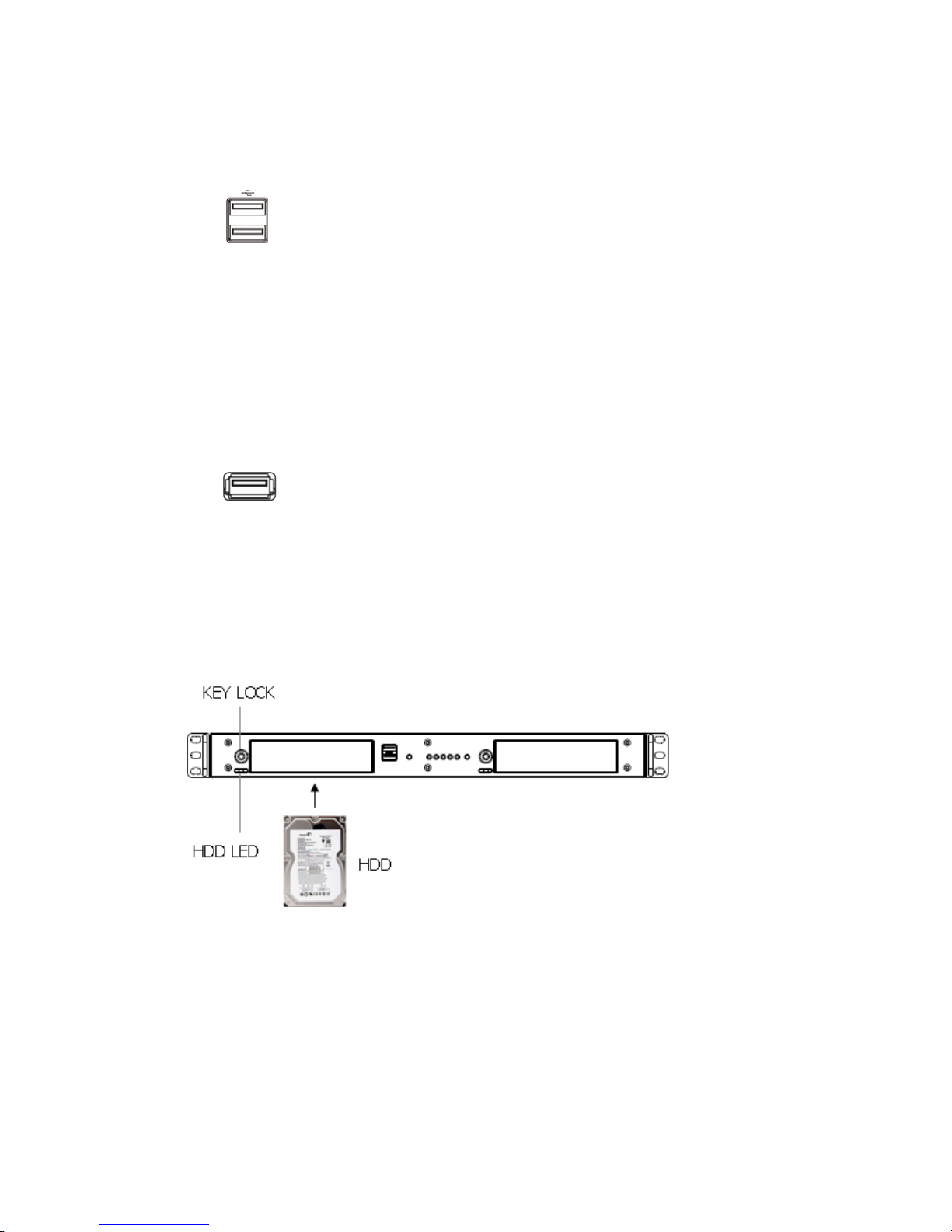
1 Key Lock Turning the key completely engages the lock, so the HDD bay
door cannot be opened.
2 SATA Bracket Mounts hard disks for storing recorded video. Up to four hard
disks can be mounted. Mounted HDDs are referred to as
Internal HDD1 (left) and Internal HDD2 (right.)
3 Factory Default Button Executes the factory default.
4 HDD LED A flashing green means that internal HDDs are installed and
functioning normally.
5 Power LED Steady red for power on.
6 Alarm LED Steady yellow for booting or failed upgrade.
7 LAN1 LED Flickers for connection to Ethernet port for client access.
8 LAN2 LED Flickers for connection to Ethernet port for camera.
9 Power Button Turns on or off the power. Push the button more than 3
seconds to turn off the power.
10 USB2.0 Two USB ports are provided to connect external hard disk drives for
data backup or USB-to-Serial text-in device.
•Front View (2U Rack type)

Quick Installation Guide
• Rear View (1U Rack type)
NO Function Description
1 USB2.0 Port Two USB ports are provided to connect external hard disk drives for
data backup or USB-to-Serial text-in device.
2 RS232 Port Connects to devices such as a text-in device.
3 VGA Port Not used. Only for maintenance.
4 Client Ethernet Port A network port that allows the client to connect to the product.
5 Camera Ethernet Port A network port that the product connects to the network
camera.
6 Power Cord Inlet Used to connect the product power cable.
7 SMPS Fan This fan cools the power supply.
8 eSATA Port The eSATA port is provided to connect external hard disk drives for
expanding storage or archiving video.
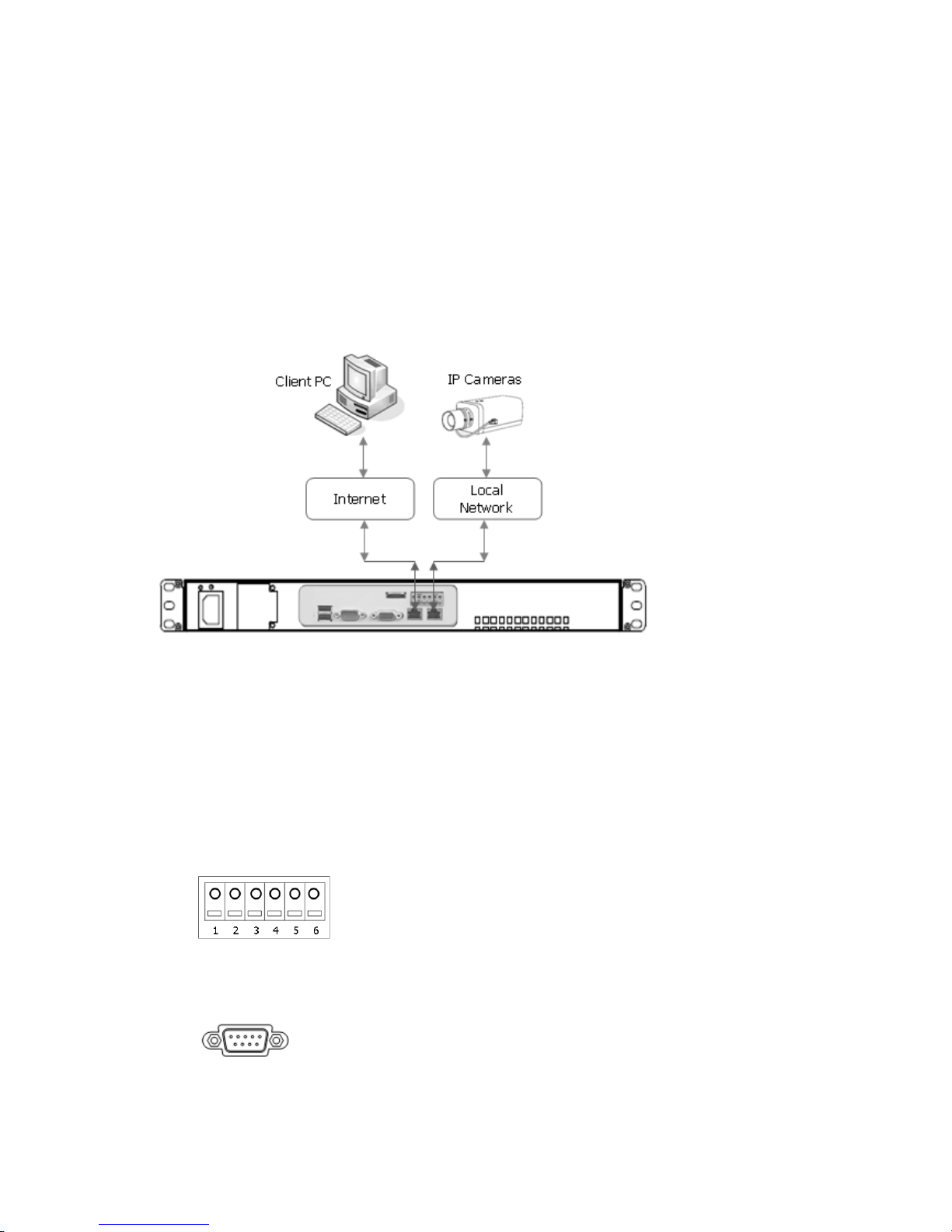
9 Alarm I/O Port
Used to connect a sensor or alarm.
1: Alarm Output 2
2: GND
3: Alarm Input 2
4: Alarm Output 1
5: GND
6: Alarm Input 1
•Rear View (2U Rack type)
2

Quick Installation Guide
2. Installation
2.1 Connecting Power and Network
• Connecting to the RJ-45
Connect a standard RJ-45 cable to the network port of the network camera. Generally a cross-over cable
is used for directly connection to PC, while a direct cable is used for connection to a hub.
The following picture is an example of a network diagram using NVR2.The 2 network ports on the
product back panel are for a computer and camera. The rear panel network ports can be used for
devices within the same network, or in different networks as shown in the example diagram.
•Connecting Alarms
Alarm Input :
You can use external devices to signal the network camera to react on events. Mechanical or electrical
switches can be wired to the Alarm Input1/2 and GND (Ground) connectors.
GND(Ground) :
Connect the ground side of the alarm input and/or alarm output to the G (Ground) connector.
Alarm Output :
The network camera can activate external devices such as buzzers or lights. Connect the device
to the Alarm Output1/2 and GND(Ground) connectors.
•Connecting RS232
An RS232 port is provided to connect a text-in device like a POS. Use a RS232 cable with a DB-9S
(female) connector to connect to the NVR.
RS232
Caution: The VGA port is not used in the NVR2.
3

Quick Installation Guide
• Connecting USB
The NVR supports four USB interface for connecting external storage devices; Two USB ports are located
on the rear panel and other two ones are located on the front panel. You can backup some video clips of
internal HDDs to the external HDDs or Memory Stick connected through USB port.
USB2.0
• Connecting eSATA
The NVR supports an eSATA interface for connecting external storage devices; one eSATA port is located
on the rear panel. You can expand storage capacity by utilizing the internal HDDs and eSATA port.
An external eSATA HDD can be connected to the eSATA port on the rear panel. Note that an eSATA port
does not supply power to the device connected to it; the external device must supply its own power.
You can also archive video data of internal HDDs to the external HDDs connected through eSATA port.
When the NVR use eSATA port for archiving, it is impossible to expand storage capacity by utilizing the
internal HDDs and eSATA port.
eSATA
• Inserting SATA HDD
Follow next steps.
1. Turn the Key Lock counterclockwise to unlock
2. Insert the SATA HDD supported to the NVR
3. Turn Key Lock clockwise to lock
During the NVR operation, a blue HDD indicator means that internal HDD is installed and functioning
normally.
Caution: For a proper operation, you must insert SATA HDD before turning on the power.
4

Quick Installation Guide
• Connecting the Power Cord
Connect the power cord to the NVR. As the power is supplied, the Power LED will start flickering,
indicating stand-by mode. Pressing the POWER button will turn the power on and the Power LED will
light.
Caution: Power cords must be routed so that they are not likely to be walked on or pinched by
furniture. Do not place the power cords under a carpet. The power plug of this equipment has a
grounding pin. Use only a grounding-type power outlet. Do not destroy the plug even though you
are not able to insert the plug into the outlet. Do not overload wall outlets and extension cords.
• Factory Reset
The NVR has a Factory Reset switch to the left of the LED indicators on the front panel. This switch will
only be used on the rare occasions that you want to return all the settings to the original factory settings.
To reset the unit, you will need to follow steps:
1. Press the Factory Reset button more than 5 seconds while the NVR is operating.
2. While the NVR is initializing, the alarm LED will blink.
3. After initializing, the NVR will restart.
Caution: When using the Factory Reset, you will lose any settings you have saved.
• Configuration
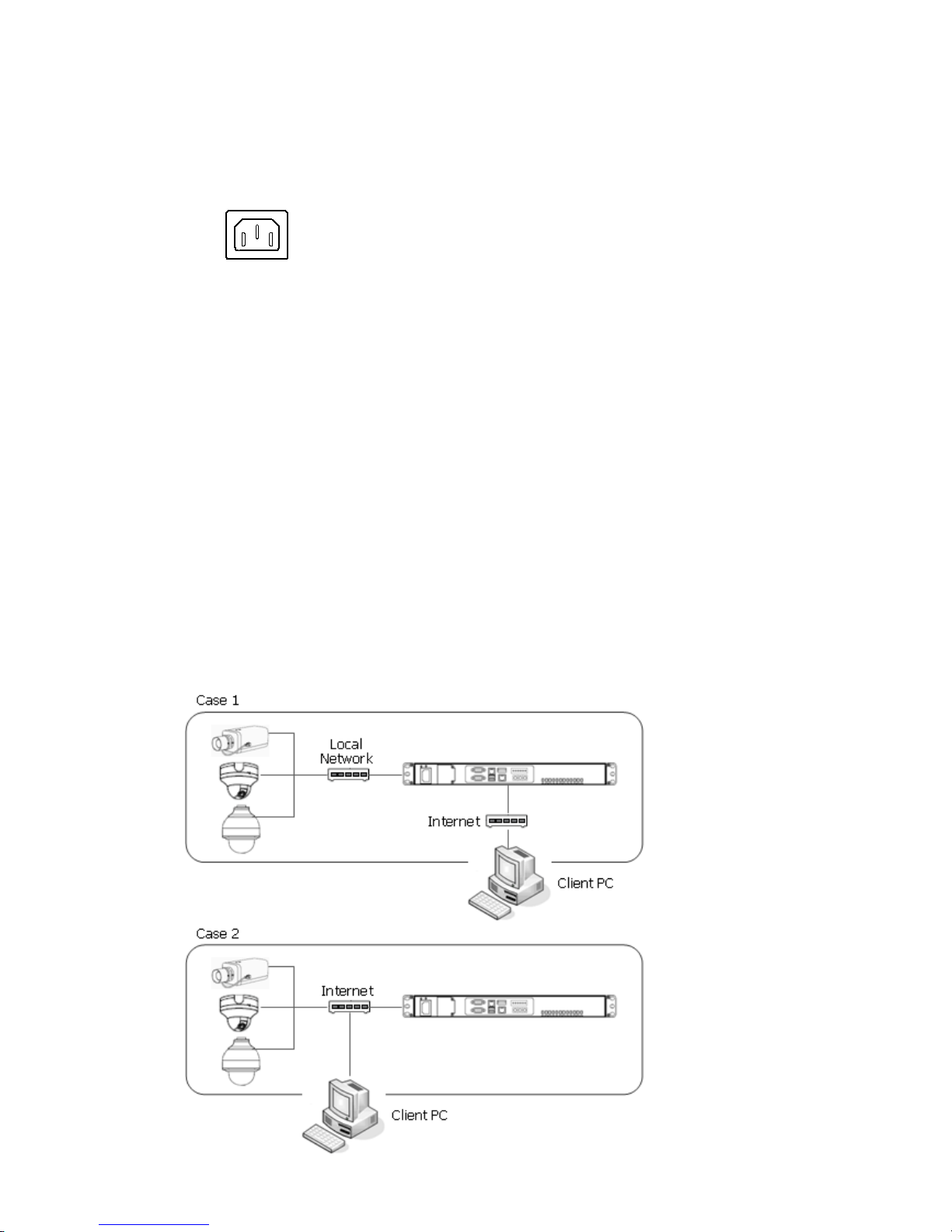
1. Standalone Configuration.
5

Quick Installation Guide
Note: IP cameras can be connected in the local network or in the internet, but Client PC must be
connected in the internet port. For the best network bandwidth, it’s is recommend that IP cameras
and client PC are separated in the network. That is, Case A is recommended.
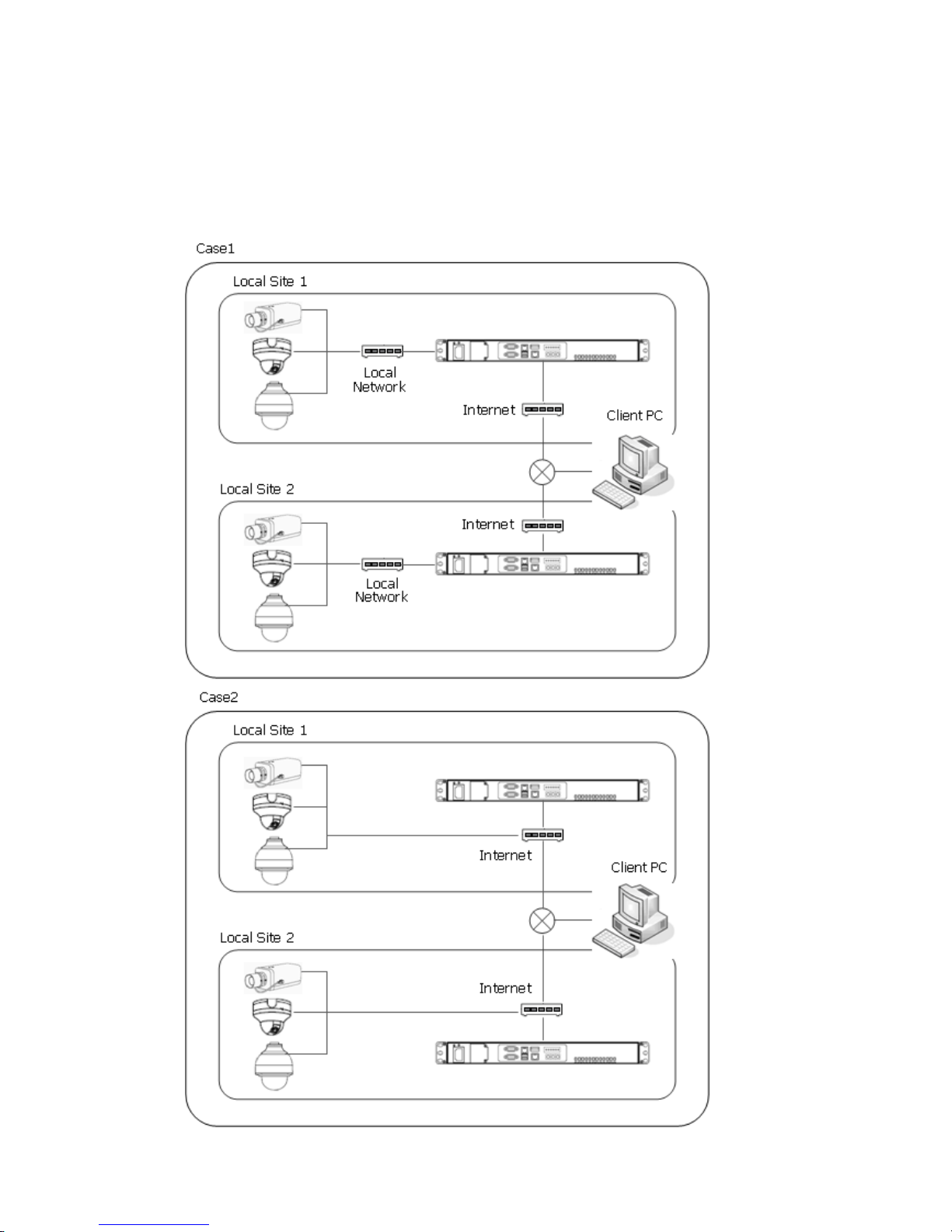
2. Multi-location Configuration.
6

Quick Installation Guide
2.2 Network Connection and IP assignment
The Network Video Recorder supports the operation through the network. When the NVR is first connected to
the network it has no IP address. So, it is necessary to allocate an IP address to the device with the “Smart
Manager” utility on the CD.
1. Connect the NVR to the network and power up.
2. Start SmartManager utility ( All programs > SmartManager), the main window will be displayed, after a
short while any network devices connected to the network will be displayed in the list.
3. Select the NVR on the list and click right button of the mouse. You can see the pop-up menu as below.
4. Select Assign IP. You can see an assign IP window. Enter the required IP address.
[Factory Default IP Address]
-. The internet Port: 192.168.100.220
-. The local network Port: 192.168.30.1
7

Quick Installation Guide
2.3 Connecting to the Website
The Network Video Recorder supports the operation through the network. When the NVR is first connected to
the network, it has no IP address. So, it is necessary to allocate an IP address to the device with the “Smart
Manager” utility on the CD.
Note: Factory Default IP address is 192.168.100.220
1. Start a browser (Internet Explorer).
2. Enter the IP address or host name of the Network Video Recorder in the Location/Address field of your
browser. The NVR2 installs and executes the client software automatically after installing ActiveX.
3. If the NVR has not been configured, Setup Wizard will be shown. This drastically reduces the time
required for system installation. Images from cameras are connected and recorded automatically to the
NVR, so that you can start monitoring and recording instantly.
Note: Setup Wizard will be shown only in factory default state.
Follow the instructions of the wizard to complete the system setup.
[Step1]
Enter the date and time settings. You can select to synchronize the server time with an internet time
server. If you enter a domain name for the NTP server, make sure you have set up a correct DNS server.
Click the Next button to go to next page.
8

Quick Installation Guide
[Step2]
Easy Installation makes the NVR detect ONVIF based all of network cameras and register automatically.
Change the admin password or use the default password (admin) of cameras to be detected. If you
don’t want to use Easy Install function, inactivate checkbox. In case that you activated Easy Installation,
you don’t need to do Step3. Click the Next button to go to next page.
Note: Easy Install is inactivated in factory default.
9
Indice
Manuali Hardware di rete popolari di altre marche

Matrix Switch Corporation
Matrix Switch Corporation MSC-HD161DEL Manuale utente

B&B Electronics
B&B Electronics ZXT9-IO-222R2 Manuale utente

Yudor
Yudor YDS-16 Manuale utente

D-Link
D-Link ShareCenter DNS-320L Manuale utente

Samsung
Samsung ES1642dc Istruzioni per l’uso

Honeywell Home
Honeywell Home LTEM-PV Istruzioni per il montaggio