
NTT docomo Optimus Pad L-06C Manuale utente

L-06C
INSTRUCTION MANUAL
Contents/Precautions
Confirmation and Settings before Using
Settings
Contacts / Mail / Internet
Application
Using Overseas
Appendix / Index
Multimedia
File Management
DOCOMO W-CDMA・GSM/GPRS・
Wireless LAN Systems
Thank you for selecting the "L-06C".
Before or while using the L-06C, be sure to thoroughly read this
manual and the individual manual for other operation devices to
ensure its correct use. For further information, contact "docomo
Information Center" on the last page of this manual.
The L-06C is designed to be your close partner.
Treat it carefully at all times to ensure long-term performance.
Before Using the FOMA Terminal
• FOMA terminal uses wireless, therefore, it may not function in locations
where it is difficult for radio waves to penetrate or areas where radio
wave signals are weak, such as tunnels, underground passages, and
some buildings or places out of the FOMA service area. Even when
you are on a higher floor of a tall building or condominium and nothing
blocks your view outside, this terminal may not be able to receive or
transmit signals. Also communication may be interrupted even when
the Antenna Indication Lamp indicates a strong signal reception with
four antenna indication bars.
• Use this terminal in ways that do not disturb others in public places,
crowded locations, or quiet locations.
• Your FOMA terminal encodes communication content by wireless.
When you are operating your FOMA terminal while moving to a location
subject to weaker radio wave conditions, the transmitted data may not
be correctly decoded and as a result the decoded content may differ
somewhat from the actual content.
• This FOMA terminal is supported in FOMA Plus-Areas and FOMA
HIGH-SPEED Areas.
• This FOMA terminal can be used only via the FOMA network provided
by DOCOMO and DOCOMO's roaming area.
• Keep a separate record of any information stored on this FOMA
terminal and store the copies in a safe location. DOCOMO assumes
no responsibility for any loss of your data resulting from malfunctions,
repair, changing of the model or other handling of FOMA terminal.
• As with PCs, some applications that you perform installation may
give the FOMA terminal instability of the operation, or may send your
location information or personal information registered to the FOMA
terminal to outside via the Internet and the information may be used
improperly. Therefore, verify the supplier and operationing conditions
of the applications before using.
Download the latest information of this manual from the
DOCOMO website.
■URL of PDF for INSTRUCTION MANUAL
http://www.nttdocomo.co.jp/english/support/trouble/manual/
download/index.html
* The URL and the information contained in the manual are subject
to change without prior notice.
• Check the latest information of this manual on this FOMA terminal.
From the Home screen, tap "Apps" u "All" u "Instruction Manual".
1
Contents/Precautions
How to Read/Refer to this Manual
Search a function or find a proper way to search through the
following methods.
From Index P130
Search from function name, keyword of an item or service name.
From Tabs on Front Cover Front cover
Search through tabs on front cover while flipping over the pages.
From Contents P3
Search based on different purposes.
From Application List P42
Search from application list.
Note
• Any reprint of this manual is prohibited.
• This manual is subject to change without prior notice.
• "FOMA terminal" indicates "L-06C" in this manual.
• For customers using FOMA card (green/white), please note that
UIM indicates FOMA card in this manual.
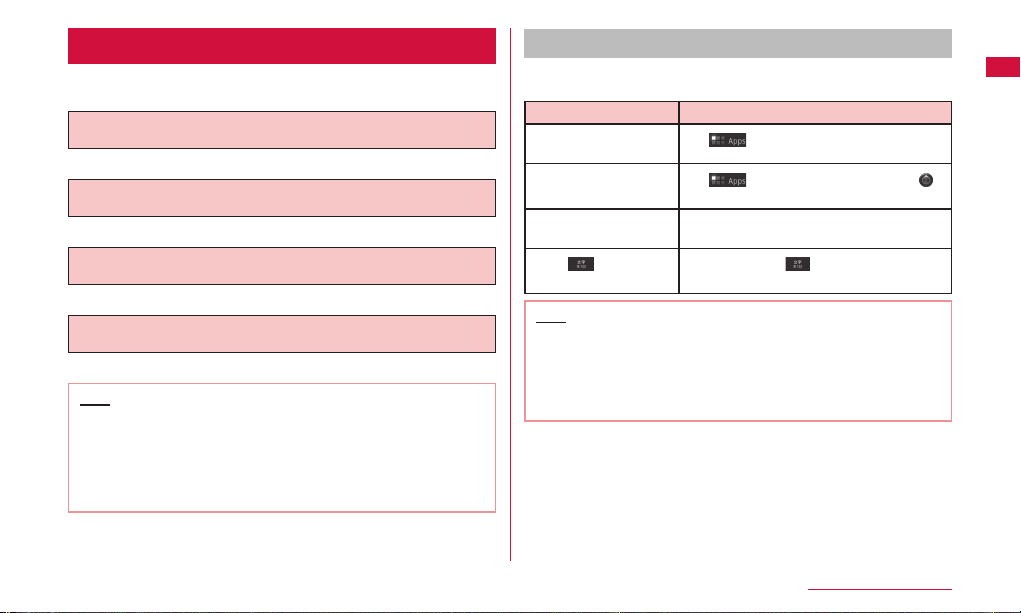
Operation description
The selection operations of those icons and items displayed on touch
screen are described below in this manual.
Notation Operation
"Apps" on the Home
screen Tap on the Home screen
"Apps" u "All" on the
Home screen Tap on the Home screen and tap
on the displayed screen
"Wireless & networks" u
"Mobile networks"
Tap "Wireless & networks" displayed on the
screen, and then tap "Mobile networks"
Touch for over 1
second
Tap and hold the displayed on the
screen for 1 to 2 seconds
Note
• The operations described in this manual are followed by the
default settings of the Home screen. If the contents of the Home
screen changed, operation description may differ.
• Images used in this manual may differ from those on this FOMA
terminal.
2
Contents/Precautions
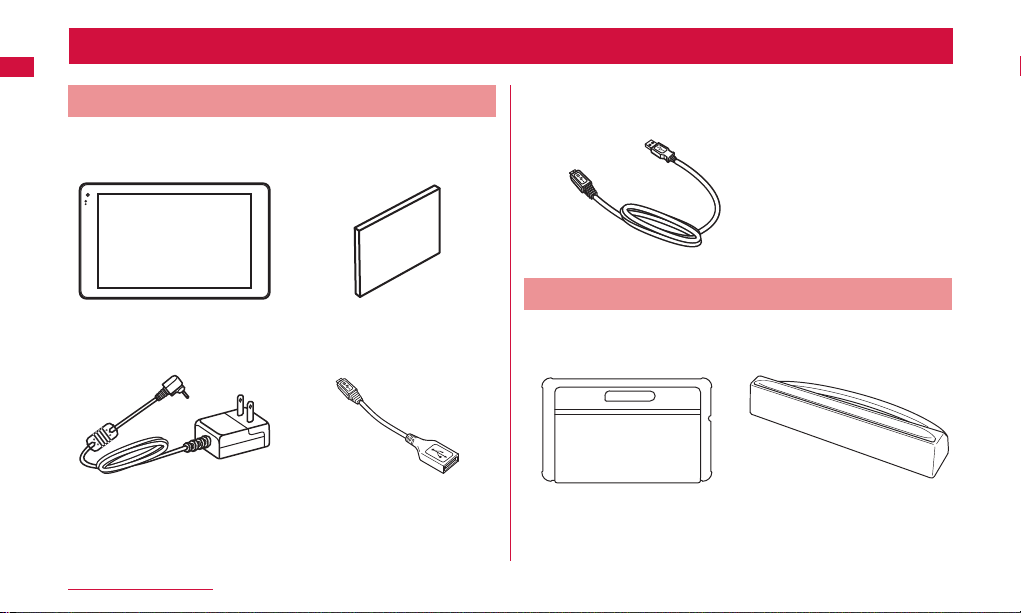
Supplied Accessories and Optional Accessories
Supplied Accessories
L-06C
(with warranty and back cover L23)
Quick start guide
クイックスタートガイド
AC Adapter L01
(with warranty and manual)
microUSB-USB A Conversion
Adapter L01
(with manual)
USB data cable (sample)
(with manual)
Optional Accessories
Tilt leather case L01*
(with manual)
Docking Station L01*
(with manual)
* It is not available to use both Tilt leather case L01 and Docking Station
L01 at the same time.
Other optional accessories→P117
3
Contents/Precautions
Contents
How to Read/Refer to this Manual …………………………………………… 1
Supplied Accessories and Optional Accessories ………………………… 2
Notes on Usage of L-06C …………………………………………………… 5
Safety Precautions (ALWAYS FOLLOW THESE PRECAUTIONS) ……… 6
Handling and Care ………………………………………………………… 15
Confirmation and Settings before Using ………………… 20
UIM …………………………………………………………………………… 20
Charging …………………………………………………………………… 21
Part Names and Functions ………………………………………………… 24
Turning Power ON and OFF ……………………………………………… 26
Touch Screen Operations ………………………………………………… 27
Initial Settings ……………………………………………………………… 29
Screen Display/Icons ……………………………………………………… 35
Home Screen ……………………………………………………………… 37
Application Screen ………………………………………………………… 41
Text Entry …………………………………………………………………… 43
Settings ……………………………………………………… 47
Settings Menu ……………………………………………………………… 47
Wireless & Networks ……………………………………………………… 48
Sound ………………………………………………………………………… 52
Screen ……………………………………………………………………… 52
Location & Security ………………………………………………………… 53
Applications ………………………………………………………………… 56
Accounts & Sync …………………………………………………………… 57
Privacy ……………………………………………………………………… 57
Storage ……………………………………………………………………… 58
Language & Entry ………………………………………………………… 58
Accessibility ………………………………………………………………… 59
Date & Time ………………………………………………………………… 59
Tablet Information …………………………………………………………… 60
Contacts / Mail / Internet …………………………………… 61
Contacts……………………………………………………………………… 61
E-mail ………………………………………………………………………… 62
Gmail ………………………………………………………………………… 63
Browser ……………………………………………………………………… 63
Talk …………………………………………………………………………… 64
Multimedia …………………………………………………… 65
Shooting with Camera ……………………………………………………… 65
3D Camcorder ……………………………………………………………… 68
Viewing Photos and Videos ……………………………………………… 69
Music ………………………………………………………………………… 70
File Management …………………………………………… 75
File Operation ……………………………………………………………… 75
Folders and Files Operation ……………………………………………… 77
Bluetooth Communication ………………………………………………… 78
External Device Connection ……………………………………………… 81

4
Contents/Precautions
Application …………………………………………………… 83
Market ……………………………………………………………………… 83
docomo market……………………………………………………………… 87
Maps ………………………………………………………………………… 88
Latitude ……………………………………………………………………… 94
Navigation …………………………………………………………………… 97
Using Places ………………………………………………………………… 98
Alarm ………………………………………………………………………… 98
Calendar/Schedule ………………………………………………………… 99
Calculator ……………………………………………………………………101
YouTube ………………………………………………………………………101
Instruction Manual …………………………………………………………102
Downloads……………………………………………………………………102
Voice Searches ………………………………………………………………103
Using Overseas ………………………………………… 104
Overview of International Roaming (WORLD WING) ……………………… 104
Available Services …………………………………………………………104
Confirming before Using ……………………………………………………105
Configuring Settings for Overseas Network Connection ………………… 107
Appendix / Index ………………………………………… 109
Introduction of Options and Related Devices ……………………………109
Troubleshooting (FAQs) ……………………………………………………109
Warranty and After-Sales Service …………………………………………113
Updating Software …………………………………………………………115
Main Specifications …………………………………………………………117
FCC Radio Frequency (RF) Information …………………………………120
FCC Compliance Statement ………………………………………………124
Declaration of Conformity …………………………………………………125
Important Safety Information ………………………………………………126
Export Administration Regulations ………………………………………… 127
Intellectual Property Right …………………………………………………128
Index …………………………………………………………………………130
5
Contents/Precautions
Notes on Usage of L-06C
• This FOMA terminal does not support accessing i-mode site
(programs) and i-αppli, etc.
• This FOMA terminal automatically performs communication for
some functions, for example, to synchronize data, update the latest
software, maintain connection with the server, etc. And when you
download applications or watch movies etc., a large amount of packet
communication is executed. Therefore, it is highly recommended to
use packet flat-rate service or Flat-rate data communications.
• You cannot update the software via PC.
• This FOMA terminal does not support Pubic mode (Driving mode).
• Owner information is displayed during the screen lock.
• Confirm your own phone number as follow.
From the Home screen, tap "Apps" u" All" u" Settings" u" About tablet"
u "Status".
• Confirm the software version of this FOMA terminal as follow.
From the Home screen, tap "Apps" u "All" u "Settings" u "About tablet".
• You can update the software of this FOMA terminal. Refer to "Updating
Software" (P115) for detailed information.
• In order to improve the quality of this FOMA terminal, sometimes
upgrade OS through software update. Therefore, it is required to
always use the latest version of OS. Also, applications may not be able
to use any longer if the OS is old, or problems may occur.
• The power automatically turns ON when the AC Adapter L01 is
connected to the charging terminal of FOMA terminal. Thus do not
use the AC Adapter L01 in places where use is prohibited such as
airplanes or hospitals.
• It will automatically power on when connecting USB data cable
(sample) into the microUSB connection terminal on the FOMA terminal.
Therefore, do not connect with USB data cable when it is not allowed
to use electronic devices, such as inside airplanes, hospitals, etc.
• This FOMA terminal does not support FOMA card (blue). Bring the
FOMA card (blue) to docomo Shop to exchange for UIM.
• Set screen lock or password for this FOMA terminal to ensure its
security in case it gets lost. Refer to "Location & security" (P53) for
detailed information.
• In case of loss, please change passwords of each service accounts on
PC to prevent others from using Google service such as Google Talk,
Gmail, Android Market, etc.
• This FOMA terminal does not support service providers other than sp-
mode, mopera U or Business mopera Internet.
• This FOMA terminal does not support 64K data communication.
• You cannot remove battery from this FOMA terminal.
• Backup the data including images, videos, music, etc. to PC. For
details about connection method, refer to "File Management" (P75)
or "External Device Connection" (P81).
Also, using data backup service of each online is recommended.
• The packet communication fee using tethering varies depending
on the plan. It is highly recommended to use FOMA Flat-rate data
communications.
6
Contents/Precautions
• If you are using the FOMA new fee plan and the packet flat-rate service
combination the packet communications you are tethering will all be
packet communications (includes browser and Email), "Connection
via external device such as PC" even if external devices are not
connected. Please shut off the tethering functions as soon as you finish
transmitting via external devices.
• Subscription for sp-mode is required to use the tethering.
• In the default setting of Wi-Fi tethering, it is not set the security between
external device and mobile phone. Set the security as needed.
• Some applications may not be displayed the help correctly when
tapping u "Help".
Safety Precautions (ALWAYS FOLLOW
THESE PRECAUTIONS)
■Before using this terminal, read these "Safety Precautions"
carefully so that you can use it properly. After reading the safety
precautions, keep this manual in a safe place for later reference.
■These precautions are intended to protect you and others around
you. Read and follow them carefully to avoid injury, damage to the
product or damage to property.
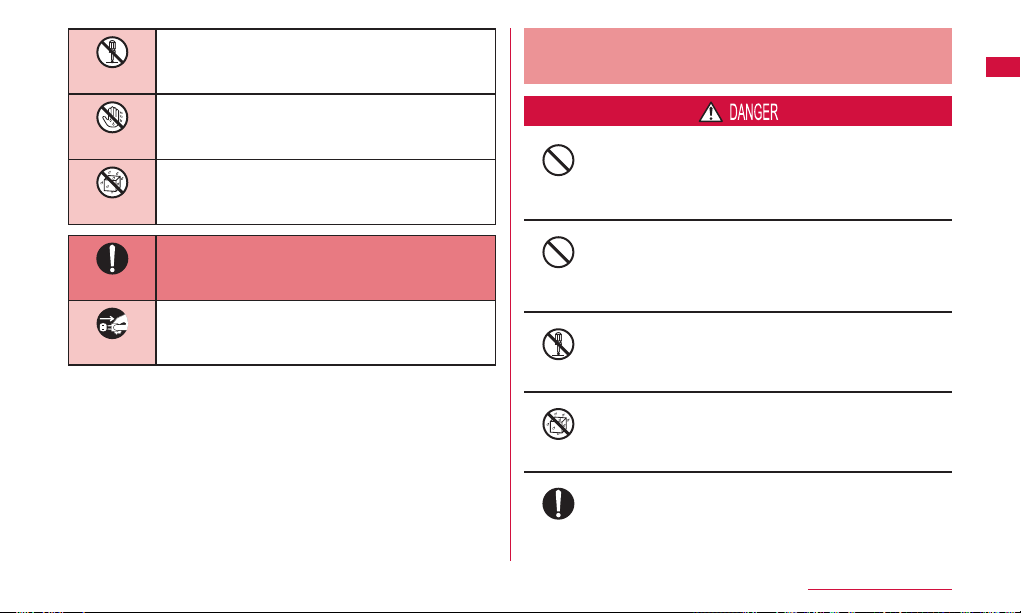
■The signs below indicate the levels of danger or damage that may
occur if the particular precautions are not observed .
This sign indicates that incorrect handling
has a high possibility of causing death or
serious injury.
This sign indicates that incorrect handling
poses a risk of causing death or serious
injury.
This sign indicates that incorrect handling
poses a risk of causing slight injury or
damage to the product or property.
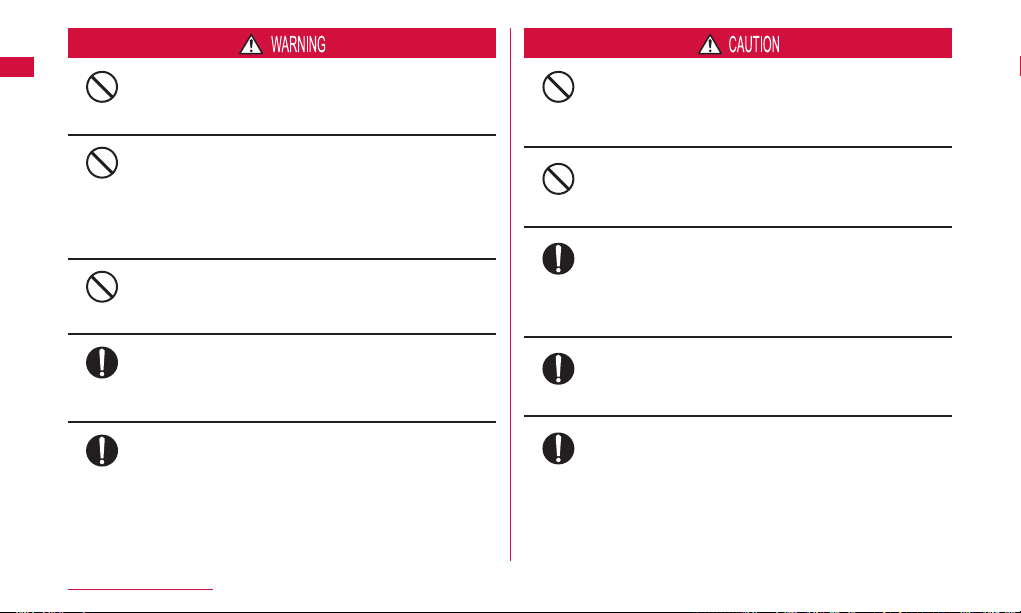
■The following symbols indicate special warnings regarding product
usage.
Don’t
Denotes things not to do (prohibition).
7
Contents/Precautions
Not disassembly
Denotes not to disassemble.
No wet hands
Denotes not to use with wet hands.
Not liquids
Denotes not to use where it could get wet.
Do
Denotes mandatory instructions (matters that must
be complied with).
Unplug
Denotes that the equipment should be unplugged.
■"Safety Precautions" are explained in the following seven sections.
General Precautions for FOMA Terminal, Adapter, UIM …………… P7
Precautions for FOMA Terminal ……………………………………… P9
Precautions for FOMA Terminal …………………………………… P11
Precautions for UIM ………………………………………………… P13
Precautions on Using near Electronic Medical Equipment
………………………………………………………………………… P13
Watching 3D Images ………………………………………………… P14
Material List …………………………………………………………… P14
General Precautions for FOMA Terminal,
Adapter, UIM
Don’t
Do not use or leave this terminal and its accessories in
places with a high temperature such as besides fire, in cars
under the blazing sun.
Fire, burns, or injury may result.
Don’t
Do not put this terminal and its accessories in heating
appliances such as microwaves or high pressure
containers.
Fire, burns, injury, or electric shock may result.
Not disassembly
Do not disassemble or remodel this terminal and its
accessories.
Fire, burns, injury, or electric shock may result.
Not liquids
Do not get this terminal and its accessories wet with
water, drinking water, pet urine, etc.
Fire, burns, injury, or electric shock may result.
Do
Use the adapter specified by NTT DOCOMO for this
FOMA terminal.
Fire, burns, injury, or electric shock may result.
8
Contents/Precautions
Don’t
Do not subject this terminal and its accessories to severe
shocks, or throw them.
Fire, burns, injury, or electric shock may result.
Don’t
Keep conductive materials (metal pieces, pencil lead,
etc.) from coming in contact with the charging terminal
or external connection terminal (microUSB connection
terminal, earphone/microphone terminal, HDMI terminal).
Do not put those materials inside the terminal.
Fire, burns, injury, or electric shock may result.
Don’t
Do not cover or wrap this terminal or its accessories with
bedding, etc. while using or charging.
Fire or burns may result.
Do
Make sure to turn off the FOMA terminal or stop charging
before going near a flammable gas such as gasoline
fumes.
Catching fire may result.
Do
If the equipment starts giving off a strange smell,
overheats, becomes discolored or deformed during use,
charging or in storage, immediately perform the following
operations.
• Remove the power plug from the wall outlet.
• Turn off the FOMA terminal.
Fire, burns, injury, or electric shock may result.
Don’t
Do not place the FOMA terminal and its accessories
on unstable locations such as wobbly tables or slanted
locations.
Damage may result from falling down.
Don’t
Do not store this terminal and its accessories in humid,
dusty places, or in hot areas.
Fire, burns, or electric shock may result.
Do
If children use this terminal and its accessories, a
guardian should explain the precautions and correct
operations. Also make sure that the instructions are
followed during use.
Injury may result.
Do
Keep babies and infants away from reaching.
Accidental swallowing or injury may result.
Do
Be careful especially when using the FOMA terminal the
adapter connected continuously for a long time.
If use while charging for a long time, temperature of
the FOMA terminal and adapter may get high. Directly
touching a hot part for a long time may cause redness,
itching or rash on your skin, or low-temperature burns
depending on your constitution and/or health condition.
Indice
Altri manuali NTT docomo Tavoletta


