
NUUO SCB-C31A POS Manuale utente

The Point of Sale Solution
Hardware & Software Installation
User Manual
Ver. 99.340.A112.001

Intelligent Surveillan e Solution
Table of Contents
page-1
TABLE OF CONTENTS
TABLE OF CONTENTS .............................................................................................. 1
SYSTEM INTRODUCTION ......................................................................................... 2
Definition of Terms .......................................................................................... 2
Produ t Spe ifi ation .................................................................................... 3
HARDWARE INSTALLATION .................................................................................... 4
SCB-C31A POS data apture onvertor ..................................................... 4
SOFTWARE INSTALLATION ...................................................................................... 6
SCB-C31A POS data apture onvertor ..................................................... 6
NUUO NVR/DVR/Hybrid system installation ................................................ 7
SOFTWARE SETUP .................................................................................................... 8
1. POS Devi e Management ........................................................................ 8
1.1. Insert/Delete/Configure POS devi es .............................................. 8
1.2. New/Edit/Delete/Import/Export Tag Filter ..................................... 10
1.3. Setup POS Display Font ..................................................................... 14
2. Smart Guard Dete tion ........................................................................... 15
2.1. POS Event ............................................................................................ 15
2.2. Instant A tion on POS Event ............................................................ 18
3. Playba k .................................................................................................... 18
4. Remote Network Servi e ......................................................................... 19
OPERATION TOOLS ............................................................................................... 21
1. Live Display ................................................................................................ 21
2. Log Viewer Sear h ................................................................................... 22
3. POS transa tion data Sear h ................................................................. 24
4. Playba k video with POS data .............................................................. 25
5. Ba kup video with POS data ................................................................. 26
6. Remote A ess ......................................................................................... 28
Intelligent Surveillan e Solution
System Introduction
page-2
SYSTE INTRODUCTION
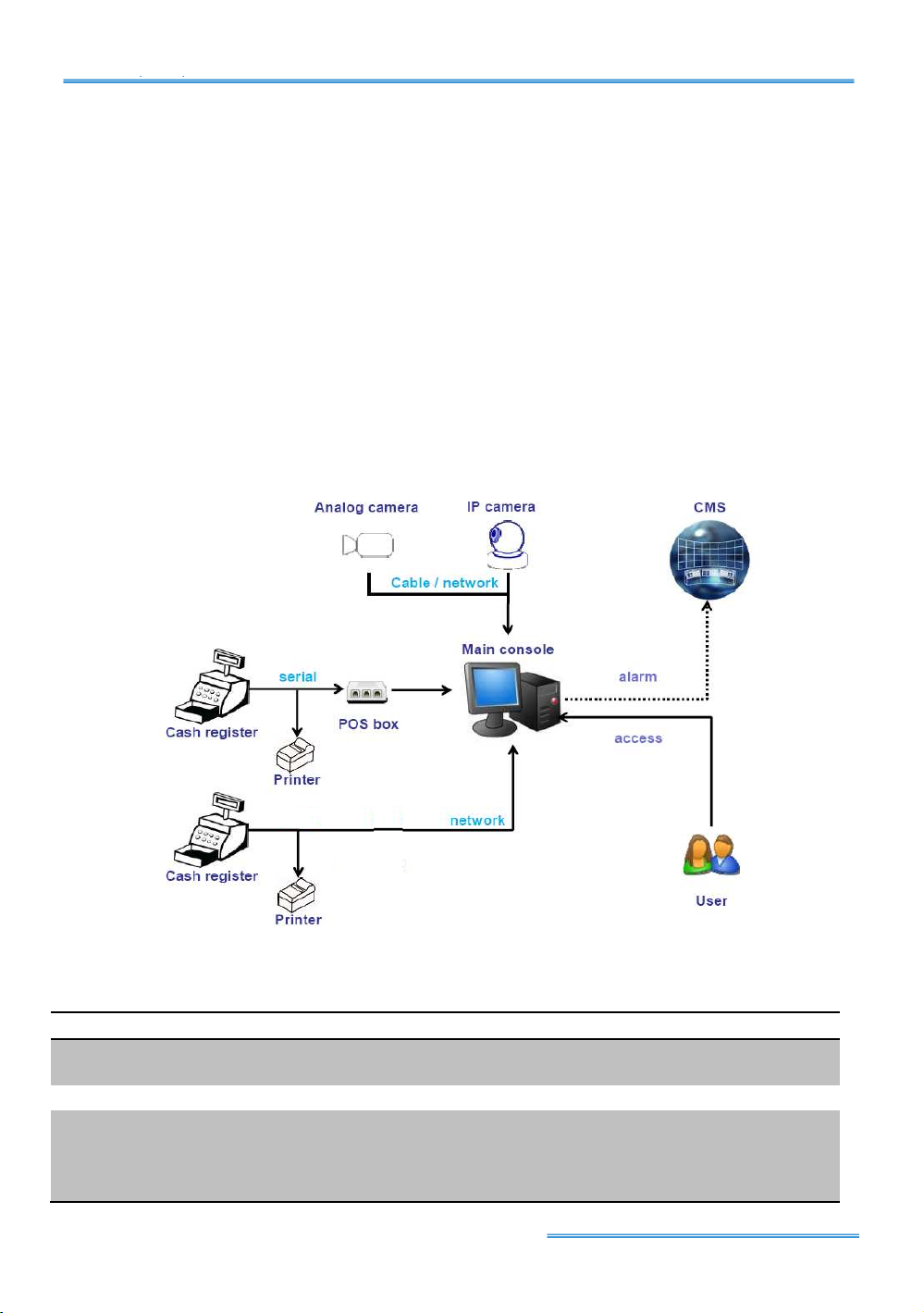
NUUO POS, a Point of Sale Systems based on NUUO NVR/DVR/NVDR,
provides finan ial transa tion’s surveillan e solution in one entral system.
The ar hite ture is as below; POS transa tion data flows to NVR by
Ethernet. Ea h Cash Register with an external re eipt printer is
onne ted by DB9 able. The transa tion information delivered in R232
format an be onverted to Ethernet through SCB-C31A POS data
apture onvertor. Alternatively, Cash Registers that support TCP/IP or
COM port output an onne t dire tly to the system without the
SCB-C31A box.
Definition of Terms
Terms Definition
POS Original Data
Original data from POS. Usually with a lot of symbols and no
line feed.
POS Transaction
Filtered result by user-defined tag-filter.
POS Event Log
Smart Guard Event Log from POS transa tion. It in ludes
Transa tion start, Transa tion end, Cash register open, User
defined ondition. Abbreviation
of POS Log.

Intelligent Surveillan e Solution
System Introduction
page-3
Product Specification
NUUO Capture Box
SCB-C31A POS
Input RS232
Output Ethernet
DC In DC +10V to +15V
Power consumption 500 mA
Operating Temperature -20 to 65℃
Operating Humidity 0-90 % Non-Condensing
Baud Rate 110 bps to 230.4 kbps
Data Bits 5, 6, 7 or 8
Stop Bits 1, 1.5 or 2
Parity None, Even, Odd, Mark, Spa e
Flow Control None, RTX/CTS, XON/XOFF, DTR/DSR

Intelligent Surveillan e Solution
Hardware Installation
page-4
HARDWARE INSTALLATION
SCB-C31A POS data capture convertor
To onne t Cash Register, Printer, and SCB-C31A POS data apture
onvertor together, please follow below steps:
Step 1: Please refer the user manual to setup Cash Register and printer.
Step 2: Using a “Y-shape” DB-9 able, one DB-9 female onne t to
POS system and one DB-9 male onne t to the re eipt printer
Y-shape (provided by Printer vendor).
Step 3: Using another DB-9 female onne t to SCB-C31A POS Data
Capture R232/Ethernet onvertor with Null modem.
Note: There are two kinds of serial able: Straight pass-through
and Null-Modem. The onne tion between SCB C31A POS
Data apture box and Y- able must be null modem (in
pa kage).
Step 4: Che k the system swit h of the SCB-C31A POS is swit h to OFF,
OFF position.
Step 5: Conne t power sour e with SCB-C31A POS.
Step 6: Conne t SCB-C31A POS with internet port by RJ45 LAN able.
SCB-C31A POS
Cash register
Printer
Null Modem
Y-cable
Ethernet
Provided b printer
F
F
M
M
F

Intelligent Surveillan e Solution
System Introduction
page-5
The LED Indi ators:
PWR LED: System is ready (Blinking).
LINK LED: Ethernet able onne tion and data a tive.
RXA LED: Transiting/Re eiving Indi ator.
TXA LED: No option of SCB-C31A POS
Reset
Switch
Power
RS
-
232
RS
-
232
RJ
-
45

Intelligent Surveillan e Solution
Software Installation
page-6
SOFTWARE INSTALLATION
SCB-C31 POS data capture convertor
Step 1: Use IE-browser to setup SCB-C31A POS, the default IP address is
192.168.1.1
Step 2: Setup IP address and password, and then setup IP address.
Note: Ea h time you swit h the page of the web, please li k
Save at first. If you leave this page without saving, all hanges
will be ignored.
Step 3: Setup Password if needed. Password is only using to a tivate a
se urity feature on the serial server. On e a password is entered
it will be required to a ess the menu and make hange of
onfiguration when a ess.
Note: Please write down the Serial number and MAC address,
these two parameters are ne essary when user forget your
password.
Step 4: Setup a ording to your POS or Cash Register. Usually all
devi es are default setting, you an reserve your time to pass
this step.
Step 5: Please restart/reset the box after hanging onfigurations to
a tive setup.
To reset the unit manually apply power, insert a small plasti

Intelligent Surveillan e Solution
System Introduction
page-7
tool, and press lightly depressing reset lo ated between the
swit h (refer page 5). Hold for 3 se onds and release. The Link
and Run light will go out and turn ba k on. The SCB-C31A POS
will revert to the last setting.
Note: Every time you hange the onfiguration of SCB-C31A
POS, please he k the above settings, espe ially maximum
onne tion and Remote IP address to avoid onne tion fail.
Connection via CO Port
Please install system a ording to following diagram:
Connection via TCP Client
Please install system a ording to following diagram:
NUUO NVR/DVR/Hybrid system installation
Please refer to the Main Console user manual to omplete system
installation with the NVR/DVR/Hybrid systems installation CD.

Intelligent Surveillan e Solution
System Setup
page-8
SOFTWARE SETUP
1. POS Device anagement
Ea h NUUO Main Console system an manage up to 64 POS ash register
devi es. This se tion will tea h you how to setup onfig of your system.
Run ain Console and li k on POS Application from the Config
menu to open POS Appli ation window.
You are able to Insert/Delete/Configure POS devi es in this window.
Choose devi es from the POS Tree, and info will be shown in the POS Info
window. Asso iated ameras will be shown in the preview window below.
1.1. Insert/Delete/Configure POS devi es
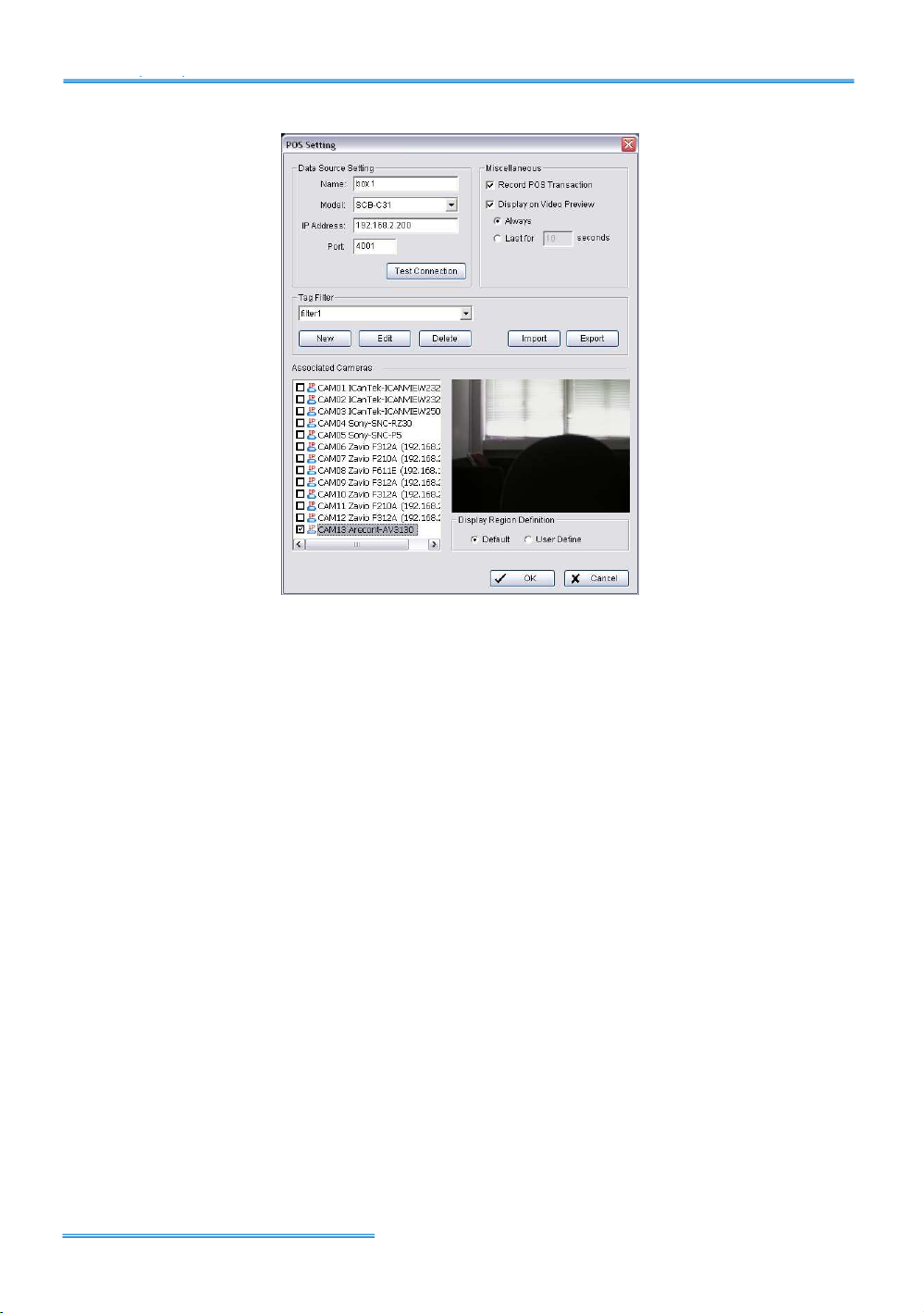
To Insert a POS devi e
1. Cli k the Insert button to open the POS Setting window
2. Configure data sour e info, in luding Name, Source Type, IP
address and Port.
3. After setting, li k Test Connection to test POS devi e onne tion. If
all the settings are orre t, the system will popup “POS “name (IP)”
is available” message to onfirm the setting is su essful.
POS Tree
POS Info
Associated Camera
Intelligent Surveillan e Solution
System Setup
page-9
4. Setup Mis ellaneous options, in luding Record POS Transaction and
Display on Videos Preview.
a. Re ord POS Transa tion:
Sele t this he kbox to re ord POS transa tion data and to
transfer into MS database. The MS data will allow sear hing and
display on asso iated re ording video, and the MS data files
an also provide third-party appli ation to analysis.
b. Display on Video preview:
Sele t this he kbox to display POS transa tion data overlay on
asso iated amera live videos.
Two types of transa tion data display time: Always means keep
transa tion data on video until re eiving next transa tion data.
Last for 10 se onds means ea h transa tion data only last on
video for 10 se onds.
5. Sele t Tag Filter (refer to Tag Filter se tion on on page 10).
6. Enable he kbox to sele t ameras desired to be displayed with
POS transa tion data overlay on live video.
7. In Display Region Definition option, setup display area for ea h
amera video.
a. Default: The default display area is below the amera OSD.
b. User Define: Right- li k on video preview and drag re tangle to
define display area.
8. Cli k OK to save.
Altri manuali per SCB-C31A POS
3
Indice
Altri manuali NUUO Hardware per computer

Manuali Hardware per computer popolari di altre marche

EMC2
EMC2 VNX Series Manuale del proprietario

Panasonic
Panasonic DV0PM20105 Manuale utente

Mitsubishi Electric
Mitsubishi Electric Q81BD-J61BT11 Manuale utente

Gigabyte
Gigabyte B660M DS3H AX DDR4 Manuale utente

Raidon
Raidon iT2300 Manuale utente

National Instruments
National Instruments PXI-8186 Manuale utente


