
Oce OP1030 Manuale utente

1.1.1.
Océ OP1030/1040/1050
Network Fax
Operations Guide
Education Services
Océ
Operations Guide
Englishversion

i
About this On-Line Manual
This On-Line Manual explains the setting procedures required in order to use the Network FAX functions when the Printer/
Scanner Kit* and Fax Kit are installed in your machine. It is recommended that you also read the corresponding Operation
Guide as well.
This manual is prepared as a PDF (Portable Document Format) file, so Adobe Acrobat Reader version 4.05 or later must be
installed on your computer if you want to read the manual without the provided CD-ROM. If you do not already have the
appropriate Adobe Acrobat Reader software, it is recommended that you install it from the CD-ROM.
* In the case of the KM-C850, this is a Scanner Kit.
IMPORTANT!
The use of Adobe Acrobat Reader implies agreement to the terms of use as stipulated by Adobe Systems Incorporated.
Trademark Information
• Microsoft, Windows, Windows NT and Internet Explorer are registered trademarks of Microsoft Corporation of the United
States and other countries.
• Windows Me and Windows XP are trademarks of Microsoft Corporation.
• Ethernet is a registered trademark of Xerox Corporation.
• IBM and IBM PC-AT are trademarks of International Business Machines Corporation.
• Adobe and Acrobat are registered trademarks of Adobe Systems Incorporated.
All other company and product names contained in this On-Line Manual are trademarks or registered trademarks of their
respective companies. The designations ™ and ® will not be used in this manual.
Operating Environment
The Network FAX functions are compatible for use under the following operating environments:
• Hardware ... IBM PC-AT compatible computer
• Interface ... 10BASE-T or 100BASE-TX
• Operating system ... Windows NT 4.0 (Server, Workstation) + SP5 or later,
Windows 2000 (Professional, Server, Advanced Server),
Windows 98 (Second Edition), Windows 95 (OSR2 or later),
Windows Me and Windows XP
The screen shots used in this On-Line Manual are compiled from Windows XP. The actual displays on your computer may
differ depending upon your particular operating system.

ii
Included Utilities
The following utilities are contained on the provided CD-ROM. In order to use the related Network FAX functions, it is
necessary to follow the appropriate procedure and install the corresponding utility on your computer.
Network FAX Driver
This software allows you to send documents created on your computer to the Printer/Scanner Kit* in this machine, which
converts them to the appropriate format, transfers them to Fax Kit which then transmits them to the other fax machine.The
Network FAX Driver must be installed on the computer from which you want to send the documents.
Address Book for Network FAX
This utility is the address book that needs to be installed on the computer from which you want to send documents. The
Address Book for Network FAX allows you to create and use your own personal fax destination list for sending documents
directly from your computer. It is also possible to import and use CSV-formatted address data that has been created with
other software.
Scanner File Utility
Documents sent from the other fax machine can be received by the Fax Kit in this machine and, once the Printer/Scanner
Kit* is installed, the received documents will be converted to an image file and can be sent to and saved in a folder that is
designated in the Scanner File Utility. Because the Scanner File Utility must be running in order to receive the incoming
data, it is recommended that you install it on a computer that is generally up and running on the network (referred to as the
“Server Computer” in this manual).
* In the case of the KM-C850, this is a Scanner Kit.

iii
Outline of the Network FAX Functions
The Network FAX functions allow you to send and receive fax documents between computers on your LAN network and the
other fax machines.In addition, if you use the Address Book, you can register individual destinations, or multiple destinations
as an individual group, in advance.
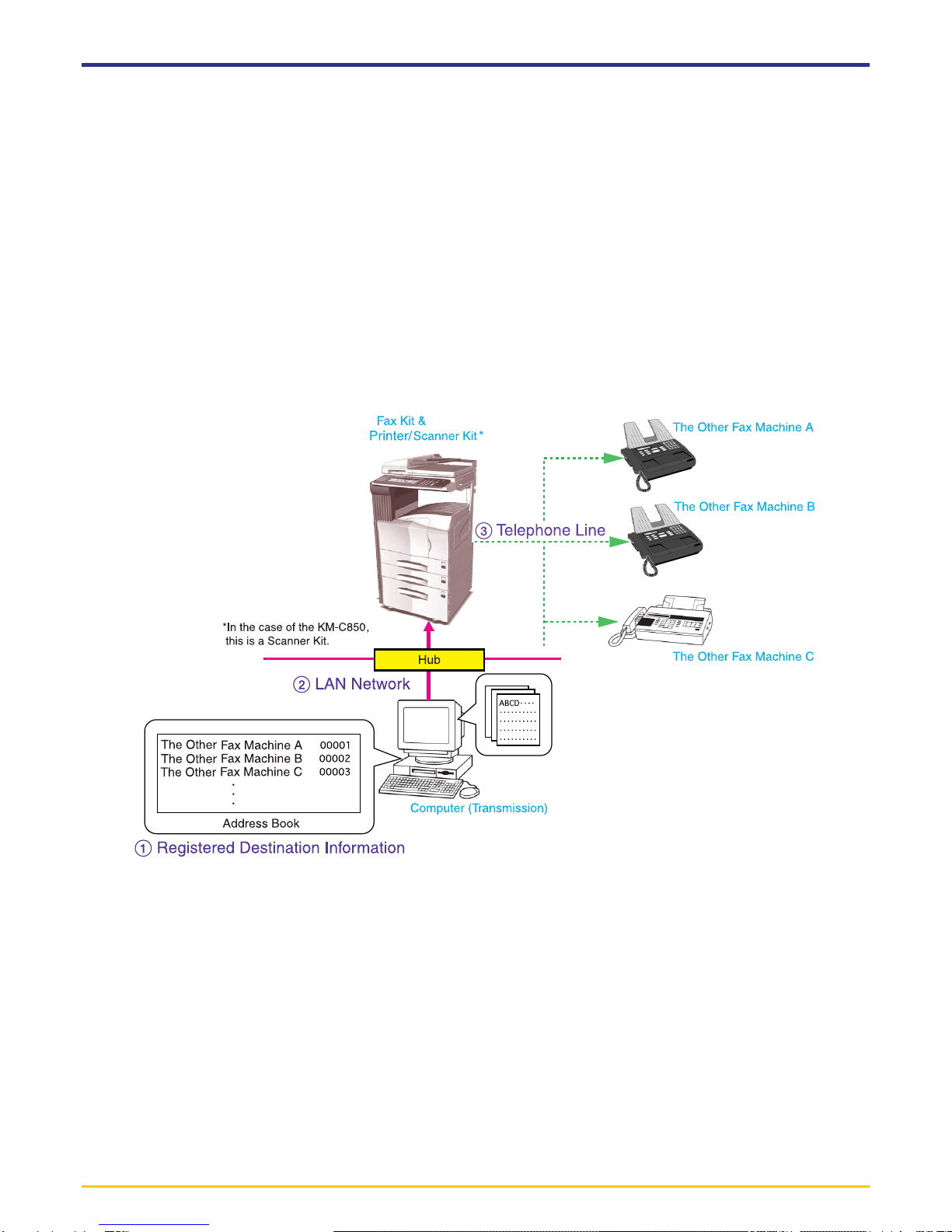
●Transmission function
1. Documents are sent as image data from a network computer over the LAN network to this fax machine.
2.Those documents are sent over the telephone line as a
fax transmission from this fax machine to the other fax
machine.
●Reception function
1. Documents are sent over the telephone line as a fax transmission from the other fax machine to this fax machine where
they are converted into PDF or TIFF file data.
2. That data is sent from this fax machine over the LAN network to the Server Computer.
3. The file is saved on the Server Computer.
iv
●Address Book
1. Information for individual destinations (or a group of destinations) is registered in the Address Book software on the
computer from which you want to send documents.
2. The destination for sending documents using the Network FAX function is selected from this Address Book.
3. The documents are then sent as image data from a network computer over the LAN network to this fax machine.
4. Those documents are sent over the telephone line as a fax transmission from this fax machine to the other fax machine
based on the selected destination information. If multiple destinations are registered as a group, the documents will be
broadcast to all of those destinations.
Outline of the Network FAX Functions

v
About this On-Line Manual................................................................................... i
Trademark Information ......................................................................................... i
Operating Environment ........................................................................................ i
Included Utilities .................................................................................................. ii
Outline of the Network FAX Functions ............................................................... iii
Section 1 Installing the Corresponding Software .. Page 1-1
1-1 Installing the Network FAX Driver ................................................... Page 1-1
●Registering the Machine’s IP address................................................................................... 1-2
●Uninstalling the Network FAX Driver ..................................................................................... 1-4
1-2 Installing the Address Book for Network FAX ................................. Page 1-5
1-3 Installing the Scanner File Utility ..................................................... Page 1-6
Section 2 Sending a Fax ........................................... Page 2-1
2-1 Main Transmission Functions.......................................................... Page 2-1
(1) Delayed Transmission ......................................................................................................... 2-1
(2) F-Code Based Communication ........................................................................................... 2-2
(3) Concurrent Print .................................................................................................................. 2-2
(4) Save Transmitted Original ................................................................................................... 2-2
(5) Attaching a Cover Page ....................................................................................................... 2-3
(6) Restricted Access ................................................................................................................ 2-3
2-2 Basic Transmission ......................................................................... Page 2-4
2-3 Fax Setting Tab ............................................................................... Page 2-6
2-4 Default Setting Dialogue Box .......................................................... Page 2-7
(1) Sending Options Tab ........................................................................................................... 2-7
(2) Sender Information Tab ....................................................................................................... 2-9
(3) Machine Setting Tab .......................................................................................................... 2-10
(4) Restricted access Tab ....................................................................................................... 2-11
2-5 Various Settings in the TX Setting Dialogue Box .......................... Page 2-12
(1) Selecting a Destination from the Address Book ................................................................ 2-12
(2) F-Code Based Communication ......................................................................................... 2-15
(3) Registering the Destination Information to be Added to the Cover Page .......................... 2-16
(4) Optional Settings ............................................................................................................... 2-18
(5) Transmitting Terminal Information Data ............................................................................. 2-19
(6) Machine Settings ............................................................................................................... 2-20
2-6 Transmission Control .................................................................... Page 2-21
Contents

vi
Section 3 Receiving a Fax ........................................ Page 3-1
3-1 Summary of Delivery Settings......................................................... Page 3-2
3-2 Starting the Scanner File Utility....................................................... Page 3-4
3-3 Setup Dialogue Box ........................................................................ Page 3-5
3-4 Folder Setting Dialogue Box ........................................................... Page 3-6
3-5 Delivery Setting List Dialogue Box .................................................. Page 3-7
3-6 Delivery Setting Dialogue Box....................................................... Page 3-10
3-7 Determining the Destination Folder .............................................. Page 3-13
3-8 When a notice of fax reception is sent .......................................... Page 3-13
3-9 Checking a Reception Notification Error ....................................... Page 3-14
3-10 Opening Received Faxes............................................................ Page 3-15
3-11 Deleting Received Faxes ............................................................ Page 3-16
Section 4 The Address Book .................................... Page 4-1
4-1 Registering Destination Information ................................................ Page 4-2
4-2 Registering Multiple Destinations as a Group ................................. Page 4-4
4-3 Address/Group Copy....................................................................... Page 4-6
4-4 Editing Individual and Group Destination Information ..................... Page 4-7
(1) Editing Information for an Individual or Group Destination .................................................. 4-7
(2) Editing Information for More than One Individual or Group Destinations ............................ 4-8
(3) Search/Replace the Contents of a Particular Entry Item .................................................... 4-9
4-5 Deleting Individual and Group Destination Information................. Page 4-10
4-6 Importing Address Data................................................................. Page 4-10
(1) Importing FDT Files ........................................................................................................... 4-10
(2) Importing CSV Files........................................................................................................... 4-11
4-7 Exporting Address Data ................................................................ Page 4-13
Section 5 Specifications ........................................... Page 5-1
Contents

Page 1-1
Section 1
Installing the Corresponding Software
1-1 Installing the Network FAX Driver
1. Insert the provided CD-ROM into the CD-ROM drive of the computer in which you want to install the Network FAX Driver.
The set-up screen will appear automatically.
* If the set-up screen does not appear, start the appropriate software manually from the CD-ROM.
2. Read the conditions of use and then click the Pbutton.
3. Click on Network FAX Drivers in the main menu.
4. Click once again on Network FAX Drivers.
5. Follow the instructions in the installation wizard to continue the installation procedure.

Page 1-2
2. Right-click on the name of the machine that you want to use as the Network FAX and select Printing Preferences... from
the resulting dropdown menu. The Printing Preferences dialogue box will appear.
* To open the Properties dialogue box under Windows 98 and so on, click on Start in the Windows Task Bar and then
select Settings and Printers. Right-click on the name of machine that you want to use as the Network FAX and select
Properties from the dropdown menu. Click on the FAX Setting tab in order to display its contents.
1-1 Installing the Network FAX Driver
●Registering the Machine’s IP address
Once you have installed the Network FAX Driver, perform the following procedure to register the IP address of the
machine that you want to use as the Network FAX.
* The following procedure is explained as though it is being carried out in Windows XP. If you are using another
operating System, use this procedure simply as reference.
1. Click on Start in the Task Bar and then select Control Panel, Printer and other Hardware and then Printers and
Faxes in that order from the successive menus in order to access the Printers and Faxes dialogue box.
(This screen-shot is for when the KM-5035 is installed.)
(This screen-shot is for when the KM-5035 is installed.)

Page 1-3
3. Click on the FAX TX Setting... button in order to access the Default Setting dialogue box.
4. Click on the Machine Setting tab in order to display its contents.
5. In the Network FAX Address area, enter the IP address, or host name, of the machine that you want to use as the
Network FAX.
NOTE: The IP address/host name that you enter here must be the same as that registered in the scanner default settings
of the machine itself. (Refer to "2. Set-up" in the Operation Guide for your Network Scanner.)
1-1 Installing the Network FAX Driver
6. Click on the OK button.
Sample screen-shot of the
scanner default setting window
Altri manuali per OP1030
5
Questo manuale è adatto per i seguenti modelli
2
Indice
Altri manuali Oce Fax


