
Onda WiFi Extender Manuale utente
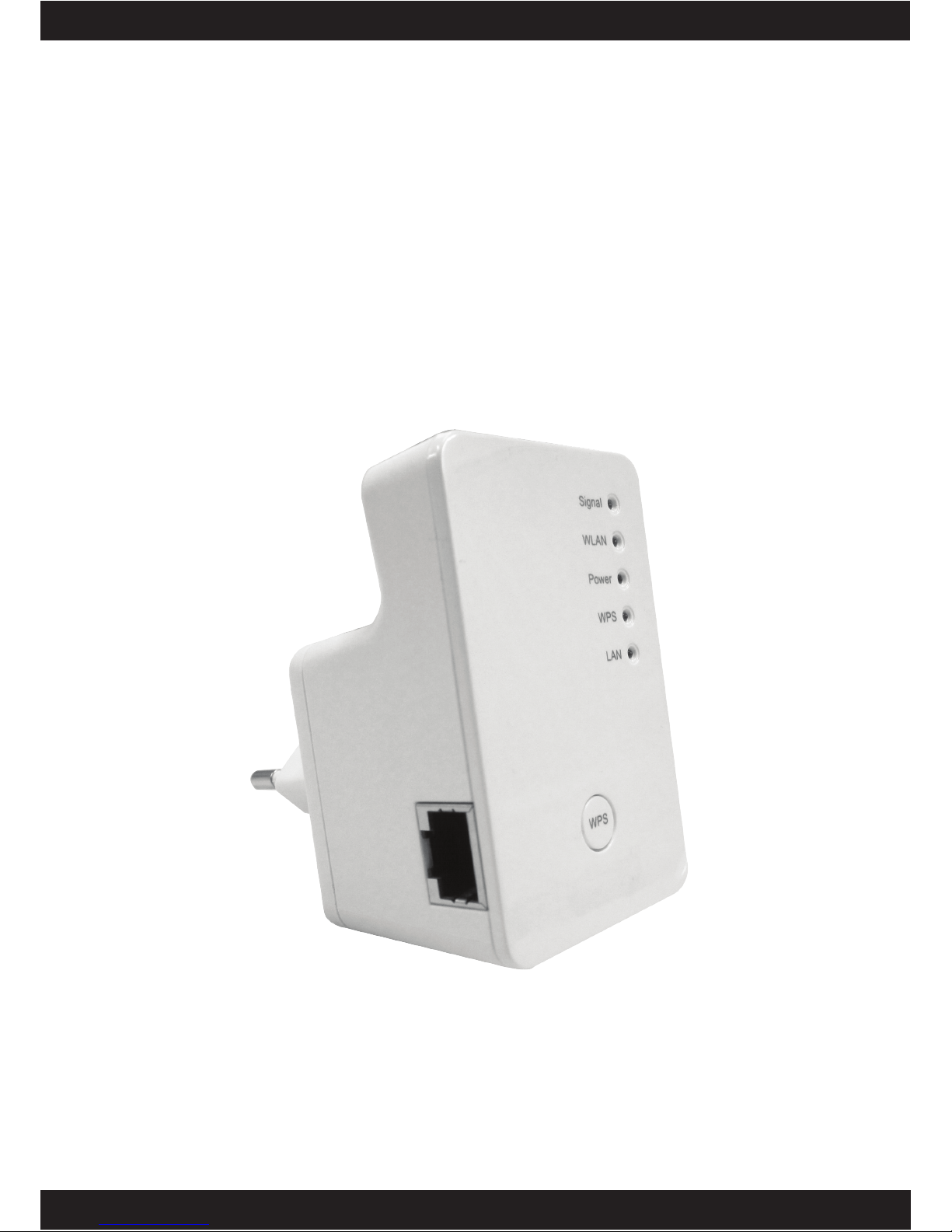
ONDA WiFi EXTENDER
ONDA WiFi Extender
User Manual

ONDA WiFi EXTENDER
C A T A L O G
Chapter I: Product Information ...................................................................... 1
1-1 Introduction and safety information ................................................................1
1-2 Safety Information...........................................................................................2
1-3 System Requirements ......................................................................................3
1-4 Package Contents.............................................................................................4
1-5 Familiar with your new wireless repeater........................................................5
CHAPTER II: Repeater mode.................................................................................8
2-1 Repeater mode Quick Installation Guide.........................................................8
2-1-1 Hardware WPS button setup ................................................................10
2-1-2 Web browser quick setup .....................................................................13
2-2 Repeater mode Advanced Settings ................................................................17
2-2-1 Setup IP address ...................................................................................17
Windows XP IP address setup:.............................................................17
Windows Vista/7 IP address setup:.......................................................18
2-2-2 Connect to web configuration menu ....................................................20
2-2-3 Home....................................................................................................22
2-2-4 WPS Setting .........................................................................................24
2-2-5 Advanced Settings................................................................................27
2-2-6 MAC Address Filtering........................................................................31
2-2-7 System Utility ......................................................................................38
CHAPTER III: Client mode ....................................................................... 44
3-1 Client mode Quick Installation Guide ...........................................................44
3-1-1 Hardware WPS button setup ................................................................46
3-1-2 Web browser quick setup .....................................................................49
3-2 Client mode Advanced Settings.....................................................................52
3-2-1 Setup IP address ...................................................................................52
Windows XP IP address setup:.............................................................52
Windows Vista/7 IP address setup:.......................................................53
3-2-2 Connect to web configuration menu ....................................................55
3-2-3 Home....................................................................................................56
3-2-4 WPS Setting .........................................................................................57
3-2-5 Advanced Settings................................................................................60
3-2-6 System Utility ......................................................................................63
CHAPTER IX: AP mode............................................................................. 69
4-1 AP mode Quick Installation Guide ................................................................69

ONDA WiFi EXTENDER
4-1-1 Hardware WPS button setup ................................................................71
4-1-2 Web browser quick setup .....................................................................73
4-2 AP mode Advanced Settings..........................................................................77
4-2-1 Setup IP address ...................................................................................77
Windows XP IP address setup:.............................................................77
Windows Vista/7 IP address setup:.......................................................78
4-2-2 Connect to web configuration menu ....................................................80
4-2-3 Home....................................................................................................81
4-2-4 WPS Setting .........................................................................................83
4-2-5 Advanced Settings................................................................................86
4-2-6 MAC Address Filtering........................................................................90
4-2-7 System Utility ......................................................................................97
Chapter X: Appendix................................................................................. 105
5-1 Configuring TCP/IP on PC..........................................................................105
5-2 Specification ................................................................................................109
5-3 Glossary....................................................................................................... 110

ONDA WiFi EXTENDER
1
Chapter I: Product Information
1-1 Introduction and safety information
Thank you for purchasing this mini 802.11b/g/n wireless repeater!
The ultra-compact design with power built-in allows you to install this
repeater everywhere, and still providing excellent network performance
to extend the Wi-Fi signal and wireless coverage.
Other features of this wireless repeater including:
Extend the wireless signal inside your home or office.
Ultra-compact design while maintaining excellent network
performance.
LED signal indicator to easily realize the best location placement
to extend WiFi signal and secure better wireless performance.
The device can support Repeater mode, AP mode and AP client
mode
Hardware switch button for user to change operation mode
quickly without logging into web firmware.
WPS (Wi-Fi Protected Setup) hardware button for easy
installation and secure wireless security.

ONDA WiFi EXTENDER
2
1-2 Safety Information
In order to keep the safety of users and your properties, please follow the
following safety instructions:
1. This wireless repeater is designed for indoor use only. DO NOT expose
this device to direct sun light, rain, or snow.
2. DO NOT put this at or near hot or humid places, like kitchen or
bathroom. Also, do not left this Wireless repeater in the car in summer.
3. Do not allow kids to put any small parts of this wireless repeater in
their mouth, and it could cause serious injury or could be fatal. If they
throw this wireless repeater, it will be damaged. PLEASE KEEP THIS
WIRELESS REPEATER OUT THE REACH OF CHILDREN!
4. This Wireless repeater will become hot when being used for long time
(This is normal and is not a malfunction). DO NOT put the Wireless
repeater on a paper, cloth, or other flammable objects after the Wireless
repeater has been used for a long time.
5. There’s no user-serviceable part inside the Wireless repeater. If you
found that the Wireless repeater is not working properly, please contact
your dealer of purchase and ask for help. DO NOT disassemble the
Wireless repeater by yourself, warranty will be void.
6. If the Wireless repeater falls into water, DO NOT USE IT AGAIN
BEFORE YOU SEND THE CARD TO THE DEALER OF PURCHASE
FOR INSPECTION.

ONDA WiFi EXTENDER
3
1-3 System Requirements
Wireless network card which is compatible with 802.11b/g/n wireless
network standard.
Windows 2000, 2003, XP, Vista, or Windows 7 operating system
CD-ROM drive
At least 100MB of available disk space

ONDA WiFi EXTENDER
4
1-4 Package Contents
Before you start to use this wireless repeater, please check if there’s
anything missing in the package, and contact your dealer of purchase to
claim for missing items:
□Wireless Repeater (1 pcs) …………………………..…………… 1
□Quick Installation Guide (1 pcs) …………………………………. 2
□User Manual CDROM (1 pcs) …………………………………… 3
ONDA WiFi EXTENDER
5
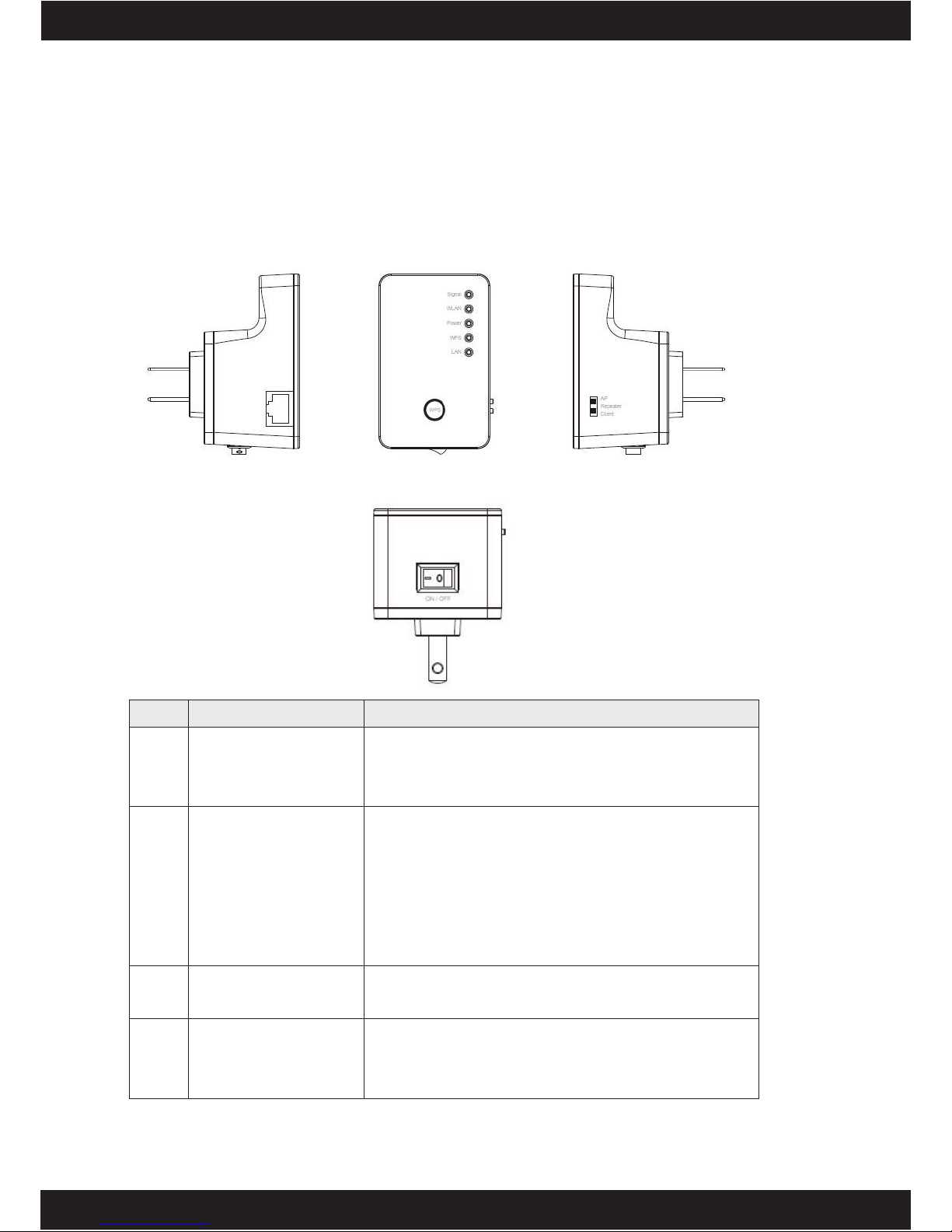
1-5 Familiar with your new wireless repeater
Interface Descriptions
Item
Item Name
Description
A
LAN
10/100M Ethernet LAN Port with
Auto-MDI/MDI-X. Connecting to computer,
switch or hub for local network sharing.
B
Reset / WPS
Reset the repeater to factory default settings
(clear all settings) or start WPS function.
Press this button and hold for 10 seconds to
restore all settings to factory defaults, and
press this button for less than 5 seconds to
start WPS function.
C
AP/Repeater/Client
Switch the button to change operating mode
to Access Point or Repeater or Client mode.
D
ON/OFF
This is power on/off slide switch. If you want
to switch off the repeater, switch it to Off
mode.
A
B
C
D
ONDA WiFi EXTENDER
6
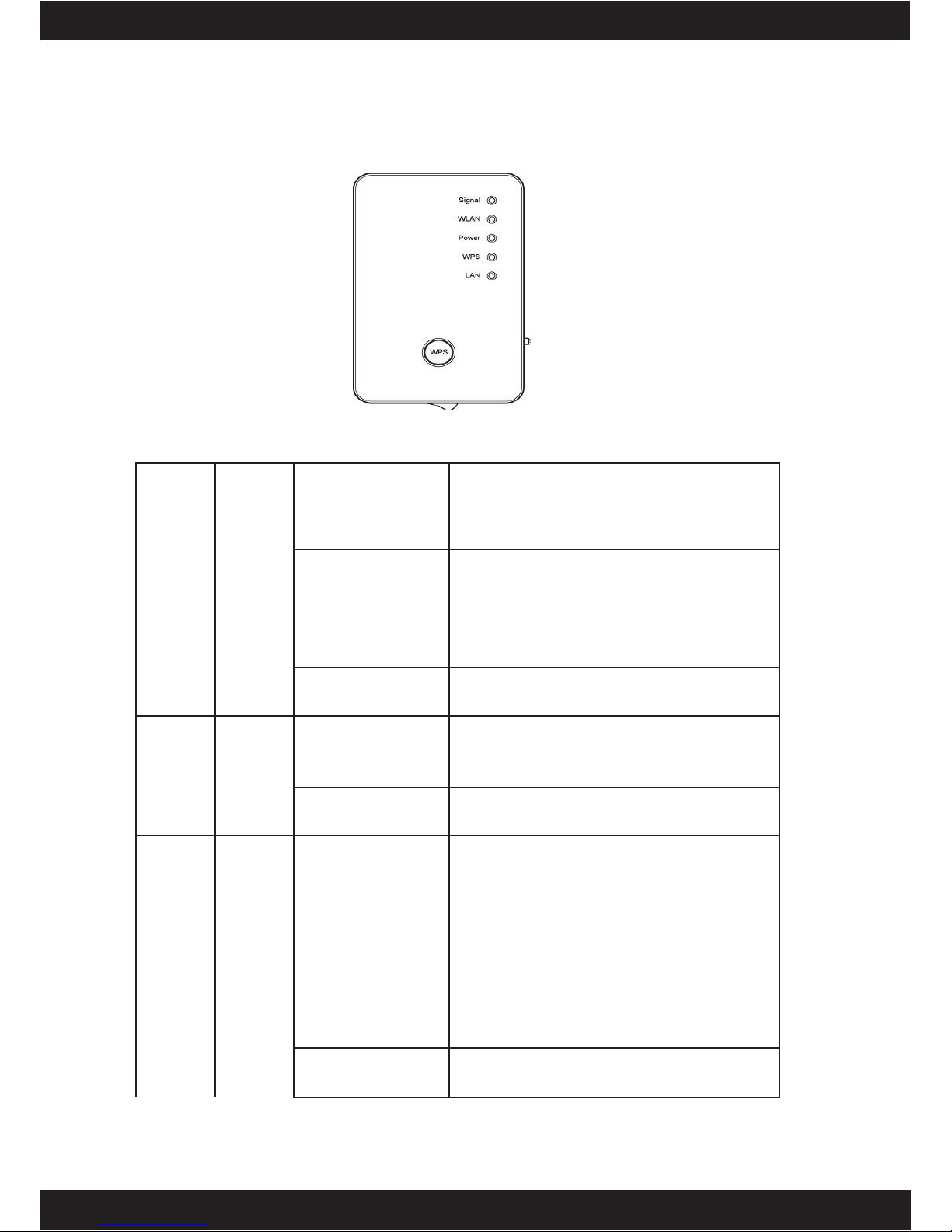
LED Definitions
LED
Color
LED Status
Description
Signal
Amber
Steady ON
Good signal reception (signal strength
100%~50%).
Blinking
Normal signal reception
Slow blinking (50%~25%)
Poor signal reception
Quick blinking (<25%)
Off
Out of signal or disconnected/ or LED
off mode.
WLAN
Green
Blinking
Connect to wireless Router/or AP,
wireless function is active (transferring
or receiving data)
Off
Wireless network is switched off/ or
LED off mode.
Power
Green
Steady ON
Power is turned on.
In LED off mode. (except power LED
is on, other LEDs are off *)
*If user selects to enable “LED OFF
mode”, power LED On/Off depends on
user’s selection, user can select to
leave only power LED on or turn off all
LEDs including this power LED.
Slow Blinking
Ready for “Reset to factory default”,
power LED is blinking.
ONDA WiFi EXTENDER
7
Off
power is turned off.
WPS
Green
Steady ON
When WPS connection is successful,
turn on for 5 minutes.
Blinking
WPS is in progress of waiting another
WPS device’s connection, blinking (0.2
second on, 0.1 second off) for 2
minutes.
Quick blinking
WPS error, blinking (0.1 second on, 0.1
second off)
Off
NO WPS is in progress/ LED off mode
LAN
Green
Steady ON
LAN port is connected.
Blinking
LAN port is active (transferring or
receiving data).
Off
LAN port is not connected/ or LED off
mode
Indice


