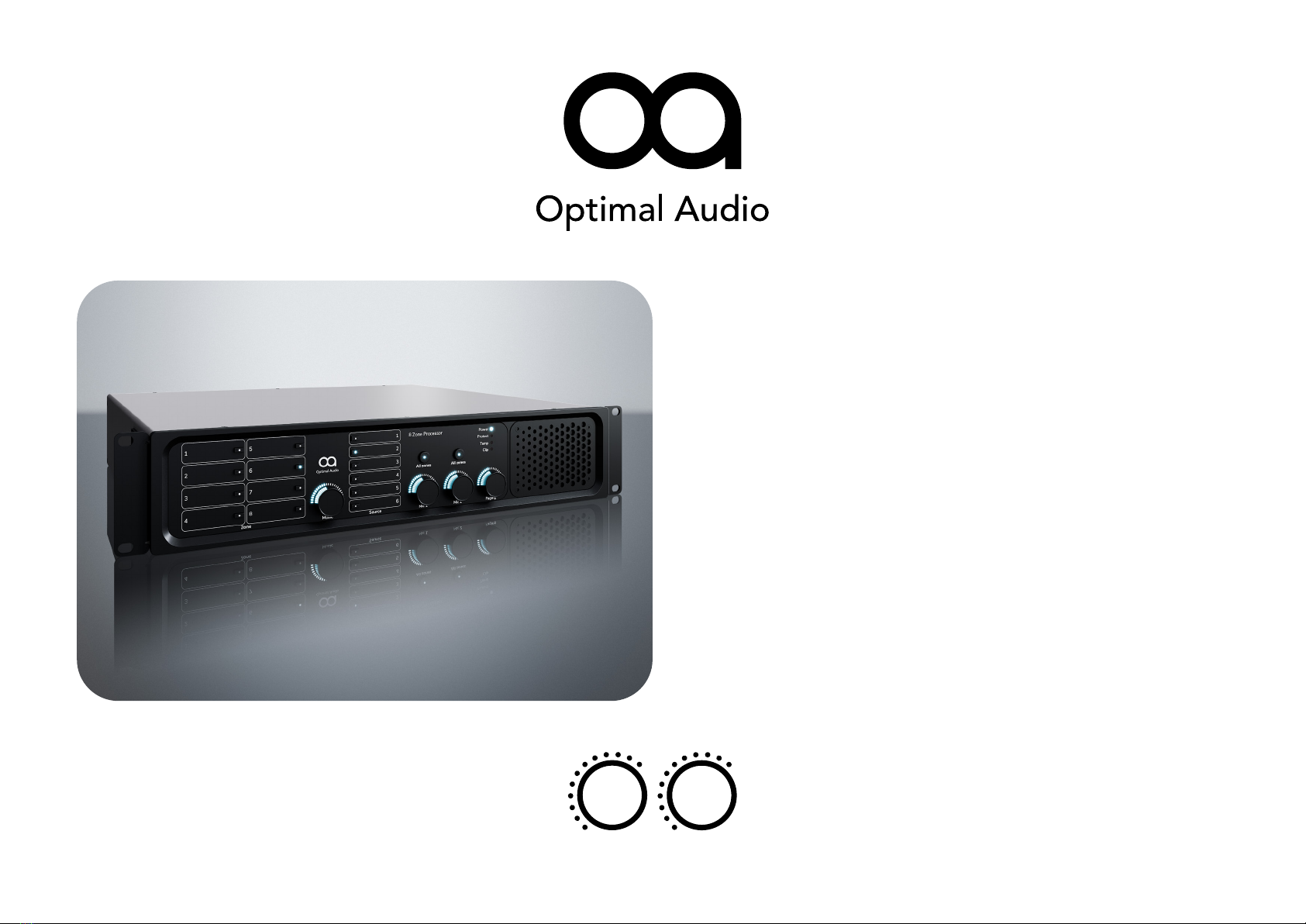
Optimal Audio Zone 8 Manuale utente

Controllers
Zone 8 & 8P
8 zone audio controller with DSP and WebApp
USER GUIDE
>

Contents
2/22
Zone 8 & 8P
8 zone audio controller with DSP and WebApp
Controllers
USER GUIDE
© 2023. Optimal Audio Group Ltd. (v1.3)
>
<
Contents
Introduction
Updating
Firmware
Overview
Front Panel
Rear Panel
Microphone
Inputs
Line Inputs
Cables / Circuits
Connecting
Balanced Audio
Connecting
Unblanced Audio
Connectiong
Laptops
Connecting
AV
Line Outputs
Loudspeaker
Outputs
Speaker
Connections
ZonePad
Paging Stations
Alarm Override
Specications
Safety

The Optimal Audio range of
compatible audio zoners, ampliers
and loudspeakers are designed to
work together simply and effectively.
Our quick start guides will take you
through the simple connection and
set up procedure.
Zone 8 and 8P are powerful and
exible audio signal routers and
processors that are the heart of your
system. They have been designed
to be easy to set up and operate,
even if you have very little previous
experience of similar equipment.
With Zone 8 and 8P it is possible
to combine audio sources such as
streaming services, radio, computer
audio or anything with an audio
output and create separate mixes in
up to eight separate zones. Zones
can be thought of as different rooms
or areas where you would want
to establish a different musical
ambience. For ideas on how this
might work for you, be sure to check
out our Optimal Audio Application
examples on optimal-audio.co.uk
This quick start guide will help you
get up and running as quickly as
possible, with minimum fuss, and
ensure you get the best results from
your system.
Congratulations on your choice of Optimal Audio
for your latest sound system installation.
Helpful Tip
Prior to installation of Zone, please check for latest
firmware update.
https://optimal-audio.co.uk/support/software
3/22
Zone 8 & 8P
8 zone audio controller with DSP and WebApp
Controllers
USER GUIDE
© 2023. Optimal Audio Group Ltd. (v1.3)
>
<
Contents

BEFORE POWERING ON THE UNIT
Before setting up Zone via WebApp for the rst time it is important to ensure
that the unit is running the latest rmware.
The instructions below apply to any computer operating system.
• Extract the SD Card from the rear of the Zone unit by gently pushing it in. If
your laptop or desktop has a slot for an SD Card, insert the Optimal Audio
branded SD Card until it latches. If you do not have a suitable SD Card slot,
you will need to use a USB SD Card adapter. These are readily available.
• Go to the software download page https://optimal-audio.co.uk/support/software/
and download the Zone Bundle containing the latest rmware.
• Copy this le, system.bundle to the SD Card – place it in the root directory of
the SD Card. Do not place it in a folder.
• Once copied, safely remove the SD Card from the reader and place it back in
the slot on the rear of your Zone.
• Connect to your network (see page 5).
• Connect Zone to power – and the update process will start automatically.
• On the front panel, the power light will show blue – the unit is checking the
SD Card and it will icker as the bundle is unpacked.
• If the rmware on the card is new, the unit will update – the light will ash
orange.
• Once the rmware is up to date, the light will turn green, indicating that Zone
is booting up. This takes between 20 – 30 seconds.
• Flashing green indicates searching for an IP address.
• If the network connection is good and the unit has a suitable IP address, the
indicator will turn white and the remining front panel lights will illuminate.
• Your rmware is now updated and you are ready to launch WebApp.
Updating firmware
Light Colour Mode Zone Status User Action
Power
Blue Solid Unit startup
Wait.
If no SD card is present, the unit will not boot
and will show a continuous blue light.
Blue Flashing
The unit is unpacking a
system bundle le onto
the SD card
Wait
Orange Flashing Updating rmware Wait
Green Solid Booting up
Wait.
Once booted and the front panel controls are
showing, if the unit is being used without a
network a solid green light will show.
Green /
White Flashing
The FUNC button was
held at startup - a
network change is taking
place
See page 5
Green Flashing Searching for IP address Wait
White Solid
Unit on, network
connection good, IP
address assigned
Ready to use
Red Solid Software fault The unit has encountered an unrecoverable
error. Please contact support.
Protect Red Solid
System fault – audio will
not pass on affected
channel
Power down, investigate fault
Temp Red Solid Unit is overheating Power down, clean fan lters
Clip Red Solid or
Flashing Audio signal overload
In WebApp, check sources and outputs
for excessive volume and turn down as
appropriate
4/22
Zone 8 & 8P
8 zone audio controller with DSP and WebApp
Controllers
USER GUIDE
© 2023. Optimal Audio Group Ltd. (v1.3)
>
<
Contents

All Zone products have the same input capacity across the range:
Four stereo line inputs allow the connection of sound sources such as streamers,
CD players, laptops or anything that has a stereo analogue audio output.
Two standard HDMI connectors provide simple stereo audio input connectivity
with audio-visual equipment such as DVD players, laptops and off-air TV
receivers.
Two microphone inputs with 48V phantom power.
Two inputs for future Optimal Audio paging stations, or to connect additional
ZonePad 4 wall controllers.
Zone 8 has eight mono line outputs – these can be congured as four stereos.
The Zone 8P also has eight integral channels of amplication.
Both models have the ability to accept connections with up to eight ZonePad 1
or ZonePad 4 wall-mounted controllers.
Helpful Tip
Network connectivity
For more information about WebApp and
network connectivity refer to the WebApp
user guide.
https://optimal-audio.co.uk/support/downloads/
Introducing Zone 8 & 8P
5/22
Zone 8 & 8P
8 zone audio controller with DSP and WebApp
Controllers
USER GUIDE
© 2023. Optimal Audio Group Ltd. (v1.3)
>
<
Contents

The zone selector buttons allow you to choose which zone of your system you
wish to adjust. There’s plenty of space for a label to make sure you know exactly
which part of the system you are controlling.
Once you have selected your zone, you can then choose a music source to be
routed to that zone.
The music level control will then allow you to adjust the level of your chosen
source, in your chosen zone.
In addition, the two microphone inputs have individual level controls to enable
your message to be heard at just the right volume in each zone. Select the zone
and adjust the relevant mic level control.
Should you wish to control the microphone levels in all zones at once, hit the
button above the knob for either Mic 1 or 2.
And nally, there is a volume control for the paging stations.
Front panel
Zone selectors Music source
selectors
Mics to all zones
selectors
System status
indicators
Music level control
for selected zone Mic level controls Paging level
control
Removable
fan lter cover
6/22
Zone 8 & 8P
8 zone audio controller with DSP and WebApp
Controllers
USER GUIDE
© 2023. Optimal Audio Group Ltd. (v1.3)
>
<
Contents

A standard IEC mains connector supplies the unit with AC power between 100
and 240 volts.
The ethernet socket allows you to connect Zone 8 and 8P to a router to give you
wired or wireless control via the Optimal Audio WebApp.
An alarm override ensures that any alarm system will mute all outputs via contact
closure.
Up to eight Optimal Audio ZonePad wall controllers are connected via standard
RJ45 connectors, using a proprietary Optimal Audio protocol to provide power,
data and audio over CAT 5 cable.
Zone 8 delivers audio to eight separate outputs. These audio outputs can be
routed to any zone via WebApp. For example, channel one, two and three could
be routed to left, right and mono sum for one zone. It supports up to 8 zones
allowing many combinations of zones and speakers as your installation requires.
Zone 8P differs from Zone 8 with the addition of eight loudspeaker outputs
with the ability to bridge channels via WebApp. For more information about the
outputs on Zone8P go to page 16.
The SD card provided with the unit stores all settings and system les. It must
always be present in the unit for correct operation. It can also be used to copy
system setup to another unit if you require a number of devices to perform very
similar functions or repeat system congurations across several venues.
Zone 8 and 8P have two inputs for future paging stations, again using Optimal
Audio proprietary protocol over standard CAT5 cable. These inputs can also be
used for additional ZonePad 4 units.
Two microphone inputs are provided, four stereo line inputs and two stereo
HDMI inputs and HDMI thru for video only output.
Rear panel
AC Power
In
Alarm Override
input
Microphone
input section
Ethernet
for LAN
Fan SD card Line input section
Paging
station
inputs
8 speaker
outputs
(Zone 8P only)
8 zone
line outputs
7/22
Zone 8 & 8P
8 zone audio controller with DSP and WebApp
Controllers
USER GUIDE
© 2023. Optimal Audio Group Ltd. (v1.3)
>
<
Contents

The two inputs are identical apart from the fact that the controls are laid out as a
mirror of each other.
Immediately adjacent to the input connectors are the mic input gain controls.
Correct gain adjustment for your microphone is essential to ensure good signal
control throughout your system. Generally speaking, dynamic microphones will
require more gain than condenser microphones.
The 48V Phantom Power button will allow you to use high-quality condenser
mics with Zone 8 and 8P. If you are using a condenser mic, engage Phantom
Power for your mic to function.
The next three controls are for setting a basic equalization for your mic input.
They are independent of any equalization in WebApp. These are useful for
tailoring your sound to a particular voice/microphone combination.
Use the High frequency control for increasing or decreasing sibilance, which can
help with intelligibility. The mid-range controls allow you to choose the frequency
around which you can boost or cut, between 200Hz and 5kHz. The lower mid
frequencies will affect warmth and muddy sounding voices, the middle range will
help to stop ‘boxiness’, and the higher frequencies will assist with intelligibility or
harshness.
Microphone inputs
Mic 1 EQ
Mid level High Frequency
Level
Microphone 1
input gain
Input section detail – mic inputs –
Input 1 only shown for clarity
(controls are repeated for mic input 2)
Mic 2 EQ
Mid Frequency 48v Phantom
Power
Microphone input
connector
8/22
Zone 8 & 8P
8 zone audio controller with DSP and WebApp
Controllers
USER GUIDE
© 2023. Optimal Audio Group Ltd. (v1.3)
>
<
Contents

Below the mic inputs are the connections for line inputs 1 – 4
These are where the outputs of your music sources will be plugged in to Zone 8.
They are all identical except for Line Input 1. All are stereo analogue inputs,
however Input 1 also has the option to use a standard SPDIF digital audio
connection, which will give you full stereo reproduction on a single cable when
connected with compatible equipment. This is clearly labelled and features an
orange phono socket. SPDIF signals are not suitable for cable lengths greater
than 10 metres.
Each input has a standard red and white coloured pair of RCA sockets for
connecting units which are placed locally to the Zone 8, such as a streamer in the
same equipment rack. These inputs are not suitable for connection of equipment
located remotely from the Zone 8 and 8P.
For the connection of more remote sound sources there are four stereo balanced
line inputs on Euroblock connectors. In all cases you should decide which you are
going to use before hooking up, and never use two different types of connection
at the same time on the same input.
To the right of the HDMI inputs are four gain trim controls for inputs 1 – 4. These
give you the ability to adjust the inputs to accept a signal from consumer level at
-10dBV to pro level +20dBu maximum.
Line inputs
Stereo line inputs 2-4
L/R analogue unbalanced RCA
Stereo line input 1
SPDIF digital or L/R analogue
unbalanced RCA
Stereo line inputs 1-4
L/R analogue balanced Euroblock
9/22
Zone 8 & 8P
8 zone audio controller with DSP and WebApp
Controllers
USER GUIDE
© 2023. Optimal Audio Group Ltd. (v1.3)
>
<
Contents

It is important to decide whether you are going to use the balanced or unbalanced
inputs. As a rule of thumb, unbalanced inputs should be used to connect sources that
are located close to your Zone unit – in the same equipment rack for example.
Longer cable runs are more susceptible to noise - using balanced inputs will
minimise unwanted noise.
In an unbalanced circuit, the signal is carried on a single conductor and the shield, or
ground. The shield is designed to help reduce interference, but if unwanted noise is
introduced on the single conductor, it is added to the signal and arrives at the input,
where it is seen as one and the same thing as the audio and will be heard as hum,
buzz or other noise.
Unbalanced circuits are generally ne for short cable runs, and are found on most
domestic and commercial AV equipment.
In a balanced circuit, the signal is sent on two conductors. The source sends the
signal and and an inverted signal. Any noise is induced equally on each conductor,
with the same polarity. On arrival at the input the two signals are summed and the
inverted signal has its polarity reversed – this cancels noise. The shield acts as just
that, to help minimise any induced noise.
Input Cables and Wiring
Unbalanced Circuits
Balanced Circuits
UNBALANCED CIRCUIT
Source
Signal
Noise
Input
Result
Shield
Source Signal
Noise
Input
Result
Shield
BALANCED CIRCUIT
10/22
Zone 8 & 8P
8 zone audio controller with DSP and WebApp
Controllers
USER GUIDE
© 2023. Optimal Audio Group Ltd. (v1.3)
>
<
Contents
Altri manuali per Zone 8
1
Questo manuale è adatto per i seguenti modelli
1
Indice
Altri manuali Optimal Audio Apparecchiature di registrazione
Manuali Apparecchiature di registrazione popolari di altre marche

Strymon
Strymon NIGHTSKY Manuale utente

Mitsubishi Electric
Mitsubishi Electric 16CH DIGITAL RECORDER DX-TL5000U Manuale utente

Tews Technologies
Tews Technologies TPMC465 Manuale utente

Honeywell
Honeywell Excel 50 Manuale utente

SeaLevel
SeaLevel COMM+8.LPCI Manuale utente

Arturia
Arturia AUDIOFUSE STUDIO Manuale utente