
Orbis ATC-810 Manuale utente
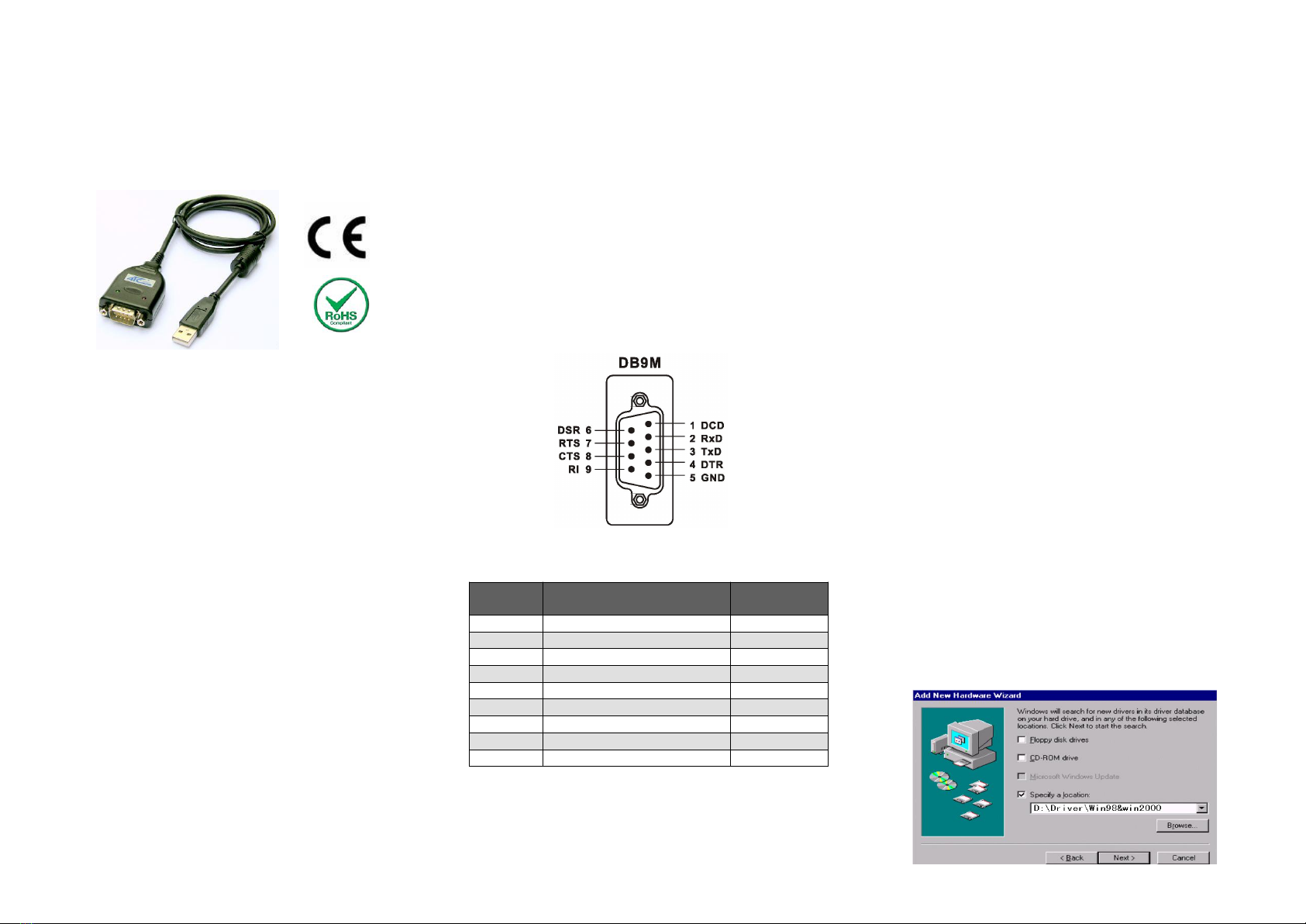
USB-High Speed Serial Converter
User’s Manual
Model ATC-810
Overview
Congratulations on your purchase of the ATC’s USB-high
Speed Serial Converter. This device provides a simple and
easy way to connect Universal Serial Bus (USB) and
Serial port interface. With the advantage of USB port,
users have the capability to utilize the peripheral with serial
port interface in an easy to use environment such as plug
and play & hot swap function. This adapter is designed for
ideal connections to Cellular Phone, Digital Camera,
Modems or ISDN terminal adapter with over 1Mbps data
transfer rate.
The USB-high Speed Serial Converter and software
drivers are capable of providing a no-firmware-change
feature that enable USB interface to be transparent to
serial port peripherals with minimum modifications.
Package Content
Hardware: USB-High Speed Serial Converter
Software: USB-High Speed Serial Converter
driver on CD-ROM
User’s Manual
Product Features
USB Specification Rev. 1.1,2.0 compliant
Support the RS232 Serial interface
Over 460Kbps data transfer rate
Support remote wake-up and power
management
DB9 male Pin Assignment: (Figure 1)
Figure 1
RS-232 Pinout (DB9 Male DTE)
PIN
Signal Name
RS-232
Signals
1
DCD (Data Carrier Detect)
Input
2
RXD (Receive Data)
Input
3
TXD (Transmit Data)
Output
4
DTR (DTE Ready)
Output
5
GND (Ground)
Ground
6
DSR (DCE Ready)
Input
7
RTS (Request to Send
Output
8
CTS (Clear to Send)
Input
9
RI (Ring Indicator)
Input
LED indication
Red LED ----- Data Sending From USB port to RS-232
Serial Port side
Green LED ----Data Receiving from RS-232 Serial port
side to USB port
System Requirements
IBM PC 486DX4-100 MHz CPU or higher or
compatible system
Available USB port
CD-ROM drive
Windows 98. Windows 2000 .Windows XP.Vista
Windows 7/8/10,Win CE or IMAG
Driver Installation
Follow the steps below to install driver of USB-High Speed
Serial Converter:
1. Power on your computer and make sure that the USB
port is enabled and working properly.
2. Plug in the USB-High Speed Serial Converter into the
USB port and run the Add New Hardware Wizard to
assist you in setting up the new device. Click Next to
continue.
3. Insert the USB-HS Serial Converter software driver
into the CD-ROM drive and click Next to continue. For
Windows 98, click Search for the best driver for
your device and click to search driver from the floppy
drive D:\DRIVER\Win98&Win2000.
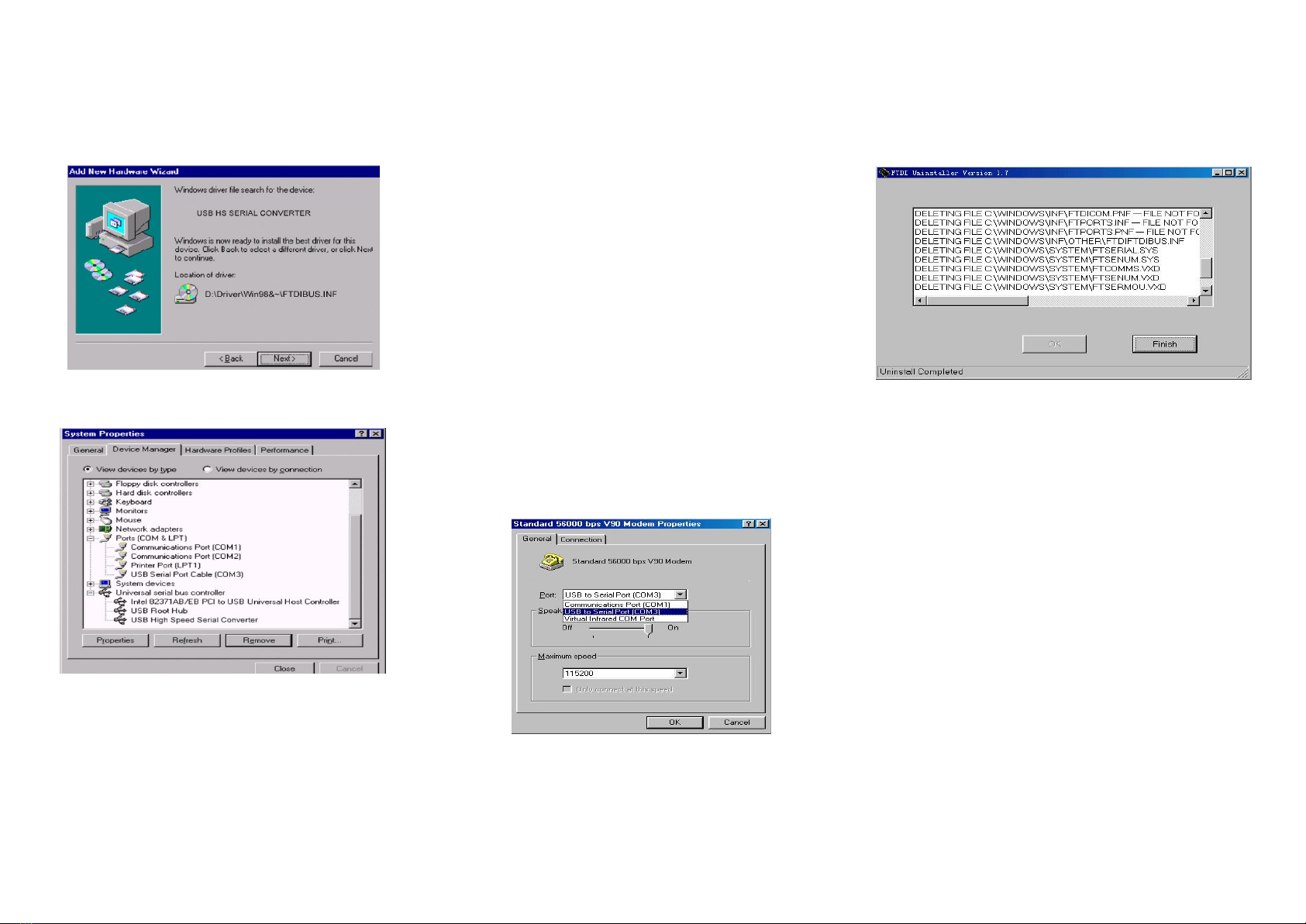
4. Windows will detect the driver (FTDIBUS.INF) and
shows the USB HS SERIAL CONVERTER. Click
Next to continue installation.
5. Click Next to continue and let Windows copy the
needed files to your hard disk.
6. When Windows finished installing the software
required for the new USB to Serial Cable, click Finish.
Setting Up the RS232 Serial Device
Follow the steps below to connect your RS232 Serial
Device (ie: Modem) to the USB port of your PC:
1. Turn off your Modem. Plug the DB 9 (or DB 25)
connector of the USB-HS Serial Converter into your
Modem. Connect the other end of the USB-HS Serial
Converter to an USB type A to type B cable. Turn on
the Modem afterwards.
2. Turn on your computer and plug in the USB connector
of the USB-HS Serial Converter into the USB port.
3. If you have already installed a Modem device before,
click Start, Settings, Modems. Open Modems
Properties, select the Modem, click Properties. In
General tab, please change the Port value to USB
Serial Port (COM3).
4. After finishing these processes, you can use USB to
Serial Bridge Cable to connect RS232 Serial 56K FAX
Modem and execute the Dial-up function to connect
Internet, and send the FAX with the FAX software(ie:
Microsoft FAX) properly.
Uninstalling the Driver Program
If you want to remove the USB-HS Serial Converter driver
program, you can uninstall it by following the steps below:
1. Unplug the USB-HS Serial Converter from your PC.
2. Run the D:\Driver\Win98&win2000\FTDIUNIN.EXE
program from the software CD-ROM, Click finish then
reboot the PC.
Disclaimer
Information in this document is subject to change without
notice. The manufacturer does not make any
representations or warranties (implied or otherwise)
regarding the accuracy and completeness of this
document and shall in no event be liable for any loss of
profit or any other commercial damage, including but not
limited to special, incidental, consequential, or other
damages.
No part of this document may be reproduced or
transmitted in any form by any means, electronic or
mechanical, including photocopying, recording or
information recording and retrieval systems without the
express written permission of the manufacturer.
All brand names and product names used in this document
are trademarks, or registered trademarks of their
respective holders.

FCC Statement
This device generates and uses radio frequency and may
cause interference to radio and television reception if not
installed and used properly. This has been tested and
found to comply with the limits of a Class B computing
device in accordance with the specifications in Part 15 of
FCC Rules. These specifications are designed to provide
reasonable protection against such interference in a
residential installation. However, there is no guarantee that
interference will not occur in a particular installation. If this
device does cause harmful interference to radio or
television reception, which can be determined by plugging
the device in and out, the user can to try to correct the
interference by one or more of the following measures:
Reorient or relocate the receiving antenna.
Increase the separation between the device and
receiver.
Connect the computer into an outlet on a circuit
different from that to which the receiver is connected.
Consult the dealer or an experienced radio/TV
technician for help.
Warranty
We warranty the equipment to be free from defects in
material and workmanship, under normal and proper use
and in its unmodified condition, for 3 year, starting on the
date it is delivered for use. Out of warranty equipment may
be returned to us. Return shipping charges will be
billed to the customer. The repaired unit will have
a 90-day warranty.
Questo manuale è adatto per i seguenti modelli
2
Altri manuali Orbis Convertitore multimediale


