
Oumax T2 Manuale utente

OUMAX
Smart Activity and Fitness Tracker T2
User Manual
Version 1.0

1
Tab le of Contents
Getting Started
Welcome----------------------------------------------------2
What’s included ------------------------------------------2
Device overview-------------------------------------------3
Mobile Devices Requirement -------------------------4
Charging the Battery ------------------------------------5
Installing the app--------------------------------------------7
Operating the app
Data recorder per day-----------------------------------9
Trend Screen ---------------------------------------------10
General Setting------------------------------------------11
Operating the T2
Turning the T2 on and off-------------------------------13
Connecting the T2 to a mobile devices--------------13
Activity Trackers-------------------------------------------15
Sleep Monitor ---------------------------------------------16
Smart Alarm------------------------------------------------16
Bluetooth Remote Camera-----------------------------17
Remind Features------------------------------------------18
Anti-Lost Mode--------------------------------------------18
Help and Troubleshooting-------------------------------19
Safely Statement-------------------------------------------26
Trademarks--------------------------------------------------29
Copyright-----------------------------------------------------29

2
Getting Started
Welcome
Congratulations on your purchase of the OUMAX T2,
This user manual will help you learn the basics of
using your device. Welcome to the world of OUMAX
wearable technology.
What’s included
Your OUMAX T2 Smart wireless activity and fitness
tracker box includes:
1pcs OUMAX T2 fitness tracker in black
2pcs Replacement colored bands in pink and blue
1pcs User Manual
1pcs USB cable
3
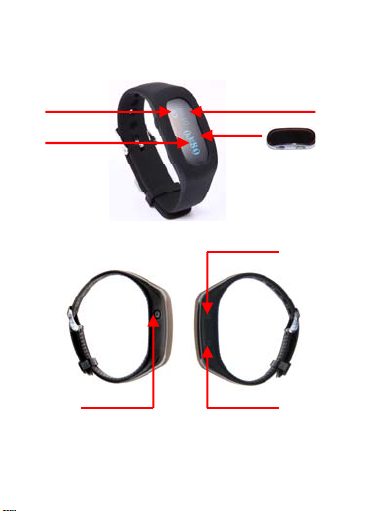
Device overview
Date
Battery
Mini USB Charger
Time
Enter Key Power Key
Back Key

4
Mobile devices requirement
The OUMAX T2 can sync directly to select iOS and
Android devices, compatible device models to be
further expanded
For iOS devices, please:
-Check that iOS version is 7.0 or higher
-Ensure your device’s Bluetooth is Bluetooth
4.0 and that it is enabled
-Ensure you’ve selected the proper app to
download and install
For Android devices, please:
-Check that Android version is 4.3 or higher
-Ensure your device’s Bluetooth is Bluetooth
4.0 and that it is enabled
-Ensure you’ve selected the proper app to
download and install
Note: Due to the Android platform’s diversity,
certain devices may not be working properly if not
match the above system requirement, please do
check above system requirement before using it

5
Charging the battery
Charge the battery for 2 hours before using the T2
for the first time. A computer can be also used to
charge the T2 by connecting them via the USB
cable. When you see the icon on T2
means fully charged
• When the battery power is low, the battery icon
appears empty.
• If the battery is completely discharged, the T2
cannot be turned on immediately when the charger
is connected. Allow a depleted battery to charge for
a few minutes before turning on the T2.
• It will take 1-1.5 hour for fully charged for
everyday use
Connecting the charger improperly may cause
serious damage to the T2. Any damage caused by
misuse is not covered by the warranty.
• If the T2 receives an unstable power supply while
charging, the device may not function. If this
happens, unplug the charger from the T2.
• While charging, the T2 may heat up. This is normal
and should not affect the T2’s lifespan or
performance. If the battery gets hotter than usual,

6
unplug the charger immediately.
• To save energy, unplug the charger when not in
use or turn off the device. The charger does not
have a power switch, so you must unplug the
charger from the electric socket when not in use to
avoid wasting power. The charger should remain
close to the electric socket and easily accessible
while charging.
About using battery
• Battery operating time is affected by device usage
patterns and the condition of the battery.
• The battery is a consumable item. Battery life can
be reduced when multiple applications or features
are running simultaneously. Also, even if the device
is not being used, battery life may be reduced.
• The battery is consumable and the useful charge
will get shorter over time.
• Battery power can also be affected when you play
high-definition video. The affects on battery power
may vary depending on the situation.

7
Installing the app
You can find the Move app on the iOS app store or
Google Play store by searching for “WristbandApp”
and select to download it or Scan below QR
code using any QR Code scanner

8
Operating the app
Start up
Tips:Please manually press sync button on your
application when you want to check your activity
data (T2 does not support auto sync currently)
Tab to sync
if already
connected with T2
Skip
9
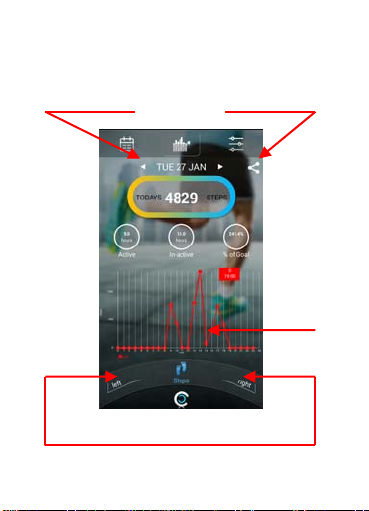
Data record per day
See the activity and sport data for everyday use
View the previous
day’s data
Share with
your friends
Daily
history
activity
data
Switch calories/steps/sleep
Indice


