
OutBack Power Mojave ESS Manuale utente

900-00280-01-001 Rev A
1
Mojave™ESS Power Supply
Installation Instructions
Purpose and Scope
These instructions detail how to install an AC-to-DC power supply in the Mojave™ Energy
Storage System (ESS). This power supply will enable firmware updates to the ESS battery.
The process for firmware updates is specified elsewhere and is not included here.
These instructions require familiarity with both the Mojave™ inverter and the ESS battery.
For more information, refer to the Mojave™ Inverter/Charger Quick Start Guide and the
Mojave™ ESS Operator’s Manual.
CAUTION: Hazard to Equipment
Make certain to remove all power to the Mojave™ ESS and any other equipment.
Follow all instructions included in this document.
CAUTION: Equipment Shutdown
This power supply must be installed before performing firmware updates to the ESS battery.
Failure to install it will result in complete shutdown of both the Mojave™ inverter and ESS battery.
Mojave™Chassis
OutBack Power has manufactured Mojave™ inverters with two different chassis. These can
be identified by the conduit knockout pattern. Follow the appropriate installation instructions.
Figure 1 Mojave™chassis types
If the knockouts appear in
the pattern shown in 1,
follow the instructions on
page 2.
1
If the knockouts appear in
the pattern shown in 2,
follow the instructions on
page 4.
2

2
900-00280-01-001 Rev A
©2022 Alpha Technologies Services, Inc. All Rights Reserved.
Power Supply
Chassis 1 Instructions
To install the power supply in Chassis 1:
1. Remove the inverter’s cover
as shown in Figure 2.
2. Attach the wiring kits to each end of the power supply
as shown in Figure 3.
The DC kit has a twisted pair of red and black wires.
The AC kit has a twisted pair of black and white wires.
Each connector is a unique size. Each is keyed
so that it cannot be installed in the wrong position.
3. Using a handheld voltmeter, test to ensure that the
system has less than 10 Vdc and less than 30 Vac on the
appropriate terminals. See Figure 4 on the next page.
In Figure 4, test the DC voltage on the bus bars at the
location designated DC.
In Figure 4, test the AC voltage on the terminals at the
location designated AC.
Figure 2 Remove cove
r
Figure 3 Wiring kits
900-00280-01-001 Rev A
3
Installation Instructions
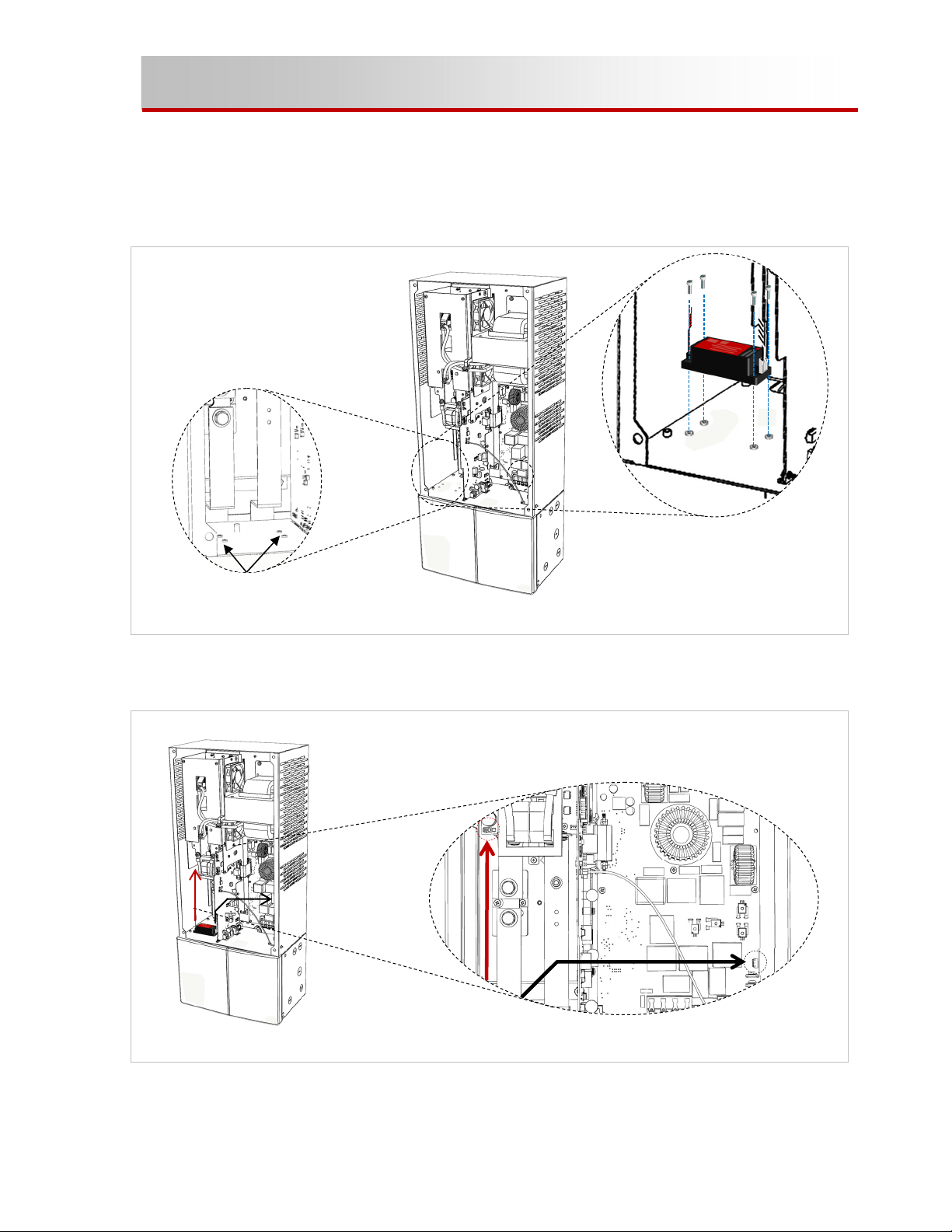
4. Mount the power supply as shown in Figure 4. Four PEM nuts are installed in the lower
left section of the chassis.
Orient the power supply so that the DC wiring is on the left, AC on the right.
Position the power supply over the PEM nuts. Using a #1 Phillips screwdriver, attach
the power supply with four M3 screws.
Figure 4 Mounting power supply (Chassis 1)
5. Wire the power supply as shown in Figure 5.
Route the wires around the components as necessary.
Figure 5 Wiring power supply (Chassis 1)
Installation is complete.
Replace all covers. Avoid pinching any wires during replacement.
PEM nuts
DC AC
Screws
Connect the DC wires to the port located at A.
Connect the AC wires to the port located at B.
A
B

4
900-00280-01-001 Rev A
©2022 Alpha Technologies Services, Inc. All Rights Reserved.
Power Supply
Chassis 2 Instructions
To install the power supply in Chassis 2:
1. Using a 5 mm hex (Allen) wrench, remove 4 screws from the inverter’s cover. Remove
the cover. See Ain Figure 6.
2. Open the wiring compartment door by pressing the latch at B. The door swings to the
right. Inside is a “dead front” which prevents accidental contact. To remove the dead
front, remove the two screws Cfrom the corners of the dead front. The dead front will
rotate forward from the top, but is slotted in place at the bottom. Remove the dead front
by pulling upward and out. See D.
Figure 6 Removing cover and dead front
3. Attach the wiring kits to each end of the power supply
as shown in Figure 7.
The DC kit has a twisted pair of red and black wires.
The AC kit has a twisted pair of black and white wires.
Each connector is a unique size. Each is keyed
so that it cannot be installed in the wrong position.
4. Using a handheld voltmeter, test to ensure that the
system has less than 10 Vdc and less than 30 Vac on the
appropriate terminals. See Figure 8 on the next page.
In Figure 8, test the DC voltage on the bus bars at the
location designated DC.
In Figure 8, test the AC voltage on the terminals at the
location designated AC.
A
B
C
C
D
Figure 7 Wiring kits

900-00280-01-001 Rev A
5
Installation Instructions
5. Mount the power supply as shown in Figure 8. Four mounting holes are located in the
lower section of the chassis.
Orient the power supply so that the DC wiring is on the left, AC on the right.
Position the power supply over the mounting holes. Using a #1 Phillips screwdriver
and 5.5 mm socket, attach the power supply with four M3 screws and nuts.
Figure 8 Mounting Power Supply (Chassis 2)
6. Wire the power supply as shown in Figure 9.
Route the wires around the components as necessary.
Figure 9 Wiring power supply (Chassis 2)
Installation is complete.
Replace all covers. Avoid pinching any wires during replacement.
Holes
Nuts
Screws
DC
AC
Connect the DC wires to the port located at A.
Connect the AC wires to the port located at B.
A
B

IMPORTANT
IMPORTANT:
This power supply is only intended to be connected for the firmware update process. Once
the update is complete, the wiring kits should be disconnected and removed.
Replace the wires in their original shipping bag (or a similar bag) and tape them to the
inside of the wiring compartment door.
The power supply may remain mounted in place for future updates.
Contact Information
Address: 3767 Alpha Way
Bellingham, WA 98226 USA
Telephone: +1.360.435.6030
Website: www.outbackpower.com
Copyright
© 2022 by Alpha Technologies Services, Inc. All Rights Reserved. Subject to revisions without notice. E. & O.E.
Trademarks
Trademarks and logos are the property of Alpha Technologies Services, Inc., EnerSys, and its affiliates unless
otherwise noted.
Date and Revision
June 2022, Revision A
Part Number
900-00280-01-001 Rev A
Indice
Altri manuali OutBack Power Alimentazione elettrica


