OWC Mercury Elite Pro Dual Guida

OWC Digital
Mercury Elite Pro Dual
ASSEMBLY MANUAL & USER GUIDE
®

OWC DIGITAL - MERCURY ELITE PRO DUAL TABLE OF CONTENTS
TABLE OF CONTENTS
INTRODUCTION ...............................................................................................1
1.1 MINIMUM SYSTEM REQUIREMENTS
1.1.1 Apple® Mac® Requirements
1.1.2 PC Requirements
1.1.3 Supported Drives
NOTE: Boot Camp not supported using the Thunderbolt connection.
1.2 PACKAGE CONTENTS
1.3 ABOUT THIS MANUAL
1.4 FRONT VIEW
1.4.1 LED Indicators
1.5 REAR VIEW
1.5.1 Rear Features
1.5.2 Connectivity Notes
DEVICE SETUP...................................................................................................4
2.1 QUICK START
2.2 ASSEMBLY
2.3 RAID SETTINGS
2.3.1 Changing the RAID Mode
2.3.2 RAID Modes
2.4 DRIVE FAILURE
2.4.1 Drive Replacement
2.4.2 Rebuilding a RAID 1
APPENDIX........................................................................................................12
3.1 FORMATTING
3.2 UNMOUNTING DRIVES
3.3 TROUBLESHOOTING
3.4 ABOUT DATA BACKUP
3.5 ONLINE RESOURCES
3.6 TECHNICAL SUPPORT INFORMATION

OWC DIGITAL - MERCURY ELITE PRO DUAL INTRODUCTION
1
INTRODUCTION
1.1 MINIMUM SYSTEM REQUIREMENTS
1.1.1 Apple® Mac® Requirements
• USB 2.0: OS X® 10.2 or later
• USB 3.0: OS X 10.6 or later
• Thunderbolt™ port: OS X 10.6 or later
1.1.2 PC Requirements
• USB 2.0: Windows® XP or later
• USB 3.0: Windows XP or later
• Thunderbolt port: Windows 7 or later
NOTE: Boot Camp not supported using the Thunderbolt connection.
1.1.3 Supported Drives
• 3.5”SATA hard drives
NOTE: Drives of identical model and capacity are required for RAID 0 and RAID 1.
1.2 PACKAGE CONTENTS
OWC Digital
Mercury Elite Pro Dual
Power Supply and
cable
Thunderbolt cableUSB 3.0 (Standard-A
to Standard-B) cable
1.3 ABOUT THIS MANUAL
Firmware, images, and descriptions may vary slightly between this manual and the unit
shipped. Functions and features may change depending on the firmware version. Please
visit the product webpage for the most recent product specifications.

OWC DIGITAL - MERCURY ELITE PRO DUAL INTRODUCTION
2
1.4 FRONT VIEW
1.4.1 LED Indicators
Power — This LED will emit a solid blue light
when the Elite Pro Dual is on. During drive activ-
ity the LED will blink blue steadily, and during a
rebuild the LED will pulse blue slowly.
HDD1/HDD2 — These LEDs represent the two
hard disk drives (HDDs) inside the enclosure. Dur-
ing normal activity, these LEDs will remain off. If
one of the hard drives inside the enclosure fails,
or if one of the drives is removed without the
RAID mode being reset, the corresponding LED
will blink red.
1.5 REAR VIEW
Power HDD2HDD1
1
4
5
6
2
3

OWC DIGITAL - MERCURY ELITE PRO DUAL INTRODUCTION
3
1.5.1 Rear Features
1. USB 3.0 port — Attach the included USB 3.0 (Standard-A to Standard-B) cable here.
2.Conrm button — Press this button to confirm a newly selected RAID mode.
3. RAID dial — Adjust the position of the dial to change to a new RAID mode.
4. Thunderbolt ports — Attach the included Thunderbolt cable to one of these ports
and to your computer, or to another Thunderbolt device. Use the other Thunderbolt
port to add more Thunderbolt devices to the chain.
5. Power input — Connect the included power supply here.
6. Kensington® Security Slot — Connect a security tether here.
1.5.2 Connectivity Notes
• Only one interface (USB 3.0 or Thunderbolt) at a time can be used.
• Thunderbolt device chains can support up to six Thunderbolt devices.
• There is no power switch on the Mercury Elite Pro Dual. As long as the power supply is
connected, the device will turn on when it receives a data signal through the interface
cable (USB 3.0 or Thunderbolt). If there is no interface cable connected, or if the
computer is off or in a sleep or hibernation mode, the device will turn off.
• For the safe removal of your drive and to assure that no data is lost, always eject or un-
mount the drive from your operating system before unplugging the drive.
• In order for the computer to access volumes larger than 2TB, the operating system
needs to support large volumes (e.g., Windows Vista or OS X 10.4 and above).

OWC DIGITAL - MERCURY ELITE PRO DUAL DEVICE SETUP
4
DEVICE SETUP
2.1 QUICK START
If you purchased the OWC Digital Mercury Elite Pro Dual as an empty enclosure, proceed
to Section 2.2, Assembly. If you purchased the enclosure with drives already installed, the
OWC Drive Guide formatting utility has been installed. Follow these steps to use the OWC
Drive Guide to format your drives for Mac (OS X 10.4 and later) or Windows (XP and later).
1. Plug in the device, then connect it to your computer using the proper cable. If you prefer
to use a different formatting utility, do so at this time, skipping the remaining instructions.
2. Your drive will show up as “OWC SETUP”. Open your drive to view its contents.
3. Double-click the OWC Drive Guide application.
4. Follow the simple on-screen instructions to complete the formatting process.
5. Once the formatting is finished the drive is ready to use.
2.2 ASSEMBLY
NOTE: The following assembly instructions are written for users who purchased the Mercury
Elite Pro Dual as an empty enclosure. The instructions show how to open the Mercury Elite
Pro Dual in order to install drives. If you purchased the Mercury Elite Pro Dual with drives
already installed, opening the Mercury Elite Pro Dual before the expiration of the
original warranty will VOID the warranty. If you wish to remove or replace the drives
after the expiration of the original warranty, you may do so at that time.
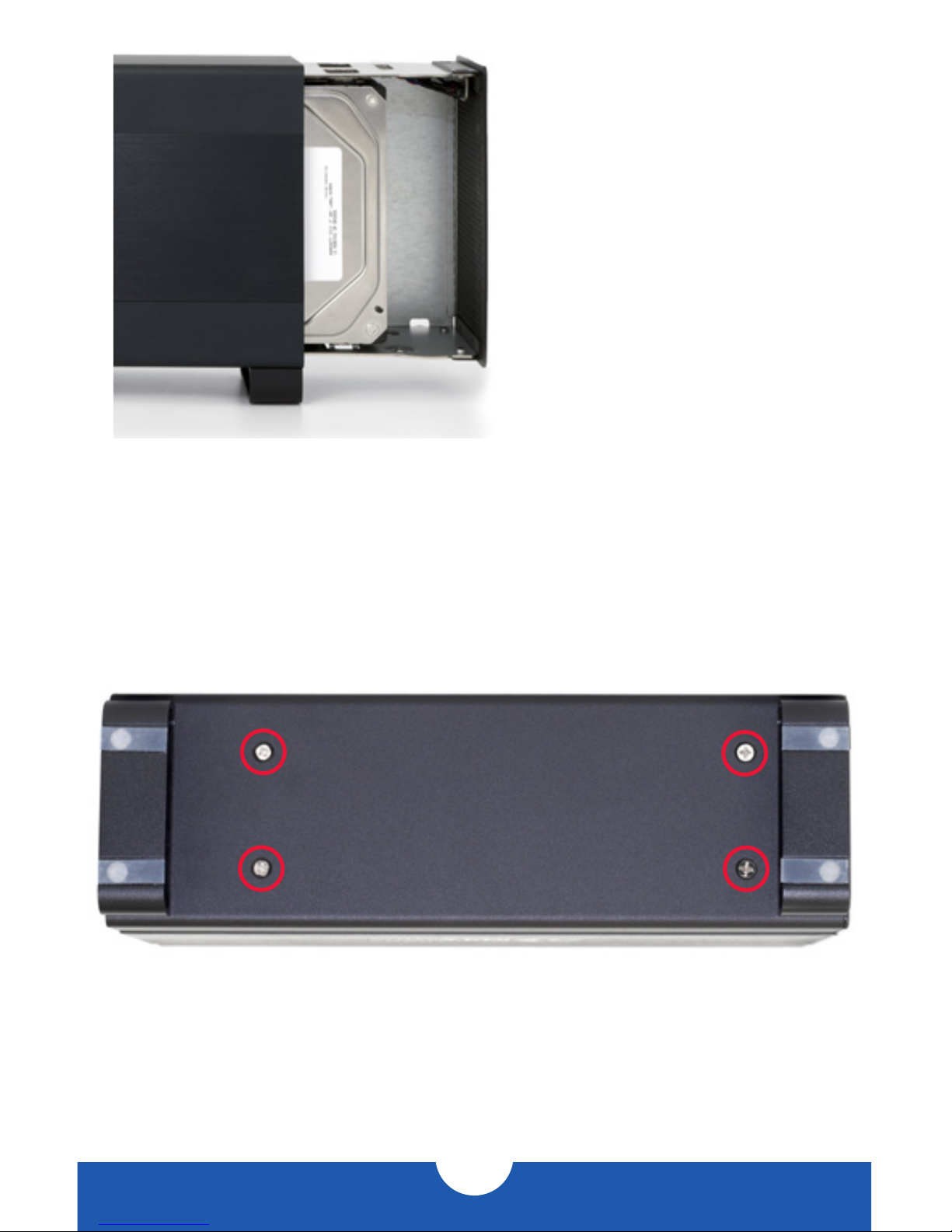
1. Remove the Mercury Elite Pro Dual from the retail box and the protective plastic bag.
Set the Mercury Elite Pro Dual on its side and look at the bottom of the enclosure. Use a
Phillips screwdriver to remove the two screws, as circled below in red.

OWC DIGITAL - MERCURY ELITE PRO DUAL DEVICE SETUP
5
2. Once the two screws have been removed,
slide the inner chassis out of the front of the
outer enclosure, as shown to the right. Start
by pushing on the rear of the inner chassis,
then when you are able to get a grip on the
front grill of the inner chassis, pull it the rest
of the way.
3. When removed from the outer enclosure, the inner chassis will appear as shown below.
Remove the packet of screws and use the screws as directed later in the assembly
instructions. Note that the plastic shield over the circuit board is there by design and
should not be removed.

OWC DIGITAL - MERCURY ELITE PRO DUAL DEVICE SETUP
6
4. Install the lower hard drive (HDD2), as shown below. Slide the SATA connector on the hard
drive into the black SATA connector circled in red. Make sure the drive is firmly seated in
the black SATA connector before proceeding.
5. Install the upper hard drive (HDD1), as shown below. Insert the SATA power and SATA data
cables from the Mercury Elite Pro Dual into the SATA connector on the hard drive (NOTE:
do not twist the black SATA data cable. Doing so could cause instability in the connection),
then slide the hard drive to line up the screw holes in the hard drive with those on the
inner chassis. Make sure the SATA connectors are seated firmly before continuing.

OWC DIGITAL - MERCURY ELITE PRO DUAL DEVICE SETUP
7
6. Using eight of the larger screws from the packet you removed from the inner chassis,
fasten the hard drives into the inner chassis. There are four screw holes on each side of the
inner chassis, as circled below in red.
7. Note that while the inner chassis can slide into both sides of the outer enclosure, there is
only one correct way that will allow the screw holes to line up correctly. To determine the
correct orientation of the outer enclosure with the inner chassis, turn the outer enclosure
on its side and look at the bottom. As shown below, the screw holes at the front of the
outer enclosure are close to the silicone feet. The screw holes at the rear of the outer
enclosure are farther away from the silicone feet.
REAR FRONT

OWC DIGITAL - MERCURY ELITE PRO DUAL DEVICE SETUP
8
8. Once you have determined the correct
orientation, slide the inner chassis back
into the outer enclosure, as shown to
the left.
9. Once the front grill of the inner chassis sits flush with the edge of the outer enclosure,
turn the Mercury Elite Pro Dual on its side again to look at the screw holes on the bottom.
You should be able to see that the screw holes in the outer enclosure line up with the
screw holes in the inner chassis. Use the four smaller screws to fasten the inner chassis to
the outer enclosure, as shown below. The assembly of the Mercury Elite Pro Dual is now
complete.
Altri manuali per Mercury Elite Pro Dual
18
Indice
Altri manuali OWC Hardware per computer
Manuali Hardware per computer popolari di altre marche

EMC2
EMC2 VNX Series Manuale del proprietario

Panasonic
Panasonic DV0PM20105 Manuale utente

Mitsubishi Electric
Mitsubishi Electric Q81BD-J61BT11 Manuale utente

Gigabyte
Gigabyte B660M DS3H AX DDR4 Manuale utente

Raidon
Raidon iT2300 Manuale utente

National Instruments
National Instruments PXI-8186 Manuale utente