
Paradyne 7123 Manuale utente

1
7123 SNMP DSU/CSU
Installation Instructions
Document Number 7123-A2-GN10-00
September 2001
Contents
Product Documentation Online ..................................................................... 2
Package Checklist ......................................................................................... 2
Installation Requirements ............................................................................. 2
Cables You May Need to Order .................................................................... 3
Differences Between 7112 and 7123 DSU/CSUs ......................................... 4
Installing the Power Supply and Cord ........................................................... 5
Connecting to an Asynchronous Terminal or PC .......................................... 6
Verifying that Self-Test Passed ..................................................................... 6
Connecting to the Ethernet LAN ................................................................... 7
Connecting to the DTE ................................................................................. 8
Connecting to the Network ........................................................................... 9
Front Panel LEDs .......................................................................................... 10
A Quick Guide to Configuration .................................................................... 12
Minimal Configuration ................................................................................... 13
Configuring SNMP Trap Managers and Traps .............................................. 14
Configuration Options ................................................................................... 15
Important Safety Instructions ........................................................................ 20
Warranty, Sales, Service, and Training Information ...................................... 24

2
Product Documentation Online
Complete documentation for this product is available at www.paradyne.com.
Select
Library
→
Technical Manuals
→
T1/E1 Digital Access Devices.
Select the following document:
7123-A2-GB20
7123 SNMP DSU/CSU
User’s Guide
To order a paper copy of a Paradyne document:
Within the U.S.A., call 1-800-PARADYNE (1-800-727-2396)
Outside the U.S.A., call 1-727-530-8623
Package Checklist
Verify that your package contains the following:
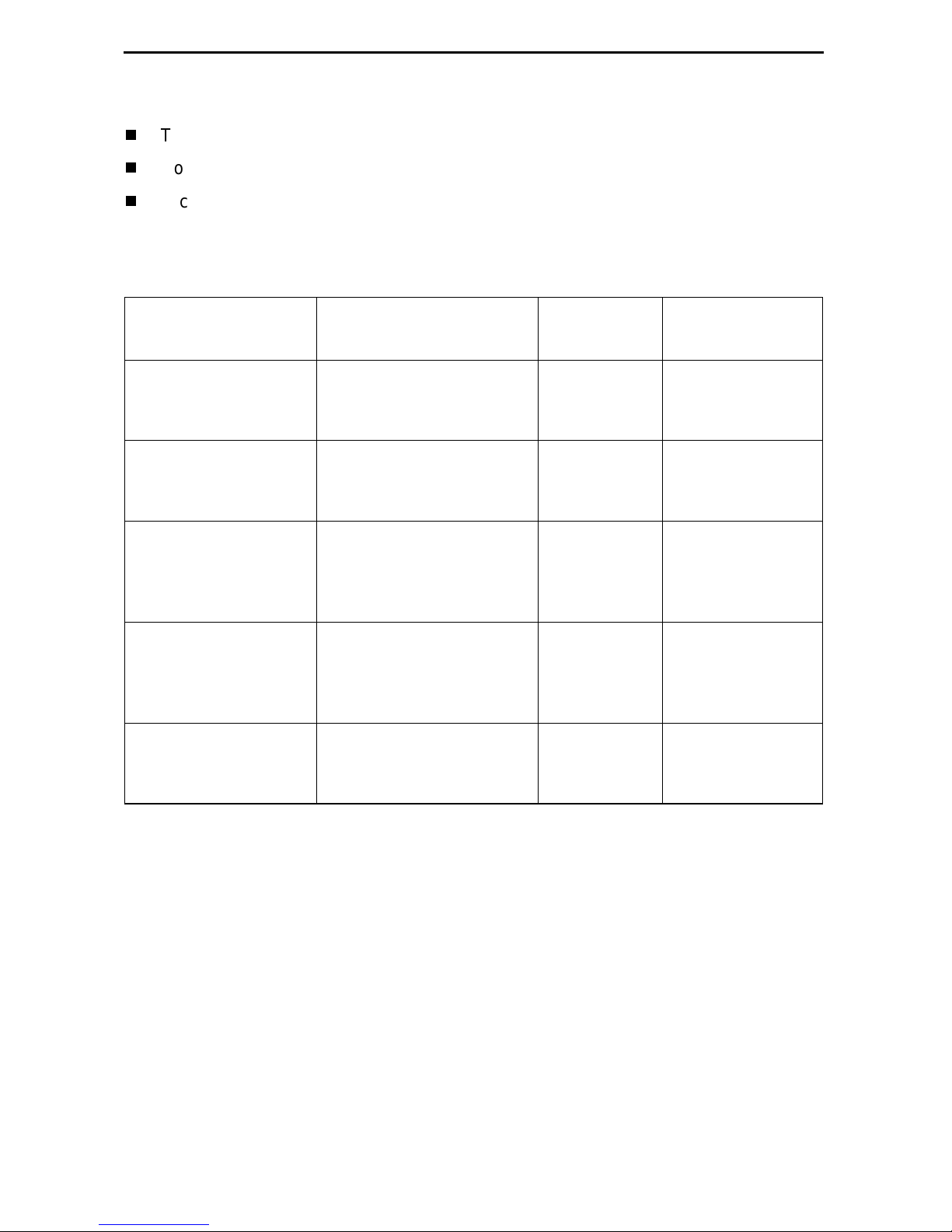
❑7123 SNMP DSU/CSU
❑Power cord with a wall-mount 120 VAC power transformer
❑Self-mounting tie wrap for power cord strain relief
❑RJ48C modular cable for U.S. network access
Be sure to register your warranty at www.paradyne.com/warranty.
Installation Requirements
Make sure you have:
❑A dedicated, grounded power outlet that is protected by a circuit breaker within
6 feet of the 7123 DSU/CSU
❑A clean, well-lit, and ventilated site that is free from environmental extremes
❑One-to-two feet of clearance for cable connections
❑A physical connection to the T1 network
❑An asynchronous terminal or PC (personal computer)
❑If desired, an operable Ethernet LAN (Local Area Network) connection for access
by an NMS (Network Management System)
❑Configuration information for the DSU/CSU being installed or replaced
❑Appropriate cables:
— Ethernet cable
— Data port cable
— COM port-to-terminal or COM port-to-PC cable
3
See the User’s Guide for additional information on:
Troubleshooting
Connectors, Cables, and Pin Assignments
Technical Specifications
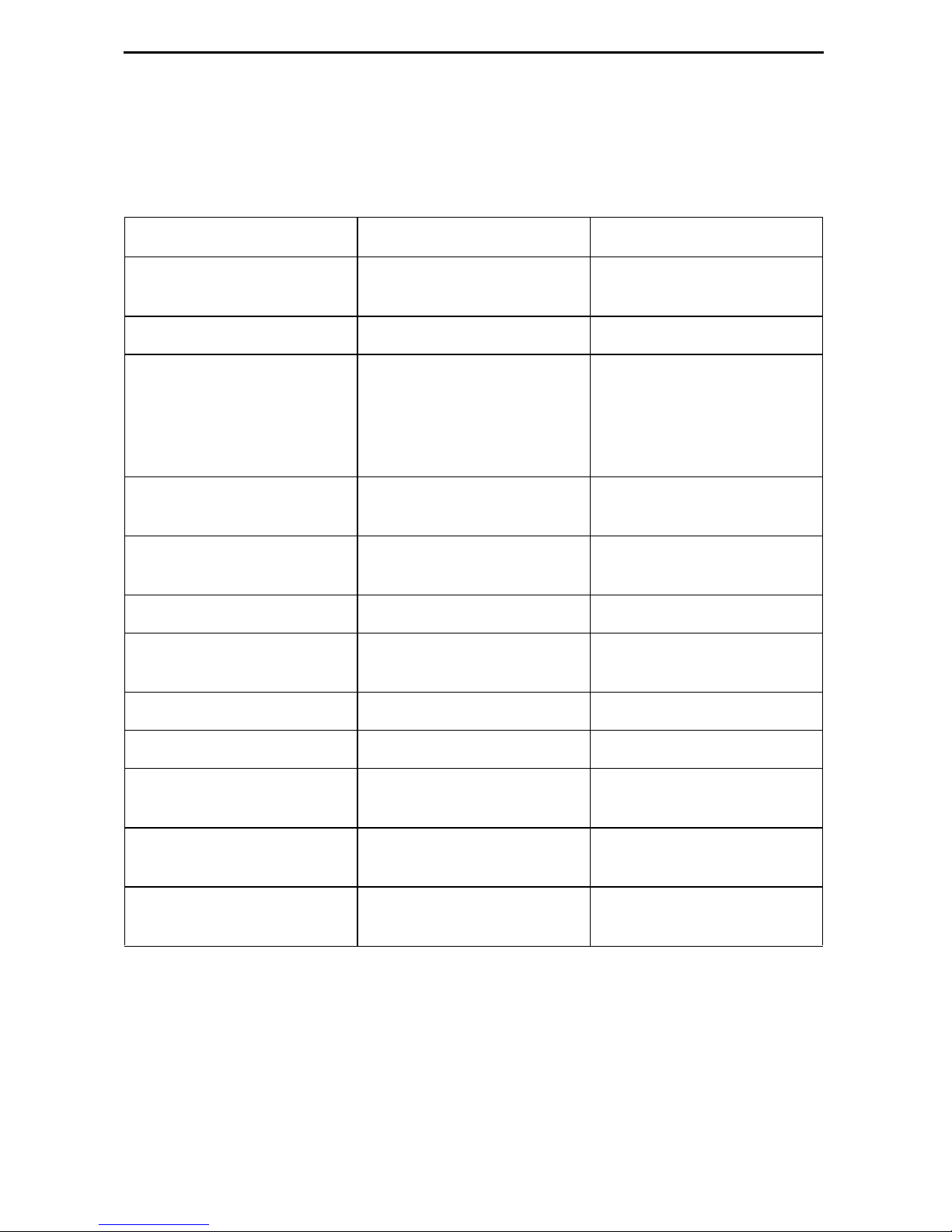
Cables You May Need to Order
Contact your sales representative to order cables.
If connecting to . . . Order a . . . Feature
Number Part Number
T1 line interface/
connector
For use in Canada.
T1 line interface cable,
RJ48C-to-CA81A
(20feet/6.1meters)
3100-F1-510 035-0221-2031
Equipment with
V.35 interfaces,
MS34 connectors
V.35 DTE adapter,
EIA-530A-to-V.35 3100-F1-570 035-0244-0031
Asynchronous
terminalorPCwithan
8-pin modular
interface/connector
Standard EIA-232
straight-through cable,
8-pin modular-to-DB25
(14feet/4.3meters)
3100-F2-540 035-0314-1431
PC with a D-Sub9
interface/connector Standard EIA-232
straight-through cable,
D-Sub9-to-DB25
(14feet/4.3meters)
3100-F2-550 035-0313-1431
External device
(e.g., a modem) Standard EIA-232-D
crossover cable
(14feet/4.3meters)
9008-F1-550 035-0336-1431
4
Differences Between 7112 and 7123 DSU/CSUs
If you have both models in your network, you should be aware that the 7112 DSU/CSU
and 7123 DSU/CSU provide the same basic functions, but are based on different
hardware platforms. The following table shows the major differences.
Feature 7112 7123
COM Port Default Data
Rate 9.6 Kbps 19.2 Kbps
Data Port LEDs TXT, RXD, RTS, CTS, DTR TXD, RXD, RTS, DTR
Data Port Tests Data Terminal (DTE)
Loopback, Data Channel
Loopback, Send V.54 and
Send FT1 Loopbacks,
Pattern Tests
DTE Loopback
DS0 Assignment by Block
or ACAMI Yes No
FDL (Facility Data Link) for
Remote Management Yes No
Front Panel Monitor Jacks Yes No
FTP Software and
Configuration File Transfer No Yes
IP Ping No Yes
IP Routing Table Display No Yes
Management Protocol
Statistics Yes No
Repeater Loopback
Network Test Yes No
Software Upgrades No Two software versions can
be stored and activated

5
Installing the Power Supply and Cord
Before performing any installation procedures, please refer to the
Important Safety
Instructions
on page 20.
Procedure
1. Insert the power cord’s plug into the POWER jack.
2. Plug the power supply into the grounded power outlet and check the LEDs.
If any LEDs light, you have power. If not, refer to
Troubleshooting
in the User’s
Guide for possible explanations.
3. Insert the self-mounting tie wrap in the leftmost hole (hole with a dark circle around
it) until it snaps securely into place. The tie wrap provides strain relief for the power
cord.
4. Loop the tie wrap around the power cord, thread it through the hole at the base of
the wrap, and pull it snugly around the cord.
OK
ALM
TEST
SIG
OOF
ALM
NetworkSystem Port
7123 SNMP DSU/CSU
RXD
RTS
DTR
TXD
FT1/T1
01-17032
Grounded
Power
Outlet
OK
ALM
System
P
O
R
T
COM NET
POWER
ETHERNET

6
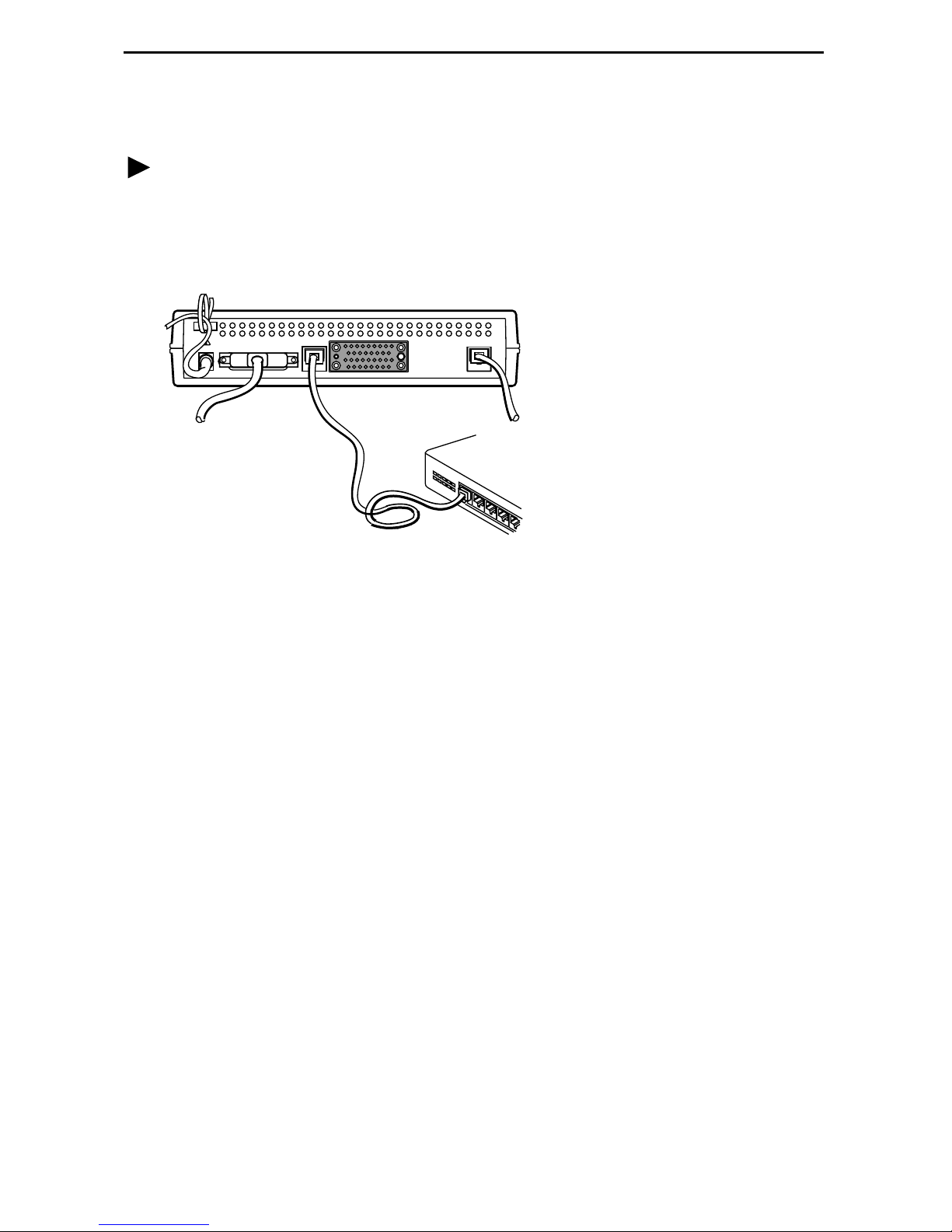
Connecting to an Asynchronous Terminal or PC
A VT100-compatible asynchronous terminal or a PC providing VT100 terminal
emulation must be used to set up access to and management of the unit.
Procedure
1. Configure the terminal or PC so it is compatible with the 7123 DSU/CSU:
—Baud Rate: 19.2 Kbps
—Character length: 8 data bits
—Parity: none
—Stop bit: 1
—Flow Control: none
2. Insert the DB25 end of the EIA-232 cable into the 7123 DSU/CSU’s COM port.
3. Insert the other end of the cable into the terminal or PC.
4. Tighten the screws on each side of the connector to secure the cable.
5. Press Enter on the keyboard to display the Main Menu.
If the Main Menu does not appear, recheck the terminal or PC settings (see Step 1),
or press the Enter key. Refer to
Troubleshooting
in the User’s Guide for other
possible explanations.
Verifying that Self-Test Passed
To verify that the unit passed its self-test, go to the System and Test Status screen.
Main Menu
→
Status
→
System and Test Status
The results of the self-test appear directly under the screen title.
If any failure messages appear, reset the unit by disconnecting, then reconnecting the
power cord. The unit will perform the self-test again. If the failure reappears, call your
service representative for assistance.
P
0
R
T
COM NET
POWER
ETHERNET
COM
Port
00-16685
7
Connecting to the Ethernet LAN
Procedure
1. Insert one 8-pin connector of the Ethernet cable into the Ethernet port.
2. Insert the other end of the cable into the Ethernet interface of the LAN where the
NMS resides.
3. Check Health and Status messages in the left column of the System and Test
Status screen to verify that there are no Ethernet-related Health and Status
messages.
Main Menu
→
Status
→
System and Test Status
If the Ethernet Link Down message appears, make sure both ends of the
Ethernet cable are properly seated.
P
O
R
T
COM NET
POWER
ETHERNET
00-16687
NMS
LAN

8
Connecting to the DTE
Procedure
1. Connect one end of the DTE’s cable to the user data port.
2. Plug the other end of the cable into the DTE.
3. Tighten the screws on each side of the connector to secure the cable.
4. Verify that the Port OK LED is on. If it is, the port is set up correctly and it is
operational. If not, make sure both ends of the cable are properly seated and
secured.
5. Check Health and Status messages in the left column of the System and Test
Status screen for messages.
Main Menu
→
Status
→
System and Test Status
—If System Operational appears, the port interface is set up correctly and
is operational.
—If not, refer to
Status Information
in
Operation and Maintenance
of the User’s
Guide.
NOTE:
When any error conditions are detected, a status message appears along the
bottom right corner of the screen.
P
O
R
T
COM NET
POWER
ETHERNET
00-16689
DTE

9
Connecting to the Network
Procedure
1. Insert the 8-pin connector of the RJ48C network cable into the network interface.
2. Insert the other end of the cable into the RJ48C modular jack.
3. Verify that the Network signal (SIG) LED is green. If so, the network interface is set
up correctly and is operational. If not, make sure both ends of the network cable are
properly seated.
4. Check Health and Status messages in the left column of the System and Test
Status screen.
Main Menu
→
Status
→
System and Test Status
P
0
R
T
COM NET
POWER
ETHERNET
00-16686
RJ48C
Jack
10
Front Panel LEDs
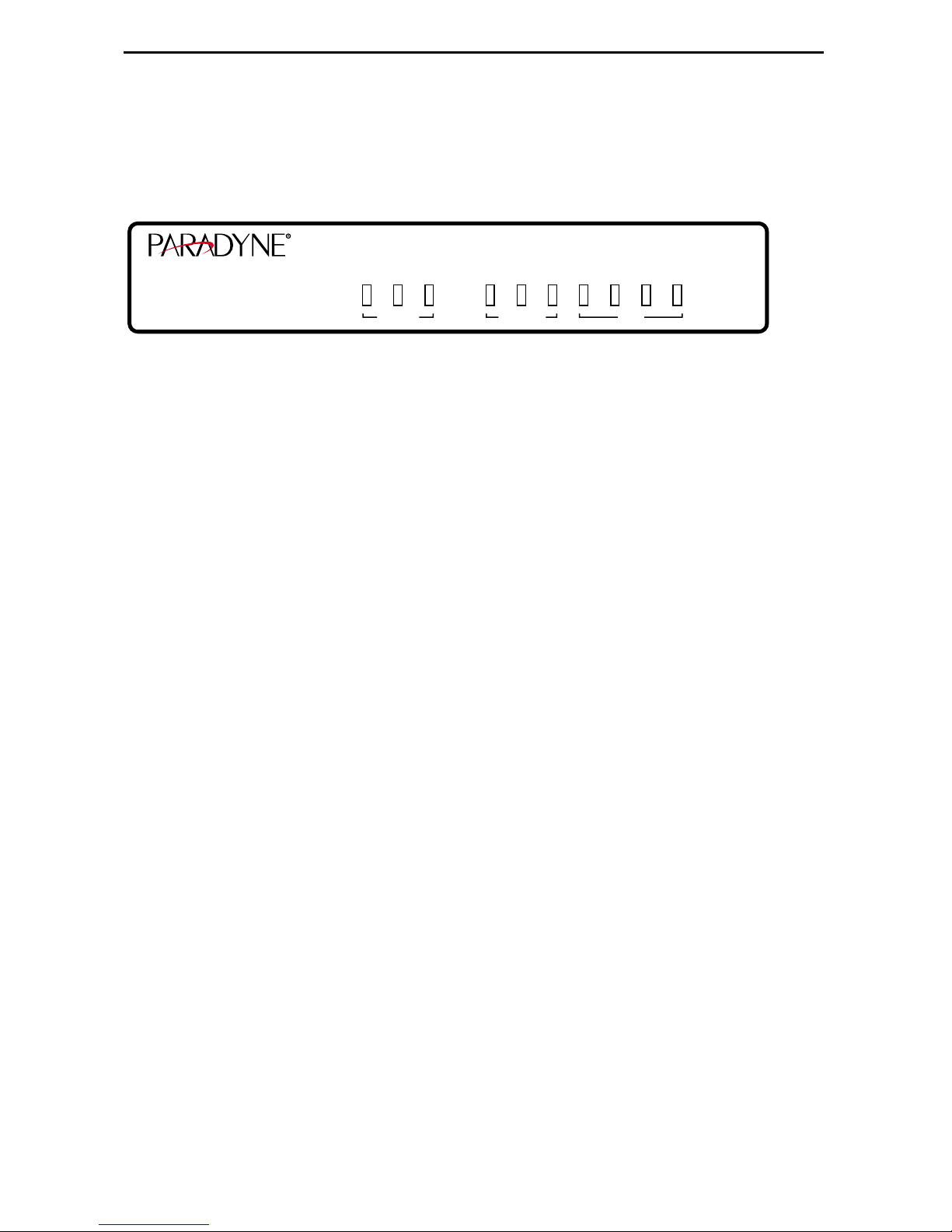
The 7123 SNMP DSU/CSU’s faceplate includes LEDs (light-emitting diodes) that
provide status on the unit and its interfaces. Check the LEDs when you have completed
cabling the DSU/CSU.
See the following table on page 11 for an explanation of front panel LEDs.
01-17031
OK
ALM
TEST
SIG
OOF
ALM
NetworkSystem Port
7123 SNMP DSU/CSU
RXD
RTS
DTR
TXD
FT1/T1
Altri manuali per 7123
1
Indice
Altri manuali Paradyne Alimentazione elettrica

Paradyne
Paradyne 7520 DSU Manuale di installazione

Paradyne
Paradyne 7123 Manuale utente

Paradyne
Paradyne FrameSaver 9620 Manuale utente

Paradyne
Paradyne 496-15149 Manuale utente

Paradyne
Paradyne 9000 Series Manuale utente

Paradyne
Paradyne 9000 Series Manuale utente

Paradyne
Paradyne 9161 Single T1 Manuale utente


