
Paxar 9840 Manuale utente

9840
Monarch
Printers
TC9840ENOI Rev. AA 9/00 ©2000 Monarch Marking Systems, Inc. All rights reserved.

Each product and program carries a respective written warranty, the only warranty on
which the customer can rely. Monarch reserves the right to make changes in the
product, the programs, and their availability at any time and without notice. Although
Monarch has made every effort to provide complete and accurate information in this
manual, Monarch shall not be liable for any omissions or inaccuracies. Any update
will be incorporated in a later edition of this manual.
©2000 Monarch Marking Systems, Inc. All rights reserved. No part of this publication
may be reproduced, transmitted, stored in a retrieval system, or translated into any
language in any form by any means, without the prior written permission of Monarch
Marking Systems, Inc.
WARNING
This equipment has been tested and found to comply with the
limits for a Class A digital device, pursuant to Part 15 of the
FCC Rules. These limits are designed to provide reasonable
protection against harmful interference when the equipment is
operated in a commercial environment. This equipment
generates, uses, and can radiate radio frequency energy and,
if not installed and used in accordance with the instruction
manual, may cause harmful interference to radio
communications. Operation of this equipment in a residential
area is likely to cause harmful interference in which case the
user will be required to correct the interference at his own
expense.
CANADIAN D.O.C. WARNING
This digital apparatus does not exceed the Class A limits for
radio noise emissions from digital apparatus set out in the
Radio Interference Regulations of the Canadian Department
of Communications.
Le présent appareil numérique n’émet pas de bruits
radioélectriques dépassant les limites applicables aux
appareils numériques de la classe A prescrites dans le
Réglement sur le brouillage radioélectrique édicte par le
ministère des Communications du Canada.
Trademarks
Monarch is a registered trademark of Monarch Marking Systems, Inc.
MonarchNet, 9800, 9840, and 9850 are trademarks of Monarch Marking Systems, Inc.
Paxar is a trademark of Paxar Corporation.
Centronics is a registered trademark of Centronics Data Computer Corporation.
Microsoft and MS-DOS are registered trademarks of Microsoft Corporation.
Windows and NT are registered trademarks of Microsoft in the U.S. and other countries.
Novell and NetWare are registered trademarks of Novell, Inc. in the United States and
other countries.
Hewlett-Packard is a registered trademark of Hewlett-Packard Company.
HP Jet Admin, HP Web Jet Admin, and HP JetDirect are trademarks of
Hewlett-Packard Company.
Other products are trademarks or registered trademarks of their respective holders
and should be noted as such.
Monarch Marking Systems
170 Monarch Lane
Miamisburg, Ohio 45342

Table of Contents i
TABLE OF CONTENTS
INTRODUCTION........................................................1-1
Product Overview....................................................1-1
Related Documents ..............................................1-1
Hardware Description ..............................................1-2
Parallel Output Port ..............................................1-2
10BASE-T UTP, Unshielded Twisted-Pair Ethernet
Cable...................................................................1-2
Status Indicator....................................................1-3
Test.....................................................................1-3
INSTALLING THE PRINT SERVER ............................2-1
Printer Information ...................................................2-3
Printing a Configuration Sheet ..................................2-3
TROUBLESHOOTING ...............................................3-1
Ethernet Print Server Status .................................3-1
MonarchNet Configuration Problems......................3-3
Unable to Print .....................................................3-3
SPECIFICATIONS .................................................... A-1
Ethernet Print Server .............................................. A-1
Wiring Specifications .............................................. A-2
Parallel Output Port Signal Assignments............... A-2

ii Table of Contents

Introduction 1-1
INTRODUCTION
Product Overview
The Monarch Marking Systems MonarchNetEthernet
Printer Server enables Ethernet network users to connect
to a parallel printer using a high-speed, bi-directional
parallel port.
The Ethernet print server connects to a Monarch9840
printer (version 6.5 or greater).
MonarchNet consists of the following:
♦Operating Instructions for the Ethernet print server
(these instructions)
♦Ethernet Print Server
The print server may need to be configured before you
can use it. Software is available on Monarch’s Web site
(www.monarch.com)to configure the print server or you
can order part number TC9840ENCD for the MonarchNet
Utilities compact disc.
The MonarchNet print server provides multiprotocol
capabilities for users with Windows95/98/2000,
Windows NT, TCP/IP, and NovellNetWare.
Related Documents
Refer to your printer’s Operator’s Handbook for related
information about printer configuration. A Technical
Reference Manual, which includes additional Ethernet
set-up and configuration information, is also available on
our Web site. You can order part number TC9800ENTR
for a printed copy of the Technical Reference Manual.
Also, see your Network Operating System manuals for
related information about network configuration and
printing operations.
1

1-2Introduction
Hardware Description
The illustration below displays the back view of the
Ethernet print server.
Parallel Output Port
The parallel output port of the Ethernet print server
connects directly to the Centronics connector on most
printers.
10BASE-T UTP, Unshielded Twisted-Pair Ethernet Cable
Twisted-pair systems use 10BASE-T hubs or
concentrators. Adding the Ethernet print server does not
interrupt network operation.
Status
Test

Introduction 1-3
Status Indicator
A bi-color Status indicator displays the general state of
the Ethernet print server. In normal operation, the Status
indicator flashes orange during power-up self test and
then changes to a solid green when it passes the self-
test.
♦Solid green indicates a connection has been made
with a 10Base-T hub.
♦Flashing green rapidly indicates the network
connection is faulty or does not exist.
♦Flashing green slowly indicates print job activity.
♦Solid orange for more than 30 seconds indicates the
print server has failed Power On Self Test.
♦Flashing alternately orange and green for longer than
two minutes indicates the print server is in firmware
download mode.
See Chapter 3, “Troubleshooting” for any problems you
may have.
Test
A test button, located on the side of the Ethernet print
server, is provided to allow detailed configuration
information to be printed.
♦Restore to Factory Defaults -If the test button is
pressed and held when the printer is turned on until
the Status indicator turns green, the Ethernet print
server configuration parameters are set to Factory
Defaults and a configuration sheet prints.

1-4Introduction

Installing the Print Server 2-1
INSTALLING THE PRINT
SERVER
This chapter explains how to install the Ethernet print
server.
If you have not already done so,
record the model number, serial
number and address of your Ethernet
print server and save it for future
reference.
To use the Ethernet print server, upper DIP switch 8 on
the printer must be turned ON. This enables the bi-
directional communication.
Do not plug any cables into the
parallel port when using the Ethernet
port.
A printer with an Ethernet port cannot use the parallel
port. However, the serial port is still active.
2
Upper DIP
Switches
2-2Installing the Print Server
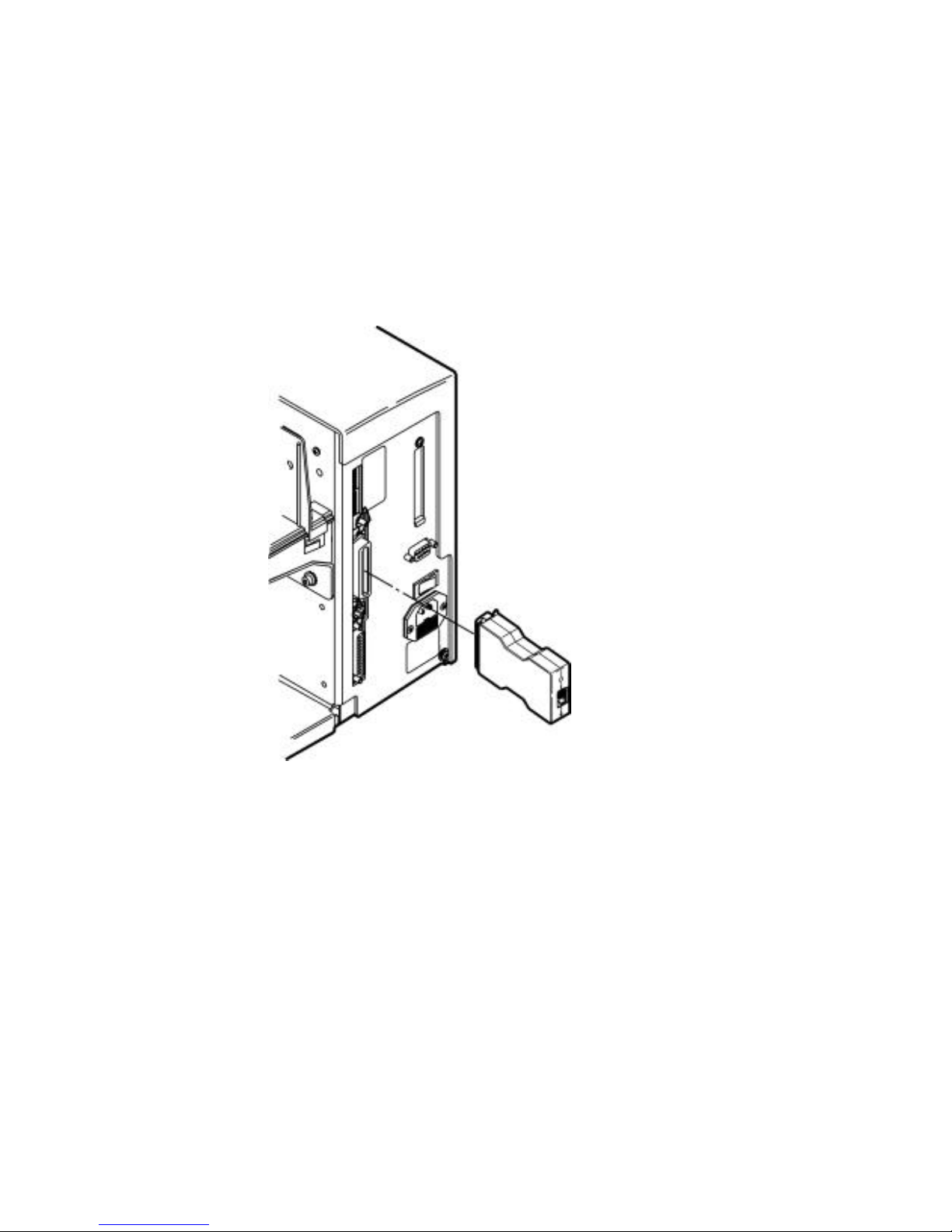
To install the print server:
1. Turn off the printer by using the printer’s power
switch or removing the power cord.
2. Attach the Ethernet print server directly to the
Centronicsconnector on the printer. Secure the
Ethernet print server to the printer with the spring
clicks on the printer.
3. Attach the 10Base-T UTP cable to the receptacle on
the back of the Ethernet print server.
4. Turn on the printer by using the printer’s power switch
or attaching the power cord.
The status indicator blinks orange during self-test
and then changes to green when the self-test
completes successfully.
Indice
Altri manuali Paxar Server di stampa


