
Pco Kaya Series Manuale utente

pco.kaya frame grabber
installation manual

PCO asks you to carefully read and follow the instructions in this manual before using the pco.kaya
frame grabber.
For any questions or comments, please feel free to contact us at any time.
telephone: +49 (0) 9441 2005 50
fax: +49 (0) 9441 2005 20
postal address: PCO AG
Donaupark 11
93309 Kelheim, Germany
email: [email protected]
web: www.pco.de
pco.kaya frame grabber installation manual 1.01
Released July 2020
©Copyright PCO AG
This work is licensed under the Creative Commons Attribution-NoDerivatives 4.0 International License. To
view a copy of this license, visit http://creativecommons.org/licenses/by-nd/4.0/ or send a letter to Creative
Commons, PO Box 1866, Mountain View, CA 94042, USA.
pco.kaya frame grabber
pco.kaya frame grabber installation manual 1.01 2


1 Introduction
KAYA FRAME GRABBER INSTALLATION
This manual describes the installation of quad port Kaya Komodo II and dual or quad port Kaya
Komodo Frame Grabber for PCO cameras with Camera Link HS interface. For further description
of Kaya Frame Grabber and Software see also Kaya manuals. During PCO Software installation,
Camera Link HS interface must be selected to access PCO cameras via Kaya Frame Grabber.
Availability Available for these camera models:
•pco.edge with Camera Link HS interface
•pco.dicam C1
•pco.dicam C4 (4x Camera Link HS interface)
Support In case of errors please contact us at PCO:
•tel +49 9441 2005 0
System
requirements
Please consider the following system requirements:
•PCIe Slot x8 or x16
•Recommended: Gen 3 and 8 lanes (see chapter 4)
pco.kaya frame grabber 1 Introduction
pco.kaya frame grabber installation manual 1.01 4

2 Safety Instructions
CLASS 1 LASER PRODUCT
Risk of injury due to laser beam.
→Do not look into the laser beam or at direct reflexes.
→Do not point the laser beam at persons.
→Manipulations of the laser device are not allowed.
ELECTRIC SHOCK WARNING DUE TO VOLTAGE
PARTS INSIDE
Risk of injury due to electric shock.
→Always pull the main plug before opening the
computer.
pco.kaya frame grabber 2 Safety Instructions
pco.kaya frame grabber installation manual 1.01 5
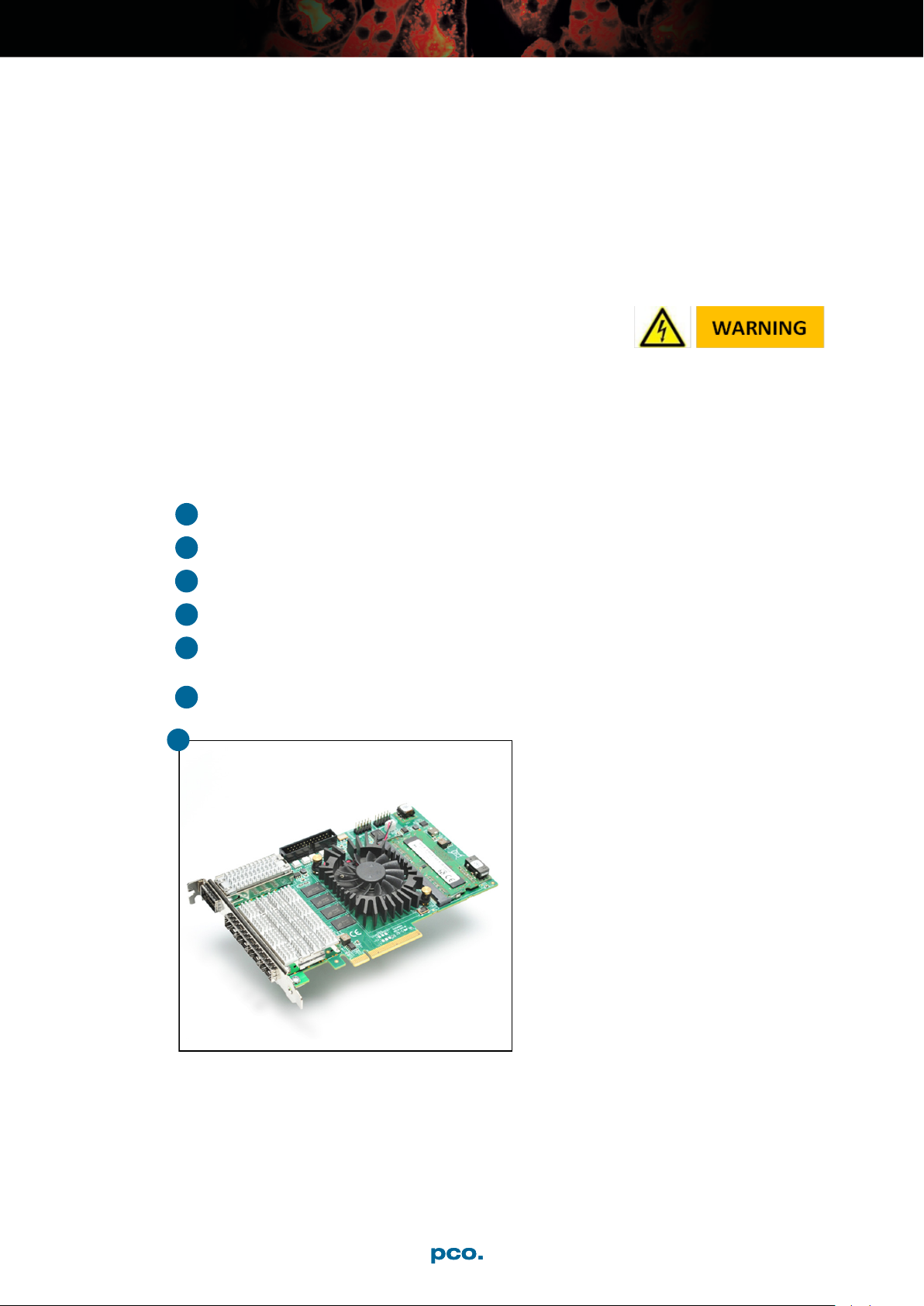
3 Frame Grabber Installation
Instructions for installing and testing the Kaya Komodo Camera Link HS grabber card. This card
is required to be able to use a PCO camera with Camera Link HS interface. Installation must be
performed by a technician, because high voltages can occur on the device.
ELECTRIC SHOCK WARNING DUE TO VOLTAGE
PARTS INSIDE
Risk of injury due to electric shock.
→Always pull the main plug before opening the
computer.
Install the latest Kaya Komodo package.
(Download approved version from: http://pco.de/support/)
Only 64-bit computer systems are supported.
1Shutdown your computer, open the computer case and install the frame grabber card
2Start the Installation Executable: KAYA_Vision_Point_Setup_(version)_Windows_64.exe
3Select the proper folder on your computer
4Deselect Virtual COM port for serial communication
5The frame grabber card should be displayed within the device manager. If the device is not
shown this way, reinstall the driver
6Check the system requirements (chapter 4)
1
pco.kaya frame grabber 3 Frame Grabber Installation
pco.kaya frame grabber installation manual 1.01 6

3
4
5
pco.kaya frame grabber 3 Frame Grabber Installation
pco.kaya frame grabber installation manual 1.01 7
4 Vision Point Software
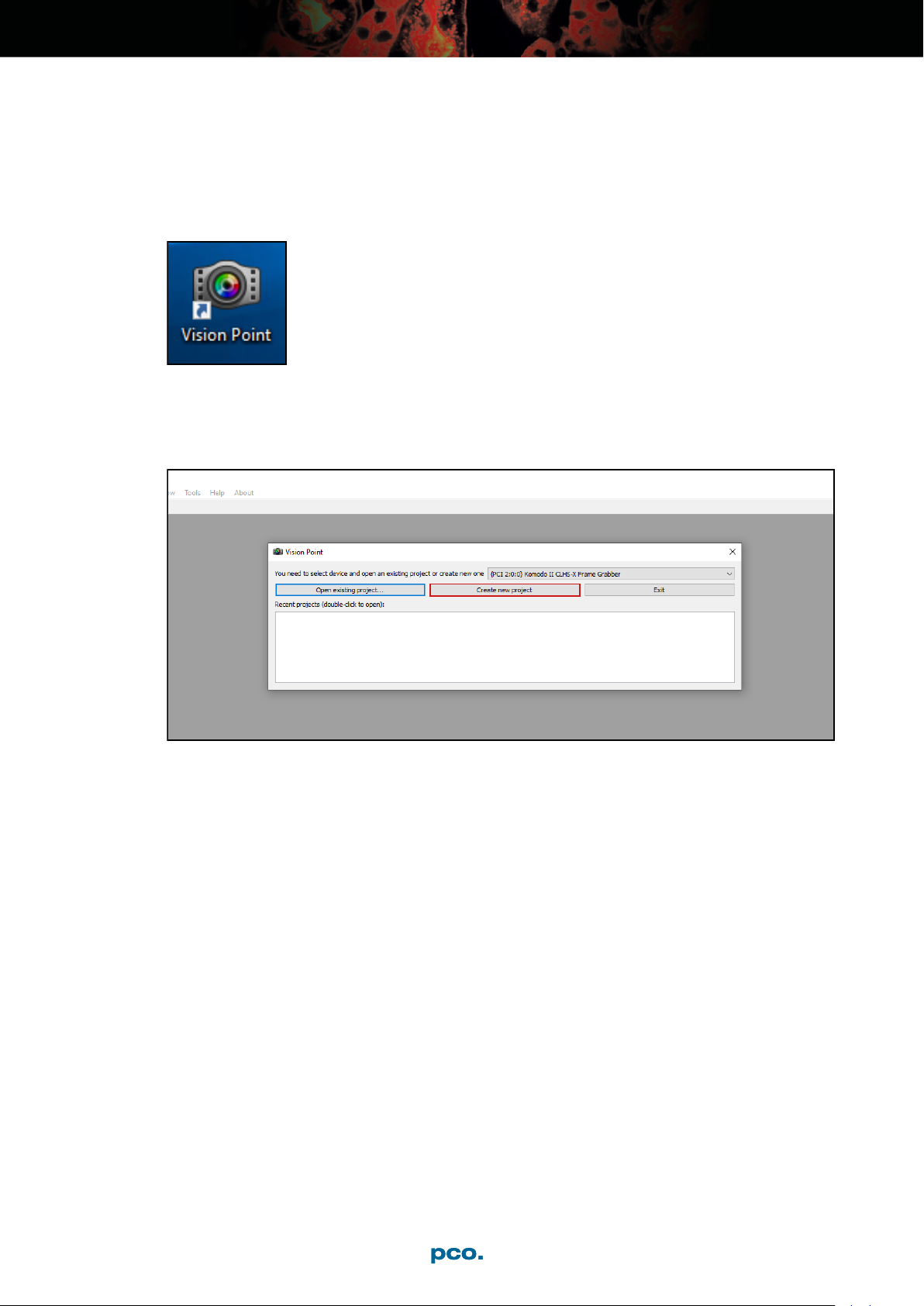
Start the Vision Point application.
After the installation is finished, open the Vision Point software and check the hardware informa-
tion. First click Create new project
Take a look at the Project tab.
Click Frame Grabber - Hardware Information
Check the following values:
•Firmware version:
•Komodo II : 4.1.7 or higher
•Komodo : 4.21.9 or higher
•PCIe generation: 3 (see PCI Express Generation 2/3)
•PCIe lanes: 8
pco.kaya frame grabber 4 Vision Point Software
pco.kaya frame grabber installation manual 1.01 8
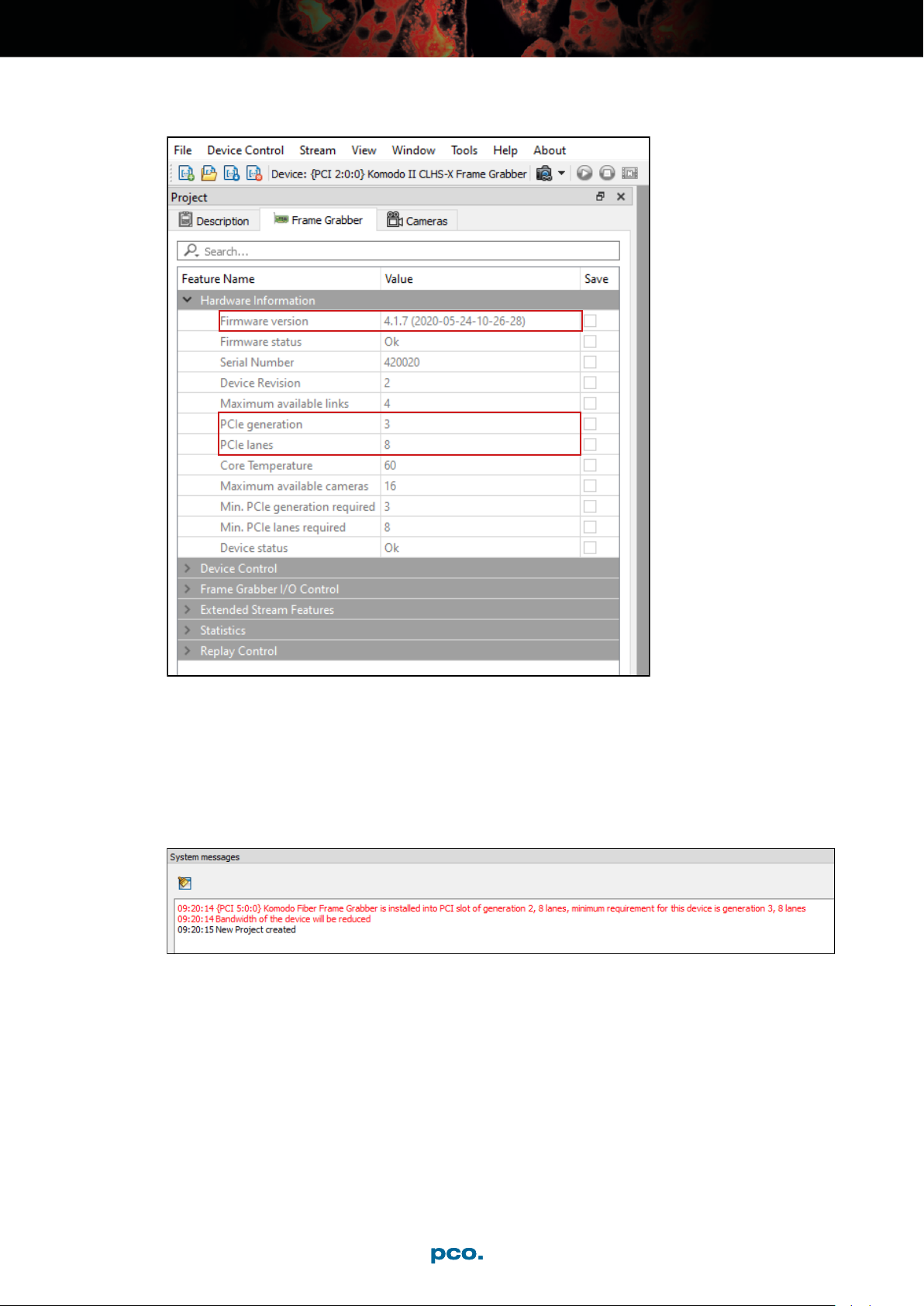
For proper operation, the Frame Grabber firmware must be updated to the versions listed above,
see chapter 5
PCI Express
Generation 2/3
If the Frame Grabber is installed in a PCIe slot with only Gen2 capability and/or with only 4 PCIe
lanes, memory bandwidth for image transfers is limited and images might be lost.
Vision Point software will inform you if your system has limitations:
pco.kaya frame grabber 4 Vision Point Software
pco.kaya frame grabber installation manual 1.01 9

5 Update Firmware of the Grabber
How to update the firmware of a Kaya Frame Grabber card.
1Select Device Control - Firmware update...
2Select proper firmware update file
3Click Next and wait until the update process is finished
4Power down your computer. A restart is not sufficient
1
2
pco.kaya frame grabber 5 Update Firmware of the Grabber
pco.kaya frame grabber installation manual 1.01 10
Questo manuale è adatto per i seguenti modelli
2
Indice


