Penpower Technology EZ Go Manuale utente

EZ Go Manual
Version: 8.5.0
Release: May, 2014
Edition: 1

Penpower Technology Ltd.,
Software User License Agreement
You are licensed to legally use this software program (“the Software”) by Pen-
power Technology Ltd (“Penpower”) under this license agreement (“The Agree-
ment”). If you do not agree with any of the provisions in this Agreement, please do
not install, copy or use the Software. By using the Software, you are deemed to fully
understand and accept the provisions of this Agreement.
1. Intellectual Property
All intellectual property rights in the Software, together with all information and
documents included in the packaging for the Software (including but not limited
to copyrights), are property of Penpower or have been licensed to Penpower, and
are protected by relevant laws and regulations.
2. License to Use
You are authorized to use the Software on one (1) single computer only. You may
not use the Software on any other machines other than the said single computer.
3. Authority to Copy
The Software and all documents included with the Software, and copyright
thereof, are property of Penpower. You are licensed to make one (1) copy of the
Software for your personal backup purposes. All other acts of copying are strictly
prohibited. The backup copy shall not be installed nor used while the Software is
being used.
You may not sell, lease, dissemble, reverse engineer, copy, translate, adapt or de-
rive the Software, or obtain the source code of the Software by any other means.
You may not use the Software for any purposes other than those permitted under
this Agreement.
4. Business Users
If you need to install or use the Software on more than one (1) computer, please
contact Penpower or our local distributor to purchase a license for the additional
use.

5. Liability
You agree to indemnify Penpower against all losses, costs, debts, settlement pay-
ments or other expenses (including but not limited to attorneys fees) arising from
your breach of this Agreement, and you agree to compensate Penpower for all of
the abovementioned damages.
6. No Warranty
Effectiveness of a packaged software in handling information is closely related
to its software and hardware environment. The Software is published following
careful development and product testing by Penpower, but Penpower is not able
to conduct tests based on all possible combinations of software and hardware en-
vironment. Therefore, Penpower is unable to promise nor warrant that there will
be absolutely no risk of loss or damage of information, or any other kind of loss,
during installation and/or execution of the Software. You must be fully aware of
your risks in using the Software.
Penpower will provide you with the Software and support services in respect of
the Software to the maximum extent permitted by law. However, Penpower does
not warrant that the Software and information included in the package of the Soft-
ware contain no defects or errors. Penpower is not liable for any indirect, special
or incidental loss arising from the Software, including but not limited to loss of
prots, damage to business reputation, cessation of work, hardware malfunction
or damage, or any other commercial damage or loss arising from commercial use
of the Software.
7. Limitation of Liability and Damages
Except as expressly specied and expressly agreed to in writing by Penpower,
Penpower shall not be responsible for any damage incurred by you for any reason
under this Agreement, The maximum amount of compensation payable by Pen-
power, in respect of any damage incurred by you for any reason under this Agree-
ment, is limited to the amount you have already paid to Penpower in respect of
the Software.
Under no circumstances will Penpower be held liable for the possibility of loss,
notwithstanding Penpower may be aware of the possibility of such loss.


8. Prohibition Against Sublicense
You are prohibited to assign the license in respect of the Software granted to you
under this Agreement, or to grant a sublicense to another person.
9. Jurisdiction
With regards to any disputes arising from this Agreement, Penpower and you
agree that the court having jurisdiction over the business location of Penpower
will be the court in the rst instance.
10. Miscellaneous
In the event that any provision of this Agreement is found to be invalid at law,
such invalidity will not affect the validity of any other provisions, or the legal en-
forceability of such other provisions.
In the event that the Software cannot be executed under conditions of normal use,
due to any damage to the original disk/s, Penpower will replace the disk/s free of
charge.
Automatic updates are set by default within this software. If new updates are
available, the automatic updates will download them and our server will record
your computer’s IP and MAC address along with the automatic updates.
Any information collected by us from your computer will be used exclusively for
the stated purpose, and will not be used for any other purpose.
This function of automatic updates can be disabled by clicking on the Settings
button and in the options panel ticking the box “Cancel Automatic update”.

Contents
Chapter 1 Product Overview ............................................................... 1 - 1
1.1 Hardware Introduction ............................................................... 1- 1
1.2 Product Feature ........................................................................... 1 - 2
Chapter 2 Getting Started ..................................................................... 2 - 1
2.1 USB Human Interface Device Installation ................................. 2 - 1
2.2 Hardware Connection ................................................................. 2 - 1
2.3 Launch EZ Go ............................................................................ 2 - 2
2.4 Calibration .................................................................................. 2 - 3
Chapter 3 EZ Go .................................................................................... 3- 1
3.1 Interface Introduction ................................................................. 3 - 1
3.1.1 Normal Version ................................................................ 3- 1
3.1.2 Lite Version ...................................................................... 3- 2
3.2 Handwriting Modes .................................................................... 3 - 3
3.2.1 Full Screen handwriting Mode ........................................ 3- 3
3.2.2 Writing Pad Mode ............................................................ 3- 4
3.3 Input Tool ................................................................................... 3- 5
3.4 Settings ....................................................................................... 3- 6
3.5 Learning String ........................................................................... 3- 6
3.6 Custom Phrase ............................................................................ 3 - 6
3.7 AI ................................................................................................ 3 - 6
3.8 On-Line Translator ..................................................................... 3- 7
3.9 Recitation .................................................................................... 3- 7
3.10 Signature ................................................................................... 3 - 7

3.11 Data Management ..................................................................... 3- 7
3.12 Gesture ...................................................................................... 3 - 8
Chapter 4 Full Screen Handwriting Mode .......................................... 4 - 1
4.1 Getting Started to Write .............................................................. 4 - 1
4.2 Candidate Words ........................................................................ 4 - 3
4.3 Related Phrase ............................................................................ 4 - 4
4.4 Symbols ...................................................................................... 4 - 5
4.5 How to Write in Free Writing Mode .......................................... 4 - 6
4.6 Bubble Interface ......................................................................... 4 - 7
4.6.1 Open and Close Bubble Interface .................................. 4 - 8
4.6.2 Candidate Words ............................................................ 4 - 9
4.6.3 Phrase Correction .......................................................... 4-10
4.6.4 Artificial Intelligence ..................................................... 4-11
4.6.5 Original Script................................................................ 4-12
4.6.6 Symbols ......................................................................... 4-12
4.6.7 Homophone .................................................................... 4-13
4.6.8 Related word .................................................................. 4-14
4.6.9 Translation ..................................................................... 4-15
Chapter 5 Writing Pad .......................................................................... 5 - 1
Chapter 6 Input Tool ............................................................................ 6 - 1
6.1 Zhu yin Keyboard ....................................................................... 6 - 1
6.2 English Keyboard ....................................................................... 6 - 3
6.3 Hanyu Pinyin Keyboard ............................................................. 6 - 4
6.4 Symbol Keyboard ....................................................................... 6 - 5

Chapter 7 Settings ................................................................................. 7 - 1
7.1 General Setting ........................................................................... 7 - 2
7.2 Chinese Output Setting ............................................................... 7 - 5
7.3 Recognition ................................................................................ 7 - 7
7.4 Writing Setting ........................................................................... 7 - 9
7.5 Tablet Setting ............................................................................ 7-12
7.6 Update Setting .......................................................................... 7-14
Chapter 8 Learning String ................................................................... 8 - 1
Chapter 9 Custom Phrase .................................................................... 9 - 1
9.1 Add Phrase .................................................................................. 9 - 1
9.2 Delete Phrase .............................................................................. 9 - 3
Chapter 10 Artificial Intelligence ...................................................... 10-1
Chapter 11 On-Line Translator ......................................................... 11-1
Chapter 12 Recitation ......................................................................... 12-1
12.1 Penpower Voice Reader .......................................................... 12-1
12.2 Reading Setting ...................................................................... 12-2
Chapter 13 Signature .......................................................................... 13-1
Chapter 14 Data Management ........................................................... 14-1
Chapter 15 Lite Version of EZ Go ..................................................... 15-1
15.1 Candidate Words .................................................................... 15-1
15.2 Symbols .................................................................................. 15-1
15.3 Function Menu ....................................................................... 15-2

There may be newer versions of the software that was released during or
after this product’s manufacturing date. If the content in the User Manual
differs from the on-screen interface, please follow the instructions on the
on-screen interface instead of the User Manual.

Chapter 1 Product Overview
1-1
Chapter 1 Product Overview
EZ Go lets you take the handwriting recognition software and your per-
sonal handwriting script information on the go. No need to install EZ Go
in any computer. All you need to do is to plug the EZ Go into the computer
and then you can use handwriting recognition immediately.
1.1 Hardware Introduction
Dimensions: 105 x 86 x 11 mm
Writing area: 68 x 45 mm
Weight: 55g
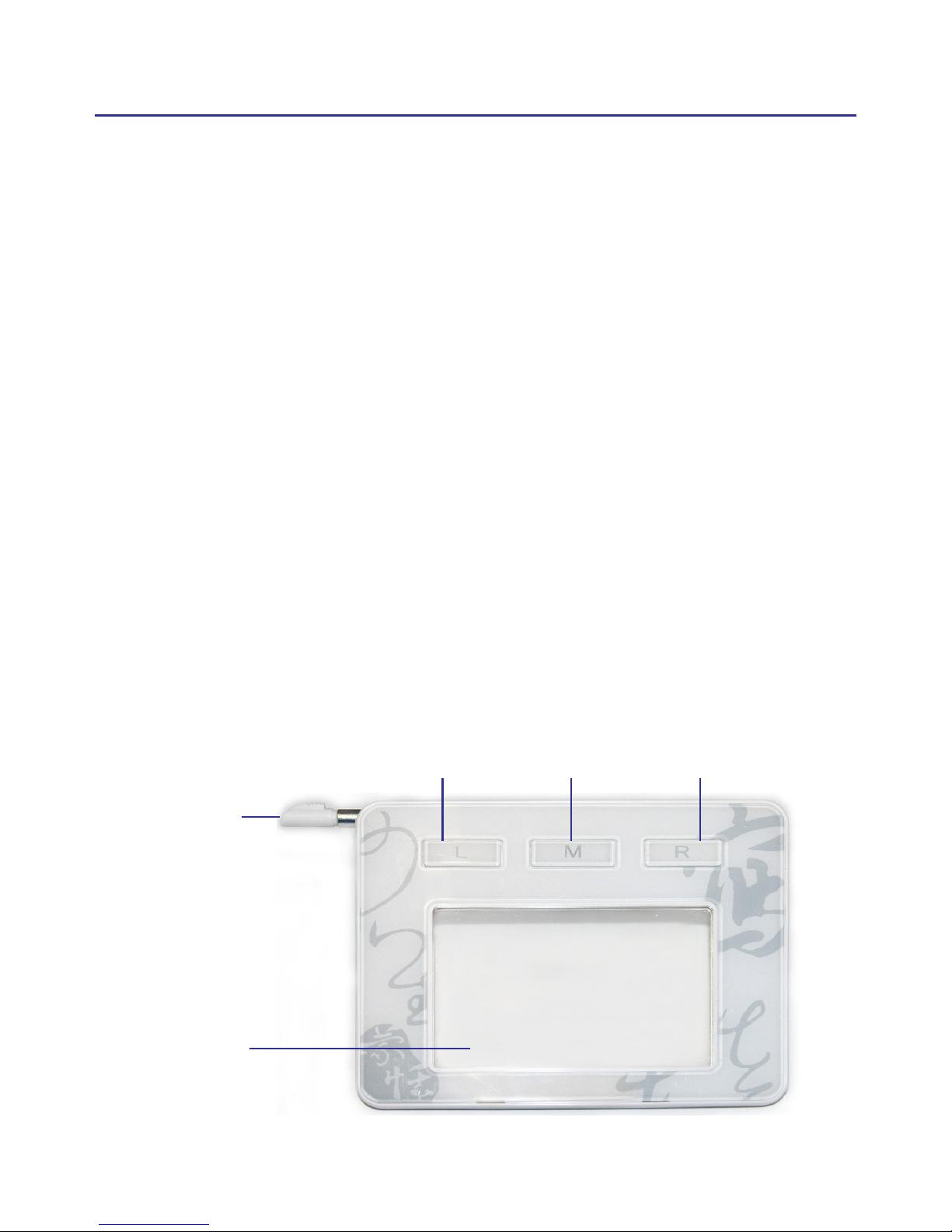
Hardware buttons:
• Left button: Change the recognized charater with the candidate character.
• Middle button: Remove a character before the cursor.
• Right button: Input/Switch common-used symbols.
Handwriting
Area
Handwriting
Pen
Left Button Middle Button Right Button

1-2
EZ Go
1.2 Product Feature
Plug and Write
No need to install EZ Go in any computer. All you need to do is plug the
EZ Go into the computer and then you can use handwriting recognition im-
mediately.
Asia all-in-one package
Recognize over 23,000 traditional and simplied Chinese characters, 4941
special Hong Kong characters, English letters, symbols, numbers, Japanese
Katakana and Hiragana.
Cursive writing and articial intelligence recognition kernel
No particular stroke order is required. Capable of recognizing extremely
cursive handwriting accurately. Highly adaptable to the uniqueness of your
handwriting and can be used as a personal handwriting system.
Slick and intuitive user interface
The toolbar and interface design provides an intuitive and personalized user
experience, enable quick access to frequently used functions. Two writing
interfaces for you to choose from: full-screen continual writing interface
and writing pad interface. Moreover, we also provide static mode in the
writing pad interface as another option.
Post-related word/phrase prediction
Integrate the functions of text prediction and user handwriting pattern
learning. The new function can provide you more predicted words, become
the smartest predictive text function corpus on the market. The predictive
text function will appear instantly right after your handwriting. Moreover,
Indice