
Penpower WorldCard Color Manuale utente
e-Biz Company Limited
36/F CRC Tower, 87/2 Wireless Road, Lumpini, Phatumwan, Bangkok 10330
Tel: +66 (0) 2625 3003 Fax: +66 (0) 2625 3000 www.ebiz.co.th
Digitize your business

PENPOWER WorldCard
User Manual
Version: 6.3
Edition: 3
Release: March, 2010

Penpower Technology Ltd.
Software User License Agreement
You are licensed to legally use this software program (“the Software”) by Penpower
Technology Ltd (“Penpower”) under this license agreement (“The Agreement”). If you do
not agree with any of the provisions in this Agreement, please do not install, copy or use the
Software. By using the Software, you are deemed to fully understand and accept the provi-
sions of this Agreement.
1. Intellectual Property
All intellectual property rights in the Software, together with all information and docu-
ments included in the packaging for the Software (including but not limited to copy-
rights), are property of Penpower, and are protected by relevant laws and regulations.
2. License to Use
You are authorized to use the Software on one (1) single computer only. You may not use
the Software on any other machines other than the said single computer.
3. Authority to Copy
The Software and all documents included with the Software, and copyright thereof, are
property of Penpower. You are licensed to make one (1) copy of the Software for your
personal backup purposes. All other acts of copying are strictly prohibited.
You may not sell, lease, dissemble, reverse engineer, copy, translate, adapt or derive the
Software, or obtain the source code of the Software by any other means. You may not use
the Software for any purposes other than those permitted under this Agreement.
4. Business Users
If you need to install or use the Software on more than one (1) computer, please contact
Penpower or our local distributor to purchase a license for the additional use.
5. Liability
You agree to indemnify Penpower against all losses, costs, debts, settlement payments or
other expenses (including but not limited to attorneys fees) arising from your breach of
this Agreement, and you agree to compensate Penpower for all of the abovementioned
damages.
6. No Warranty
Effectiveness of a packaged software in handling information is closely related to its soft-
ware and hardware environment. The Software is published following careful develop-
ment and product testing by Penpower, but Penpower is not able to conduct tests based on
all possible combinations of software and hardware environment. Therefore, Penpower is
unable to promise nor warrant that there will be absolutely no risk of loss or damage of

information, or any other kind of loss, during installation and/or execution of the Soft-
ware. You must be fully aware of your risks in using the Software.
Penpower will provide you with the Software and support services in respect of the Soft-
ware to the maximum extent permitted by law. However, Penpower does not warrant that
the Software and information included in the package of the Software contain no defects
or errors. Penpower is not liable for any indirect, special or incidental loss arising from
the Software, including but not limited to loss of prots, damage to business reputation,
cessation of work, hardware malfunction or damage, or any other commercial damage or
loss arising from commercial use of the Software.
7. Limitation of Liability and Damages
The maximum amount of compensation payable by Penpower, in respect of any damage
incurred by you for any reason under this Agreement, is limited to the amount you have
already paid to Penpower in respect of the Software.
Under no circumstances will Penpower be held liable for the possibility of loss, notwith-
standing Penpower may be aware of the possibility of such loss.
8. Prohibition Against Sublicense
You are prohibited to assign the license in respect of the Software granted to you under
this Agreement, or to grant a sublicense to another person.
9. Jurisdiction
With regards to any disputes arising from this Agreement, Penpower and you agree that
the court having jurisdiction over the business location of Penpower will be the court in
the rst instance.
10. Miscellaneous
In the event that any provision of this Agreement is found to be invalid at law, such
invalidity will not affect the validity of any other provisions, or the legal enforceability of
such other provisions.
In the event that the Software cannot be executed under conditions of normal use, due to
any damage to the original disk/s, Penpower will replace the disk/s free of charge.

Contents
Chapter 1 Product Introduction ............................................................ 1-1
1.1 WorldCard Series ........................................................................................ 1-1
1.1.1 WorldCard Color ............................................................................................. 1-1
1.1.2 WorldCard Ofce ............................................................................................. 1-2
1.1.3 WorldCard Ultra .............................................................................................. 1-3
1.2 Product Feature ........................................................................................... 1-5
Chapter 2 Getting Started ...................................................................... 2-1
2.1 System Requirements ................................................................................. 2-1
2.2 Installing Penpower WorldCard ................................................................. 2-1
2.2.1 Software and Driver Installation ...................................................................... 2-1
2.2.2 Launching WorldCard ..................................................................................... 2-3
2.2.3 Registration ...................................................................................................... 2-3
2.2.4 Connecting Hardware ...................................................................................... 2-4
2.3 Preparation for Card Scan .......................................................................... 2-4
2.3.1 Calibration ....................................................................................................... 2-4
2.3.2 Start-Up Wizard ............................................................................................... 2-5
2.4 Online Help ................................................................................................ 2-6
Chapter 3 Overview ................................................................................ 3-1
3.1 User Interface ............................................................................................. 3-1
3.1.1 Menu Toolbar ................................................................................................... 3-2
3.1.2 Alphabet .......................................................................................................... 3-2
3.2 Scanning Business Cards ............................................................................ 3-3
3.2.1 Scanning Directly ............................................................................................ 3-3
3.2.2 Scan Wizard ..................................................................................................... 3-3
3.2.3 Batch Scanning ................................................................................................ 3-4
3.4 Viewing Contacts ........................................................................................ 3-5
3.4.1 List Mode View ............................................................................................... 3-5
3.4.2 Label Mode View ............................................................................................ 3-6
3.4.3 Image mode ..................................................................................................... 3-7

3.4.4 Dual mode........................................................................................................ 3-8
3.4.5 Hiding WorldCard Banner ............................................................................... 3-8
Chapter 4 Editing Cards ........................................................................ 4-1
4.1 Editing Window Overview ......................................................................... 4-1
4.2 Verifying Contacts ...................................................................................... 4-1
4.3 Editing Contacts ......................................................................................... 4-3
4.3.1 Recognizing Partial Content of a Card Entry .................................................. 4-4
4.3.2 Adjusting the Separation Rate ......................................................................... 4-5
4.3.3 Reframing Command ...................................................................................... 4-6
4.3.4 Fine Rotate ....................................................................................................... 4-6
4.3.5 Rotating Card ................................................................................................... 4-7
4.3.6 Rescanning Card .............................................................................................. 4-7
4.3.7 Recognize Again .............................................................................................. 4-8
4.3.8 Front and Back Business Card Image Exchange ............................................. 4-8
4.4 Viewing Cards ............................................................................................ 4-9
4.4.1 Saving Card Image .......................................................................................... 4-9
4.4.2 Deleting Card Image ........................................................................................ 4-9
Chapter 5 Managing Business Cards .................................................... 5-1
5.1 Categorizing Cards ..................................................................................... 5-1
5.1.1 Categorizing from Management Page ............................................................. 5-1
5.1.2 Categorizing from Editing Page ...................................................................... 5-2
5.1.3 Sending Email by Category ............................................................................. 5-2
5.2 Merging and Separating Cards ................................................................... 5-3
5.3 Adding New Cards ..................................................................................... 5-4
5.3.1 Adding an Empty Card .................................................................................... 5-4
5.3.2 Adding the Same Company Card .................................................................... 5-4
5.4 Adding Cards from Other Resources .......................................................... 5-5
5.4.1 Photo File ......................................................................................................... 5-5
5.4.2 Twain Scanner ................................................................................................. 5-5
5.4.3 Draging in the Signature Information .............................................................. 5-6
5.5 Deleting/Restoring Contacts ....................................................................... 5-6

5.6 Searching Contacts ..................................................................................... 5-7
5.6.1 Text Search ...................................................................................................... 5-7
5.6.2 Advanced Search ............................................................................................. 5-8
5.6.3 Finding Duplicate Data .................................................................................... 5-9
5.7 Safeguarding your Contacts ..................................................................... 5-10
5.7.1 Save ............................................................................................................... 5-10
5.7.2 Save As .......................................................................................................... 5-10
5.7.3 File Encryption .............................................................................................. 5-10
5.8 Printing Cards .......................................................................................... 5-12
5.8.1 Printing Preview ............................................................................................ 5-12
5.8.2 Editing Print Templates ................................................................................. 5-13
5.9 Exchanging Contacts ................................................................................ 5-14
5.9.1 Export ............................................................................................................ 5-14
5.9.2 Import ............................................................................................................ 5-17
5.9.3 Sync ............................................................................................................... 5-19
5.9.4 WorldCard Data Exchange Compatibility List .............................................. 5-21
5.10 Settings ................................................................................................... 5-23
5.10.1 Export Option .............................................................................................. 5-23
5.10.2 Synchronize Option ..................................................................................... 5-24
5.10.3 Field Display................................................................................................ 5-25
5.10.4 User Dene Field ......................................................................................... 5-25
5.10.5 Scan Option ................................................................................................. 5-26
5.10.6 Revising the Results of Chinese Card Recognition ..................................... 5-26
5.10.7 Personal Setting ........................................................................................... 5-27
5.11 Online Map ............................................................................................. 5-29
5.12 Getting Direction .................................................................................... 5-30
5.13 WorldCard Portable Disk........................................................................ 5-31
5.13.1 Saving Card Data to a Portable Disk ........................................................... 5-31
5.13.2 Card Data Management for Portable Disk .................................................. 5-32
Chapter 6 Scan Manager ........................................................................ 6-1
6.1 Scanning Contacts ...................................................................................... 6-1

There may be newer versions of the software that was released during or after this product’s
manufacturing date. If the content in the User Manual differs from the on-screen interface,
please follow the instructions on the on-screen interface instead of the User Manual.
6.2 Scan business cards .................................................................................... 6-2
6.2.1 Scan and Edit business cards ........................................................................... 6-2
6.2.2 View business card image ................................................................................ 6-4
FAQ .................................................................................................... FAQ-1
Chapter 1 Product Introduction 1-1
Chapter 1 Product Introduction
The Penpower WorldCard provides you with a total business card management solu-
tion by integrating card recognition, management, transmission, and printing functions in a
single digitizing unit. So you can nd your business cards at anytime and anywhere when
you need them.
1.1 WorldCard Series
1.1.1 WorldCard Color
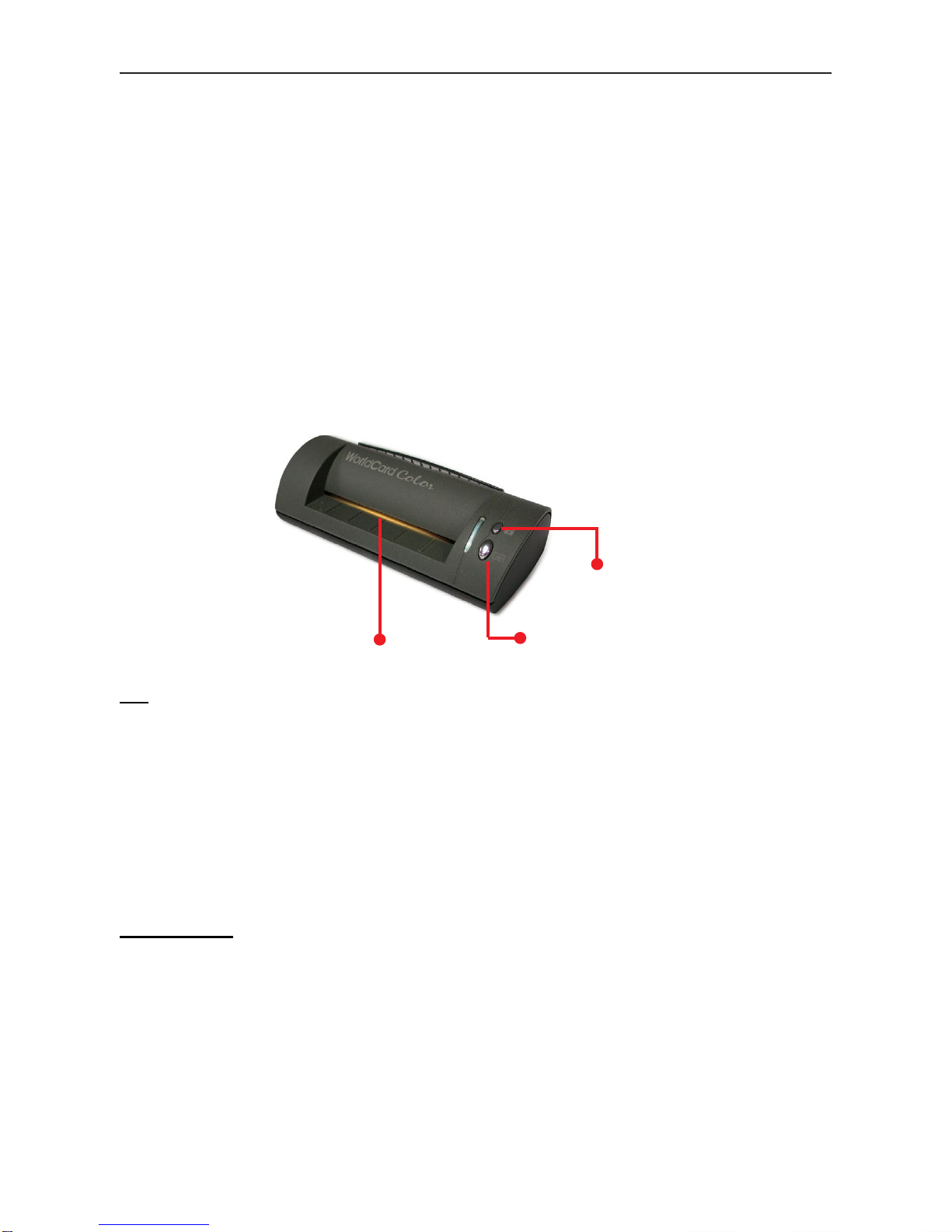
The A6-sized color business card scanner is supported by PENPOWER’s BCR technol-
ogy to ensure quick scan and accurate recognization of information on a color business card.
It provides 600 dpi resolution and can be used as an ordinary color scanner to scan 4x6 color
photos.
Tip
• Business Card Placement: Insert card with the information side facing up, make sure
the card is placed against to the left-hand side with the mark.
• Business Card Scan Button: When running WorldCard software, press Business Card
Scan Button to open the Scan Wizard. Insert a business card and press Business Card
Scan Button again to scan it.
• Picture Scan Button: Open WorldCard software, press Picture Scan Button, insert a
picture to scan and save it in JPG le format.
Specication
• Dimensions: 175x75x45mm
• Weight: 216g
• Resolution: 600 dpi
• Interface: USB
• Image: Color
Business Card Placement
Picture Scan Button
Business Card Scan Button
1-2 WorldCard
1.1.2 WorldCard Ofce
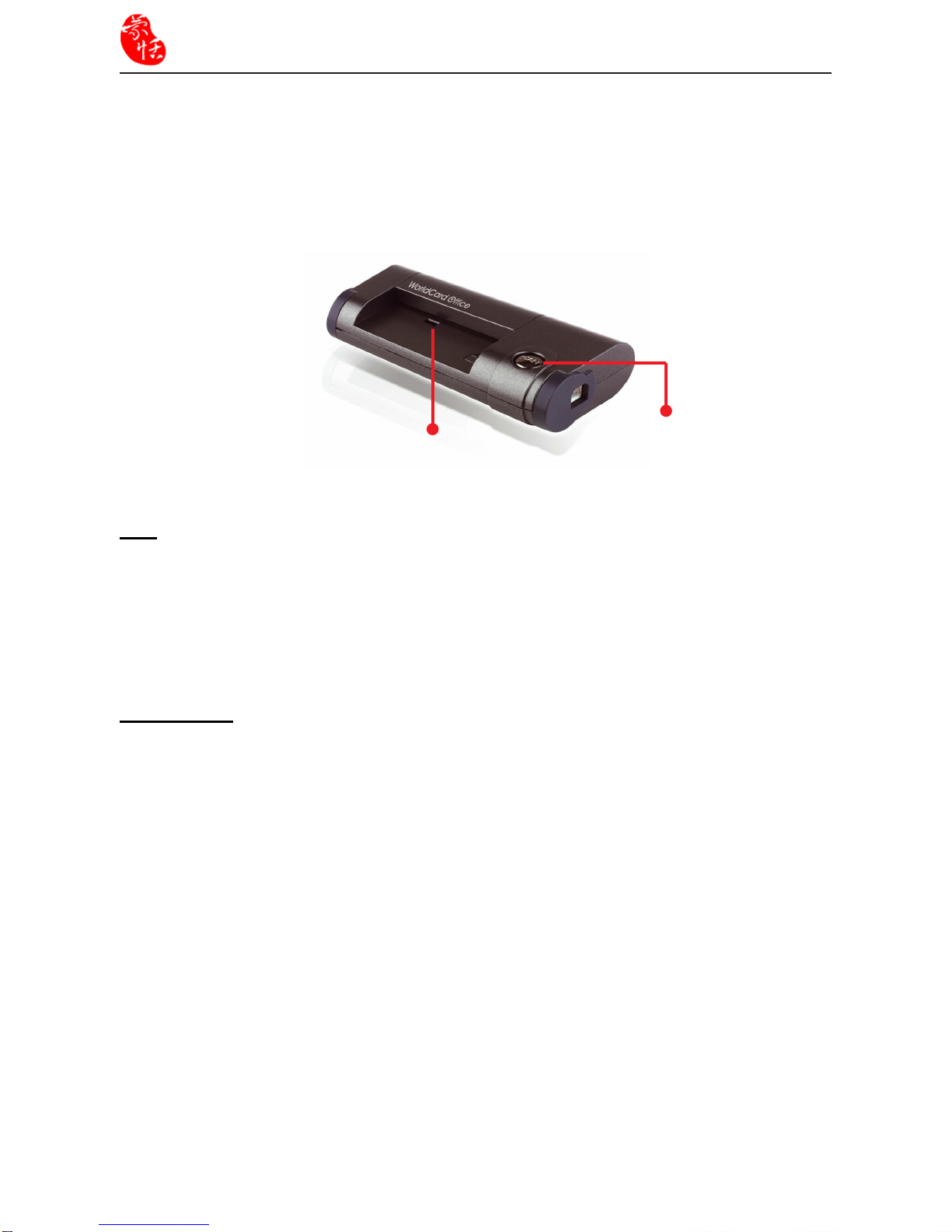
The A8-sized gray-scale business card scanner is designed based on PENPOWER’s ker-
nel technology of character recognition. It ensures users can identify data on a business card,
input them to the corresponding eld, and create les for management within 5 seconds.
With the WorldCard Ofce, manual key-in or card searching is not required and the manage-
ment of business cards is more efcient.
Tips
• Business Card Placement: Insert card with the information side facing down, make
sure the card is placed against to the right- hand side with the mark.
• Scan Button: When running WorldCard software, press Scan Button to open the Scan
Wizard. Insert a business card and press Scan Button again to scan it.
Specication
• Dimensions: 106x53x27mm
• Weight: 73g
• Resolution: 600 dpi
• Interface: USB
• Image: Gray-scale
Business Card Placement
Scan Button
Altri manuali per WorldCard Color
1
Questo manuale è adatto per i seguenti modelli
2
Indice
Altri manuali Penpower Scanner

Penpower
Penpower WorldCard Color Manuale utente

Penpower
Penpower WorldCard duet Manuale utente

Penpower
Penpower WorldCard Series Manuale utente

Penpower
Penpower Chinease Expert PCE Standard Manuale utente

Penpower
Penpower mini ScanEYE Manuale utente

Penpower
Penpower WorldPenScan X Manuale utente

Penpower
Penpower Super ScanEYE Manuale utente

Penpower
Penpower WorldPenScan Pro Manuale utente

Penpower
Penpower WorldCard Mac Manuale utente

Penpower
Penpower WorldocScan X Manuale utente


