PhaseOne iX Flight Pro Manuale utente

iX Flight Pro
Operation Guide
Version: 2.0
Date: October 10, 2023

iX Flight Pro Operation Guide
Page 2 of
100
Legal Notice
The company disclaims all liability and warranties in relation to this manual, including warranty of
merchantability, fitness for particular purpose and accuracy, and may amend it without further notice.
Warning
•iX Flight Pro is not designed, tested, or certified as a primary flight guidance system.
•Use iX Flight Pro only in VFR flight conditions.
•While using iX Flight Pro, the pilot is responsible for maintaining safe altitude and safe distance from
obstacles.
Trademarks
All trademarks or registered trademarks are the property of their respective owners.
Contact Support
You can contact Phase One Technical Support directly by creating a support case at
https://support.phaseone.com/
Visit https://geospatial.phaseone.com/ for additional information.
Copyright © 2023 Phase One. All Rights Reserved.
iX Flight Pro Operation Guide Version 2.0
Doc No. 80101000 Rev 2.0 10/10/2023

iX Flight Pro Operation Guide
Table of Contents
Page 3 of
100
Table of Contents
1Introduction....................................................................................................................................................................................................5
1.1 Scope...................................................................................................................................................................................................5
1.2 Applicable Documents...............................................................................................................................................................5
2Product Overview.......................................................................................................................................................................................6
2.1 Description........................................................................................................................................................................................6
2.2 Requirements ..................................................................................................................................................................................6
3Managing Projects ......................................................................................................................................................................................7
3.1 Importing a Project from iX Plan...........................................................................................................................................7
3.2 Removing Projects .......................................................................................................................................................................8
3.3 Returning to the Home Window...........................................................................................................................................9
4Project Tasks ...............................................................................................................................................................................................10
4.1 Performing a Preflight Check................................................................................................................................................10
4.2 Upcoming Mission Activation............................................................................................................................................... 12
4.2.1 Selecting/Clearing all Capture Points.............................................................................................................14
4.2.2 Selecting Specific Lines and/or Capture Points for an Upcoming Flight .................................... 16
4.2.3 Mission Management Tasks................................................................................................................................. 23
5Getting to Know the Flight Interface.............................................................................................................................................26
5.1 Using the Pilot and Operator Displays Interface .......................................................................................................26
5.2 Pilot Display................................................................................................................................................................................... 27
5.2.1 Pilot Controls...............................................................................................................................................................28
5.2.2 Pilot Indicators ...........................................................................................................................................................36
5.3 Operator Display ........................................................................................................................................................................37
5.3.1 Operator Controls ....................................................................................................................................................38
6Recommended Flight Operation Procedure ............................................................................................................................. 52
6.1 Before Aircraft Power Up ......................................................................................................................................................52
6.2 After Aircraft Power Up..........................................................................................................................................................52
6.2.1 Controller and Mount..............................................................................................................................................52
6.2.2 Screen Recording .....................................................................................................................................................52
6.2.3 GNSS/GPS....................................................................................................................................................................53
6.2.4 iX Flight Pro .................................................................................................................................................................54
6.3 On Taxiing......................................................................................................................................................................................57
6.4 In Flight Tasks ..............................................................................................................................................................................57
6.4.1 In Flight Tasks for Pilot .......................................................................................................................................... 57
6.4.2 In Flight Tasks for Operator................................................................................................................................ 57
6.5 After Landing Tasks for the Operator.............................................................................................................................. 61
6.6 Before Engine Shutdown .......................................................................................................................................................62

iX Flight Pro Operation Guide
Table of Contents
Page 4 of
100
7Post Flight Operations ..........................................................................................................................................................................64
7.1 Generating the Postflight Report ......................................................................................................................................64
7.2 Collecting Flight Data ..............................................................................................................................................................67
7.3 Saving Diagnostics Logs ........................................................................................................................................................68
7.4 Finishing a Project .....................................................................................................................................................................70
Appendix A Configuring Settings............................................................................................................................................................ 72
A.1 Configuring System Settings ............................................................................................................................................... 72
A.1.1 Accessing System Settings ................................................................................................................................. 72
A.1.2 Using the System Settings Interface ..............................................................................................................73
A.1.3 System Parameters.................................................................................................................................................. 75
A.2 Configuring Camera Settings...............................................................................................................................................82
A.2.1 Accessing Camera Settings.................................................................................................................................83
A.2.2 Setting the Camera Name....................................................................................................................................83
A.2.3 Removing a Camera................................................................................................................................................84
A.2.4 Using the Camera Settings Interface..............................................................................................................84
A.2.5 Additional Camera Settings Actions ..............................................................................................................88
A.2.6 Camera Parameters.................................................................................................................................................89
A.3 Viewing the Camera System................................................................................................................................................92
Appendix B Exporting and Importing Settings................................................................................................................................93
B.1 Exporting Settings.....................................................................................................................................................................93
B.2 Importing Settings.....................................................................................................................................................................94
Appendix C Using the Simulator..............................................................................................................................................................97
Appendix D Requesting and Installing a License ............................................................................................................................98

iX Flight Pro Operation Guide
1. Introduction
Page 5 of
100
1Introduction
1.1 Scope
This manual describes how to use the iX Flight Pro software as follows:
•Section 2 - Product Overview.
•Section 3 - Managing Projects.
•Section 4 - Project Tasks
•Section 5 - Getting to Know the Flight Interface
•Section 6. - Recommended Flight Operation Procedure.
•Section 7 - Post Flight Operations.
•Appendix A - Configuring Settings.
•Appendix B – Exporting and Importing Settings
•Appendix C - Using the Simulator
•Appendix D - Requesting and Installing a License
1.2 Applicable Documents
Item
Manual
Phase One Controllers
Connecting to a Phase One Controller Using Remote Desktop Connection
Phase One iX Plan
iX Plan Operation Guide
Phase One iX Process
iX Process Operation Guide
Phase One iX Capture
iX Capture User Guide
Phase One PAS 150MP
(MK2 and MK3)
PAS 150MP Operation Guide (MK2 and MK3)
Phase One PAS 280MP
(MK2 and MK3)
PAS 280MP Operation Guide (MK2 and MK3)
Phase One PAS 280/
PAS 880
PAS 280/PAS 880 Operation Guide
Phase One PAS Pana
PAS Pana Operation Guide

iX Flight Pro Operation Guide
2. Product Overview
Page 6 of
100
2Product Overview
2.1 Description
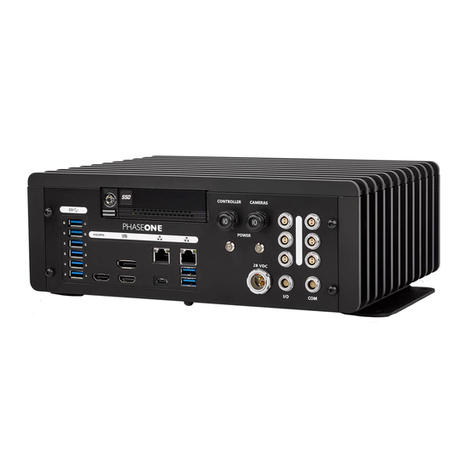
iX Flight Pro, integrated in certain PAS controllers, contains all functions needed for aero photography flight
management and image collection, from engine start to post-landing. It serves as a flight management
center, interfacing with all hardware such as cameras, Applanix GNSS/IMU, SOMAG mount, and
pilot/operator monitors.
The flight director module provides position altitude and speed commands to the pilot based on mission
design and planned tolerances. This easy-to-follow flight director graphical display enables the execution of
long missions with low pilot fatigue, resulting in higher mission safety and quality. The operator’s monitor
aids in mission and image collection management. A graphical collection summary ensures that all images
are captured at the correct locations and quality within the required speed and height tolerances.
iX Flight Pro imports flight plans created in iX Plan.
Continuously displayed images and exposure value graphs allow the operator to manage camera
parameters for best image acquisitions. Post-flight reports are used to decide whether the mission was
successfully completed.
2.2 Requirements
iX Flight Pro is preinstalled on Phase One controllers when a PAS solution is ordered by customers.
iX Flight Pro Operation Guide
3. Managing Projects
Page 7 of
100
3Managing Projects
3.1 Importing a Project from iX Plan
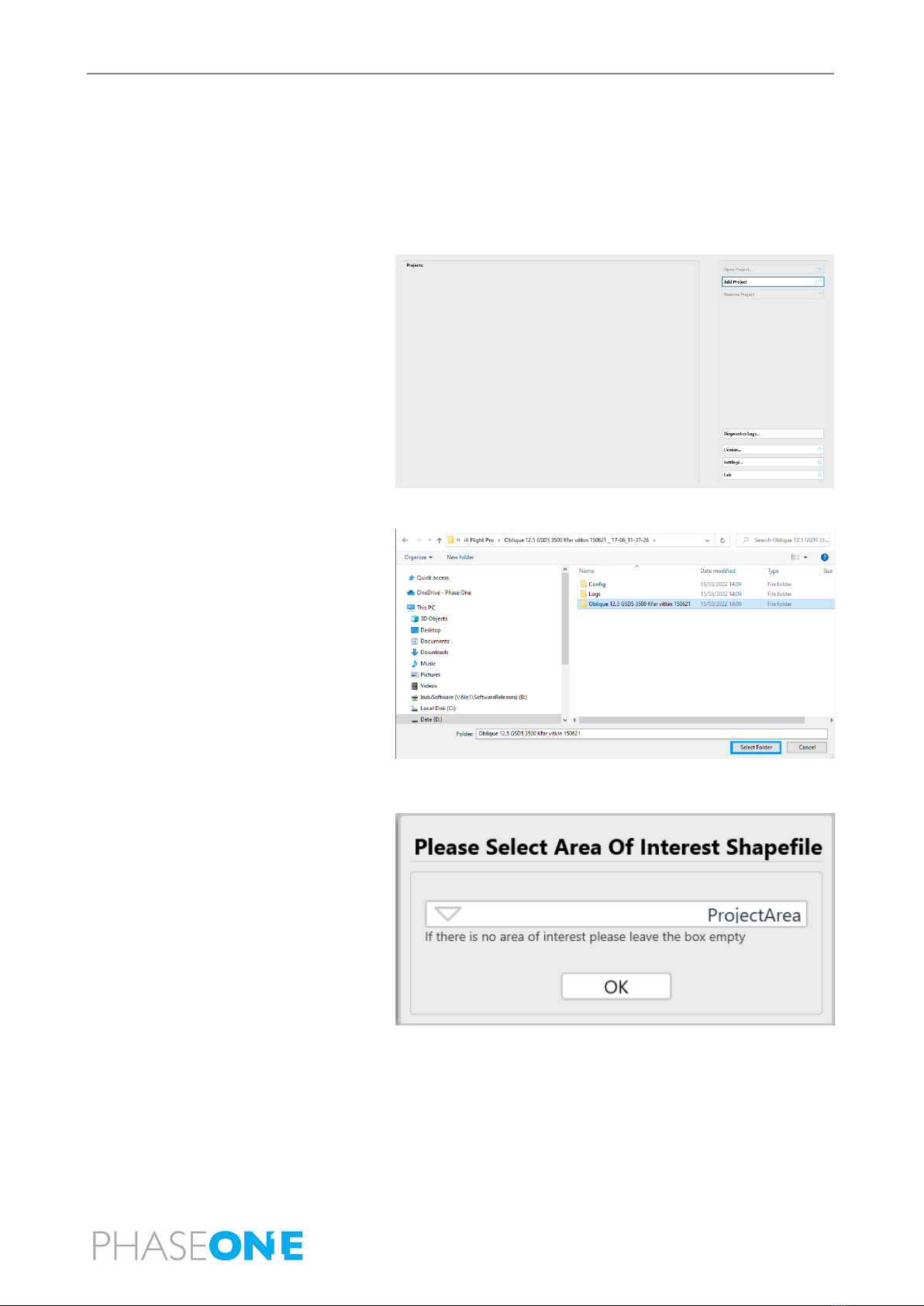
To import a flight plan from iX Plan:
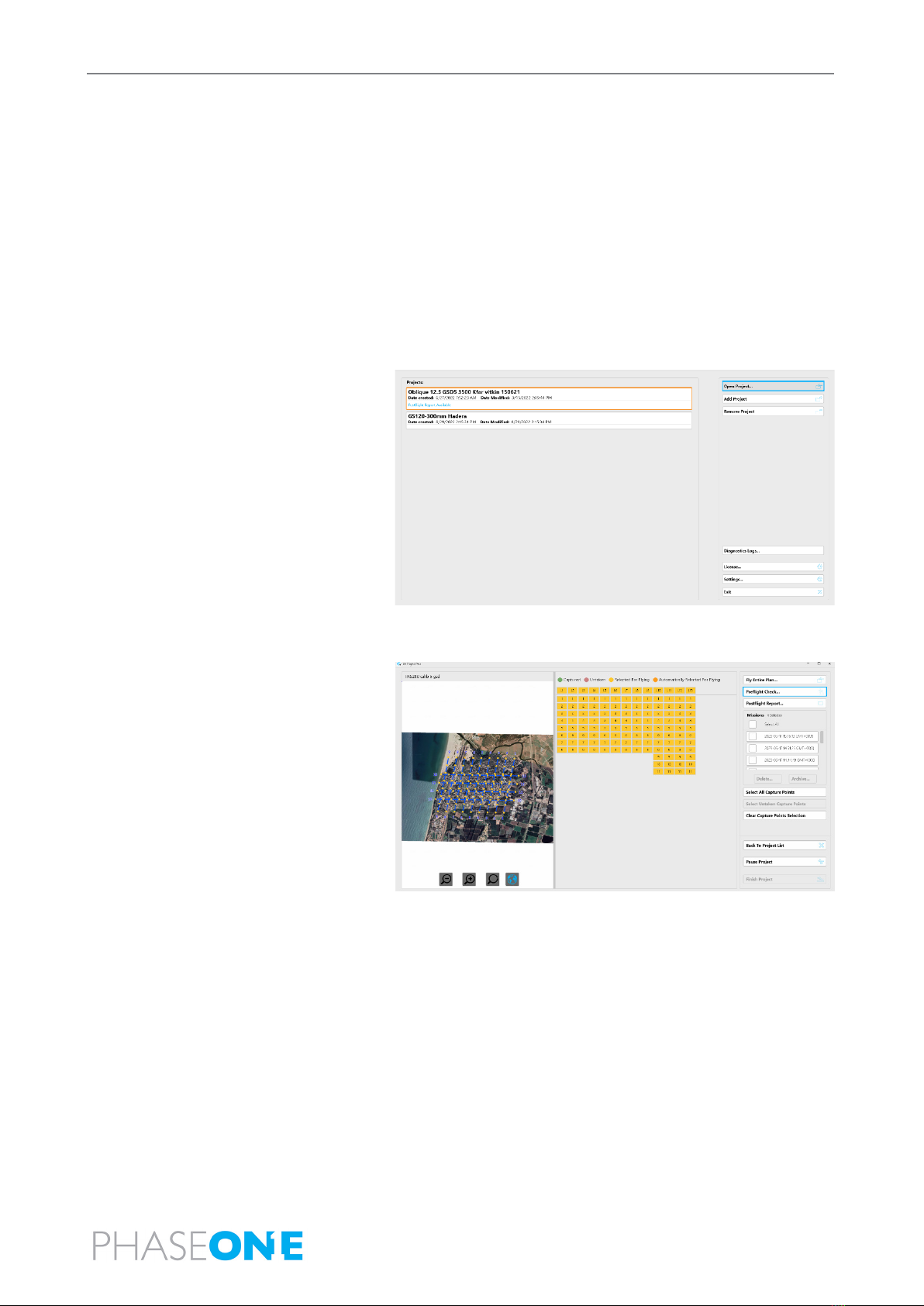
1. In the Home window, tap Add Project.
2. Navigate to the folder containing the
required iX Plan project and tap Select
Folder.
3. Select an area of interest shapefile.
This file has the same file name that
was used during planning to define the
project area.
4. Click OK.
iX Flight Pro Operation Guide
3. Managing Projects
Page 8 of
100
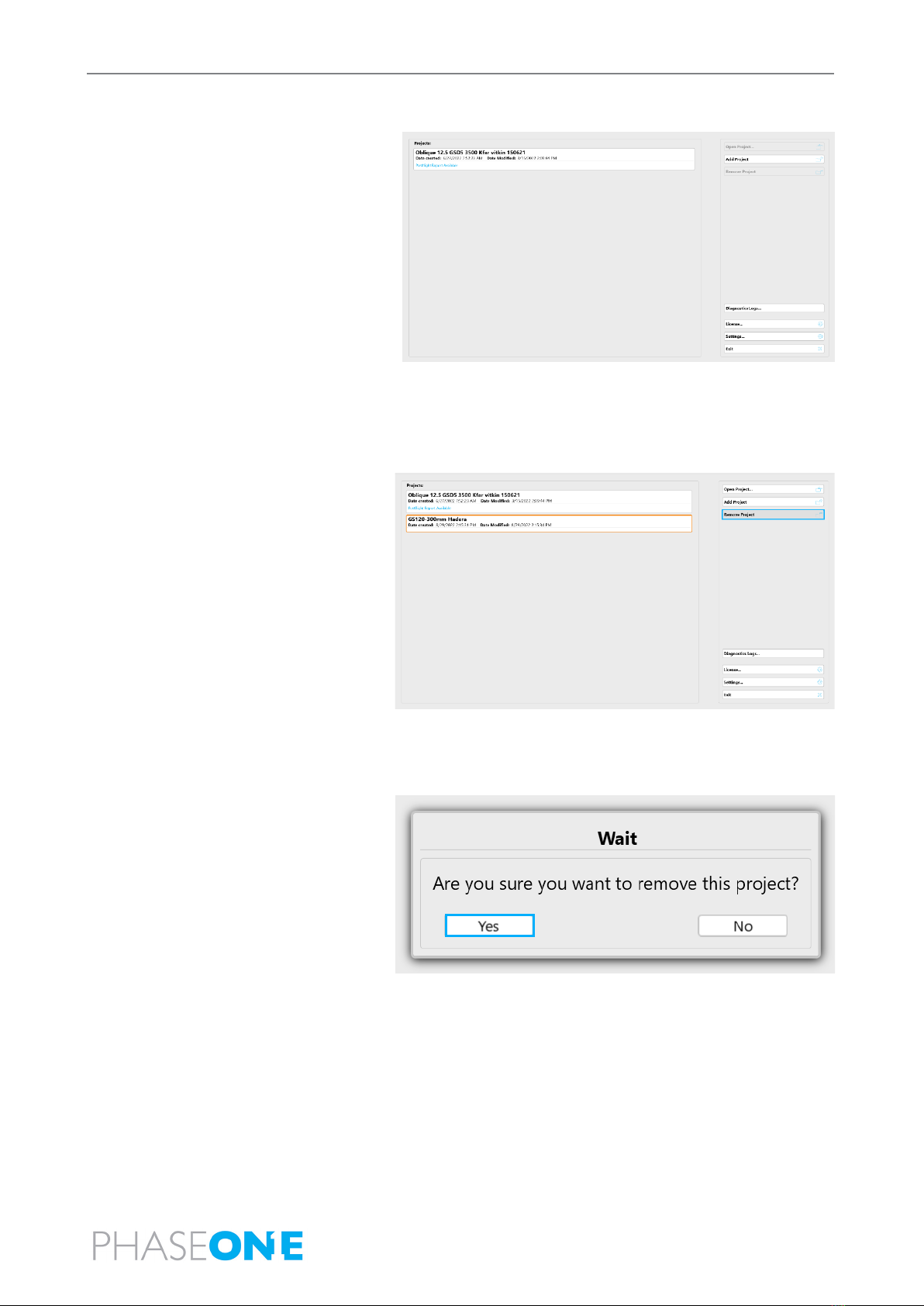
The project is imported and added to
the Home window project list.
3.2 Removing Projects
To remove a flight plan from the Home window projects list:
1. In the Home window, tap the required
project and tap Remove Project.
2. Tap Yes.
The project is removed from the Home window project list. No files are deleted from the hard drive.
iX Flight Pro Operation Guide
3. Managing Projects
Page 9 of
100
3.3 Returning to the Home Window
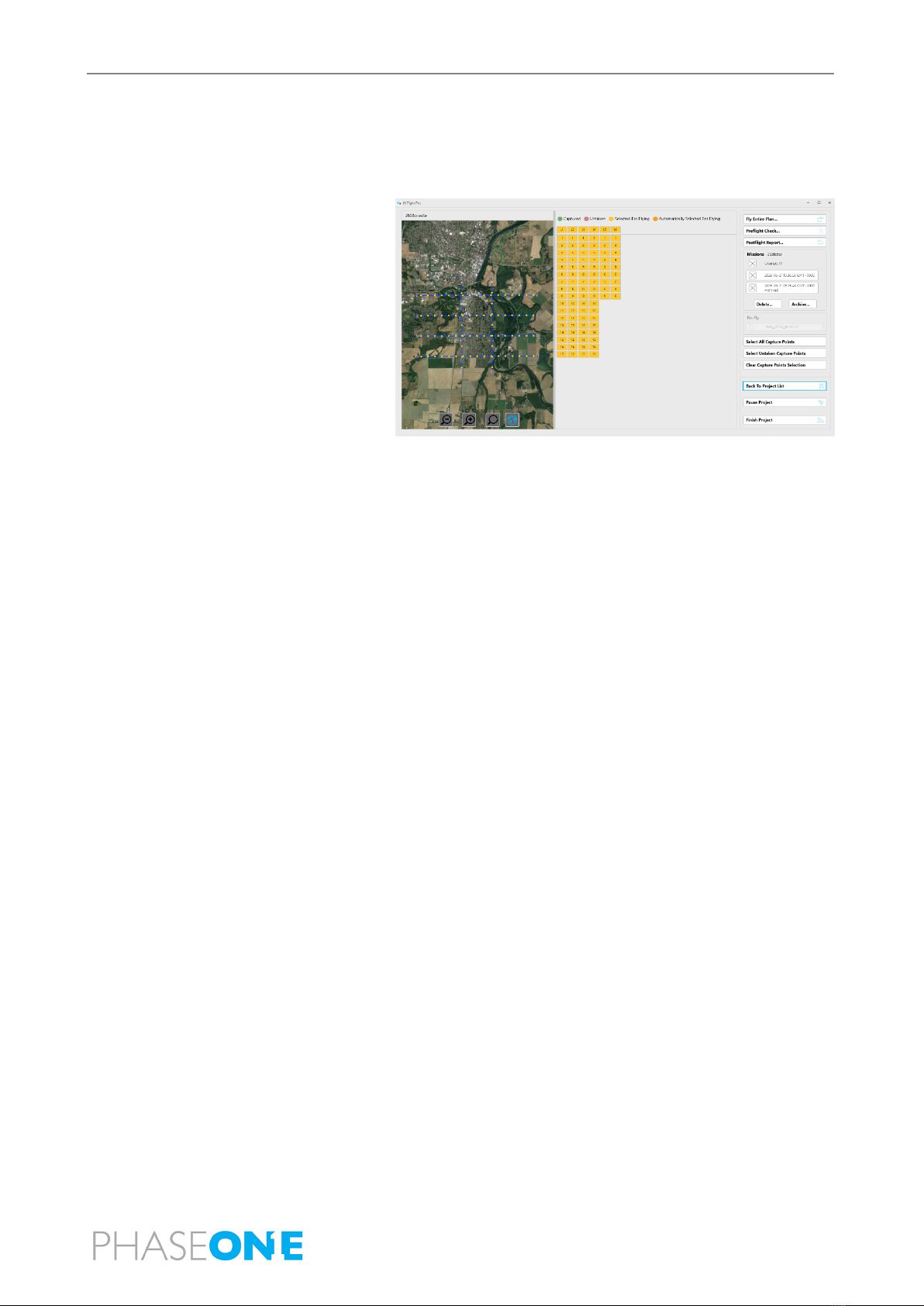
To return to the Home window from the Project window:
1. Tap Back to Project List.
iX Flight Pro Operation Guide
4. Project Tasks
Page 10 of
100
4Project Tasks
Before commencing a flight, you must validate your system configuration and plan the upcoming mission, as
described in this section.
4.1 Performing a Preflight Check
The preflight check validates that the configuration of the actual connected system matches the
configuration defined in iX Flight Pro. If there are discrepancies, relevant warnings appear detailing the
issues. You can select which Items (such as camera system, flight plan, GNSS/GPS) to validate.
To perform a preflight check:
1. Tap the required project and tap Open
Project.
2. Tap Preflight Check.
Indice
Altri manuali PhaseOne Controllori