
PHICOMM M1 Manuale utente

Wireless Nano Router
M1
User Manual
User Manual / V1.0

2
Copyright Statement
PHICOMM is the registered trademark of Shanghai Feixun Communication Co., Ltd. Other
trademark or trade name mentioned herein are the trademark or registered trademark of the
company. Copyright of the whole product as integration, including its accessories and software,
belongs to Shanghai Feixun Communication Co., Ltd. Without the permission of Shanghai
Feixun Communication Co., Ltd., individual or party is not allowed to copy, plagiarize, imitate or
translate it into other languages.
All the photos and product specifications mentioned in this manual are for references only, as
the upgrading of software and hardware, there will be changes. And if there are changes,
PHICOMM is not responsible for informing in advance. If you want to know more information
about our products, please visit our website at www.phicomm.com.

i
Table of Contents
Wireless Nano Router
www.phicomm.com
CONTENTS
Chapter 1: Introduction
..............................................1
Product Overview...............................................................................................1
Main Features.......................................................................................................2
Chapter 2: Operating Mode Introduction
.........................1
Chapter 3: Installation
................................................3
Physical Connection ..........................................................................................3
Configure the Computer’s IP Address ........................................................3
Setup Wizard ..................................................................................................... 13
Chapter 4: Router Configuration
................................. 20
Basic Setting ...................................................................................................... 20
Operating Mode...................................................................................................................21
Internet Settings ..................................................................................................................21
Wireless Basic Settings.......................................................................................................22
Wireless Security Settings.................................................................................................25
Running Status .....................................................................................................................27
Expert Setting.................................................................................................... 27
Network Settings .................................................................................................................28
Wireless Settings..................................................................................................................29
DHCP Server...........................................................................................................................32

ii
Table of Contents
Wireless Nano Router
www.phicomm.com
NAT............................................................................................................................................33
Security Options...................................................................................................................36
Access Control ......................................................................................................................38
Routing Settings...................................................................................................................39
IP Bandwidth Control.........................................................................................................40
IP and MAC Binding............................................................................................................40
System Tools..........................................................................................................................41
Logout......................................................................................................................................45
Chapter 5: Specification
............................................ 46
Appendix A: Troubleshooting
..................................... 47
Appendix B: Certification
.......................................... 48
FCC Statement.................................................................................................. 48
CE Mark Warning ............................................................................................. 49
Appendix C: Glossary
................................................ 50
Wireless Nano Router
www.phicomm.com
1
Chapter 1: Introduction
Chapter 1: Introduction
Product Overview
Thank you for choosing M1 Wireless Nano Router.
The Wireless Nano Router is an all-in-one router, ideal for creating a highly ecient mobile oce
or entertainment network at any time. Small enough to t in the average pocket, the router is
uniquely suited to provide robust wireless networking to travelers, students, or anyone else for
work or play. It supports multiple operating modes such as AP, Router, Repeater, Bridge and
Client, helping you to extend wireless range and to boost the wireless signal. You can enjoy the
convenience of wireless network in home, oce, hotel or any other place with this compact and
portable router.
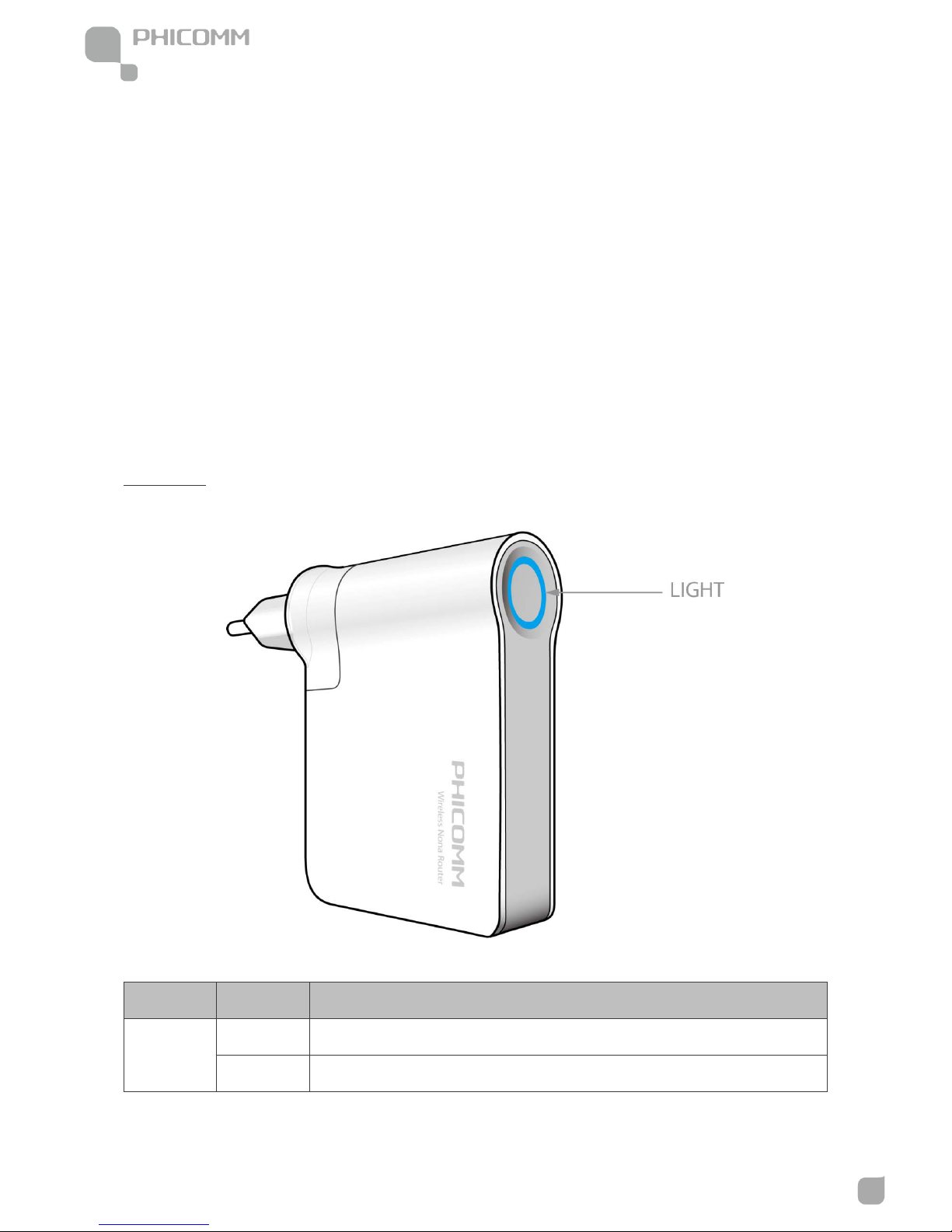
Front Panel
Description
SYS
The system is normalOn
Blinking There is a successful connection on the LAN/WAN port
LED Status

Wireless Nano Router
www.phicomm.com
2
Chapter 1: Introduction
Rear Panel
LAN/WAN: This Ethernet port can be used as a LAN or WAN port.
USB: Connect to your USB device.
Reset: Long press and hold the button for 8 seconds, the Router will reboot to its factory default
settings.
Main Features
•IEEE 802.11n, wireless speed up to 150Mbps
•Travel-sized design, lightweight, great for home or travel user
•USB port can be used for charging the Smart Phone
•Built-in rewall featured with IP, MAC , URL Filtering and ARP attack prevention to protect
your PC
•Supports multiple operation modes in dierent environment
•Supports WEP, WPA/WPA2-Enterprise,WPA /WPA2-Personal
•Backward compatible with 802.11b/g product
Wireless Nano Router
www.phicomm.com
1
Chapter 2: Operating Mode Introduction
Chapter 2: Operating Mode Introduction
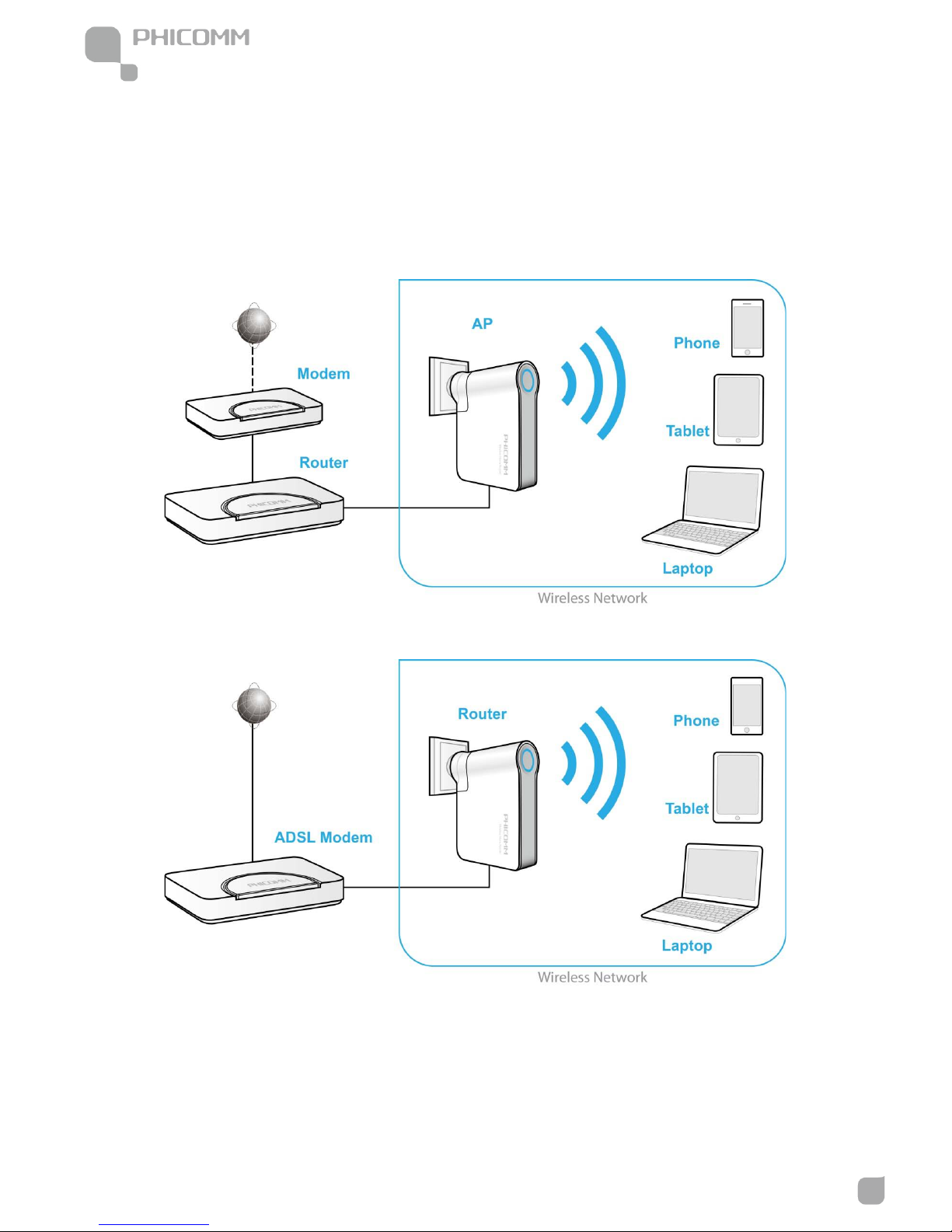
This Wireless Nano Router supports five operation modes: AP (Access Point), Router, Repeater,
Bridge and Client. By default, the operation mode is AP.
In AP mode, it extends your existing hardwired network to your wireless clients.
In Router mode, you can connect it to your modem to access the internet.
Wireless Nano Router
www.phicomm.com
2
Chapter 2: Operating Mode Introduction
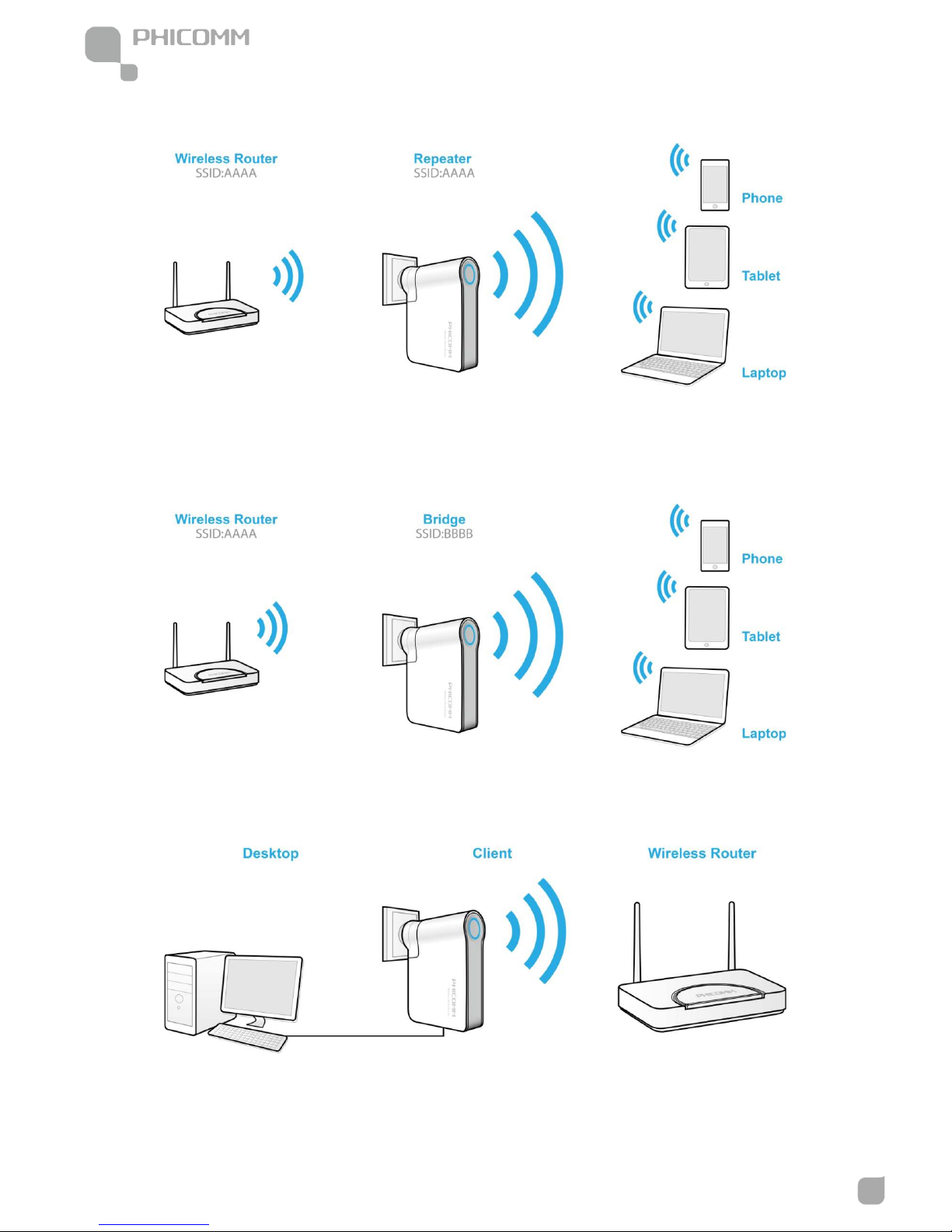
In Repeater mode, it can extend the coverage of your root wireless router, boost the wireless
signal strength.
In Bridge mode, it can wirelessly connect two or more remote LANs which also support Bridge
mode together.
In Client mode, it acts as a wireless network adapter.

3
Chapter 3: Installation
Wireless Nano Router
www.phicomm.com
Chapter 3: Installation
Physical Connection
Please refer to Chapter 2.
Configure the Computer’s IP Address
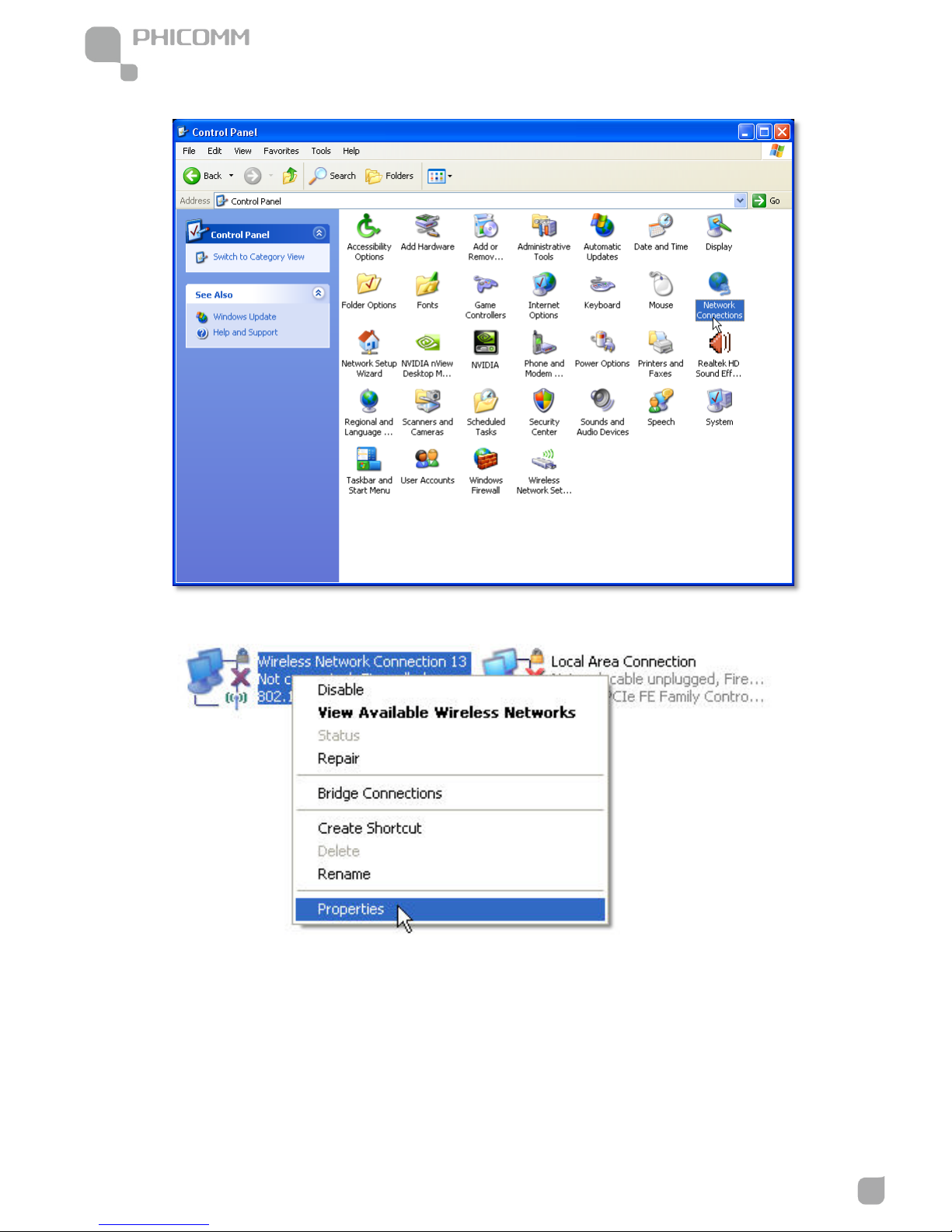
1) Click Start > Control Panel.
For Windows XP/2000
4
Chapter 3: Installation
Wireless Nano Router
www.phicomm.com
2) Select and double click Network Connections.
3) Right click Wireless Network Connection and then select Properties.
Indice
Altri manuali PHICOMM Router wireless


