
PiPO M7 pro Manuale utente
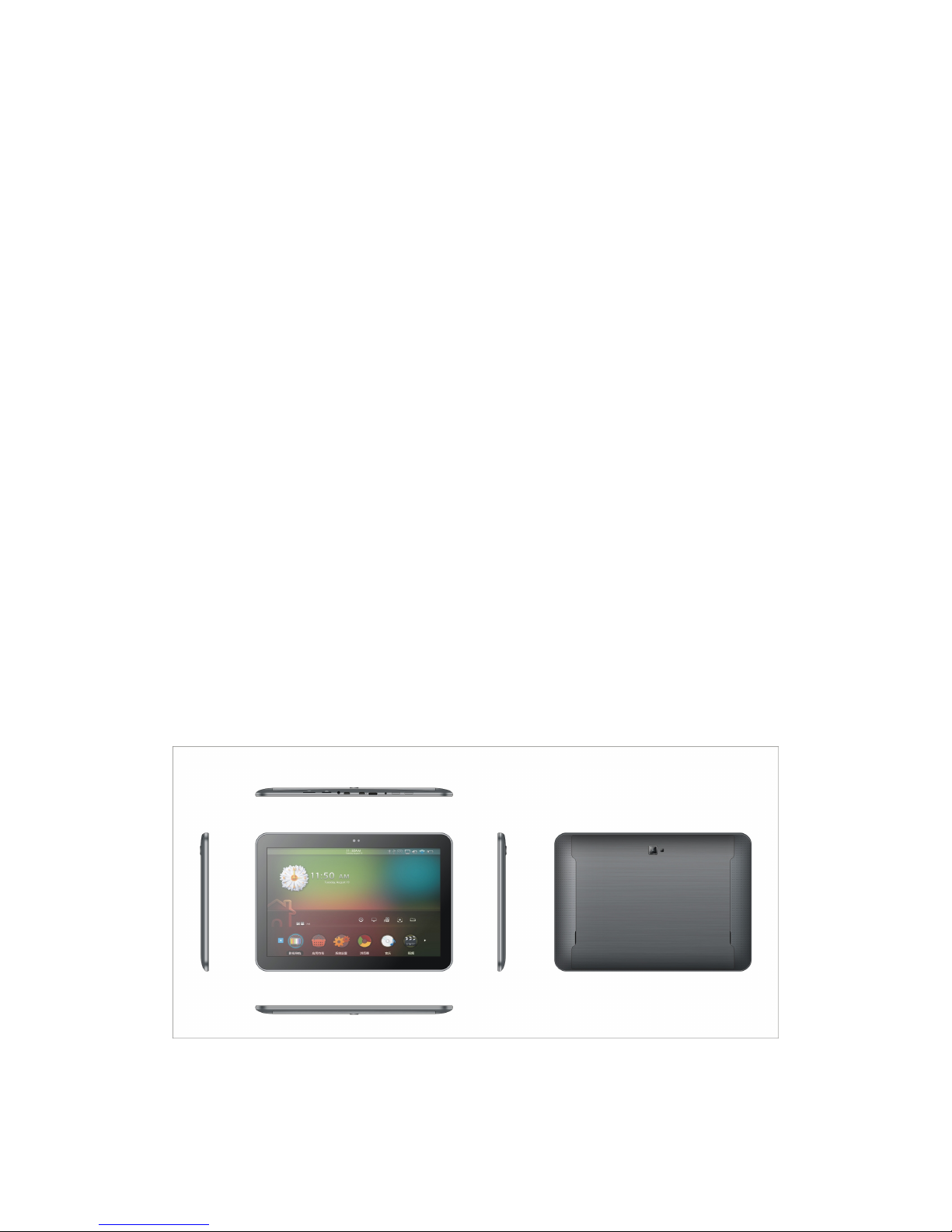
1
User Manual
M7 pro

2

3
Contents
Welcome.................................................................................................................... 3
Important Notices................................................................................................. 3
Keys and Functions...............................................................................................4
I. Getting Started.................................................................................................. 5
1.1 Turn on/off......................................................................................................5
1.1.1 Turn on......................................................................................................... 5
1.1.2 Turn off......................................................................................................... 5
1.2 Lock/unlock the screen (sleep mode).................................................... 5
1.3 Connect to computer.................................................................................. 5
II. Your Home Screen........................................................................................... 6
2.1 Change wallpaper:........................................................................................ 7
2.2 Add/delete applications on home screen:........................................... 7
2.3 Add widgets to home screen:...................................................................7
III. Network Connection...................................................................................... 8
3.1 Wi-Fi.................................................................................................................. 8
3.1.1 Turn on Wi-Fi............................................................................................ 8
3.1.2 Turn off Wi-Fi............................................................................................ 8
3.1.3 Add a Wi-Fi network.............................................................................. 8
3.2 Bluetooth.......................................................................................................... 9
3.2.1 Make device discoverable........................................................................9
3.2.2 Scan for devices......................................................................................... 9

4
3.2.3 Pair with the Bluetooth device............................................................9
3.3 3G Network.................................................................................................... 9
3.3.1 External 3G Network.............................................................................. 9
3.3.2 Internal 3G support (optional)........................................................10
IV. Internet Browsing...................................................................................... 10
4.1 Internet Browsing.....................................................................................10
V. Install and Manage Apps.......................................................................... 11
5.1 Install Apps..................................................................................................11
5.2 Manage Apps.............................................................................................. 11
VI. Multi-media Functions............................................................................. 12
6.1 Music.............................................................................................................. 12
6.2 Video.............................................................................................................. 12
6.2.1 HDMI output........................................................................................... 13
6.3 Gallery........................................................................................................... 13
6.4 Camera..........................................................................................................14
6.5 E-book reader............................................................................................ 15
6.6 Sign function...............................................................................................16
VII. Settings..........................................................................................................16
VIII. Battery......................................................................................................... 21
IX .Firmware Upgrading Procedures......................................................... 21
Troubleshooting.................................................................................................. 25

5
Welcome
Thank you for purchasing this tablet.
It brings you much convenience for your business (supports Word,
Excel, send & receive e-mails...) and entertainment (supports 3D
game, chatting, movie playback, eBooks.....).
Running on Android 4.2, with a 1.6GHz processor and highly
responsive capacitive touch screen, it brings you wonderful user
experience.
Before beginning, please refer to this user manual carefully.
Important Notices
⊙While using the earphone, if the volume is excessively high it may
cause hearing damage. So please adjust the volume of the player
to a moderate level and balance the time of using.
⊙Do not disconnect the tablet suddenly when formatting or
uploading and downloading, which can lead to program errors.
⊙Do not dismantle the tablet by yourself, and do not use alcohol,
thinner or benzene to clean its surface.
6
⊙The tablet dose not support USB charge. If you want to charge the
tablet, please use the AC adaptor supplied. Please use the original
accessories.
⊙Read this User Manual carefully, Make sure you know how to
upgrade the tablet, other wise do not upgrade it by yourself.
Keys and Functions
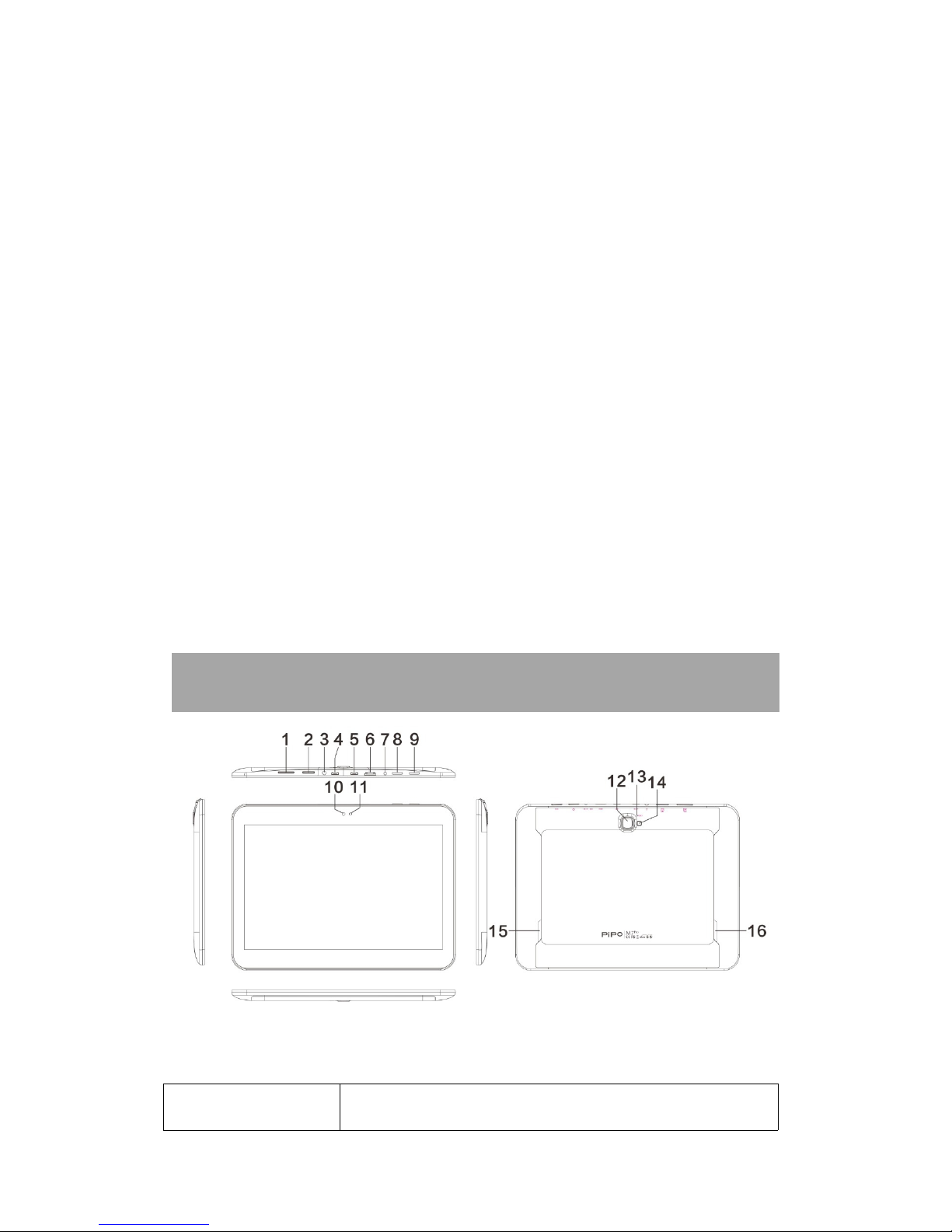
1. SIM card slot
To insert your SIM card (Data only, only 3G

7
version is with this card slot)
2. TF card slot
To insert your card
3. Earphone jack
To connect your earphone
4. HOST port
USB OTG, supports mouse, keyboard, USB flash
disk, etc, with a converting cable
5. USB port
Connect to a computer to transfer data
(e.g., music, videos, photos, files).
6. HDMI
Connect to TV output via a HDMI cable
7. MIC
Microphone for recording voice
8. Power jack
(DC input)
Connect to a 5V 2.5Aoutput adaptor as included
in the accessories
9. ESC Key
Tap to return to the previous screen/ page.
10.Front Camera
2M pixels camera
11.Light Sensor
Improve your photo quality
12.Rear Camera
5M pixels auto focus
13. Reset hole
Press to reset the tablet if it freezes or behaves
abnormal
13.Speaker
AAC speaker
14.Speaker
AAC speaker
8
I. Getting Started
1.1 Turn on/off
1.1.1 Turn on
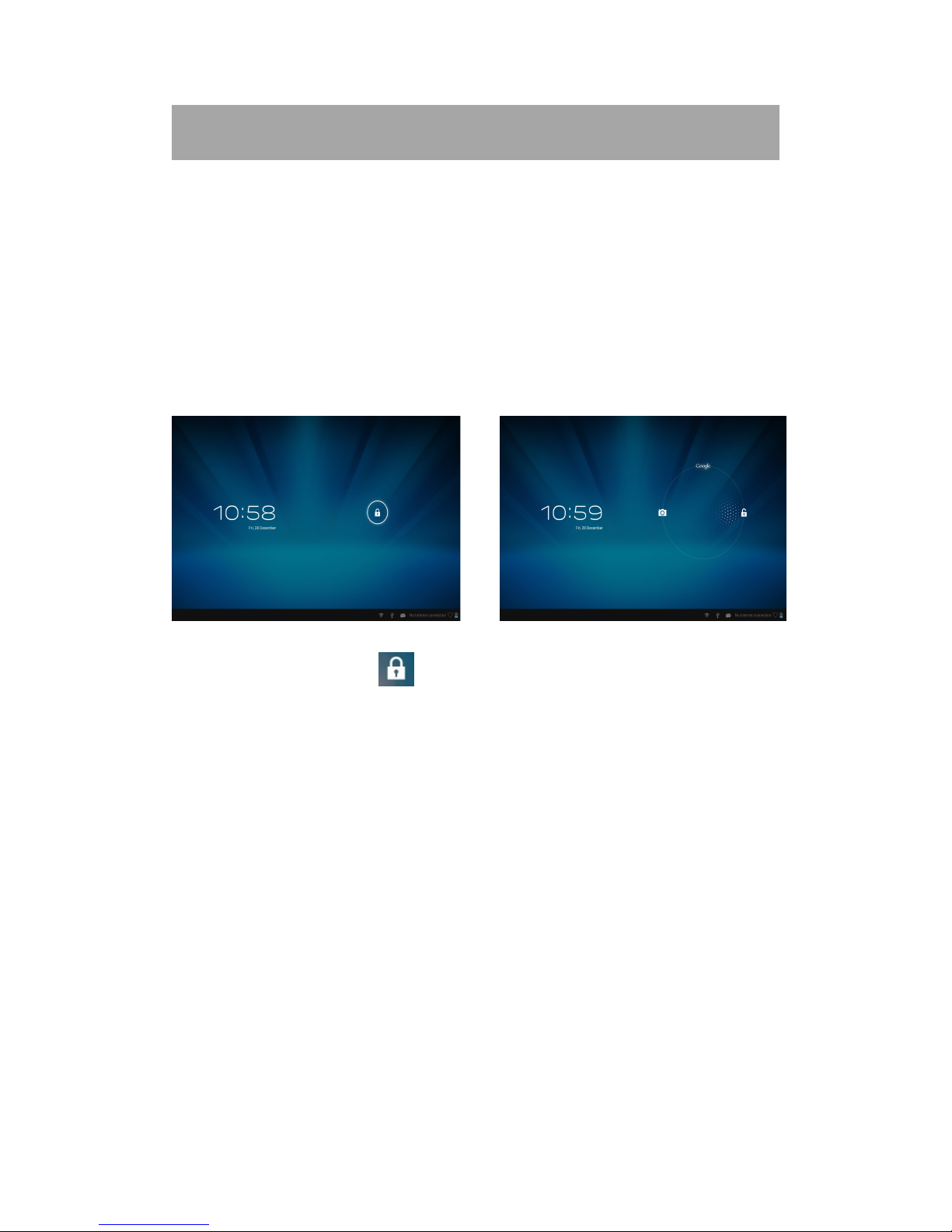
To start your tablet, press and hold the power key at the right side of
your tablet for a while. Tap and drag the lock out of the circle to
unlock.
→
Tap and drag the lock out of the circle to unlock.
Drag the lock to right: you will go to the home screen.
Drag the lock to left: you will go to camera directly.
1.1.2 Turn off
To power off your tablet, press and hold the power button until the
“Would you like to shut down?” dialog appears and tap “OK” to power
it off.

9
1.2 Lock/unlock the screen (sleep mode)
To save battery, you should put your tablet in sleep mode by turning
off the LCD display. To do this, shortly press the power key. Press it
again to wake up the screen.
1.3 Connect to computer
You can connect your tablet to your computer with the supplied USB
cable so you can transfer media files.
If your computer is XP system, please install a Windows Media Player
11 for your computer before transfer media files as android 4.2
system needs Windows Media Player 11 support.
II. Your Home Screen
a b
10
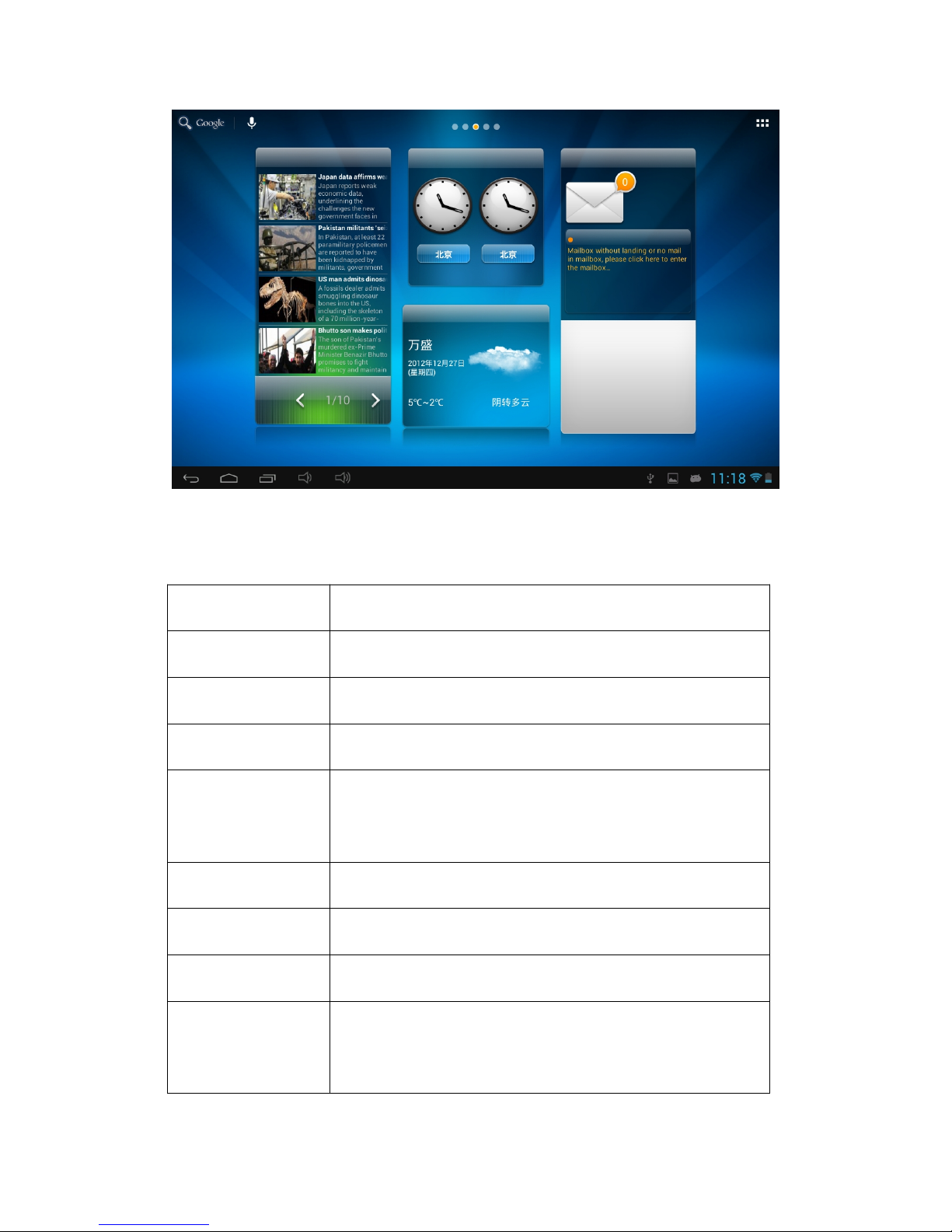
a. Google search
Tap to enter Google search page
b. Voice search
Tap to open voice search
c. ESC key
Tap to return to the previous screen/ page.
d. Home
Tap to return to your home page
e. Recent
operations
Tap to show your recent operations
f. Volume -
Tap to lower the volume
g. Volume +
Tap to upper the volume
h. WIFI Signal
There will be WIFI signal when WIFI connected
i. Battery
status
Show battery status
c d e f g h i
Indice
Altri manuali PiPO Tavoletta


