Pisofttech Pilot Era Manuale dell'operatore

Pilot Era Documentation
——— v5.18.0
Getting Started

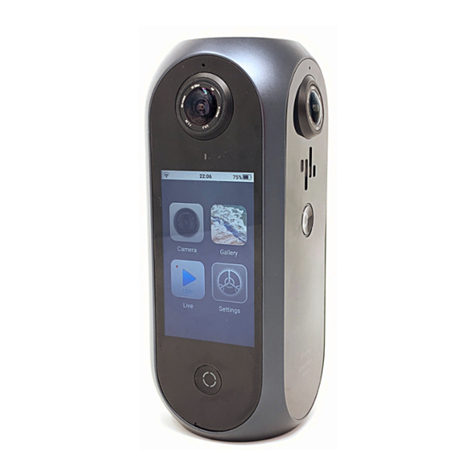
The Pilot Era is a 4-lens, 360-degree panoramic camera with 8K resolution for both photos and videos; the camera
can stitch everything by itself, with no computer required. With a touch screen, what you see is what you get, with
a simple experience like a mobile phone.
Hardware Introduction
Pilot Era Camera
The various components and buttons on the camera body are as follows:
Basic operation
Press and hold the Home button for 3 seconds to power on.
Tap each app icon to open the app;
In the application, press the Home button to return to the home screen;
Press and hold the Home button for 1 second to turn off the screen.
Press and hold the Home button for 3 seconds to power off.
After entering each settings interface in the app, slide your finger from the left side to the right side of the screen to
go back.

Camera
The Camera is used to take 360-degree panoramic photos and videos.
The camera preview is automatically turned on when the Camera app is opened. Touch the icon in the upper right
corner or double-tap anywhere on the screen to change the preview mode. Preview modes are: Little Planet,
Equirectangular, Fisheye, Rectilinear.
There are several shooting modes in the lower operating area: Photo, Unstitched video, Stitched video, PilotTour,
Time Lapse, Google Street View Video.
Slide or tap the mode icon to change the shooting mode. In the lower left corner of the album icon, you can jump
to the album to view photos/videos. The lower right corner is the setting button for the current mode.
In Photo mode, The HDR button above the preview allows you to turn on the HDR function to improve the
exposure quality of your photos.
Camera Settings

Tap the Settings button in the lower right corner of the camera to enter the photo/video settings UI. If it is
in Photo mode, it is displayed as the photo setting; if it is currently in the video mode, it is displayed as the video
setting.

Photo settings include Resolution, Countdown, Auto Level and Hide Photographer.
Unstitched Video settings include Resolution, Countdown, PilotSteady, , and Fragment Storage. Recording
produces unstitched video. The video can be stitched in the gallery, after the shot is finished.
Stitched Video settings include Resolution, Countdown, PilotSteady, and Fragment Storage. Recording produces
real-time stitched video.
Time Lapse settings include Resolution, Countdown, Scale Rate and PilotSteady.
Google Street View Video settings include Frame Rate, Countdown and Fragment Storage.
Gallery
Gallery is used to view and manage photos and videos within the camera.
After entering the Gallery, pinch to zoom the photo list to switch between the large image and the small image
mode. Tap to select multiple photos and delete them in batches. The photos are arranged in reverse
order of shooting time.

Tap a photo/video to enter playback view. In playback view, double-tap the screen or tap the icon in the upper right
corner to switch the view mode. View modes include: Little Planet, Equirectangular, Fisheye, and Rectilinear.
Tap the round arrows on the middle of the playback view to switch to the previous/next photo. The menu bar below
has delete and view details. 8K photos can also be uploaded to Google Street View.
Live Streaming
Pilot Era's built-in Live app allows for panoramic live streaming on multiple platforms. Including: Facebook,
YouTube, Kwai, Custom server
,
and Self streaming in LAN.
In the Live, tap the LIVE button to enter the live broadcast platform selection. Tap the icon to select the platform, or
swipe the icon to select the platform.
After each platform is authorized to sign in, set the title, definition, and privacy. The definition can be set up to 4K.
Tap to Start Live and enter the live broadcast status. The live time, current platform, and current definition are
displayed in the UI.
Pilot supports multiple networks, including Ethernet, WiFi, and LTE. Choose the definition of the right live
broadcast based on your network.

PilotLive 8K
PilotLive 8K is 8K VR live streaming without cloud stitching. You can directly watch 8K live on PiPlayer for
Windows and PiPlayer for VR.
Live -Custom Server , choose RTMP protocol, choose PilotLive 8K resolution, then Pilot can push 8K live
stream. This live streaming uses Labpano's self-developed compression technology, without the need for a cloud
stitcher, using PiPlayer Windows version or VR version, you can watch 8K 24fps live streaming on normal devices.
Click here to download PiPlayer.
PilotLive 8K currently only supports PiPlayer, not other players.
Settings
Setting the networks of Pilot, system options, software information, etc.
Pilot supports multiple networks, including Ethernet, WiFi, and LTE. The Ethernet and LTE need to be connected
to the Dock, and the network cable and SIM card are inserted into the Dock.
In About –Device Name The name of the Pilot can be modified. You will see this name when the Mobile app
connects to the Pilot or creates a hotspot.
Pilot OS can be downloaded and updated via the network. When a new version is found, the settings icon in
Launcher displays the notification badge. To ensure safety and Auto Level, please update the Pilot OS in time.

Mobile Control
Pilot Go can remotely control the camera and view even manage Gallery.
Download the official mobile app
:
Pilot Go
After installing Pilot Go, make sure the phone and Pilot are in the same wireless network.
1. Connect an identical WiFi;
2. Pilot builds a hotspot and the phone connects Pilot hotspots;
After the Pilot Go is connected to the Pilot, you can control the camera via the app.

Tap Gallery in Pilot Go to view and manage the Gallery of Pilot. You can download photos from your Pilot to
your phone and share to social platforms.
Mobile control Pilot shooting
After the Pilot Go is connected to the Pilot, the screen of the Pilot picture on the main interface will light up and
there will be a prompt sound. Tap Enter Pilot in Pilot Go to control Pilot Era. When the Pilot is controlled, the
screen will display “Mobile Control...”.
Control camera photos and videos in Pilot Go, the interface and operation are exactly the same as Pilot. You can
even control Pilot to record Google Street View Video while viewing Pilot's latitude and longitude information.

Mobile management photos in Pilot
Tap the icon of Pilot Go to view and manage the Pilot Era Gallery. You can select and delete
photos/videos, or you can download photos/videos to your phone locally.
The top left corner of the photo/video cover has a badge to indicate the current state:
: Already downloaded to the phone. After disconnecting from Pilot, you can still view, delete, and share.
: Downloading. Blue is the download progress.
: The phone cannot be viewed. This is usually because the video size is too large or unstitched.
Altri manuali per Pilot Era
1
Indice
Altri manuali Pisofttech Macchina fotografica digitale