
Planet ICF-1000S Manuale utente

Trademarks
Copyright © PLANET Technology Corp. 2003.
Contents subject to revision without prior notice.
PLANET is a registered trademark of PLANET Technology Corp. All other trade-
marks belong to their respective owners.
Disclaimer
PLANET Technology does not warrant that the hardware will work properly in
all environments and applications, and makes no warranty and representa-
tion, either implied or expressed, with respect to the quality, performance,
merchantability, or tness for a particular purpose.
PLANET has made every effort to ensure that this User’s Manual is accurate;
PLANET disclaims liability for any inaccuracies or omissions that may have
occurred.
Information in this User’s Manual is subject to change without notice and does
not represent a commitment on the part of PLANET. PLANET assumes no re-
sponsibility for any inaccuracies that may be contained in this User’s Manual.
PLANET makes no commitment to update or keep current the information in
this User’s Manual, and reserves the right to make improvements to this User’s
Manual and/or to the products described in this User’s Manual, at any time
without notice. If you nd information in this manual that is incorrect, mislead-
ing, or incomplete, we would appreciate your comments and suggestions.
FCC Warning
This equipment has been tested and found to comply with the regulations for
a Class B digital device, pursuant to Part 15 of the FCC Rules. These limits
are designed to provide reasonable protection against harmful interference
when the equipment is operated in a commercial environment. This equipment
generates, uses, and can radiate radio frequency energy and, if not installed
and used in accordance with this user’s guide, may cause harmful interference
to radio communications. Operation of this equipment in a residential area is
likely to cause harmful interference, in which case the user will be required to
correct the interference at his own expense.
CE Mark Warning
In a domestic environment, this product may cause radio interference, in
which case the user may be required to take adequate measures.
Revision
User’s manual for PLANET Internet Conferencing Station
Model: ICF-1000S
Rev: 1.0 (August. 2003)
Part No. EM-ICF1000S

Safety Instructions
Please read and understand all instructions before using this product.
• All openings on the housing of this product are designed for ventilation. Do not
block or cover them. Do not insert any foreign objects in the openings. Doing
so might cause a short circuit, electrical shock and/or fire.
• Before cleaning, unplug the machine and wipe it gently with soft cloth damped
with water or diluted liquid soap. To avoid damage or malfunction to the ma-
chine, do not use alcohol or other strong solutions.
• Avoiding Electrical Shock:
§ Be sure to ground your machine so that the built-in shock arrester will
function and reduce the chance of being shocked.
§ Do not connect the grounding wire to a gas or water pipe.
§ If possible, switch power off and unplug the machine during a thunder-
storm.
• Do not try to disassemble the machine. Unplug the machine and call for service
in the following situations:
§ The power cord or plug is damaged or frayed.
§ Some liquid is spilled into the machine.
§ The machine appears wet with water.
§ The machine appears faulty and cannot be repaired despite having
followed all instructions in the manual.
§ The machine is damaged from being dropped or the housing is bro-
ken.
• Power Requirements and Power Cords:
§ Use a single wall outlet with the power of 100-240 V AC, 50/60 Hz 1A
depending on label indication.
§ Do not place anything on the power cord. Avoid having people step on
it.

Table of Contents
Chapter 1 Introduction 1
1.1 Features 1
1.2 Specification 2
Chapter 2 Installation 5
2.1 Package Contents 5
2.2 Front Panel introduction 6
2.3 Back panel introduction 7
2.4 Hardware Installation 8
Chapter 3 System Configuration 11
3.1 Power On and Access Configuration Menu 11
3.2 General Settings 12
3.3 Network 16
3.4 H.323 20
3.5 Exit the System Configuration 23
3.6 Phone Book Setup 23
Chapter 4 Getting Started 25
4.1 Making Video Calls 25
4.2 Using the Phone Book 25
4.3 Receiving Video Calls 26
Chapter 5 On-line Operation 27
5.1 Picture Quality 27
5.2 Frame Rate 28
5.3 Snapshot 28
5.4 View 29
5.5 Switch the Video source 29
5.6 Show the Connection Status 30
5.7 Adjust on-line video and audio quality 30
5.8 Activate Video Mute 35
5.9 Activate Audio Mute 36
Chapter 6 Troubleshooting 37

1
Chapter 1
INTRODUCTION
PLANET’s Video Conferencing Station, the ICF-1000S, brings you a vivid video
conferencing experience through the Internet. No PC is required and none of the usual
complications of complex web camera, sound card and software settings and specialized
data connections. The ICF-1000S is an easy-to-use integrated system ideal for home
ofces and conference rooms. All that is needed is a TV and a high speed Internet
connection. Using simple setup procedures through a remote control, you can install and
use voice and video conferencing in a few minutes.
ICF-1000S is H.323 compliant, which means you can have a seamless conferencing
experience with other H.323 compliant video conferencing systems, VoIP gateway/phones
and Microsoft NetMeeting. With Gatekeeper and MCU support, the ICF-1000S from
PLANET make communication with your business partners quick and cost-effective.
The ICF-1000S have three video inputs which can be used to connect to external
cameras for group meetings and/or a document camera for showing detailed documents
or photographs. With up to 30 fps frame rate, outstanding picture and sound quality,
the PLANET Internet Video Conferencing Station offer you a superior communications
experience using the Internet.
1.1 Features
• ITU H.323 version 2 compliant
• Support H.263 Video Codec and G.723,1, G.711 Audio Codec
• Compatible with H.323 VoIP gateway, Gatekeeper , MCU (Multipoint Control
Unit) and Microsoft NetMeeting
• Built-in High Quality CCD Camera
• Full-duplex Voice Conversation
• Superior voice quality with Voice Activity Detection(VAD), Automatic
Gain Control(AGC), Acoustic Echo Cancellation(AEC) and Electrical Echo
Cancellation(EEC) support
• Support Static IP, PPPoE, DHCP Connection
• Support Dynamic DNS
• 3 video resolution mode supported, CIF, QCIF and SQCIF
• Control bandwidth to 128K, 256K, 384K, 512K, 768K and no limit
• Supports frame rate up to 30 fps
• Phone book of 100 Names/Addresses and quick search
• On-line change of remote / local video size (PIP)

2
3
• On-line video/audio mute function
• On-line snapshot of remote video function
• On-line call status information about Tx/Rx frame rate and bandwidth usage
• Provide Auto-answer mode which allow you to monitor remote location with
real-time picture and voice
• Remote Control and Microphone Pod Included
• 3 RCA Video input interfaces for multiple camera connection
• 1-pair RCA Audio/Video output for TV connection
• 1 VGA Video output for Monitor connection
1.2 Specication
Product Internet Video Conferencing Station
Model ICF-1000S
Hardware
LAN 1 x 10/100Mbps RJ-45 port
Camera Built-in High quality CCD Camera, adjustable
focus/tilt
Audio/Video Input 3 RCA video input
1 MIC connector
Audio/Video Output 1 pair RCA Audio/Video output
1 speaker connector
1 VGA connector
LED indicator 1 PWR/LNK LED
Dimension(WxDxH) 295 x 200 x 71.5 mm
Weight 1.13 kg
Operating Environment 0~40 degree C, 10~90% humidity
Power Requirement 12V DC, 2A
Power Consumption 20W, 68 BTU
EMC/EMI CE, FCC
Protocols and Standard
Standard ITU-T H.323 v.2
Video Standard H.263, H.263+

2
3
Audio Standard G.723.1, G.711
Control Standard H.245
Compatibility Compatible with Gatekeeper, H.323 Videophone,
H.323 VoIP gateway, Microsoft NetMeeting, Mul-
tipoint Control Unit (MCU)
LAN standard IEEE 802.3 Ethernet
IEEE 802.3u Fast Ethernet
Network and Configuration
Connection Type ADSL, Cable, VPN, LAN
Access Mode Static IP, PPPoE, DHCP
Bandwidth Usage 128K, 256K, 384K, 512K, 768K and No Limit
Video Resolution CIF(352x288), QCIF (176x144) and SQCIF
(128x96)
Configuration Interface Remote controller with On Screen Display
(OSD)

4
5

4
5
Chapter 2
INSTALLATION
2.1 Package Contents
Check the contents of your package for following parts and quantity:
1. ICF-1000S x1
2. Power Adapter & AC Cord x1
3. RCA Cable x1 4. Microphone Pod x 1
5. Remote Controller x 1 6. Battery for remote controller
(4A 1.5VDC) x 2
7. User Manual x1
&

6
7
If any of these pieces are missing or damaged, please contact your dealer immediately, if
possible, retain the carton including the original packing material, and use them against
to repack the product in case there is a need to return it to us for repair.
2.2 Front Panel introduction
The following show the front panel of ICF-1000S.
Note:
1. Please keep the camera cover in a known place and cap the cover back
if ICF-1000S is not using for long time.
2. The focus of the camera is adjustable, screw the lens gently by clock-
wise or anti-clockwise to find the best resolutions for the first operat-
ing if needed.
6
7
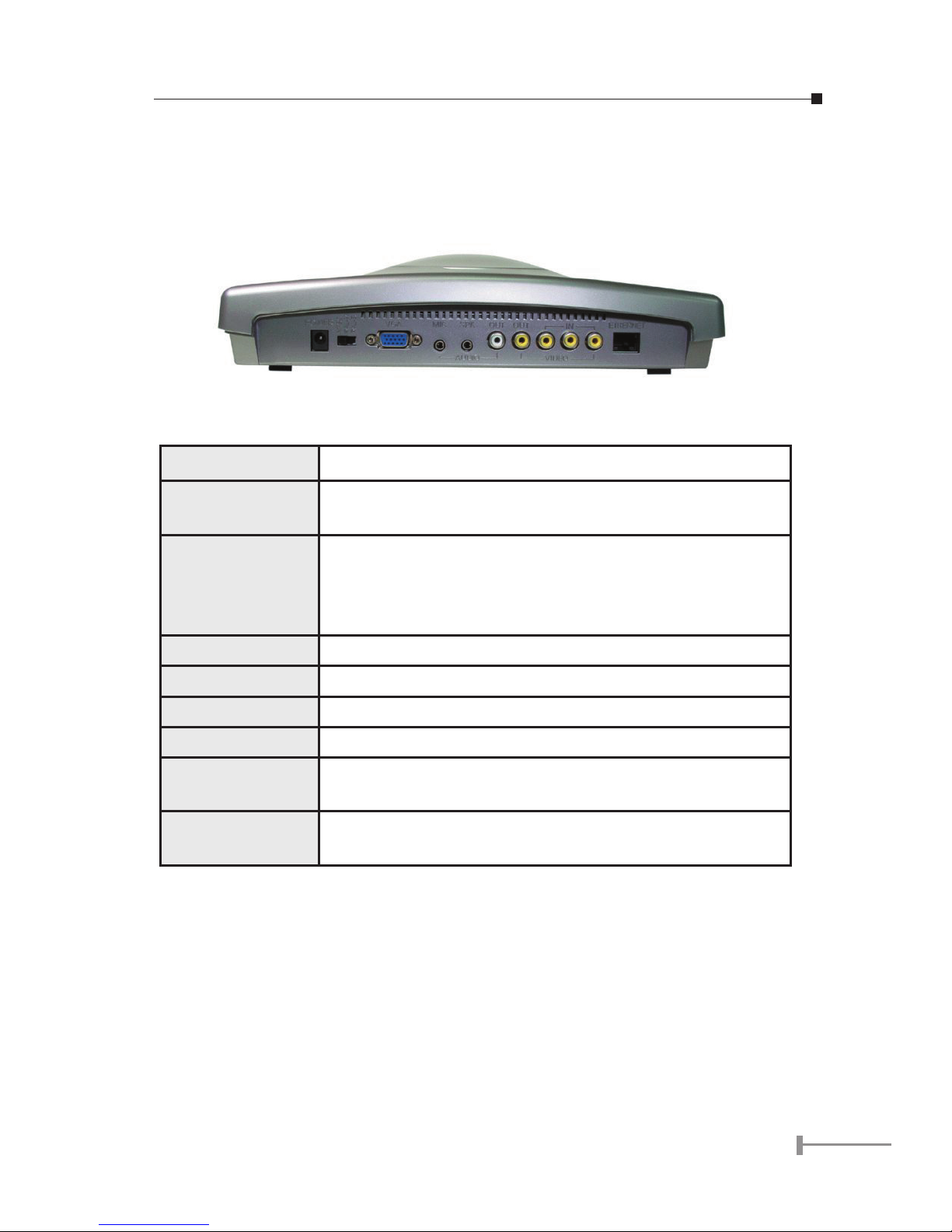
2.3 Back panel introduction
The real panel of ICF-1000S has three video inputs which can be used to connect to
external cameras for group meetings and/or a document camera for showing detailed
documents or photographs. It also provides 1 set of RCA AV output connector for
connecting to TV, projector or stereo.
The following table lists all the connectors on the back panel of ICF-1000P and their
function.
POWER Connect to the DC output of power adapter.
NTSC/PAL Switch Switch between NTSC, PAL.-M, PAL-B
NOTE: To use VGA out, please switch to PAL-M
VGA By connecting with a monitor. ICF-1000S can use a monitor
as an alternative video output device.
NOTE: Please switch to PAL-M and set the bandwidth under
384Kbps to ensure the picture quality.
MIC Microphone jack.
SPK Speaker jack.
Audio Out Output audio to TV.
Video Out Output video to TV.
Video In Input video from external device. ICF-1000S can connect
with up to three external cameras.
Ethernet Connect to your local network or Cable/DSL modem. This
port supports both 10Mbps and 100Mbps speed
NOTE
1. The device is a power-required device, it means, the device will not
work until it is powered. If you need to use it all the time, please con-
sider use an UPS (Uninterrupted Power Supply) for this device.
2. In some area, installing a surge suppression device may also help to
protect your device from being damaged by unregulated surge or cur-
rent to the device or the power adapter.
Indice
Altri manuali Planet Sistema di conferenza

Manuali Sistema di conferenza popolari di altre marche

Kramer
Kramer VIA GO Manuale utente

AVT
AVT MAGIC AC1 Go Manuale utente

ProSoft Technology
ProSoft Technology AN-X4-AB-DHRIO Manuale utente

Sony
Sony PCS-I150 Manuale utente

Middle Atlantic Products
Middle Atlantic Products VTC Series Manuale utente

Prentke Romich Company
Prentke Romich Company Vanguard Plus Guida


