
PNI PT802P Manuale utente
PNI SafeHome PT802P
Smart circuit breaker
Интелигентен прекъсвач/Intelligenter Leistungsschalter/
Disyuntor inteligente/Disjoncteur intelligent/
Intelligens megszakító/Interruttore intelligente/Slimme
stroomonderbreker/Inteligentny wyłącznik automatyczny/
Siguranta automata inteligenta

EN User manual ......................................................... 3
BG Ръководство за употреба ............................. 15
DE Benutzerhandbuch .............................................. 27
ES Manual de usuario ............................................... 39
FR Manuel utilisateur ............................................... 50
HU Használati utasítás .............................................. 62
IT Manuale utente .................................................. 74
NL Handleiding ........................................................ 86
PL Instrukcja obsługi ............................................... 98
RO Manual de utilizare ............................................. 110

3 User manual
Introduction
PNI SafeHome PT802P is an intelligent automatic circuit
breaker intended for residential or industrial use to remotely
start or stop a circuit, to delay or program a specific power
supply. Also, the product has the classic functions of an
automatic switch: overload and short circuit protection.
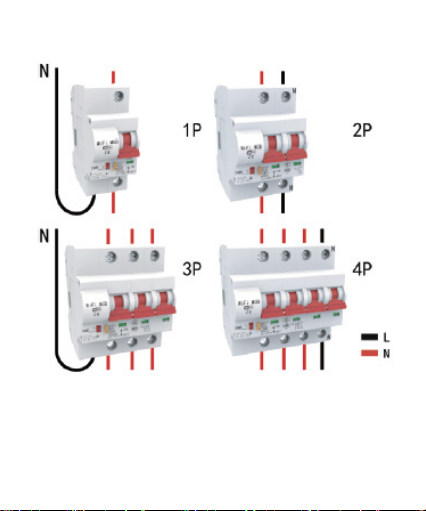
This circuit breaker can be installed in any standard circuit
board, as it has a standard DIN size and panel rail connection.
Main functions
• Standard DIN size
• Delay and timing functions
• 2-pole connection
• Wireless connection
• LED status indicator
• Oine device notification function
• Control from the Tuya Smart app (iOS & Android)
Installation
Warning: Installation must only be done by an authorized
electrician.
• Follow the wiring instructions strictly. The neutral wire
and the live wire must be connected to the appropriate
position.

4 User manual
• Connect the product to a circuit/ a 230V power source
according to the scheme;
• The first configuration must be done as close as possible
to the router.
Tuya Smart app
Search for the “Tuya Smart” application in the App Store/
Google Play or scan the QR code below:
After installation, create an account or log in directly if you
already have an account.
5 User manual
Product description
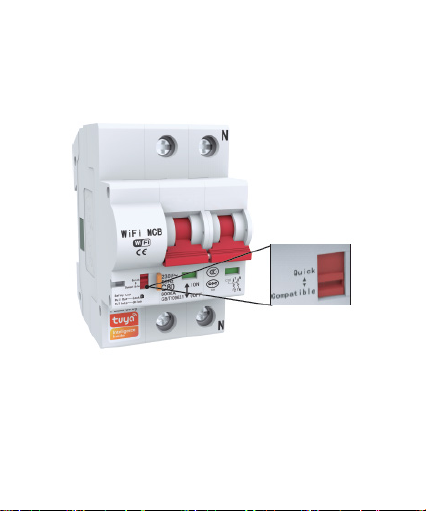
Status LEDs:
Blue LED lit The circuit breaker is in the ON position
Blue LED o The circuit breaker is in the OFF position
Red LED flashes quickly The circuit breaker is in pairing mode
6 User manual
Red LED on The circuit breaker is connected to wifi and
connected in the application
Red LED o The circuit breaker is disconnected from Wifi and
deleted from the application.
Red switch: Quick/ Compatible
This multifunctional switch allows the initial configuration of
the device and its reset.

7 User manual
Set the device to pairing mode
• Move the switch from the Compatible position to the
Quick position and wait 10 seconds.
• Move the switch from the Quick position to the
Compatible position again.
• The red LED starts to flash rapidly, which confirms that
the product has been reset and is entering pairing mode.
The mating mode has a limited time period. Repeat the
procedure if time runs out.
Reset/ disconnect/ delete
• Move the switch from the Compatible position to the
Quick position and wait 10 seconds.
• Move the switch from the Quick position to the
Compatible position again.
• The red LED starts to flash rapidly, which confirms that
the product has been reset and is entering pairing mode..
This procedure also deletes the product from the Tuya
application.

8 User manual
Compatible mode pairing procedure (recommended)
Warning: The product supports only 2.4 GHz Wi-Fi networks.
The Wi-Fi network password must not contain special
characters such ass: ~! @ # $% ^ & * ().
• Activate GPS Location on your phone.
• Make sure the router, phone and fuse are as close as
possible for a quick setup.
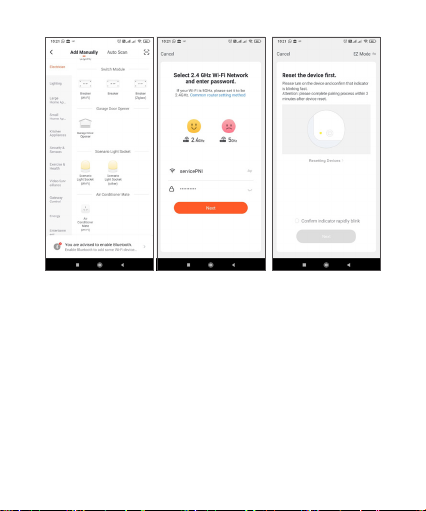
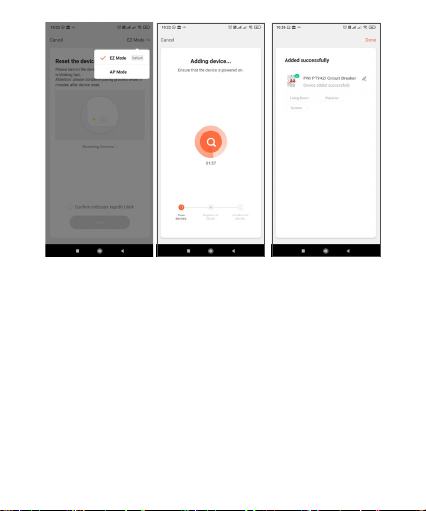
• The application supports 2 connection modes EZ-Mode
and AP Mode. This pairing procedure only uses EZ mode
as the default mode.
• Open the application and click on the icon “Add device”
or “+” (top right corner)
• From the list of options on the left side of the screen,
select “Electrician” - “Breaker (Wi-Fi)”
• Check the displayed Wi-Fi network name and enter the
Wi-Fi password, click “Next”.
9 User manual
• Switch the device to pairing mode according to the
procedure described above. Check the “Confirm
Indicator rapidly blink” box and click “Next”.
10 User manual
• Wait for the device to pair.
• The device has been successfully added, you can choose
the device name and installation location.
Altri manuali per PT802P
1
Indice
Lingue:


