PNI L807 PLUS Manuale utente

PNI L807 PLUS
GPS navigation / GPS навигация / GPS Navigation / Navegacion GPS
/ Navigation GPS / GPS navigáció / Navigazione GPS / GPS navigatie /
Nawigacja GPS / Sistem de navigatie GPS
EN User manual ......................................................... 3
BG Ръководство за употреба ............................. 18
DE Benutzerhandbuch .............................................. 34
ES Manual de usuario ............................................... 50
FR Manuel utilisateur ............................................... 65
HU Használati utasítás .............................................. 80
IT Manuale utente .................................................. 95
NL Handleiding ........................................................ 110
PL Instrukcja obsługi ............................................... 125
RO Manual de utilizare ............................................. 140


3User manual
English
Warnings
»Our company is not responsible for data loss due to the lack of a backup.
»Please read carefully the instructions in this user manual and use only the
original accessories to avoid unexpected damage.
»Installing other software on this device, without being in accordance
with its own software can void the warranty. The company assumes no
responsibility in these cases.
»Sometimes, due to the development of the infrastructure, dierences
between GPS data and trac signs may appear. In these cases, please
follow the trac signs.
»Do not operate the device while driving. Lack of attention while driving
can cause serious trac accidents. The company assumes no liability for
accidents or losses of any nature because of this.
Precautions
»Do not shake or hit the device. Incorrect handling can result in damage,
loss of data or errors in file playback.
»Keep the device away from direct sunlight or high temperatures to prevent
overheating of the internal battery, which may cause errors or risk of
explosion.
»Keep the device away from moisture and splashes of rain. Moisture can
cause corrosion of internal components and damage to the device.
»Do not suddenly disconnect the device from the power supply.
»Store the device in a clean, dust-free environment.
»The use of the device in the vicinity of strong radio waves or radioactive
rays may aect its performance.
»Make sure that all cables are securely connected to the device to avoid
damage to the device caused by improper connections.
»Do not press hard on the LCD screen and keep it away from direct sunlight,
as faults may occur. Clean the dust o the surface of the screen with a
soft, dry cloth.
»If the device does not work properly, please send it to an authorized service.
»Regularly copy the data from the SD card to a computer to prevent data
loss.
»Pay attention to the compatibility of the media files. Only files that comply

User manual 4
English
with the specifications of the device can be played.
»Video, audio and images cannot be played without copyright. Playing these
files without permission would violate the copyright law.
»Do not use metal objects that could cause the device to short-circuit.
»Use the device only after placing it on a flat surface. Placing it on a blanket,
pillow or rug will cause an increase of the working temperature that could
lead to the device malfunction.
»When the system executes the read/write operation from/on the memory
card, do not disconnect it from the source, otherwise the data on the card
could be permanently damaged or lost.
»Do not turn o the power when using GPS navigation, playing movies,
listening to the music or viewing images.
»Do not store batteries and do not charge them in excessively cold or hot
areas; their performance level could be aected.
»Keep the device or power adapter out of the reach of children.
»Do not use the volume to the maximum, it can aect your hearing.
Introduction
PNI L807 Plus is mainly used for GPS navigation. In addition, it can play audio,
video and photo files.
Main features
»Friendly interface for easy use
»Transfer data by connecting the GPS navigator to a computer, using the
data cable in the package
»Precise location on the map by GPS
»MP3/MP4 player

5User manual
English
Ports, keys and functions
1
2
3
4
5
1. On / o button
2. Status LED indicator
3. Headphone jack
4. Micro SD card slot (card is not included)
5. Mini USB port
Usage instructions
Power the device
The device can be powered in three ways:
• from the internal battery (Li-Polymer 1600mAh)
• from the computer through the included data cable
• in the car at 12V / 24V lighter (lighter socket is included)
When not connected to an external power source, the GPS navigator is
powered from the internal battery. The icon in the upper right corner of
the screen indicates the battery level.

User manual 6
English
Note: This device uses an integrated Li-Polymer battery that cannot be removed.
If the screen backlight is low and the battery is fully charged, then the device can
operate for up to 3 hours. Some functions such as file playback or intense backlight
consume more energy, which will obviously reduce battery life.
Power the device from the car lighter
Connect one end of the power cable to the miniUSB socket of the GPS
navigator.
Connect the other end of the cable to the lighter of the vehicle.
ATTENTION: To avoid possible damage caused by the unstable current when
starting the engine, we recommend that you connect the power adapter to the
lighter socket after starting the vehicle.
Turn the device on/o
Long press the button in the upper side of the device to turn the device on.
Press and hold this button again. In the popup-up window, choose one of the
options: Disconnected (the device shuts o completely) and Inactive (the
device goes into hibernation status). When you turn it back on, the device will
return to the operating mode used before hibernation.
Mount the windshield bracket
Attach the device to the windshield of the vehicle using the bracket included
in the package.
ATTENTION: make sure that the GPS navigator does not obstruct the
visibility of the driver and that it is well fixed. Do not place it in the air bag area.
Using a microSD memory card
If you want to play audio, video or image files on your GPS device, store the
desired files on a micro SD card. Insert the micro SD card into the dedicated
slot on the device.

7User manual
English
ATTENTION:
»Do not remove the card from the device when the system plays a media
file.
»Do not press hard and do not bend the SD card.
»Do not store the card in areas with high temperature and humidity or in
direct sunlight. Keep the card away from liquids and corrosive substances.
»Pay close attention to the card insertion position in the slot on the device.
Wrong insertion can cause damage to both the slot and the card.
Connect the device to a PC
Connect the GPS device to a computer using the USB cable included in the
package. You can copy files from your device to your computer and vice versa.
Data security: we recommend that you copy the data from the GPS device
to an external storage device before updating. The manufacturer assumes no
responsibility for data loss.
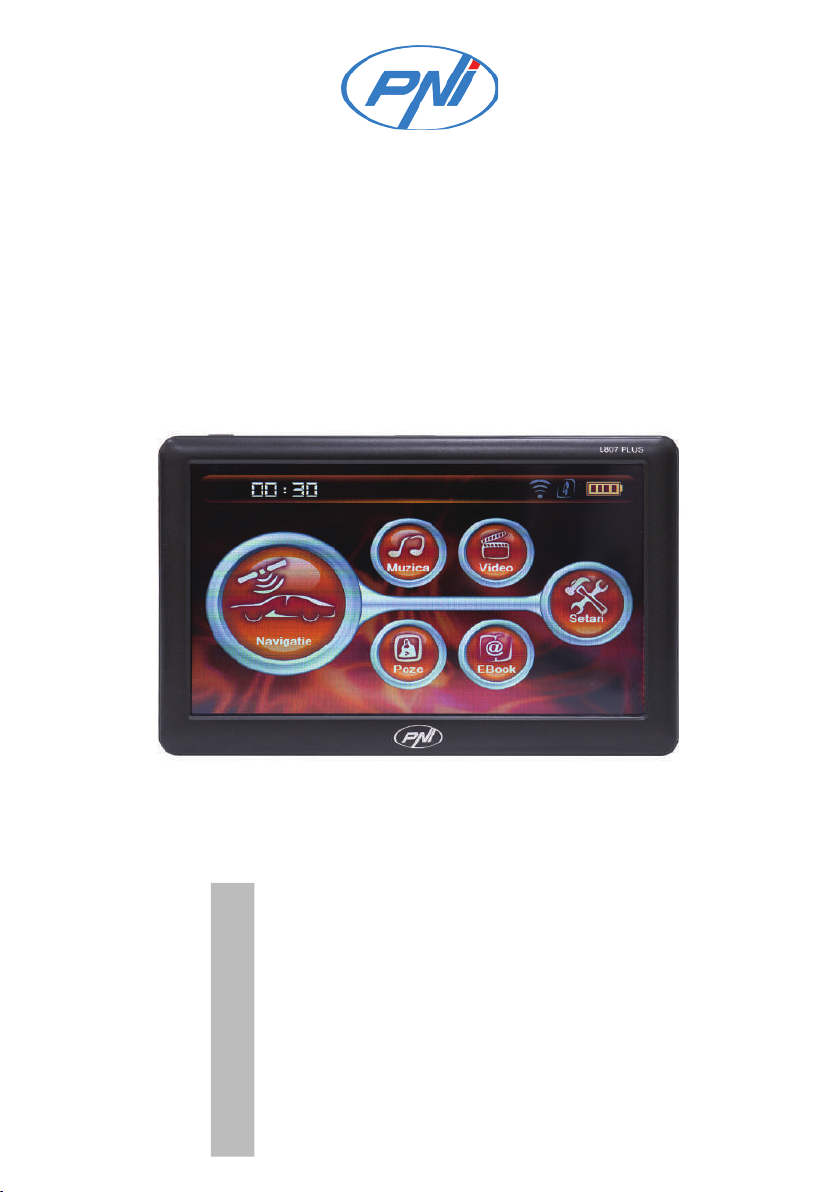
Graphic interface and main menu description

User manual 8
English
Navigation
Opens the navigation software. Note: Firstly, you must set the path to the
navigation software by accessing the menu Setting - NaviPath.
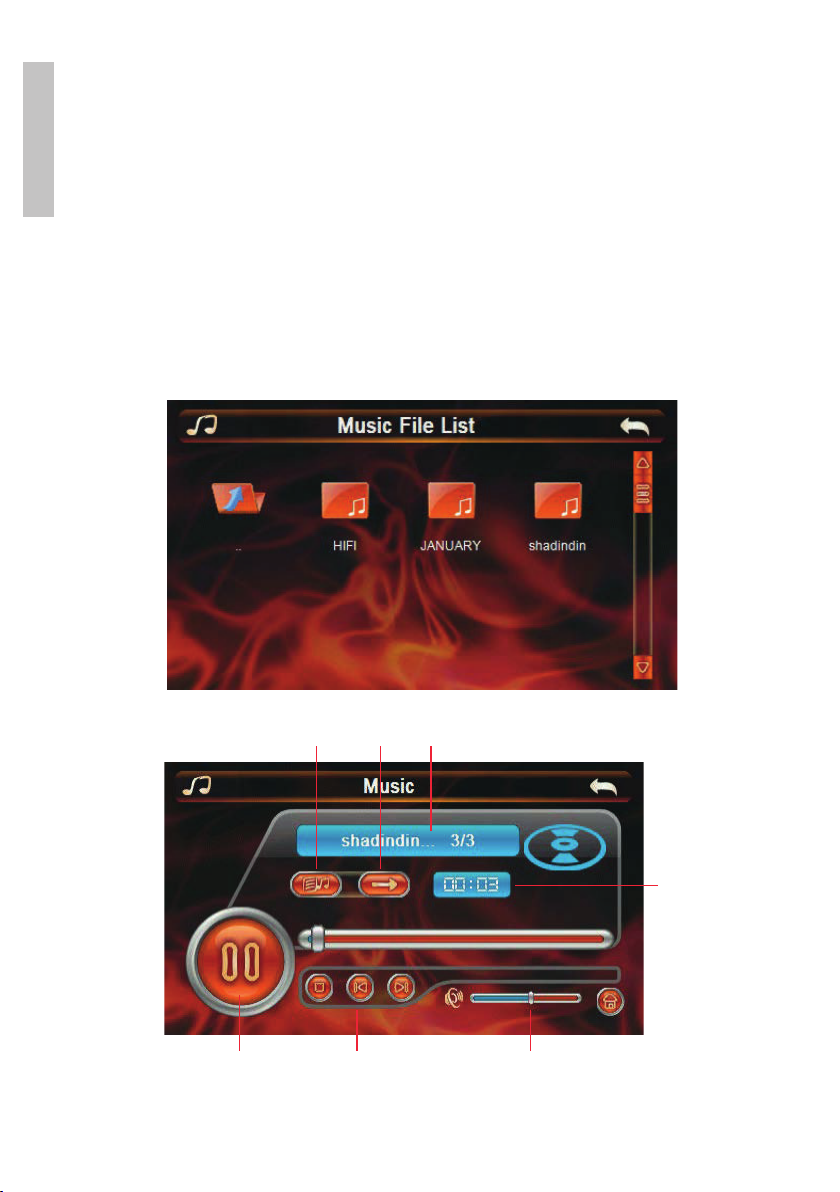
Music
If there are audio files on the micro SD card inserted in the device, accessing
the Music menu you will see the SDMMC folder. Click on the icon displayed
to view the list of songs.
1 2 3
4 5 6
7
1. Back to the file list
2. Play mode selection: cyclic, random, unique without repetition

9User manual
English
3. File name
4. Play / Pause
5. Stop playing the file, go to the previous file or to the next file
6. Volume control
7. Time elapsed
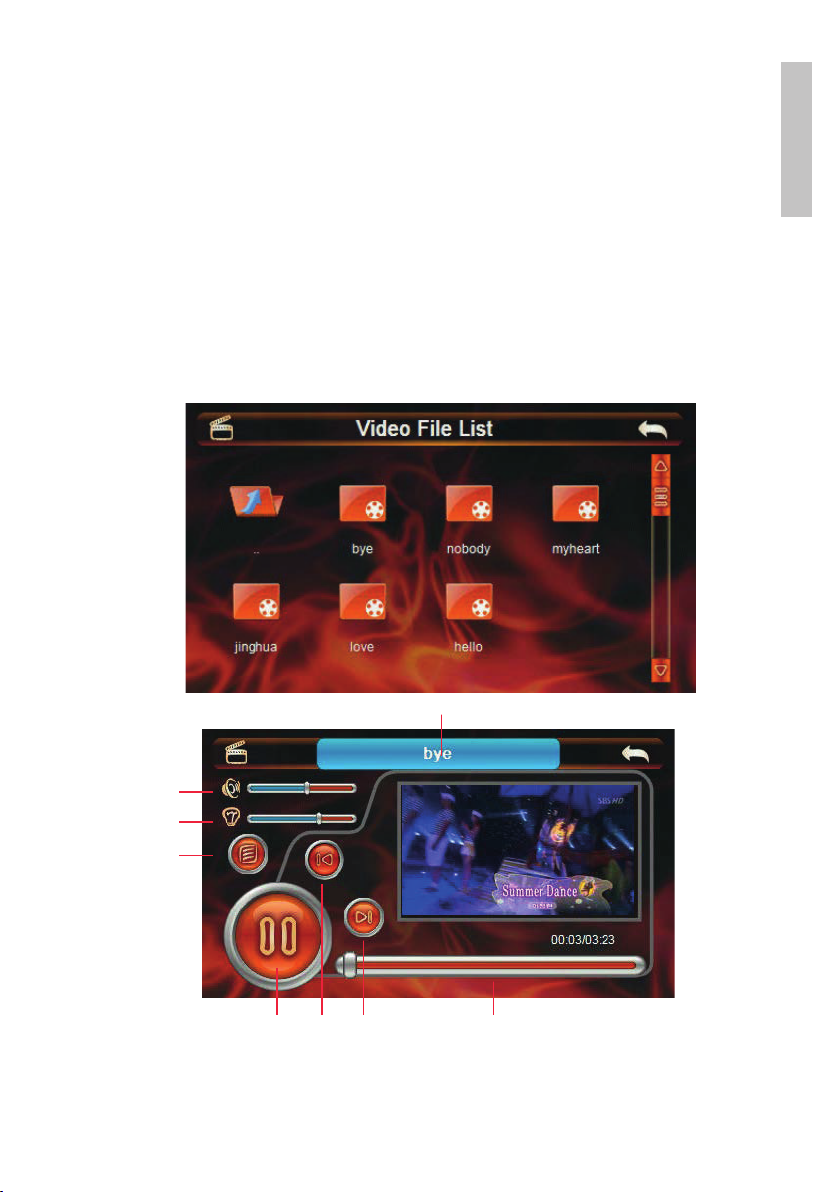
Video
If there are video files on the micro SD card inserted in the device, accessing
the Video menu you will see the SDMMC folder. Click on the icon displayed
to view the list of files.
1
2
3
4
5 6 7 8
1. File name
2. Volume control
3. Adjust brightness

User manual 10
English
4. Back to the file list
5. Play / Pause
6. Previous song
7. Next song
8. Time elapsed
Photo
If there are photo files on the micro SD card inserted in the device, accessing
the Photo menu you will see the SDMMC folder. Click on the icon displayed
to view the list of files.
1 2 3 4 5 6 7
1. Back to the file list
2. Previous image
3. Next image
4. Zoom out
5. Zoom in
6. Rotate the image
7. Full screen
Ebook
If there are text files on the micro SD card inserted in the device, accessing
the Ebook menu you will see the SDMMC folder. Click on the icon displayed
to view the list of files.
Altri manuali per L807 PLUS
1
Indice
Lingue:
Altri manuali PNI GPS