
Portsmith USB Manuale utente
User Manual
Portsmith Express/Express+

Portsmith Express
Portsmith Express +
User Manual

ii
Second Edition – May 2000
The information in this document is subject to change without notice.
This document refers to numerous hardware and software products by their trade names.
All other designations are trademarks or registered trademarks of their respective
companies.
Copyright© 2000 Portsmith LLC. All rights reserved.
Portsmith LLC
1111 S. Orchard St.
M/S Suite 109
Boise, ID 83705
USA
Ver: 051200

iii
Contents ________________________________
ProductOverview.................................................1
PackageContents .............................................1
SystemRequirements..........................................2
HardwareDescription..........................................2
Installation ......................................................4
HardwareSetup...............................................4
SoftwareInstallation...........................................5
EthernetSetup(PortsmithExpress+) ..............................6
PrinterSetup.................................................6
SerialPortSetup..............................................7
USBPeripheralSetup..........................................7
PortsmithExpressSoftDockUtility...................................8
ViewDockingStatus...........................................8
ViewPeripheralandGeneralInformation...........................9
SetMultipleDockingProfiles...................................11
CustomerSupport................................................12
Troubleshooting..............................................12
TechnicalSupport............................................14
OtherInformation................................................15
HardwareWarranty...........................................15
SoftwareWarranty............................................16
SoftwareLicenseAgreement ...................................17
RegulatoryInformation........................................18

iv

1
Product Overview ________________________
Portsmith Express is a universal port replicator that easily connects multiple
desktop peripherals to any laptop PC through a single USB connection. Portsmith
Express features the ability to “hot dock” the peripherals. This means you can
connect the peripherals to the desktop and use them without restarting the
laptop PC.
With Portsmith Express, you can quickly hot dock the following items:
• Parallel Printer (DB-25 IEEE-1284)
• Serial Peripherals (such as a serial printer, modem, monitor, or palm device
DB-9 RS-232, one at a time)
•Keyboard
•Mouse
• Up to Four USB Peripherals (at the same time)
• 10Base-T Ethernet (Portsmith Express+ models only)
The SoftDockTM Utility included with Portsmith Express, offers several dock
status, management, and troubleshooting features to simplify the overall use of
the port replicator.
Package Contents
As you unpack your Portsmith Express universal port replicator, verify that all
the following items are included in the box:
• Portsmith Express Unit
•USBCable
• Universal (worldwide) Power Adapter with Line Cord
•Portsmith Express Installation Disk (includes drivers and the Portsmith
Express SoftDock Utility)
• User Guide
• Warranty Registration Card
2
System Requirements
Make sure your laptop PC system meets the following requirements:
•One of the following operating systems:
–Microsoft Windows 98
–Microsoft Windows 98 Second Edition
–Microsoft Windows 2000
•32 MB of system memory
•1 MB of available hard drive space
•One available USB connection on the laptop PC
Hardware Description
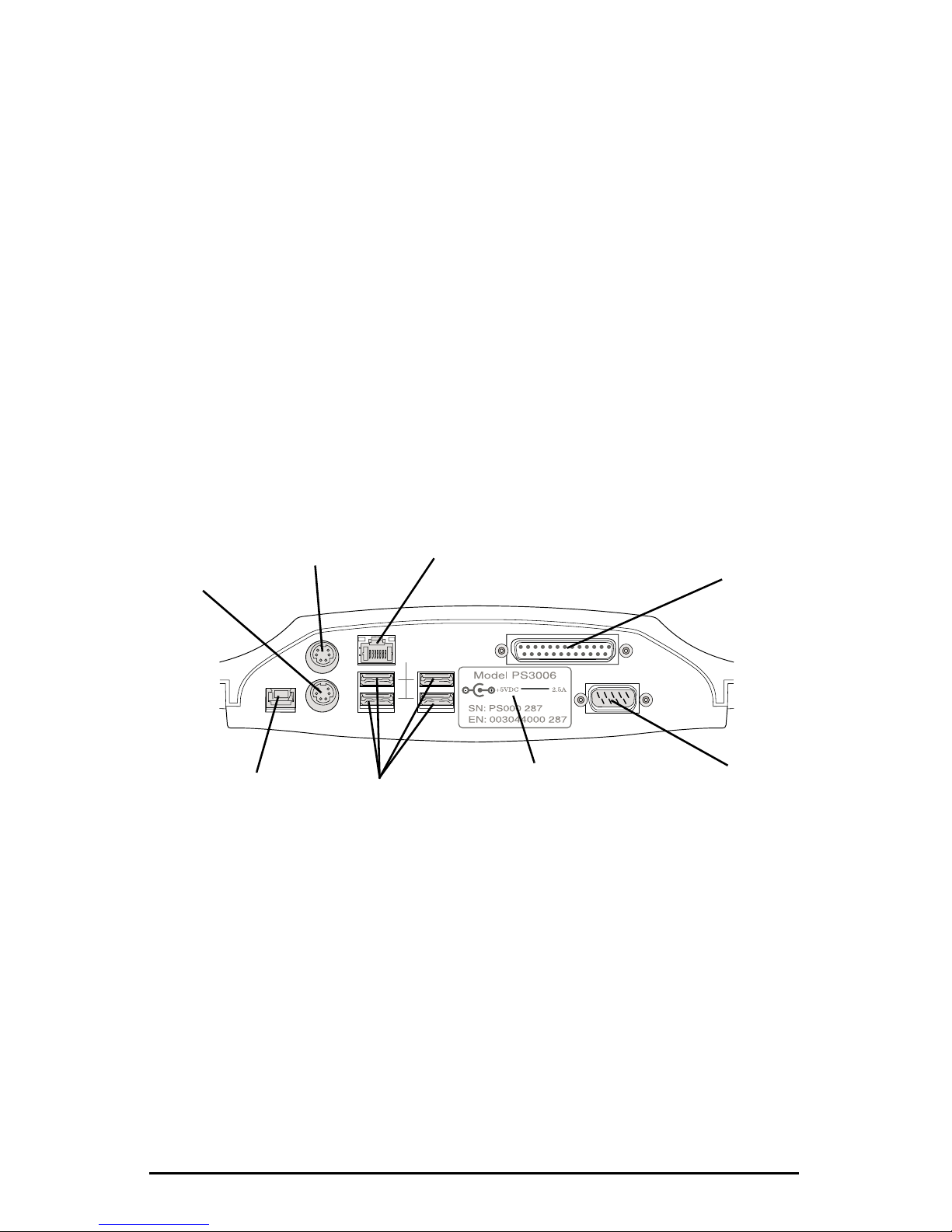
The ports supported by Portsmith Express are identified below. Refer to the
illustration to see each port’s location on the back of the unit.
Rear View
Keyboard
Port
Mouse Port LPT Port
(parallel printer)
10Base-T Port (Ethernet)
(Portsmith Express +
units only)
PC In USB Ports
(four)
Product Identification
Label (model and
serial numbers)
COM Port
(serial peripherals)
3
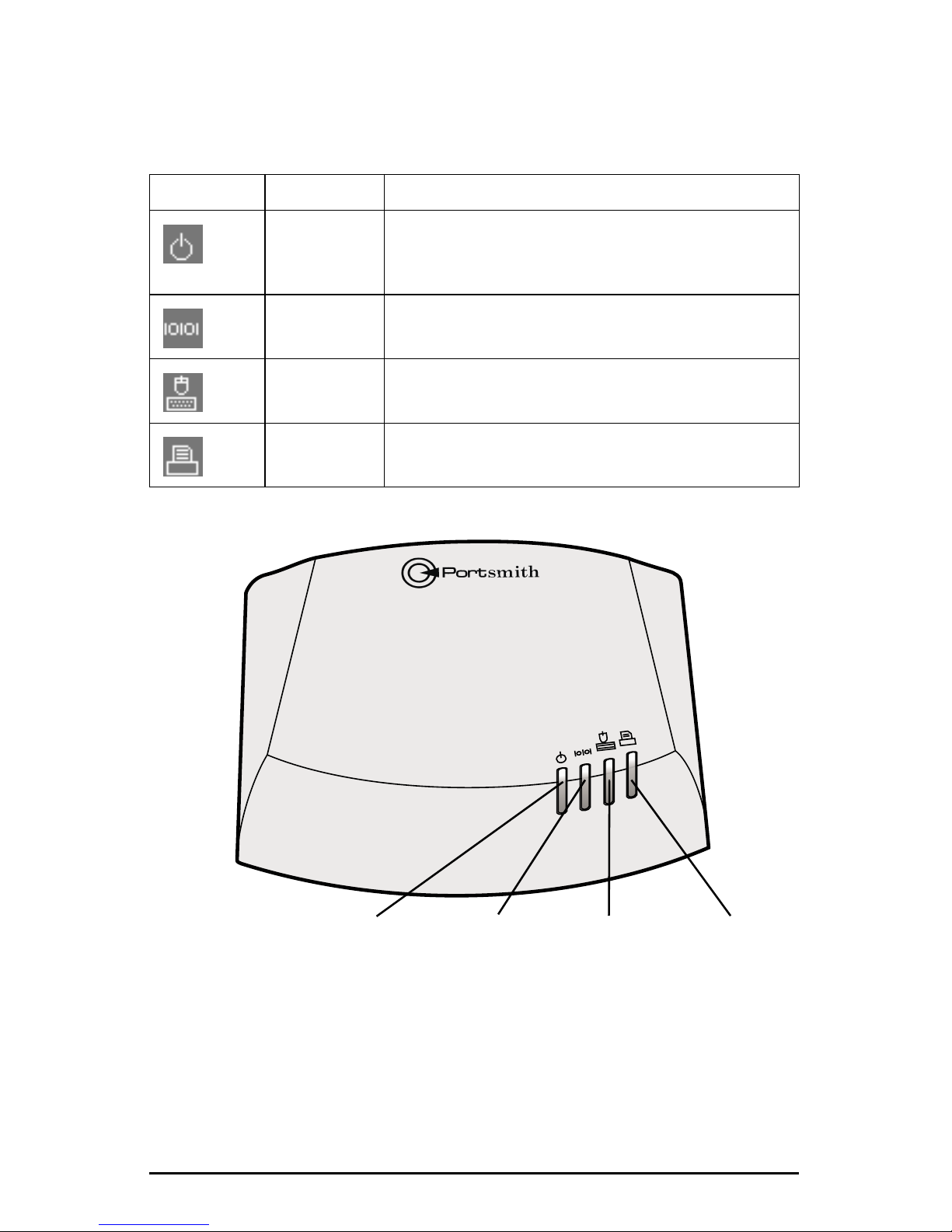
Portsmith Express has a series of lights on the front of the unit. These lights are
status indicators. You can interpret the meaning of each status indicator light
depending on whether the light is on, flashing, or off. Below is a key to the status
indicators.
Front View
Status Lights Condition Description
Solid
Flashing
Portsmith Express is powered up and running
The laptop PC is not communicating properly with the
Portsmith Express unit
Solid
Flashing
Theserialportisready
Theserialportisactive
Solid
Flashing
The keyboard and mouse are ready
The keyboard or mouse is active
Solid
Flashing
The printer port is ready
The printer port is active
Power Serial Por t
Activity
Keyboard and
Mouse
Activity
Printer Port
Activity

4
Installation ______________________________
Hardware Setup
1. Remove the Portsmith Express unit from the packaging.
2. Place the Portsmith Express unit near the laptop PC.
3. Connect the mouse, keyboard, and Ethernet (only on Portsmith Express+
units) to the back of the unit.
NOTE
For the smoothest setup, connect the other peripherals after installation is
complete. These other peripherals (DB-25 parallel printer, DB-9 serial
peripheral, and USB peripherals) are discussed later in this section, beginning
on page 6.
4. Connect the power supply to the right side of Portsmith Express unit.
5. Plug the power supply into an AC outlet.
6. Connect the USB cable from the Portsmith Express unit to the laptop PC.
NOTE
Connecting the USB cable to the laptop PC is known as “docking.”
Disconnecting the USB cable from the laptop PC is referred to as “undocking.”
Wait until the docking or undocking process is finished before redocking or
undocking.
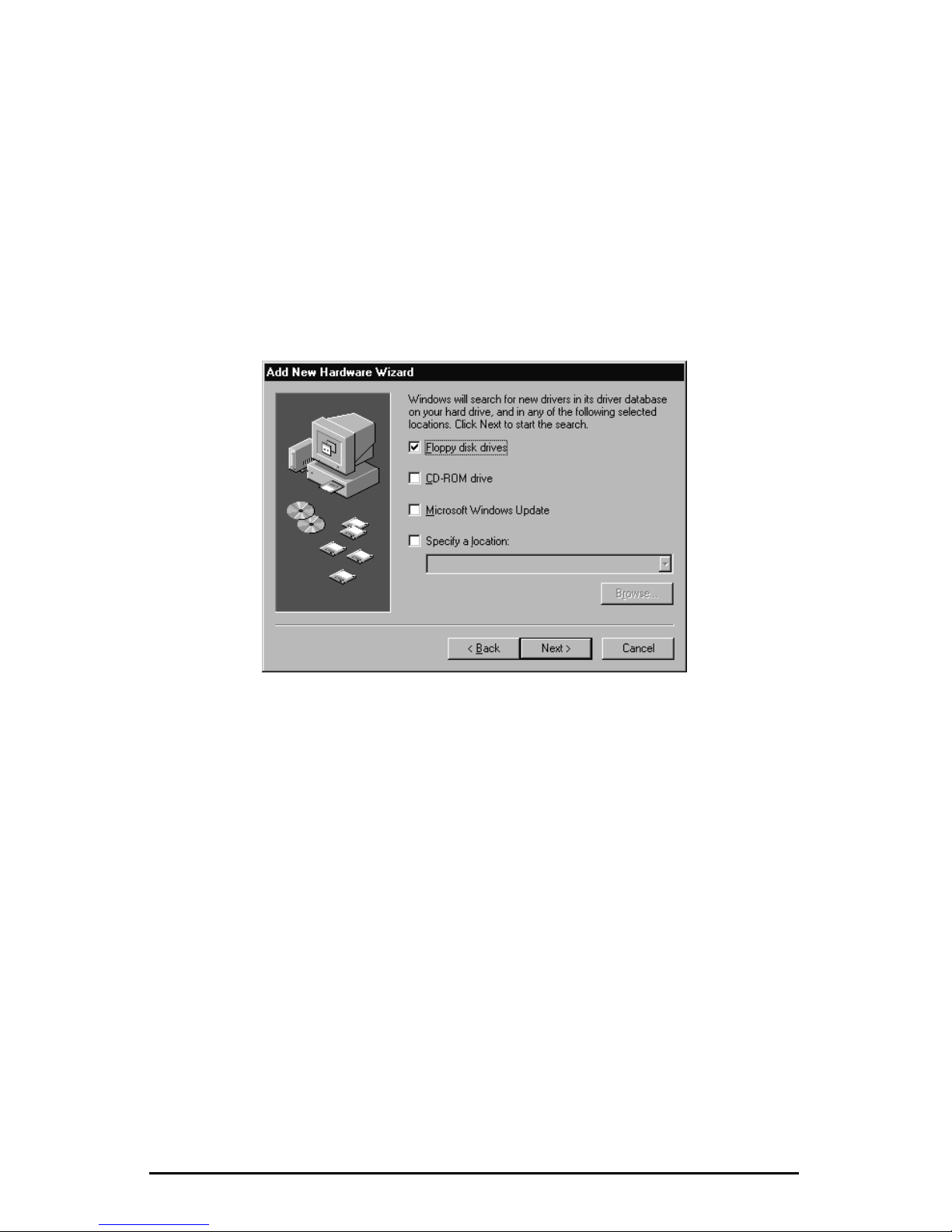
7. The laptop PC will display the Add New Hardware Wizard upon its first
connection to the Portsmith Express unit.
After the hardware setup is complete, the laptop PC will look for the Portsmith
Express drivers. These drivers are included on the Portsmith Express diskette.
Proceed to the next section, “Software Installation,”to install the drivers.
5
Software Installation
In order to successfully use the Portsmith Express hardware, you must install the
companion software. The software includes drivers for the Portsmith Express
unit, and the Portsmith Express SoftDock Utility. (See “Portsmith Express
SoftDock Utility”on page 8 for descriptions of all the SoftDock Utility features.)
1. From the Add New Hardware Wizard,clickNext.
2. Select Search for the best driver for your device,thenclickNext.
3. Insert the Portsmith Express Installation Disk into the floppy drive.
4. Select Floppy disk drive, then click Next.
5. The wizard will show that it has found the Portsmith Express driver.
Click Next to begin loading the Portsmith Express software. The default
path for the software is C:\PSDOCK. You cannot change this path during the
installation process.
6. When the wizard is complete, click Finish.
The laptop PC will begin installing the software for each Portsmith Express
function. In addition to the Portsmith Express hardware drivers, the laptop PC
might need to install system drivers for your peripherals. You might be prompted
to insert your Windows system software to locate drivers for the peripherals. Be
sure to have your system software ready.
NOTE
During the installation process, if you are prompted to restart your laptop PC,
select Ye s .
Questo manuale è adatto per i seguenti modelli
2
Indice
Altri manuali Portsmith Stazione di attracco


