Using theBluetooth Software(Vista)
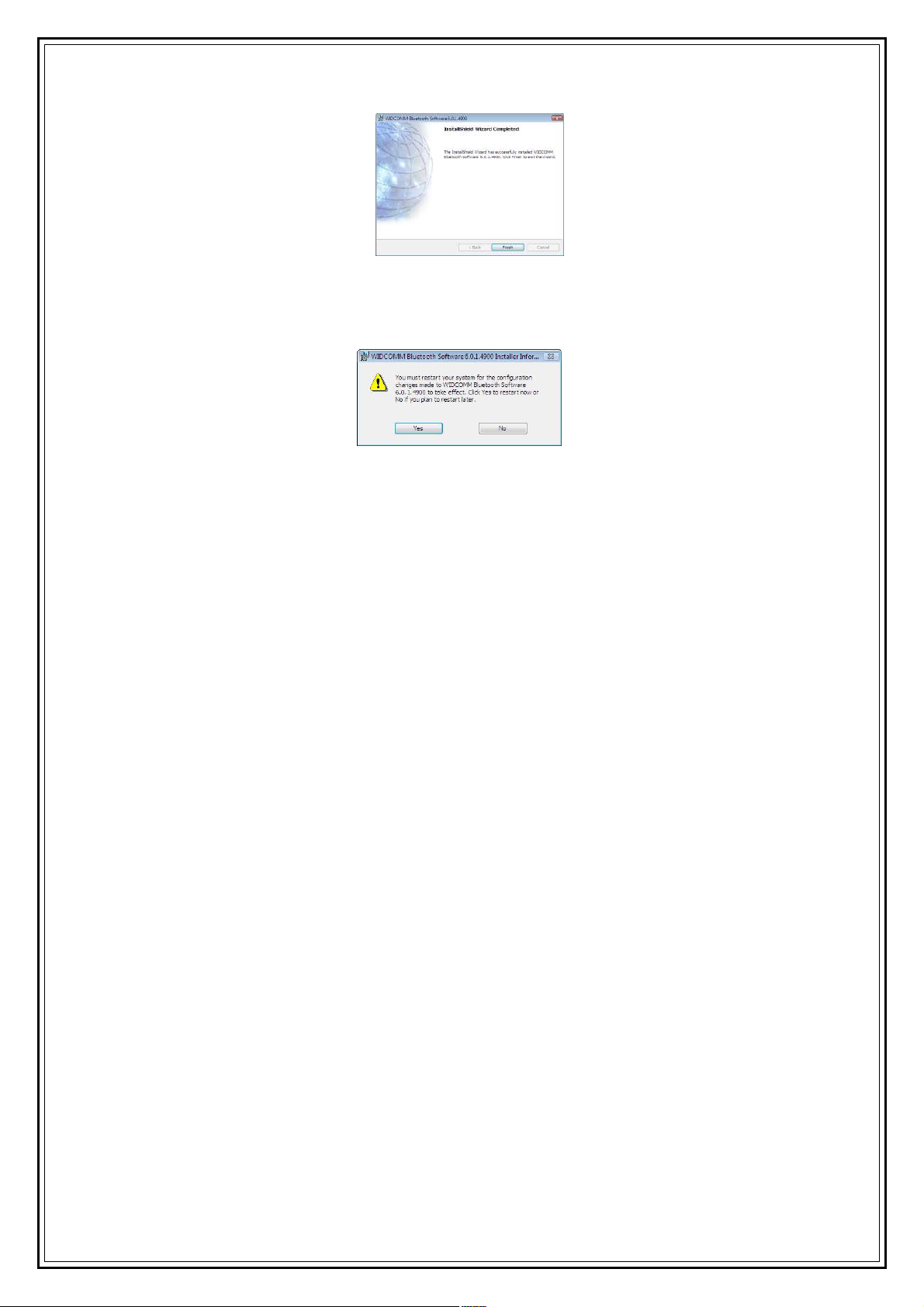
Afteryouhavecompleted thedriverandsoftwareinstallation andreboot yourcomputer,aBluetoothicon willappearon yourdesktop andin
thebottomright handcornerof yourdesktop screen (systray).TheBluetoothicon givesyouaccess totheBluetoothshortcutmenu,and
BluetoothDevices, forconfiguringyourBluetoothsettings.
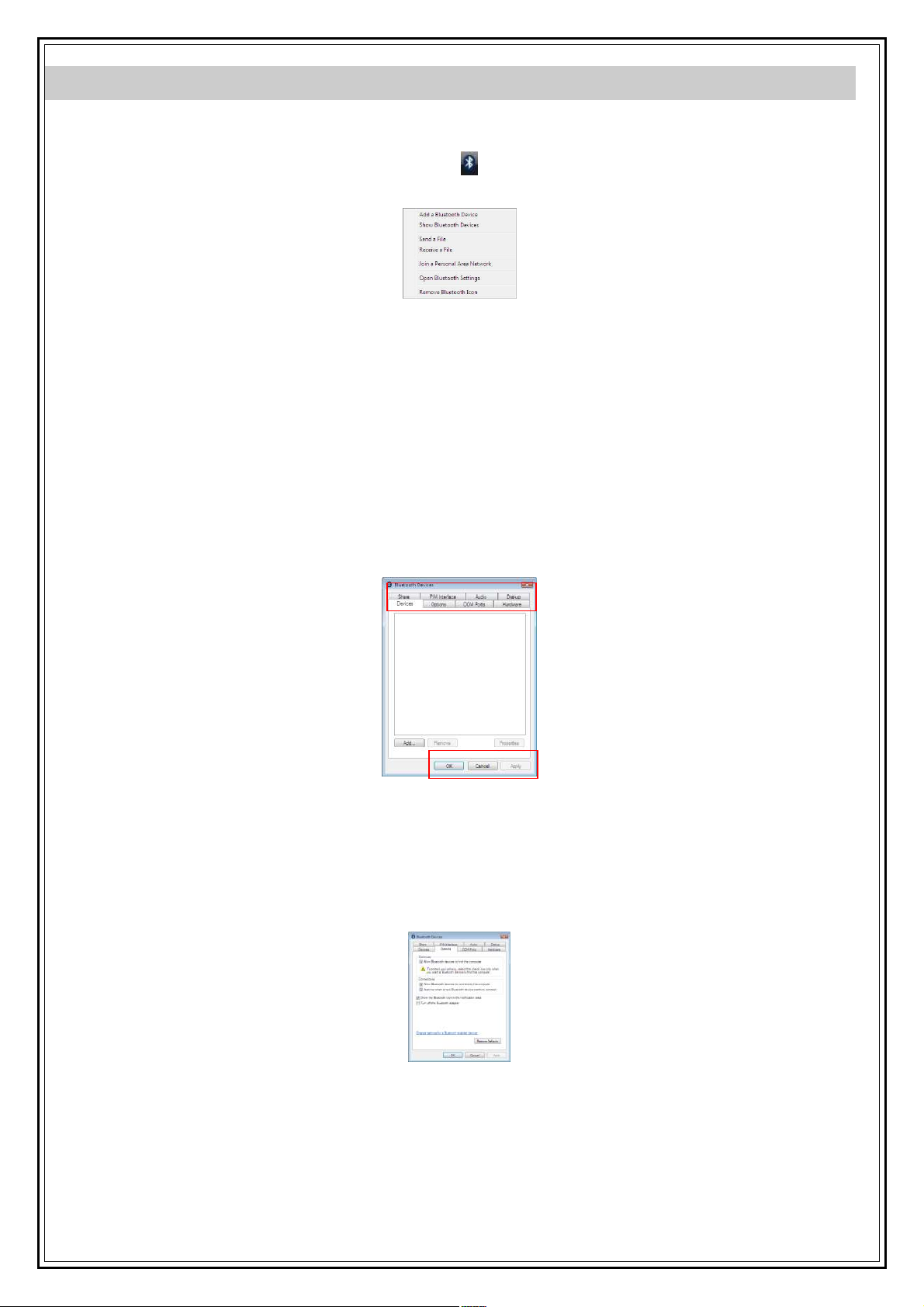
Right clicktheBluetoothicon fortodisplaytheshortcutmenu.
·AddaBluetoothDevice: ClicktoaddanewBluetoothdevice.
·ShowBluetoothDevices: Clicktoshowalldetected Bluetoothdevices.
·SendaFile: Click tosendafileusingBluetoothFileSharing.
·ReceiveaFile:Clicktoreceiveafileusing BluetoothFileSharing.
·Join aPersonal Area Network: ClicktojoinaprivateBluetoothnetwork.
·Open BluetoothSettings: ClicktoopentheBluetoothDevicesscreen.
·RemoveBluetoothIcon: ClicktoremovetheBluetoothicon fromthesystemtray.
DoubleclicktheBluetoothicon foraccess toBluetoothDevices.
YoucanmanageallyourBluetoothconnectionsandsettingsfromtheBluetoothDevicesscreen.
Usethetabsat thetop ofthescreen tonavigatetheBluetoothDevicesscreen.
Click OK toconfirmasetting,andclosethescreen, click Cancel tocancel anychanges,andclick Apply toconfirmasettingwithout closing
thescreen.
DevicesTab
Clickthe Devices tab toviewalldetected Bluetoothdevices. Click Add toconfigureanewdevice, click Properties toviewthepropertiesfora
selected device,or Remove toremoveadevicefromthelist.
OptionsTab
Clickthe Options tab tosetdiscoveryandconnection permissions. You can alsoselect tohowtheBluetoothiconinthesystemtaskbarfrom
here.
Click RestoreDefaults torestoreall settingstotheiroriginal defaults.