
Pro Video DVR-Q4 Manuale utente

DVR-Q4
DVR-Q4/80
DVR-Q4/120
Operating Instructions
Four Camera DVR System
Speco Technologies
200 New Highway
Amityville. NY 11701
Tel. 631-957-8700
Fax. 631-957-9142
www.specotech.com

ProVideo DVR-Q4 User Manual
Contents
1. Features 3
2. Specifications 4
3.Installation 6
4. Function Key Descriptions 7
5.OperationMode 8
6. Recording and Playback 9
7.MenuSetup 13
Important Note: The default password for the DVR-Q4 is “0000”.
You will need this password to enter certain menu selections. You
may change this to your own unique password by following the
instructions on page 21.
In addition, users entering the Menu will cause the unit to stop
recording. Recording will commence based on record mode once
user exits menu. This is also true for search and playback
functions.
Units requiring Hard Drive replacement or upgrade must first be
formatted for FAT32.
2

ProVideo DVR-Q4 User Manual
1.Features︰
Up to 15 frames per second video display
Simultaneously record and view live pictures
Automatically detects NTSC/PAL
Replaces conventional time-lapse VCR
Video compression: MJPEG
Motion/Activity detection recording
Various recording modes including continuous, scheduled,
motion detection and external sensor mode
Four alarm inputs and one alarm output connection.
Automatic recording when alarm is triggered.
1 channel audio recording
Quick and easy search for events by time, date and camera
Highly stable non-PC based proprietary system
Easy to operate front panel
Alarm notification when storage capacity is full
Automatically returns unit to original state when power
recovers from outage.
Watch Dog timer for improper power spike.
Built in buzzer for video loss and alarm sensor input.
3

ProVideo DVR-Q4 User Manual
2. Specification︰
Operation Mode Front panel, OSD
Resolution 720 x 240 or 360 x 240
Display Mode Single channel ( 1,2,3,4 )
Auto-sequence (2–9 sec., adjustable)
Quad
Recording Speed 720 x 240 : 1–10frames/sec (adjustable)
360 x 240 : 1-15frames/sec (adjustable)
Recording Mode Continuous (Manual)
Scheduled
Motion/Activity Detection
External Sensor (Adjustable)
Audio Recording / Live 1 ch
Compression MJPEG
Screen Division Mode 1, 4 Division
Camera Input 4 channels BNC (NTSC∕PAL)
Video Output Composite video (BNC) x 2
Playback Function Playback —forward﹑reverse
Fast forward
Fast reverse
Forward one frame
Rewind one frame
Zoom in, zoom out
4

ProVideo DVR-Q4 User Manual
HDD 40 Gigabytes standard.
Option for 80 or 120 Gigabytes
Built-in Buzzer Available (buzzer ON/OFF)
When video-loss detection; motion
detection or external sensor has been
triggered.
Watch-Dog Function Automatically returns unit to original
state when power recovers from
outage.
Search Mode Date, Time, Camera
Operation Temperature 5 ℃→40 ℃
Power Supply AC100V~240V, 50/60Hz
DC 12V∕4A
Power Consumption 20 W
Dimension 313mm x 255mm x 44mm (W x D x H)
Weight 3.1Kg
5

ProVideo DVR-Q4 User Manual
3. Installation:
Rearpanel
Power Supply:12VDC – 4 Amp.
VIDEO IN: Four cameras with BNC inputs.
VIDEO OUT: BNC “MONITOR OUT” is connected to monitor ”VIDEO IN”.
VCR OUT: BNC “VCR OUT” is connected to the VCR ”VCR IN”.
AUDIO IN: Used for microphone connection.
MICOUT: To VCR, when recording.
LINE OUT: For audio output during playback.
SENSOR/ALARM: There is a DB9 connector on the right side of the rear
panel, which is connected to the external sensors trigger
input and alarm output (Relay).
FAN: For air circulation.
DB9 PIN CONFIGURATION:
1 Sensor Trigger Input – 4 External sensor input 4
2 Sensor Trigger Input – 3 External sensor input 3
3 GND Ground
4 Sensor Trigger Input – 2 External sensor input 2
5 Sensor Trigger Input – 1 External sensor input 1
6 No Connection
7 Relay Out – COM Replay output COM terminal
8 Relay Out – N.O. Replay output normal open terminal
9 Relay Out – N.C. Replay output close terminal
6
ProVideo DVR-Q4 User Manual
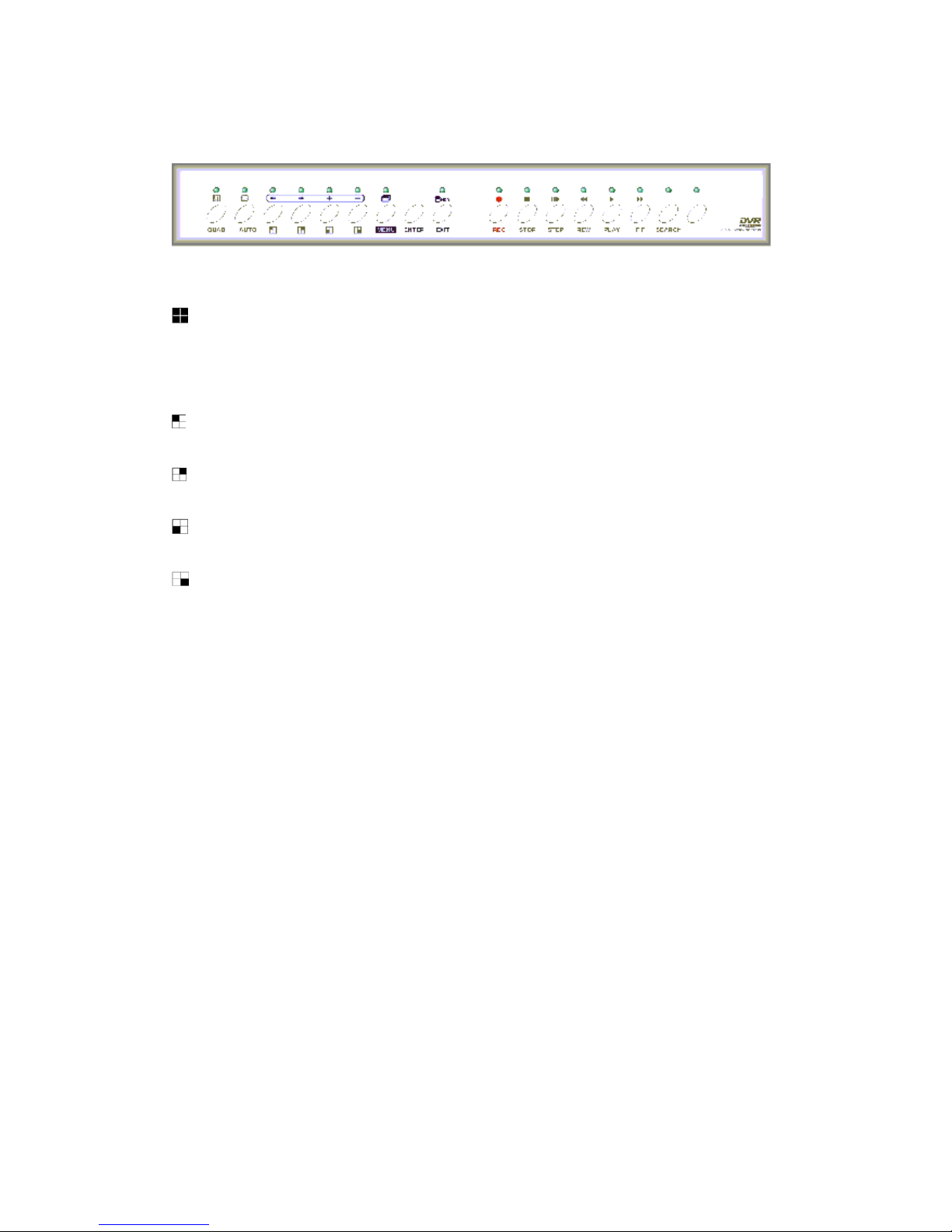
4. Function Key Description:
FrontPanel
QUAD:Quad images
AUTO:Automatically switching channels
:Camera selecting key, view full screen of camera 1.
:Camera selecting key, view full screen of camera 2.
:Camera selecting key, view full screen of camera 3.
:Camera selecting key, view full screen of camera 4.
MENU:Menu set up
ENTER:Enter to sub-menu for editing procedure.
←:Move to the left (up) item during editing procedure.
→:Move to the right (down) item during editing procedure.
+:Next value.
-:Previous value.
SEARCH:Under normal or playback mode, press to display the log file lists.
REC:Under normal mode, press this key to enter record mode.
PLAY:Under normal mode, press this key to enter the latest recorded file.
F.F. (``):Under playback mode, press this key to fast forward the images.
7

ProVideo DVR-Q4 User Manual
REW (__):Under playback mode, press this key to fast reverse images.
STEP ( ):Under playback mode, press this key to skip and pause images.
STOP:Under playback mode, press this key to stop playback mode and return
to normal mode.
ALARM(ON/OFF):Alarm switch consists of a relay and buzzer.
“ON”:Triggers the alarm buzzer & LED lights up.
“OFF”:Switches off the alarm buzzer & LED goes off.
※When the alarm is switched off, the alarm setup menu goes on, if an
event (Motion Detect、Sensor Trigger、Video Loss) happens during
schedule time, alarm buzzer will not go off.
8

ProVideo DVR-Q4 User Manual
5. Operation Mode:
There are four operational DVR modes:
Camera selecting key < >、< >、< >、<> to select
full-view of the camera channels #1,2,3 or 4.
Press <QUAD> to view quad images.
Press <AUTO> to enter auto sequence mode. *
*For Settings of SEQUENCE and Dwell Time, please refer to menu set up on page 20.
9

ProVideo DVR-Q4 User Manual
6. Recording and Playback:
6.1 Play mode:
In normal or sequential mode, press <PLAY> key to enter the
playback mode, or press <SEARCH> key to enter the log files list
(including: date, time), then press <PLAY> key or <ENTER> key to
display image.
Quick Image Search:
Press <F.F.> (``) key, for quick fast forward search image (x1, x2,
x4).
Press <REW> (__) key, for quick fast reverse image (x1, x2, x4).
Press <PLAY> once again to return to normal speed.
Skip Search:
Press <STEP> ( ) key, to skip and pause images.
Zoom:
Zoom in window
When under Step mode, press <←>、<
→>to display the image on the right
hand side, press <←>、<→>、<+>、<
-> key to move zoom cursor and
zoom in and out, than press <ENTER>
key to enter zoom in function, press
<ENTER> key again to return to its
original size, then the block may be
moved to other selected areas for
zooming in or out, or press <PLAY>
key to return to normal mode.
When the resolution is 360x240, it
10
Questo manuale è adatto per i seguenti modelli
2
Indice
Manuali Sistema di sicurezza popolari di altre marche


EDM
EDM Solution 6+6 Wireless-AE Manuale utente

Highway Safety Group
Highway Safety Group EA401 Manuale utente

Siren
Siren LED GSM Manuale utente

Detection Systems
Detection Systems 7090i Istruzioni per il montaggio

Se-Kure Controls
Se-Kure Controls MicroMini SK-4841 Manuale utente

Siemens
Siemens FDM273 Manuale utente