
proSmart BBoil Manuale utente

BBoil - ProSmart Automation System.doc 1
ProSmart Automation
System
www.technolysis-hts.gr
BBoil - ProSmart Automation System.doc 2
Supervise and control your home through your smartphone
The product:
• BBoil is a Wi-Fi programmable thermostat controller. The device is an Internet
connected relayed module, that includes a weekly schedule/ The latter could be
programmed and controlled via an Internet connected PC desktop computer or a
smartphone.
• BBoil allows the fast automatization of every electrical device, regardless of its
manufacturer or model.
• The technology set in BBoil allows
it to connect with any wireless Internet, without the need of any additional settings
• BBoil is a complex system with
which you not only turn on and off your devices remotely, but manage and adjust a
number of devices in your home, office, house or villa.
• BBoil allows the users to receive real time information for all connected devices their
work and current status.
Why choose BBoil:
• Saves you money from your electricity bill
• Optimizes the use of every connected electrical device or appliance
• Complete integrated control system
• Easy to use and user friendly software interface
• Mobile app, compatible with all Operating Systems
BBoil could be used for:
• Control of electric water heaters
• Control of air conditioners and air conditioning systems
• Control of gas boilers and solid fuel boilers
• Control of solar systems
• Control of irrigation systems
• Control of indoors and outdoors lighting
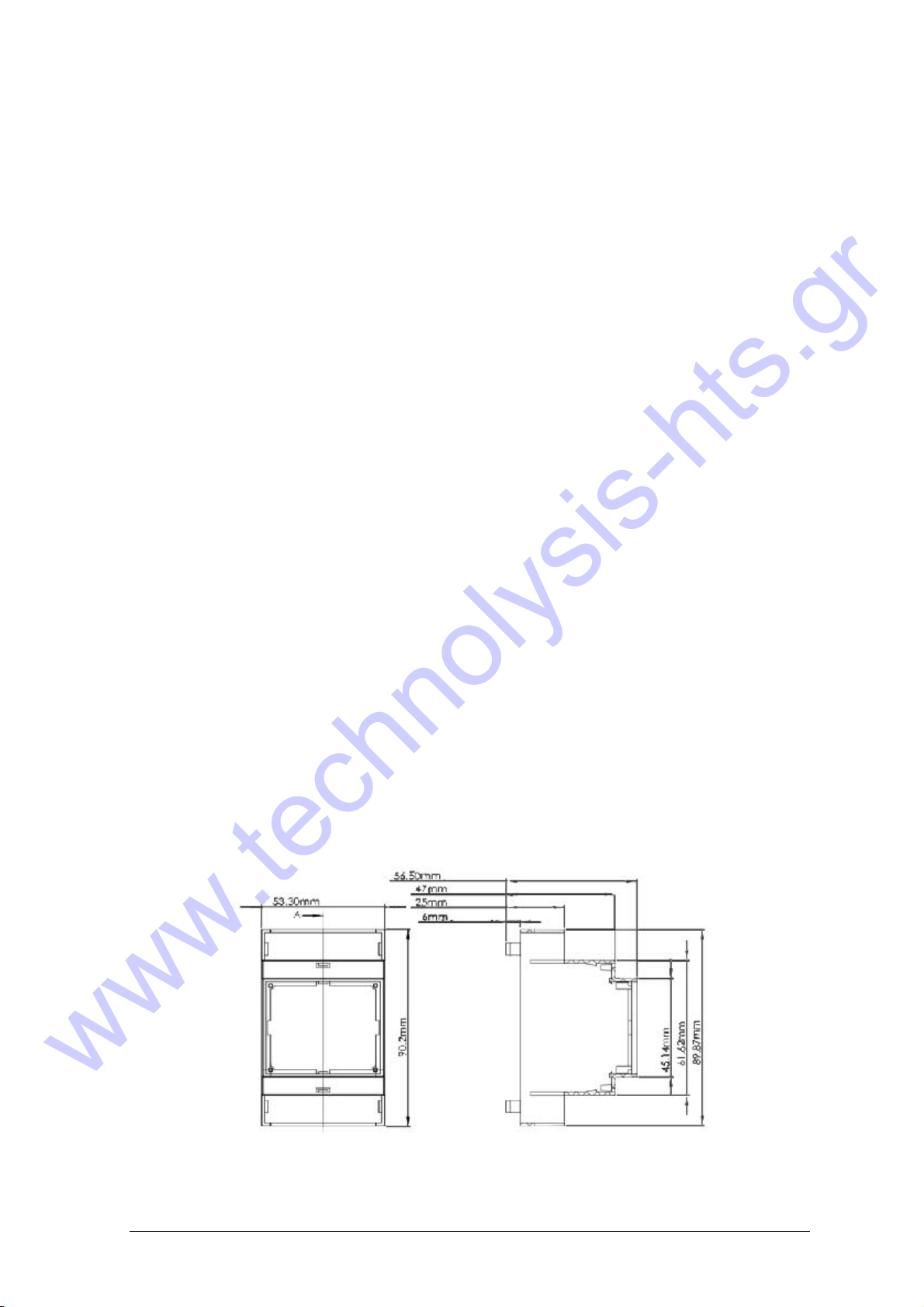
Technical specification
Scheme 1
www.technolysis-hts.gr

BBoil - ProSmart Automation System.doc 3
Step 1:
Unpacking / Connecting the temperature sensor to the device / Possibilities for installing.
Every BBoil package includes:
1. BBoil device for Internet/Wi-Fi connection,
2. Temperature sensor
3. User Manual
Scheme 2
1.1 Unpack the device and the temperature sensor and
take them out of the box (Scheme 2)
1.2 Connecting the temperature sensor to the device. In
order to connect the temperature sensor to the
device, please remove the plastic lid from the side
of the button/ Plug in the temperature sensor’s jack
into the device’s connector and then put the plastic
lid back on (Scheme 3 and Scheme 4)
1.3 Installing possibilities BBoil is a product, constructed
for easy installation into the electrical Dashboards
using Eurorim (Scheme 5)
Temperature measurement range from 0 till 125°С (0/25°С range)
Temperature range set from 15°_ till 75°С (1°С range)
Temperature accuracy ±0/5°_ from -10°_ till +85°_
_lock Internet NTP, accuracy up until 100 ms
Programmes Modes. Turned off, weekly schedule work,
manually set temperature Weekly schedule
with 15 minutes range
Hysteresis Upper and lower, set by the user in a
±10°_ range
Switching socket 16А
Supply 230V АС, 0/2А
Sizes 90/2 х 53/3 х 56/5 mm (LхWхH)
Working temperature from 0° till 45°_
Storage temperature -20°С till+60°С
Working humidity from 5% till 90% without condense
www.technolysis-hts.gr

BBoil - ProSmart Automation System.doc 4
Step 2:
Connecting BBoil to a chosen boiler or electrical appliance.
Attention!
Switch off the supply voltage before installing BBoil. We highly recommend using the help
of a qualified electrician. If you do not possess the needed knowledge or qualifications, please
do use the help of an authorized installation provider!
Attention! Do not attempt to modify or affect the boiler’s integrated thermostat in any way!
Attention! Interrupting the phase is required and working under Live voltage.
Scheme 6 shows an example of the BBoil
connection to an electrical boiler.
The temperature sensor could be used for measuring
the temperature via a bung or be installed in the
thermostat bed, in which case a thin temperature
sensor is used.
The device could be used to control all electrical
devices or heating systems that allow interrupting the
incoming phase or are being controlled via a Naturally
open/Naturally closed circle/ Scheme 7 shows the
correct way of connecting the device.
BBoil could be used as a room thermostat, for which
purpose the temperature sensor should be placed in the
room, where the temperature is going to be measured.
Step 3:
Initial settings and connection to a chosen Wi-Fi connection.
In order for the device to work in real time, it must be connected to the Internet. Once
connected and set, BBoil could also work with previously set schedule, without the need of a
constant Internet connectivity.
scheme 6
scheme 7
www.technolysis-hts.gr

BBoil - ProSmart Automation System.doc 5
3.1 After the installation has finished, apply power supply voltage to the device and BBoil.
Wait 10 seconds and check the device’s light indication. A blinking blue light on per second
intervals signifies the Wi-Fi module is in an AP (Access point) mode and you can now
connect your PC or smartphone to it.
3.2 Once in Access Point mode you could also
connect the device if you hold the button for 3
seconds. Attention! If you hold the button for
10 seconds, the device will be nullified with its
default settings!
3.3 Initiate a wireless search and connect to the
BBoil APP.Every device creates a network with
its own name, starting with PSS and a
combination of letters and numbers. For
example, PSS_985 and it does not require a
password.
3.4 After connecting, your browser will automatically open a new page giving you the chance
to choose the wireless network, to which you want to connect the de¬vice. (Scheme 8).
If your browser does not open automatically, please open it manually for the au¬tomatic
opening of the browser is a manual setting and thus it could be turned off.
3.5 If your smartphone, tablet or laptop did not
automatically load the settings page, as shown in
Scheme 8, it could be accomplished manually.
Open your browser and write the following address
http://192.168.10.1/ index.html
3.6 Choose the desired Wi-Fi network, type your
password and click on the "Connect" button
(Scheme 9).
3.7 In the next 20 seconds BBoil will switch to a working mode and the light indicator will be
on all the time, blinking shortly per second.
Congratulations! You connected your device successfully and can now add your profile in
prosmartsystem.com so you can control and monitor its work.
Step 5:
User profile creation
5.1 Once connected to the Internet, BBoil becomes invisible to the other devices in the
network. The only way to connect with BBoil is via the user profile, associated with the
particular device. If you do not have one, you can load the proSmart’s page.
https://prosmartsystem.com or download and install the proSmart APP in your smartphone or
tablet.
scheme 8
scheme 9
www.technolysis-hts.gr

BBoil - ProSmart Automation System.doc 6
5.2 If you choose to use a browser,
open prosmartsystem.com in your PC
desktop or mobile device and press the
"Log in" button in the upper right
corner.
5.3 If you access the website or the APP for the first time, you need to register or log in with
your Face book, Google + or Twitter accounts just by clicking the respective button.
5.4 New user registration. Fill in the registration form’s fields and click the "Register" button.
You are now registered and may enter the APP.
Step 6: Adding a device
6.1 Home Screen - After the successful login with username and password, you should
already be seeing the home screen in your profile and now you can add your device. Enter the
serial number of your BBoil device that you previously connected to the wireless network.
The serial number is unique for every device and can be found written on top of the BBoil
device.
www.technolysis-hts.gr

BBoil - ProSmart Automation System.doc 7
6.2 Click on the "Search" button and type a name for your device on the next step.
The system would give you the choice for positioning in many levels, which are not
compulsory and are mainly used by users owning a higher number of devices, which are
located in different locations.
6.3 The system would give you the opportunity for positioning on a few levels, which are not
compulsory and are mainly used by users, possessing a higher number of devices, located in
different locations. If not the case this step is not required.
6.4 You can now set and control your device.
The "Actual (Current) temperature" text shows the
temperature at the moment, as detected by the device.
On the right side you can locate a slider for setting the
desired temperature.
In the upper left corner you can see the three menu
signs shown at the right picture.
www.technolysis-hts.gr

BBoil - ProSmart Automation System.doc 8
Step 7:
BBoil’s settings to work in schedule mode
7.1 In the main page you can locate the working mode’s buttons.
• Off - the device is not working
• Manual - the device is on and working until reaching the set temperature from the
right slider
• Schedule - the device follows the set schedule
Below the working mode’s buttons, is the graph that indicates the temperature changes, as
detected by the device. With a hover on the graph, you can see detailed information for each
chosen point (Scheme 17).
7.2 In the "Settings" page, you can locate the two sliders for the Upper and Lower hysteresis.
Their main purpose is keeping the set temperature with the highest possible energy savings
and extending the electrical appliance’s life. If you are not familiar with the aforementioned,
we recommend the following settings.
• Lower hysteresis: 4 degrees
• Upper hysteresis: 1 degree
At the right side are located the text fields, containing the information regarding the boiler
you are controlling with BBoil.
7.3 In the "Schedule" page, you can see a form for setting a weekly schedule for autonomous
control of the connected boiler to BBoil. It is repeated every week and you need to set it only
once. It could be changed if desired with no problem.
www.technolysis-hts.gr

BBoil - ProSmart Automation System.doc 9
7.4 Press the axis on the desired day of the
week. On the window that opens up, you can
locate the buttons for splitting the set period
– the day is split in two and there is also a
drop down menu for turning the chosen
period on and off. When it is turned on, you
see a slider for setting the desired
temperature for that period.
After filling in your desired Working
schedule for the device click the "Save"
button (Scheme 20)
7.5 This is an example of a full weekly schedule (Scheme 21).
www.technolysis-hts.gr

BBoil - ProSmart Automation System.doc 10
Important! We highly recommend you always update your browser to the latest version/
Using older browser versions could lead to a bad functioning user interface.
Warranty
The warranty of the device is 24 months from the date of purchase. The serial number of the
BBoil device is unique and you need to present it in the event of a problem during the
warranty period.
The warranty will not be recognized if any of the following events occur:
• Lost or counterfeited warranty card.
• Damages, caused from wrong installation and exploitation.
• Attempted repair from an unauthorized service provider.
• Chemical, electrical or other influence on the product, which is not part of its natural usage.
• Distorted physical integrity of the device.
• All claims under the warranty are to be directed at http://www.technolysis-hts.gr if the
device was bought from us or directly at the manufacturer Pro Smart Ltd.
www.technolysis-hts.gr
Altri manuali per BBoil
1
Indice
Altri manuali proSmart Termostato


