
PURE Jongo T2 Manuale utente

Quick start guide
T2, T4
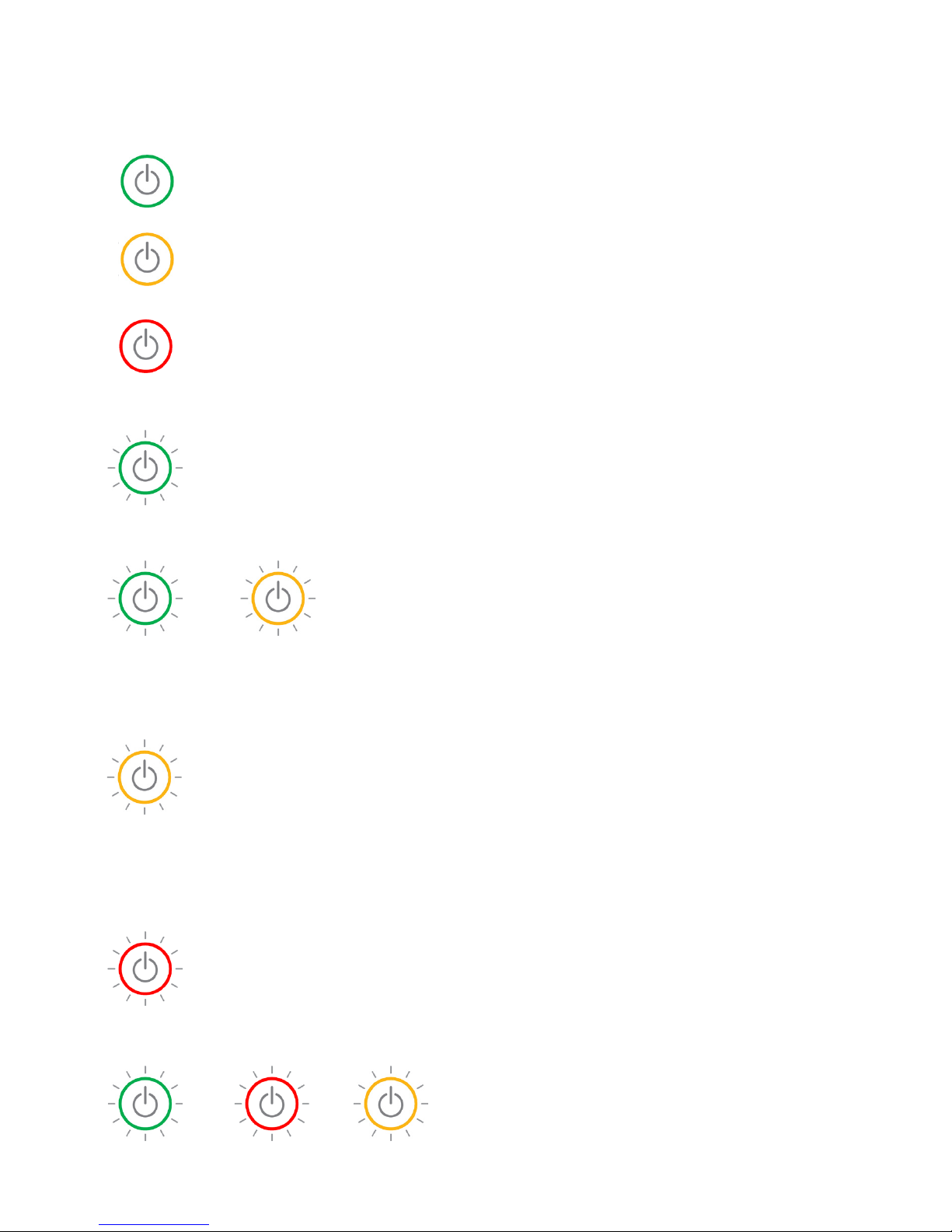
Power light states
/
/ /
Green (steady): Indicates that Jongo is on.
Amber (steady): Indicates that Jongo in in sleep.
Red (steady): Indicates that Jongo is in
standby/charging.
Green (pulsing x3): Indicates that Jongo is
preparing to stream audio.
Green (pulsing continuously): Indicates that
Jongo is busy connecting to a wireless network.
Green/amber (alternating): Indicates that you
have connected your device (smartphone/tablet)
to Jongo Setup Manager in Wi-Fi setup mode.
Amber (flashing x2): Indicates that you have
tried to increase the volume but Jongo is already
at maximum volume.
Amber (flashing continuously (slowly)):
Indicates that Jongo is in Wi-Fi Setup mode.
Amber (flashing continuously (rapidly)):
Indicates that Jongo is waiting for a file before
carrying out a software update.
Red (pulsing):
Indicates that Jongo is booting up.
Red (flashing continuously): Indicates that
Jongo has an error (e.g. Jongo has failed to
connect to your Wi-Fi network).
Green/red/amber (flashing colour cycle):
Indicates that Jongo carrying out a software update.
DO NOT TURN JONGO OFF UNTIL UPDATE IS
COMPLETE.
1
Thank you for choosing Jongo T2, T4.
This quick start guide will get you up and
running in no time. If you need more help
setting up your Jongo, you can access
our online help in the Pure Connect app
or watch our Jongo setup video at:
www.pure.com/jongo-setup-video
T2, T4

2
How do I set up my Jongo?
Already have a Jongo on your network?
If you are using the Pure Connect app and have already set up your first Jongo, see
page 9.
New to Jongo?
I want to use my Jongo as part of a multiroom system
You can use the Pure Connect app to stream millions of tracks, access over 20,000 live
radio stations from across the world, podcasts and a library of over 200,000 on-demand
programmes as well as stream your own music collection.
We recommend using the Pure Connect app as this allows you to access additional
features, such as stereo paring.
To access Pure Connect on your Jongo you will need to use Wi-Fi, see page 3 for
more information.
I want to stream music to a single Jongo speaker
You can stream music to a single Jongo speaker using Wi-Fi or Bluetooth.
We recommend using Wi-Fi so that you can easily add additional Jongos to your network
and receive the latest software updates. See the following page to start setting up your
Jongo using Wi-Fi.
To use Bluetooth to stream to a single Jongo speaker, see page 8.
With our Jongo product range, you can stream audio from your smartphone or tablet
using Wi-Fi or Bluetooth.
*Requires Android or iOS smartphone or tablet.

3
Connect Jongo to your Wi-Fi
Insert the connector of the supplied mains lead into Jongo (A) and switch
Jongo on .
When the Power light turns solid green, briefly press the Wi-Fi
button (B) on the back and wait for the Power light to flash amber.
Note: If you press and hold the Wi-Fi button, your Jongo will start WPS
compatible pairing mode. To continue with the standard setup, briefly press
the Wi-Fi button on the back of your Jongo and wait for the power light to
flash amber before proceeding to step 2.
B
A

4
For iOS customers
Open the Wi-Fi settings on
your iOS device an
d select
‘Jongo xxxxxx’ from the list
of wireless networks.
For Android customers
Open the Wi-Fi settings
on your device and select
‘Jongo xxxxxx’ from the list
of wireless networks.
5
EN
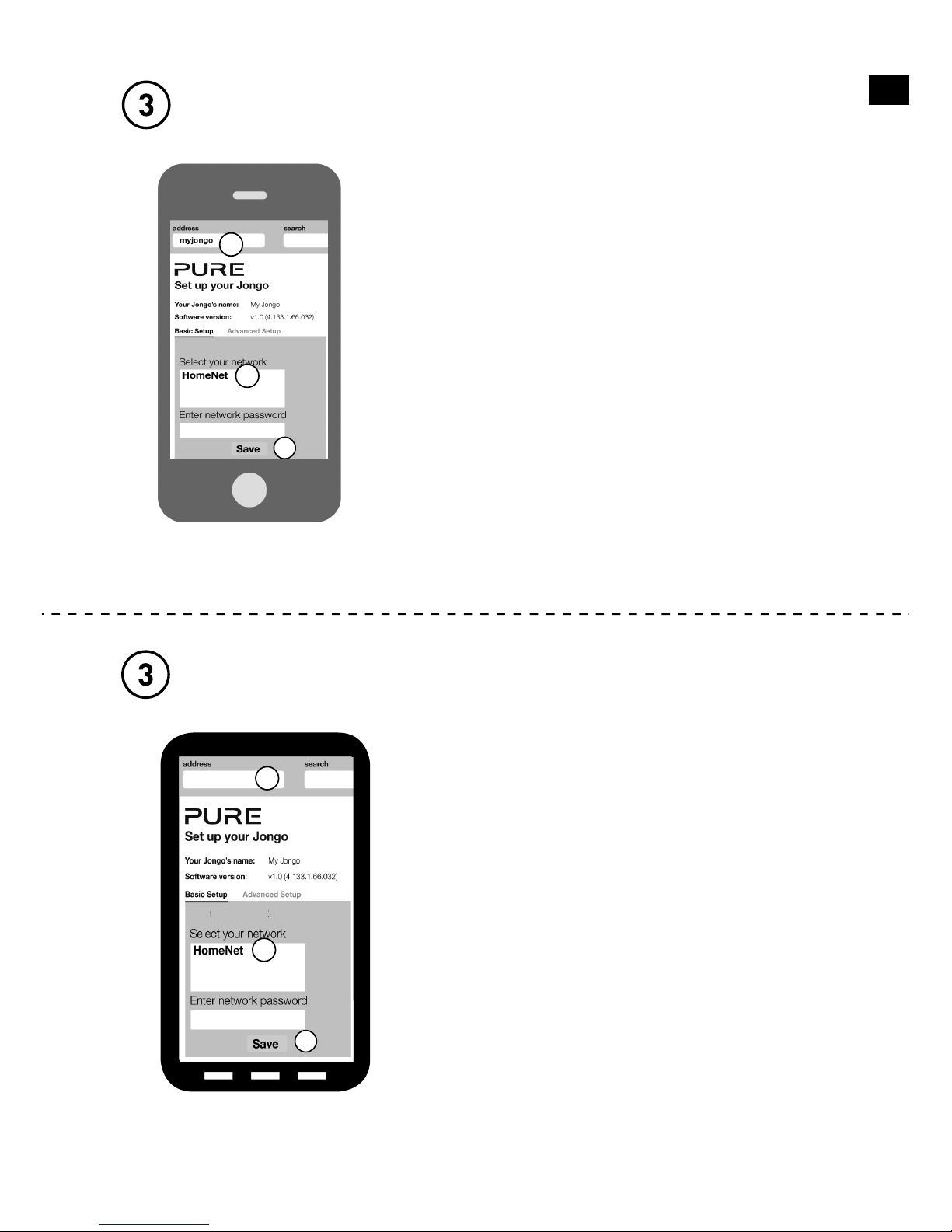
For iOS customers
A. When the Power light on the front of your
Jongo flashes green and amber, the Jongo
setup page will open automatically on your
iOS device.
B. Scroll down to the list of wireless networks
and tap the name of your home wireless
network.
C. Enter the password of your wireless
network and press Save. When Jongo has
connected to your network the Power light
will light solid green.
For Android customers
A. When the Power light on the front of your
Jongo flashes green and amber, a ‘Sign in to
Wi-Fi network’ message will appear at the
top of your device.
B. Wait for the Jongo setup page to open.
Note: If you do not see the ‘Sign in to Wi-Fi
network’ message, open your web browser
and enter myjongo in the address bar.
C. Scroll down to the list of wireless networks
and tap the name of your home wireless network.
D. Enter the password of your wireless network
and press Save. When Jongo has connected to
your network the Power light will light solid green.
C
A
B
D
C
B
myjongo

6
The Wi-Fi settings on your iOS device will open
and you will be connected back to your home
wireless network.
If you want to use the Pure Connect app, see
“Using the Pure Connect app” on page 7. If
you want to use another streaming service, see
page 8.
For iOS customers
Open the Wi-Fi settings on your device and
check that it has connected back to your home
Wi-Fi network.
If you want to use the Pure Connect app, see
“Using the Pure Connect app” on page 7. If
you want to use another streaming service, see
page 8.
For Android customers

7
Using the Pure Connect app
For iOS and Android customers
A. Download the Pure Connect app from the Apple App Store or Google Play. If you
already have the app installed check that you have the latest version (see the Pure
Connect app help for more information) to ensure best performance and gain
access to the latest features.
B. Open the Pure Connect app and follow the steps to complete the app tour.*
C. Select the content that you want to stream.
D. Tap in the player bar to view a list of available Jongo devices on
your network.
E. Tap next to the Jongos that you want to stream to.
F. Enjoy your music.
E
C
*When you open the Pure Connect app, the app will check to see if there is an available software update. If an update is available,
the Power light on the front of your Jongo will flash green/amber/red during the software update.
D

8
Using Bluetooth
For all customers
You can also use Bluetooth to stream all your Pure Connect content, as well as content
from other music services, such as Spotify and Pandora, directly to your Jongo.
A. Enable the Bluetooth option on your mobile device and search for Bluetooth
devices.
B. Pair to one of your Jongos. If your device requires a key, enter ‘0000’.
C. Open the music streaming service that you want to listen to and play a track.
Your music will start to play on your Jongo.
Altri manuali per Jongo T2
5
Questo manuale è adatto per i seguenti modelli
1
Indice
Altri manuali PURE Altoparlanti portatili


