PUSR AC200 Manuale utente

AC200 User Manual
pusr.com
1
- 2 -
Content
1. Introduction ...............................................................................................................................................- 4 -
1.1. Overview...........................................................................................................................................- 4 -
1.2. Features............................................................................................................................................- 4 -
1.3. Specification .....................................................................................................................................- 5 -
1.4. Dimension ........................................................................................................................................- 6 -
2. Get Started.................................................................................................................................................- 7 -
2.1. Login setting page ............................................................................................................................- 7 -
2.2. Briefs introduce of the webpage........................................................................................................- 8 -
3. Configuration and parameter details ..........................................................................................................- 9 -
3.1. System status....................................................................................................................................- 9 -
3.2. AC management .............................................................................................................................- 11 -
3.2.1. AP list ....................................................................................................................................- 11 -
3.2.2. AP settings.............................................................................................................................- 11 -
3.2.3. AP information....................................................................................................................... - 13 -
3.3. AC management via PUSR cloud...................................................................................................... - 13 -
3.3.1. AP import...............................................................................................................................- 14 -
3.3.2. AP list ....................................................................................................................................- 14 -
3.3.3. AP settings.............................................................................................................................- 15 -
3.3.4. AP information....................................................................................................................... - 16 -
3.4. Internet accessing settings ..............................................................................................................- 16 -
3.4.1. Mode selecting.......................................................................................................................- 17 -
3.4.2. Ethernet port setting ..............................................................................................................- 17 -
3.4.3. WAN settings .........................................................................................................................- 17 -
3.4.4. IP mapping ............................................................................................................................- 18 -
3.4.5. Port mapping.........................................................................................................................- 19 -
3.5. LAN network settings.......................................................................................................................- 22 -
3.6. Login settings .................................................................................................................................- 22 -
3.7. Client list.........................................................................................................................................- 23 -
3.8. Software upgrading ........................................................................................................................- 24 -
3.8.1. Firmware upgrading ..............................................................................................................- 24 -
3.8.2. Backup ..................................................................................................................................- 26 -

AC200 User Manual
pusr.com
1
- 3 -
3.8.3. Time & Date ...........................................................................................................................- 27 -
3.8.4. Reboot...................................................................................................................................- 27 -
3.8.5. Reset to factory setting...........................................................................................................- 27 -
3.9. System log......................................................................................................................................- 28 -
4. Warranty..................................................................................................................................................- 28 -
5. Contact Us................................................................................................................................................- 28 -
6. Disclaimer................................................................................................................................................ - 29 -
7. Revision History........................................................................................................................................- 29 -

AC200 User Manual
pusr.com
1
- 4 -
1. Introduction
1.1. Overview
AC200 is the new AP controller lunched by PUSR. It can be used to manage and control wireless access points
AP and wireless users. It can realize remote centralized monitoring of the working status of APs, remote delivery
of configurations or policies, remotely upgrade APs, etc., and control user access. AC can provide more secure,
stable and efficient wireless access services, and users can manage and control wireless networks more
conveniently.
It has 1*WAN port and 4*LAN ports, for LAN ports, all of which support standard PoE power output. Users can
use it to power the AP device and achieve unified management, which greatly simplifies the complexity of home
wireless networking.
1.2. Features
⚫MTKT7621AT MIPS1004Kc (880 MHz) dual-core CPU, adopting high-performance processor can provide
more stable network and faster transmission rate.
⚫Supported standard: IEEE802.3, IEEE802.3u, IEEE802.3ab.
⚫Equipped with 1*10/100/1000M WAN, 4*10/100/1000M LAN (PoE output), auto MDI/MDIX.
⚫PoE output standard: IEEE 802.3af, IEEE 802.3at, 48V out, max 57W power supply, 30W for single PoE
ports.
⚫Metal shell can provide heat dissipation and effectively shields electromagnetic interference.
⚫Support multiple installations: Desktop, DIN rail mounting, wall mounting, 1U Rack Mount: Standard 19-
inch cabinet type(only for AC1000).
⚫Rich hardware interface: 1*USB2.0, 1*USB3.0, 1*console, 1*reload button.
⚫Manages up to 200 wireless access points, and 100 users as gateway.
⚫Support router mode and AP mode.
⚫Support DHCP, PPPoE, static IP in router mode.
⚫Support WAN/LAN switching, and multi-WAN settings.
⚫Supports multiple services: HTTP, NAT, QOS, etc.
⚫Can be centrally managed through the PUSR cloud.
⚫Can monitor each access point and connection status of network devices.
⚫Support reset to factory settings via reload button.
⚫Support OpenWrt system customization.

AC200 User Manual
pusr.com
1
- 5 -
1.3. Specification
Model
AC200
AC1000
Processor
MTK MT7621AT
DDR
DDR3 2Gbit
FLASH
Nor Flash 64Mbit
POE
RTL8234B
None
EEPROM
BL24C64A
Power
Power
Power adapter
Input: 100 –240 V AC, 50/60 Hz
Output: 53.5VDC/1.22A
100~240V 50/60Hz AC
Power
consumption
≤5W
≤12W
Hardware
WAN
1*RJ45, 10/100/1000M, auto MDI/MDIX
LAN
4*RJ45, 10/100/1000M, auto
MDI/MDIX
48V PoE out, IEEE 802.3af, IEEE 802.3at
standard
4*RJ45, 10/100/1000M, auto MDI/MDIX
Console port
1* Micro USB
1*RJ45
USB
/
1*USB2.0+1*USB3.0
Reload
Reset to factory settings
Indicators
Power, work, Ethernet port indicator
Power, work, USB, Ethernet port indicator
EMC Protection
IEC 61000-4-2, level2, ESD
IEC 61000-4-4, level2, EFT
IEC 61000-4-5, level2, surge
Software
Work Mode
Router mode, AP mode
Management
HTTP Web based GUI
Local or online Firmware upgrade
Configuration Backup / Restore
Centrally managed through the PUSR cloud
AP Management
Manage up to 200 access points
Manage up to100 end users
Centrally and remotely to manage/configure wireless AP
View user’s status
Others
IP binding
Port mapping
WAN/LAN switching, and multi-WAN settings
Multiple services: HTTP, NAT, QOS, etc
OpenWrt system customization

AC200 User Manual
pusr.com
1
- 6 -
Physical Parameters
Dimension
110*95*25mm
440*250*44.5mm
Installation
Desktop, wall mounting, DIN rail
mounting
Desktop/1U Rack Mount
Operating
Temperature
0℃~ 45℃
Storage
Temperature
-40℃~ 75℃
Operating
Humidity
5 ~ 95 %(non-condensing)
1.4. Button & Indicator
Table 1. Button & Indicator
Item
Description
Power Indicator
On: Power on,
Off: Power off.
Reset Button
Holding for 5s to reset to factory settings
ETH link/data indicator
Link: there is ETH device connected.
Data: Transmitting/receiving data.
Internet
Green: accessing to internet successfully.
USB
Green: there is USB device connected.
1.5. Dimension
Unit: mm

AC200 User Manual
pusr.com
1
- 7 -
Figure 1. Dimension of AC200
2. Get Started
2.1. Login setting page
Connect PC to the LAN port of the AP controller, and set the IP to static IP, such as 192.168.10.101. The IP
should be on the same network segment as the AP controller.
Enter the default IP address of the AC 192.168.10.1 in the browser, and the browser will navigate to login
page. The username and password are both admin.
Figure 2. Login page

AC200 User Manual
pusr.com
1
- 8 -
Figure 3. Overview of function
2.2. Briefs introduce of the webpage
The left column is divided into 9 menu pages: System Status、System Status、Cloud AC、Network Settings、
Network Settings、Network Settings、Network Settings、Network Settings、System Log.
There are three auxiliary options in the upper right corner: Luci、Language、Logout, as shown in the
following figure.

AC200 User Manual
pusr.com
1
- 9 -
Figure 4. Function menu
3. Configuration and parameter details
3.1. System status
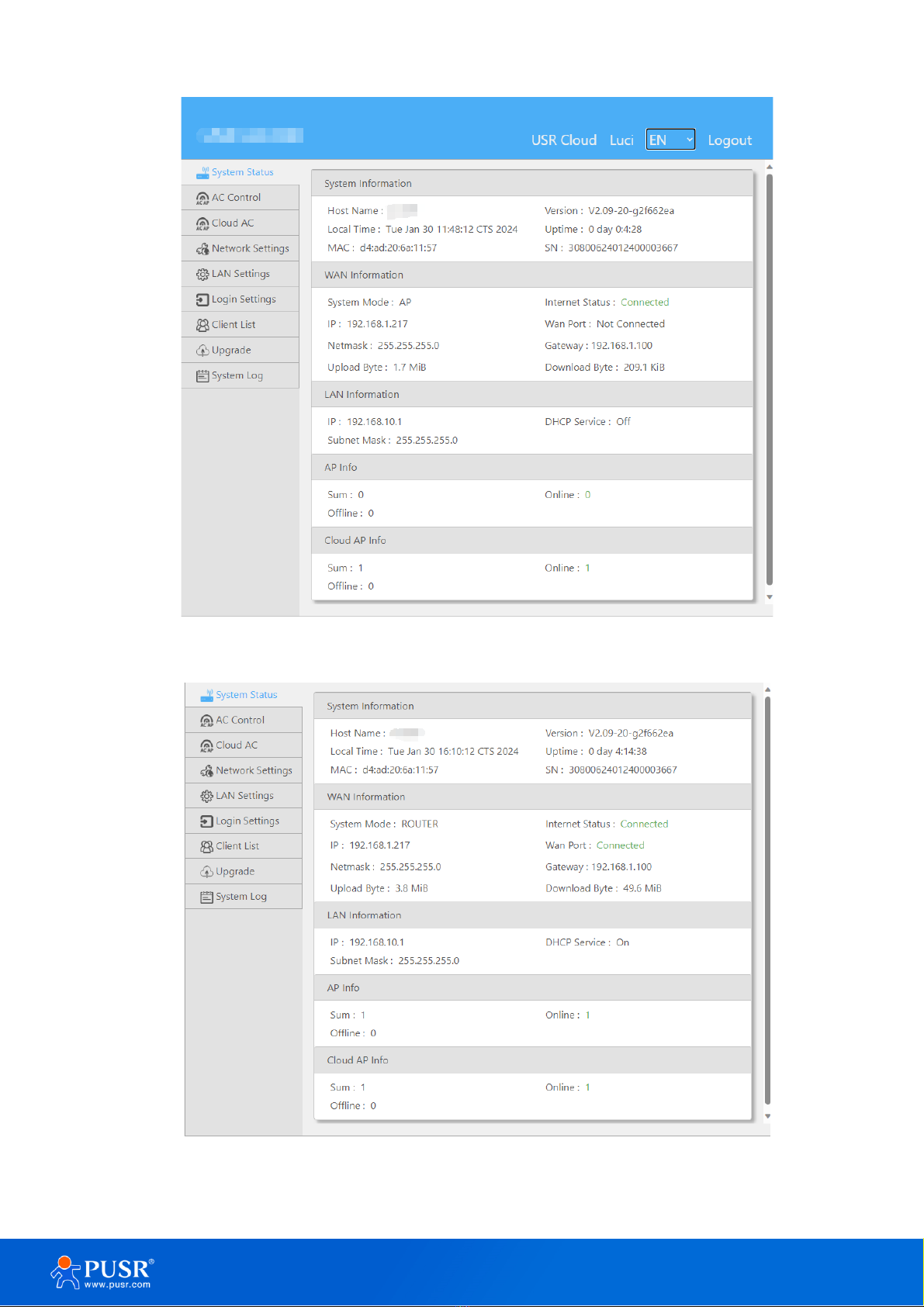
This interface displays the basic information of the router, including 5 major blocks: system information,
WAN port information, LAN port information, AP information and cloud AP information (Details will be introduced
later). The specific information is shown in the figure below.
Indice
Altri manuali PUSR Controllori