Q-See QC444 Manuale utente

1
H.264 NETWORK DVR
Variable CIF and D1 Recording Options
User Manual
MODEL QC444

2 3
THANK YOU FOR PURCHASING THIS Q-SEE PRODUCT.
EVERY EFFORT HAS BEEN MADE TO MAKE THIS DVR SIMPLE TO ASSEMBLE AND USE. HOWEVER, IF
YOU SHOULD RUN INTO ANY DIFFICULTIES DURING ITS INSTALLATION OR OPERATION, WE ARE HERE
FOR YOU.
© 2011 Q-See. Reproduction in whole or in part without written permission is prohibited. All
rights reserved. This manual and software and hardware described herein, in whole or in part,
may not be reproduced, translated, or reduced to any machine-readable form without prior
written approval.
Trademarks: All brand names and products are trademarks or registered trademarks of their
respective owners.
Q-See is a registered trademark of DPS, Inc.
Disclaimer: The information in this document is subject to change without notice. The
manufacturer makes no representations or warranties, either express or implied, of any kind
with respect to completeness of its contents.
Manufacturer shall not be liable for any damages whatsoever from misuse of this product.
Thank You for Choosing a Q-See Product!
All of our products are backed by a conditional service warranty covering all hardware for 12
months from the date of purchase. Additionally, our products also come with a free exchange
policy that covers all manufacturing defects for one month from the date of purchase.
Permanent upgrading service is provided for the software and is available at www.Q-See.com.
Be certain to make the most of your warranty by completing the registration form online. In
addition to warranty and technical support benefits, you’ll receive notifications of product
updates along with free downloadable firmware updates for your DVR. Register today at
www.Q-See.com!
Please see the back of this manual for exclusions.
This manual is written for the QC444 DVR and was accurate at the time it was completed.
However, because of our ongoing effort to constantly improve our products, and the different
capabilities of the two models additional features and functions may have been added since
that time and on-screen displays may change. We encourage you to visit our website at
www.Q-see.com to check for the latest firmware updates and product announcements.
This manual covers the setup and local operation of the DVR. Instructions for configuring the
DVR for remote access, along with instructions for monitoring the DVR using a computer or
mobile device, are contained within the Remote Monitoring Guide which is included on the
CD that accompanied your DVR and which can also be found on www.Q-See.com.
Throughout the manual we have highlighted warnings and other important information that will
assist you in operating your new system in a safe and trouble-free manner. Please take the
time to read and follow all instructions and pay attention to alerts as shown below:
About this Manual
NOTE! Text in blue boxes with the Information icon offer additional guidance
and explanations about how to make the most out of your system.
IMPORTANT! Red boxes with this icon indicate warnings. To prevent
possible injury or damage to the product, read all warnings before use.
Version 1.2 5/16/11

4 5
1. INTRODUCTION 7
2. CONNECTIONS AND CONTROLS 10
2.1 Front Panel 10
2.2 Rear Panel 11
2.3 Mouse Control 12
Virtual Keyboard 13
2.4 Remote Control 14
3. BASIC OPERATION 16
3.1 Operation 16
3.2 Live View 16
3.3 Login, Logout and Main Menu 17
Login 17
Main Menu 18
Shortcut Menu 18
Logout 19
Auto Resume 19
3.4 Recording 19
Manual Recording 19
3.5 Search and Playback 20
Search 21
Playback 22
3.6 Schedule 25
3.7 Motion, Video Loss and Camera Masking Detection 26
Motion Detection 26
Video Loss 27
Camera Masking 27
Event Response 27
3.8 Backup 29
4. MENUS 31
4.1 Main Menu 32
4.2 Info Menu 32
HDD Information 32
BPS 33
Log 33
Version 34
Online Users 34
4.3 Setting Menu 35
Encode 37
Snapshot 39
Schedule 40
Network 40
Default 41
4.4 Advanced 42
HDD Manage 42
Abnormality 43
Record 43
Account 43
Auto Maintainenance 44
TV Adjust 44
4.5 Backup 44
4.6 Shutdown 44
5. HARD DISK DRIVE 45
5.1 Installation/Removal 45
5.2 Calculating the Recording Capacity of a Hard disk Drive 47
APPENDIX 48
A.1 Troubleshooting 48
A.2 Minimum Computer Configuration 51
Q-SEE PRODUCT WARRANTY 52
Questions or Comments? Contact Us 53
TABLE OF CONTENTS

6 7
To prevent damage to your Q-See product or injury to yourself or to others, read and
understand the following safety precautions in their entirety before installing or using this
equipment. Keep these safety instructions where all those who use the product will read them.
nCheck the unit and any accessories included in the package immediately after opening. If
items are missing or damaged, repackage and return to the point of purchase.
n Use the proper power source. Only use the power adapter supplied with your system. Do
not use this product with a power source that applies more than the specified voltage (100-
240V AC).
nNever insert anything metallic into the DVR. Inserting anything into the DVR or its case can
be a source of dangerous electric shock.
nDo not operate in dusty areas. Avoid placing the DVR in places that are dusty.
nDo not expose this product to rain or use near water. If this product accidentally gets wet,
unplug it and contact an authorized dealer immediately.
nKeep product surfaces clean and dry. To clean the outside case of the DVR, gently wipe
using a lightly dampened cloth (only use water, do not use solvents).
nDo not operate this DVR without the cover securely in place. Do not attempt to do any
repairs to the DVR yourself. If there are unusual sounds or smells coming from the DVR,
unplug it immediately and contact Q-See technical support. Under no circumstances
should the cover be removed while the device is connected to a power source. You should
only remove the cover to install/replace the hard disk drive (See Chapter 5) or replace the
standard 3v lithium cell battery on the motherboard. These are the only user serviceable
parts. You may need to replace the battery if the internal clock resets itself after a power
outage
nHandle DVR box carefully. If you accidentally drop your DVR on any hard surface, it may
cause a malfunction. If the DVR doesn’t work properly due to physical damage, contact an
authorized dealer for repair or exchange.
nMake sure there is proper air circulation around the unit. This DVR system uses a hard drive
for video storage which generates heat during operation. Do not block air holes located on
the bottom, top, sides and back of the DVR as they are designed to keep the system cool
while running. Install or place this product in an area where there is ample air circulation.
nProvide proper ventilation. This DVR has a built-in fan that properly ventilates the system.
Do not cover or impede this fan.
INTRODUCTION CHAPTER 1
WARNING! ELECTRIC SHOCK RISK!

8 9
FEATURES AND SPECIFICATIONS
This combo DVR integrates a DVR (Digital Video Recorder) and LCD screen together. It is
an excellent digital monitor with a sleek appearance and innovative capabilities which are
functional and reliable.
It uses an embedded Linux OS to maintain stable operation and a popular H.264 compression
algorithm to produce high quality low bit stream footage that is easy to manage and efficient
to transfer over the internet. It can use various functions such as record, playback, and
monitoring at the same time and produces audio and video synchronization. This product has
advanced technology and strong network data transmission functions.
This combo DVR utilizes a high quality LCD capable of producing rich and vivid images. It’s
convenient 19-inch screen enables maximized viewing capabilities. This is an ideal system that can
be used in an in-home environment and a variety of business environments that require enhanced
monitoring capabilities such as: super markets, convenience stores, transportation, etc.
This product offers the following features:
Smartphone Compatible
Access live footage directly from your iPhone, or other Smartphone. Your DVR can also
be set to e-mail your hand held-device whenever specific activity occurs, such as motion
detection.
View Your Video Feed Online with No Service Fees
View your DVR’s live or recorded video footage on any Internet accessible computer with
Internet Explorer, Mozilla Firefox and Google Chrome (using IE plug-in).
Stay Notified with Customizable Email Alerts
Set your system up to notify you when an event has occurred at the location you are
monitoring. Notification alerts can easily be adjusted to your specifications.
Advanced Motion Detection Activated Recording
Advanced motion detection settings ensure that false alarms are not triggered. The easy to
use motion detect set up screen allows you to mask out certain areas which experience heavy
movement in order to avoid false alarms and avoid unnecessary record triggering.
Multiple Backup Options
A built-in USB port gives you the option of backing up and transferring your video footage
using a flash drive or external USB hard drive. You can also connect to an external CD/
DVD writer to burn your file footage right onto a compact disc or DVD disc. Files can also be
accessed from your DVR system to a remote computer location by logging on remotely.
Connect to a TV or PC Monitor Easily
This system comes with VGA and BNC video out ports to allow you to connect to a TV or
computer monitor for viewing purposes. You can utilize both outputs simultaneously.
Included Mouse and Remote Control
In addition to the front panel button controls, system can also be booted up and shut down
using the included remote control or mouse. Mouse operation function supports intelligent
operation by enabling copy and paste functions.
Storage Function
Encrypted file format to ensure data security and avoid vicious data modification.
Compression Format
Supports multiple-channel audio and video. Independent hardware decodes the audio and
video signal from each channel to maintain video and audio synchronization.
24/7 Scheduled Recording
Choose which days of the week and hours of the day you want to set your DVR to record or
not record.
Multiple Playback Options and Advanced Search Functions
Supports real-time recording on each channel independently. Search through recorded files
while you are playing live footage, monitoring through a remote location using a supported
internet browsing application and backing up system files. A variety of playback modes
include: slow play, fast play, backward play and frame by frame play.
Network Monitoring
Supports network remote real-time monitoring (available bandwidth permitting) and remote
record search.
Alarm Activation Function
Several relay alarm outputs enable you to pair your system with an on-site alarm system.
Communication Ports
s Standard Ethernet port allows you to access the DVR from a network or the Internet.
NOTE! Depending on your point of purchase, your DVR may have the hard
disk drive already installed. If your drive was packaged separately, or if you
wish to upgrade your installed drive up to a 2TB drive, please see Chapter 5
at the back of this manual which covers installing the drive.

10 11
CHAPTER 2 CONNECTIONS AND CONTROLS
2.1 FRONT PANEL
CONNECTIONS AND CONTROLS CHAPTER 2
PICTURE 2-1 PICTURE 2-2
1 2
6 7 98
3 4 5
1 2
7 8
3 4 5 6
Number Item Function
1Function
Button
Single Channel Viewing Mode: Opens Color Adjustment
Virtual Keyboard: Backspace function
2 IR Sensor Infrared Receiver for Remote Control
3 Escape Button Exit any menu or current operation
4 Enter Button Viewing Mode: Go To Menu
In Menu: Acts as mouse click
5Directional
Buttons
Navigate through menus.
Change selections in pull down menus (Up/Down buttons)
Toggle settings (Up/Down buttons)
6 Power Button Puts DVR into Standby mode or wakes it up.
7 Status Lights
Alarm: Not functional on this model
Net: Red light indicates that network connection is lost
HDD: Red light indicates that hard drive is operating
Power: Red light indicates that DVR is powered up
8 USB Port For use with flash drive when backing up or updating
firmware. Not for use with mouse.
2.2 REAR PANEL
Number Item Function
1 Video In Ports BNC Connectors for video feed from cameras (4)
2 Audio In BNC Connectors for audio feed from microphones (2)
3 Audio Out BNC Connector for audio output
4 USB Port USB port for mouse
5 Power Switch Turns DVR on or off. Use Shutdown menu function or front
panel power button before switching off.
6 Video Out BNC Connector to television
7 Network Ethernet cable connection to network
8 VGA Video Out To connect to a VGA monitor (19” or larger)
9 Power Input Connect 12V DC power supply here

12 13
CHAPTER 2 CONNECTIONS AND CONTROLS
MOUSE WHEEL Page up or page down
Switch items in check box
Increase or decrease numerical value in numerical input box
CLICK-AND-DRAG Select motion detection zone
Select privacy mask zone
2.3 MOUSE CONTROL
This DVR can be controlled through the USB mouse, the remote control or by using the
buttons on the front panel of the device. We have found that the majority of our customers
prefer to operate their DVRs using the USB mouse because of its ease of use and flexibility
and our manual is set up with this in mind. The remote control allows you to perform most of
the day-to-day functions from a convenient distance. It functions as a typical remote control
with additional buttons allowing you to navigate through menus and control functions. We
recommend that you configure your DVR using the mouse controls, reserving the remote
control for operations such as live viewing, file search and playback.
The mouse operates in a manner similar to how it is used on a conventional computer; point-
and-click, right-click, double click and so on. How these functions are used is based on the
context of where they are used. Some examples are:
LEFT CLICK: Selecting an item
Opening a menu
Checking a box or motion detection status
Selecting letters, numbers or symbols on the virtual keyboard.
DOUBLE CLICK: Selecting an event for playback
Selecting a screen to zoom into from multi-screen mode
PICTURE 2-3
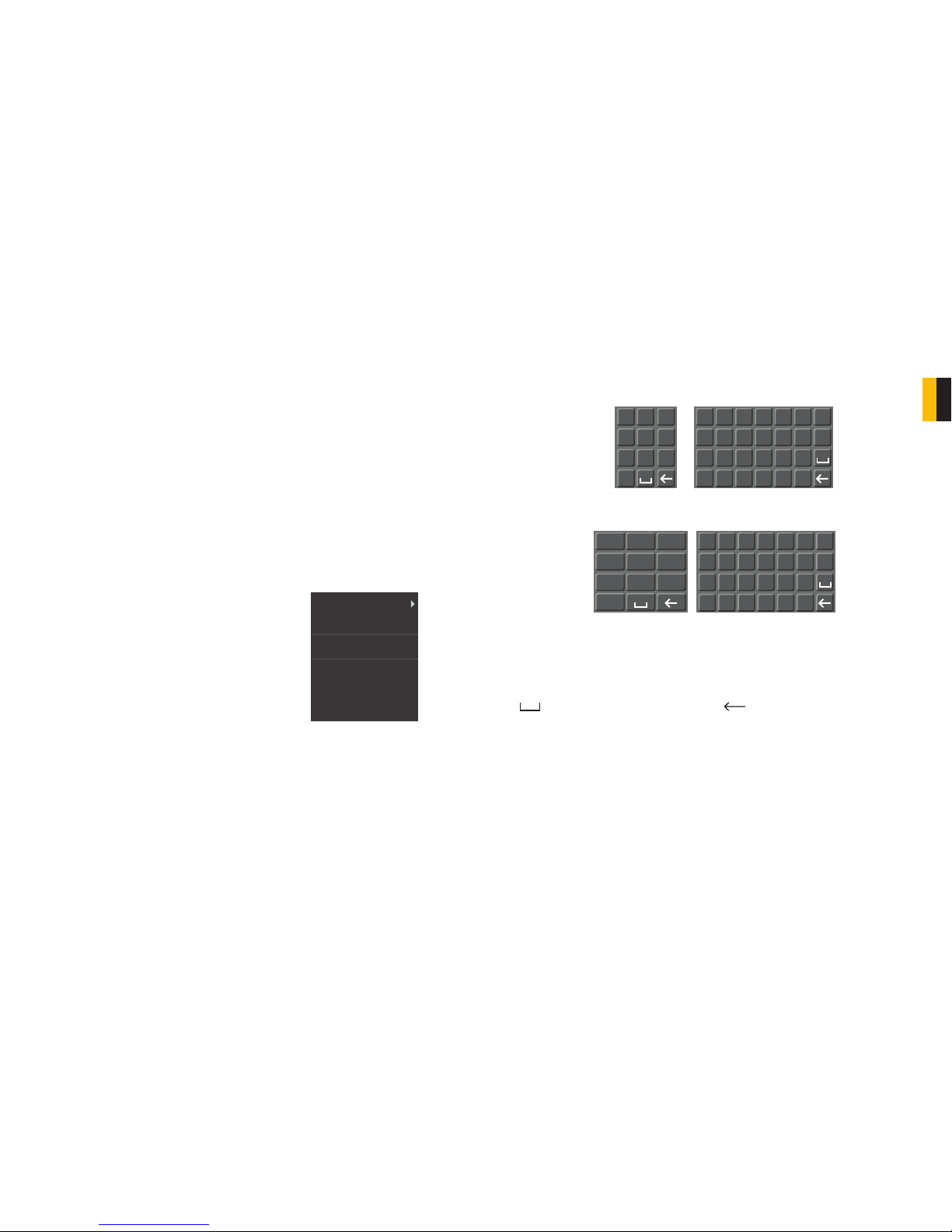
VIRTUAL KEYBOARD
The virtual keyboard is contextual. For example, it will only show digits when the field is for
numeral entries. In fields where letters and symbols can be entered, users can switch between
various formats – numbers, upper case, lower case and symbols – by selecting the white
keyboard symbol that will appear to the right of a field where text can be entered. The symbol
itself will change to show which keyboard format is available next.
Available keyboards include:
PICTURE 2-4
RIGHT CLICK Exits any window. Exits
any menu or reopens
previous menu.
Opens Pop-Up
Shortcut Menu
View 1
View 4
Color Setting
Search
Record
Main Menu
The keyboards are used by clicking on the desired character. Spaces are entered using the
symbol and characters are deleted with the key. Clicking outside of the keyboard
will close it.
12 3
54 6
87 9
0
1 /
4 ?
7
@
0
&
2 :
5 -
8 #
3 .
6 _
9%
a
h
o
u
b
i
p
v
c
j
q
w
d
k
r
x
e
l
s
y
f
m
t
z
g
n
A
H
O
U
B
I
P
V
C
J
Q
W
D
K
R
X
E
L
S
Y
F
M
T
Z
G
N
NUMBERS
SYMBOLS
UPPER CASE
LETTERS
LOWER CASE
LETTERS

14 15
CHAPTER 2 CONNECTIONS AND CONTROLS
2.4 REMOTE CONTROL
The buttons on the Remote Control operate in the same manner as on a conventional DVR
remote. Some buttons have multiple functions depending on which menu is being accessed.
PICTURE 2-5
Num Name Function
1 Multiple-window
switch
Switch between multiple-window and one-window view
2 0-9 number key Input password, channel or switch channel.
3 Record Start or stop recording manually
In record interface, working with the direction buttons to
select the channel to record
4 Enter /Menu key Go to default button
Go to the menu
5 Direction keys Switch current activated control, go to left or right.
In playback mode, it is to control the playback process bar.
6 Previous In playback mode, playback the previous video.
7 Next In playback mode, playback the next video.
8 Slow Play Multiple slow play speeds or normal playback.
9 Address Click to input device serial number
10 Function/Aux Key In 1-channel monitor mode: pop up assistant function
In motion detection interface, functions as a directional key
to complete setup
Backspace: Press for 1.5 seconds to clear all contents in
current text box.
In HDD information interface, used to switch between HDD
record time and other information
Special combined operation in some menus.
11 Escape/Cancel Go back to previous menu or cancel current operation
(close upper interface or control)
In playback mode, it goes to real-time monitor mode.
12 Stop In playback mode, stop current playback.
13 Forward Various forward speeds and normal speed playback.
14 Backward Various backward speeds and normal speed playback.
15 Play/Pause Reverse playback or paused mode, click this button to
realize normal playback.
In normal playback click this button to pause or resume
playback.
In real-time monitor mode, click this button to enter video
search menu.
16 Fast Forward Various fast speeds and normal playback.
Mult Add
., ABC DEF
GHI JKL MNO
PQRS TUV WXYZ
1
4
7
2
5
8
0
3
6
9
-/--
Record Fn
Enter/Menu
Esc
DVR
1
2
3
4
5
6
7
8
9
10
11
13
12
14
15
16

16 17
CHAPTER 3 BASIC OPERATION
BASIC OPERATION CHAPTER 3
This chapter is intended to get your system operational in a baseline format now that you’ve
connected your system and turned it on. It combines information and instructions on several
submenus and settings but may not mention all of the functions or options available in a given
menu. For many users, these basic operating instructions may be all they need to operate
their security system. But, because this system offers many more features, later chapters will
cover those additional operations in greater detail.
3.1 OPERATION
This DVR can be controlled through the USB mouse, the remote control or by using the
buttons on the right side of the device. For the purposes of this manual, instructions will be
given for using the mouse.
In operation, the mouse functions in the same manner as one would use a mouse attached
to a computer; point, click, right-click, and etcetera. In fields where data needs to be entered,
clicking on the field will bring up a virtual keyboard. (See Section 2.3 Mouse Control)
3.2 LIVE VIEW
Live View is the default mode for the DVR. It will display the video feeds from up to four
cameras and you do not need to be logged into the DVR to view or change the channel(s) on
the screen. The actual number of channels displayed depends on the number of cameras you
own. You can view a single channel in full-screen mode or four channels simultaneously.
Single Screen 4 Screens
PICTURE 3-1
Clicking on any one screen in multi-view mode will bring that screen to full-screen single-view
mode. The exception is in eight-view where clicking on one of the smaller displays will move it
to the larger display.
In addition to selecting the viewing mode from the Shortcut Menu using the mouse, you can
also cycle through the modes using the up and down arrows on the remote or the side of
the DVR. The left and right arrows on both the remote and DVR side panel will cycle through
which channels are displayed.
In Live View, along with the channel(s), you will see the system date and time displayed along
with the name and icons indicating the status of each channel. Setting the system date and
time and changing the channel names is covered in Section 4.3 under the Settings menu.
Digital Zoom
When the mouse cursor is in a channel display a white magnifying glass icon will appear in
the upper left corner of that image. Clicking on this icon will add a blue check mark to it and
you will be able to digitally zoom in on a section of the video feed by clicking and dragging to
select the area. Right-click or uncheck the icon to return to normal view. This action can be
performed in single or multi-screen viewing modes.
3.3 LOGIN, LOGOUT AND MAIN MENU
LOGIN
When the DVR starts up, the default video display is multiple window mode. Click Enter or
click the mouse and the System Login screen will be displayed.
Recording Motion detected
Video loss Camera lock
SYSTEM LOGIN
User Name
Password
admin
OK Cancel
12 3
54 6
87 9
0
123
PICTURE 3-2
Using the mouse, front panel buttons or remote control, enter your user name and password.
Whenever the cursor is over a text field, a keyboard icon will appear to the right. Clicking
within the field itself will open the virtual keyboard as explained in Section 2.3. Clicking on
the keyboard icon allows you to cycle between numbers, letters (upper and lower case) and
symbols when appropriate.
Until new accounts are added, there are three types of pre-configured accounts available to
users who log into the DVR:
• Administrator (local and network) Username: admin Password admin
• Local Administrator Username: 888888 Password: 888888
• User (can only monitor, back up and play back video)
Username 666666 Password 666666
You must have access rights – whether as the system administrator or logged-in user –
in order to change settings. See Account in Section 4.4 for information regarding user
accounts.

18 19
CHAPTER 3 BASIC OPERATION
Once you have logged in, the DVR will display one or more camera channels in Live View.
How many channels are displayed will depend on how many cameras you have connected as
well as what multi-view mode you have chosen.
After a period of inactivity – configurable in the General Setting submenu described in
Section 4.3 – the DVR will log users out. This will require the current user to re-enter their
password.
MAIN MENU
After logging in, you can view – and access - the DVR’s functions through the Main Menu.
IMPORTANT! It is highly recommended that you change your system
password after you log on for the first time. Record your changes and keep
that information stored securely as the system will prevent access if the
incorrect login information is attempted three times within a 30-minute period.
If you find yourself locked out of the DVR because of this, wait 30 minutes,
reboot the DVR and attempt to log into it again.
View 1
View 4
Color Setting
Search
Record
Main Menu
There are six submenus available; Search,
Info, Setting, Advanced, Backup and
Shutdown. Clicking on an icon will take you
to that function or the submenu it represents.
The Main Menu can be accessed at any
time from the Live View by right-clicking the
mouse and bringing up the Shortcut Menu.
Pressing the Return button on the side of the
DVR will also bring up the Main Menu.
SHORTCUT MENU
In Live View mode, right-clicking anywhere
on the screen will bring up the Shortcut
Menu.
This menu allows you to quickly change your
viewing mode as well as moving directly to a
selection of menus.
PICTURE 3-3
PICTURE 3-4
LOGOUT
Selecting the Shutdown icon in the Main Menu will open the Shut Down window.
This window allows you to choose to log out
as a user, shut down the system, restart the
system or switch users.
In addition, the DVR can also be shut down
by pressing on the front panel power button
for three seconds. The system will stop
operating and it can then be turned off via the
Power button on the rear of the DVR. PICTURE 3-5
PICTURE 3-6
PICTURE 3-7
AUTO RESUME
In the event of a power failure, the DVR will automatically save any video files it is currently
recording and will then resume scheduled operations once power is restored.
3.4 RECORDING
The DVR must be configured to record on a schedule, but you can start recording on any and
all channels using the Manual Recording option. For information on how to set recording
schedules and motion detection recording, please see Sections 3.6 and 3.7.
MANUAL RECORDING
This window allows you to override the scheduled recording times of selected cameras. You
can access the Record Menu via the Shortcut menu or by pushing the Record button on
the remote.
There are three status modes: Schedule, Manual and Stop. The status of each channel is
shown by the filled circle under its number. Each camera can only have one status at a time.
Changes take effect once the OK button is selected.
Manual – The selected cameras will begin
recording
Schedule – Cameras record based on your
settings made in the Schedule Menu or
Detect Menus (See Sections 3.6 and 3.7
respectively)
Stop – All selected cameras stop recording
You can assign the same values to all
cameras by selecting the desired status in the
“All” column.
Indice
Altri manuali Q-See Registratore digitale

Q-See
Q-See QH25DVR4C Manuale utente

Q-See
Q-See QC3016-12E4-1 Manuale utente

Q-See
Q-See QS434 Manuale utente

Q-See
Q-See QS218 Manuale utente

Q-See
Q-See QSD2316L Guida utente

Q-See
Q-See QSDR44KRTC-320 Manuale utente

Q-See
Q-See QT17DVR4C Manuale utente

Q-See
Q-See QSTD2404 Manuale utente

Q-See
Q-See QSD9004 series Manuale utente

Q-See
Q-See QT SERIES Manuale utente

Q-See
Q-See QT17DVR4C Manuale utente

Q-See
Q-See QSDR74RTS Manuale utente

Q-See
Q-See QC-SERIES Manuale utente

Q-See
Q-See QC-SERIES Manuale utente

Q-See
Q-See QC-SERIES Manuale utente

Q-See
Q-See QC3016 Manuale utente

Q-See
Q-See QSDT8DP Manuale utente

Q-See
Q-See QSD004 Manuale utente

Q-See
Q-See QSD2308L Manuale utente

Q-See
Q-See QT SERIES Manuale utente